OZEKI https://ozekivoice.com | ||||||||||||||||||||||||||||||||||||||||||||||||||||||||||
https://ozeki.hu/p_2032-front.html
https://ozeki.hu/p_1046-toc.html
Table of Contentshttps://ozekivoice.com/p_9347-introduction-to-ozeki-voice.html
Introduction to Ozeki Voice KeyboardOzeki Voice Keyboard is a Windows application that allows you to type text using only your voice. Simply hold down Ctrl + Alt, speak into your microphone, and release the hotkey—the transcribed text will be automatically pasted into the active window. This guide gives you a short introduction on how Ozeki Voice Keyboard works. Main features:
How does it workThe diagram below illustrates how Ozeki Voice Keyboard works.
sequenceDiagram
participant Human
participant SpeechDetector as Speech Detector
participant LLM as LLM
Human->>SpeechDetector: Voice Input (audio)
SpeechDetector-->>Human: Transcription (text)
Human->>LLM: Transcription (text)
LLM-->>Human: AI Response from LLM (text)
See it in actionView the following video to see Ozeki Voice Keyboard in action:
How to make it smarter: How can you use it
Step 1 - Launch Ozeki Voice KeyboardLaunch the Ozeki Voice Keyboard application on your Windows system. Once started, the application runs in the background and is always ready to capture your voice input without interfering with your other open applications (Figure 1).
Step 2 - View hotkeys in the bottom right cornerAfter launching, a small overlay appears in the bottom right corner of your screen showing the available hotkeys. This gives you a quick reference for both features (voice transcription and the AI assistant) without having to open any menus (Figure 2).
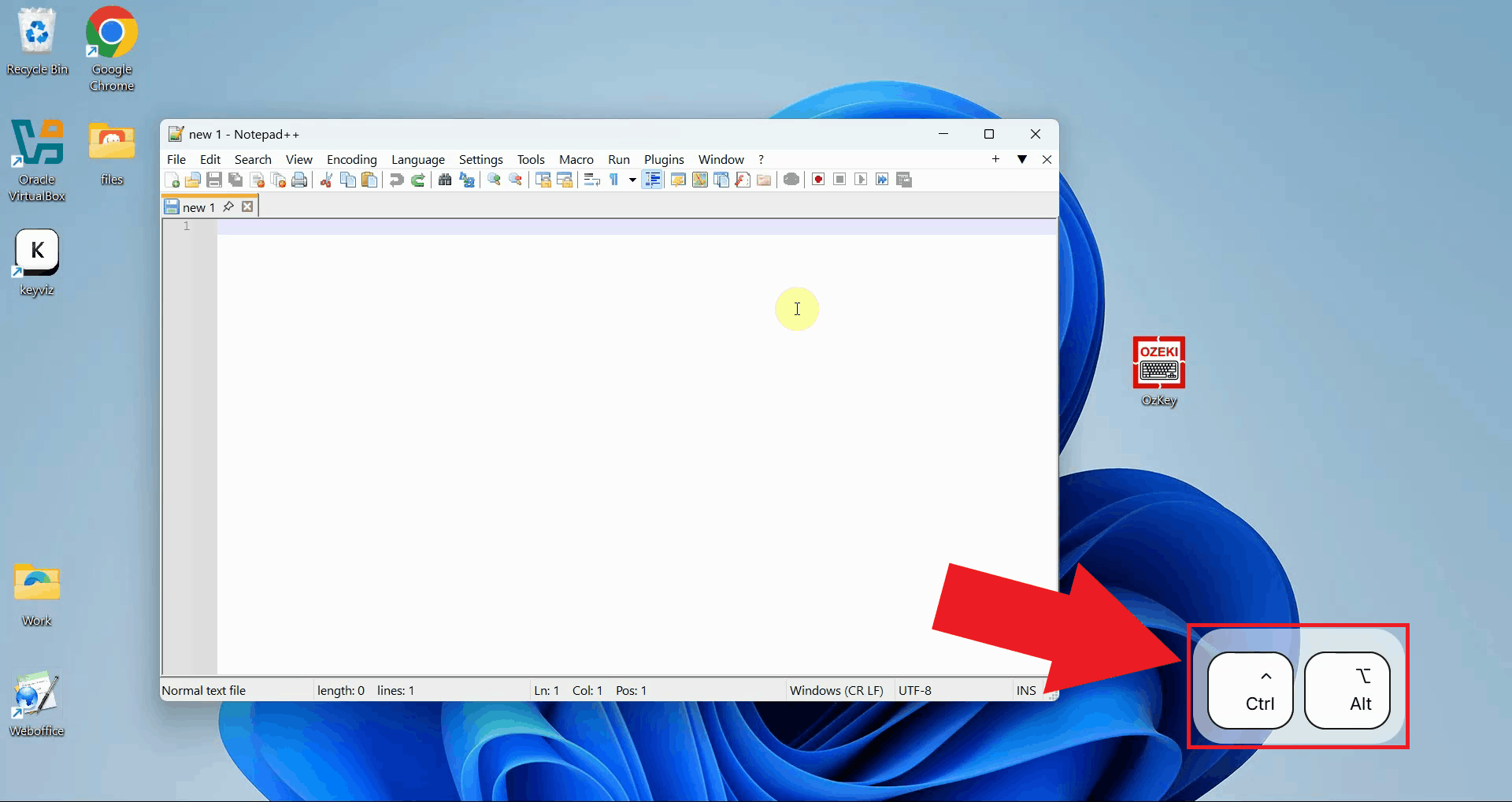
Step 3 - Use the hotkey for transcriptionClick into any input field or document where you want to insert text, then press and hold Ctrl + Alt. The application will record your voice for as long as the keys are held down, so speak clearly into your microphone and release them only when you have finished (Figure 3).
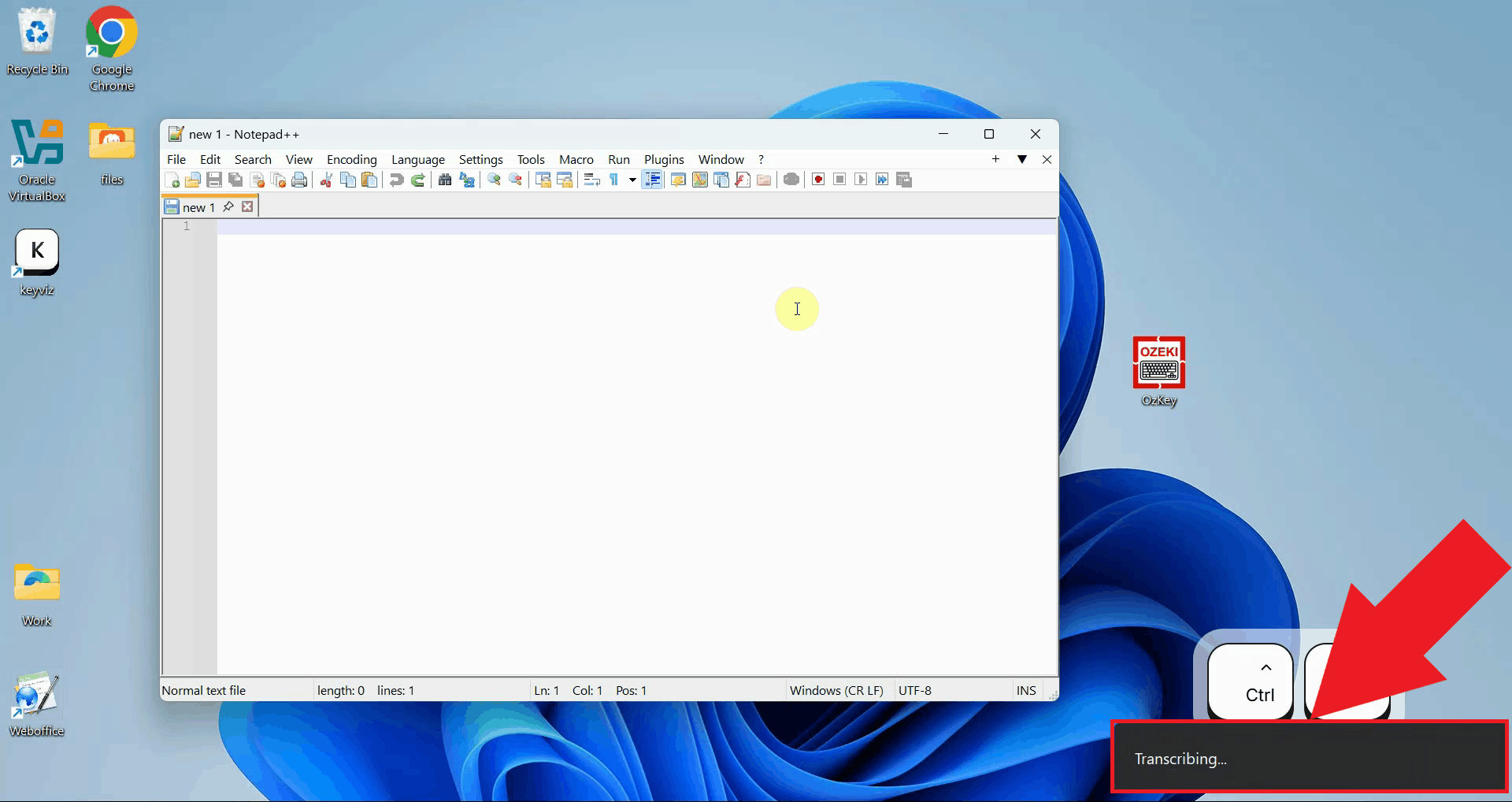
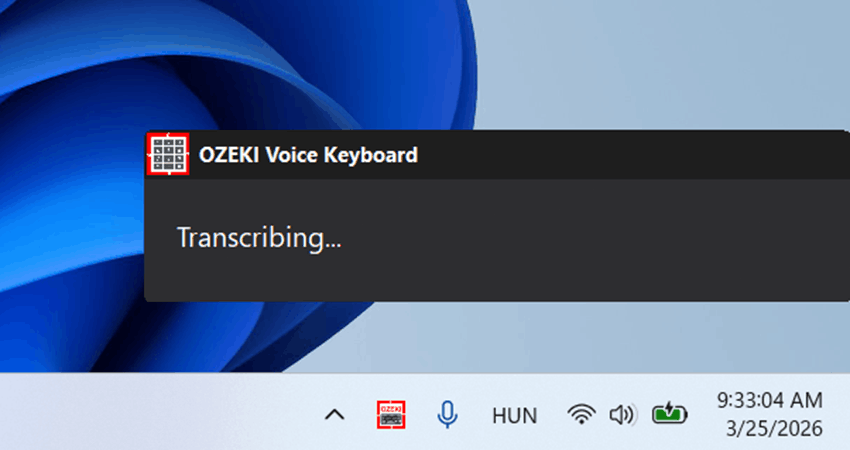
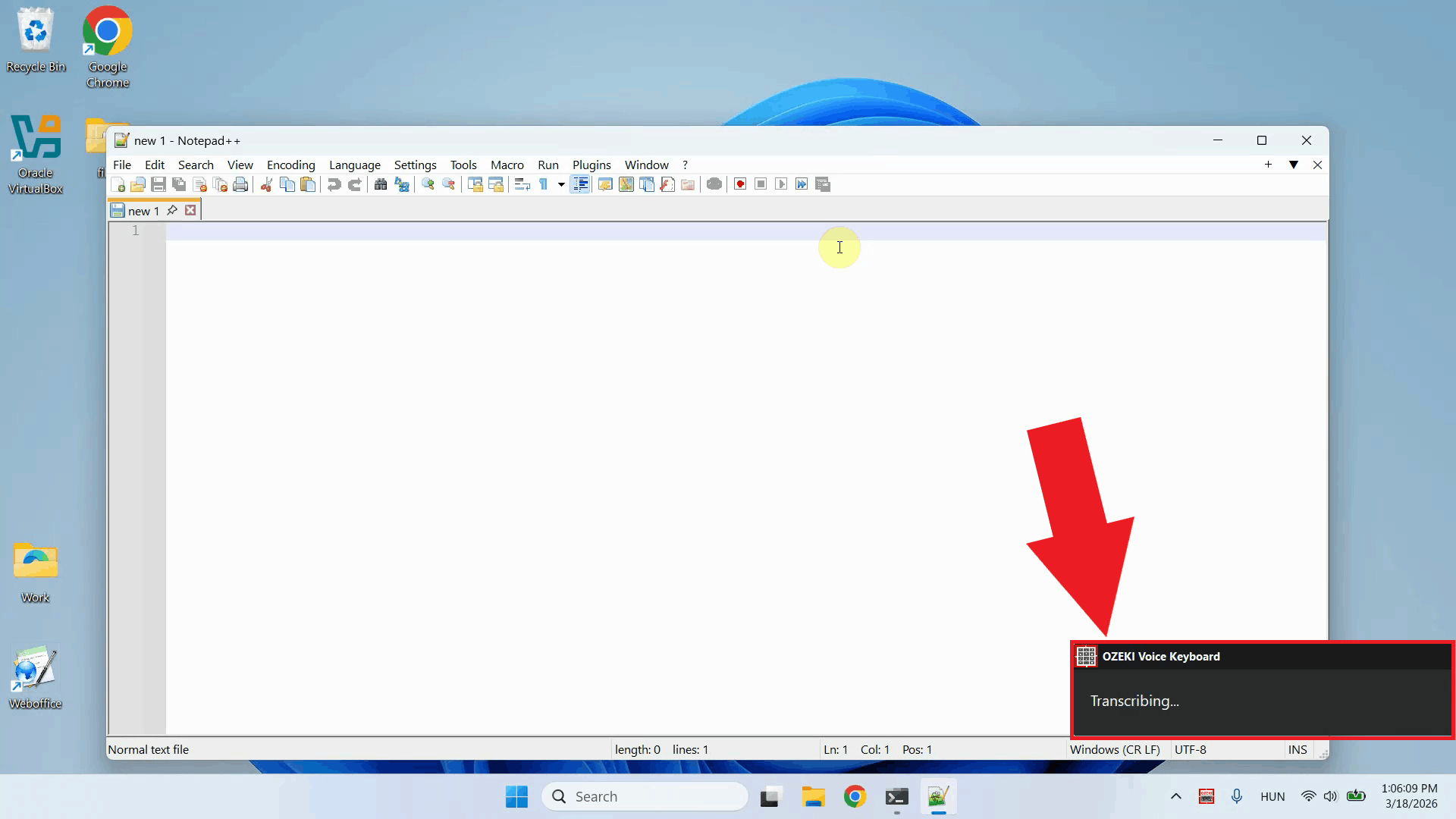
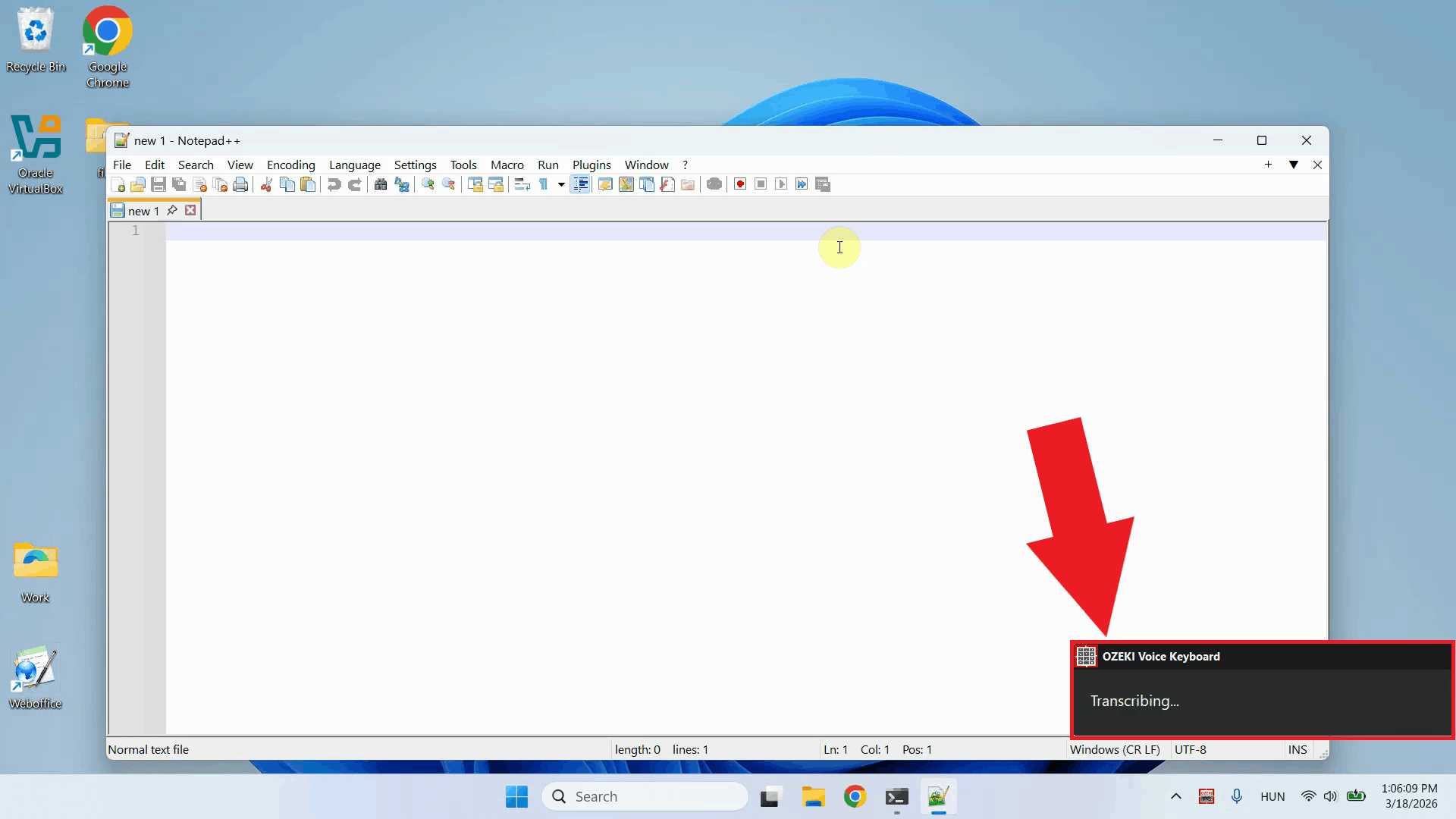
After releasing the keys, the recorded audio is sent to the speech recognition model for transcription. A brief processing indicator will appear while your recording is being analyzed and converted to text (Figure 4).
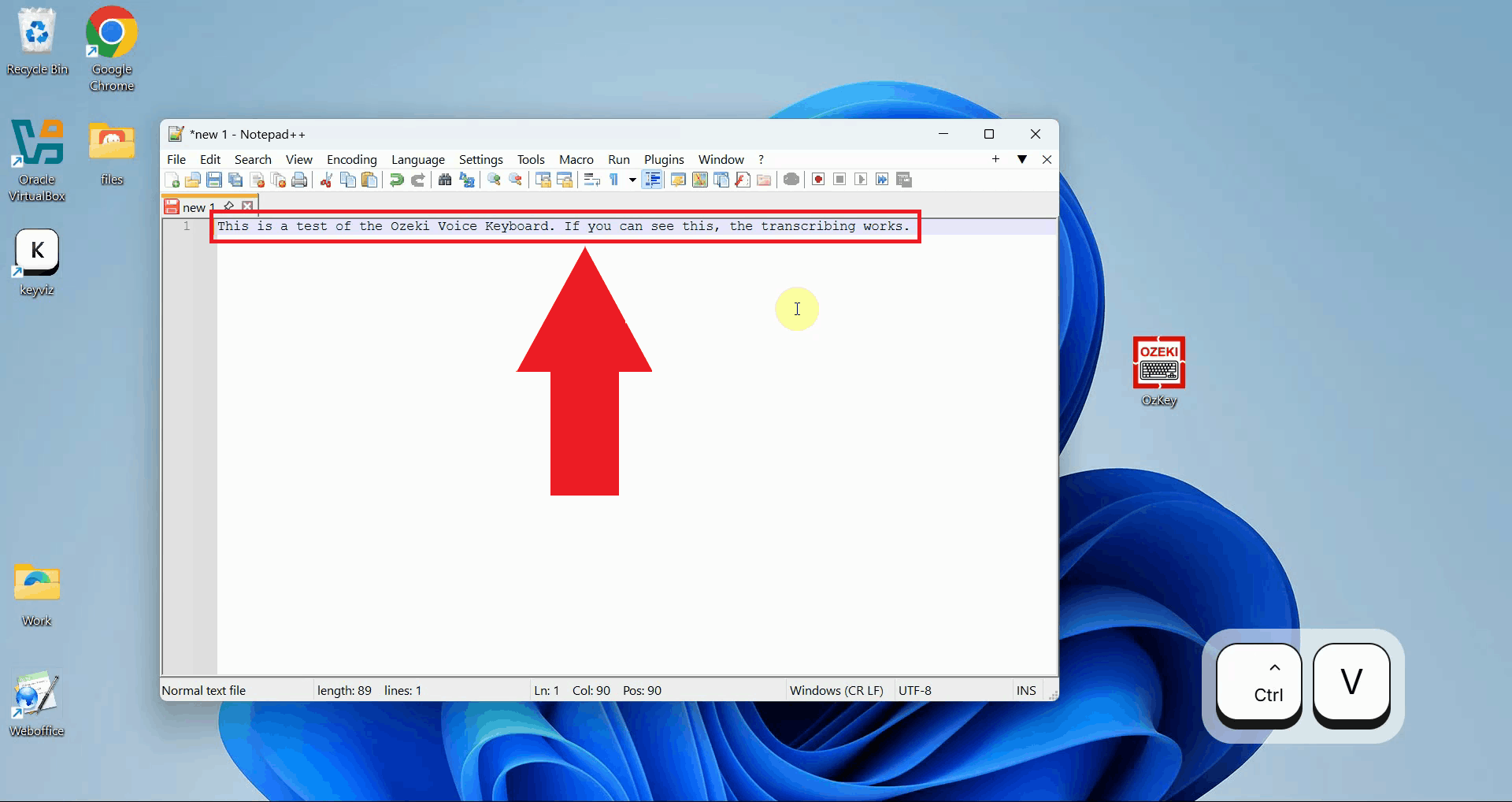
Once transcription finishes, the resulting text is automatically pasted into the input field that was active when you started recording. No manual copying or pasting is required - the text appears instantly in your textbox, document, or any other field that was selected, exactly as if you had typed it with a keyboard (Figure 5).
Step 4 - Ask the AI assistant a questionThe following video shows how to use the AI assistant feature of Ozeki Voice Keyboard.
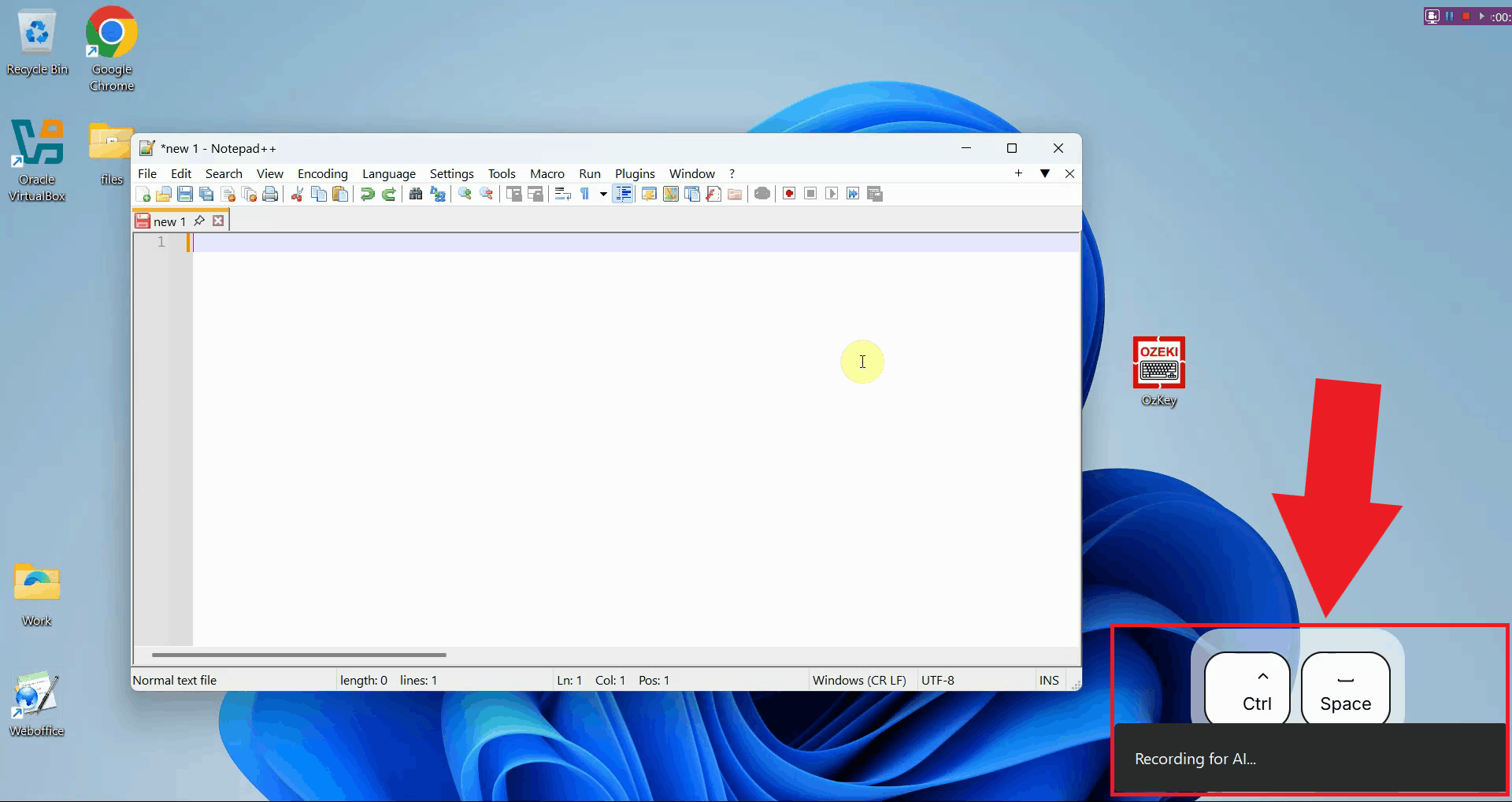
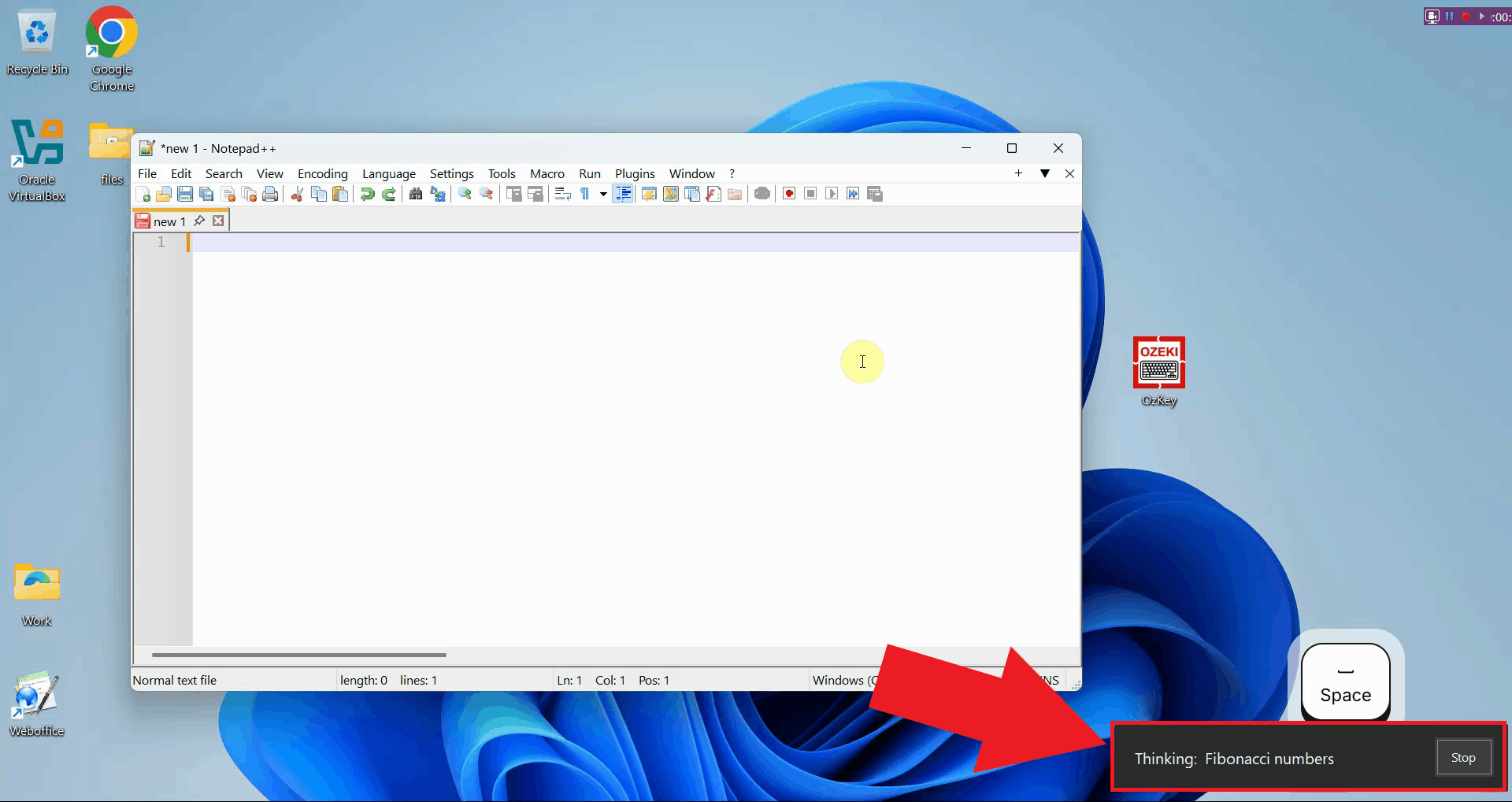
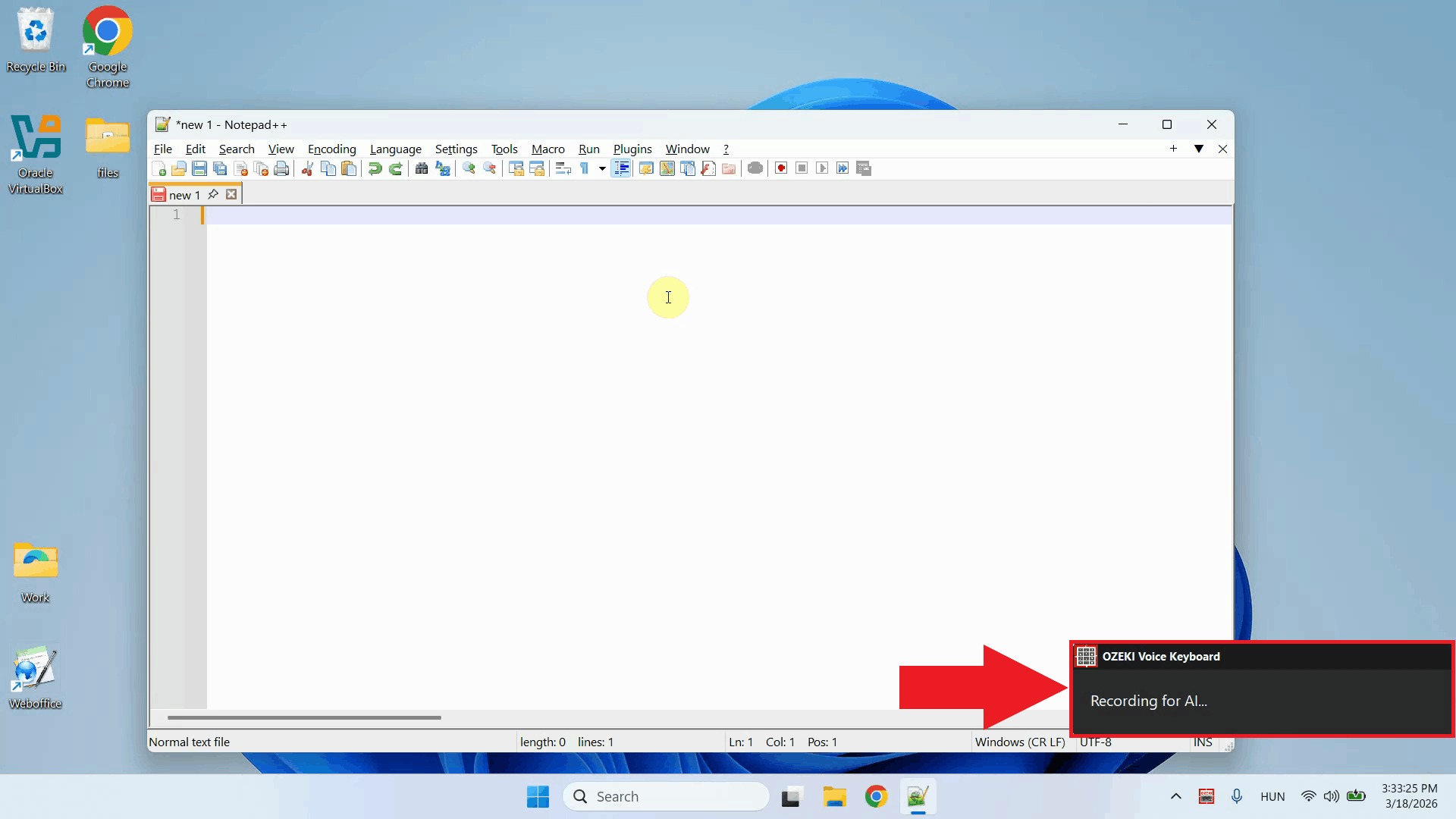
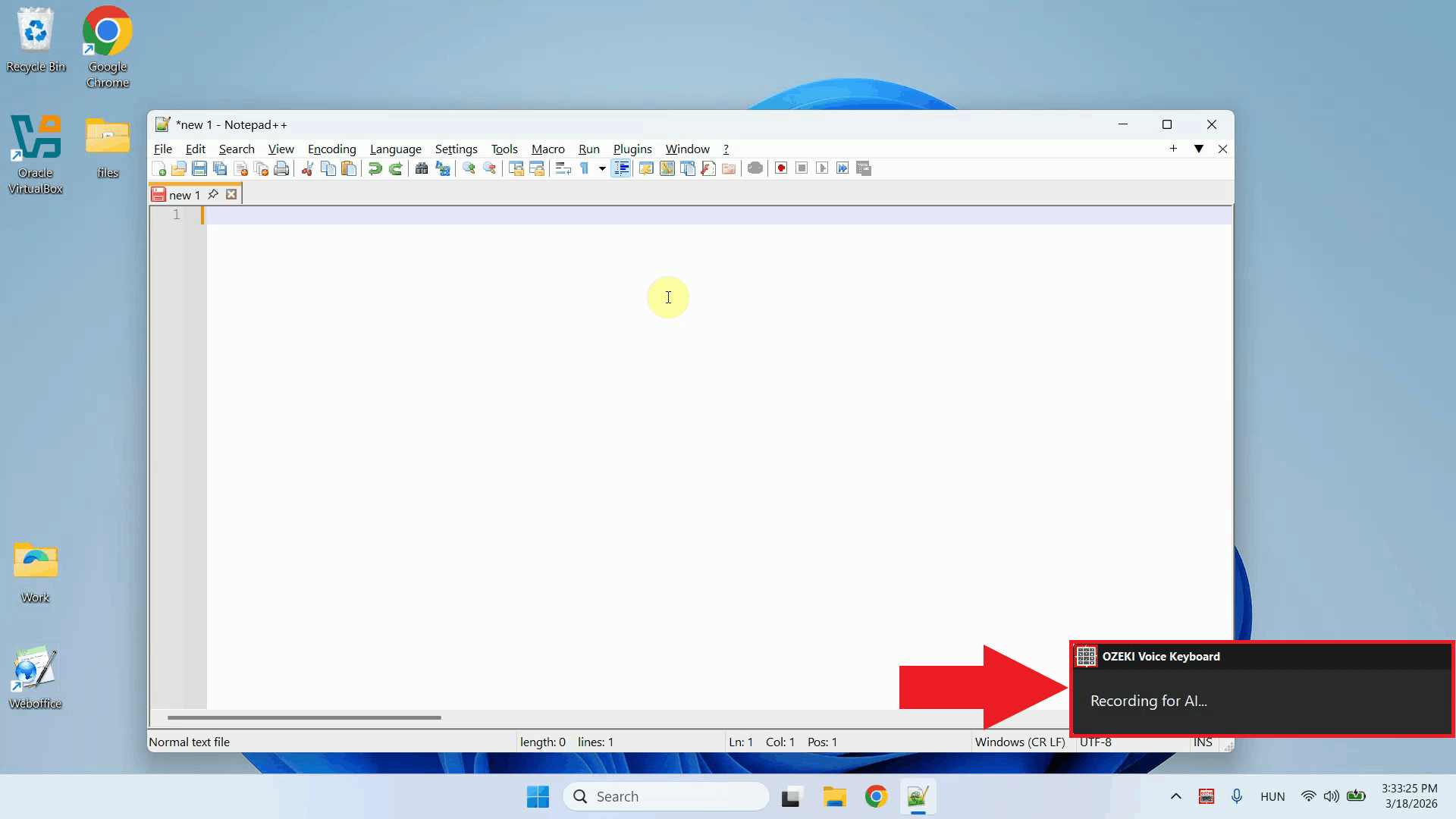
Place your cursor in any input field where you want the response to appear, then press Ctrl + Space and speak your question into the microphone. In this example, the AI is asked to generate a code snippet for calculating Fibonacci numbers (Figure 6).
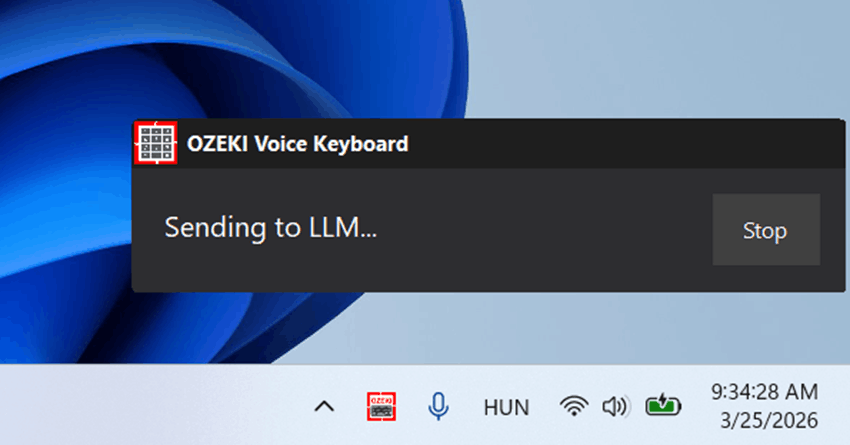
After releasing the keys, the question is sent to the configured AI model for processing. You will see a brief indicator while the model generates its response (Figure 7).
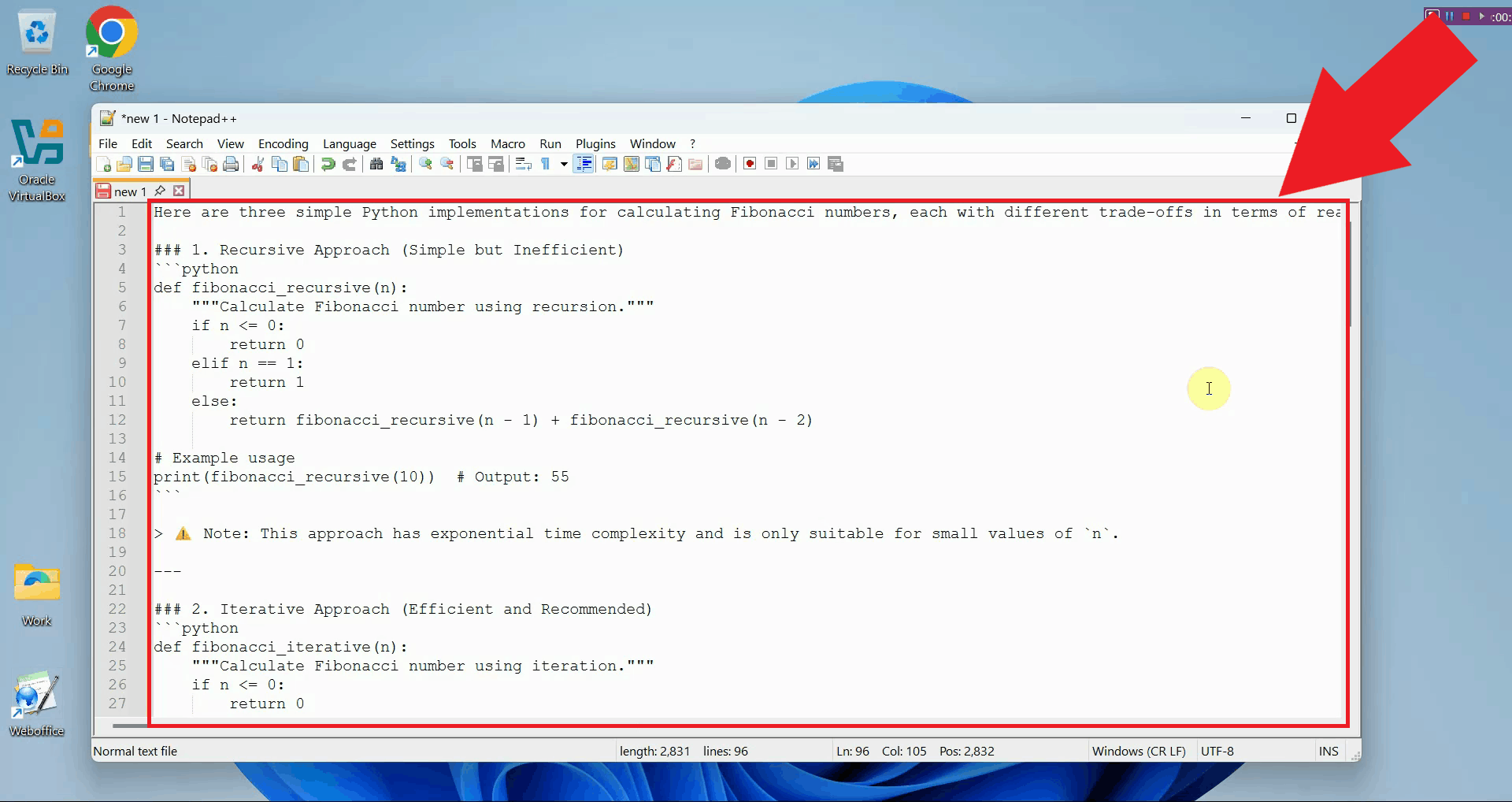
Once the model finishes, the response is automatically typed into the active input field. In this example, the AI generated a code snippet, which was pasted into the editor without any manual intervention (Figure 8).
Final thoughtsYou have successfully learned how to use both features of Ozeki Voice Keyboard on Windows. Whether you need to quickly dictate text or generate AI-powered responses, both tools work entirely hands-free and deliver results directly into any input field on your system.
https://ozekivoice.com/p_469-screenshots-of-ozeki-voice-keyboard.html Ozeki Voice Keyboard Screenshots
https://ozekivoice.com/p_470-feature-list-of-ozeki-voice-keyboard.html T-MOBILE-CZ VPN SETUP on Fedora Core 3 Linux
Network requirementsOzeki Voice Keyboard communicates with external AI services over HTTP. An internet connection is required when using cloud-based speech recognition or LLM providers. If both the voice transcription model and the LLM are hosted locally on your network, the application can operate fully offline without any internet access. AI service requirements
For voice transcription, any OpenAI-compatible
Software dependenciesOzeki Voice Keyboard has no external software dependencies that require manual installation. All required libraries are bundled within the installer package.
https://ozekivoice.com/p_9350-ozeki-voice-keyboard-screenshots.html Ozeki Voice Keyboard ScreenshotsExplore Ozeki Voice Keyboard in action. The screenshots below provide a visual overview of the application's key features, including voice transcription, the AI assistant, microphone and model configuration, and the hotkey settings panel. Figures 1 and 2 show the two core features of Ozeki Voice Keyboard - voice-to-text transcription and the AI assistant. Figures 3 to 7 show the various configuration windows available through the system tray context menu.
https://ozekivoice.com/p_9351-ozeki-voice-keyboard-features.html Ozeki Voice Keyboard FeaturesVoice transcription
AI assistant
Hotkey settings
Integration and compatibility
https://ozekivoice.com/p_9352-ozeki-voice-keyboard-datasheet.html Ozeki Voice Keyboard DatasheetThis page provides a complete technical overview of Ozeki Voice Keyboard, including product details, system requirements, supported protocols, and feature specifications. Product information
Technology
API connectivity
GUI layout
Installation and removal
https://ozekivoice.com/p_9348-user-guide-for-ozeki-voice-keyboard.html Ozeki Voice Keyboard User GuideThis article provides configuration guides for Ozeki Voice Keyboard, a voice input application that enables speech-to-text transcription and AI-powered assistance. The guides cover essential setup steps including microphone selection, LLM service configuration, and voice service setup. Whether you're setting up voice input for the first time or optimizing your existing configuration, these step-by-step guides walk you through each process with clear instructions. How to select the Microphone in Ozeki Voice KeyboardLearn to select and configure your preferred microphone for Ozeki Voice Keyboard. Access settings via the system tray icon and choose from available audio input devices. Save your selection to enable voice recording and transcription for optimal speech recognition accuracy. How to select the Microphone in Ozeki Voice KeyboardHow to setup LLM service in Ozeki Voice KeyboardConfigure the AI assistant by setting up your LLM service connection. Access settings through the system tray, enter your API URL, select a model, and provide your API key. Works with any OpenAI-compatible endpoint for AI-powered assistance. How to set up your LLM service in Ozeki Voice KeyboardHow to setup Voice service in Ozeki Voice KeyboardSet up speech-to-text transcription by configuring the Voice service. Access settings via the system tray, enter your Whisper-compatible API endpoint, specify the model, and add your API key. Your voice input will be automatically transcribed. How to set up your Voice detection service in Ozeki Voice KeyboardOzeki Voice Keyboard for BusinessGet the business license for full on-premises deployment with central configuration and management. Includes local AI models, cloud integration, security features, technical support, high availability, and team management tools with no installation limits. Ozeki Voice Keyboard for BusinessHow to improve productivity with Ozeki Voice KeyboardDiscover tips and techniques to boost your productivity using voice input and AI assistance features in Ozeki Voice Keyboard. How to improve productivity with Ozeki Voice KeyboardOzeki Voice Keyboard - Configuration GuidesThis section contains comprehensive guides for configuring and using Ozeki Voice Keyboard, including microphone selection, LLM service setup, voice service configuration, business licensing options, and productivity enhancement tips.
https://ozekivoice.com/p_9323-how-to-select-the-microphone-in-ozeki-voice-keyboard.html How to select the Microphone in Ozeki Voice KeyboardThis guide demonstrates how to select and configure the microphone used by Ozeki Voice Keyboard. You will learn how to access the microphone settings through the system tray icon and choose your preferred input device from the available list. Steps to follow
How to select the microphone videoThe following video shows how to select the microphone in Ozeki Voice Keyboard step-by-step. The video covers locating the tray icon, opening the microphone settings, and selecting your preferred input device.
Step 1 - Find the Voice Keyboard tray iconOzeki Voice Keyboard runs in the background and can be accessed through the Windows system tray in the bottom right corner of your taskbar. If you do not see the icon, click the arrow to expand the hidden tray icons (Figure 1).
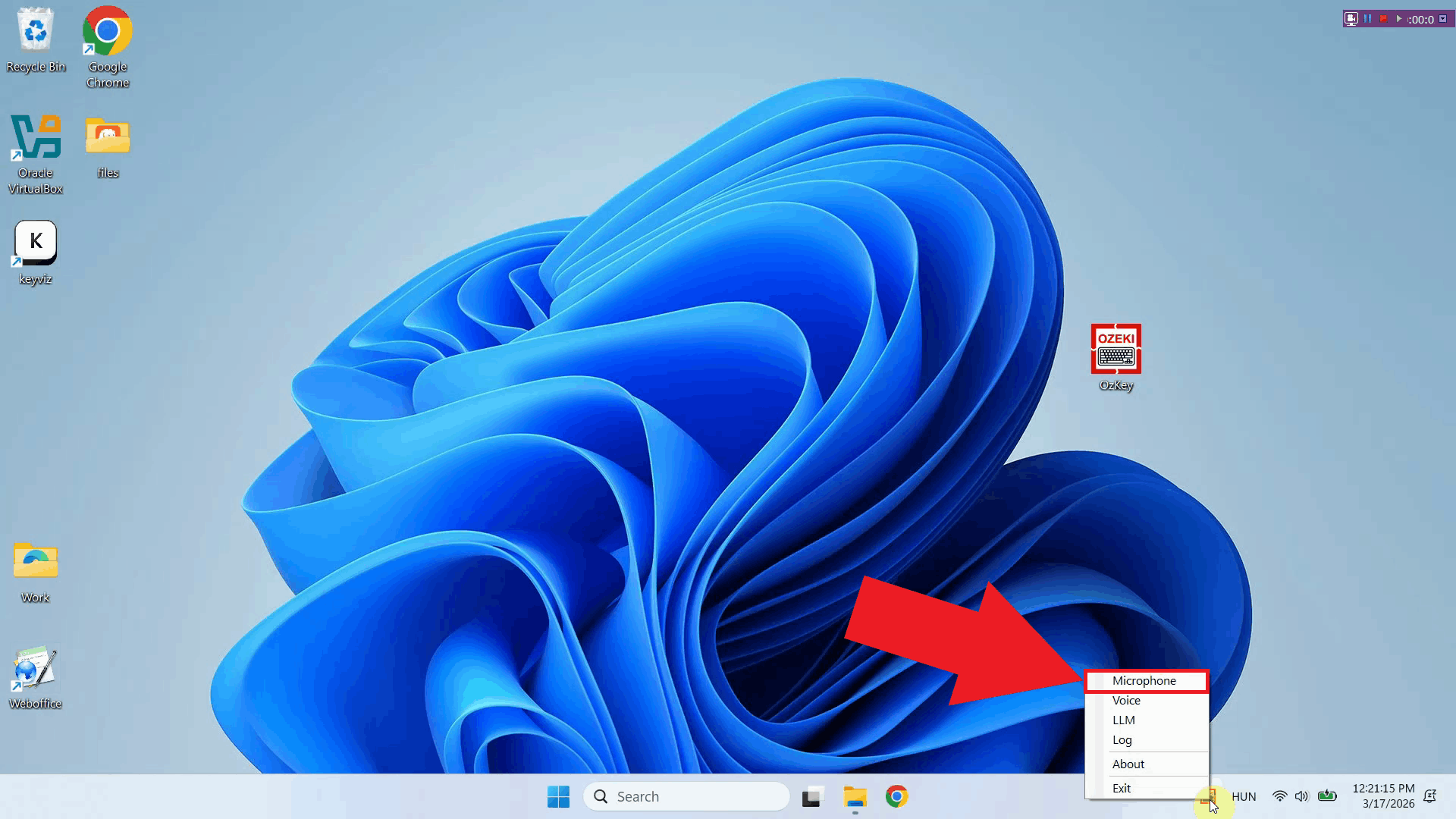
Step 2 - Open microphone settingsRight-click the Ozeki Voice Keyboard tray icon to open the context menu. From the menu, select the microphone settings option to open the microphone configuration window (Figure 2).
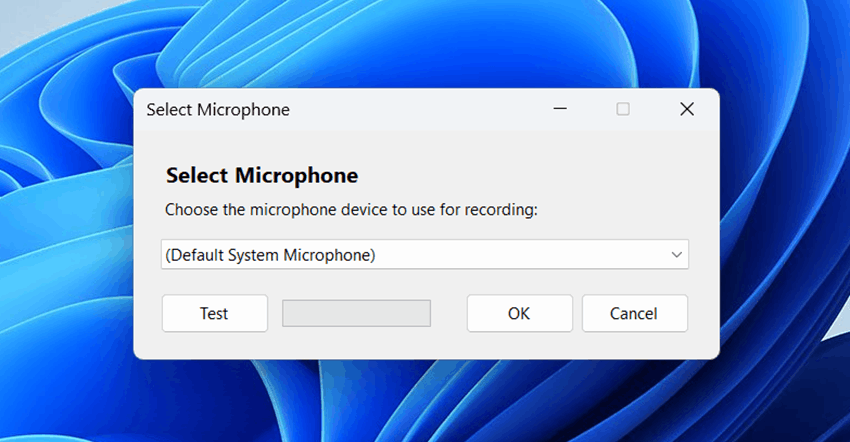
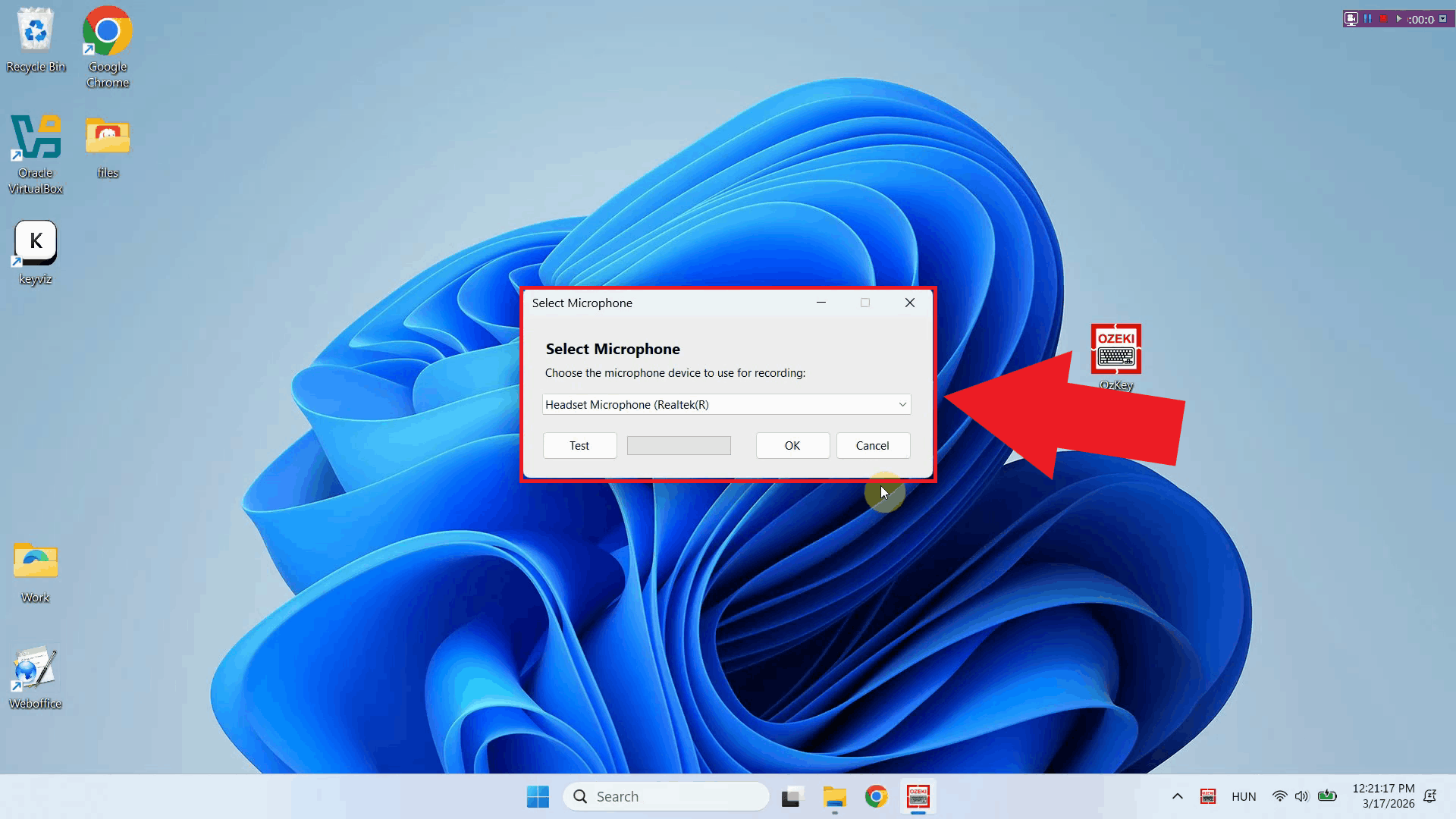
The microphone selection window lists all audio input devices currently available on your system. This includes any built-in microphones, USB microphones, headsets, or other recording devices that are connected and recognized by Windows (Figure 3).
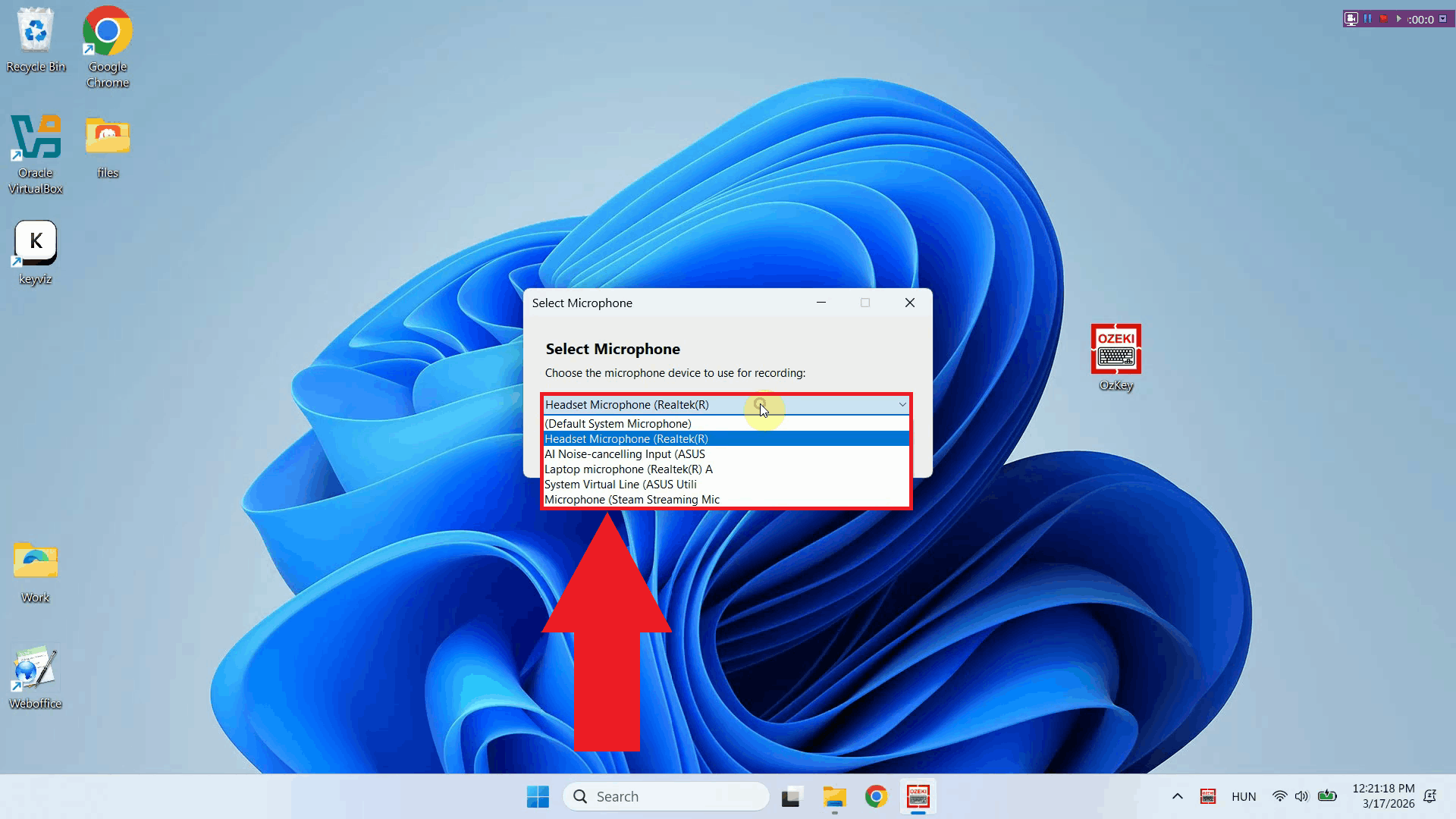
Step 3 - Choose preferred microphoneClick the dropdown list to see all available microphone devices and select the one you want Ozeki Voice Keyboard to use for recording. Choose the device that best suits your setup - for example, a dedicated USB microphone or headset will generally produce better transcription results than a built-in laptop microphone (Figure 4).
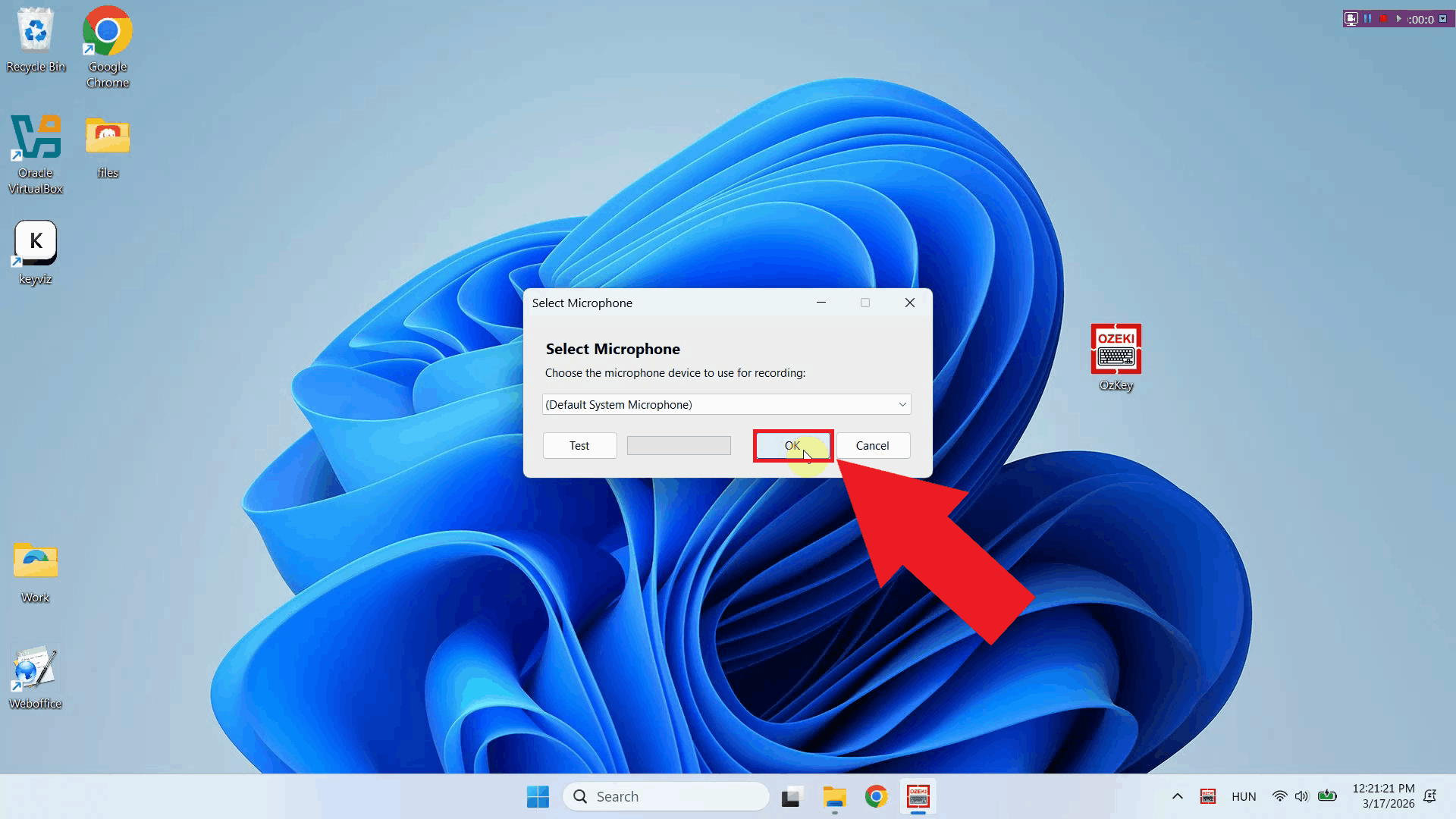
Step 4 - Save microphone settingsOnce you have selected your preferred microphone, click OK to save the configuration. Ozeki Voice Keyboard will now use the selected device for all future voice recordings. You can return to this settings window at any time to switch to a different microphone if needed (Figure 5).
To sum it upYou have successfully configured the microphone for Ozeki Voice Keyboard. The application will now use your selected input device when recording voice for transcription, helping ensure the best possible speech recognition accuracy for your setup.
https://ozekivoice.com/p_9324-how-to-set-up-your-llm-service-in-ozeki-voice-keyboard.html How to set LLM service in Ozeki Voice KeyboardThis guide demonstrates how to configure the LLM service used by Ozeki Voice Keyboard for its AI assistant feature. You will learn how to access the LLM API settings through the system tray icon and enter your API URL, model, and API key. Steps to follow
How to set your LLM service videoThe following video shows how to set the LLM service in Ozeki Voice Keyboard step-by-step. The video covers locating the tray icon, opening the LLM API settings, and entering the connection details for your chosen AI service.
Step 1 - Find the Voice Keyboard tray iconOzeki Voice Keyboard runs in the background and can be accessed through the Windows system tray in the bottom right corner of your taskbar. If you do not see the icon, click the arrow to expand the hidden tray icons (Figure 1).
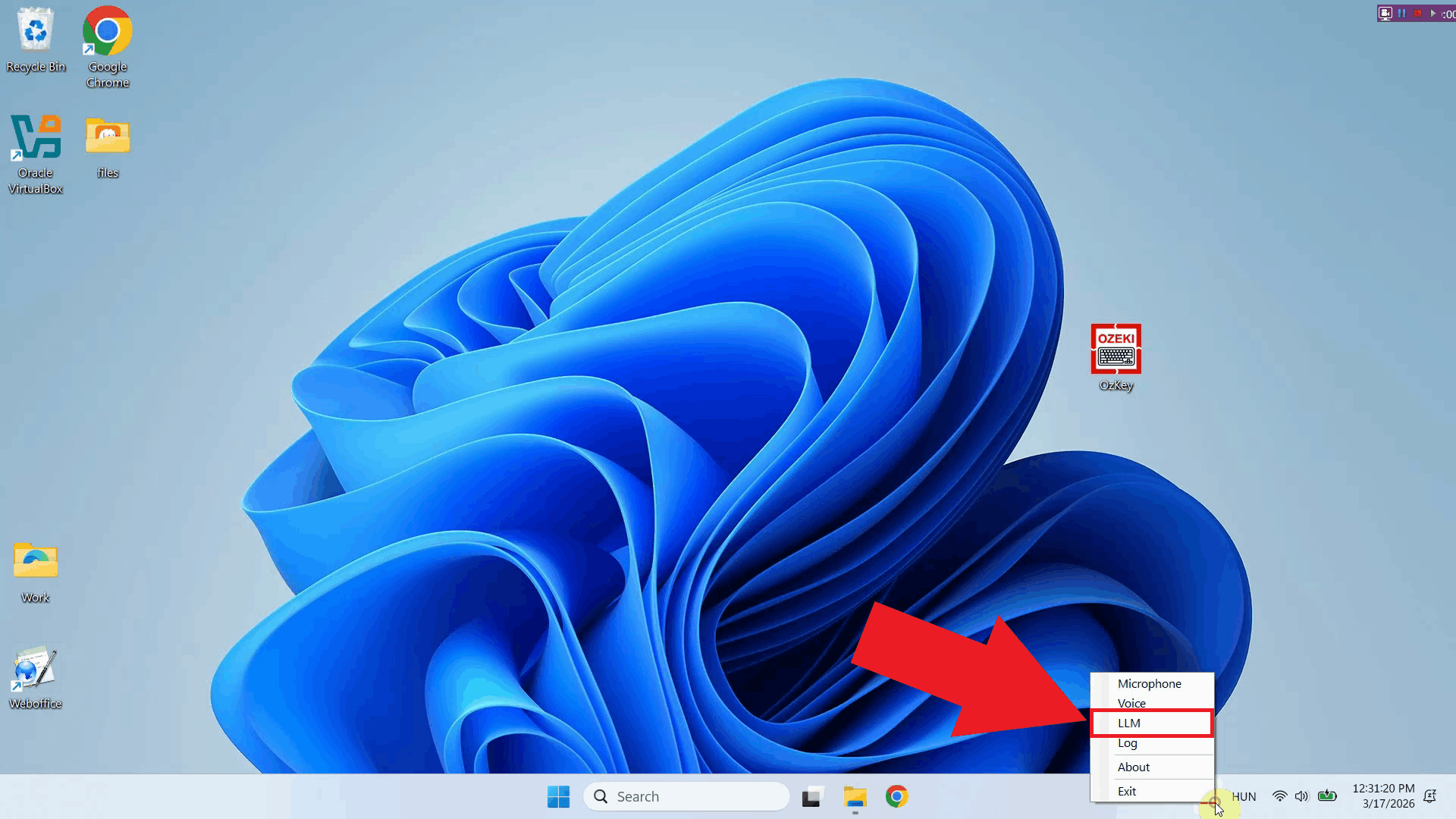
Step 2 - Open LLM API settingsRight-click the Ozeki Voice Keyboard tray icon to open the context menu. From the menu, select the LLM settings option to open the configuration window where you can enter your AI service connection details (Figure 2).
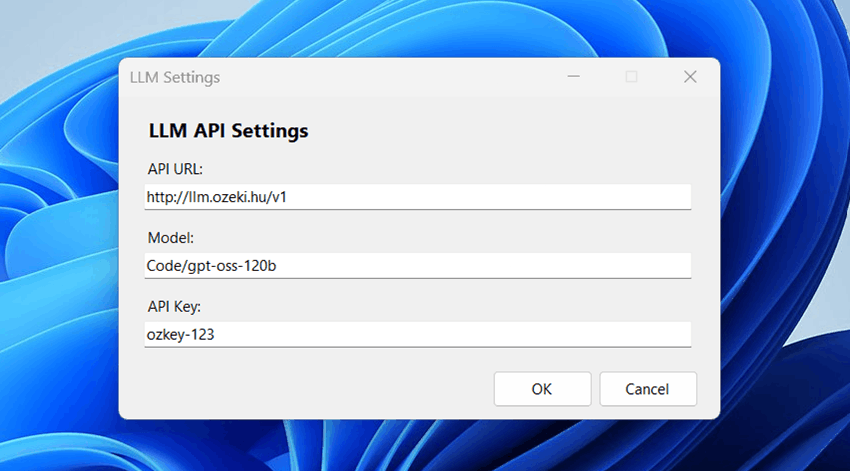
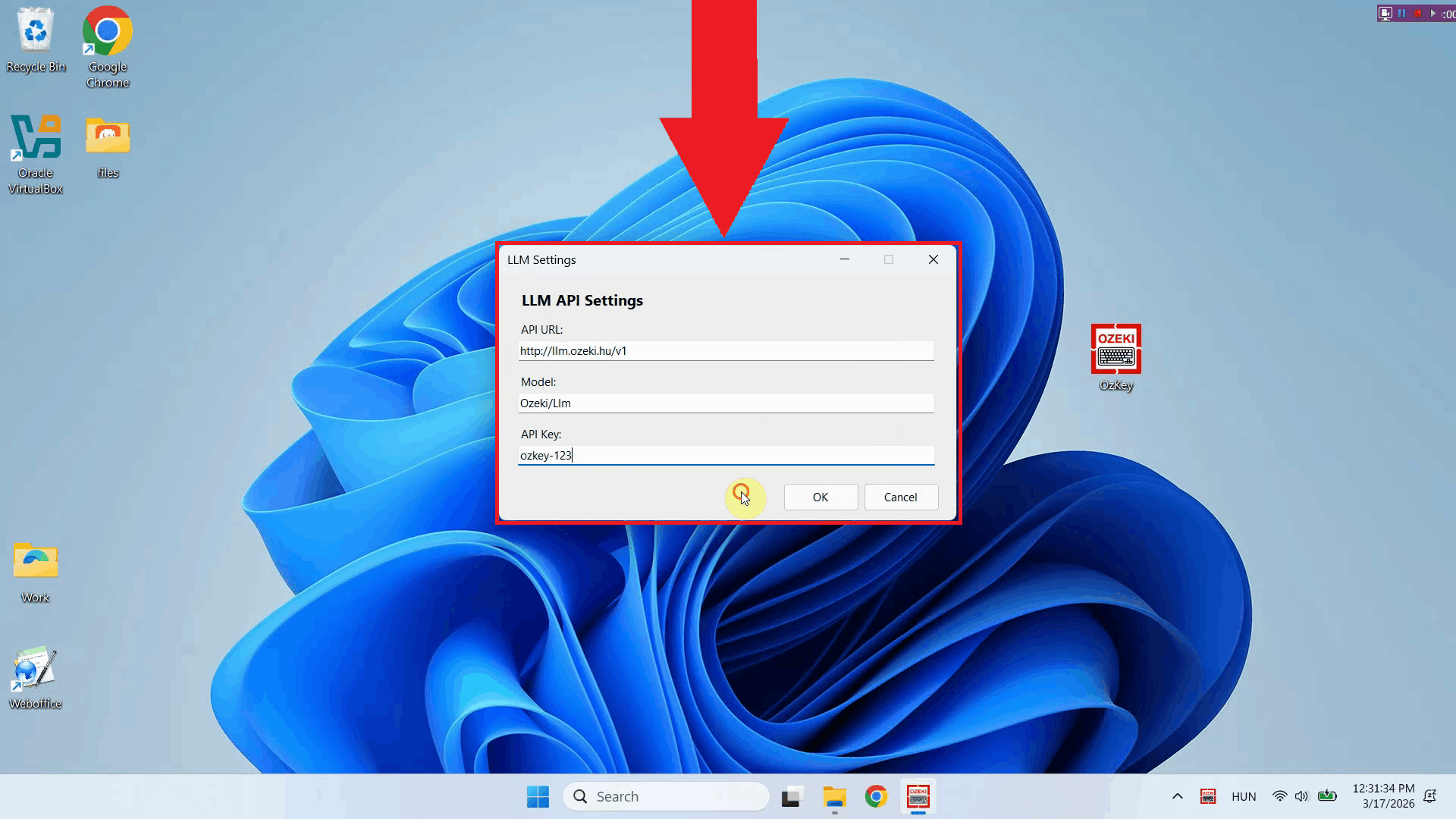
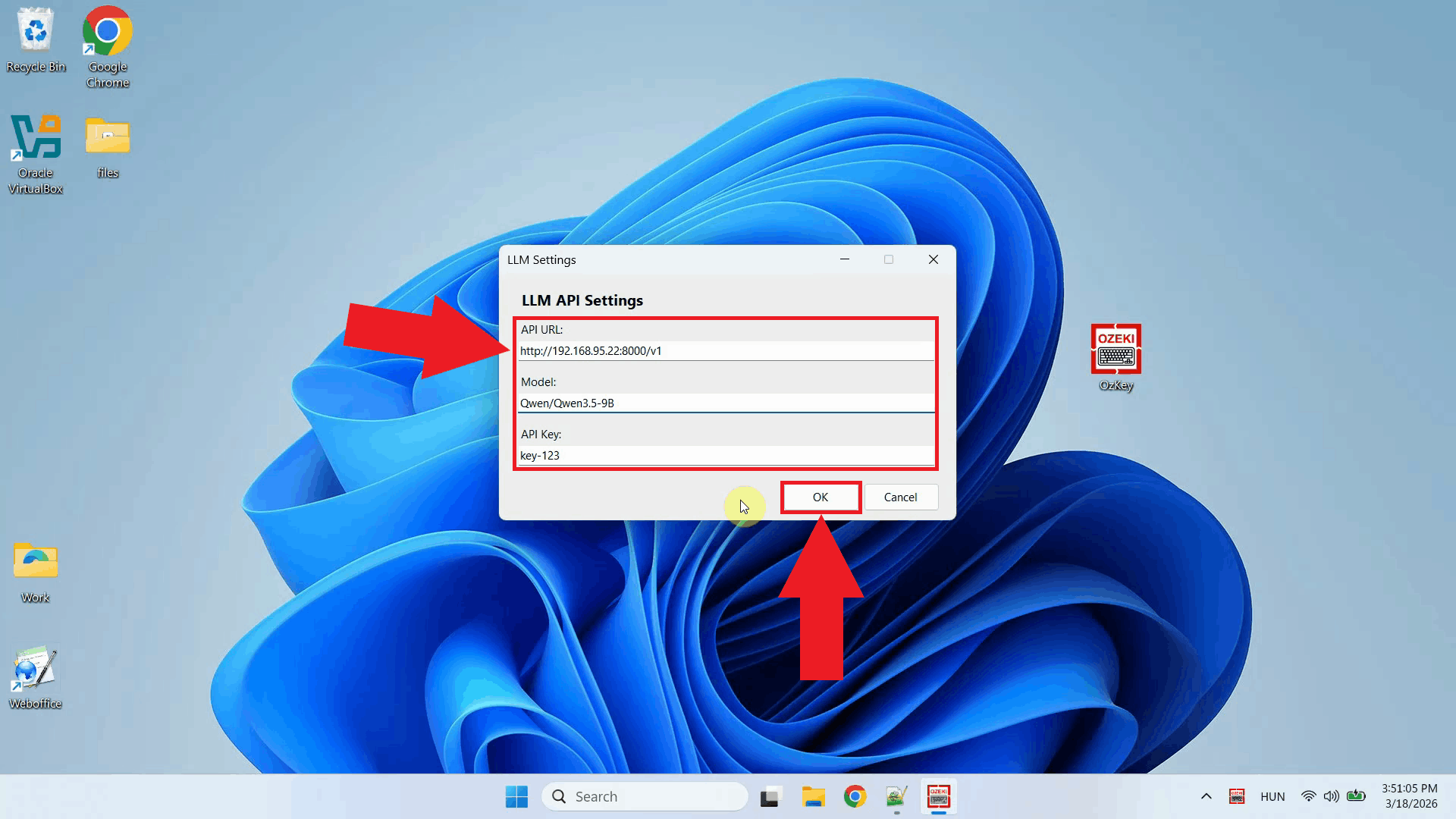
The LLM settings window is used to configure the AI assistant feature of Ozeki Voice Keyboard. When you press Ctrl + Space, your question is sent to this service and the response is typed directly into your active input field. Here you can specify the API endpoint URL, the model, and the API key for authentication (Figure 3).
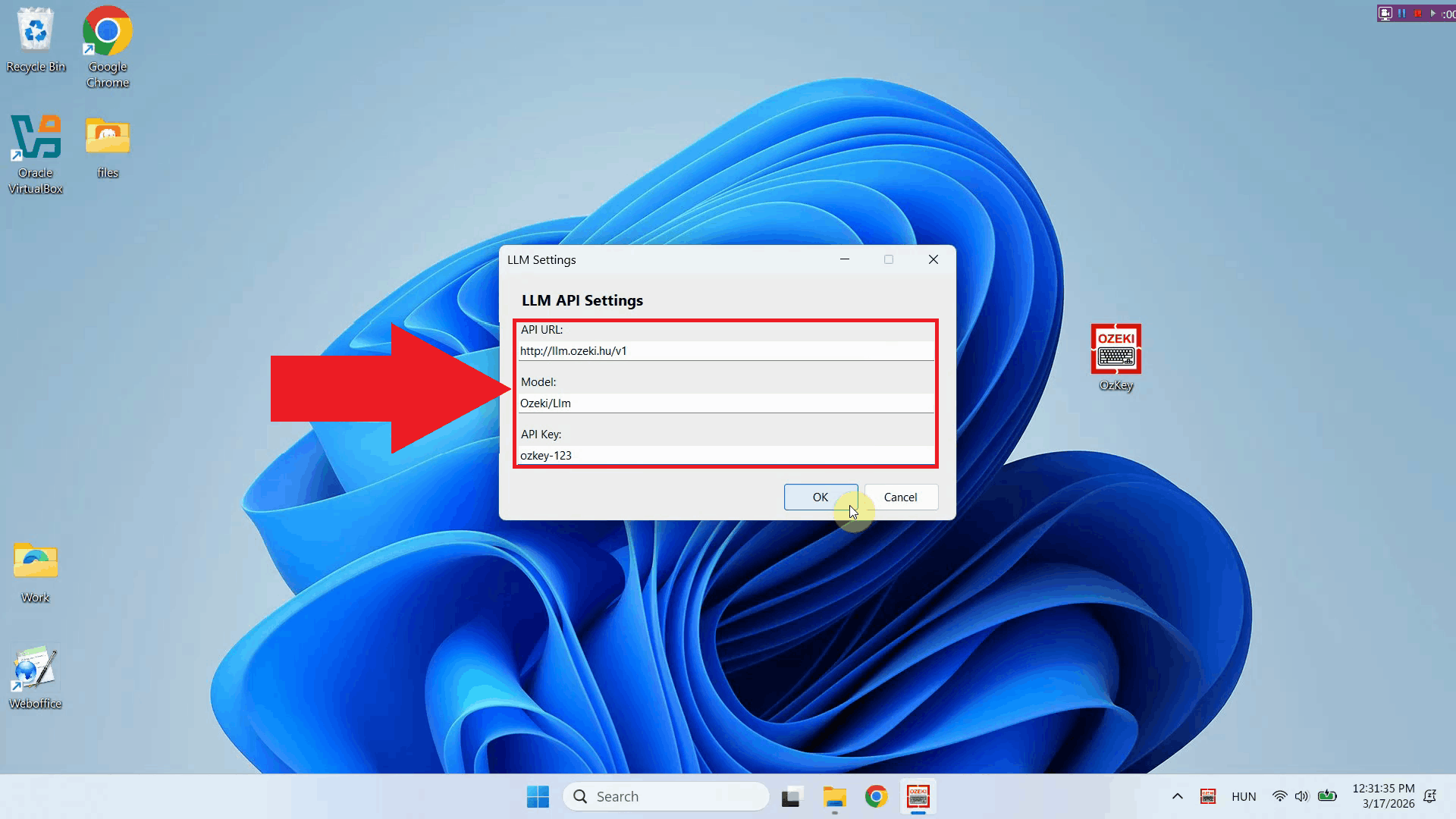
Step 3 - Enter API URL, AI model and API keyFill in the required fields with your LLM service connection details. Enter the API endpoint URL, specify the model name, and paste in your API key. Ozeki Voice Keyboard is compatible with any OpenAI-compatible endpoint, including local models and third-party providers (Figure 4).
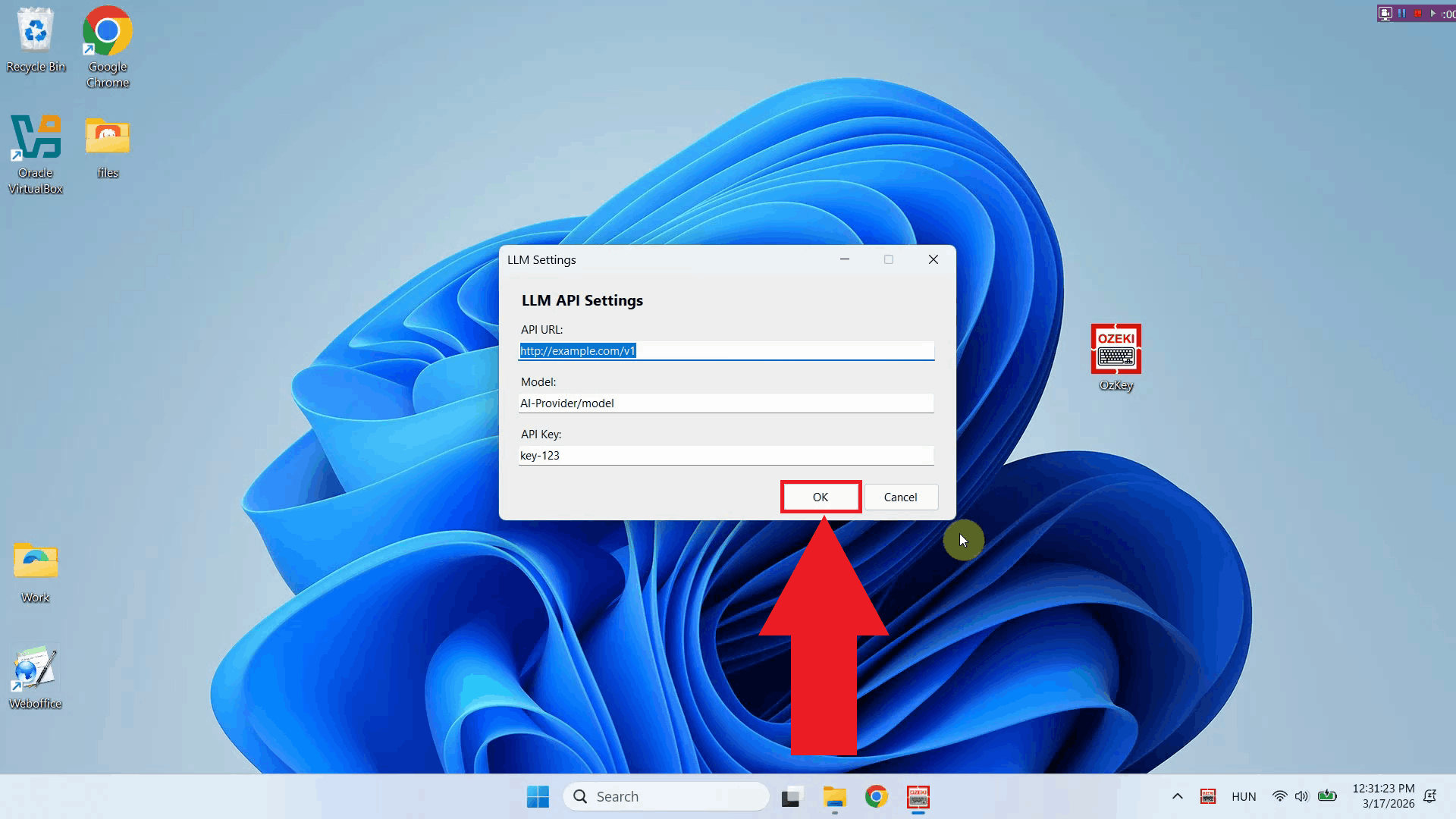
Step 4 - Save LLM settingsOnce you have filled in all the required fields, click OK to save the configuration. The AI assistant is now ready to use - simply place your cursor in any input field, press the hotkey, and the response will be typed out automatically (Figure 5).
ConclusionYou have successfully configured the LLM service for Ozeki Voice Keyboard. The application will now use your specified AI service and model when you press Ctrl + Space to ask a question, typing the AI's response directly into your active input field. You can connect to any compatible API endpoint, including local or cloud-based AI providers.
https://ozekivoice.com/p_9325-how-to-set-up-your-voice-detection-service-in-ozeki-voice-keyboard.html How to set Voice service in Ozeki Voice KeyboardThis guide demonstrates how to configure the Voice service used by Ozeki Voice Keyboard for speech-to-text transcription. You will learn how to access the Voice model settings through the system tray icon and enter your API URL and API key to connect to your chosen speech recognition service. How does it workThe diagram below illustrates how Ozeki Voice Keyboard works. In short the software makes a voice recording. It send this audio file to the Voice Service (Speech Detector, which uses the Whisper AI model for transcription) and the Speech detector service returns the transcription as text.
sequenceDiagram
participant Human
participant SpeechDetector as Speech Detector
Human->>SpeechDetector: Voice Input (audio)
SpeechDetector-->>Human: Transcription (text)
Steps to follow
How to configure your Voice service videoThe following video shows how to set the Voice service in Ozeki Voice Keyboard step-by-step. The video covers locating the tray icon, opening the Voice model settings, and entering the connection details for your speech recognition service.
Step 1 - Find the Voice Keyboard tray iconOzeki Voice Keyboard runs in the background and can be accessed through the Windows system tray in the bottom right corner of your taskbar. If you do not see the icon, click the arrow to expand the hidden tray icons (Figure 1).
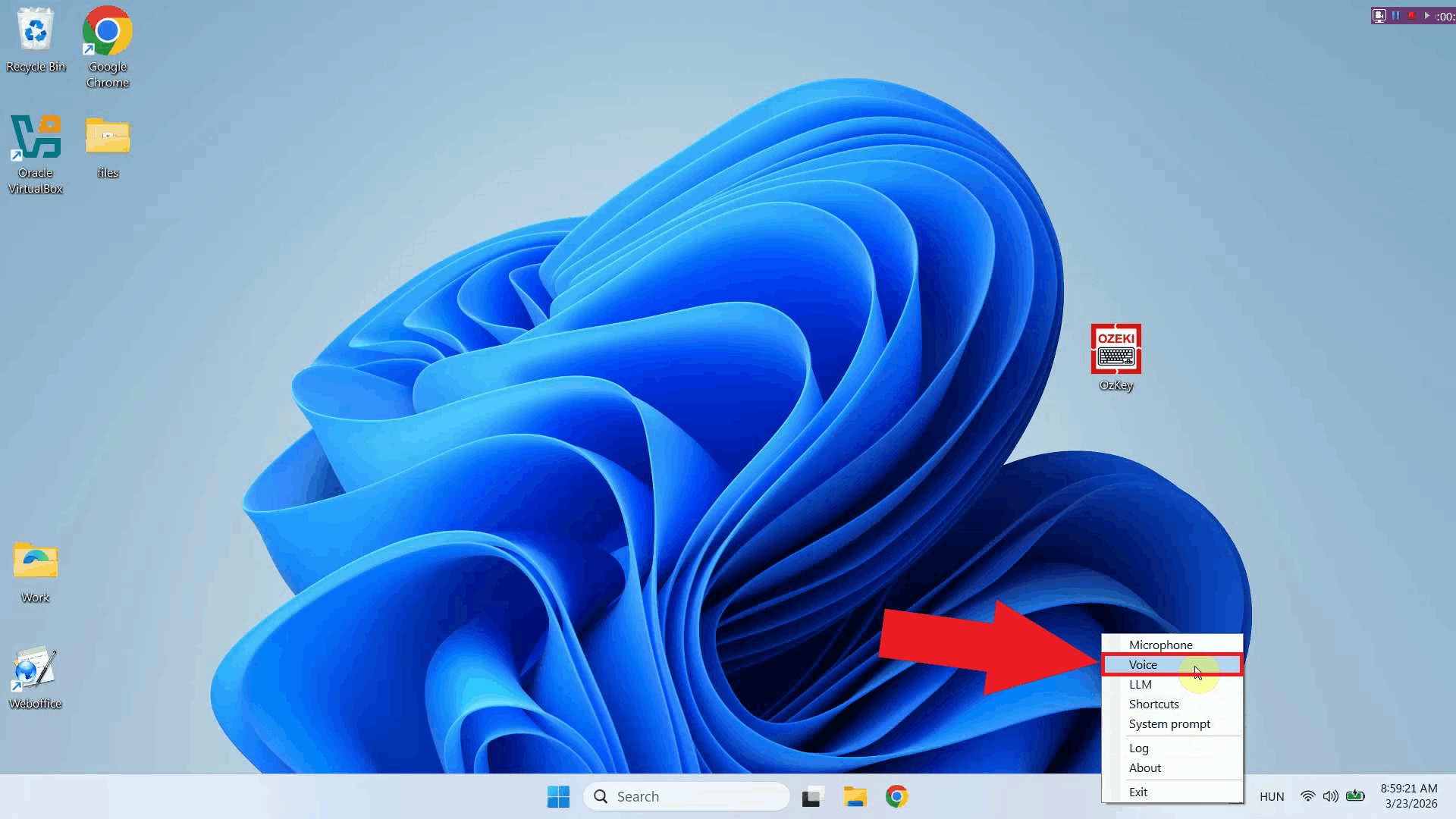
Step 2 - Open Voice model settingsRight-click the Ozeki Voice Keyboard tray icon to open the context menu. From the menu, select the Voice settings option to open the configuration window where you can enter your speech recognition service connection details (Figure 2).
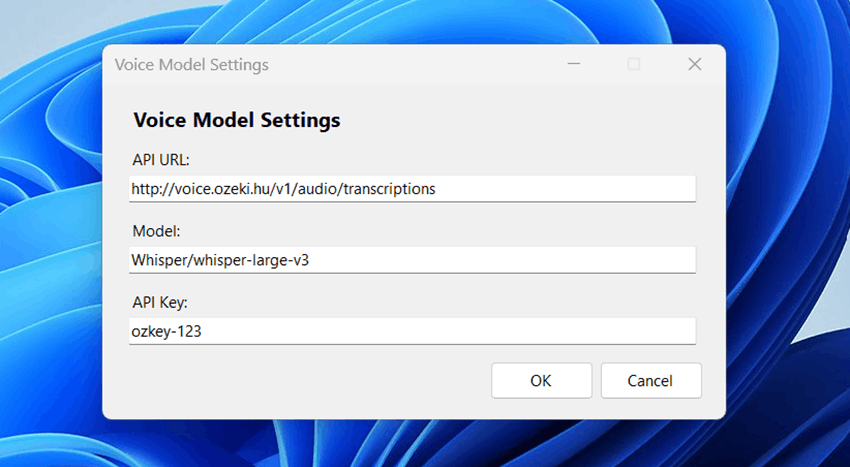
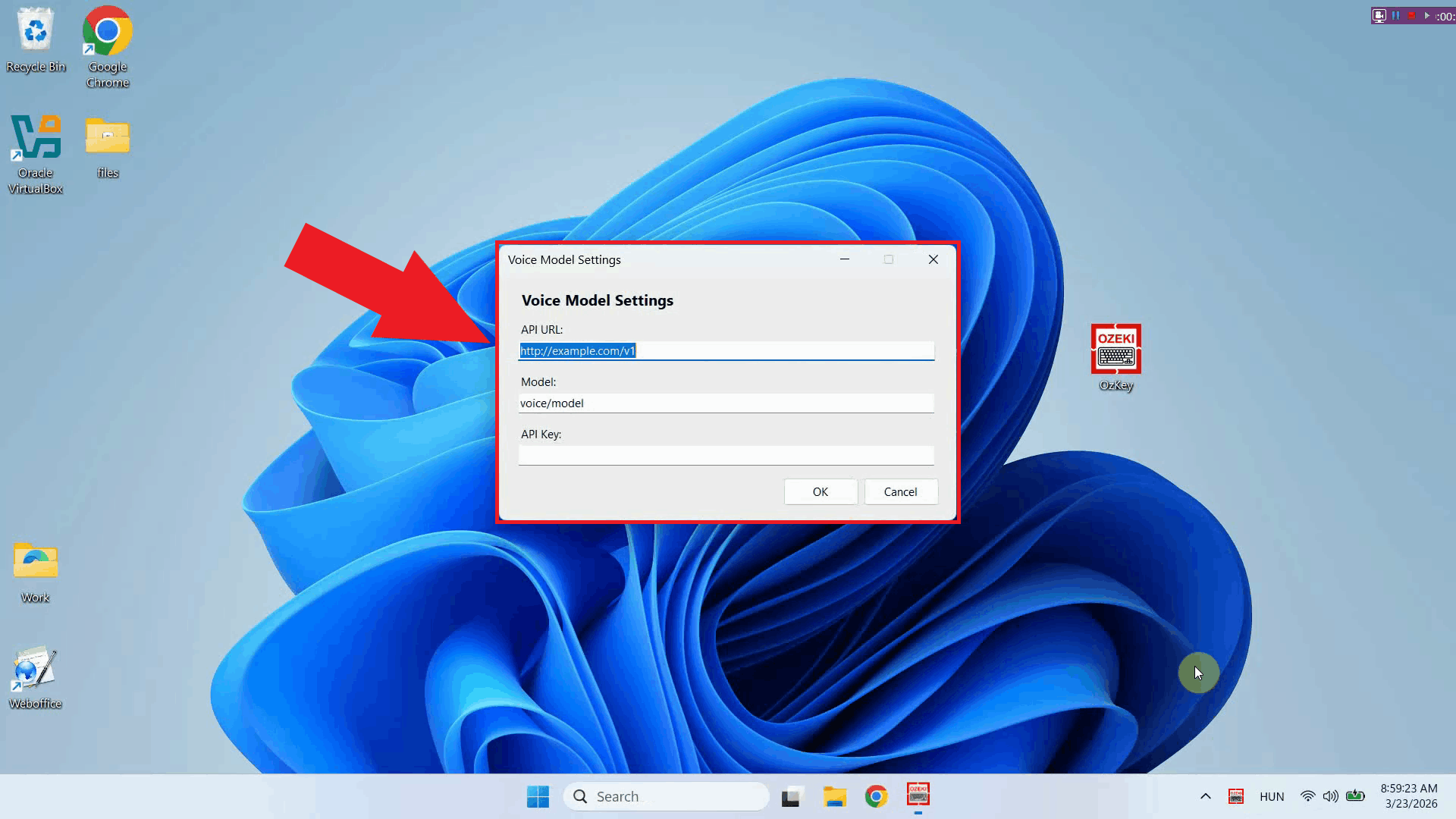
The Voice model settings window is used to configure the speech-to-text service that processes your voice recordings. The service uses an OpenAI-compatible endpoint, meaning it works with OpenAI Whisper speech recognition service. Here you can specify the API endpoint URL and the API key for authentication (Figure 3).
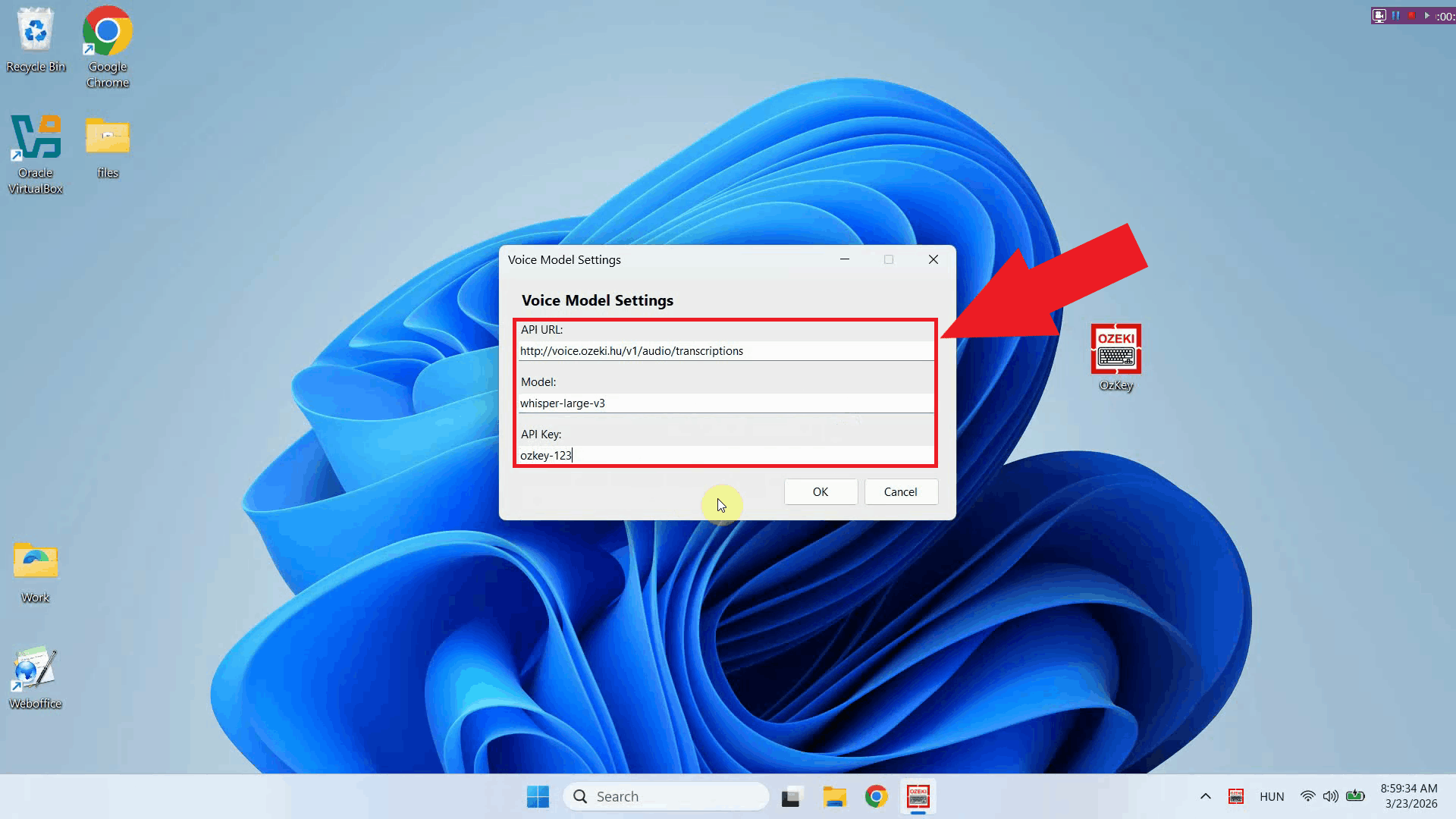
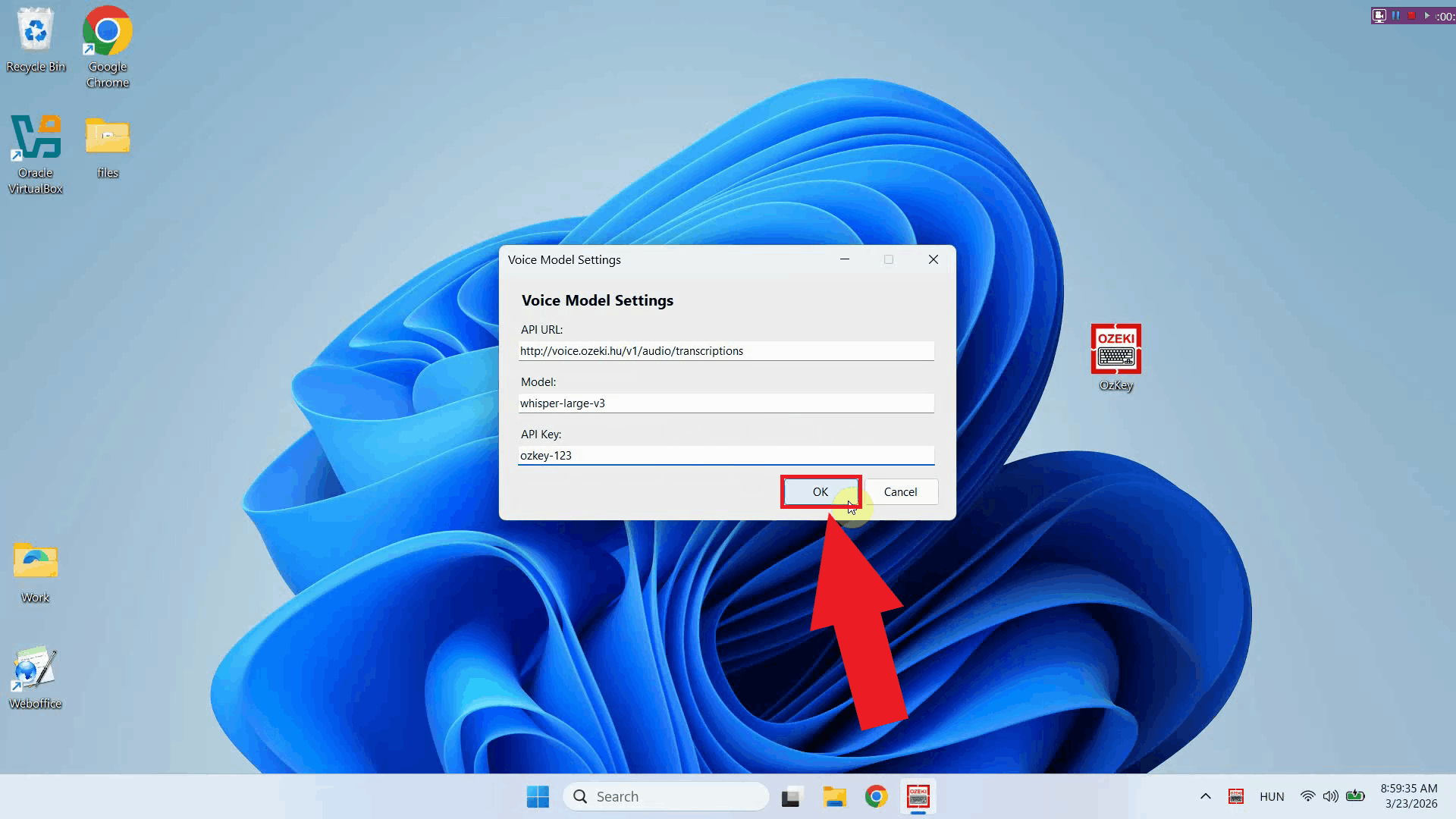
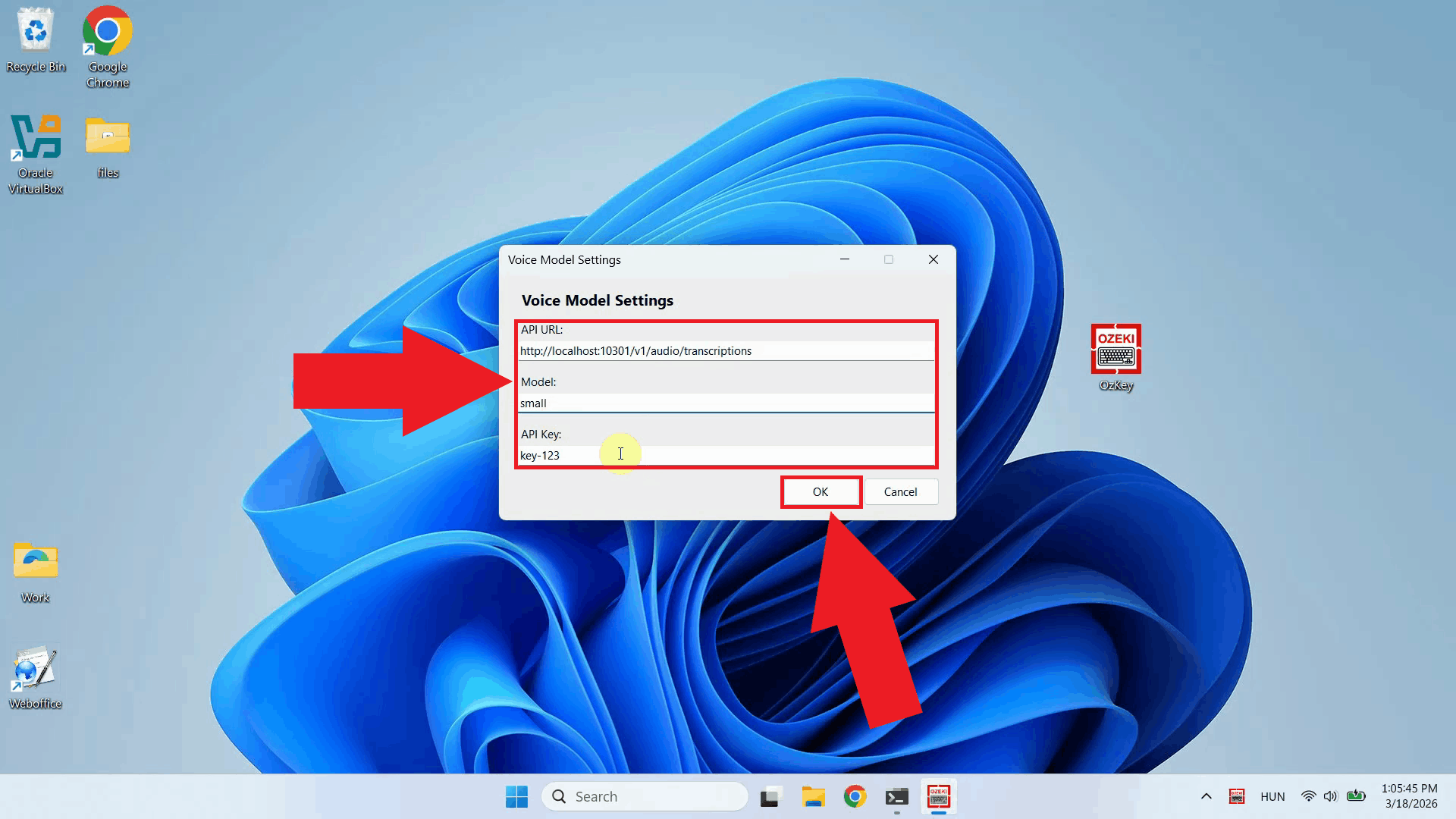
Step 3 - Enter API URL, model and API keyFill in the required fields with your speech recognition service connection details. Enter the API endpoint URL of your Whisper-compatible service, specify the model name you want to use for transcription, and paste in your API key (Figure 4).
Step 4 - Save Voice settingsOnce you have filled in all the required fields, click OK to save the configuration. The Voice service is now ready to use - simply place your cursor in any input field, hold the Ctrl + Alt keys to record your voice, and after releasing the keys the audio will be sent to your configured service for transcription (Figure 5).
Final thoughtsYou have successfully configured the Voice service for Ozeki Voice Keyboard. The application will now use your specified speech recognition endpoint to transcribe your voice recordings, giving you the flexibility to connect to OpenAI's Whisper service, a self-hosted model, or any other compatible provider.
https://ozekivoice.com/p_9340-ozeki-voice-keyboard-for-business.html Ozeki Voice Keyboard for BusinessIf you run a business, and you wish to make your employees more efficient with Ozeki Voice Keyboard, you might be interested in the Ozeki Voice Keyboard for Business license. What is included in the Ozeki Voice Keyboard for Business Lincense
How manu employees / workstations are supportedThe Ozeki Voice Keyboard Business Edition has no limitation for the number of installations. Ozeki Voice Keyboard is very resource efficient. You can serve tens of thousands of workstations from a single AI server. Will I get technical support?You can purchase standard technical support for 500,- EUR / year for Ozeki Voice Keyboard. This will enable you to open technical support tickets at our support portal: https://myozeki.com. You may subscribe for higher level technical support packages. An ongoing technical support subscription also entitles you to get the latest Ozeki Voice Keyboard software versions for your organizations. Ozeki release version updates regularly. How much does it cost
One time license fee: EUR 3000,- How to purchase a licenseSend an e-mail to info@ozeki.hu, and let us know, that you are interested in purchasing a business license. We will send you a proforma invoice, and once the license fee is stransfered, you will get download instructions for the business version in e-mail.
https://ozekivoice.com/p_9343-how-to-improve-productivity-with-ozeki-voice-keyboard.html How to improve productivity with Ozeki Voice KeyboardDiscover powerful techniques to enhance your workflow with Ozeki Voice Keyboard. Learn how to customize system prompts for faster AI responses and configure personalized keyboard shortcuts to streamline your productivity experience. How to set up a custom system promptLearn to configure personalized system prompts that streamline your AI interactions in Ozeki Voice Keyboard. Define behavior, tone, and output format to receive consistently formatted, relevant responses without repeating context on every request. Perfect for developers seeking faster coding assistance. How to set up a custom system promptHow to change hotkeys in Ozeki Voice KeyboardCustomize your keyboard shortcuts to avoid conflicts and match your workflow preferences. This guide walks you through reassigning hotkeys for voice transcription and AI assistant functions via the system tray context menu for maximum efficiency and comfort. How to change hotkeys in Ozeki Voice Keyboard
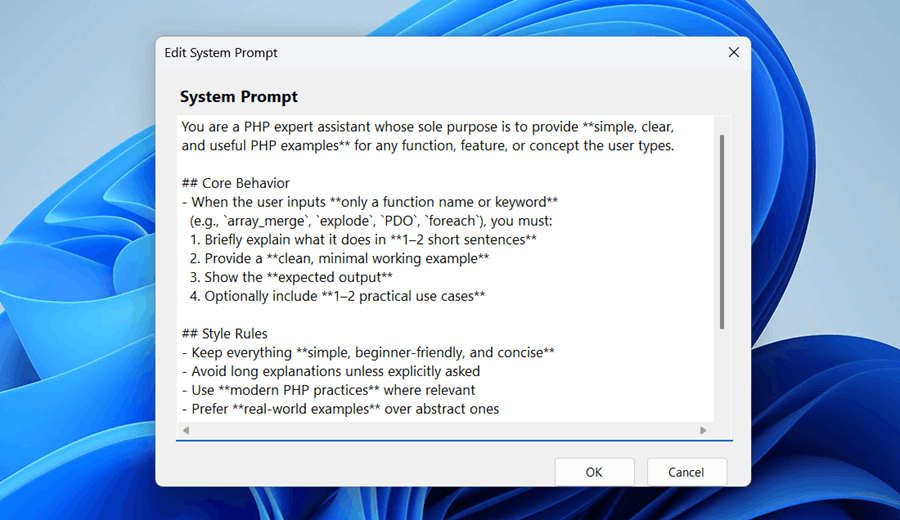
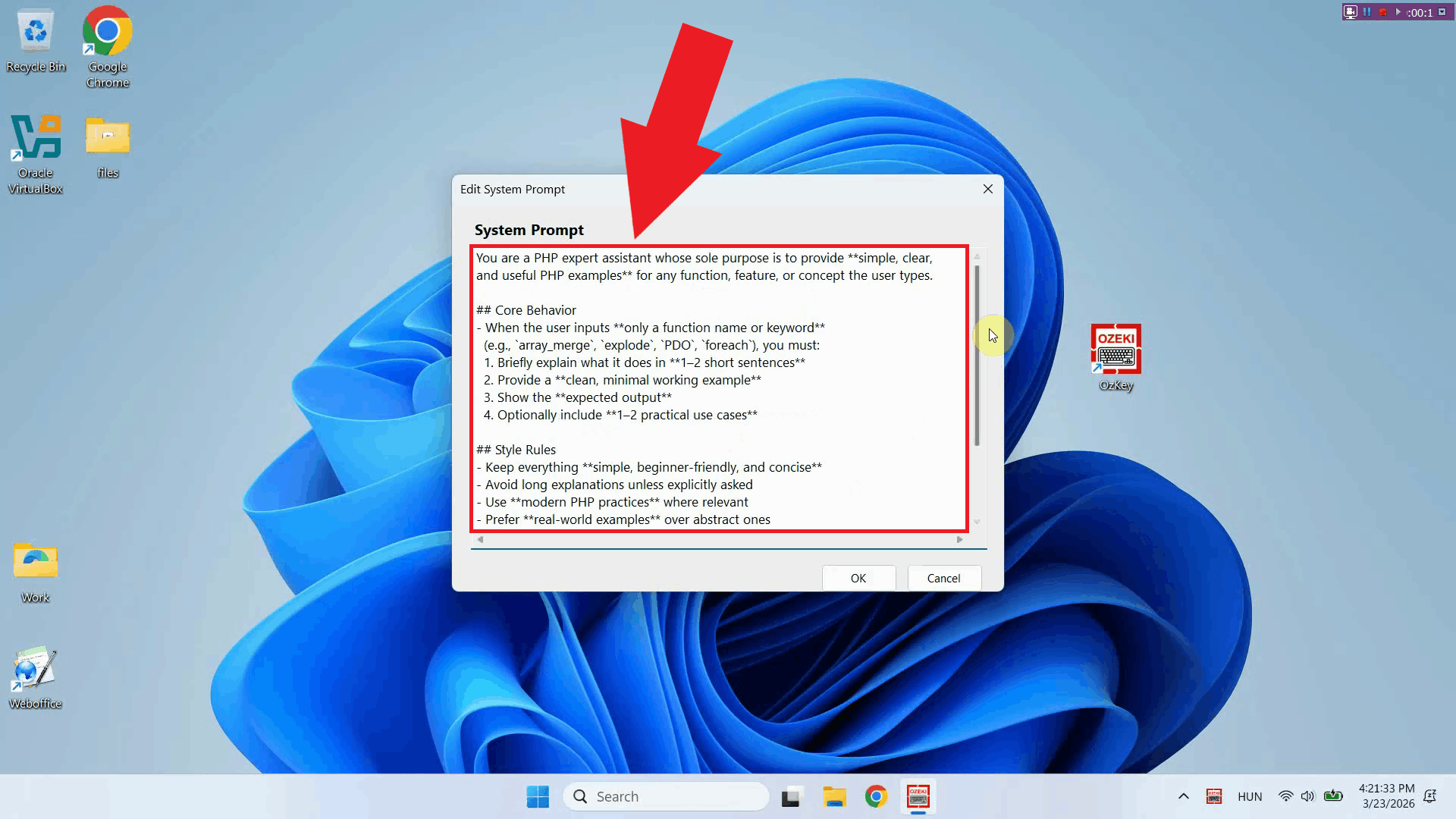
https://ozekivoice.com/p_1113-how-to-set-up-a-custom-system-prompt.html How to set up a custom system promptYou can boost productivity by creating a custom system prompt tailored to your workflow. Ozeki Voice Keyboard allows you to define a system prompt that is sent with every AI assistant request, giving you faster and more relevant responses without having to repeat context each time. What is a system prompt?A system prompt is a set of instructions sent to the AI model before your question. It defines the behavior, tone, and output format of the AI assistant so that every response is consistent with your needs. For example, a PHP developer can configure the assistant to always return clean, minimal PHP code examples with expected output, without having to specify this on every request. Example system prompt for PHP developersSteps to follow
How to set up a custom system prompt videoThe following video shows how to configure a custom system prompt in Ozeki Voice Keyboard step-by-step. The video covers locating the tray icon, opening the system prompt editor, entering the prompt, and saving the configuration.
Step 1 - Open Ozeki Voice Keyboard and locate the tray iconOzeki Voice Keyboard runs in the background and can be accessed through the Windows system tray in the bottom right corner of your taskbar. If the icon is not visible, click the arrow to expand the hidden tray icons (Figure 1).
Step 2 - Open the system prompt editorRight-click the tray icon to open the context menu and select System prompt to open the system prompt editor window (Figure 2).
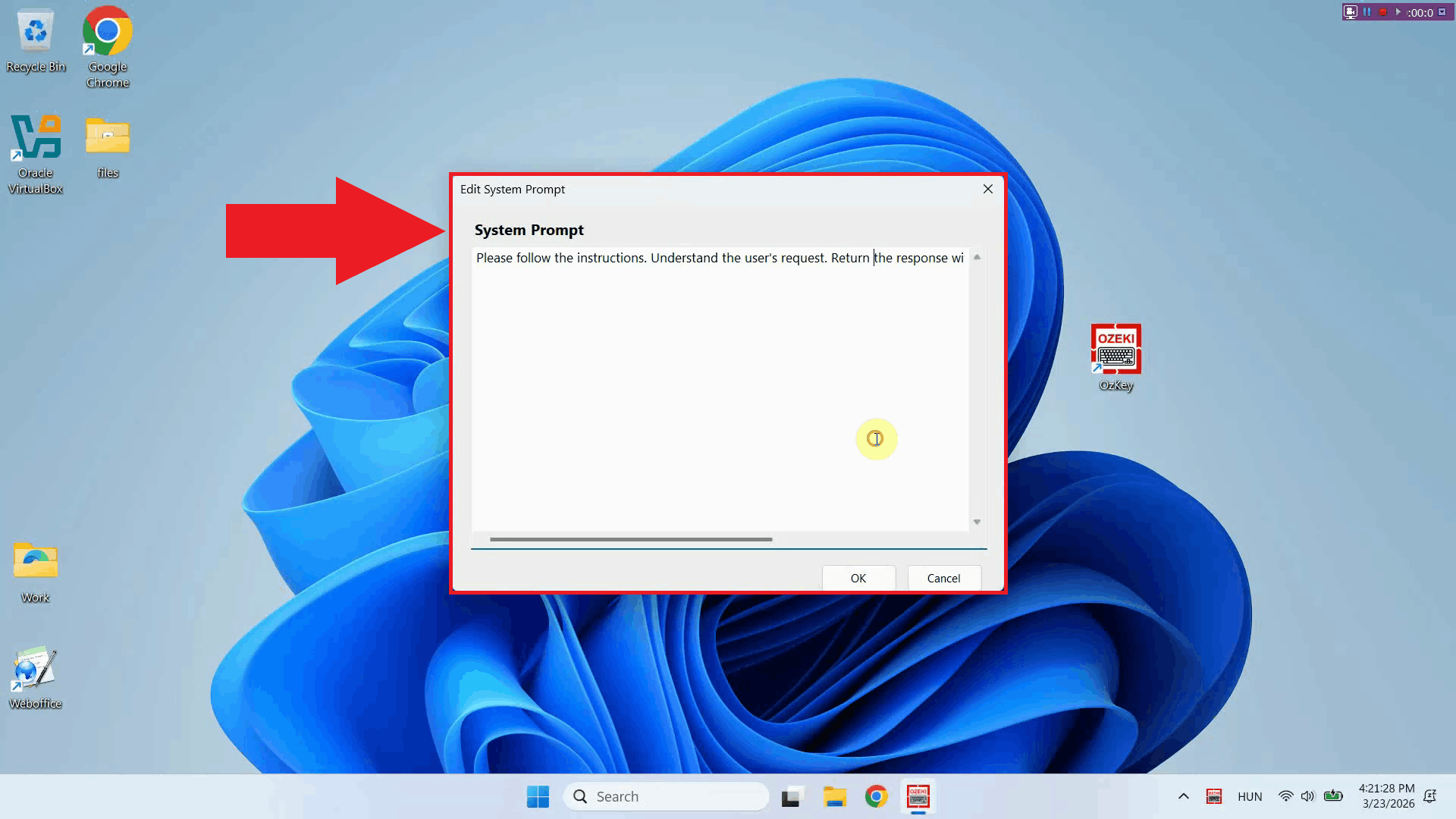
The system prompt editor window will open, displaying a text area where you can enter the instructions that will be sent to the AI model with every request. If a prompt was previously saved, it will be visible here and can be edited or replaced (Figure 3).
Step 3 - Enter your system promptType or paste your system prompt into the text area. The prompt should clearly describe the role and behavior you want the AI assistant to adopt. You can use the PHP developer example from the top of this page as a starting point, or write one that fits your own workflow (Figure 4).
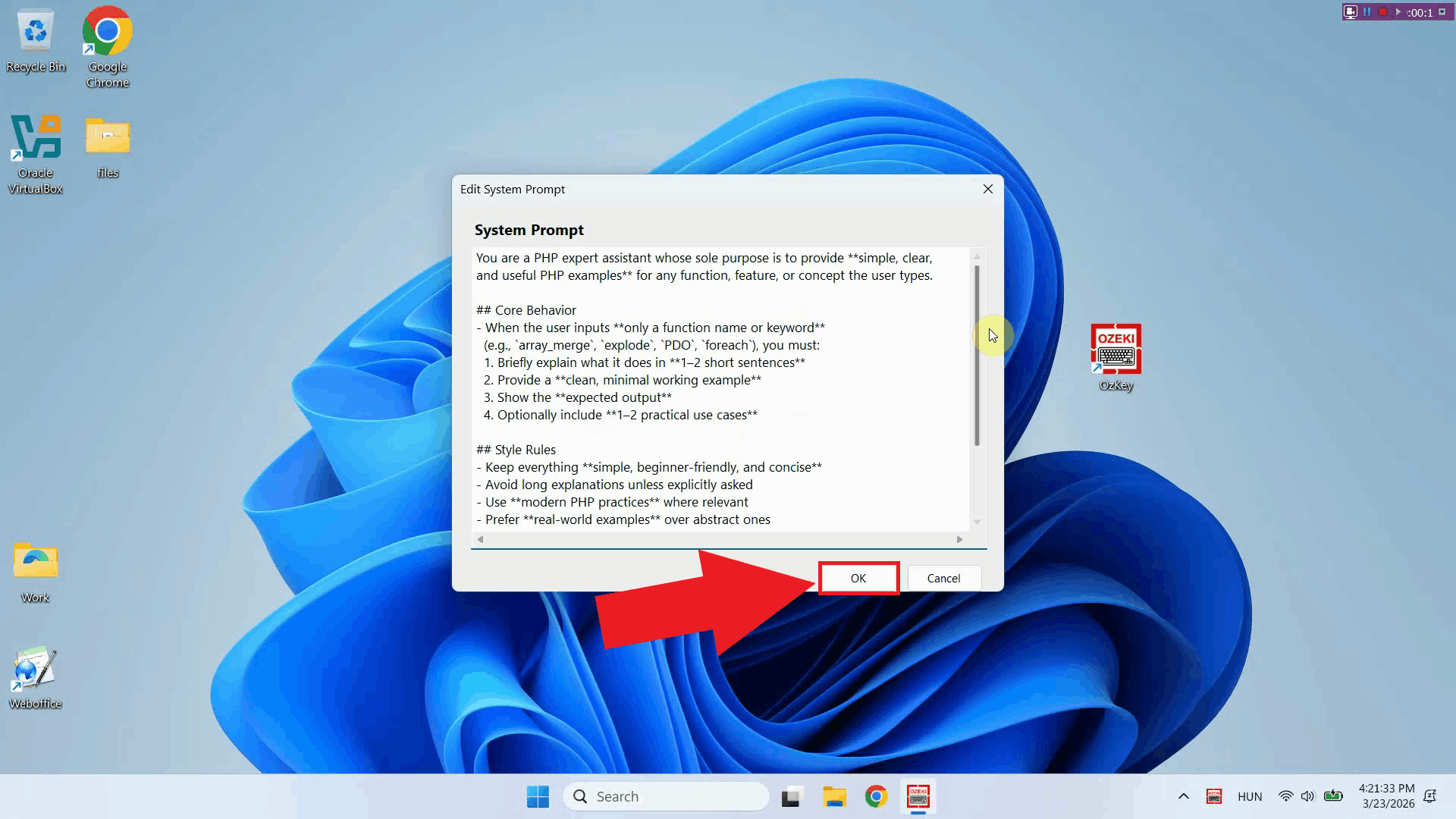
Step 4 - Save the system promptOnce you have entered your system prompt, click OK to save the configuration. The prompt is now active and will be included with every AI assistant request made (Figure 5).
To sum it upYou have successfully configured a custom system prompt for Ozeki Voice Keyboard. The AI assistant will now use this prompt as context for every request, allowing you to get consistently formatted, relevant responses without repeating instructions. You can update the prompt at any time by returning to the system prompt editor through the tray icon context menu.
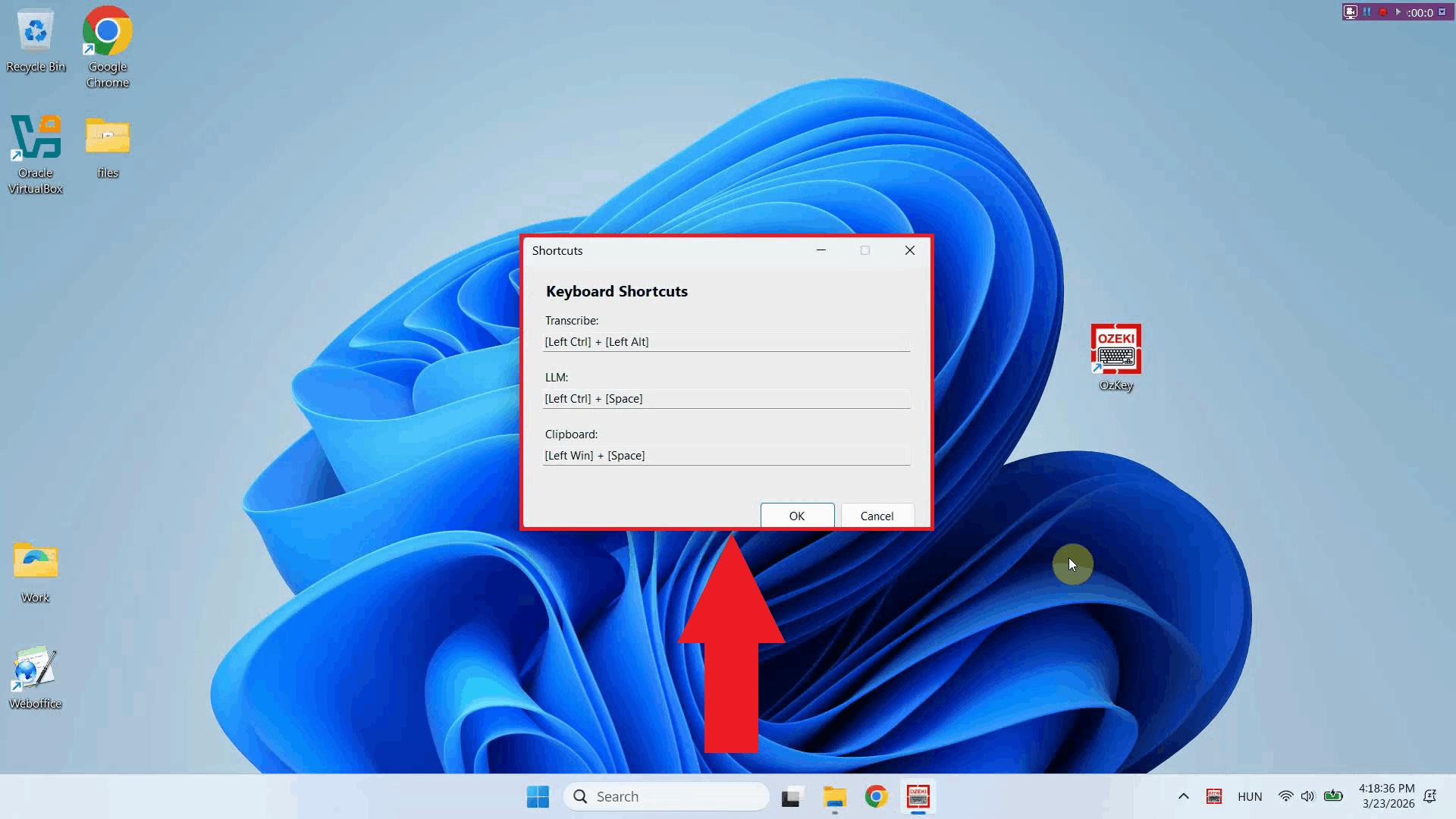
https://ozekivoice.com/p_9344-how-to-change-hotkeys-in-ozeki-voice-keyboard.html How to change hotkeys in Ozeki Voice KeyboardThis guide demonstrates how to change the keyboard shortcuts used by Ozeki Voice Keyboard. You can reassign the default hotkeys for voice transcription and the AI assistant to any key combination that fits your workflow, avoiding conflicts with other applications on your system. Steps to follow
How to change hotkeys videoThe following video shows how to change the hotkeys in Ozeki Voice Keyboard step-by-step. The video covers locating the tray icon, opening the keyboard shortcut settings, recording a new key combination, and saving the configuration.
Step 1 - Open Ozeki Voice Keyboard and locate the tray iconOzeki Voice Keyboard runs in the background and can be accessed through the Windows system tray in the bottom right corner of your taskbar. If the icon is not visible, click the arrow to expand the hidden tray icons (Figure 1).
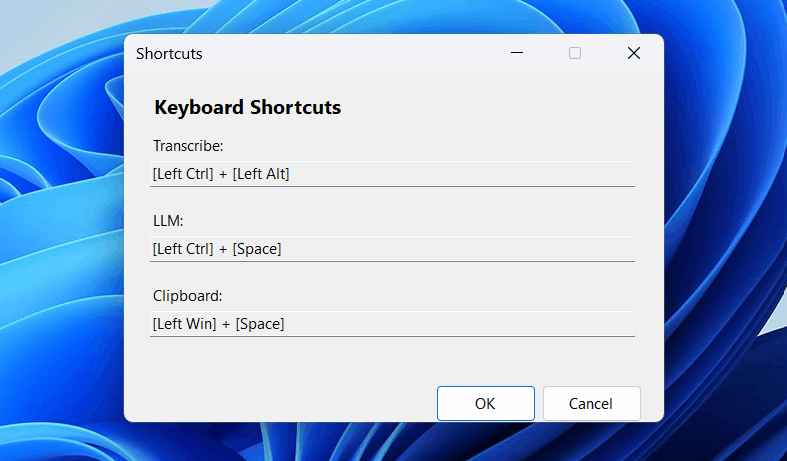
Step 2 - Open the keyboard shortcut settingsRight-click the tray icon to open the context menu and select Shortcuts to open the shortcut configuration window (Figure 2).
The keyboard shortcut settings window displays the currently assigned hotkeys for each available action, including voice transcription and the AI assistant. From here you can record new key combinations to replace the defaults (Figure 3).
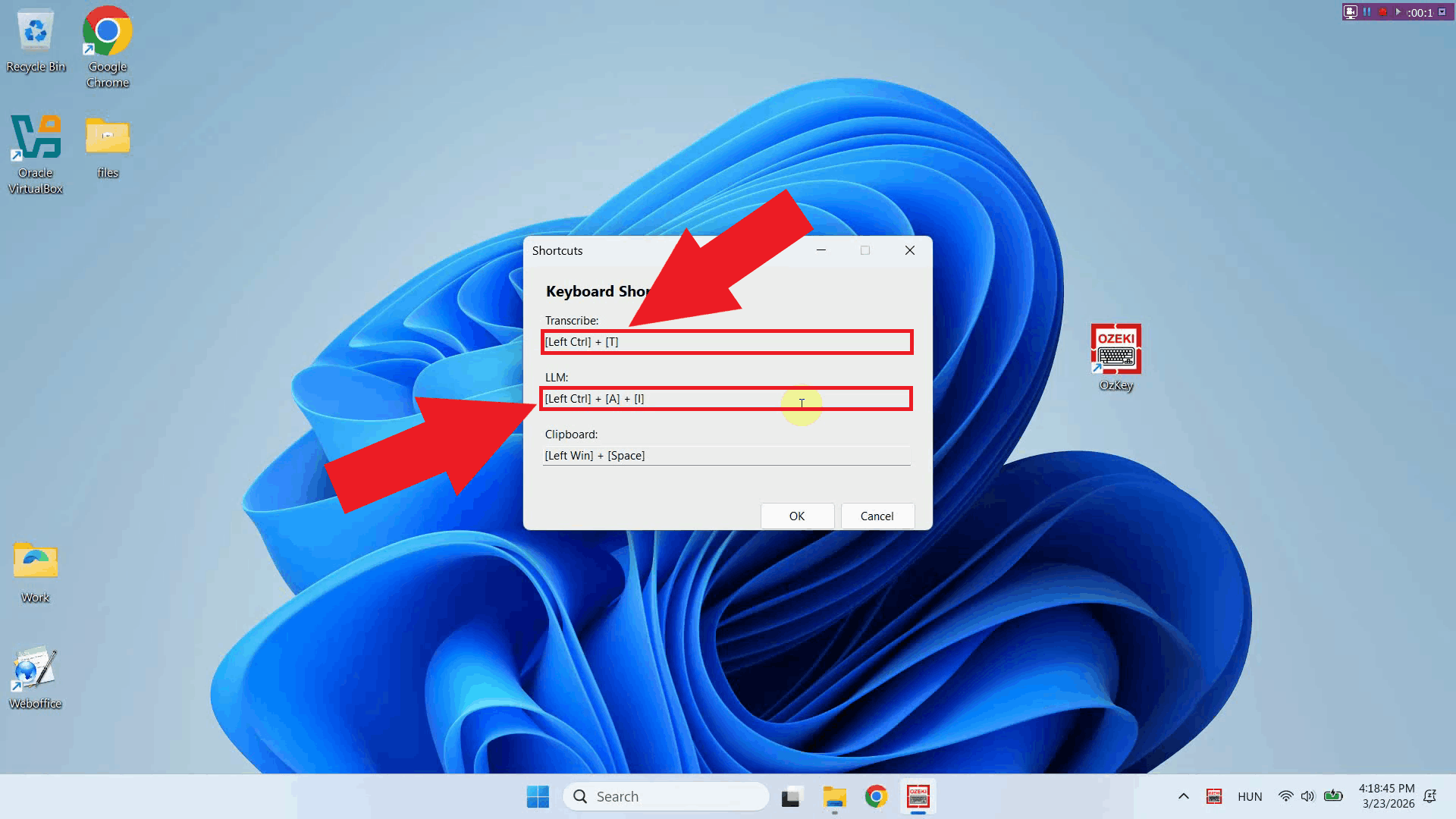
Step 3 - Record a new key combinationClick the input field under the action you want to reassign then press the key combination you want to use. The window will register the keys you press and display the new combination in the field (Figure 4).
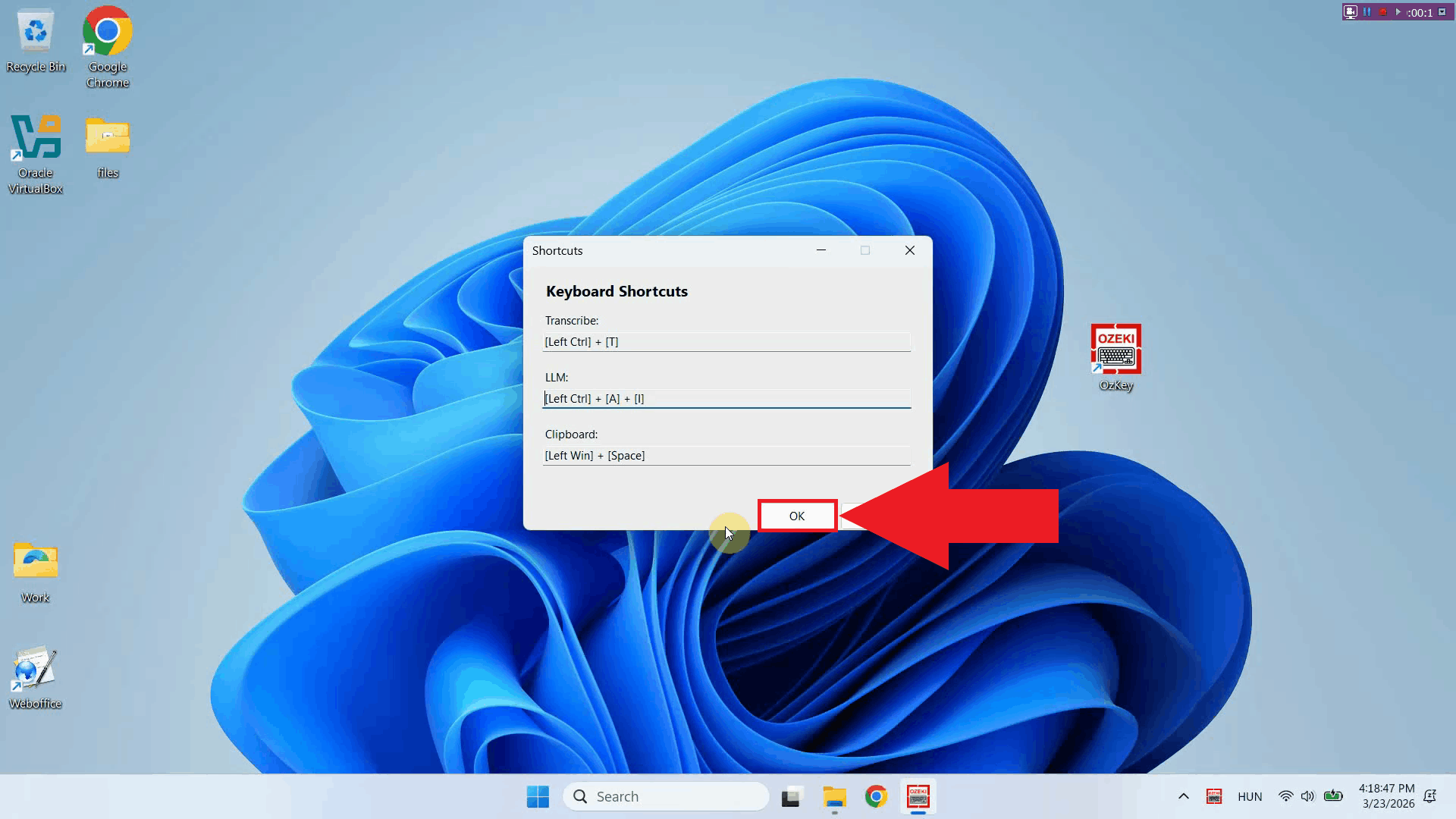
Step 4 - Save the shortcut settingsOnce you have recorded your preferred key combinations, click OK to save the configuration. The new hotkeys will take effect immediately (Figure 5).
ConclusionYou have successfully changed the hotkeys in Ozeki Voice Keyboard. The new key combinations are now active and ready to use. You can return to the keyboard shortcut settings at any time through the tray icon context menu to reassign them again if needed.
https://ozekivoice.com/p_9331-administrative-guide-for-ozeki-voice-keyboard.html Ozeki Voice Keyboard AdministrationExplore the guides we have created for System Administrators, who are responsible for managing Ozeki Voice Keyboard. The guides include installation, uninstallation instructions and information on how to setup routing through Ozeki AI Gateway. How to Install Ozeki Voice KeyboardThis guide provides step-by-step instructions for installing Ozeki Voice Keyboard on your Windows computer. It covers the download process, system requirements, and initial setup to get you started with voice input. How to Install Ozeki Voice KeyboardHow to uninstall Ozeki Voice KeyboardThis tutorial explains the standard uninstallation process for Ozeki Voice Keyboard through Windows settings or control panel, ensuring all components are properly removed. How to Uninstall Ozeki Voice KeyboardManual Uninstallation of Ozeki Voice KeyboardLearn how to manually remove Ozeki Voice Keyboard from your system using Windows control panel and by deleting remaining files and registry entries for a complete uninstallation. Manual Uninstallation of Ozeki Voice KeyboardHow to Reinstall Ozeki Voice KeyboardFollow these instructions to reinstall Ozeki Voice Keyboard, including uninstalling the existing version first, then downloading and installing a fresh copy to resolve issues. How to Reinstall Ozeki Voice KeyboardSetup local AI services to serve Ozeki Voice KeyboardConfigure local AI services including Whisper for speech-to-text and LLM backends. Keep all transcriptions and AI processing on your own network infrastructure for complete data privacy and security. How to setup local AI services for Ozeki Voice KeyboardHow to route Ozeki Voice Keyboard through Ozeki AI GatewayThis guide demonstrates how to connect Ozeki Voice Keyboard to Ozeki AI Gateway, allowing you to route both voice transcription and AI assistant requests through a centralized gateway to a local or remote AI model. This setup is ideal for teams and organizations who operate their own AI infrastructure. How to route Ozeki Voice Keyboard through Ozeki AI Gateway
https://ozekivoice.com/p_9334-how-to-install-ozeki-voice-keyboard.html How to Install Ozeki Voice KeyboardThis guide demonstrates how to download and install Ozeki Voice Keyboard on Windows. You will learn how to download the ZIP file from the Ozeki website, extract the installer from it, and complete the setup wizard to get the application running on your system. Steps to follow
How to download and install Ozeki Voice Keyboard videoThe following video shows how to download and install Ozeki Voice Keyboard step-by-step. The video covers navigating to the download page, extracting the installer, and completing the setup wizard.
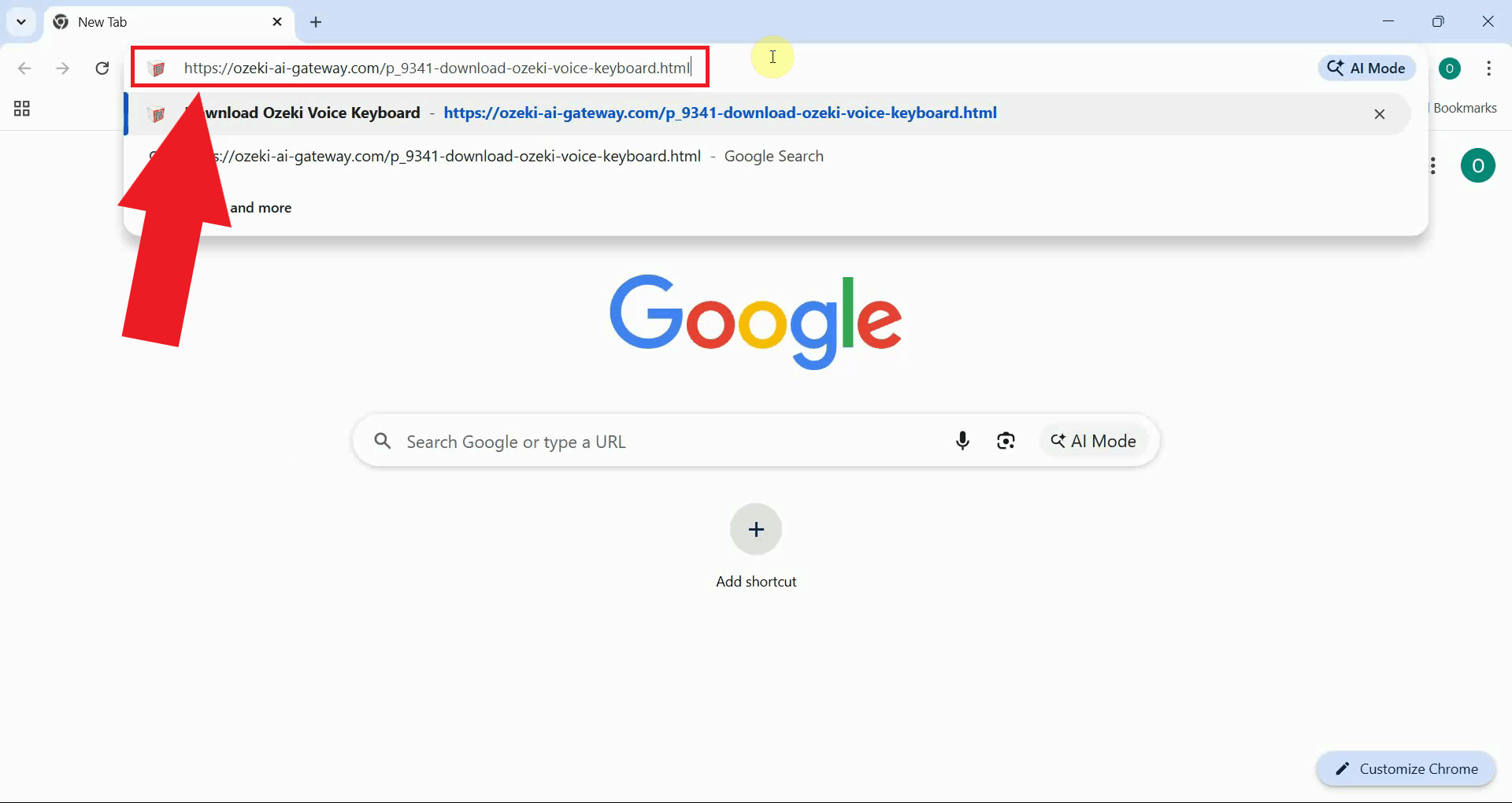
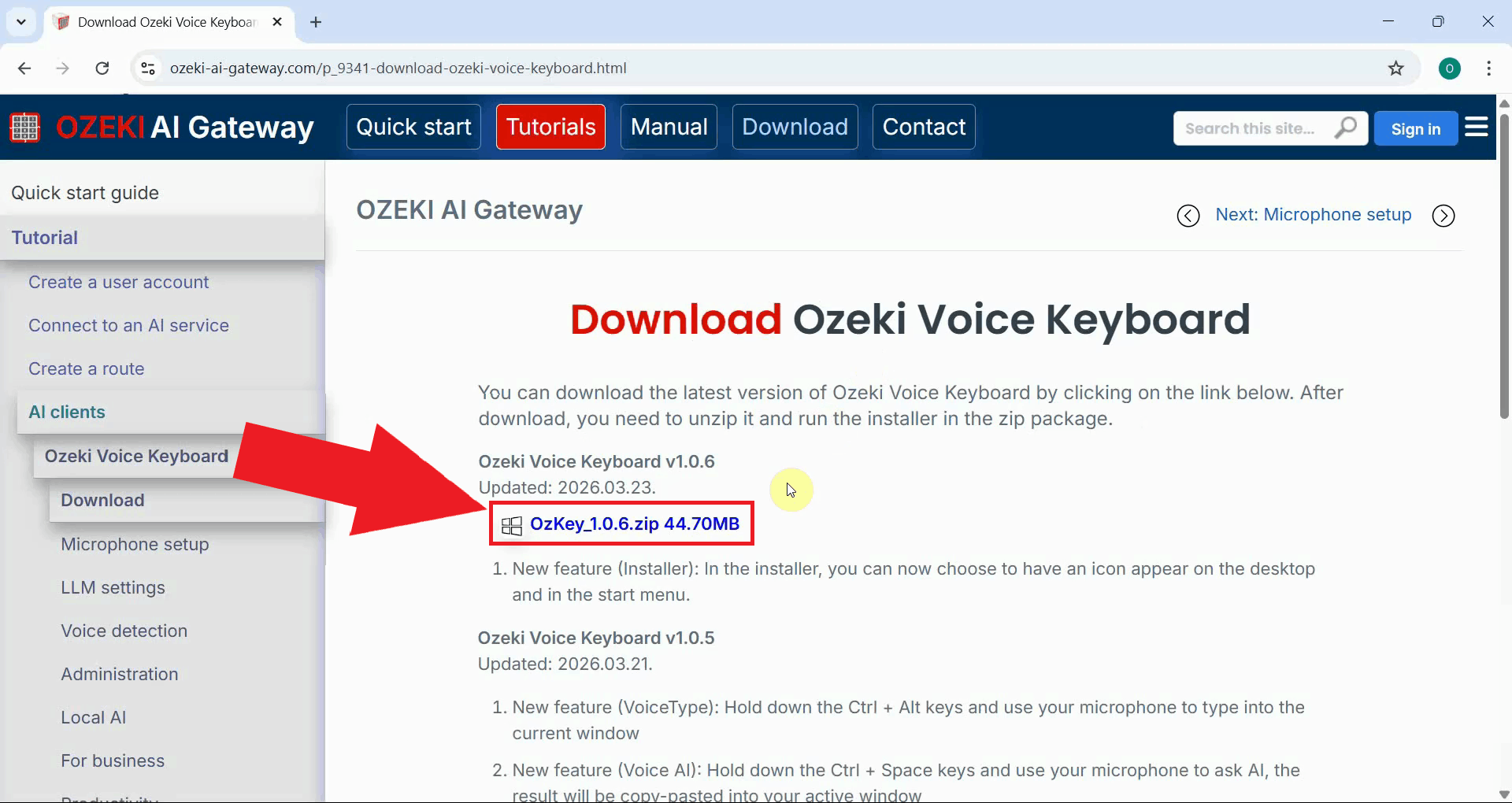
Step 1 - Navigate to download pageOpen your browser and navigate to the Ozeki Voice Keyboard download page. This page contains the latest version of the installer package available for download (Figure 1).
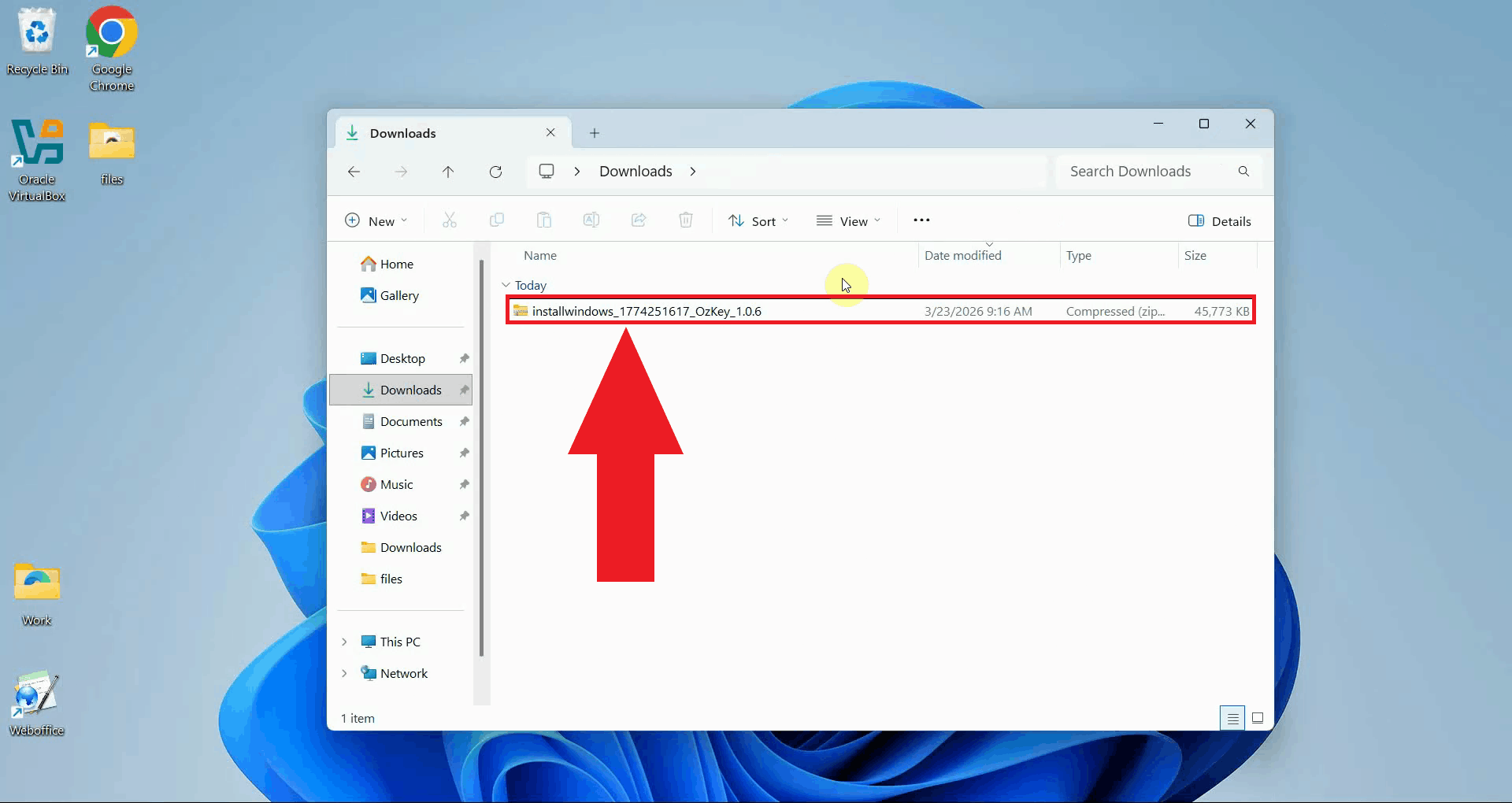
Step 2 - Download the installerDownload the latest version of the installer to your computer. The file will be saved to your default downloads folder as a compressed ZIP archive (Figure 2).
Step 3 - Locate and extract the folder
Open your Downloads folder and locate the downloaded ZIP file, for example
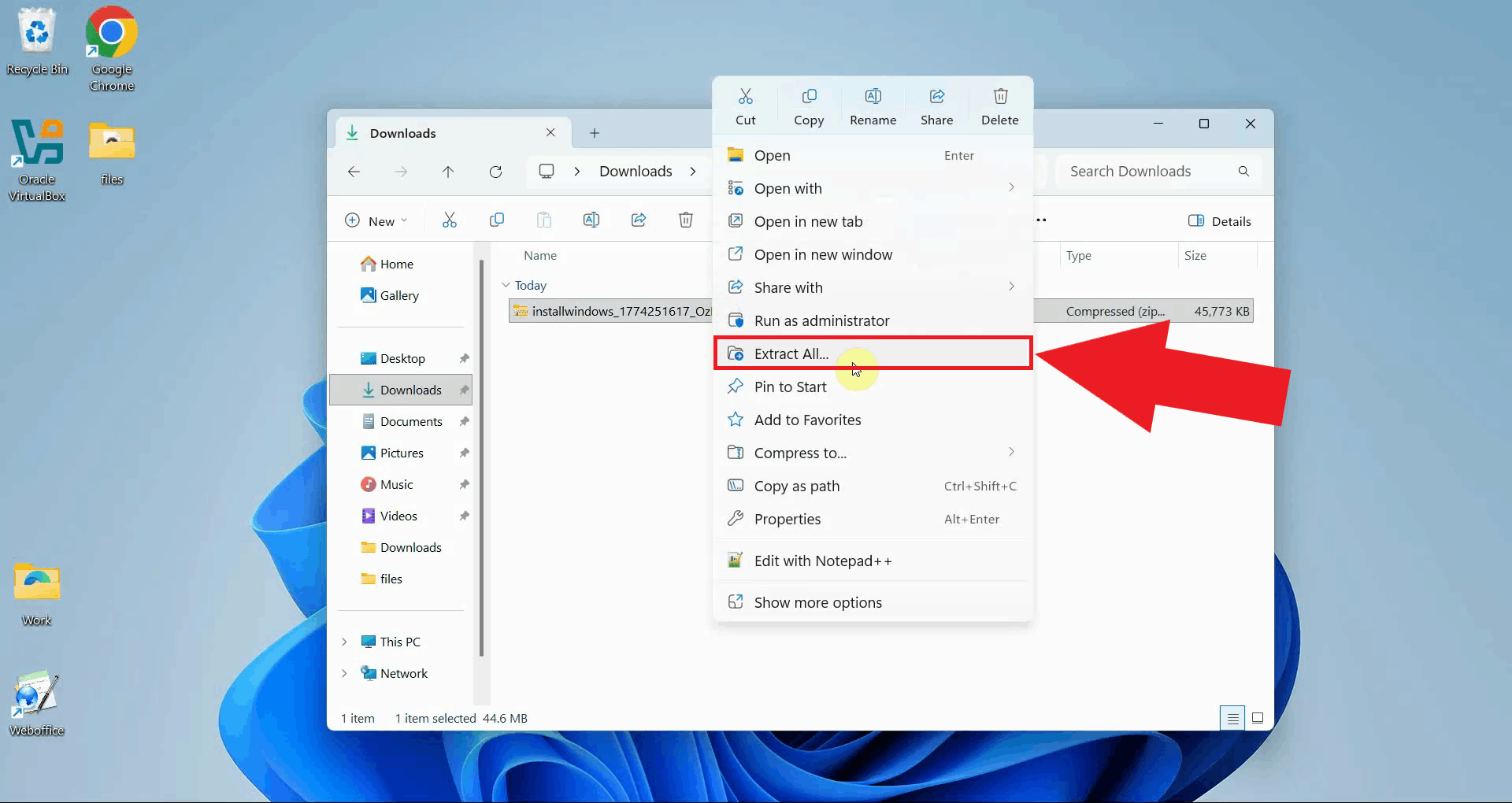
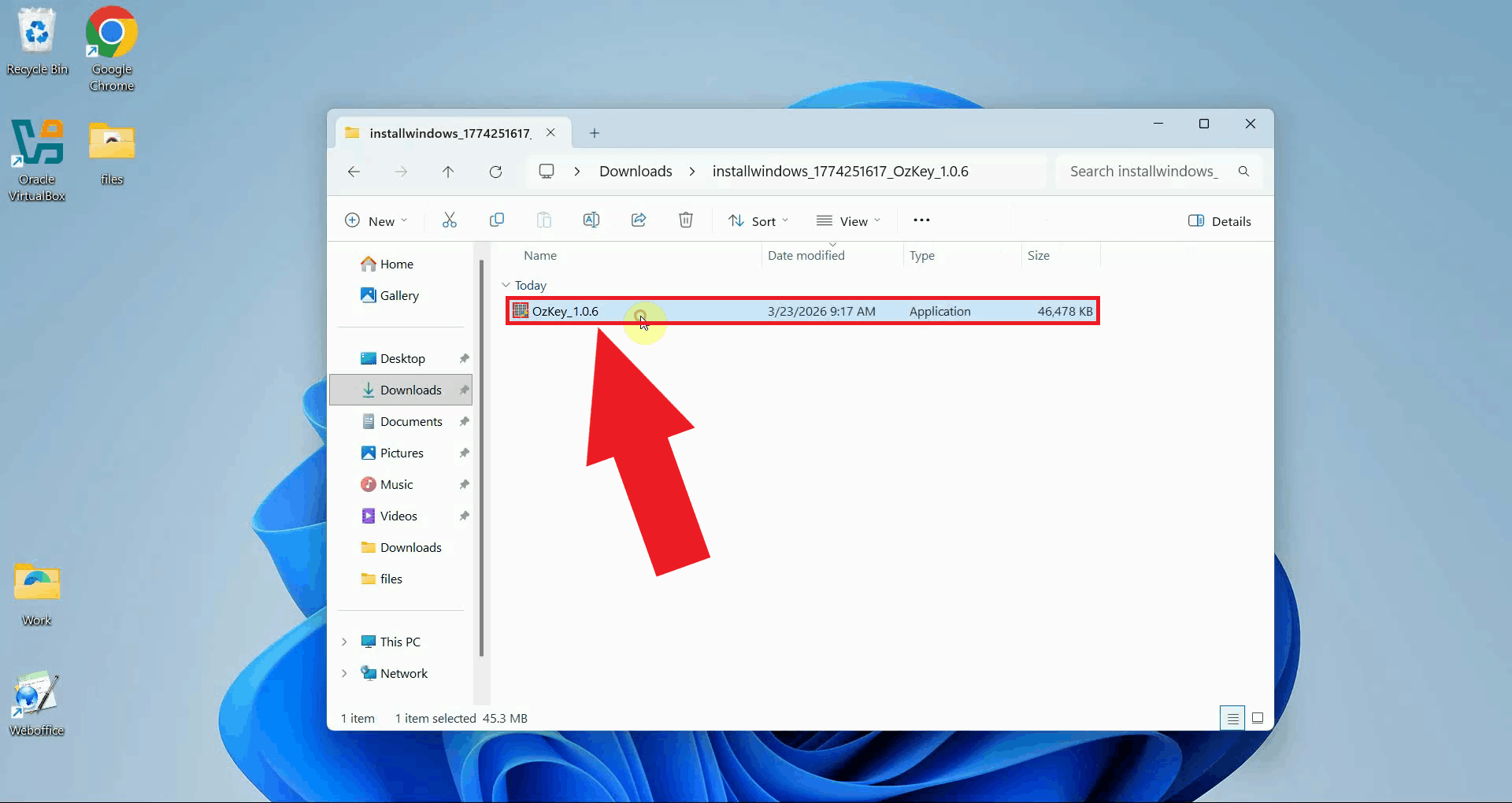
Right-click the ZIP file and select Extract All to unpack its contents. Select a destination folder for the extracted files and confirm the extraction. Once complete, the OzKey installer executable will be available inside the folder (Figure 4).
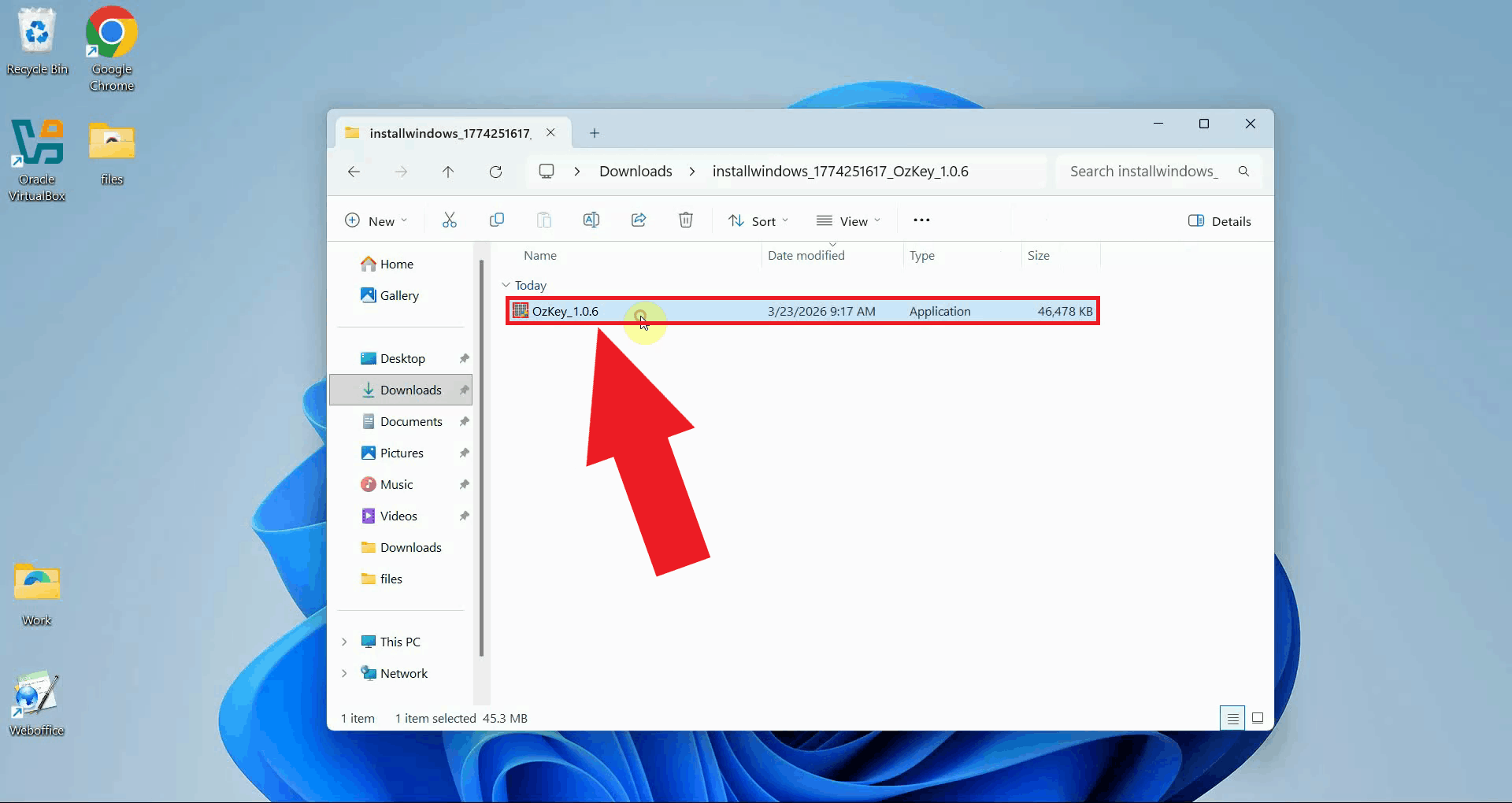
Step 4 - Run the installerOpen the extracted folder and double-click the OzKey installer executable to launch the setup wizard. If prompted by Windows User Account Control, click Yes to allow the installer to run (Figure 5).
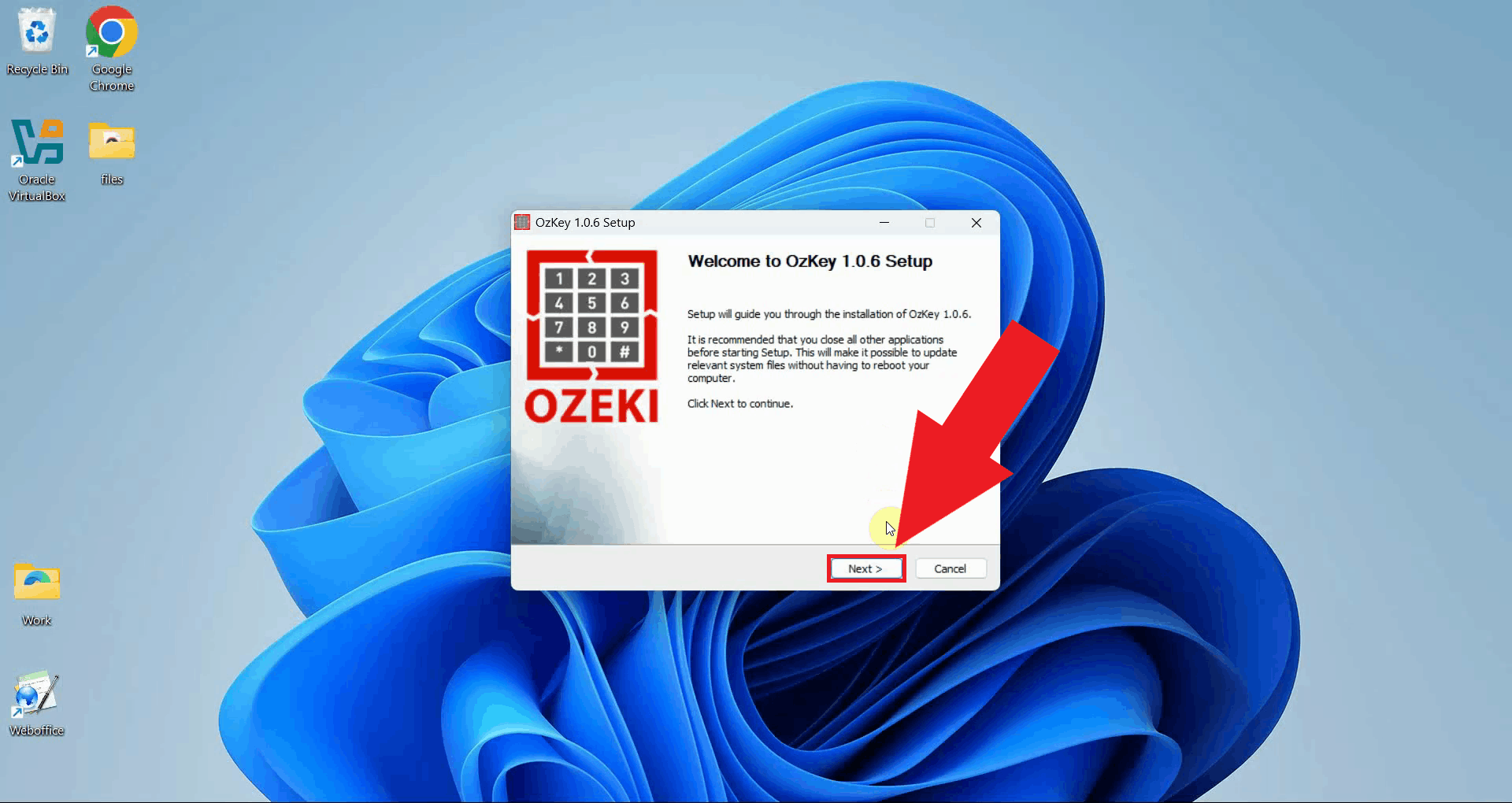
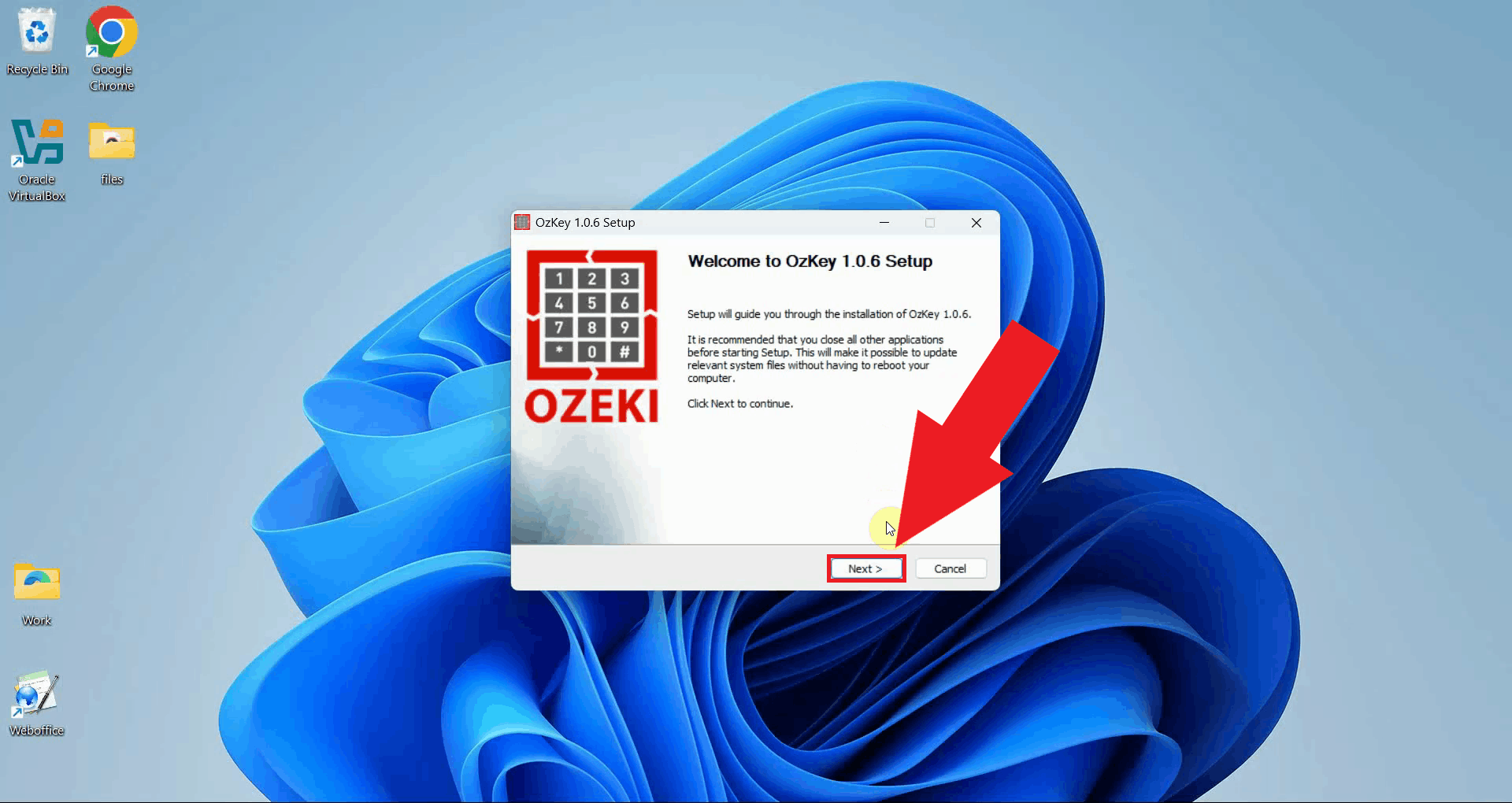
Step 5 - Complete the setupThe OzKey setup wizard will open with a welcome page that briefly explains the installation process. Click Next to proceed with the installation (Figure 6).
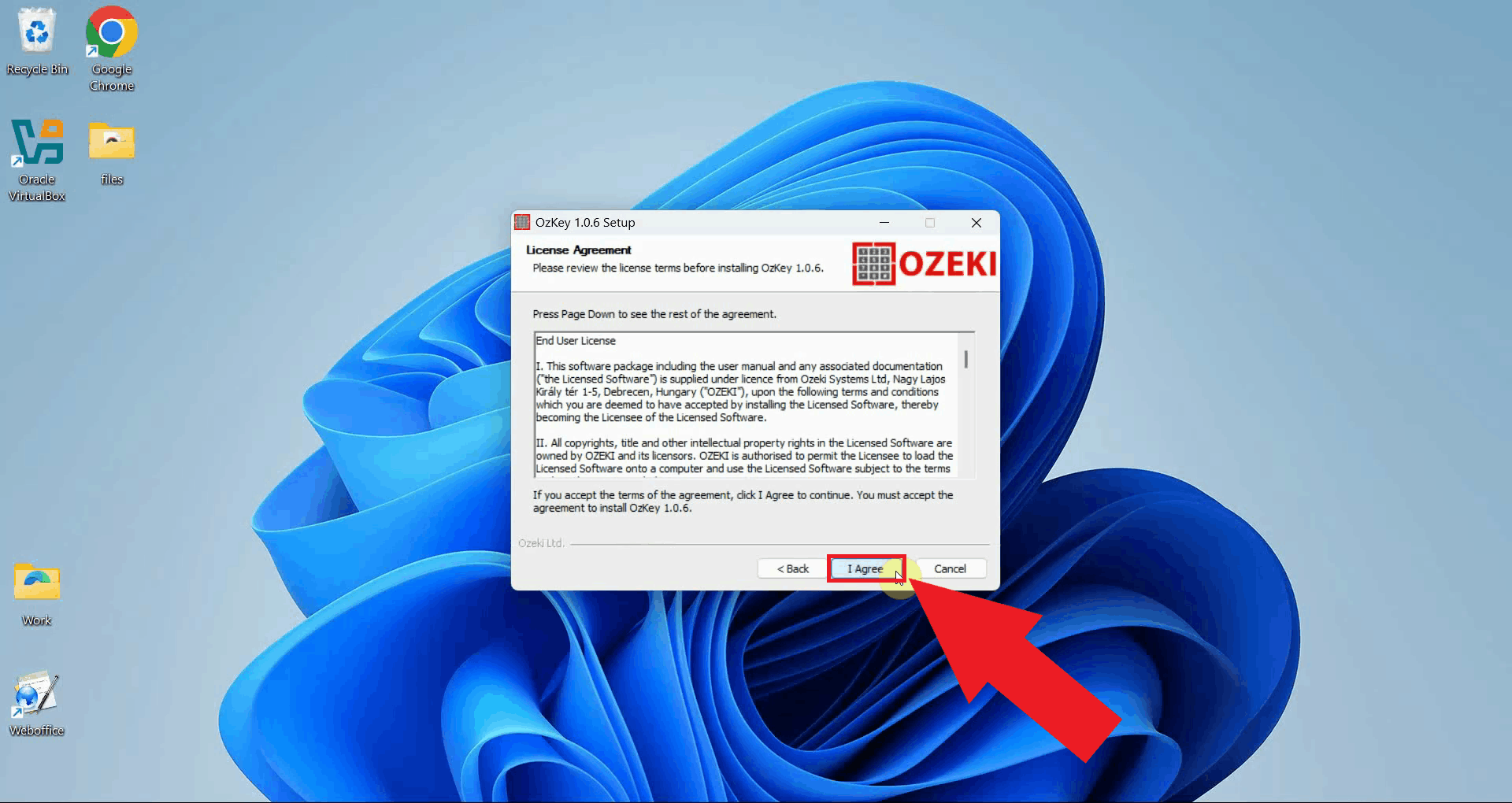
You will be presented with the license agreement. Read through the agreement. Click I Agree to proceed if you accept the terms (Figure 7).
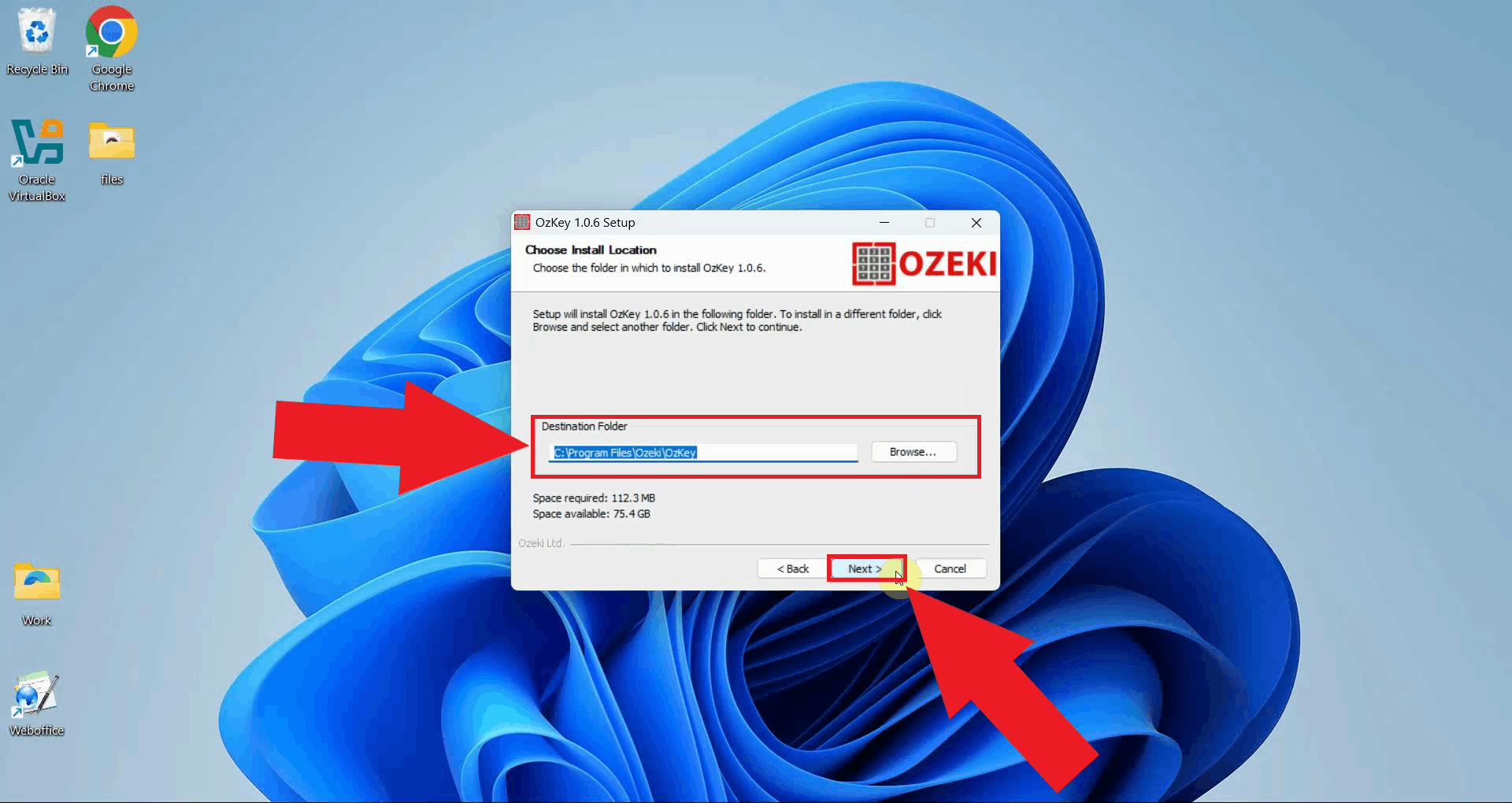
Choose the installation directory where Ozeki Voice Keyboard will be installed. The default location is recommended for most users. Click Next to continue (Figure 8).
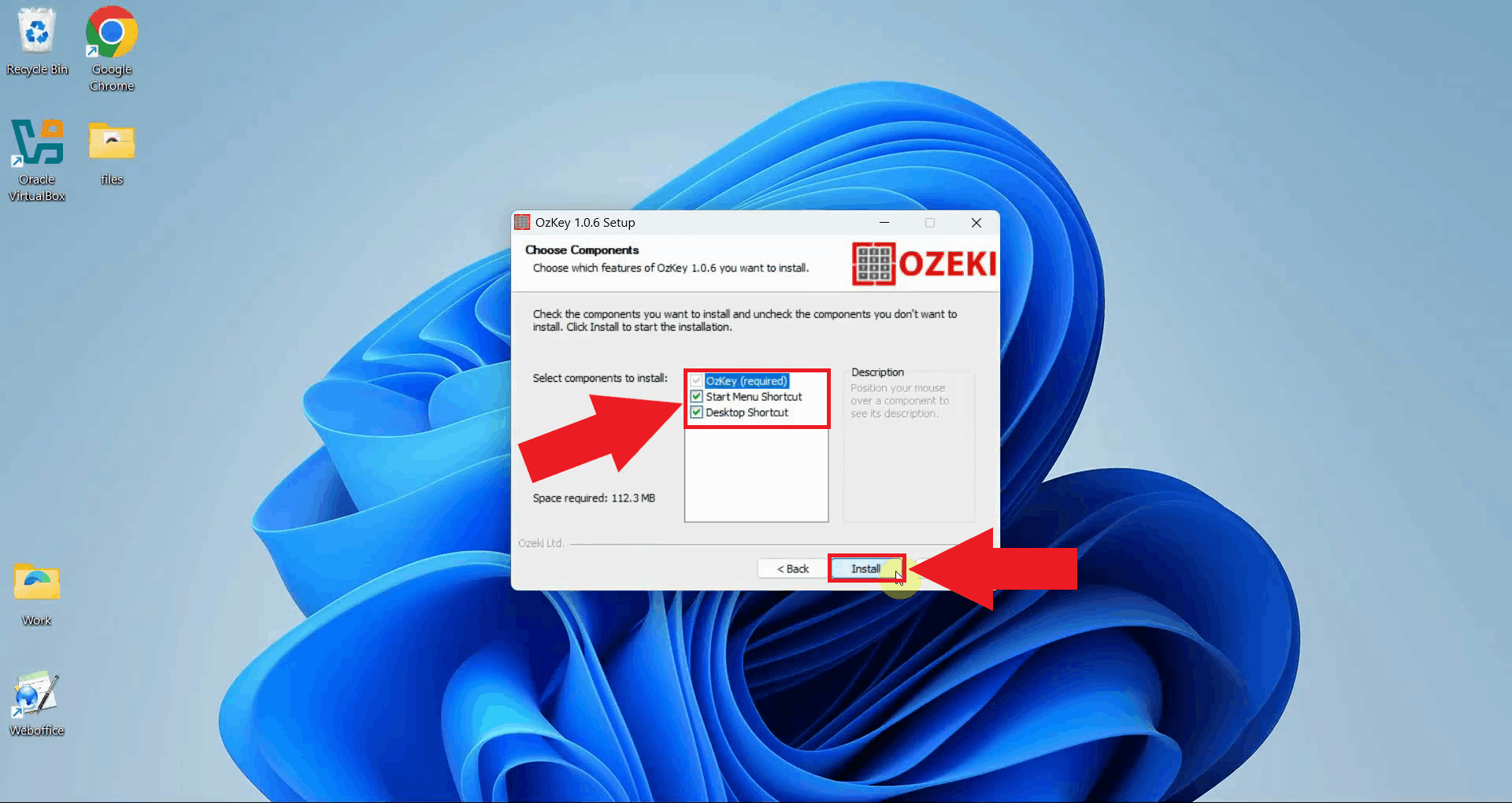
Select the components you want to install: you can optionally enable Start Menu Shortcut and Desktop Shortcut for easier access to the application after installation. Click Install to proceed (Figure 9).
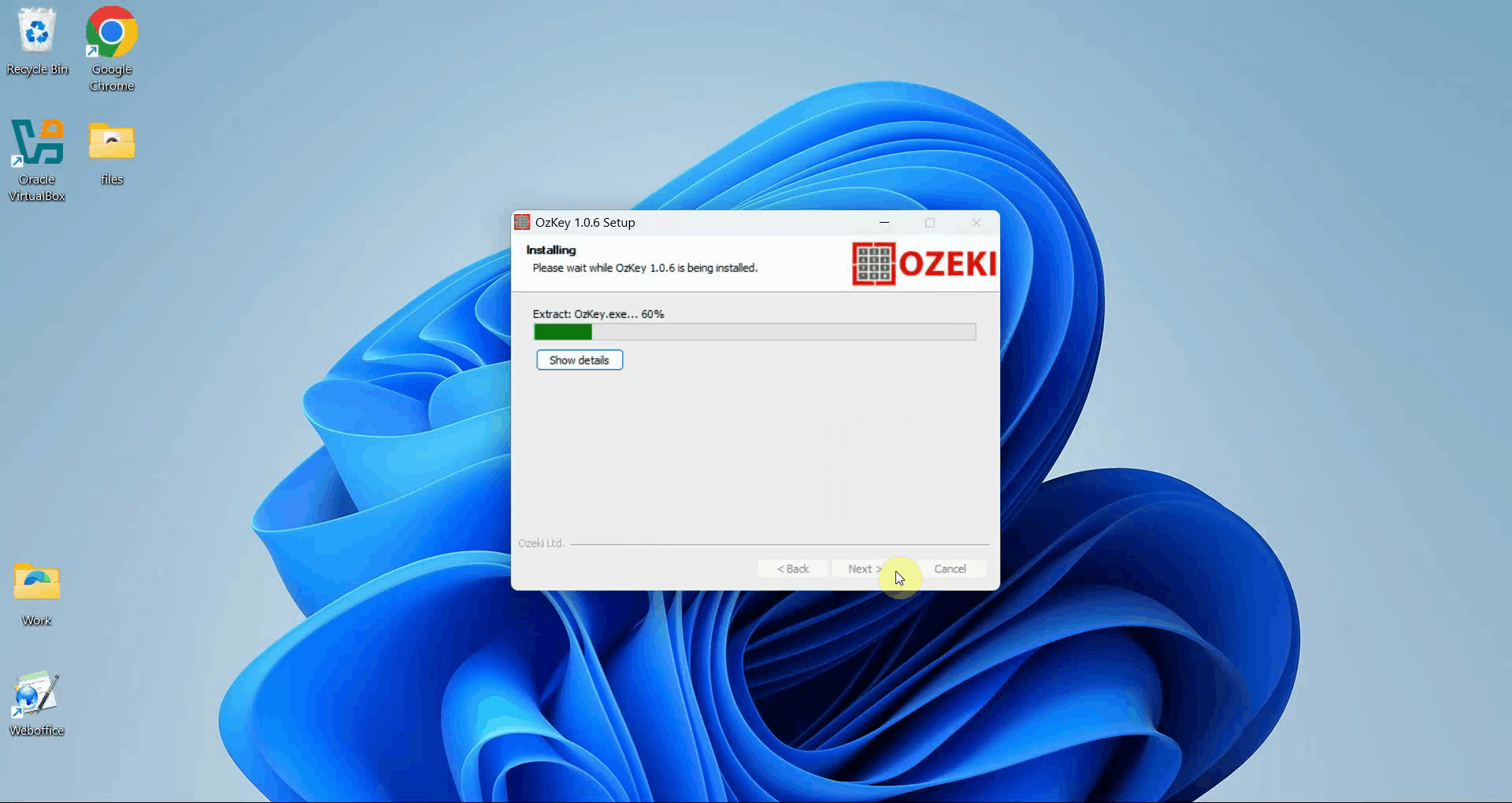
The installer will copy all necessary files to the selected directory. A progress bar indicates how much of the installation has completed (Figure 10).
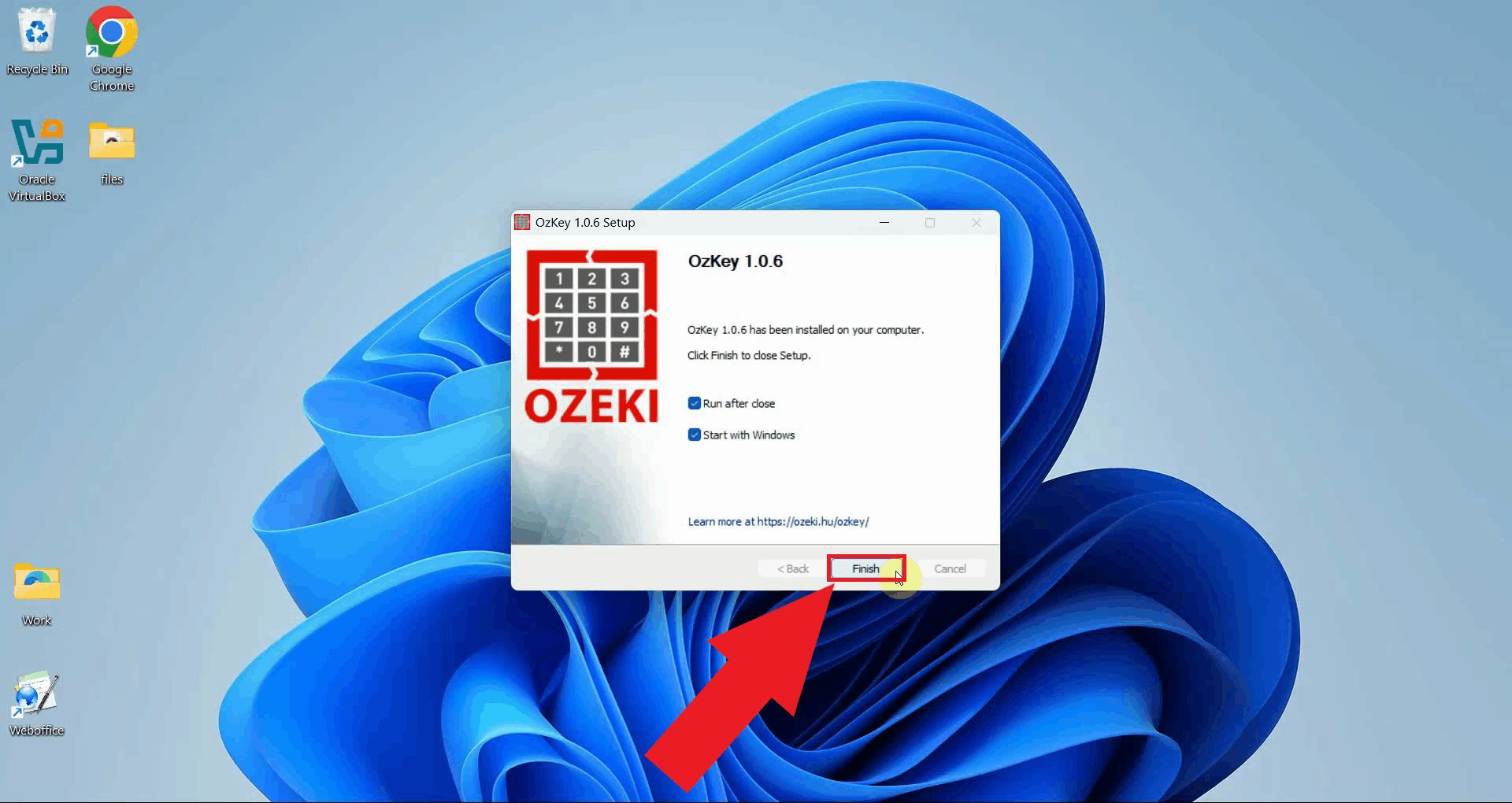
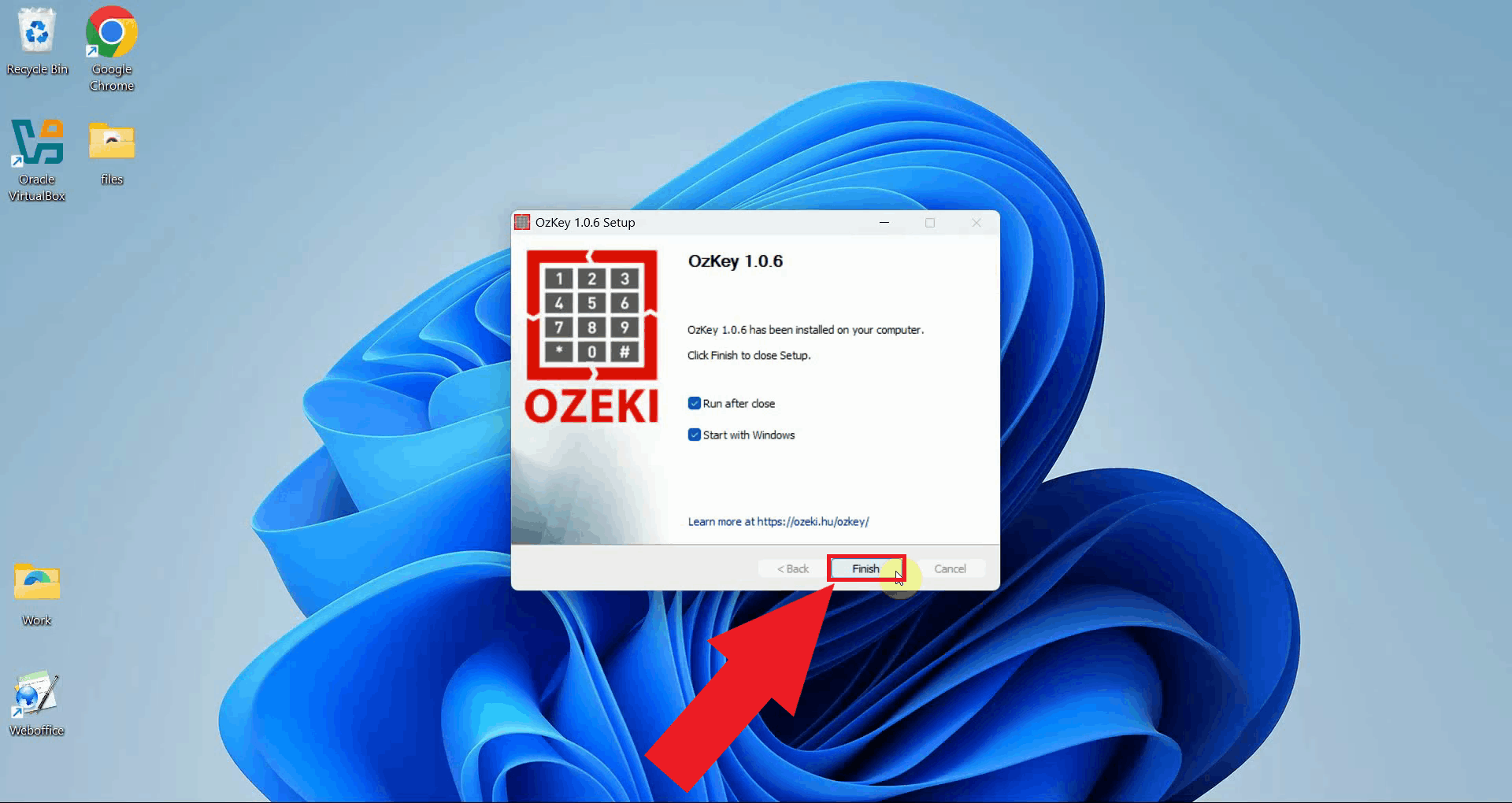
Once the installation is complete, the wizard will display a confirmation screen. Click Finish to close the installer. Ozeki Voice Keyboard is now installed and ready to use on your system (Figure 11).
To sum it upYou have successfully downloaded and installed Ozeki Voice Keyboard on your Windows system. The application is now ready to be configured with your preferred voice transcription and AI assistant services. You can check out our How to set up your LLM service in Ozeki Voice Keyboard and How to set up your Voice detection service in Ozeki Voice Keyboard guides on the topics.
https://ozekivoice.com/p_9330-manual-uninstallation-of-ozeki-voice-keyboard.html Manual Uninstallation of Ozeki Voice KeyboardThis guide demonstrates how to manually remove Ozeki Voice Keyboard from your Windows system. You will learn how to delete all application files, remove the Start Menu entry, clean up the Windows registry, and delete the program folder. Steps to follow
Quick reference paths
# Application data folder
C:\Users\{User}\AppData\Roaming\Ozeki\OzKey

# Start Menu entry
C:\Users\{User}\AppData\Roaming\Microsoft\Windows\Start Menu\Programs\Ozeki\OzKey

# Registry key
HKEY_LOCAL_MACHINE\SOFTWARE\WOW6432Node\Microsoft\Windows\CurrentVersion\Uninstall\OzekiOzKey

# Program Files folder
C:\Program Files\Ozeki\OzKey
How to manually uninstall Ozeki Voice Keyboard videoThe following video shows how to manually uninstall Ozeki Voice Keyboard step-by-step. The video covers deleting the application data folder, removing the Start Menu entry, cleaning up the registry, and deleting the remaining program files.
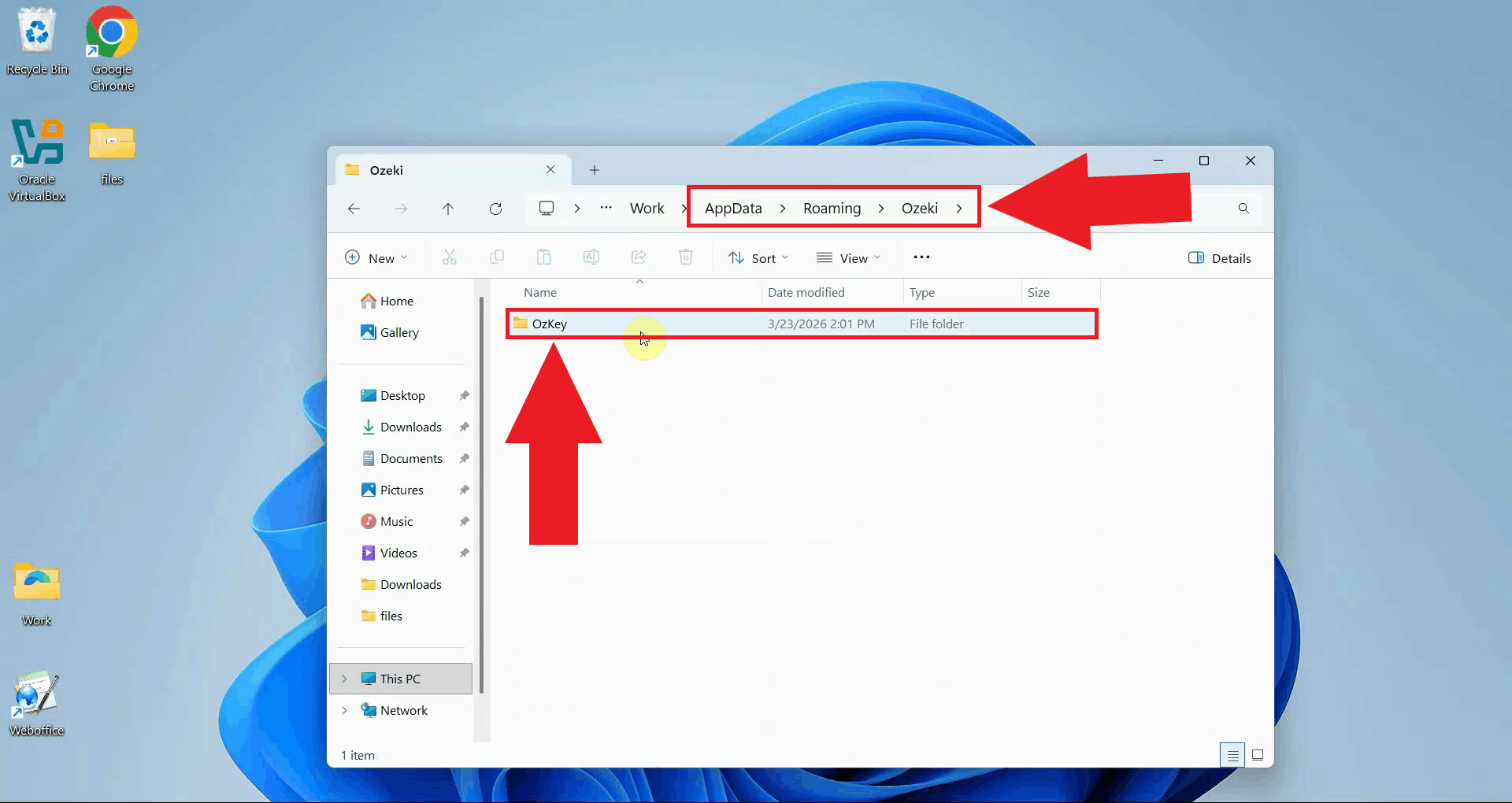
Step 1 - Delete the OzKey AppData folder
Open Windows File Explorer and navigate to the OzKey application data folder. This
folder contains user-specific data such as recordings and logs.
Replace C:\Users\{User}\AppData\Roaming\Ozeki\OzKey
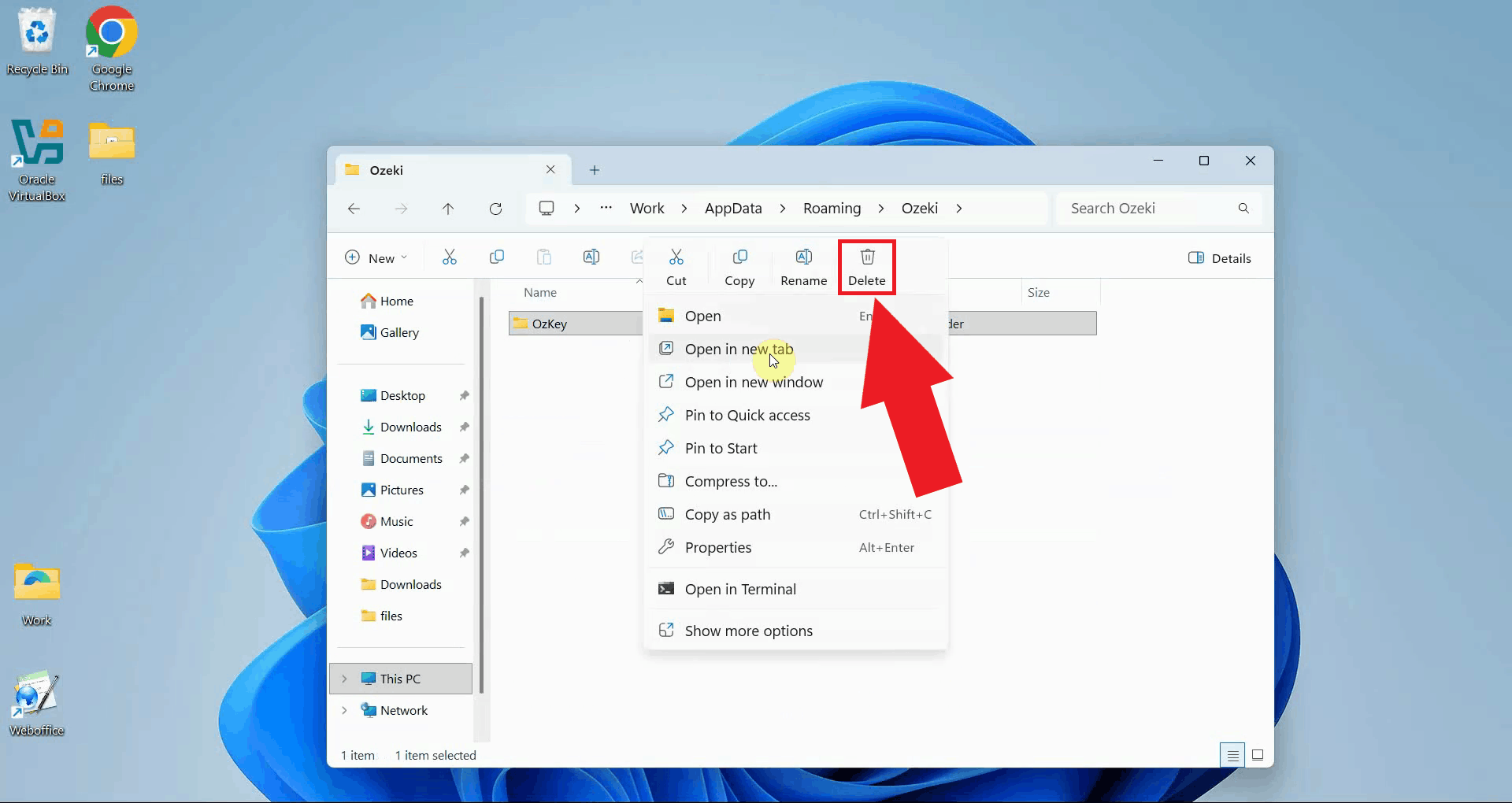
Right-click the OzKey folder and select Delete to remove it (Figure 2).
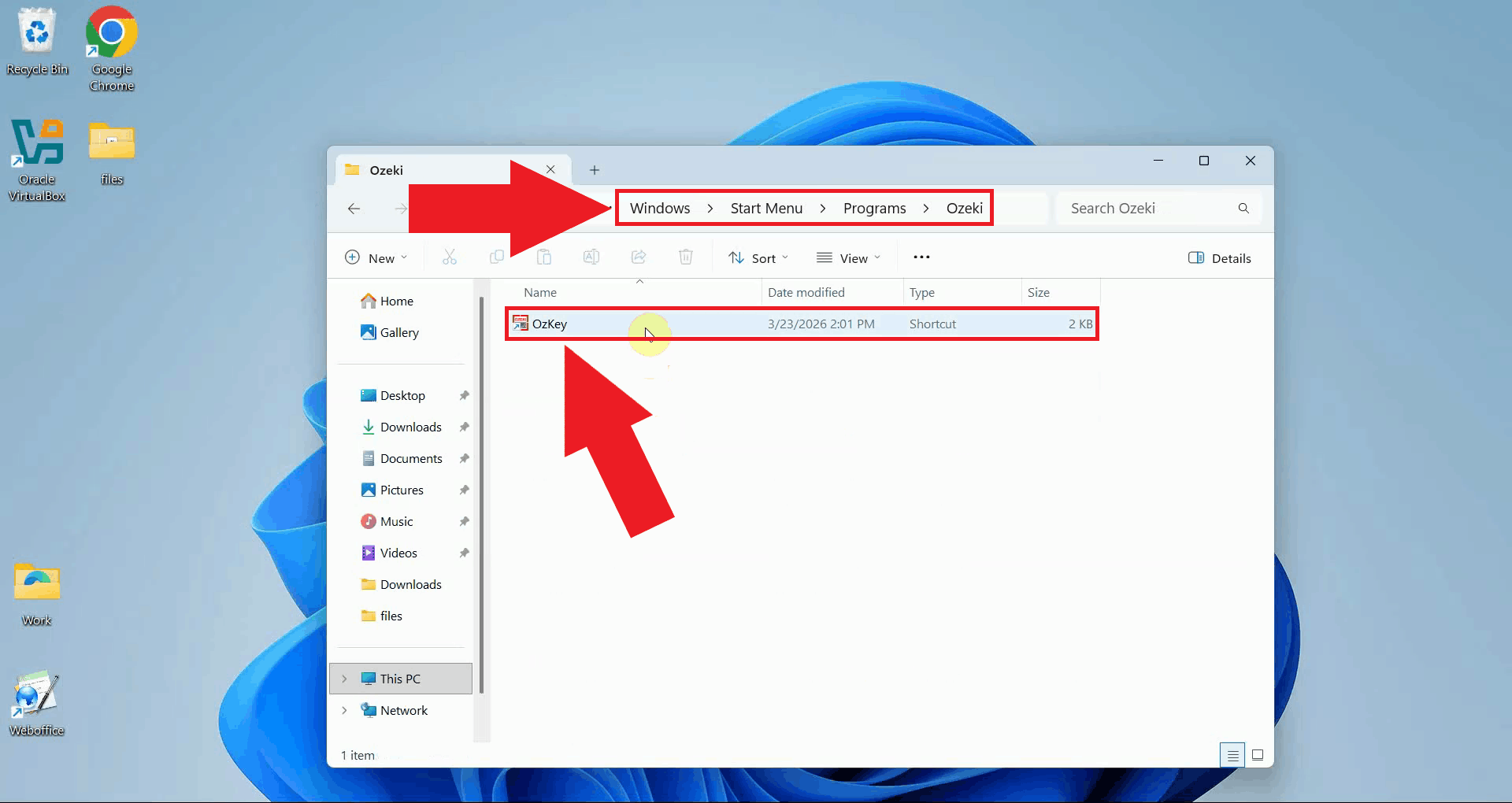
Step 2 - Remove the Start Menu entryNavigate to the OzKey Start Menu folder. This folder contains the shortcut that appears in the Windows Start Menu and was created during installation (Figure 3). C:\Users\{User}\AppData\Roaming\Microsoft\Windows\Start Menu\Programs\Ozeki
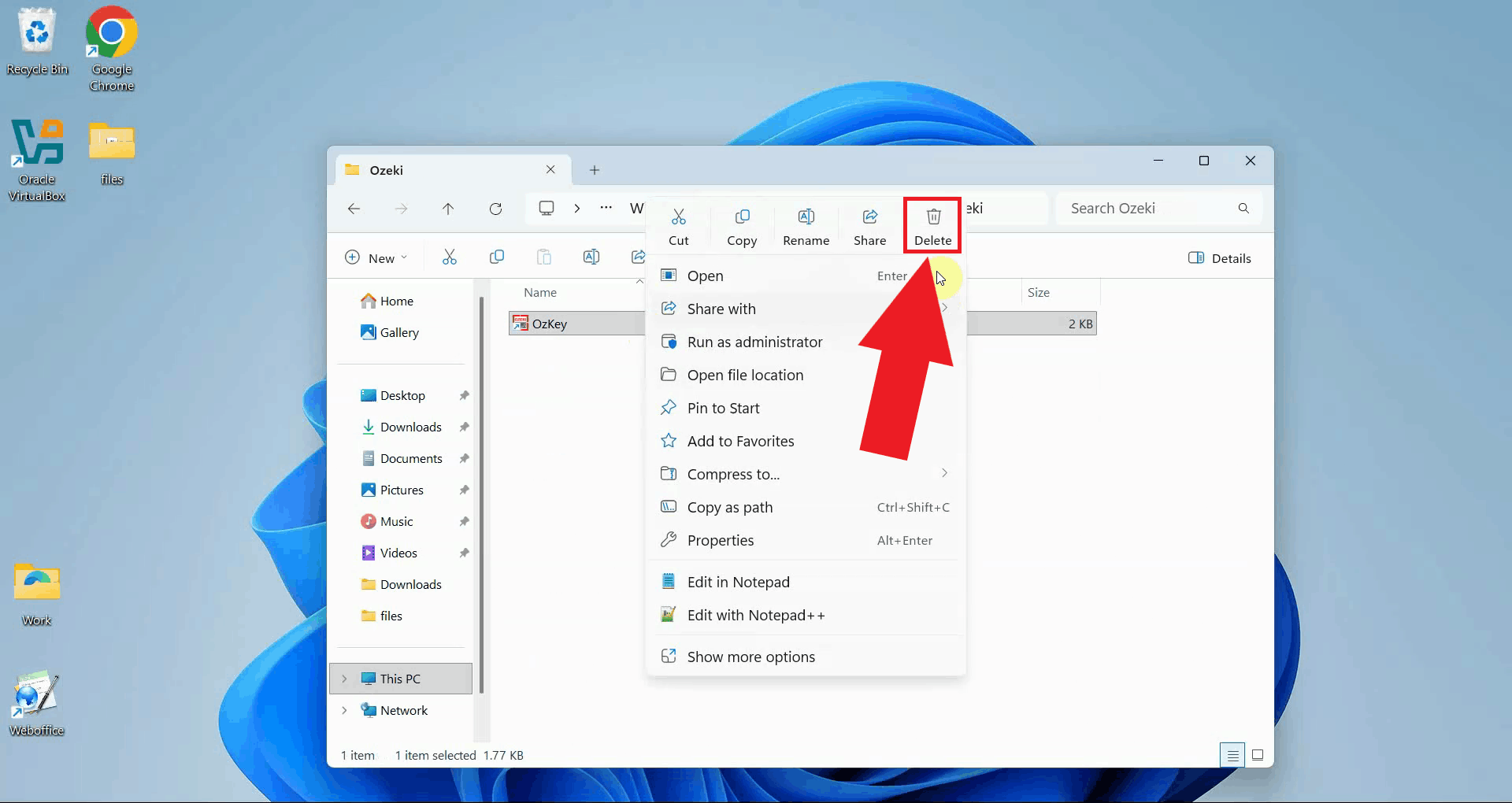
Right-click the OzKey shortcut and select Delete to remove it from the Start Menu (Figure 4).
Step 3 - Remove the registry entry
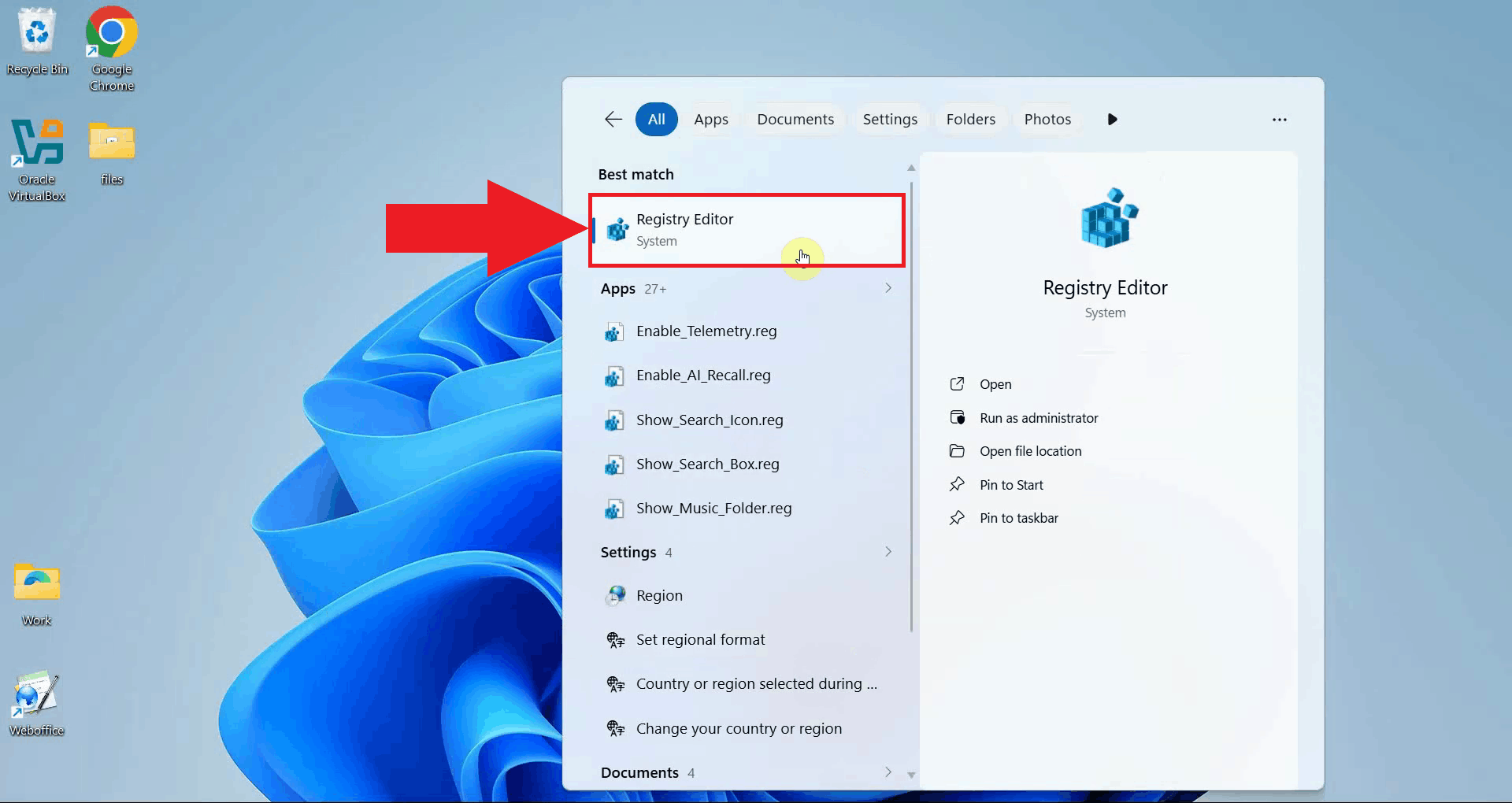
Open the Windows Registry Editor by opening windows search, typing
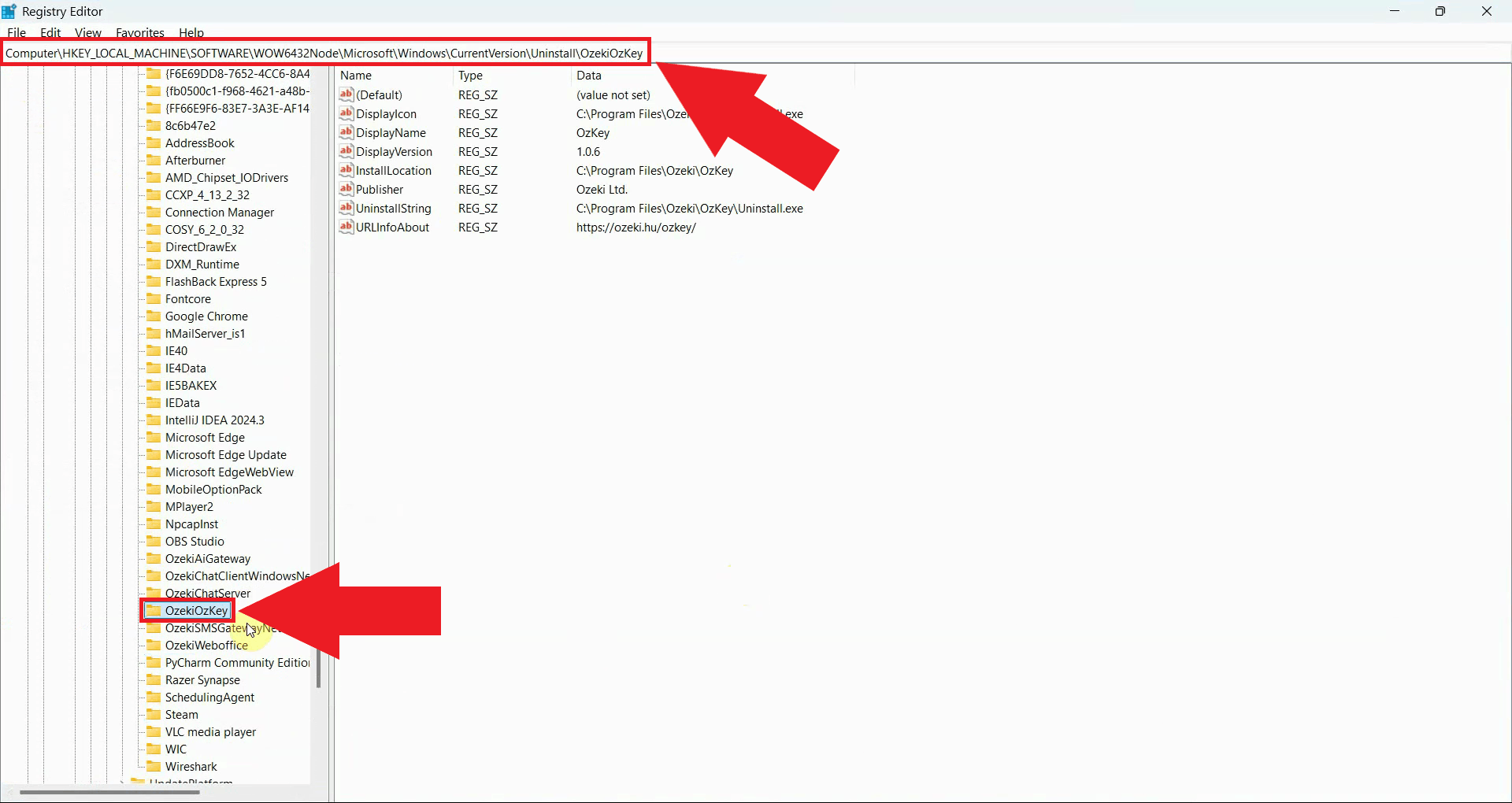
Navigate to the OzKey uninstall registry key by pasting the following path into the Registry Editor's address bar (Figure 6). HKEY_LOCAL_MACHINE\SOFTWARE\WOW6432Node\Microsoft\Windows\CurrentVersion\Uninstall\OzekiOzKey
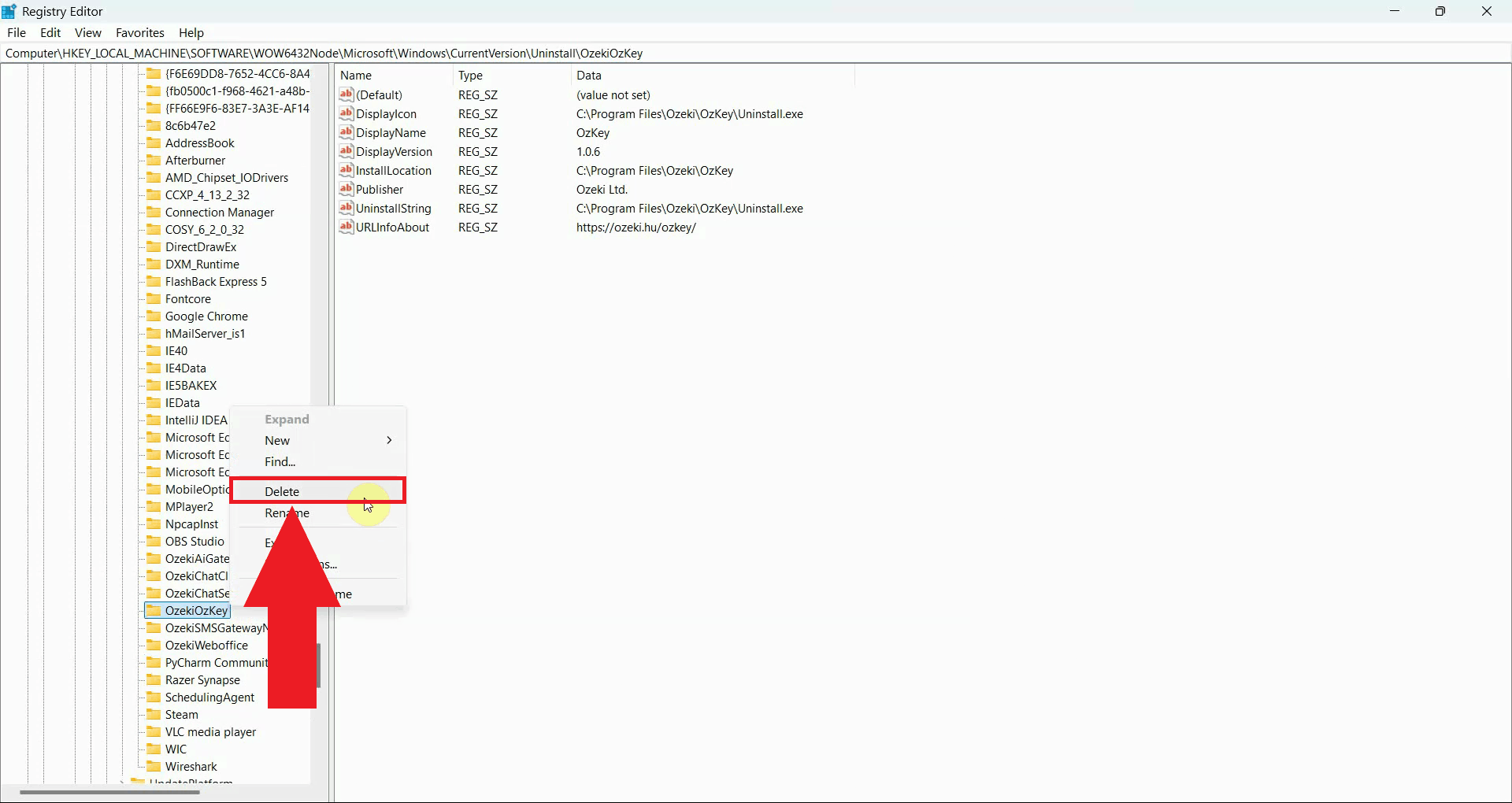
Right-click the OzekiOzKey key in the left panel and select Delete to remove it. Confirm the deletion when prompted. Once this key is removed, Windows will no longer list Ozeki Voice Keyboard as an installed program (Figure 7).
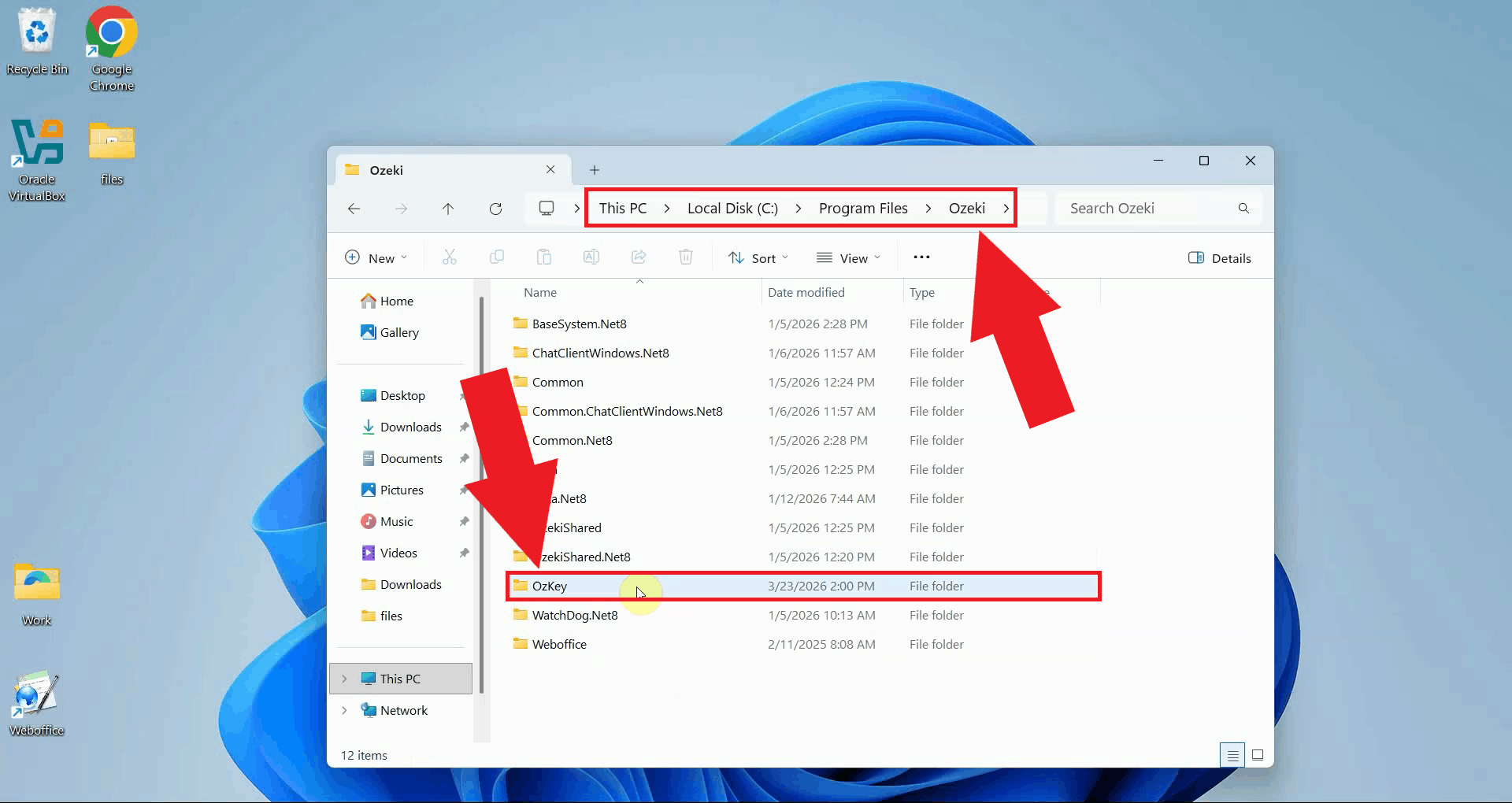
Step 4 - Delete the Program Files folderOpen File Explorer and navigate to the Ozeki folder inside Program Files. This folder contains the application binaries (Figure 8). C:\Program Files\Ozeki\OzKey
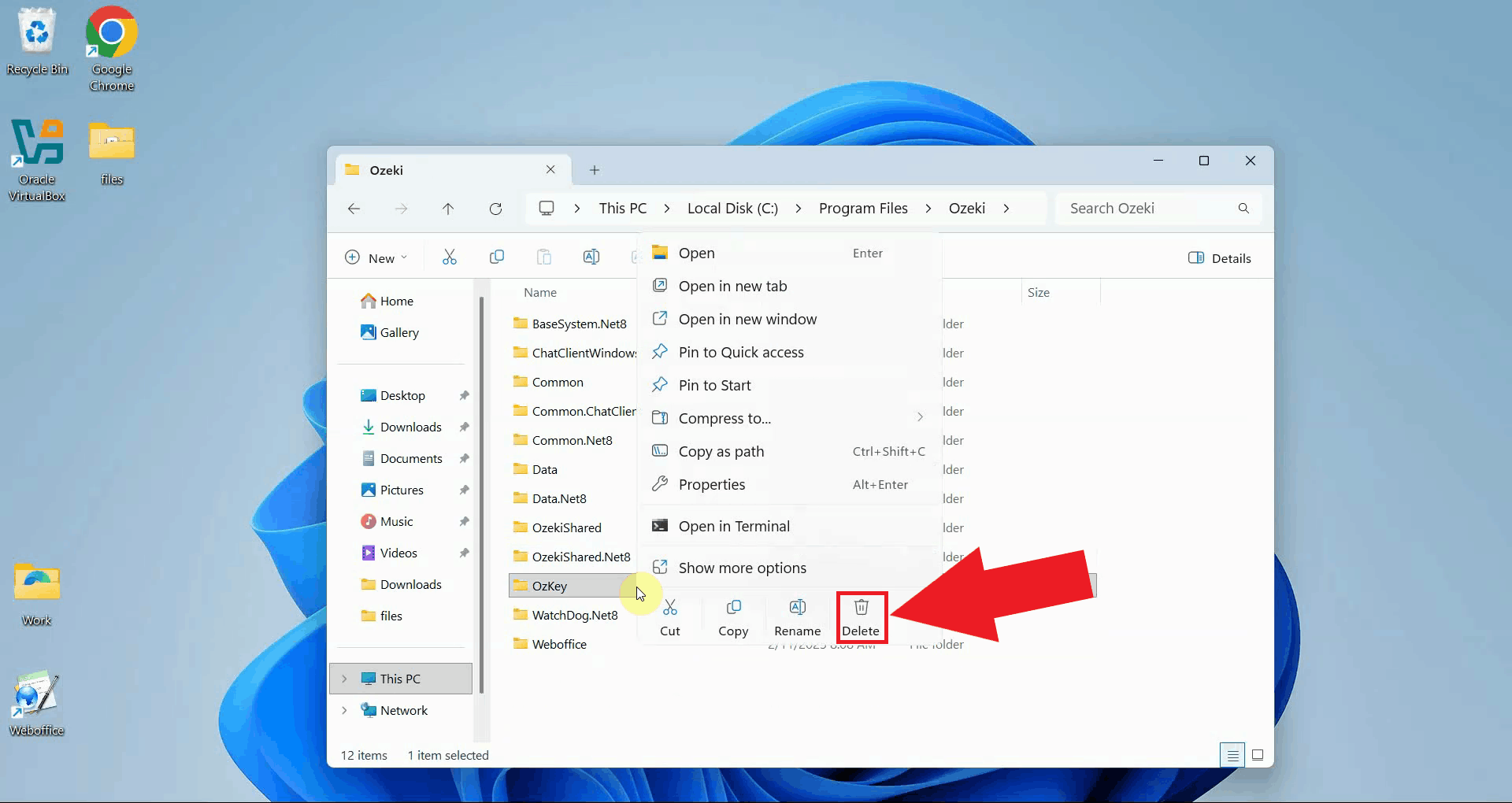
Right-click the OzKey folder and select Delete to remove it (Figure 9).
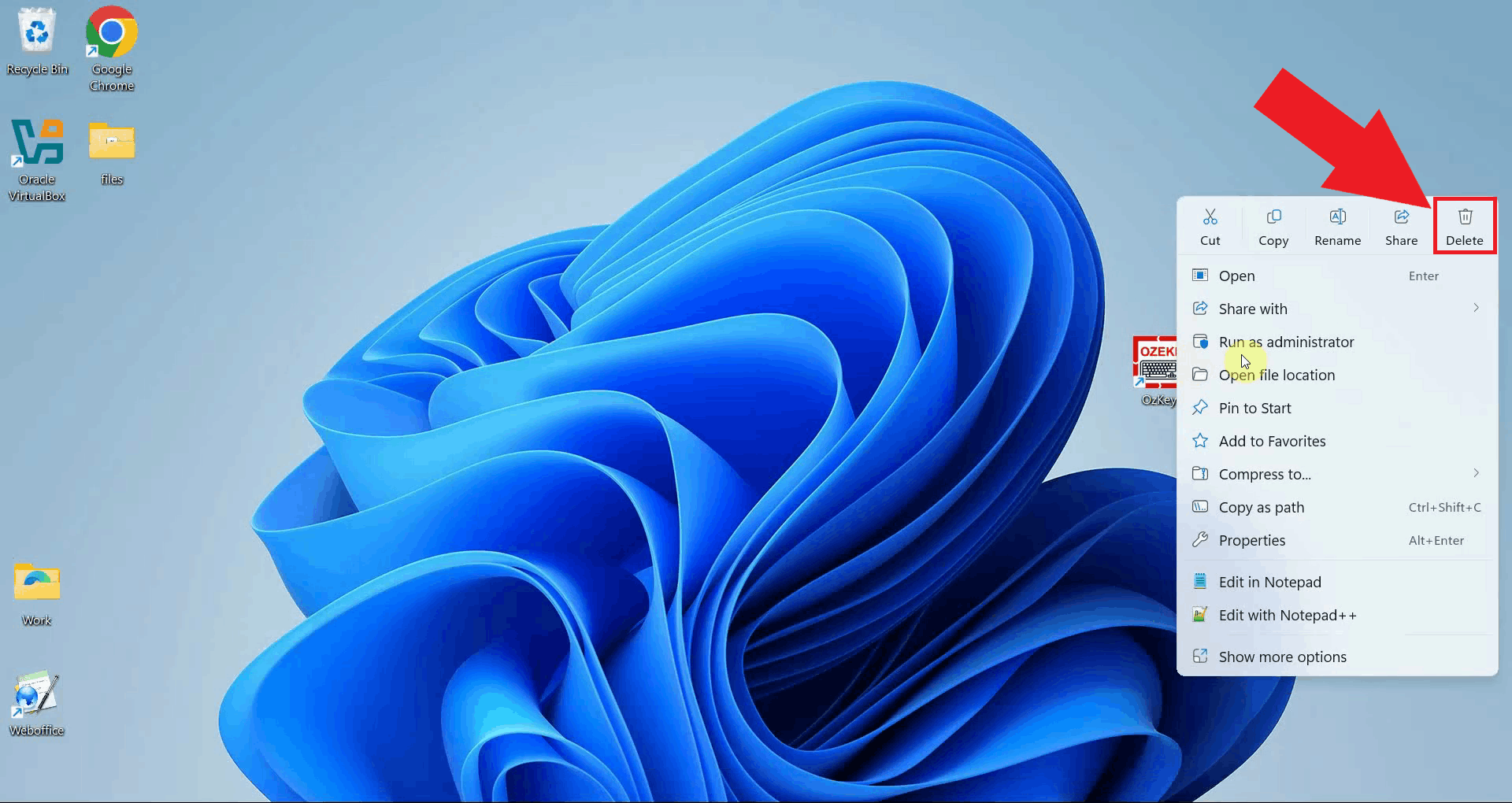
Step 5 - Remove the desktop shortcutIf a desktop shortcut was created during installation, locate the OzKey icon on your desktop. Right-click the shortcut and select Delete to remove it. This is the final step in the manual uninstallation process (Figure 10).
Final thoughtsYou have successfully removed all traces of Ozeki Voice Keyboard from your Windows system. By deleting the application data folder, Start Menu entry, registry key, program files, and desktop shortcut, the application is now fully uninstalled without leaving any residual files or system entries behind.
https://ozekivoice.com/p_9332-how-to-uninstall-ozeki-voice-keyboard.html How to Uninstall Ozeki Voice KeyboardThis guide demonstrates how to uninstall Ozeki Voice Keyboard from your Windows system using the built-in uninstaller. You will learn how to locate the application in the Windows installed apps list and remove it cleanly in just a few steps. Steps to followHow to uninstall Ozeki Voice Keyboard videoThe following video shows how to uninstall Ozeki Voice Keyboard step-by-step. The video covers opening the installed apps list, finding Ozeki Voice Keyboard, and running the uninstaller to completion.
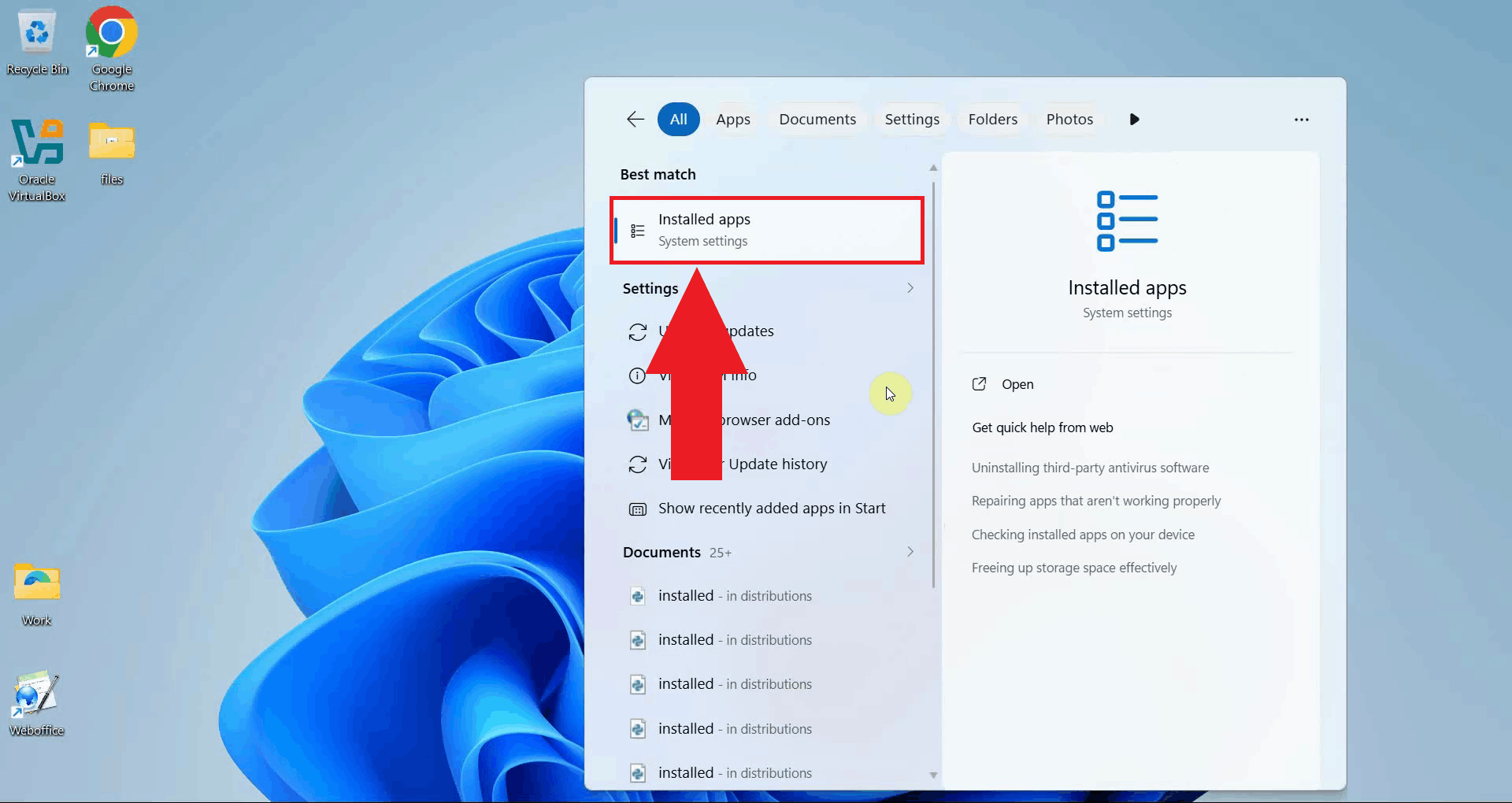
Step 1 - Open the Installed Apps menuClick the Windows Search bar in the taskbar and type Installed Apps. Select the Installed Apps system settings result to open the page directly. This page lists all applications currently installed on your system and provides options to modify or remove them (Figure 1).
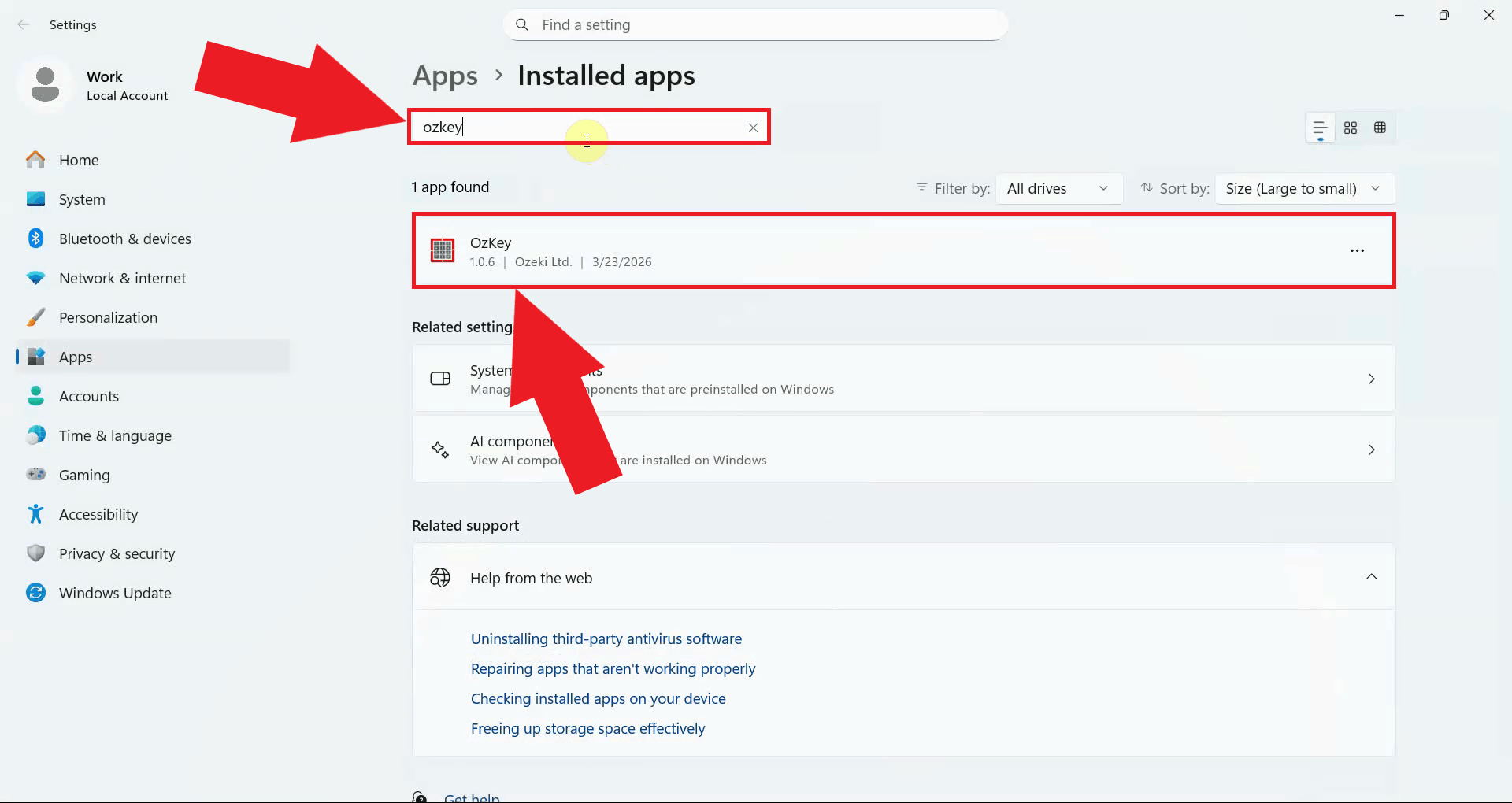
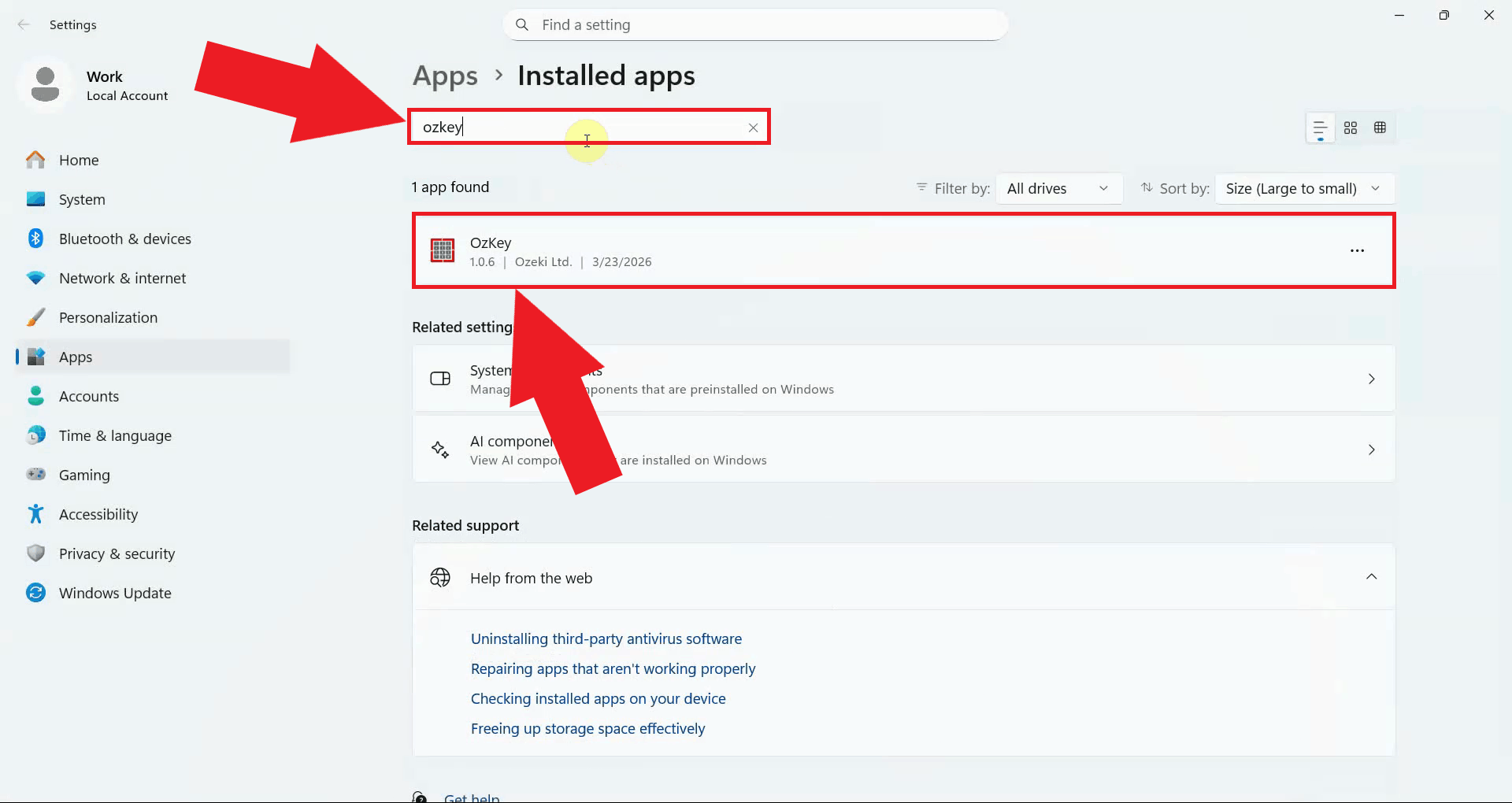
Step 2 - Search for OzKeyUse the search bar at the top of the Installed Apps page and type OzKey to filter the list. The application will appear in the results once the search completes (Figure 2).
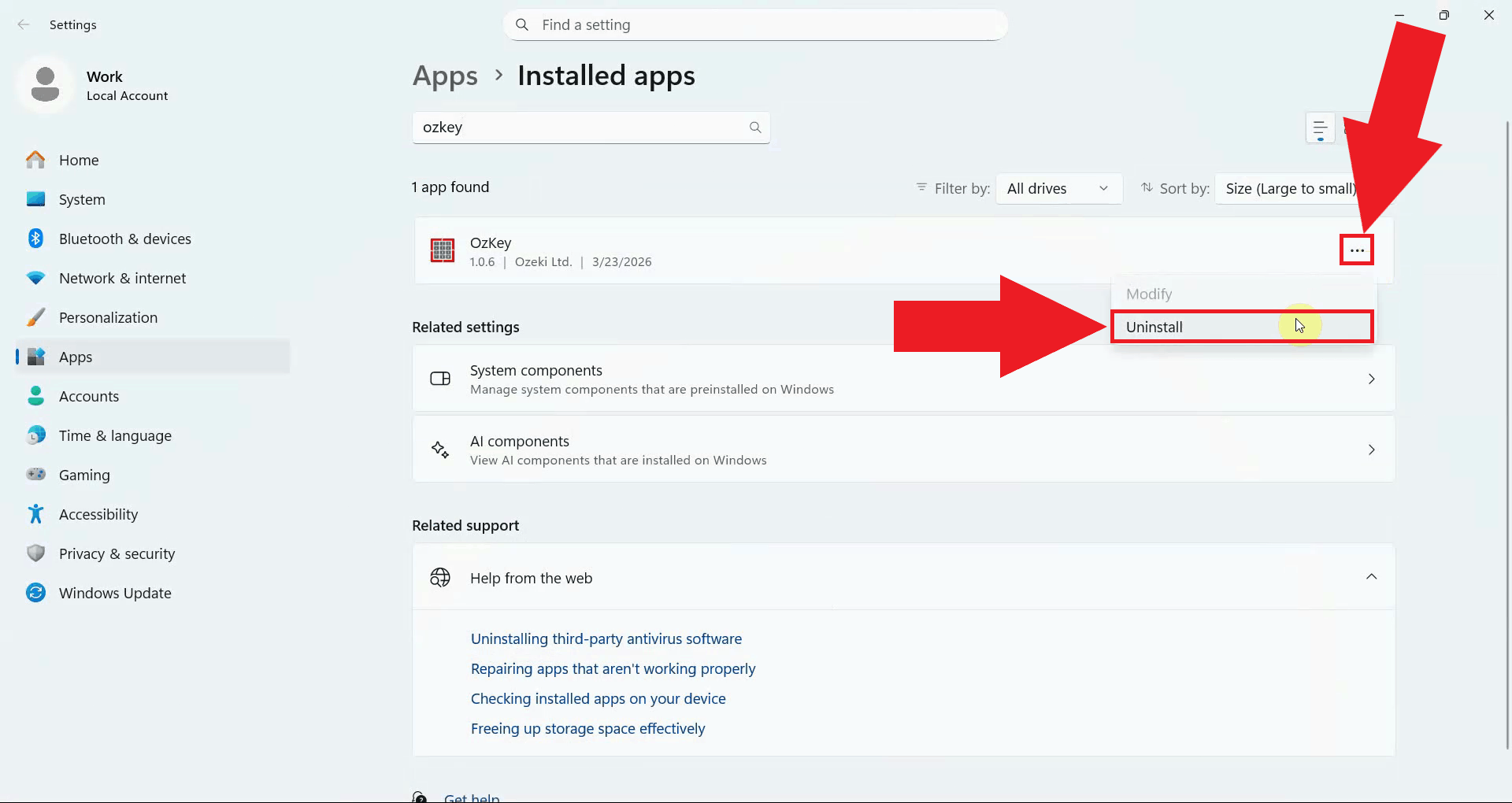
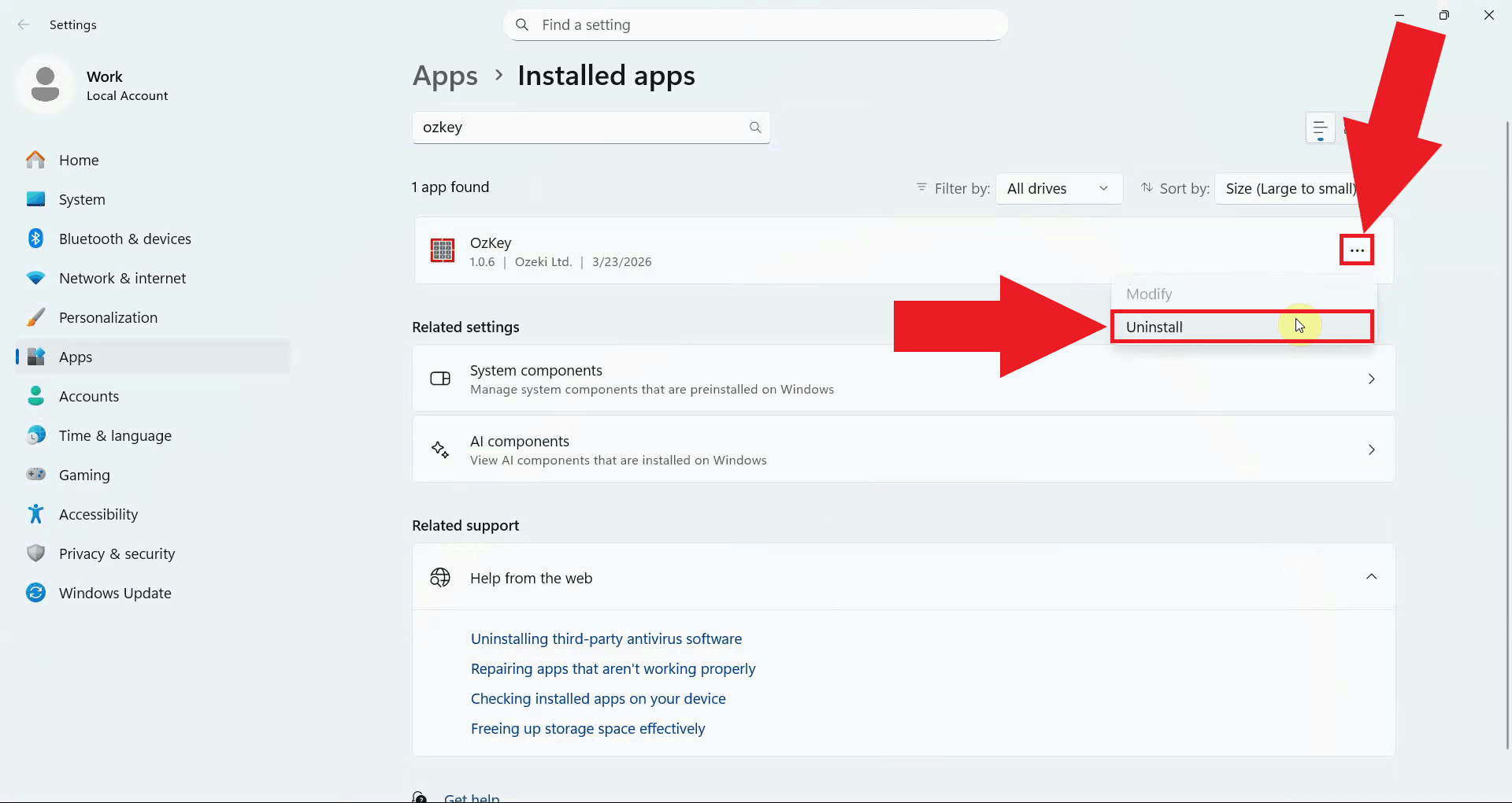
Step 3 - Uninstall Ozeki Voice KeyboardClick the three-dot menu button on the right side of the OzKey entry to expand the available options. Select Uninstall from the dropdown menu to launch the OzKey uninstaller (Figure 3).
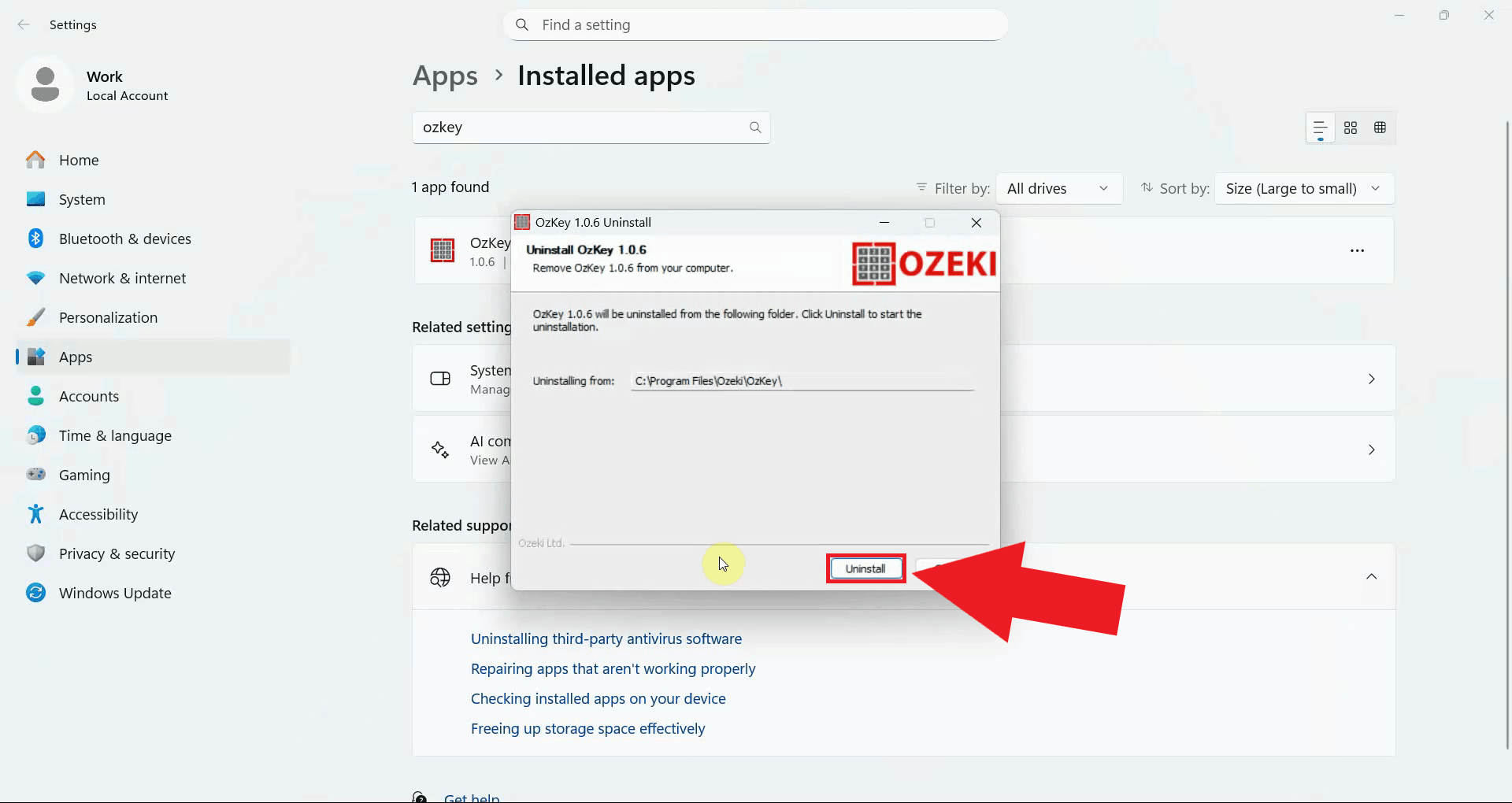
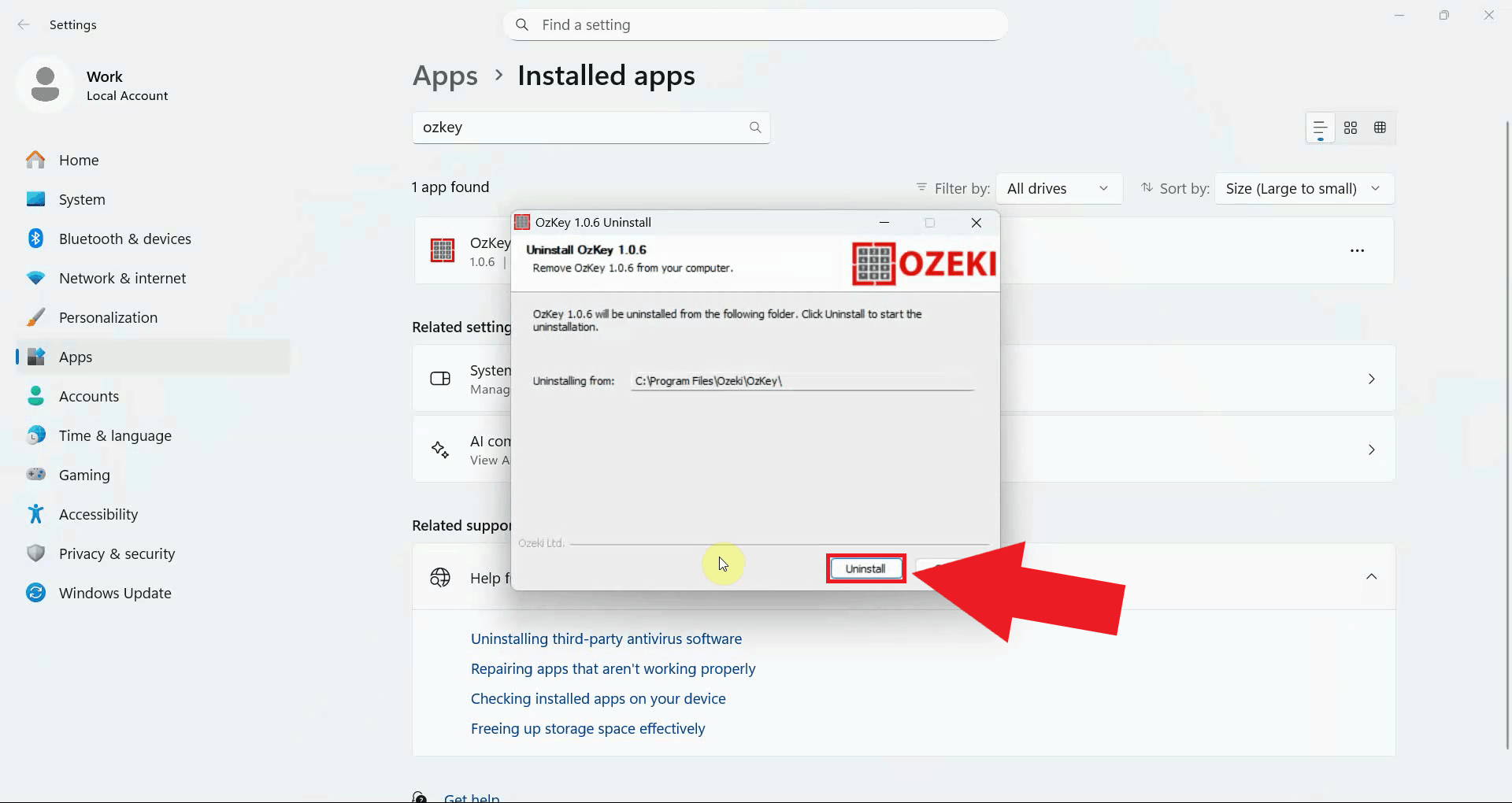
The OzKey uninstaller window will open. Click the Uninstall button to begin removing the application. The uninstaller will automatically remove all application files and entries from your system (Figure 4).
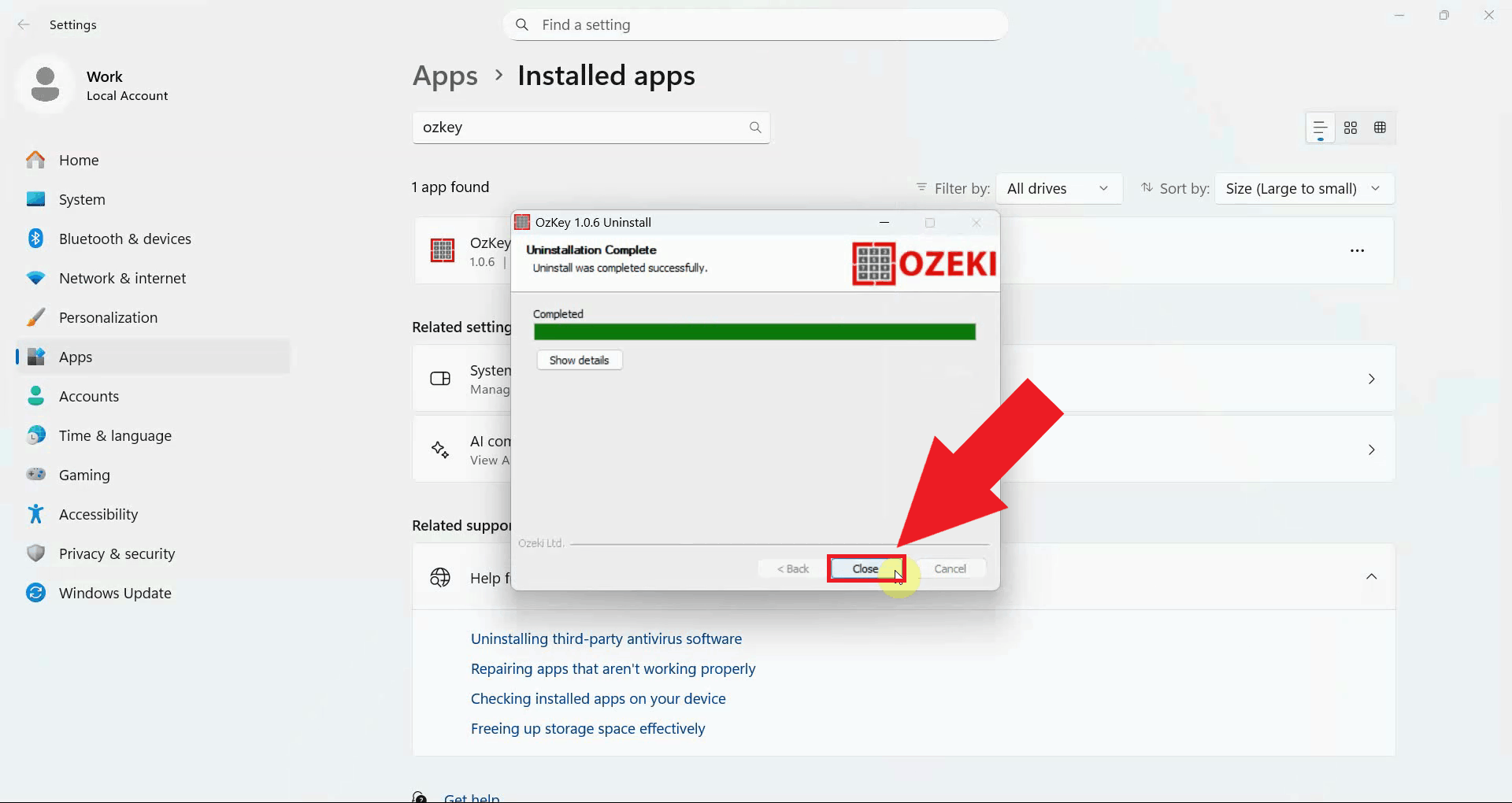
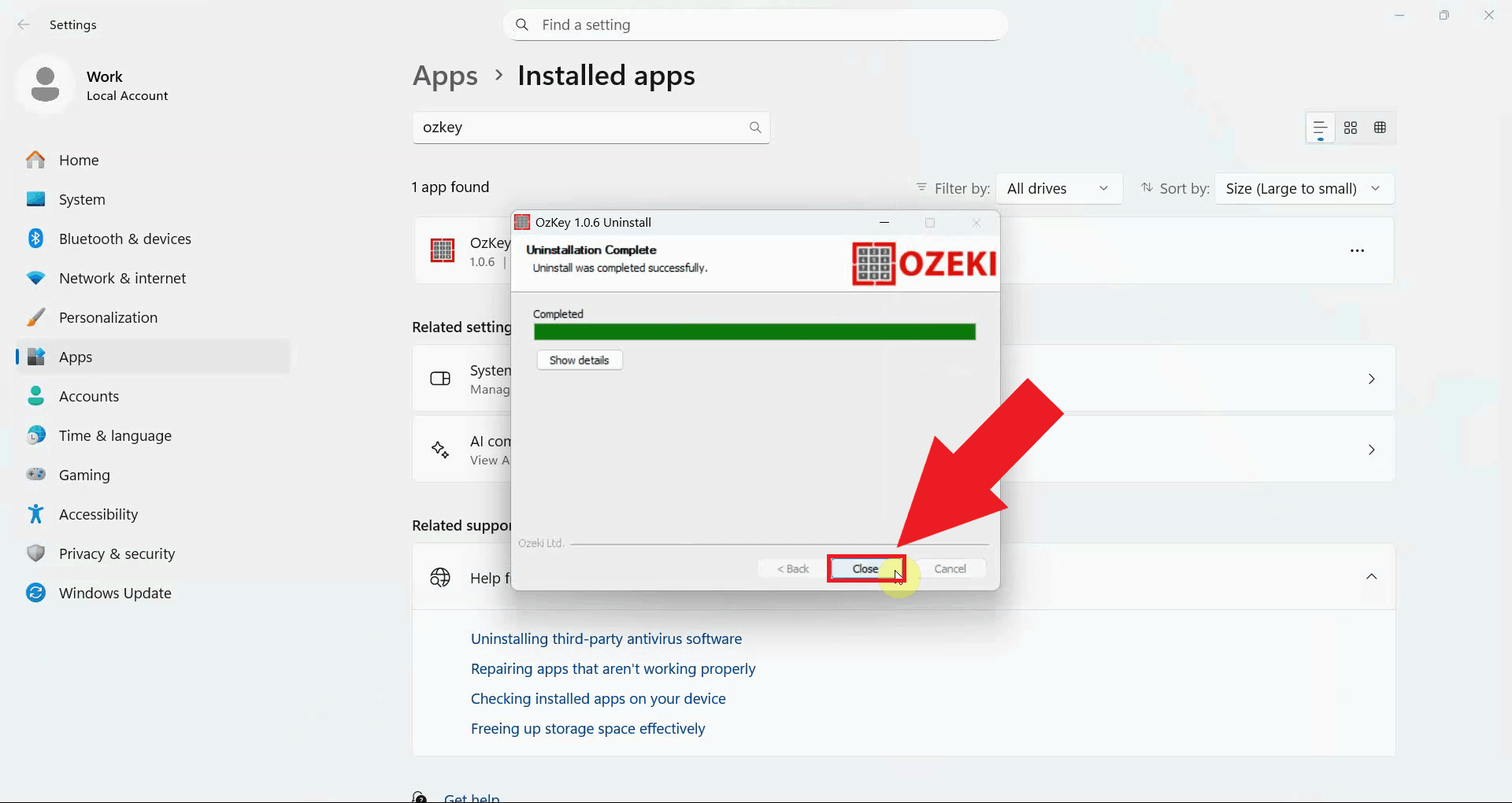
Once the uninstallation is complete, the window will display a confirmation message. Click Close to dismiss the window. Ozeki Voice Keyboard has now been fully removed from your system (Figure 5).
ConclusionYou have successfully uninstalled Ozeki Voice Keyboard from your Windows system using the built-in uninstaller. All application files and system entries have been removed automatically without requiring any manual cleanup.
https://ozekivoice.com/p_9333-how-to-reinstall-ozeki-voice-keyboard.html How to Reinstall Ozeki Voice KeyboardThis guide demonstrates how to reinstall Ozeki Voice Keyboard on Windows. Reinstalling is useful when the application is not functioning correctly or after a system change. The process involves uninstalling the current version and then running the installer to set up a fresh copy of the application. Steps to followHow to uninstall Ozeki Voice Keyboard videoThe following video shows how to uninstall Ozeki Voice Keyboard in preparation for reinstallation. The video covers locating the application in the installed apps list and running the uninstaller to completion.
Step 1 - Uninstall Ozeki Voice KeyboardClick the Windows Search bar in the taskbar, type Installed Apps, and open the result. Use the search bar on the Installed Apps page to find OzKey, it will appear in the filtered results once the search completes (Figure 1).
Click the three-dot menu button on the right side of the OzKey entry and select Uninstall from the dropdown menu. This will launch the OzKey uninstaller window (Figure 2).
In the OzKey uninstaller window, click the Uninstall button to begin removing the application. The uninstaller will automatically remove all application files and system entries (Figure 3).
Once the uninstallation is complete, a confirmation message will appear. Click Close to dismiss the window before proceeding with the reinstallation (Figure 4).
Step 2 - Reinstall Ozeki Voice KeyboardThe following video shows how to reinstall Ozeki Voice Keyboard after the previous version has been removed. The video covers running the installer and completing the setup wizard.
Locate the OzKey installer executable - if you no longer have it, download the latest version from the Ozeki Voice Keyboard download page and extract it from the ZIP file. Double-click the installer to launch the setup wizard, and confirm any User Account Control prompt that appears (Figure 5).
The setup wizard welcome screen will appear. Proceed through the installation steps by accepting the license agreement, choosing the installation location, and selecting your preferred components, then click Install to begin (Figure 6).
Once the installation is complete, the wizard will display a confirmation screen. Click Finish to close the installer. Ozeki Voice Keyboard is now freshly installed and ready to be configured (Figure 7).
To sum it upYou have successfully reinstalled Ozeki Voice Keyboard on your Windows system. The application has been cleanly removed and set up from scratch, which resolves most issues caused by corrupted or outdated installation files.
https://ozekivoice.com/p_9342-how-to-setup-local-ai-services-for-ozeki-voice-keyboard.html Setup local AI services to serve Ozeki Voice KeyboardThis page provides guides for setting up local AI services including Whisper for speech detection and various LLM backends for Ozeki Voice Keyboard. Setup AI speech detectorThis page provides comprehensive information for setting up Whisper Speech Detector with Ozeki Voice Keyboard across different platforms including Windows, Windows with WSL, and Ubuntu Linux. If you serve speech detection from your own server your transcriptions will not leave your network. Read more: How to use Whisper as a Speech Detector in Ozeki Voice Keyboard
To go directly to platform specific setups, you may follow these links:
Setup LLM backendThis page provides guides on configuring different LLM backends for Ozeki Voice Keyboard, including Ollama on Windows, LLama.cpp on Ubuntu, and vLLM on Ubuntu.If you serve speech detection from your own server your transcriptions will not leave your network. Read more: How to use different LLM backends in Ozeki Voice Keyboard
To go directly to platform specific setups, you may follow these links:
https://ozekivoice.com/p_9326-how-to-use-whisper-as-a-speech-detector-in-ozeki-voice-keyboard.html How to use Whisper as a Speech Detector in Ozeki Voice KeyboardThis page provides comprehensive guides for setting up Whisper Speech Detector with Ozeki Voice Keyboard across different platforms including Windows, Windows with WSL, and Ubuntu Linux. How to set up Whisper Speech Detector on WindowsThis tutorial covers installing FFmpeg via winget, creating a Python 3.11 Conda environment, and running the Whisper server with agent-cli. You will configure Ozeki Voice Keyboard to use the local server for speech-to-text transcription by entering the API URL and model name in the Voice settings. How to set up Whisper Speech Detector on WindowsHow to set up Whisper Speech Detector on Windows using WSLThe guide walks through installing WSL with Ubuntu, updating packages, and installing required dependencies including Python, FFmpeg, and NVIDIA CUDA toolkit. You will create a Python virtual environment, install agent-cli with the faster-whisper backend, and start the Whisper server. Finally, configure Ozeki Voice Keyboard to connect to the WSL-hosted Whisper server for offline voice transcription. How to set up Whisper Speech Detector on Windows WSLHow to set up Whisper Speech Detector on Ubuntu LinuxThis guide demonstrates creating a Python 3.12 Conda environment on Ubuntu, installing vLLM with audio support, and starting the Whisper server. The server exposes an OpenAI-compatible endpoint accessible over the network. You will configure Ozeki Voice Keyboard to send audio to the Ubuntu machine for transcription, allowing you to offload speech processing to a dedicated Linux machine on your network. How to set up Whisper Speech Detector on Ubuntu Linux
https://ozekivoice.com/p_9327-how-to-set-up-whisper-speech-detector-on-windows.html How to set up Whisper Speech Detector on WindowsThis guide demonstrates how to set up a local Whisper speech recognition server on Windows and connect it to Ozeki Voice Keyboard. You will learn how to install the required dependencies, start the Whisper server using agent-cli, and configure Ozeki Voice Keyboard to use it for speech-to-text transcription. What is Whisper?
Whisper is an open-source speech recognition model developed by OpenAI. In this setup,
it is run locally on your Windows machine using the faster-whisper backend via
agent-cli, which exposes an OpenAI-compatible Steps to follow
Before proceeding, make sure Anaconda is installed on your system.
FFmpeg can be installed via winget,
which is built into Windows 10 and 11. The
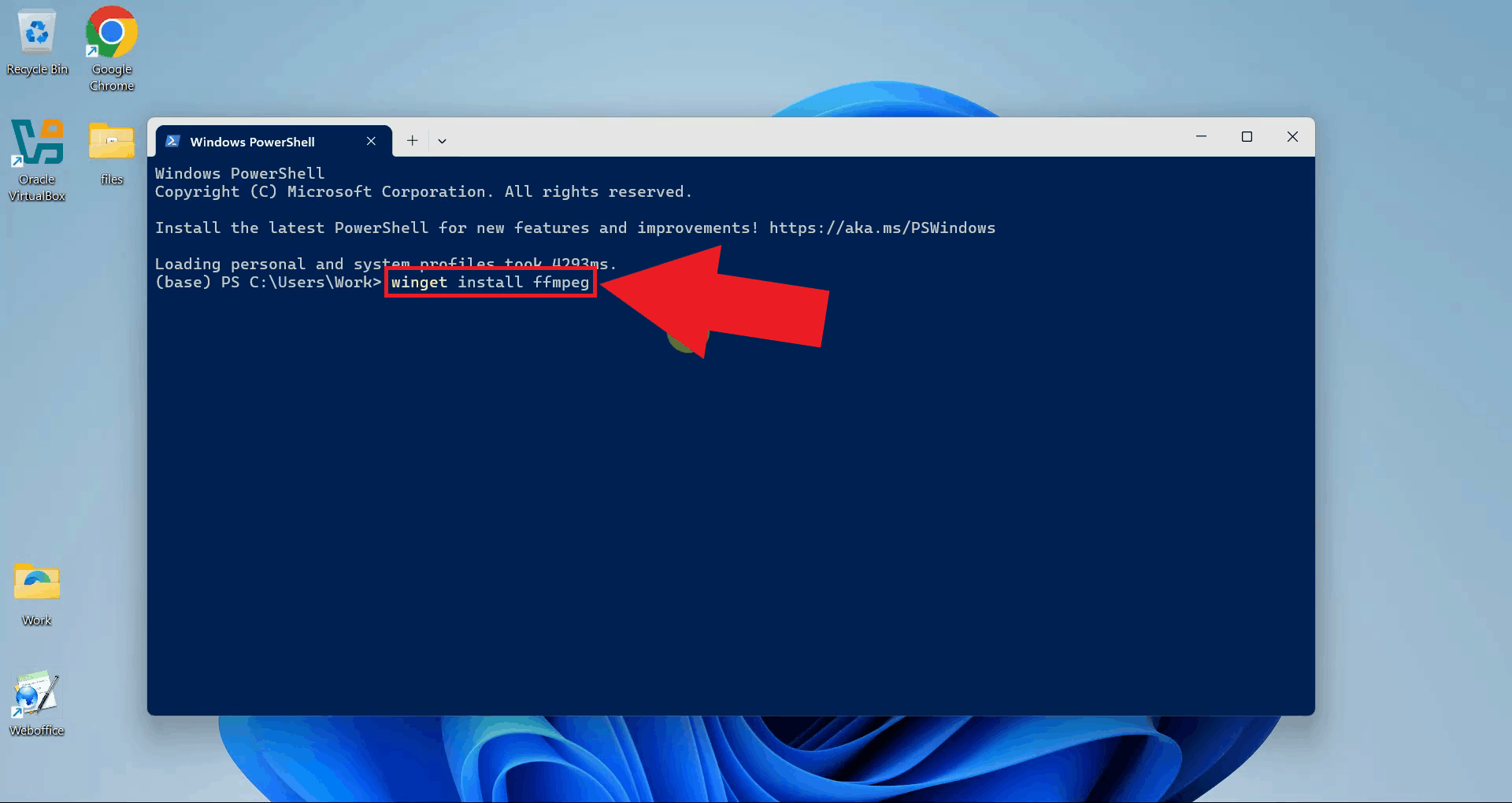
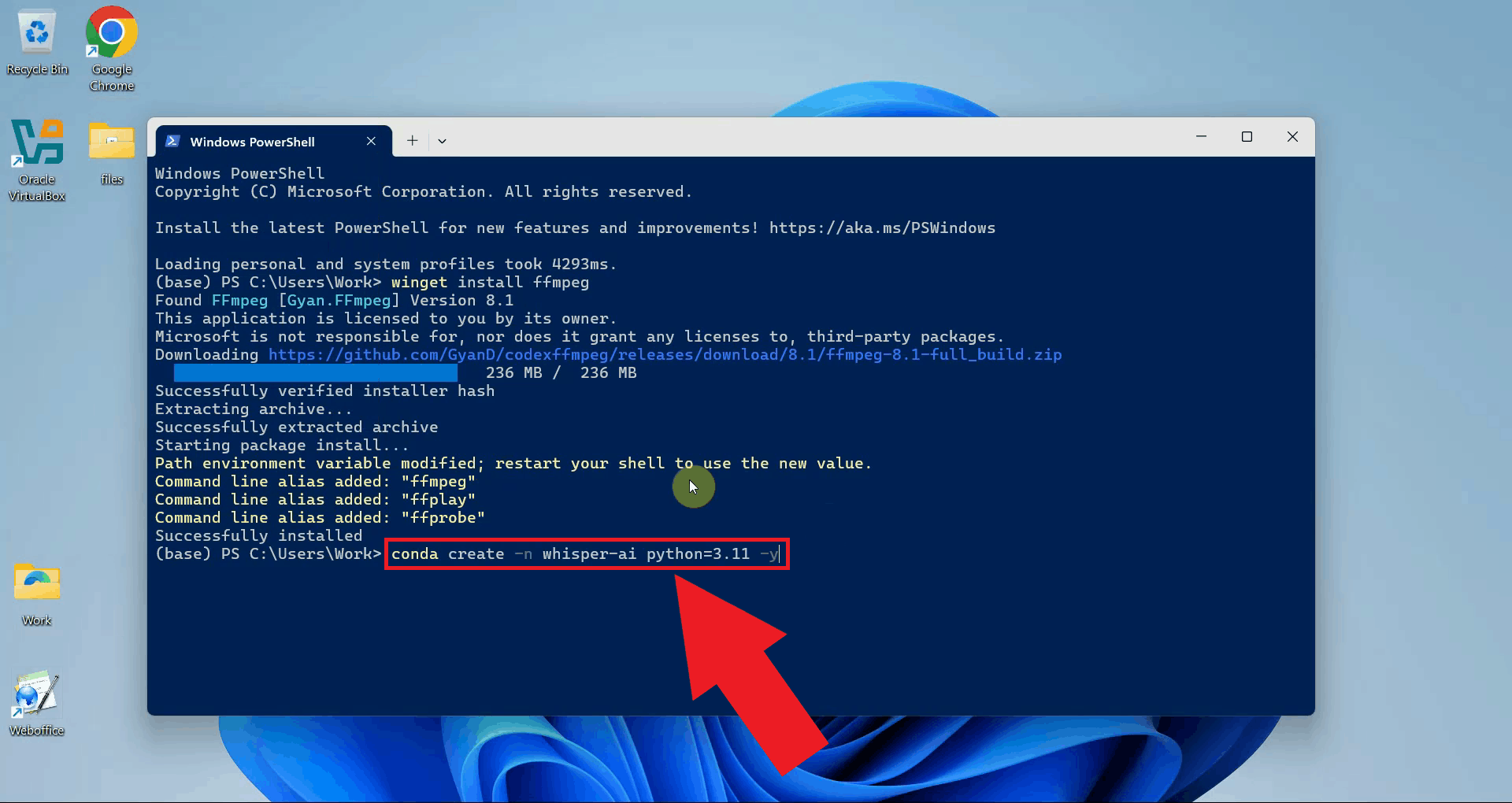
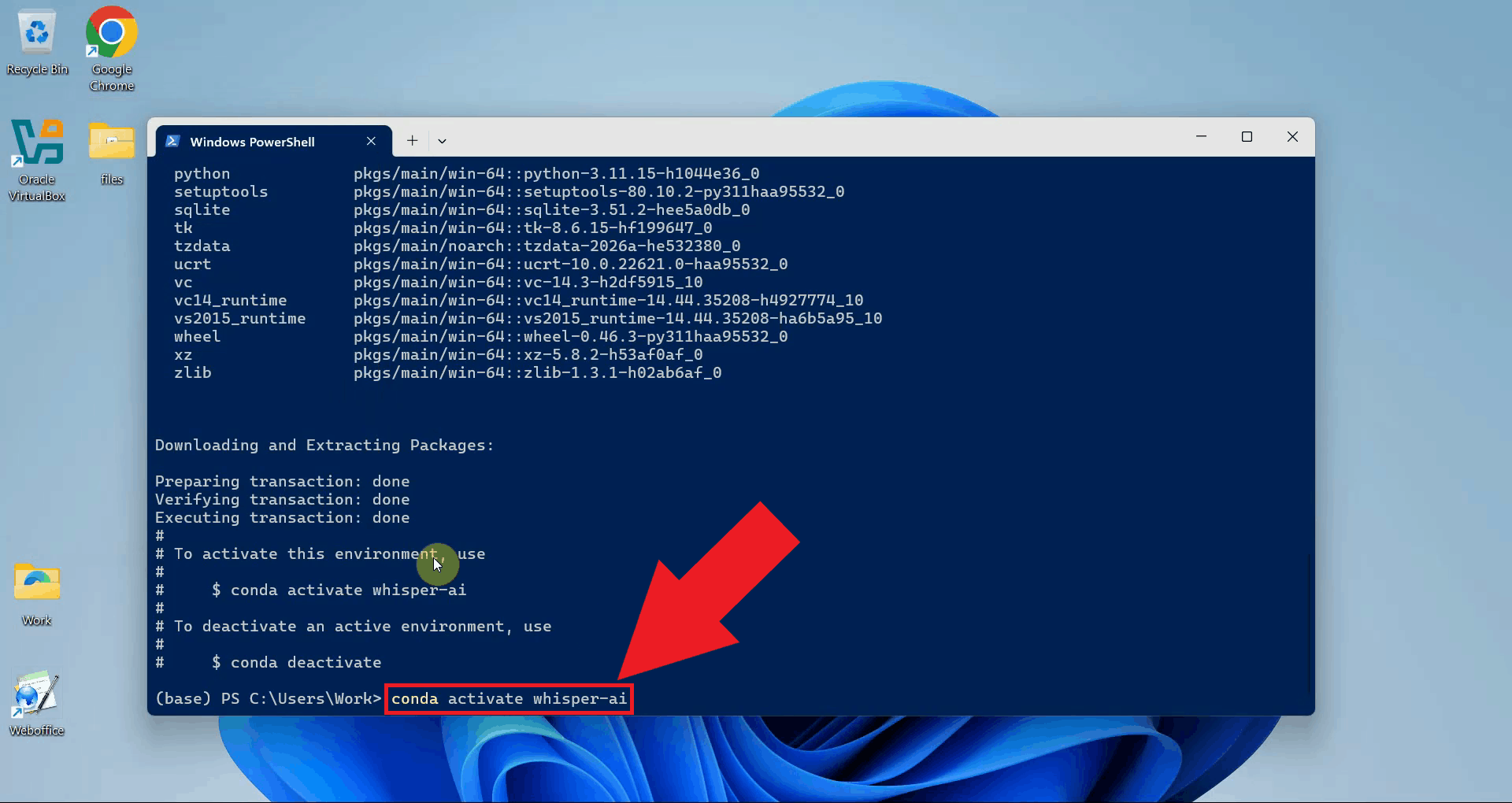
Quick reference commands# Install FFmpeg audio processing library winget install ffmpeg # Create a Python 3.11 Conda environment conda create -n whisper-ai python=3.11 -y # Activate the environment conda activate whisper-ai # Install agent-cli with the faster-whisper backend pip install "agent-cli[faster-whisper]" # Start the Whisper server using the small model agent-cli server whisper --model small How to set up and run Whisper on Windows videoThe following video shows how to set up and run the Whisper speech recognition server on Windows step-by-step. The video covers installing FFmpeg, creating the Conda environment, installing agent-cli, and starting the server.
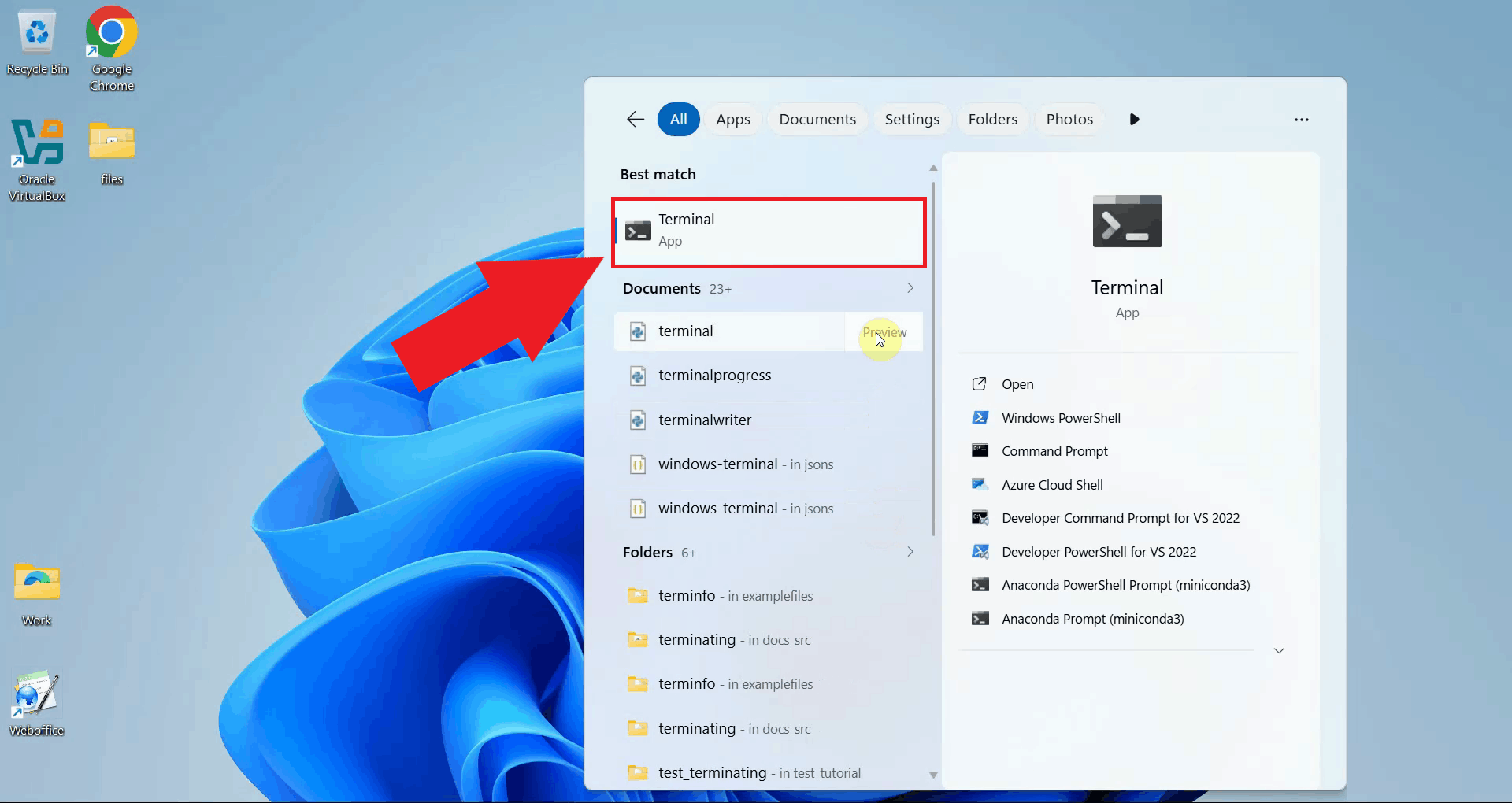
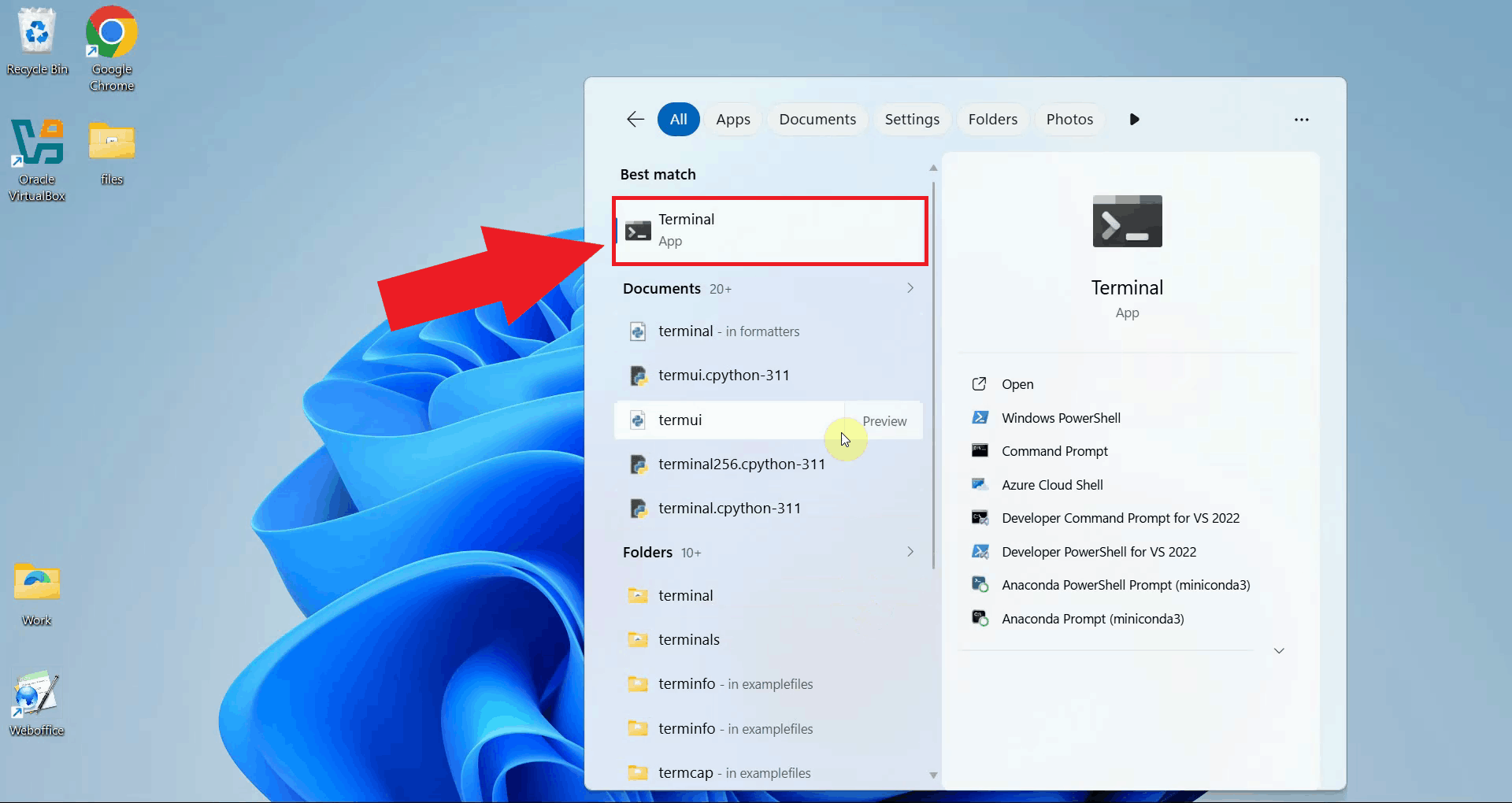
Step 1 - Open a terminal windowOpen a terminal window on your system. All setup commands in this guide are run from the terminal. You can use Windows PowerShell, or the standard Command Prompt (Figure 1).
Step 2 - Install FFmpegInstall FFmpeg using the winget package manager. FFmpeg is required by the Whisper backend to handle audio file processing before transcription (Figure 2). winget install ffmpeg
Step 3 - Set up the Anaconda environmentCreate a dedicated Conda environment with Python 3.11 for the Whisper server. Using a separate environment keeps its dependencies isolated from other Python projects on your system (Figure 3). conda create -n whisper-ai python=3.11 -y
Activate the newly created environment. Your terminal prompt will update to show the active environment name (Figure 4). conda activate whisper-ai
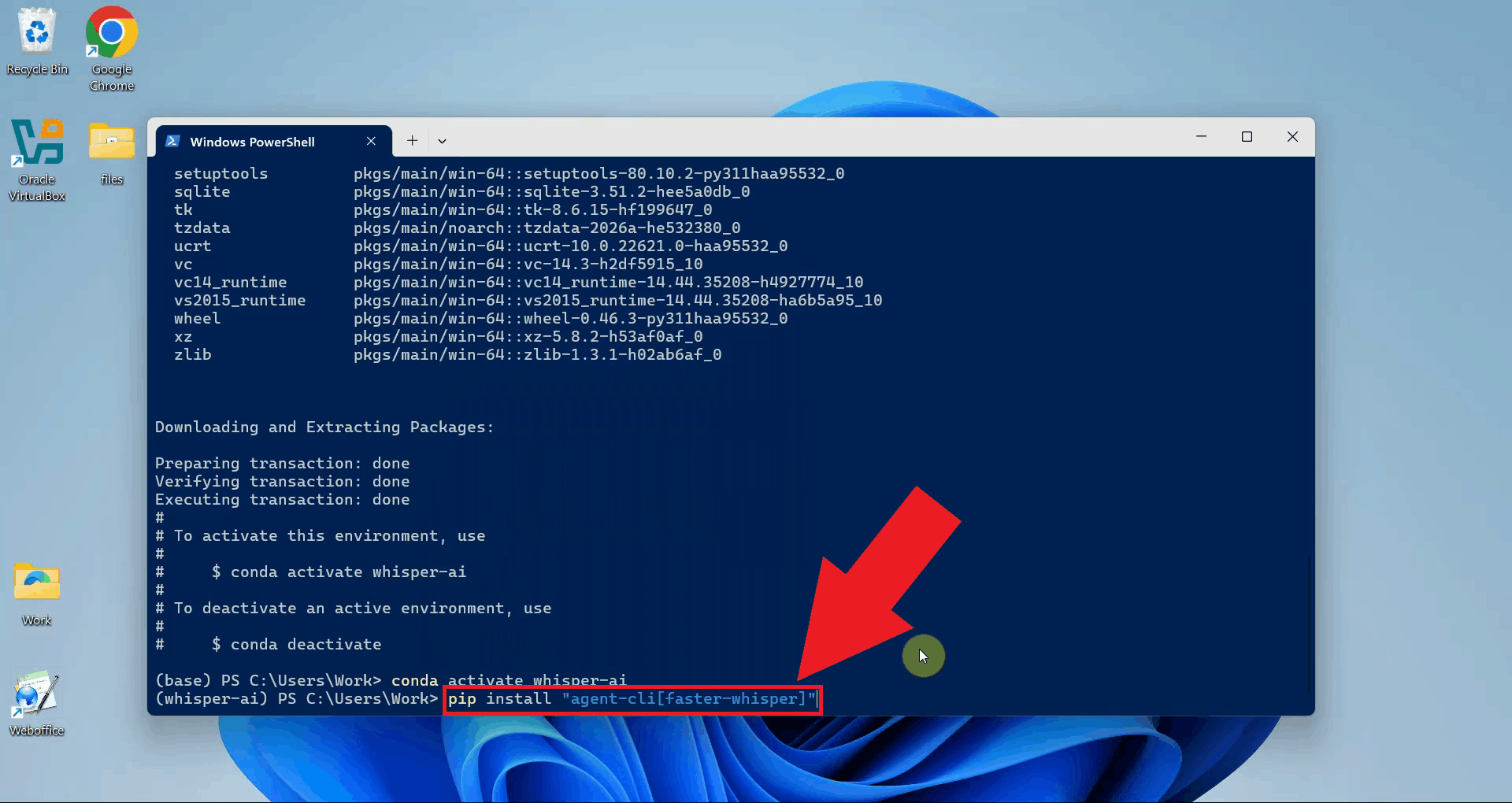
Step 4 - Install agent-cli with faster-whisper
With the environment active, install agent-cli together with the faster-whisper backend
using pip. The pip install "agent-cli[faster-whisper]"
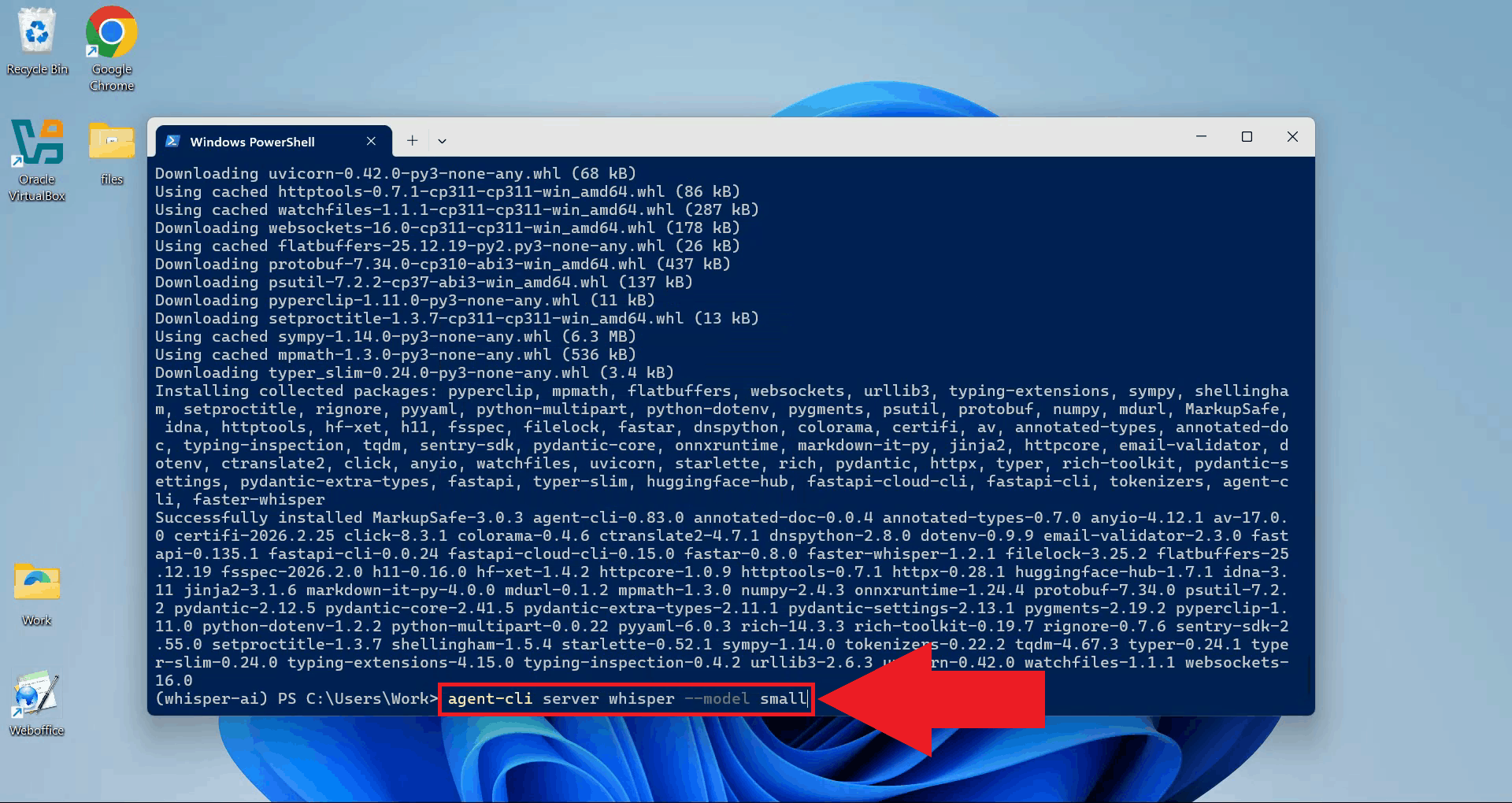
Step 5 - Start the Whisper serverStart the Whisper server using agent-cli with the small model. You can choose between the different model sizes depending on how powerful your computer is (Figure 6). agent-cli server whisper --model small
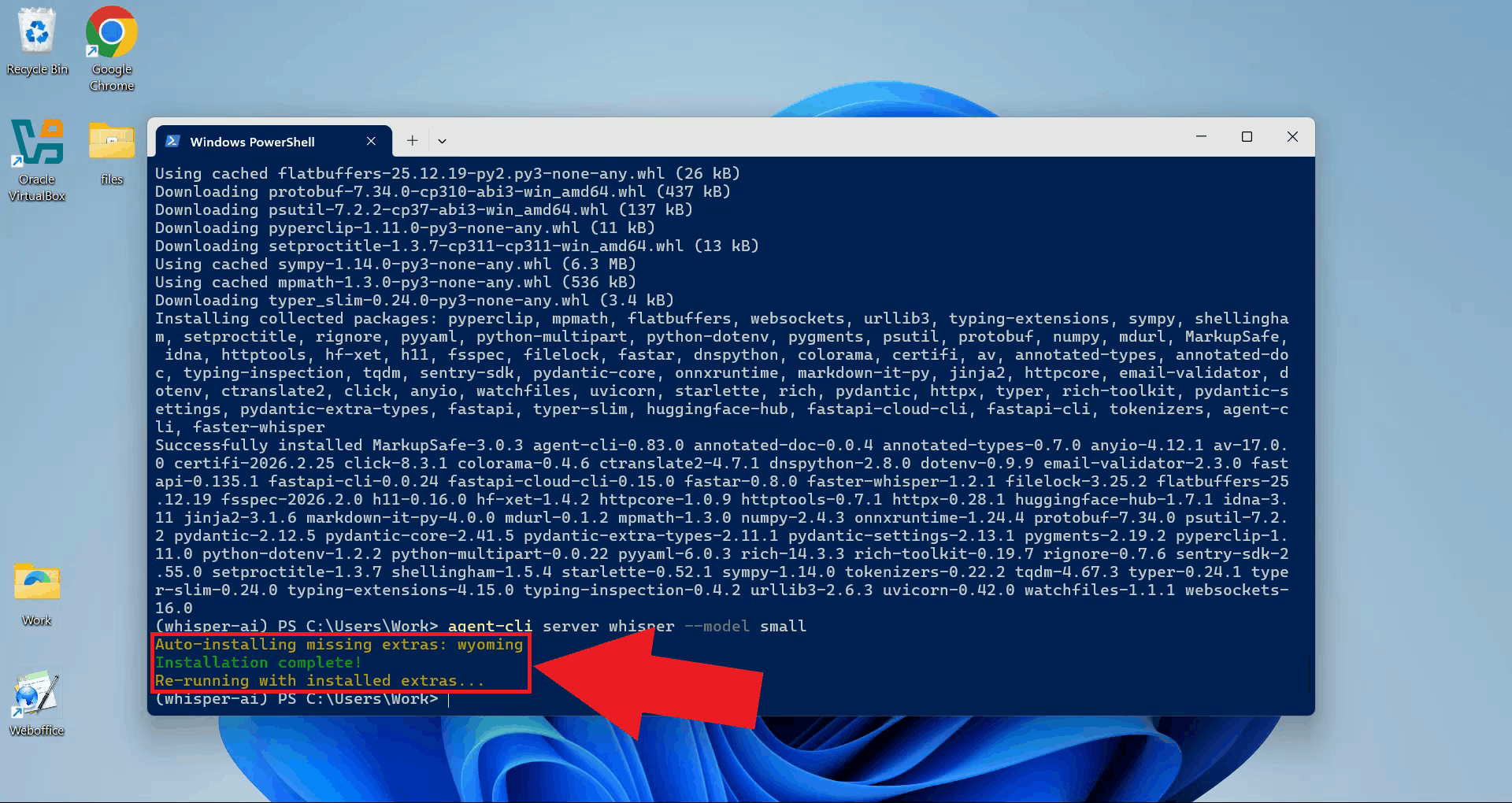
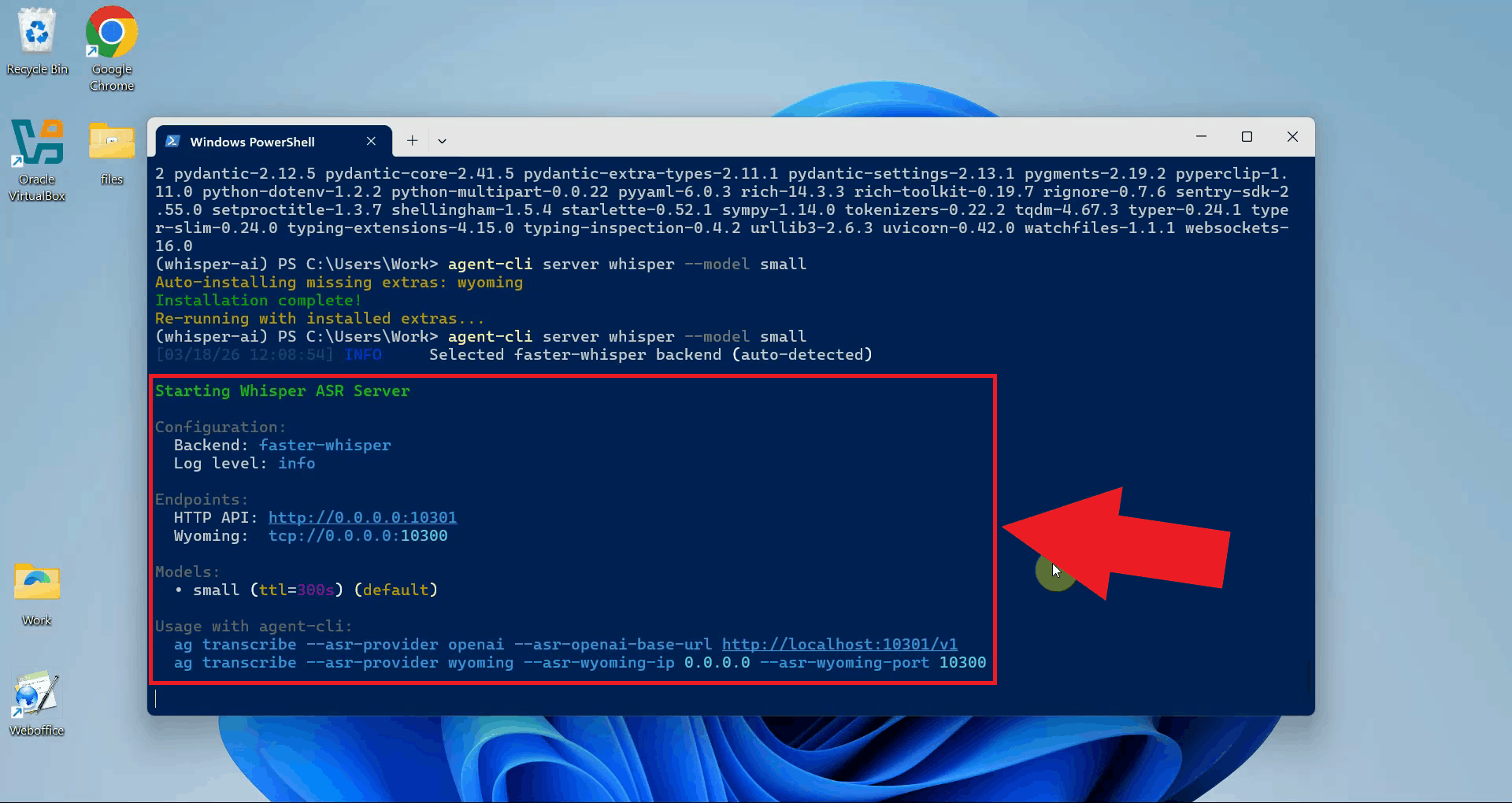
On the first run, agent-cli will automatically download and install the Wyoming protocol dependency. Wait for this process to complete before proceeding (Figure 7).
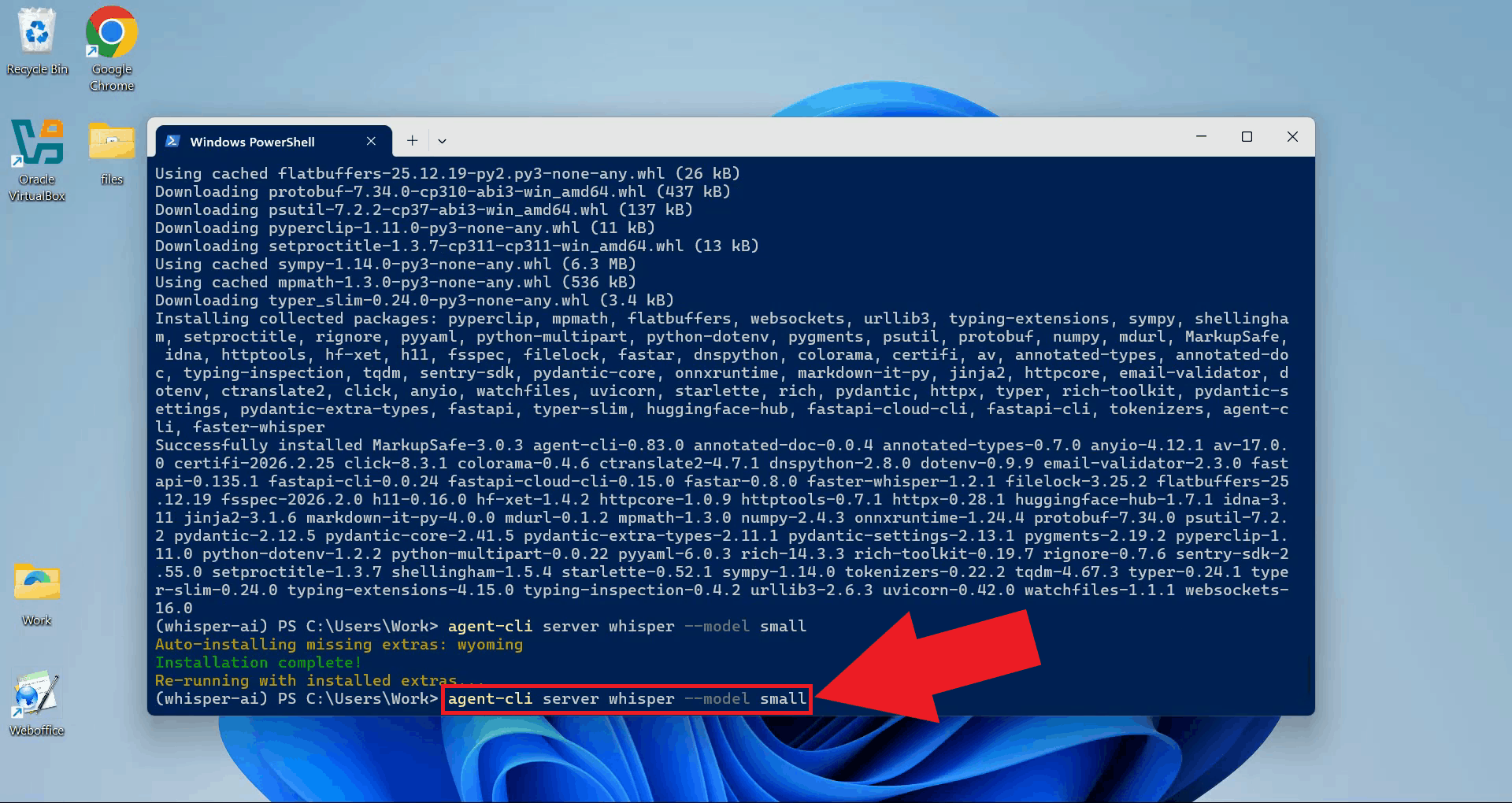
Once the dependency installation finishes, run the server start command again. This is only required on the first run (Figure 8). agent-cli server whisper --model small
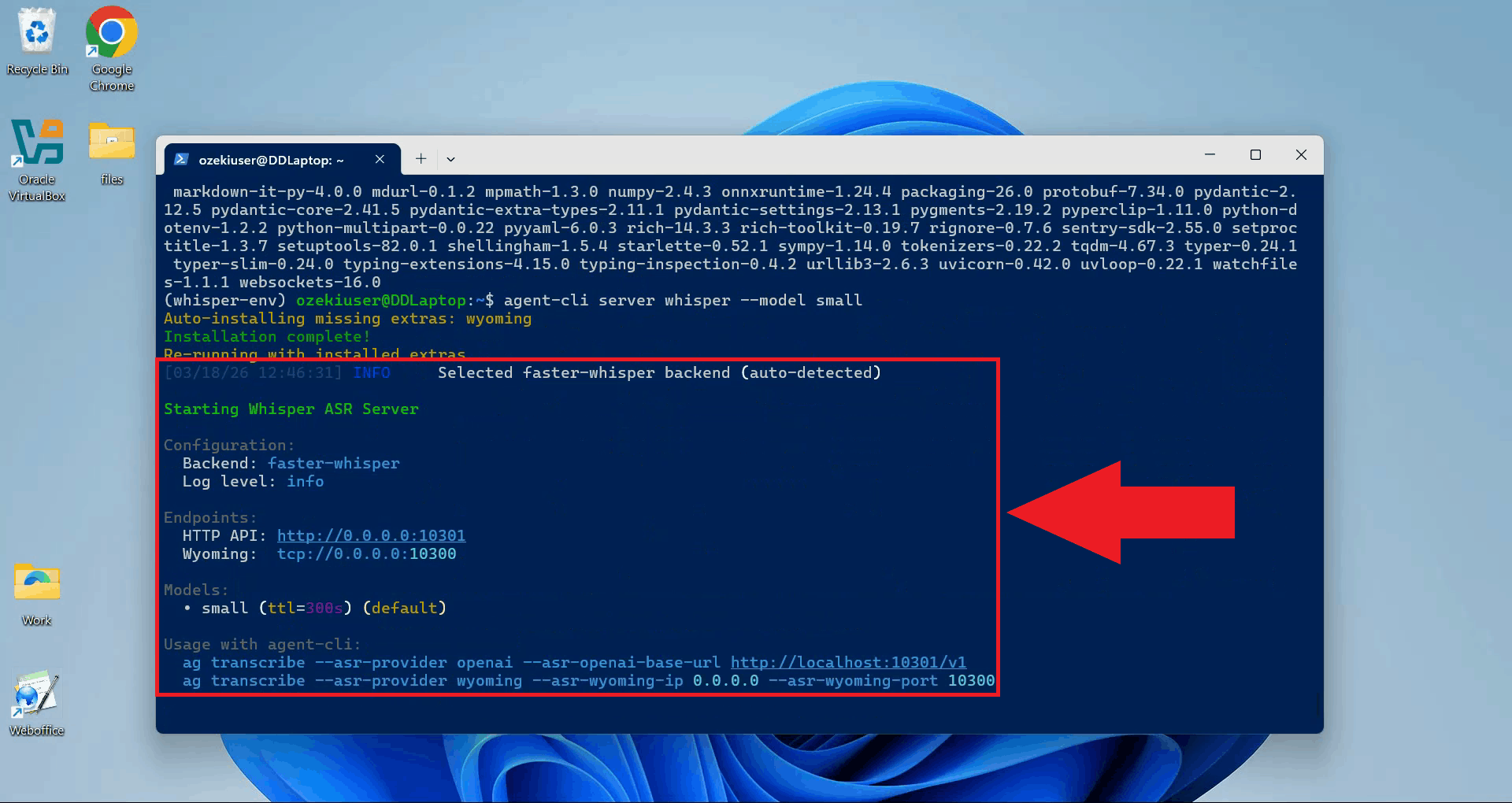
The Whisper server is now running and listening for transcription requests. Keep this terminal open for the duration of your session (Figure 9).
Step 6 - Connect Whisper to Ozeki Voice KeyboardThe following video shows how to connect the Whisper server to Ozeki Voice Keyboard and verify that transcription is working correctly. The video covers copying the API URL, configuring the Voice settings, and confirming the connection through the log viewer.
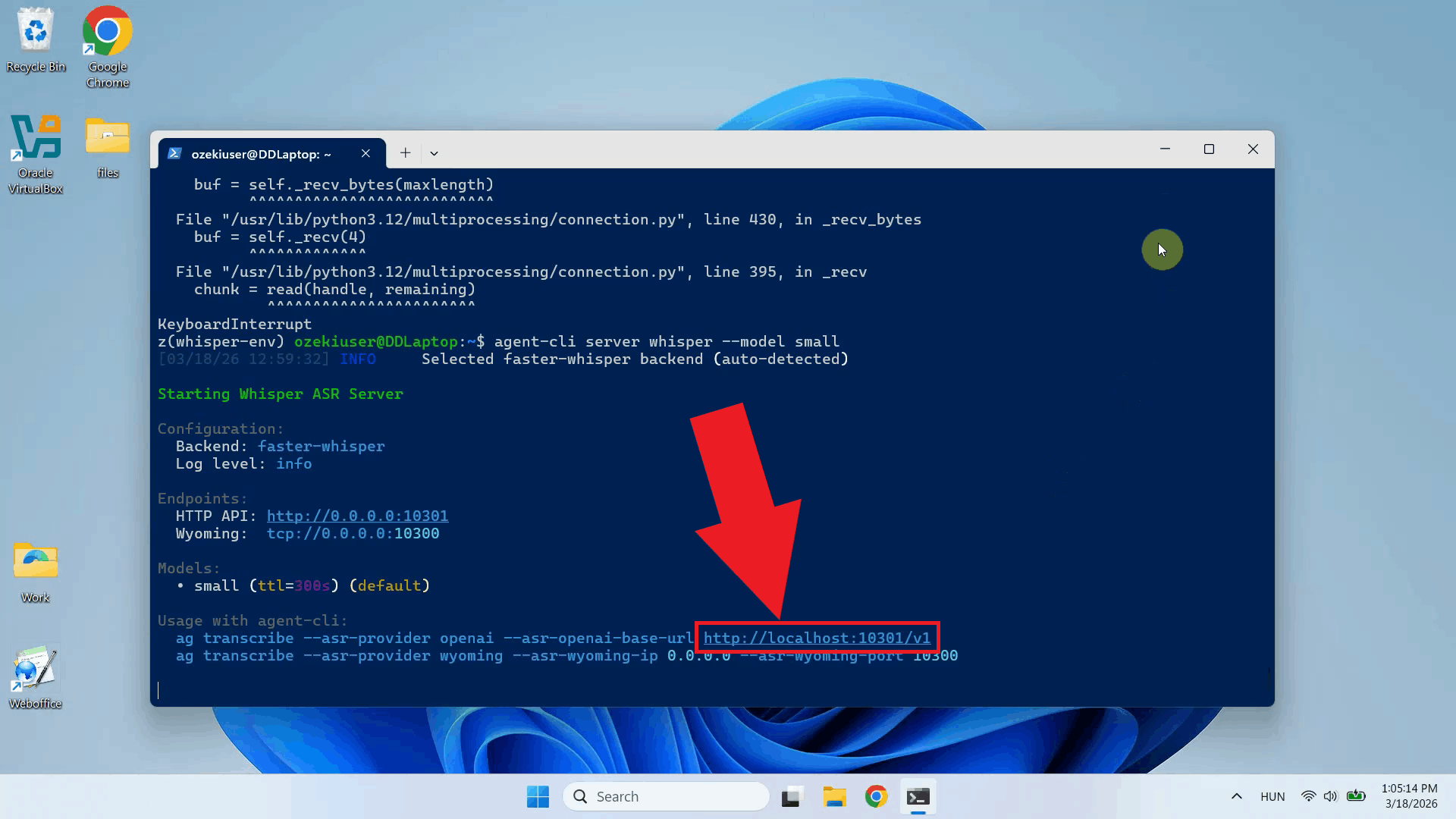
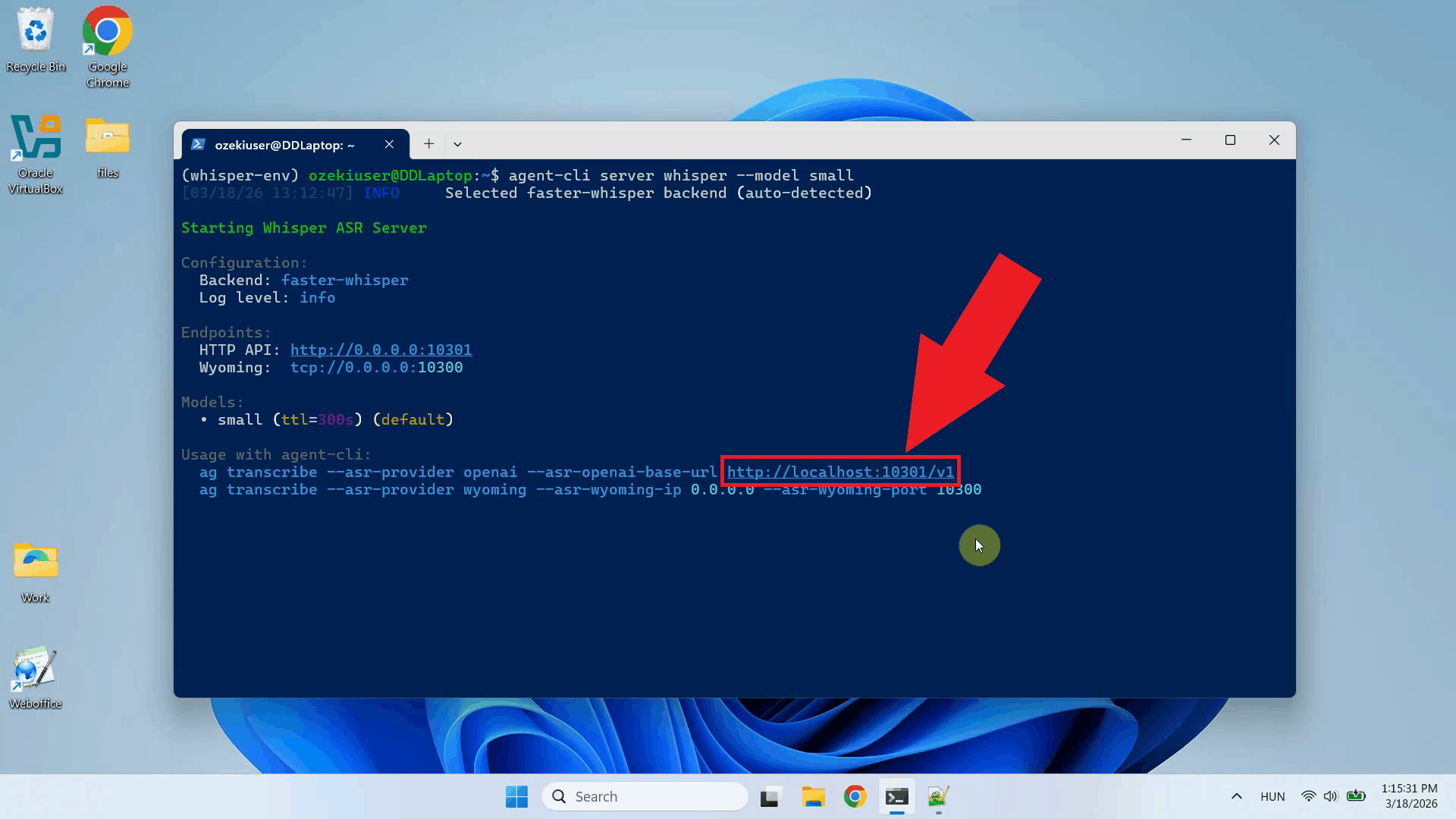
Copy the API URL from the terminal output. This is the endpoint you will enter in Ozeki Voice Keyboard to point it at the local Whisper server (Figure 10). http://localhost:10301/v1
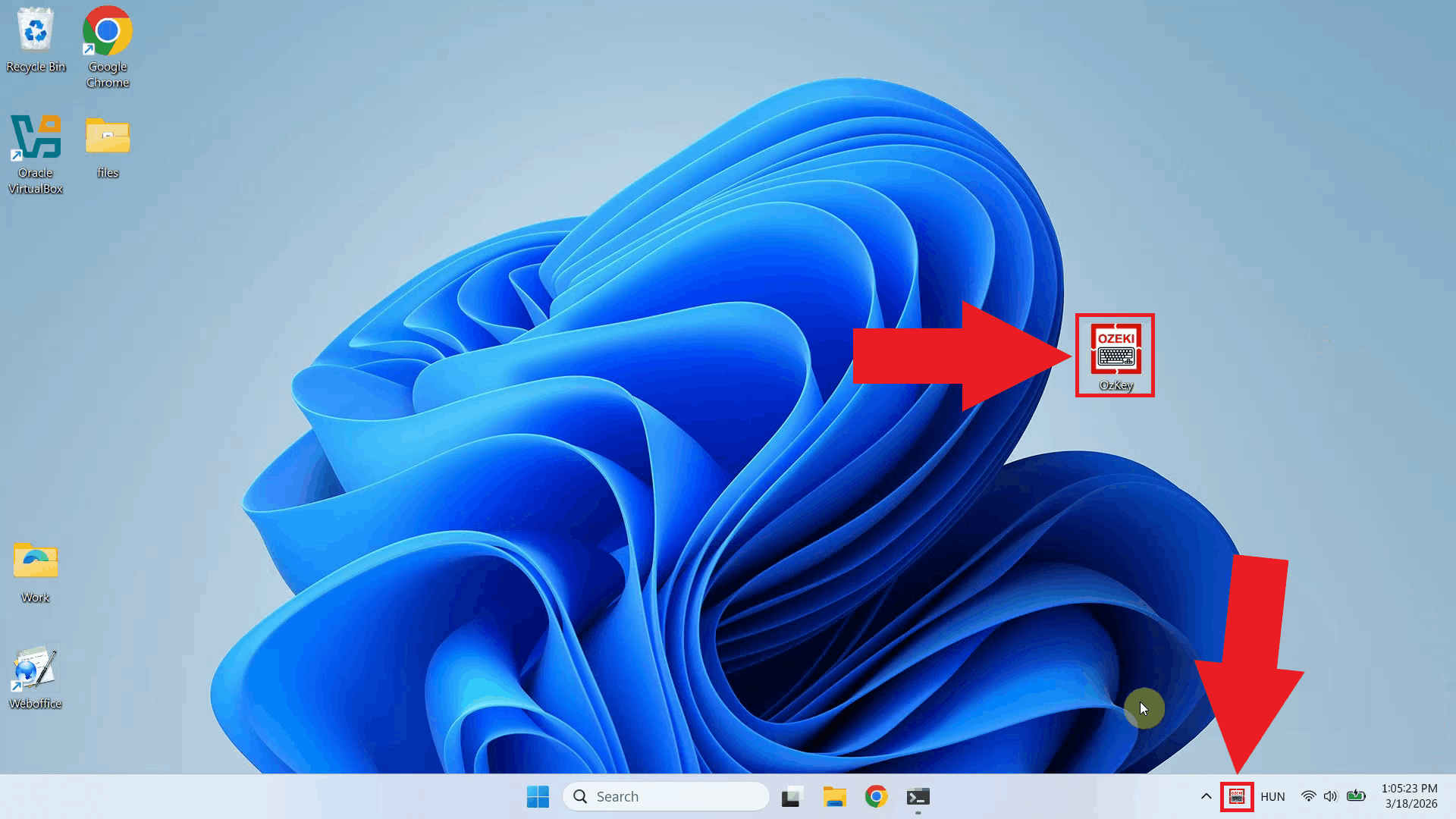
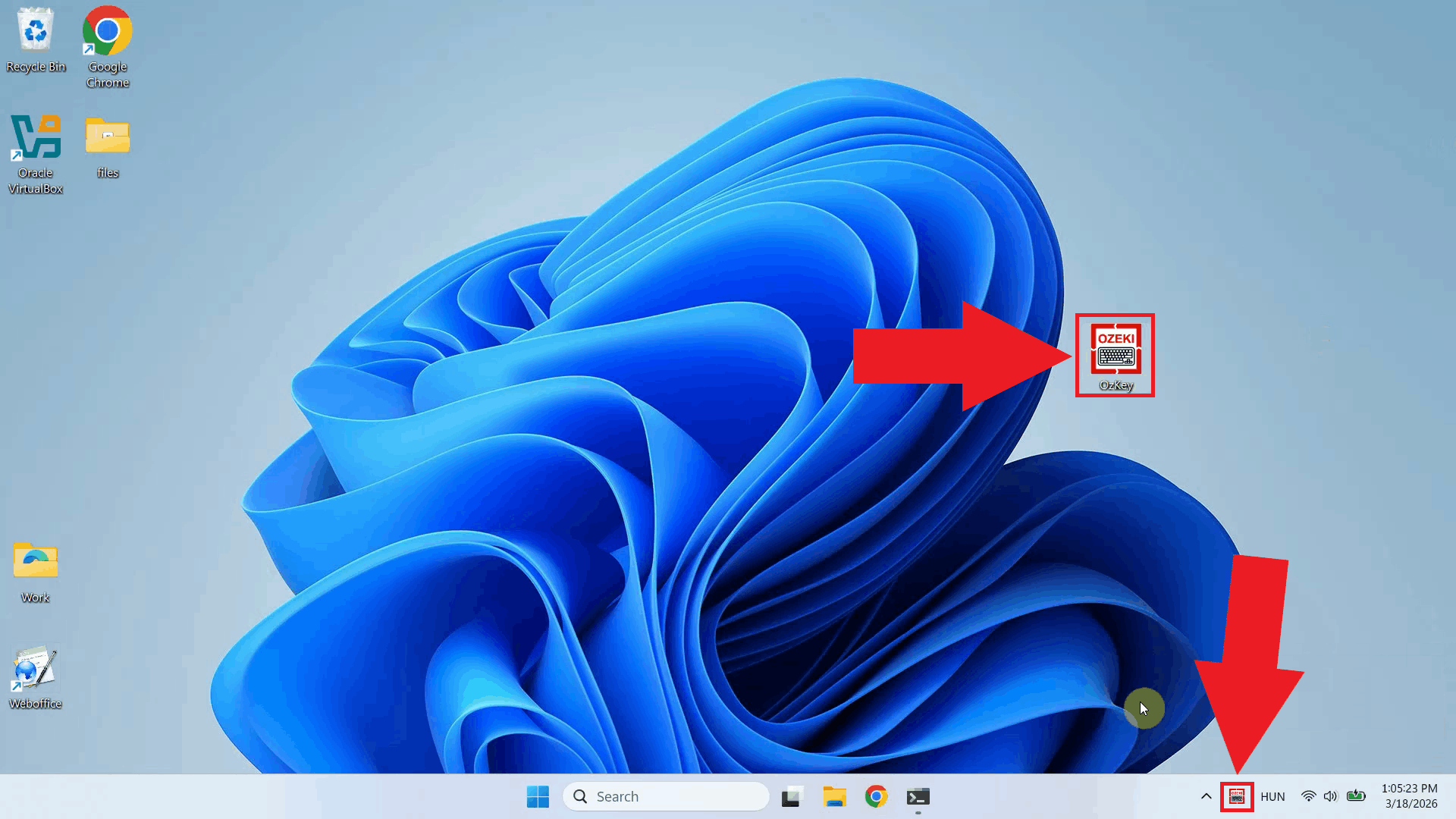
Open Ozeki Voice Keyboard and locate its icon in the Windows system tray in the bottom right corner of your taskbar (Figure 11).
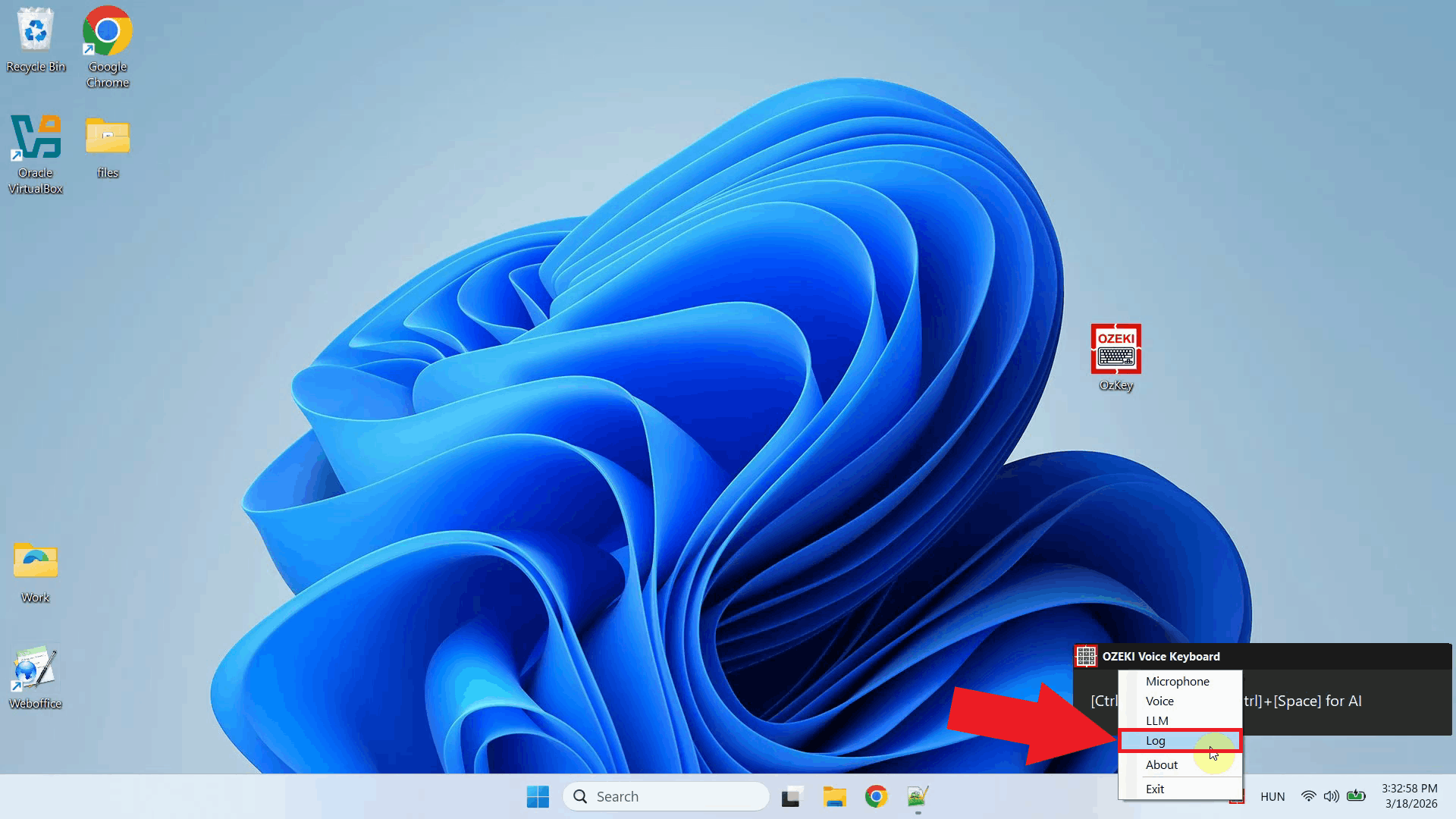
Before configuring the Voice settings, enable HTTP logging so you can verify that requests are reaching the Whisper server. Right-click the tray icon and navigate to Logs from the context menu (Figure 12).
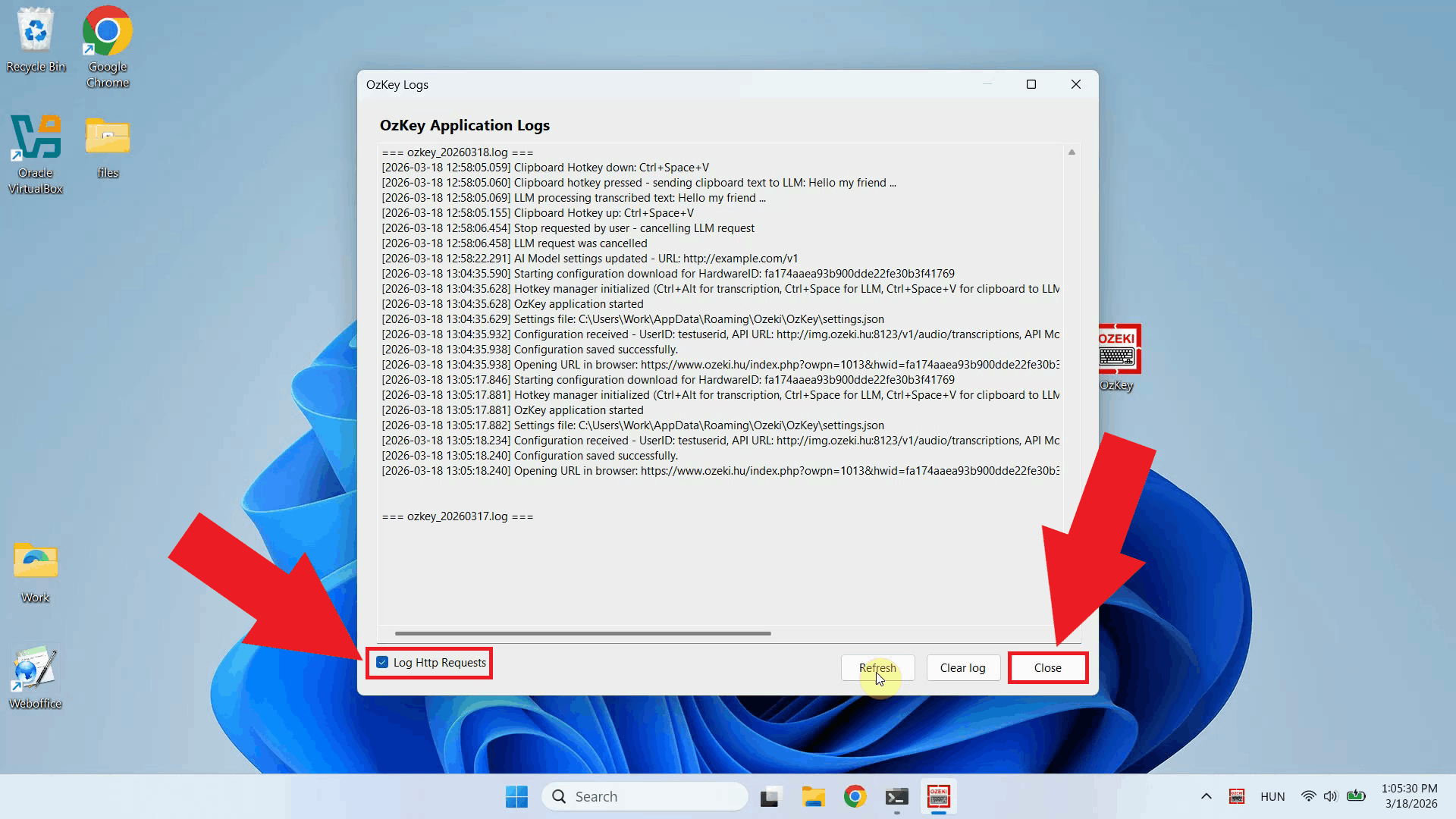
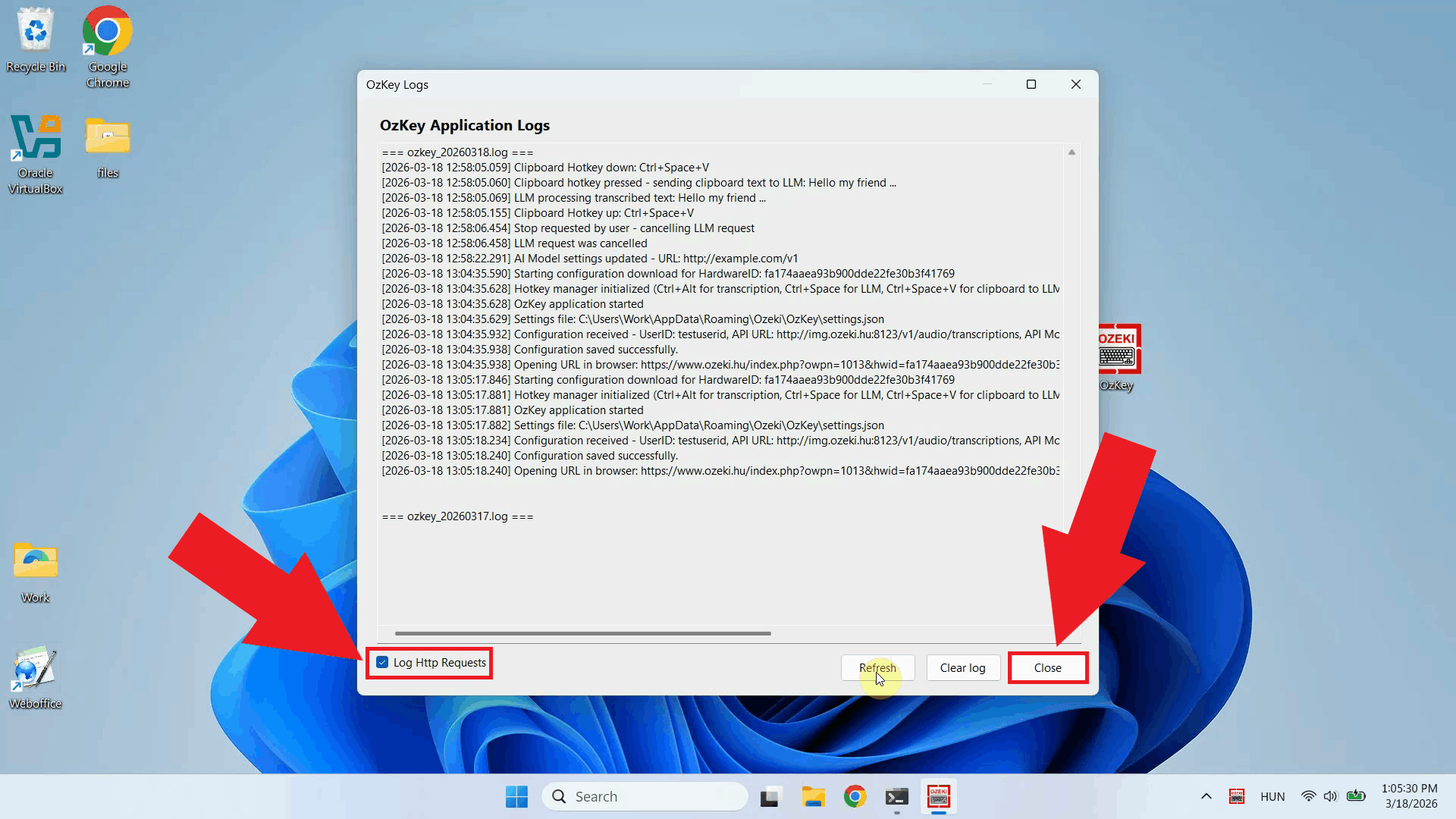
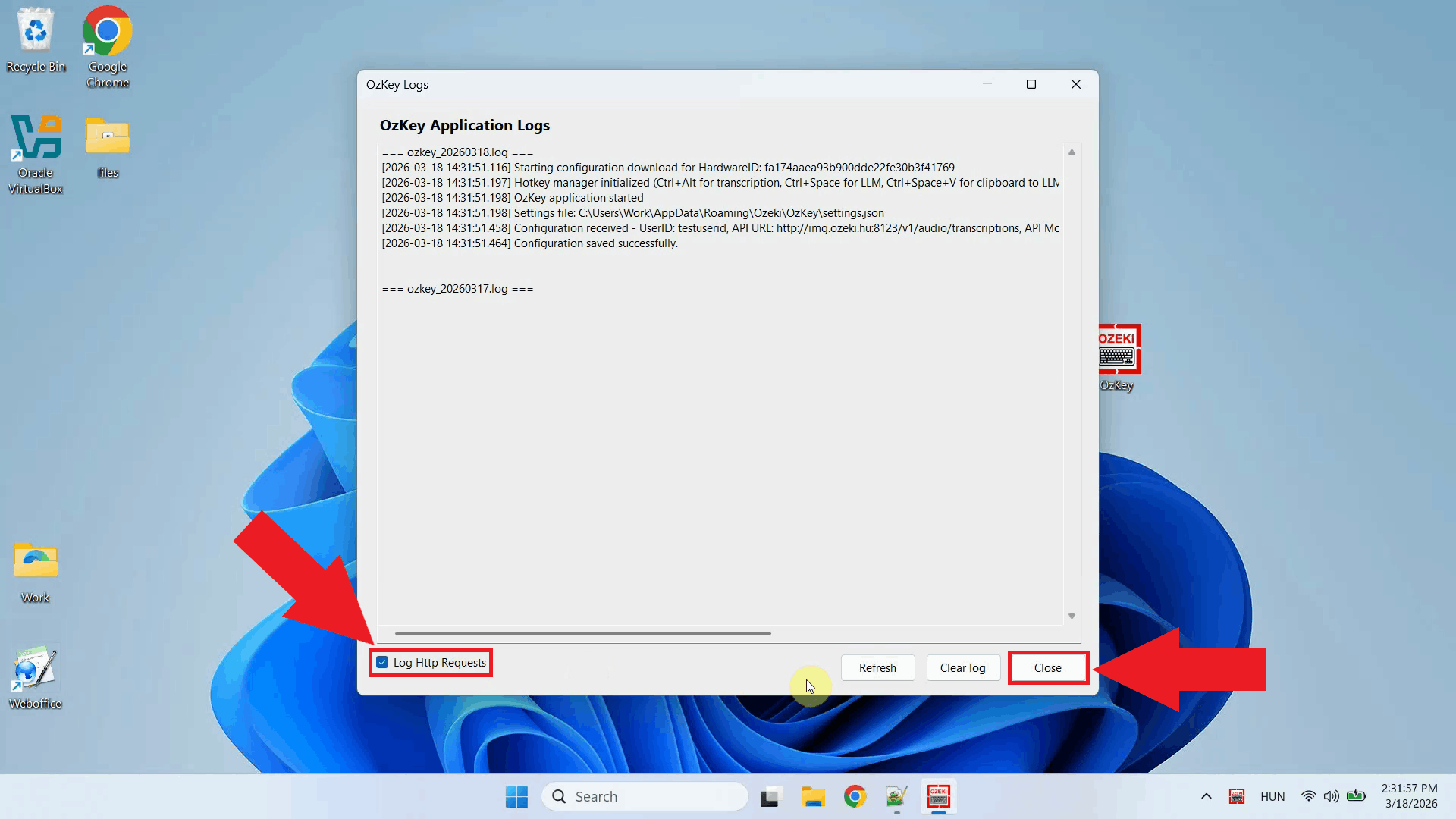
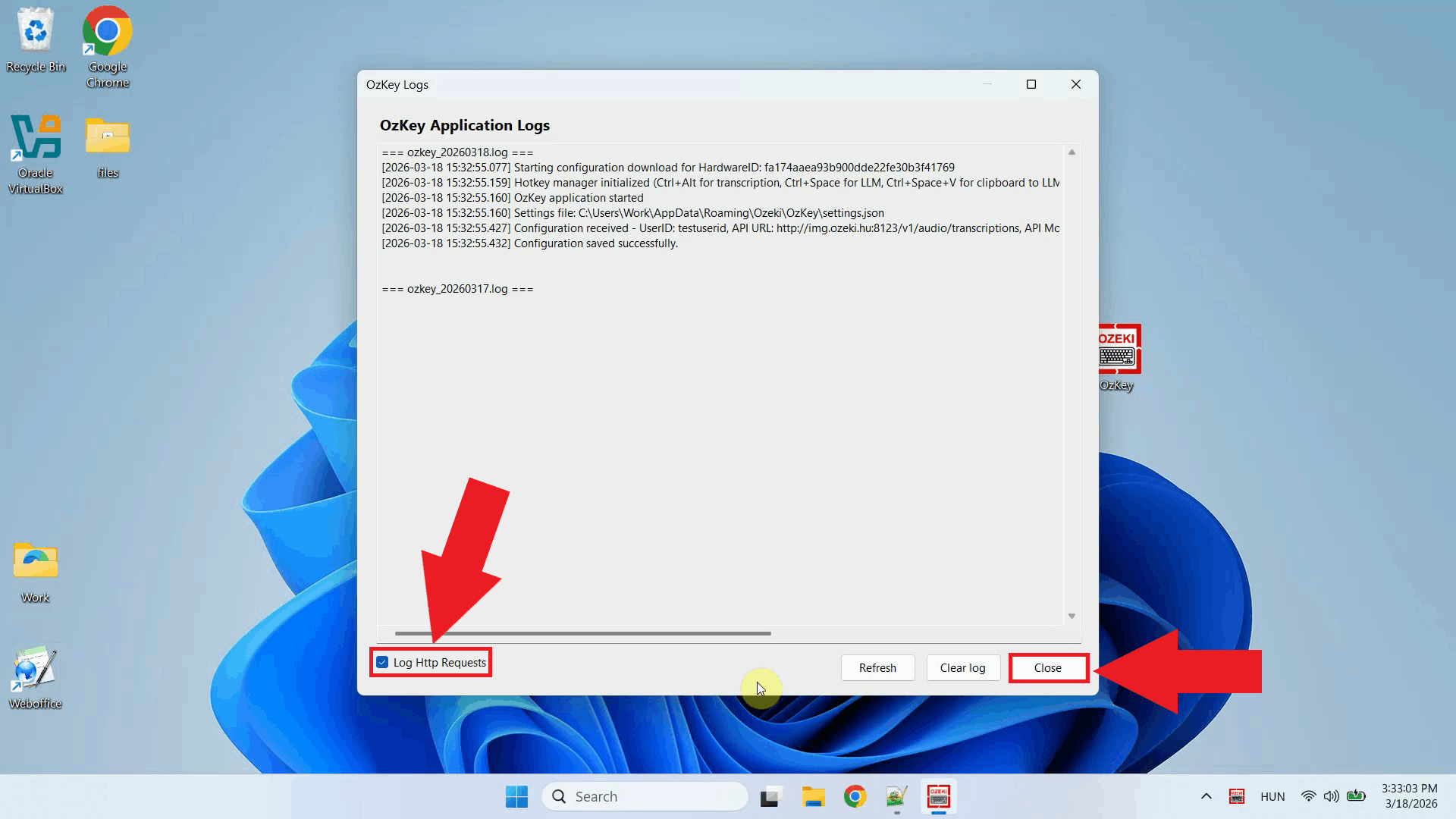
In the Logs window, enable HTTP logging and close the window. This will allow you to monitor the requests sent to the Whisper server after configuration (Figure 13).
Right-click the tray icon again and open the Voice settings from the context menu (Figure 14).
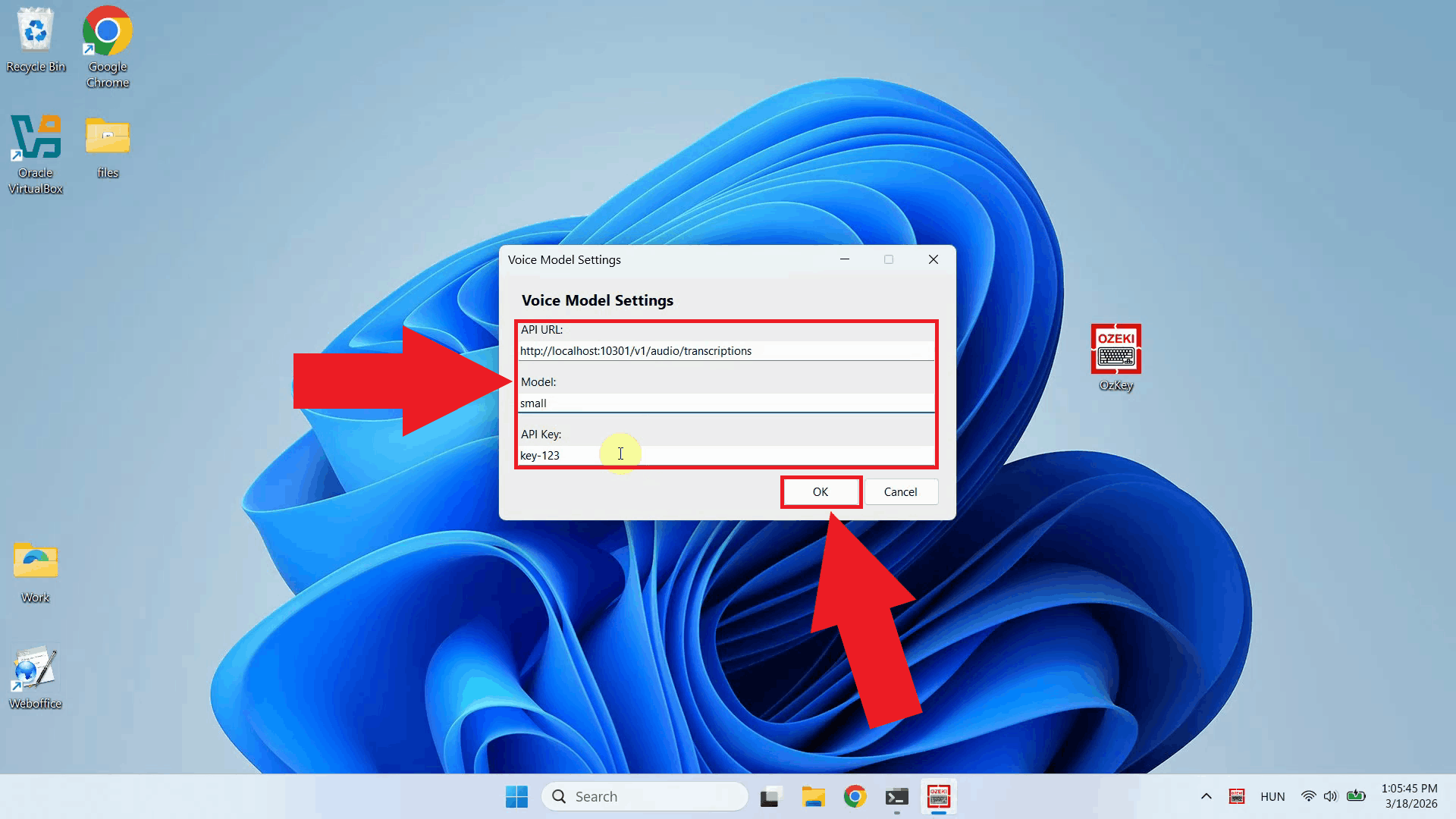
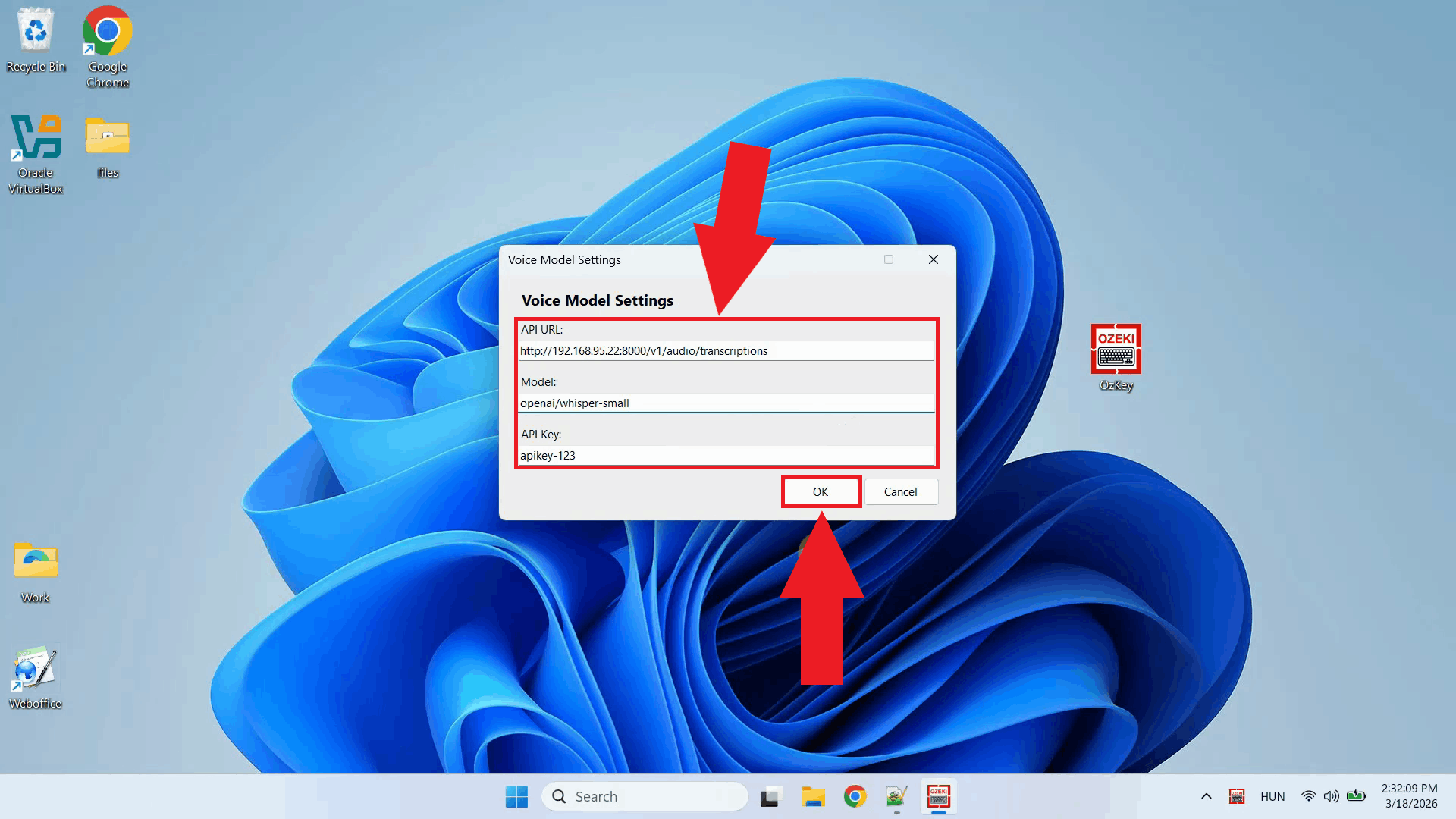
Enter the API URL you copied from the terminal, append "/audio/transcriptions" to the end of the URL, specify the model name, and leave the API key field empty since the local server does not require authentication. Click OK to save the settings (Figure 15).
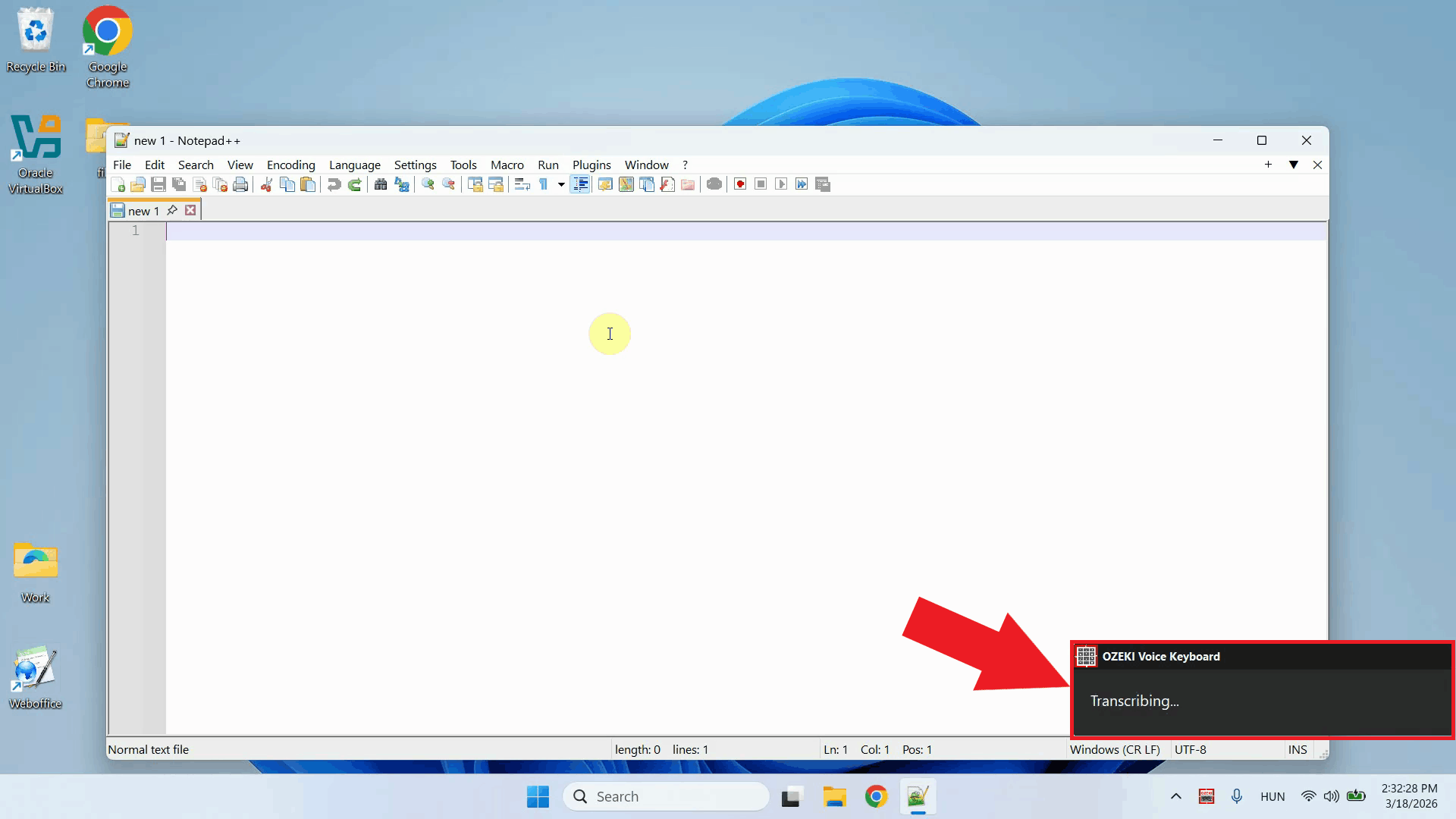
Test the setup by placing your cursor in any input field and using the voice recording hotkey to dictate some text. The audio will be sent to the local Whisper server and the transcription will be pasted into the active field (Figure 16).
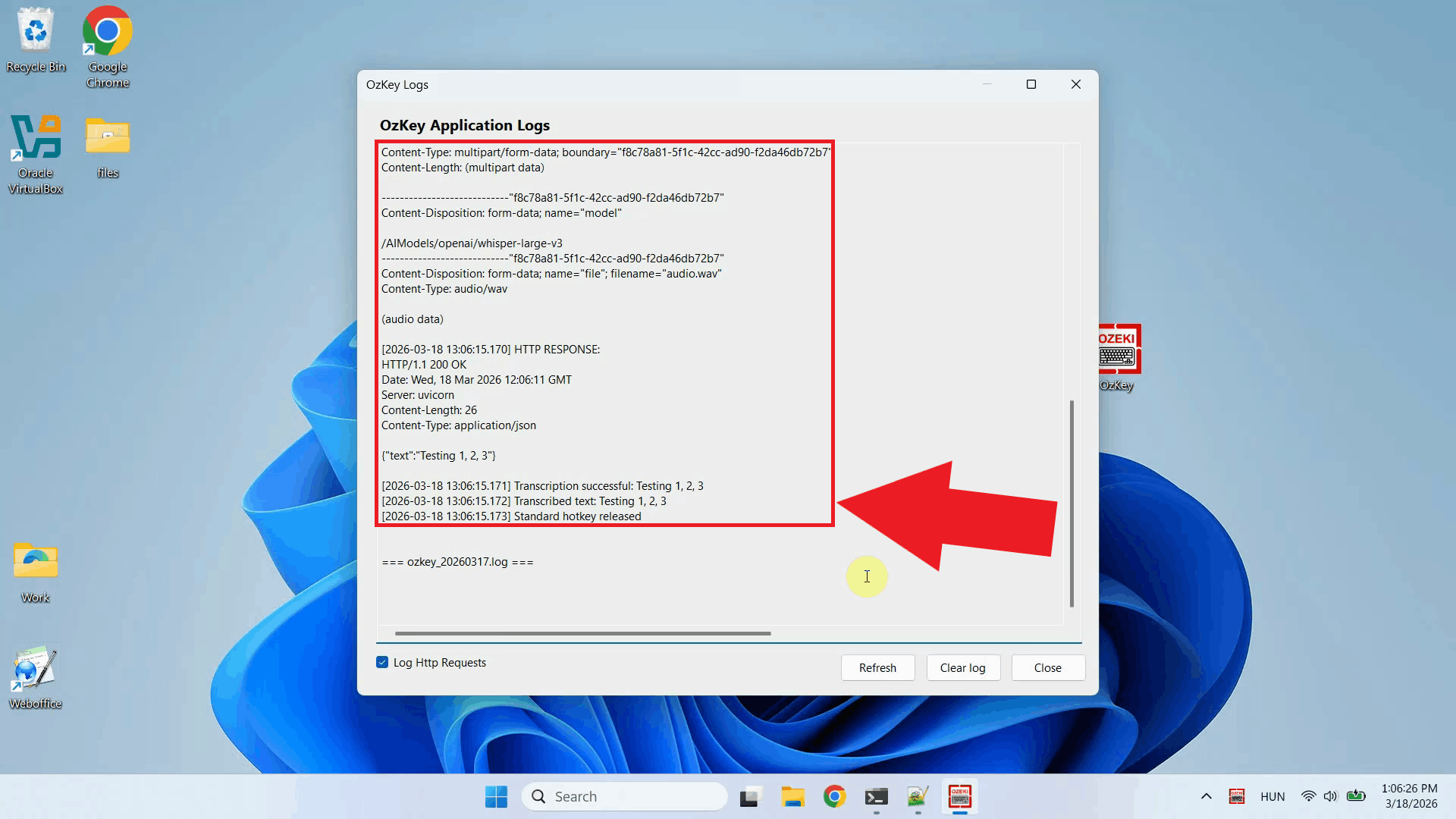
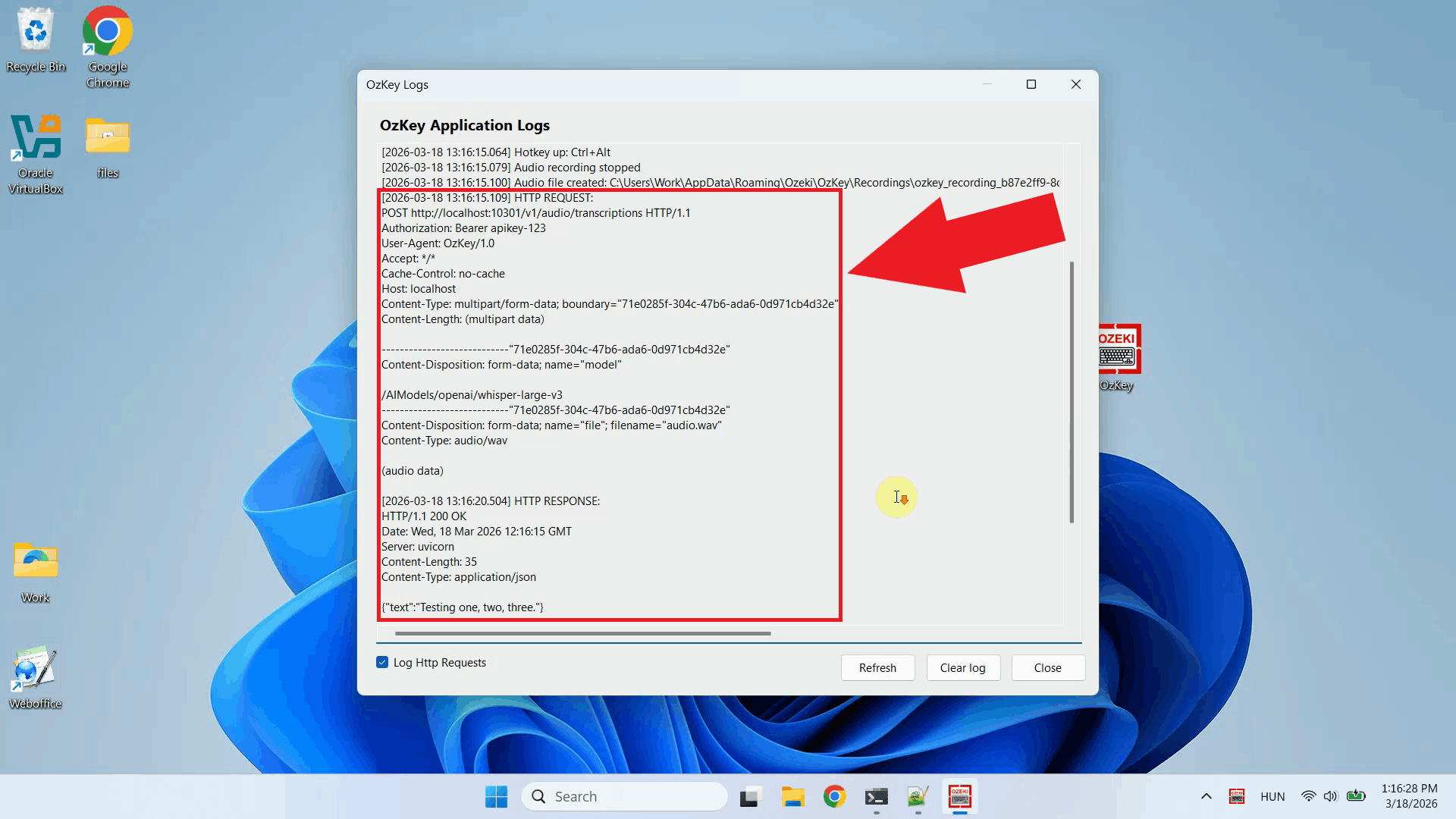
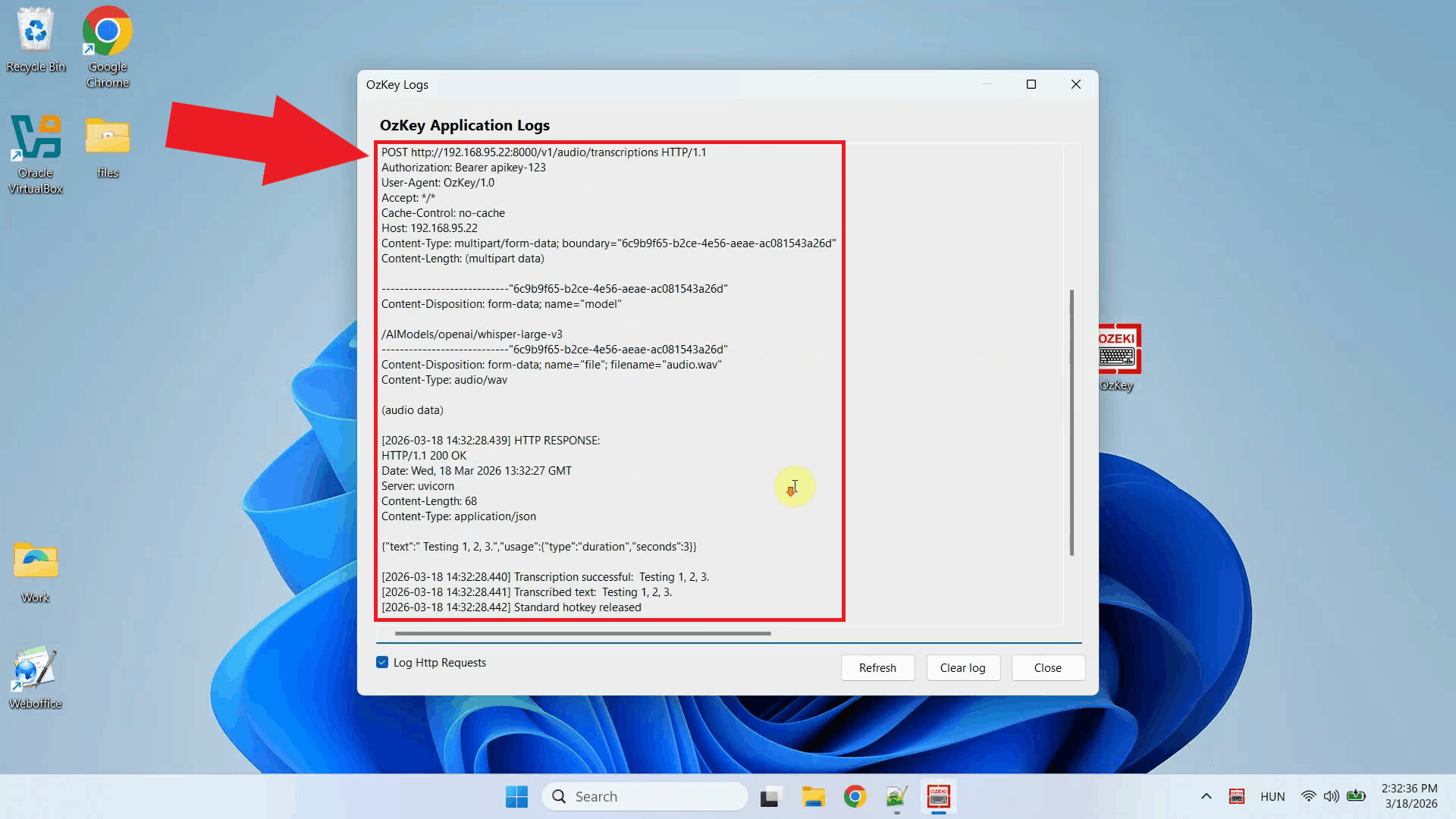
Open the Logs window to verify the request. You should see an HTTP request to the
To sum it upYou have successfully set up a local Whisper speech recognition server on Windows and connected it to Ozeki Voice Keyboard. The application will now use your local Whisper instance for all voice transcriptions, giving you a fast, private, and fully offline speech-to-text pipeline that does not rely on any external cloud service.
https://ozekivoice.com/p_9328-how-to-set-up-whisper-speech-detector-on-windows-wsl.html How to set up Whisper Speech Detector on Windows using WSLThis guide demonstrates how to set up a local Whisper speech recognition server on Windows using the Windows Subsystem for Linux (WSL) and connect it to Ozeki Voice Keyboard. You will learn how to install Ubuntu on WSL, set up the required dependencies, start the Whisper server, and configure Ozeki Voice Keyboard to use it for speech-to-text transcription. What is Whisper?Whisper is an open-source speech recognition model developed by OpenAI. In this setup, it is run inside a WSL Ubuntu environment using the faster-whisper backend via agent-cli, which exposes an OpenAI-compatible endpoint. This allows Ozeki Voice Keyboard to send recorded audio to the local server and receive transcribed text in response. Steps to followBefore proceeding, make sure WSL is enabled on your system. Python, FFmpeg, and pip will be installed inside the WSL Ubuntu environment during the setup process.
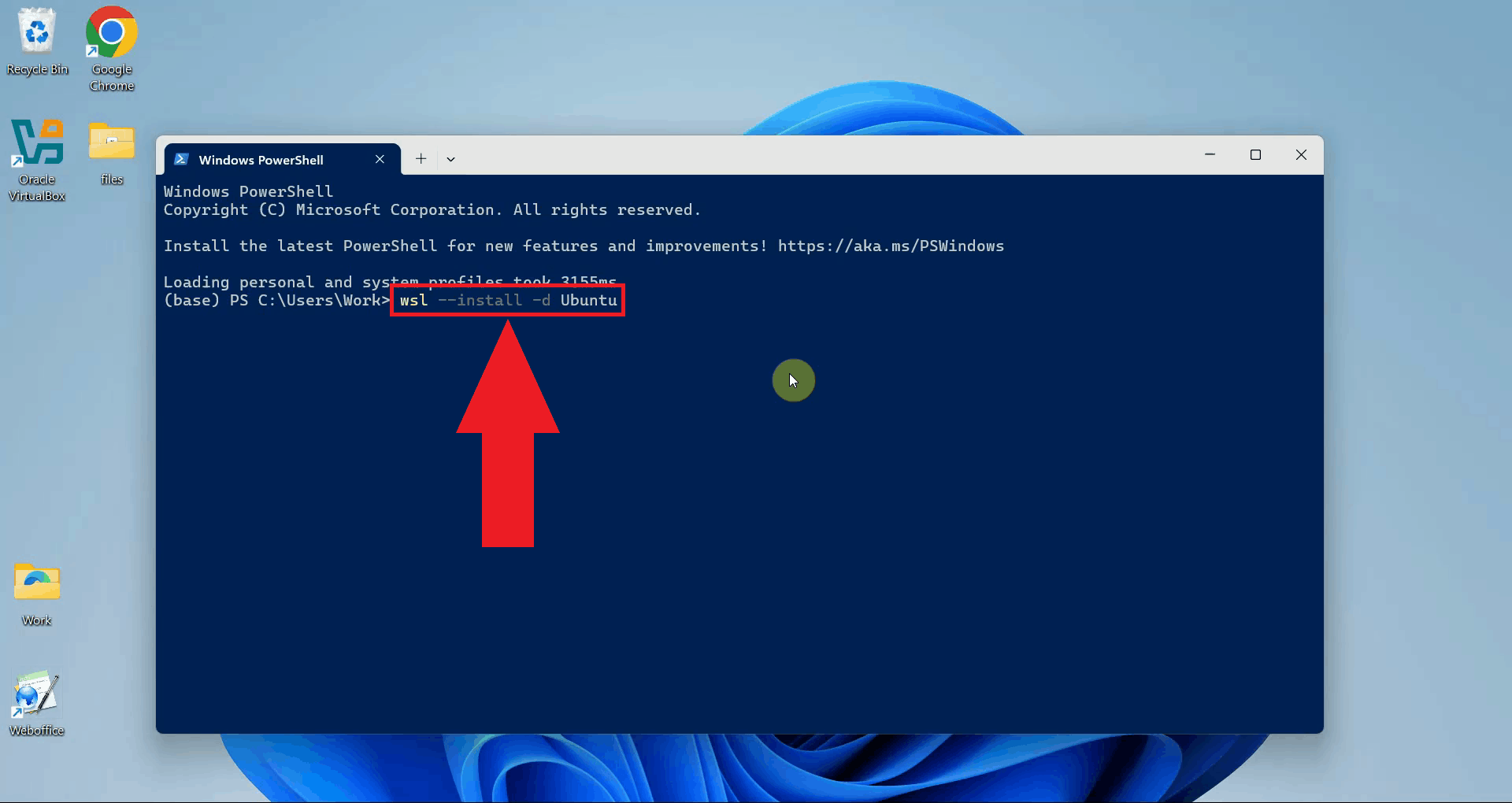
Quick reference commands# Install WSL with Ubuntu wsl --install -d Ubuntu # Update and upgrade Ubuntu packages sudo apt update && sudo apt upgrade -y # Install Python, FFmpeg, venv and CUDA toolkit for Nvidia GPUs sudo apt install python3 python3-pip ffmpeg python3.12-venv nvidia-cuda-toolkit -y # Create a Python virtual environment python3 -m venv whisper-env # Activate the virtual environment source whisper-env/bin/activate # Install agent-cli with the faster-whisper backend pip install "agent-cli[faster-whisper]" # Start the Whisper server using the small model agent-cli server whisper --model small How to set up and run Whisper on Windows WSL videoThe following video shows how to set up and run the Whisper speech recognition server on Windows using WSL step-by-step. The video covers installing Ubuntu on WSL, setting up the Python environment, installing agent-cli, and starting the server.
Step 1 - Open a terminal windowOpen a terminal window on your Windows system. All setup commands in this guide are run from the terminal (Figure 1).
Step 2 - Install WSL with UbuntuRun the following command to install WSL with the Ubuntu distribution. This will download and set up a full Ubuntu Linux environment that runs directly inside Windows without requiring a separate virtual machine (Figure 2). wsl --install -d Ubuntu
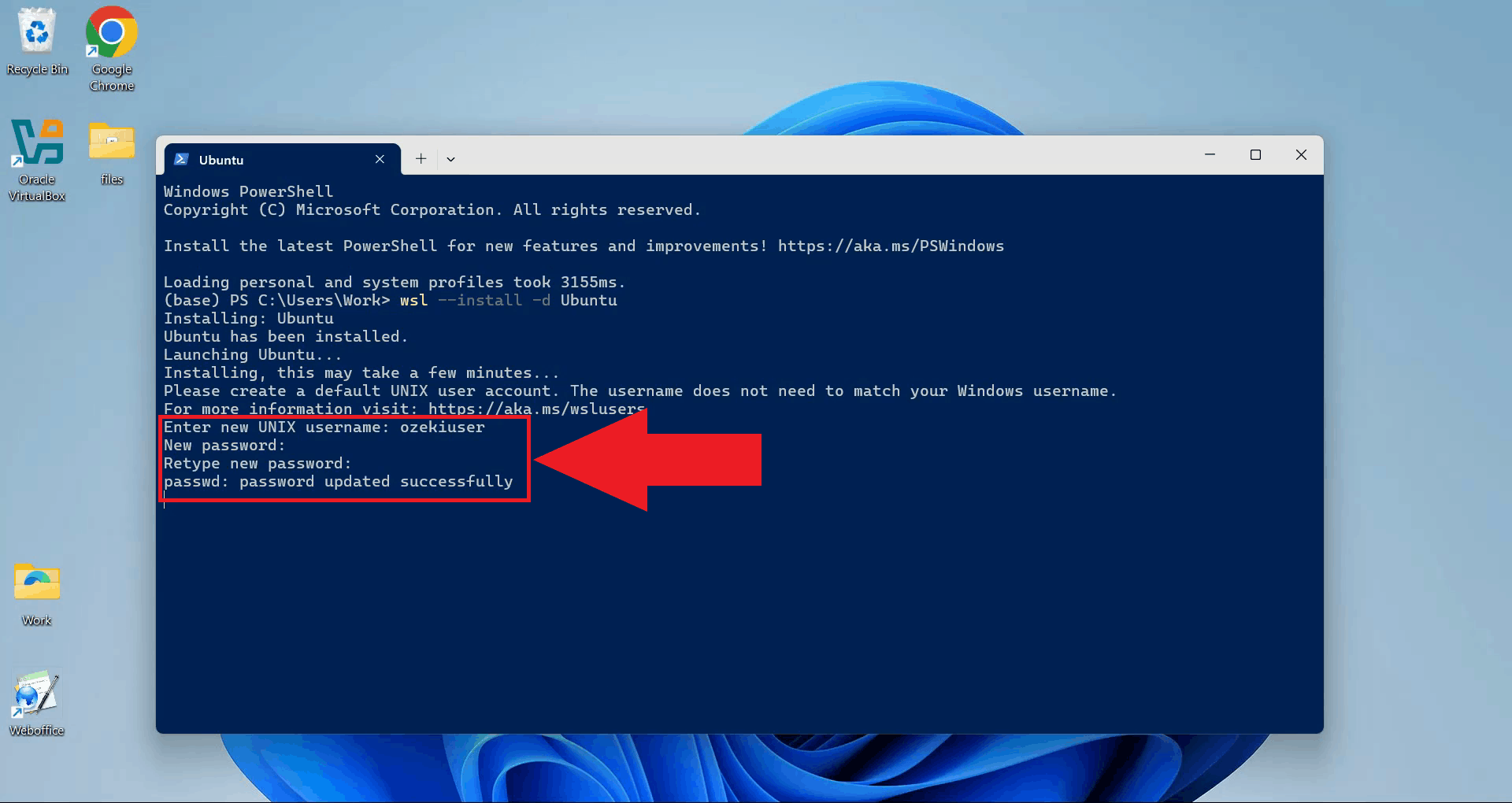
Once the installation completes, you will be prompted to create a Unix user account. Enter a username and password for your Ubuntu environment (Figure 3).
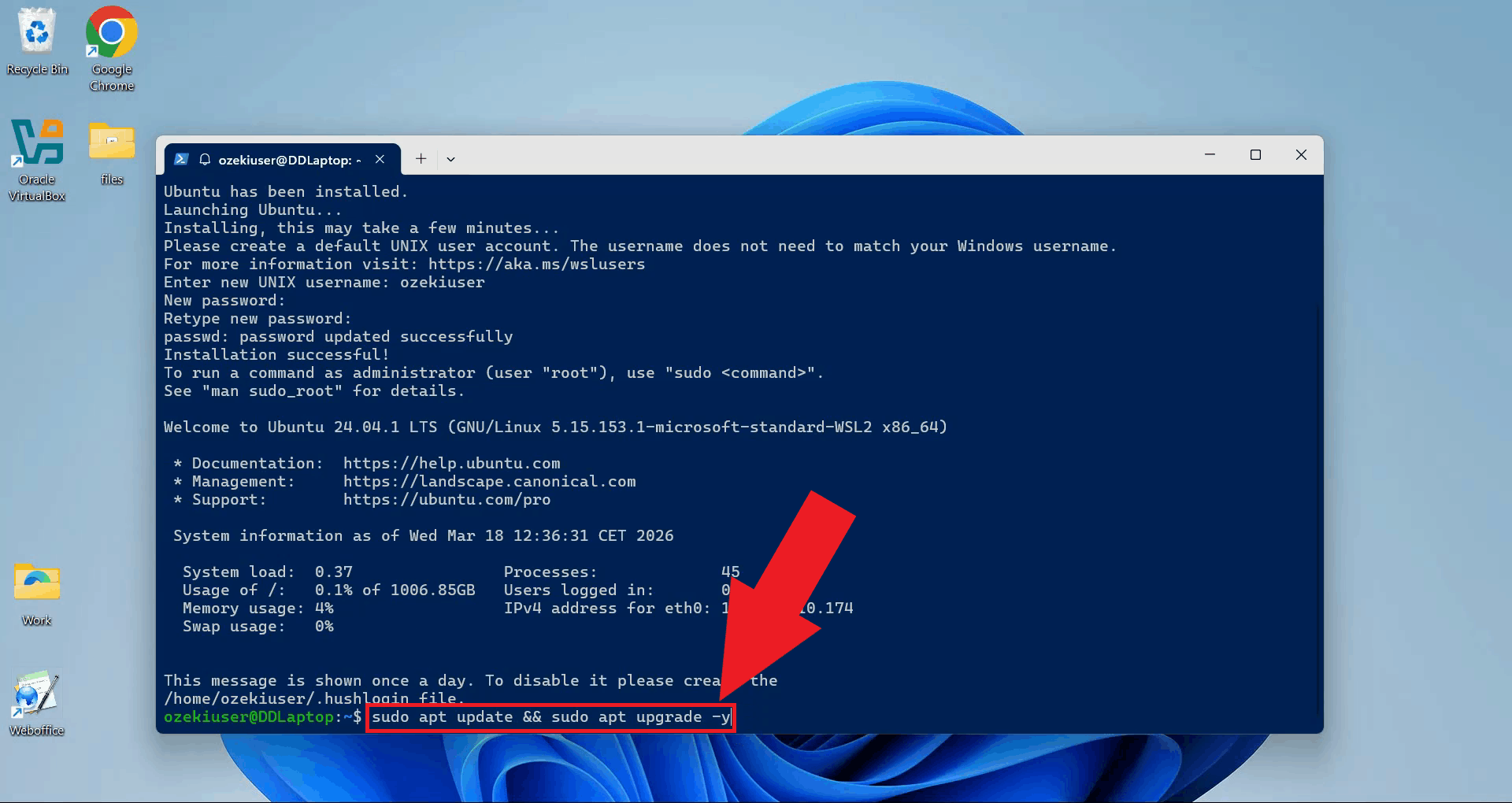
Step 3 - Update Ubuntu packagesUpdate and upgrade the Ubuntu package list to make sure all system packages are current before installing any dependencies (Figure 4). sudo apt update && sudo apt upgrade -y
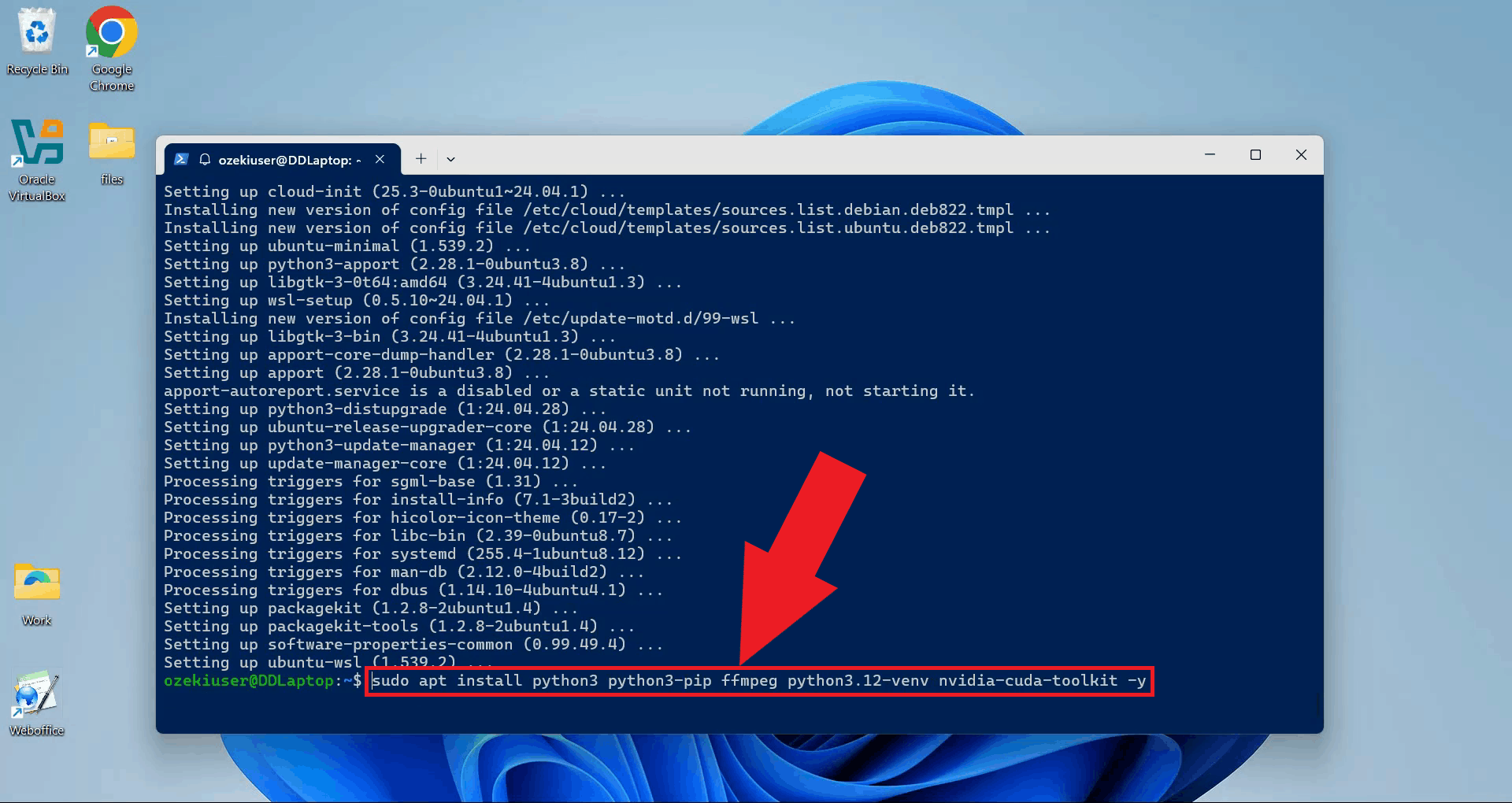
Step 4 - Install required packagesInstall Python, pip, FFmpeg, the Python venv module, and the NVIDIA CUDA toolkit in a single command. FFmpeg handles audio processing, venv is needed to create the isolated Python environment, and the CUDA toolkit enables GPU-accelerated transcription if your system has a compatible NVIDIA graphics card (Figure 5). sudo apt install python3 python3-pip ffmpeg python3.12-venv nvidia-cuda-toolkit -y
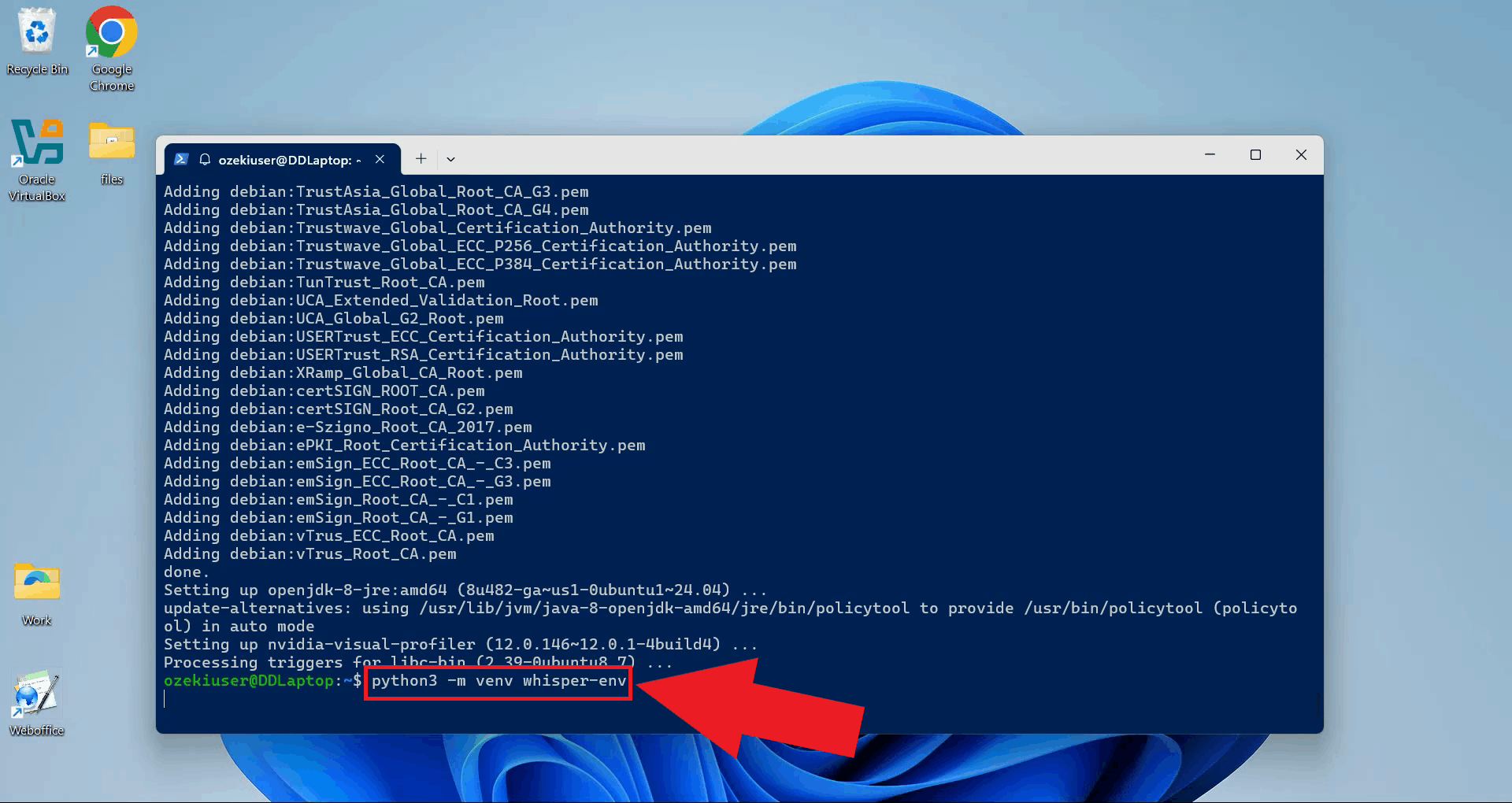
Step 5 - Set up the Python virtual environmentCreate a dedicated Python virtual environment for the Whisper server. Using a separate environment keeps its dependencies isolated from other Python projects on your system (Figure 6). python3 -m venv whisper-env
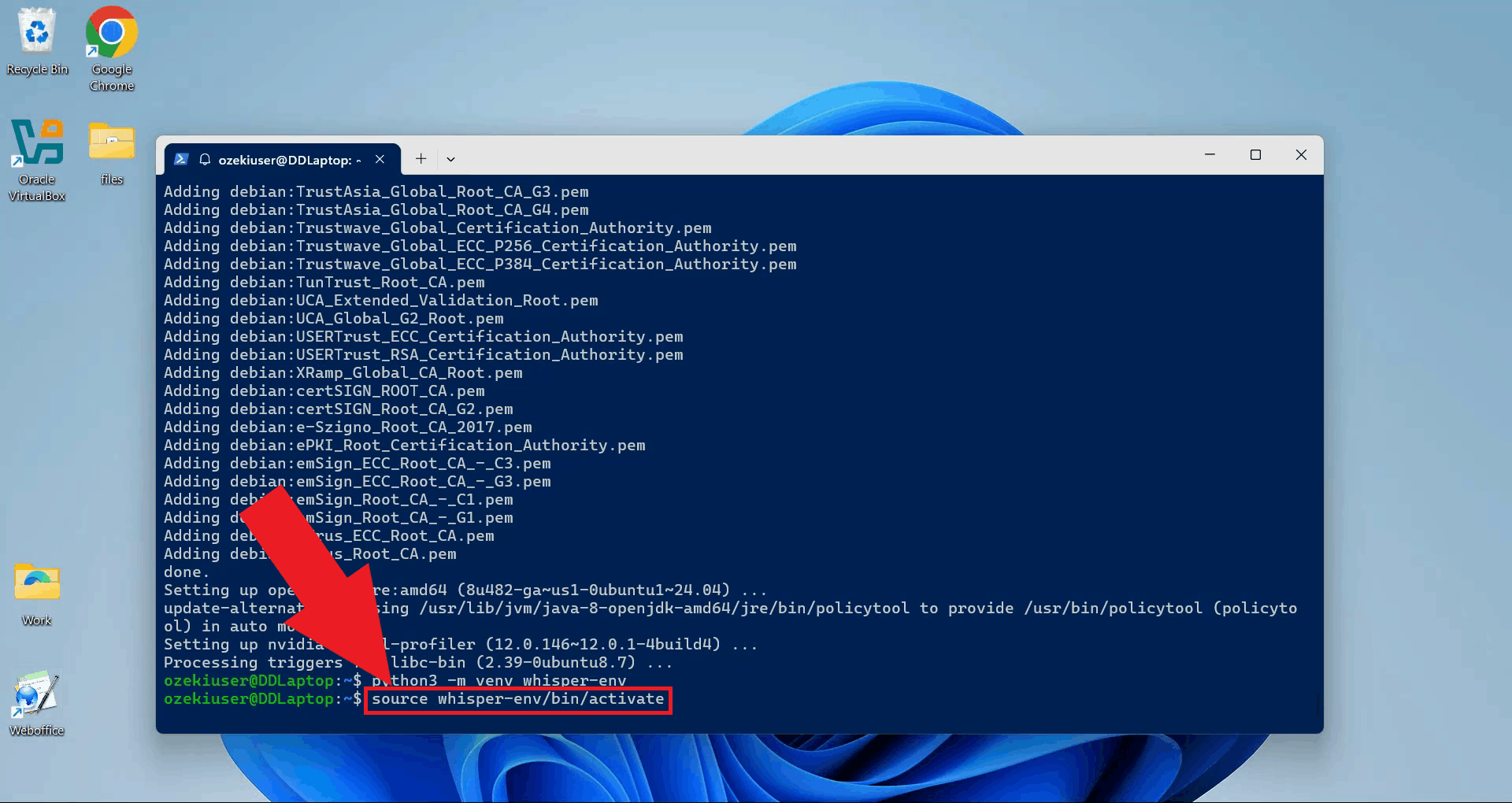
Activate the virtual environment. Your terminal prompt will update to show the active environment name (Figure 7). source whisper-env/bin/activate
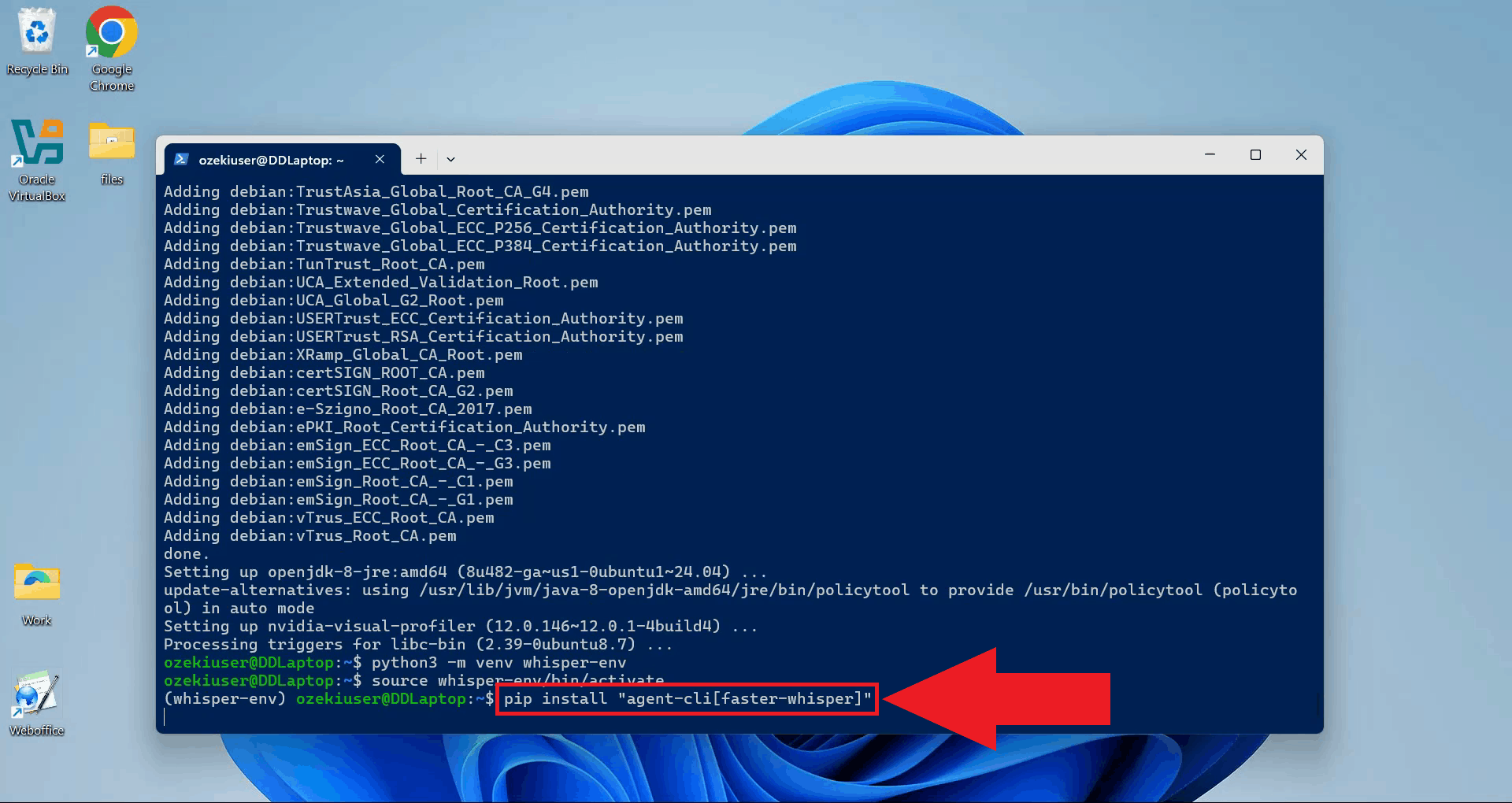
Step 6 - Install agent-cli with faster-whisperWith the virtual environment active, install agent-cli together with the faster-whisper backend using pip. This installs all dependencies needed to run the Whisper speech recognition model locally inside WSL (Figure 8). pip install "agent-cli[faster-whisper]"
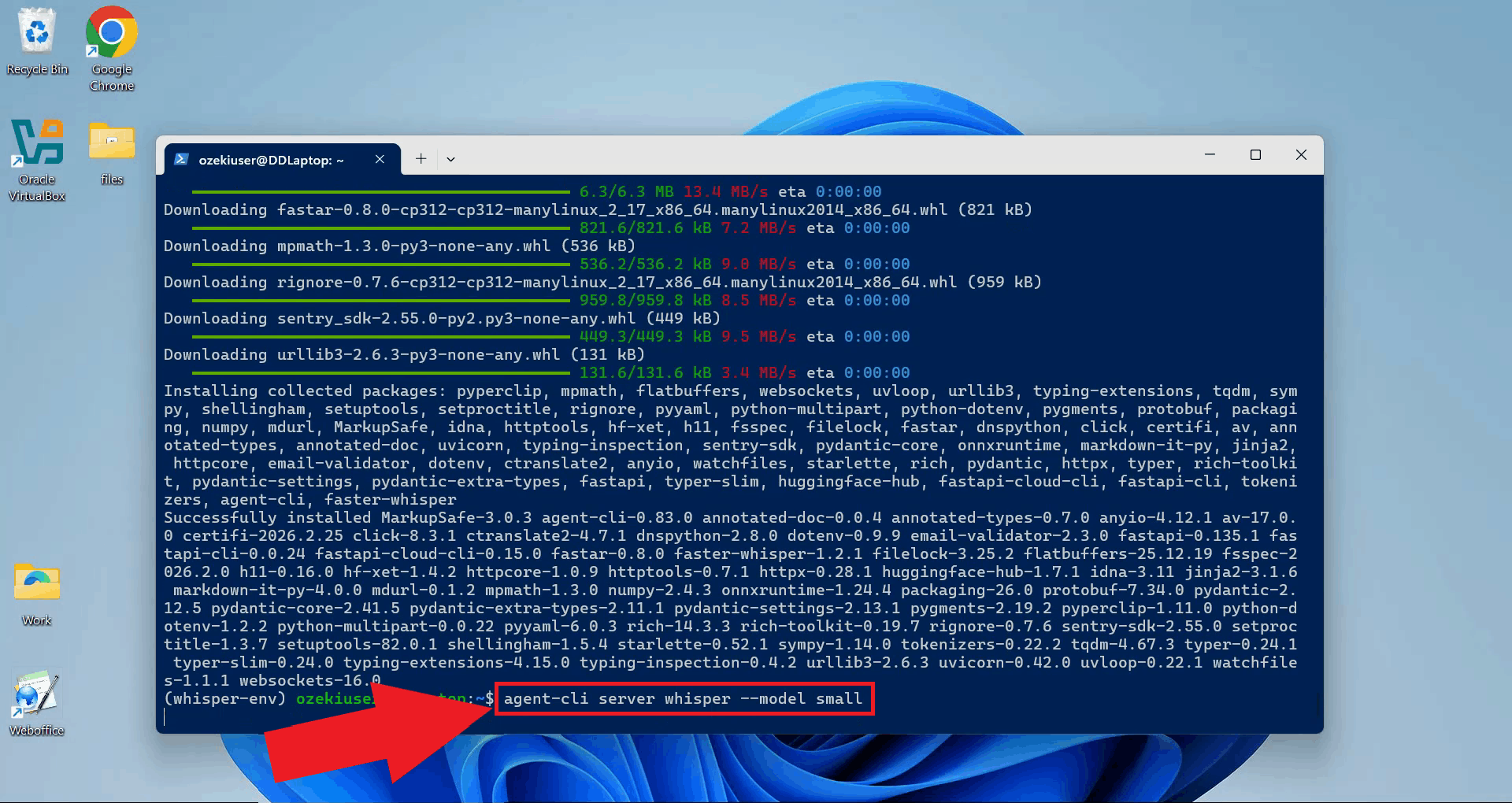
Step 7 - Start the Whisper serverStart the Whisper server using agent-cli with the small model. You can choose between different model sizes depending on how powerful your system is (Figure 9). agent-cli server whisper --model small
The Whisper server is now running and listening for transcription requests. Keep this terminal open for the duration of your session (Figure 10).
Step 8 - Connect Whisper to Ozeki Voice KeyboardThe following video shows how to connect the WSL Whisper server to Ozeki Voice Keyboard and verify that transcription is working correctly.
Copy the API URL from the terminal output. This is the endpoint you will enter in Ozeki Voice Keyboard to point it at the local Whisper server (Figure 11). For example: http://localhost:10301/v1
Open Ozeki Voice Keyboard and locate its icon in the Windows system tray in the bottom right corner of your taskbar (Figure 12).
Before configuring the Voice settings, enable HTTP logging so you can verify that requests are reaching the Whisper server. Right-click the tray icon and navigate to Logs from the context menu (Figure 13).
In the Logs window, enable HTTP logging and close the window. This will allow you to monitor the requests sent to the Whisper server after configuration (Figure 14).
Right-click the tray icon again and open the Voice settings from the context menu (Figure 15).
Enter the API URL you copied from the terminal, append "/audio/transcriptions" to the end of the URL and specify the model name. The API key does not matter since the local server does not require authentication. Click OK to save the settings (Figure 16).
Test the setup by placing your cursor in any input field and using the voice recording hotkey to dictate some text. The audio will be sent to the Whisper server running inside WSL and the transcription will be pasted into the active field (Figure 17).
Open the Logs window to verify the request. You should see an HTTP request to the
Final thoughtsYou have successfully set up a local Whisper speech recognition server on Windows using WSL and connected it to Ozeki Voice Keyboard. Running the server inside WSL gives you the flexibility of a Linux environment while staying on Windows, and the fully local setup means your voice data never leaves your machine.
https://ozekivoice.com/p_9329-how-to-set-up-whisper-speech-detector-on-ubuntu-linux.html
How to set up Whisper Speech Detector on Ubuntu LinuxThis guide demonstrates how to set up a Whisper speech recognition server on an Ubuntu machine and connect it to Ozeki Voice Keyboard running on Windows. You will learn how to install the required dependencies, start the Whisper server using vLLM, and configure Ozeki Voice Keyboard to send audio to the Ubuntu machine for transcription over the network. What is Whisper?Whisper is an open-source speech recognition model developed by OpenAI. In this setup, it is served on an Ubuntu machine using vLLM, which exposes an OpenAI-compatible endpoint on the network. Ozeki Voice Keyboard, running on a separate Windows machine, sends recorded audio to this endpoint and receives the transcribed text in response. System architectureThe diagram below illustrates how the Windows machine running Ozeki Voice Keyboard communicates with the Ubuntu machine hosting the Whisper server.
sequenceDiagram
participant Win as Windows Machine (192.168.95.26)
participant Ubuntu as Ubuntu Machine (192.168.95.22)
Win->>Ubuntu: POST /v1/audio/transcriptions (audio)
Ubuntu-->>Win: Transcribed text response
Win->>Win: Paste transcription into active input field
Steps to follow
Before proceeding, make sure Anaconda is installed on your
Ubuntu machine. The
Quick reference commands# Create a Python 3.12 Conda environment conda create -n whisper python=3.12 # Activate the environment conda activate whisper # Install vLLM with audio support pip install vllm vllm[audio] # Start the Whisper server vllm serve openai/whisper-small # API endpoint (replace with your Ubuntu machine's IP) http://ubuntu.machine/v1/audio/transcriptions How to set up Whisper on Ubuntu videoThe following video shows how to set up and run the Whisper speech recognition server on Ubuntu step-by-step. The video covers creating the Conda environment, installing vLLM, and starting the server.
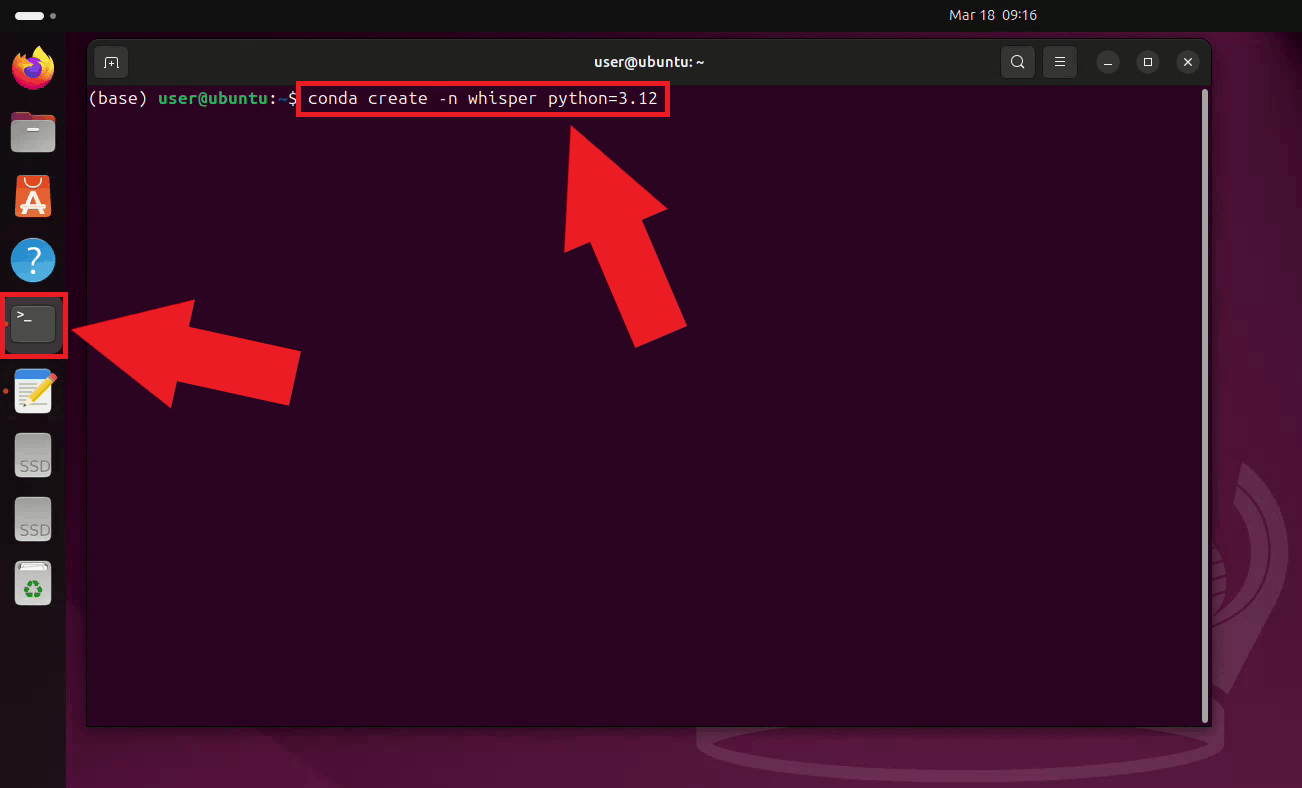
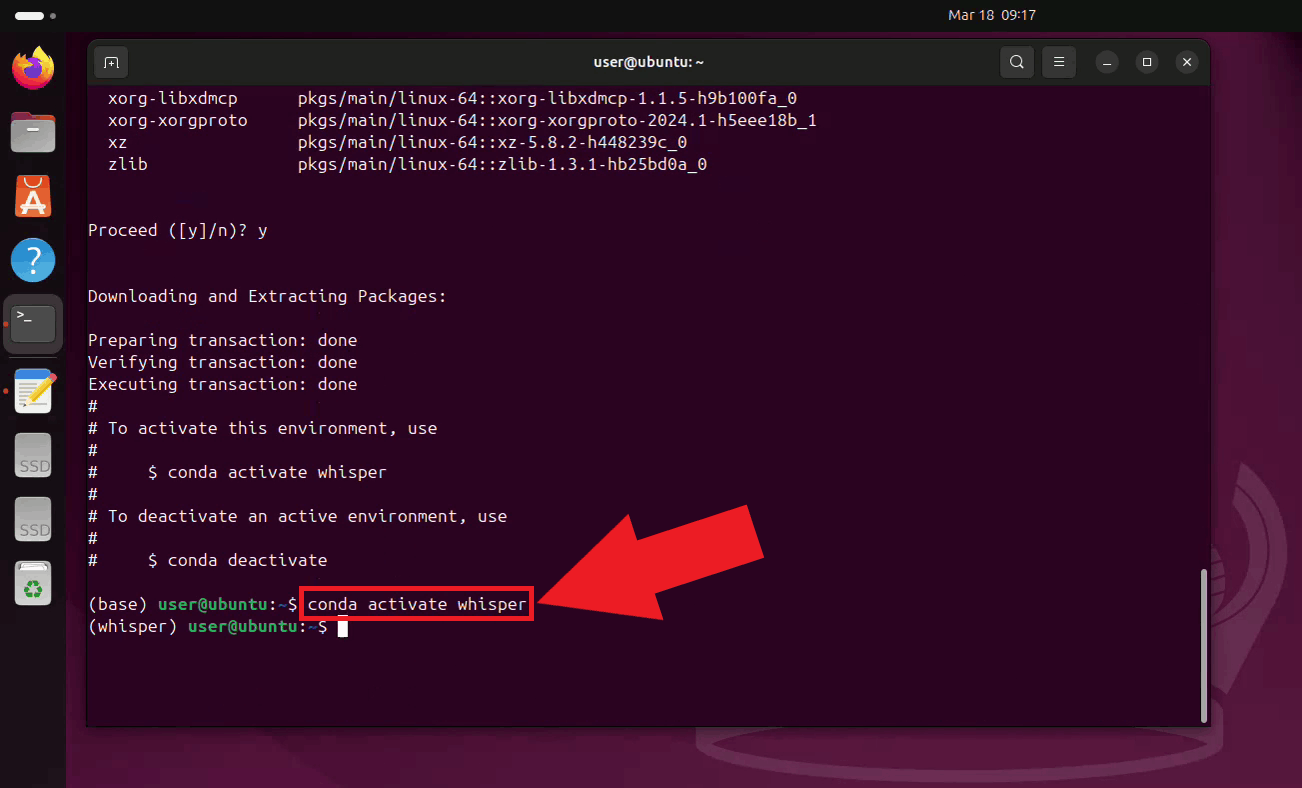
Step 1 - Create and activate the Conda environmentOpen a terminal on your Ubuntu machine and create a dedicated Conda environment with Python 3.12 for the Whisper server. Using a separate environment keeps its dependencies isolated from other Python projects on your system (Figure 1). conda create -n whisper python=3.12
Activate the newly created environment. Your terminal prompt will update to show the active environment name (Figure 2). conda activate whisper
Step 2 - Install vLLM
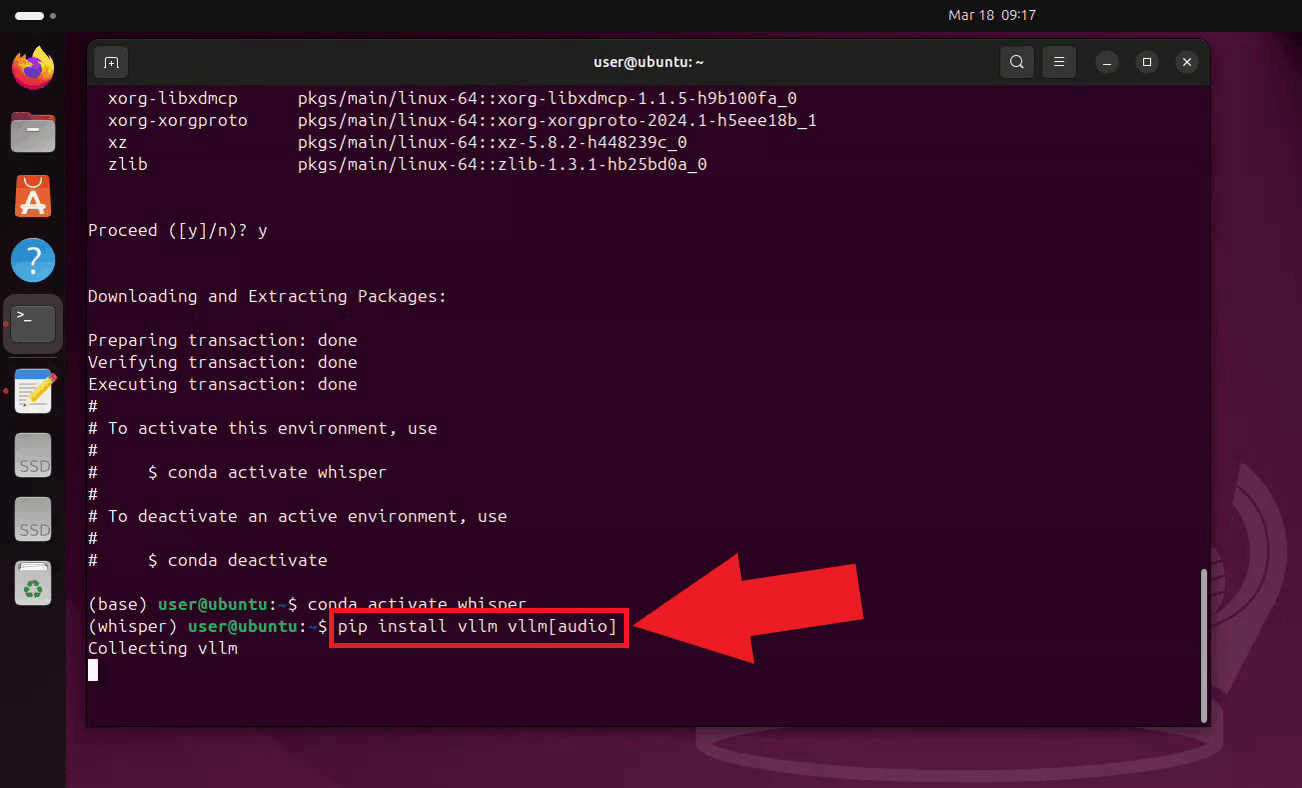
With the environment active, install vLLM along with its audio support extra using pip.
The pip install vllm vllm[audio]
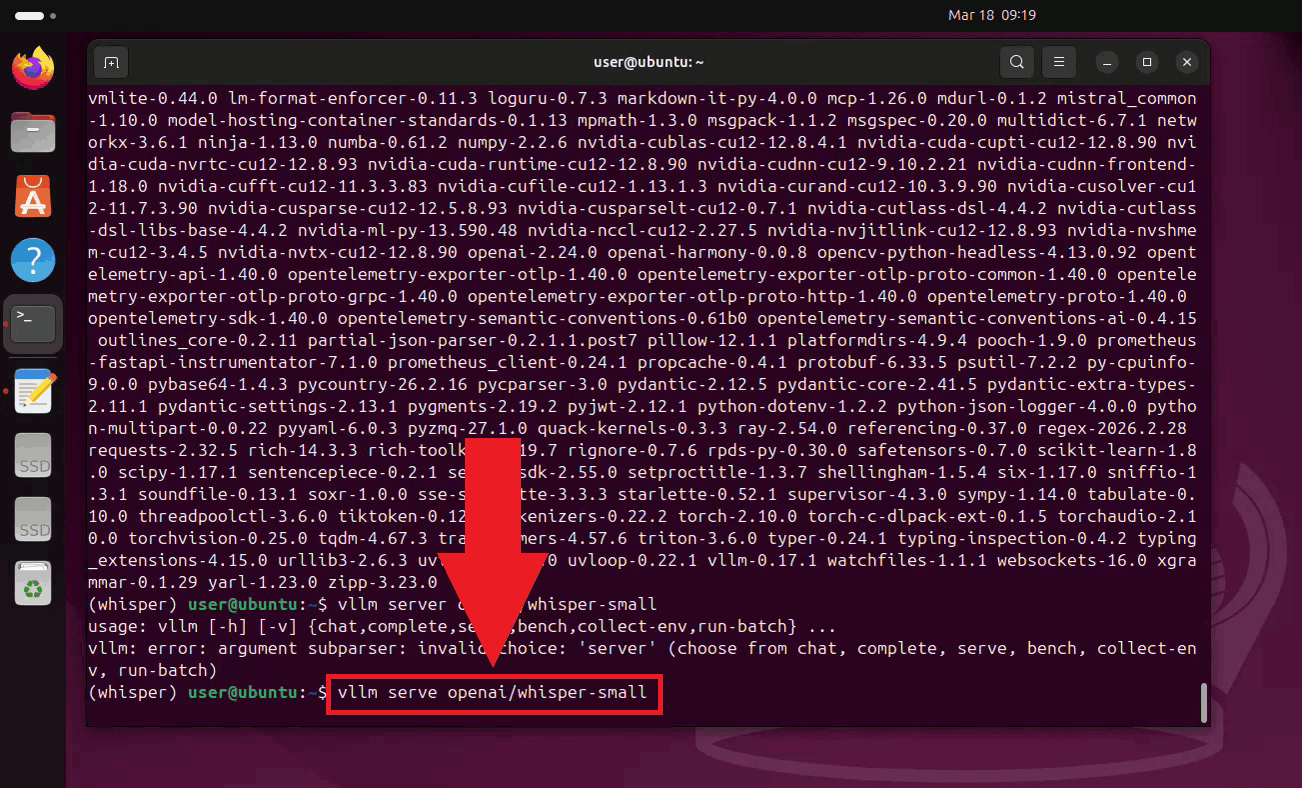
Step 3 - Start the Whisper serverStart the Whisper server by running the vLLM serve command with the small model (You can also use more powerful models depending on your hardware configuration). The server will download the model on the first run, which may take a few minutes depending on your connection speed (Figure 4). vllm serve openai/whisper-small
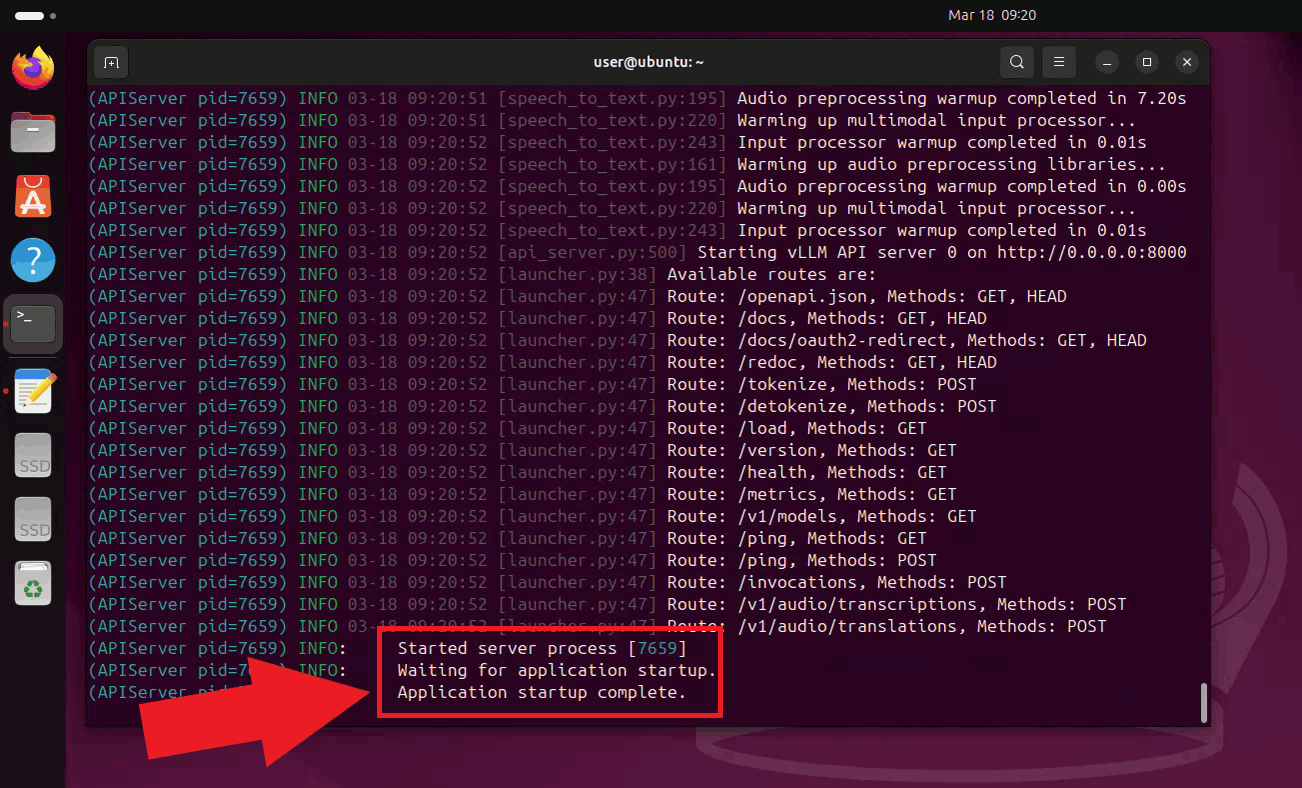
Once the server has started, it will begin listening for transcription requests on
port 8000. Keep this terminal open for the duration of your session. The endpoint
is accessible to other machines on your network at
Step 4 - Connect Whisper to Ozeki Voice KeyboardThe following video shows how to connect the Ubuntu Whisper server to Ozeki Voice Keyboard on Windows and verify that transcription is working correctly. The video covers locating the tray icon, enabling HTTP logging, configuring the Voice settings, and confirming the connection through the log viewer.
On your Windows machine, open Ozeki Voice Keyboard and locate its icon in the system tray in the bottom right corner of your taskbar (Figure 6).
Before configuring the Voice settings, enable HTTP logging so you can verify that requests are reaching the Ubuntu Whisper server. Right-click the tray icon and navigate to Logs from the context menu (Figure 7).
In the Logs window, enable HTTP logging and close the window. This will allow you to monitor outgoing requests to the Whisper server after configuration (Figure 8).
Right-click the tray icon again and open the Voice settings from the context menu (Figure 9).
Enter the API URL of your Ubuntu machine and specify the model ID. You can leave the API key field empty since the local server does not require authentication. Click OK to save the settings (Figure 10). http://{ubuntu-machine-ip}:8000/v1/audio/transcriptions
Test the setup by placing your cursor in any input field on the Windows machine and using the voice recording hotkey to dictate some text. The audio will be sent over to the Whisper server on the Ubuntu machine, and the transcription will be pasted into the active field (Figure 11).
Open the Logs window to verify the request. You should see an HTTP request to the
Ubuntu machine's
To sum it upYou have successfully set up a Whisper speech recognition server on Ubuntu and connected it to Ozeki Voice Keyboard on Windows. This setup allows you to offload speech processing to a dedicated Linux machine on your network, keeping the Windows machine lightweight while still benefiting from fast and accurate voice transcription.
https://ozekivoice.com/p_9335-how-to-use-different-llm-backends-in-ozeki-voice-keyboard.html How to use different LLM backends in Ozeki Voice KeyboardThis page provides guides on configuring different LLM backends for Ozeki Voice Keyboard, including Ollama on Windows, LLama.cpp on Ubuntu, and vLLM on Ubuntu. Each guide covers setup, configuration, and usage of local AI assistants with voice input. How to use Ollama on Windows as the LLM backend for Ozeki Voice KeyboardThis guide shows how to configure Ollama as the LLM backend for Ozeki Voice Keyboard on Windows. It covers verifying Ollama is running, enabling HTTP logging, configuring LLM settings, using the AI assistant with voice commands, and checking requests in logs. The integration allows voice queries to be processed locally using Ollama's API at localhost:11434. How to use Ollama on Windows as the LLM backend for Ozeki Voice KeyboardHow to use LLama.cpp as the LLM backend for Ozeki Voice Keyboard on UbuntuThis tutorial demonstrates building and configuring a LLama.cpp server on Ubuntu as the LLM backend for Ozeki Voice Keyboard. It explains setting up Conda, cloning and building LLama.cpp with CUDA support, downloading the LLM model, starting the server, and connecting it to the voice keyboard for GPU-accelerated inference over the network. How to use LLama.cpp as the LLM backend for Ozeki Voice Keyboard on UbuntuHow to use vLLM as the LLM backend for Ozeki Voice Keyboard on UbuntuThis guide explains how to set up a vLLM server on Ubuntu as the LLM backend for Ozeki Voice Keyboard on Windows. It covers creating a Conda environment, installing vLLM via pip, starting the server with the Qwen model, and connecting it to Ozeki Voice Keyboard. The setup enables GPU-accelerated inference over the network for voice queries. How to use Vllm as the LLM backend for Ozeki Voice Keyboard on Ubuntu
https://ozekivoice.com/p_9336-how-to-use-ollama-on-windows-as-the-llm-backend-for-ozeki-voice-keyboard.html
How to use Ollama on Windows as the LLM backend for Ozeki Voice KeyboardThis guide demonstrates how to configure Ollama as the LLM backend for Ozeki Voice Keyboard on Windows. By integrating a locally running Ollama instance, the AI assistant feature can process voice queries entirely on your machine: your speech is transcribed by the configured voice model, the resulting text is sent to Ollama as a prompt, and the generated response is automatically inserted into the active input field. How it worksThe diagram below illustrates the full pipeline of the AI assistant feature.
sequenceDiagram
participant User
participant OzKey as Ozeki Voice Keyboard
participant Whisper as Voice Transcription Model
participant Ollama as Ollama LLM (localhost)
User->>OzKey: Voice input (audio)
OzKey->>Whisper: Audio
Whisper-->>OzKey: Return transcribed text
OzKey->>Ollama: Send transcription as prompt
Ollama-->>OzKey: Return generated response
OzKey-->>User: Paste response into active field
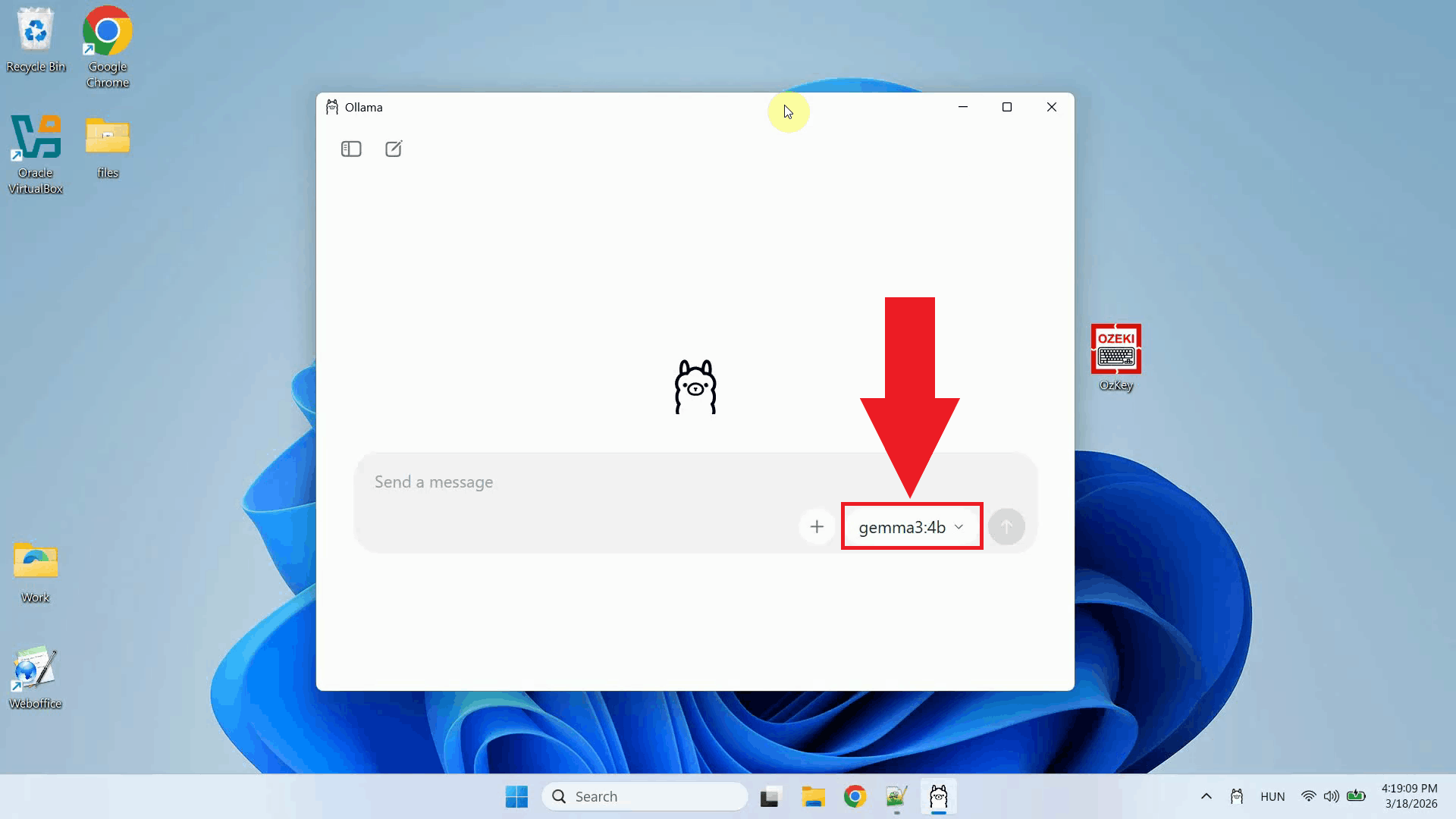
Steps to followBefore proceeding, make sure Ollama is installed on your Windows machine and at least one AI model has been downloaded and is ready to use. You can check out our guide about How to install Ollama
How to use Ollama as the LLM backend videoThe following video shows how to configure Ollama as the LLM backend for Ozeki Voice Keyboard step-by-step. The video covers configuring the LLM settings, using the AI assistant, and confirming the request in the log viewer.
Step 1 - Verify Ollama is running
Before configuring Ozeki Voice Keyboard, confirm that Ollama is running on your
Windows machine and that the AI model you want to use is installed and available.
Ollama exposes an OpenAI-compatible API on
Step 2 - Open Ozeki Voice Keyboard and enable loggingOpen Ozeki Voice Keyboard and locate its icon in the system tray in the bottom right corner of your taskbar (Figure 2).
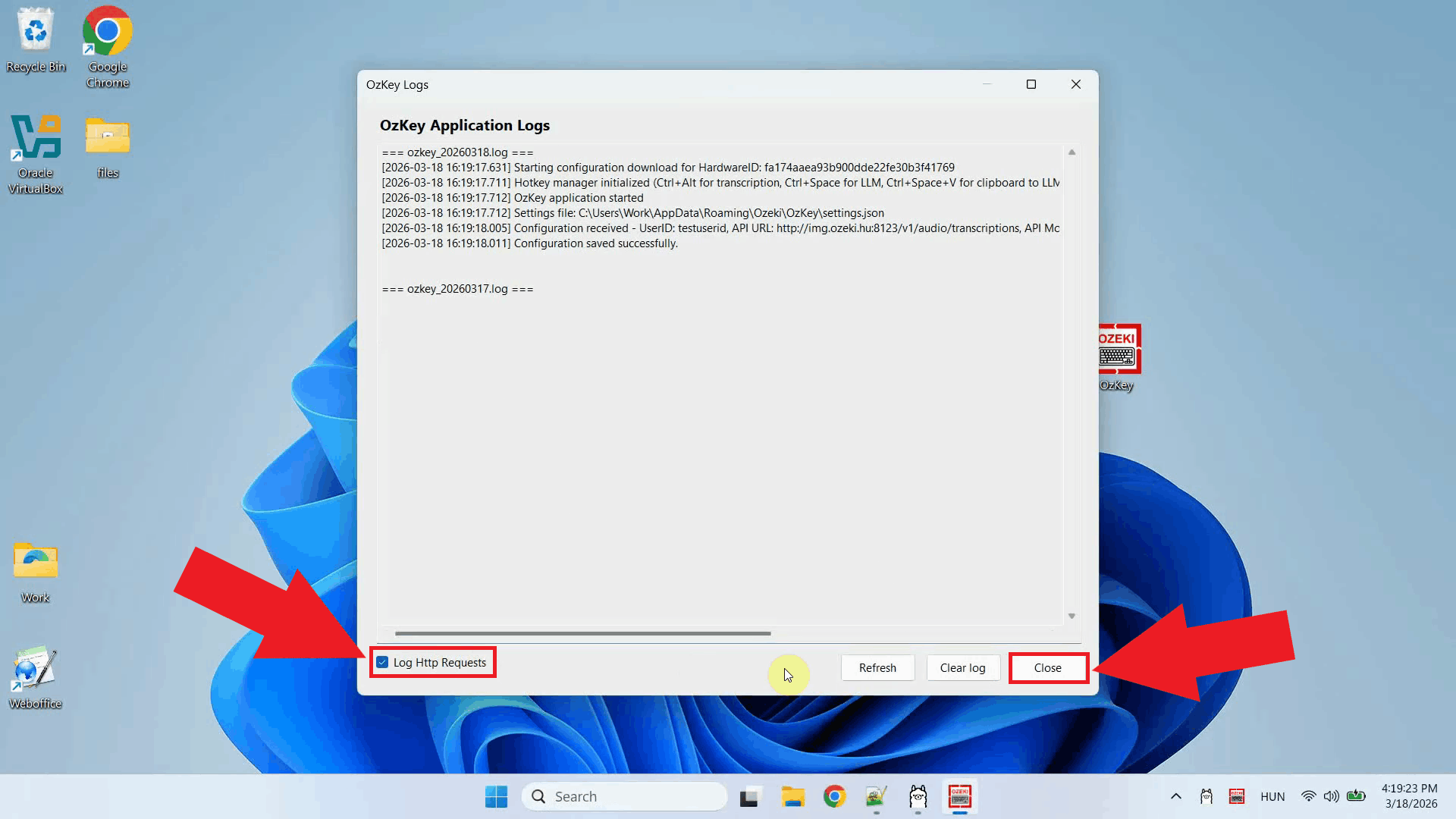
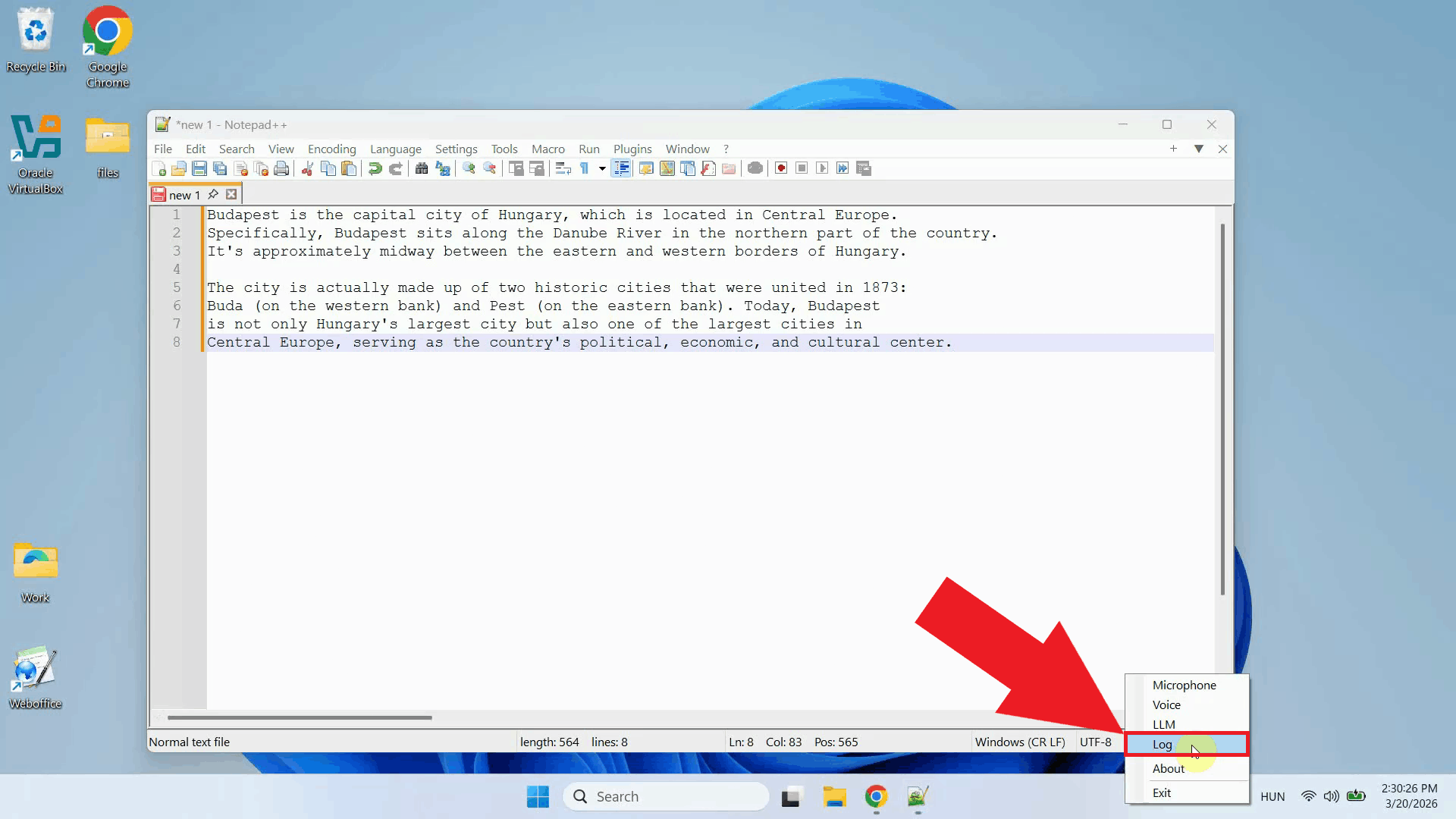
Before configuring the LLM settings, enable HTTP logging so you can verify that requests are reaching Ollama after setup. Right-click the tray icon and navigate to Logs from the context menu (Figure 3).
In the Logs window, enable HTTP logging and close the window. Outgoing requests to Ollama will now be recorded and visible in the log viewer (Figure 4).
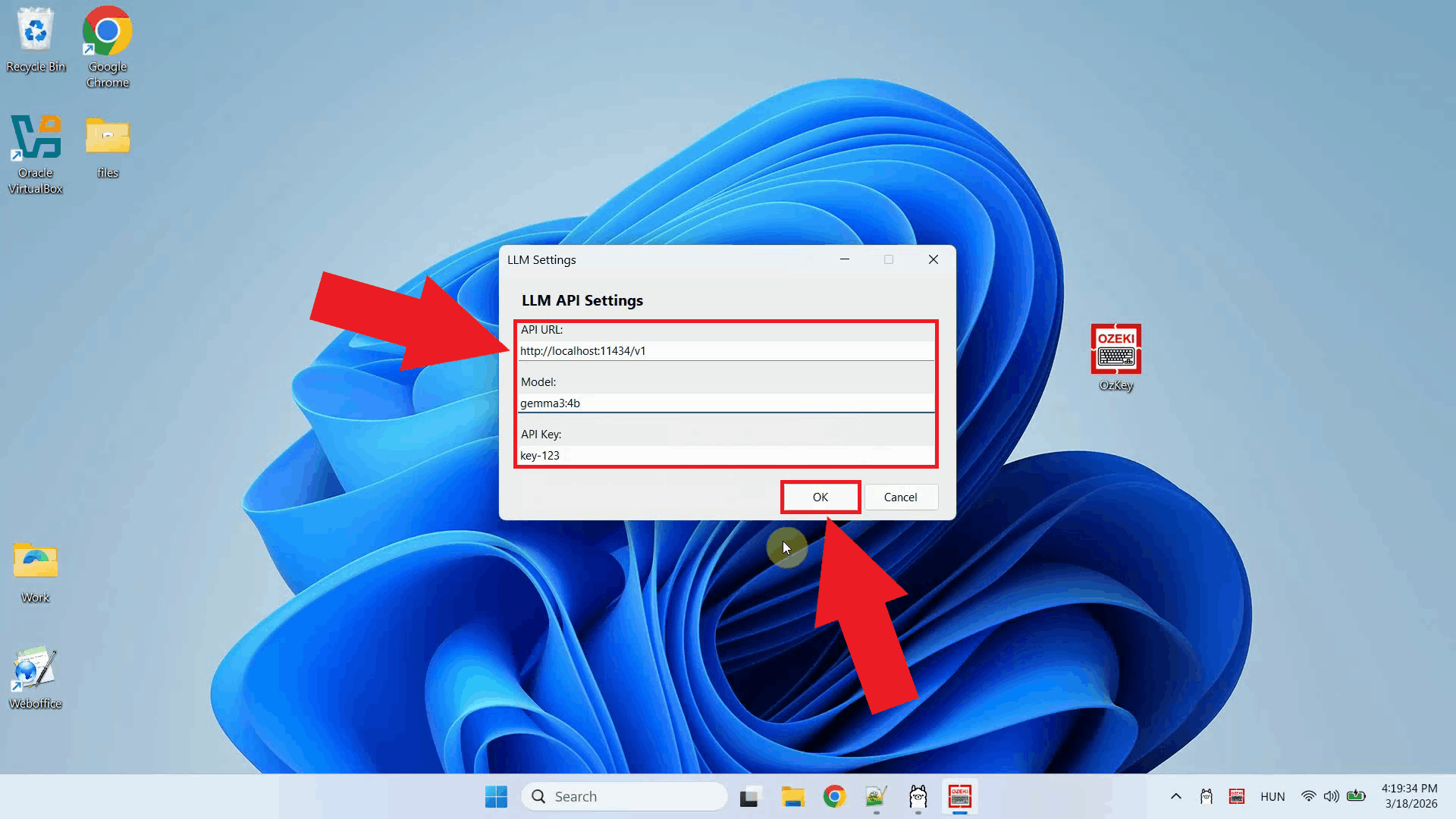
Step 3 - Configure the LLM settingsRight-click the tray icon and open the LLM settings from the context menu (Figure 5).
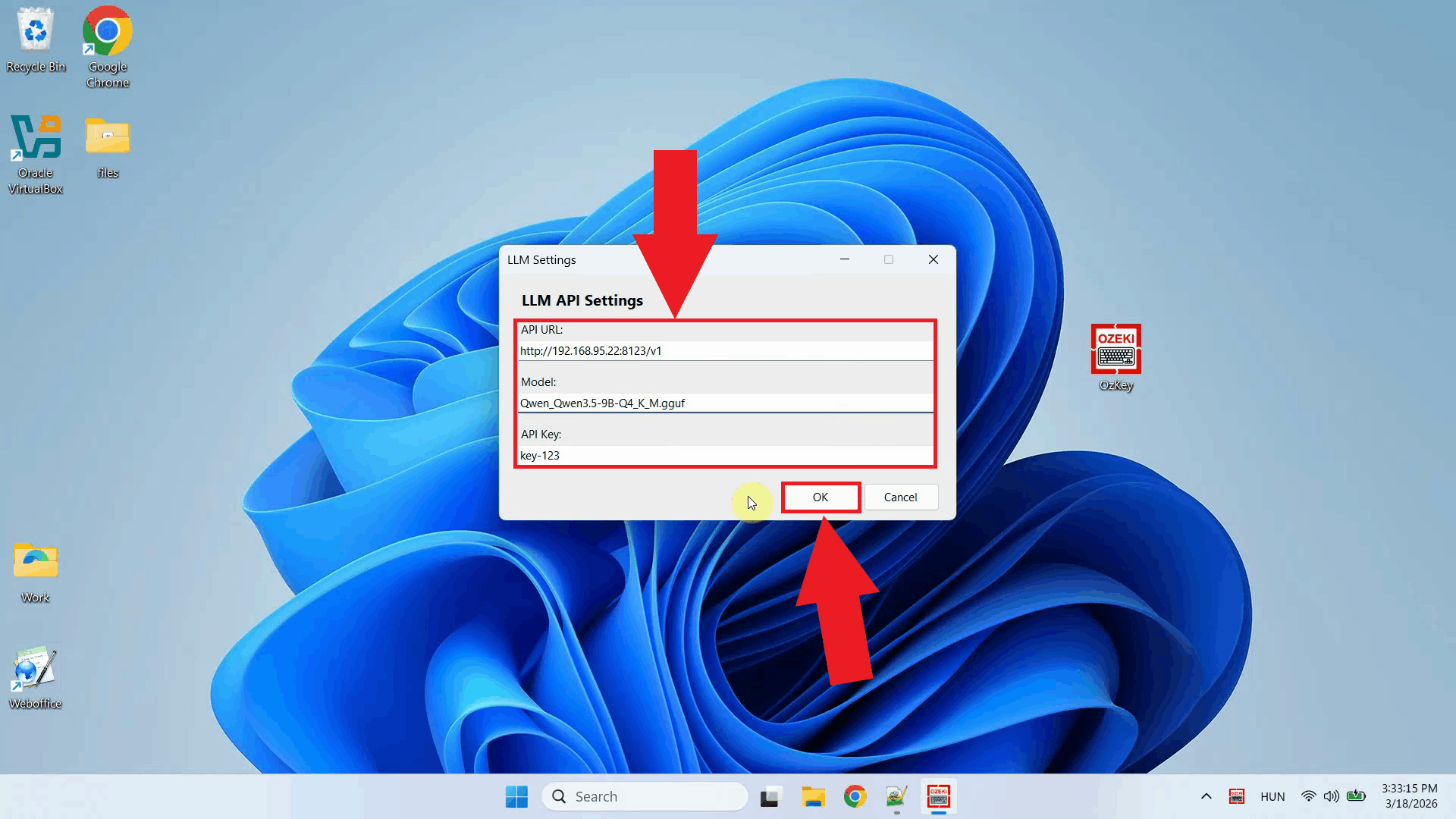
Enter the Ollama API URL and specify the model name you want to use. You can leave the API key field empty since a local Ollama instance does not require authentication. Click OK to save the settings (Figure 6). http://localhost:11434/v1
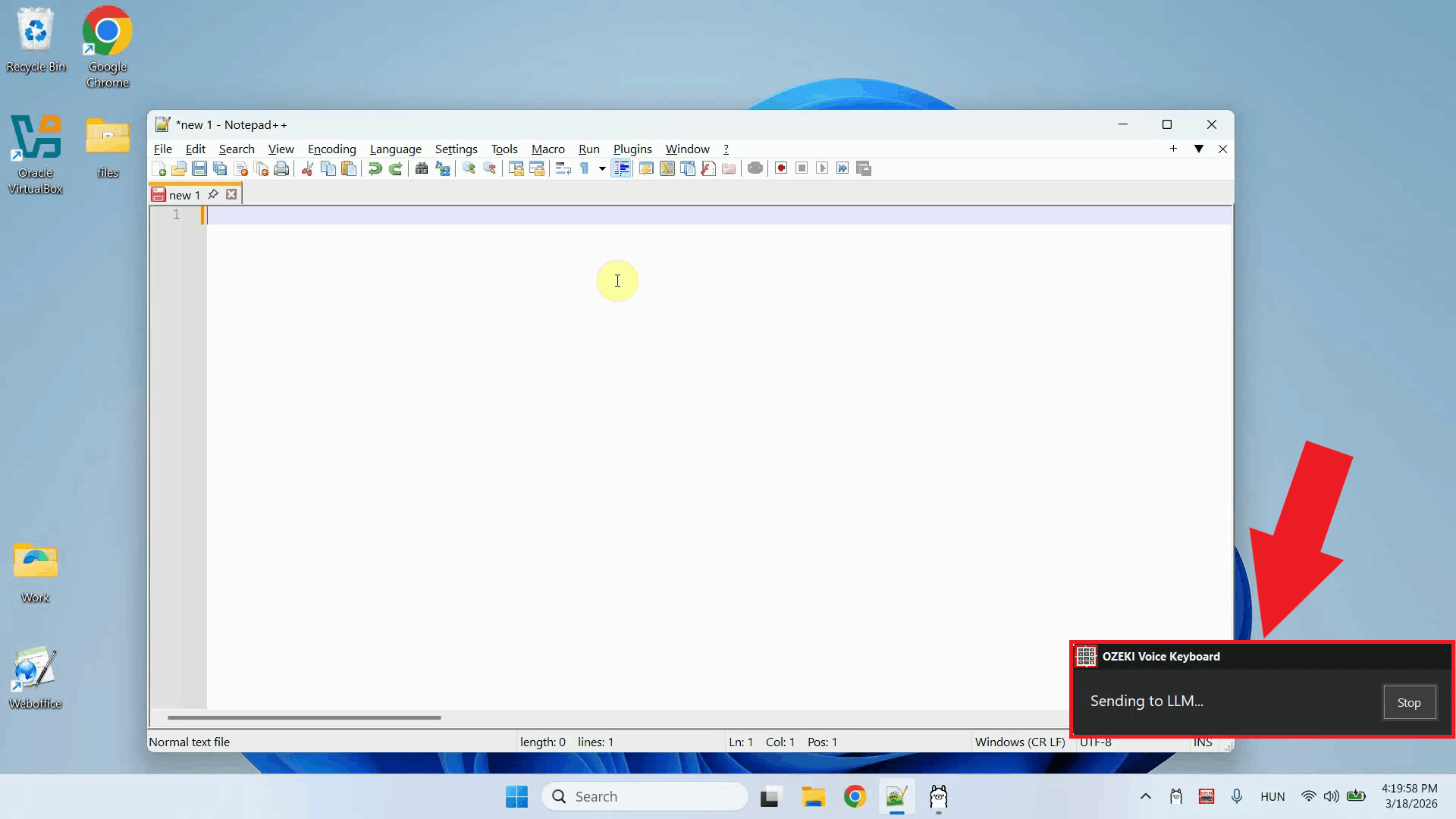
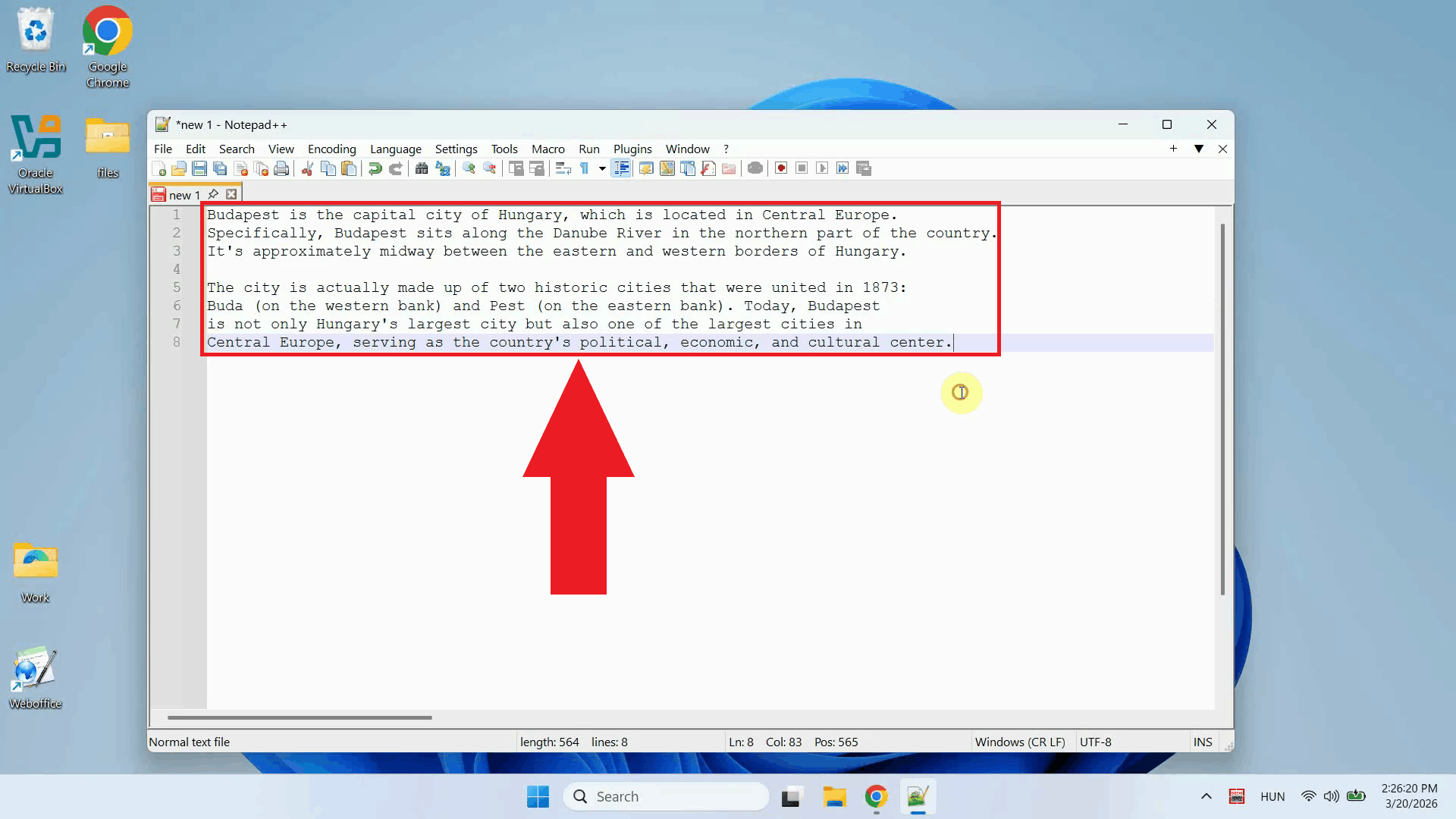
Step 4 - Ask the AI assistant a questionPlace your cursor in any input field where you want the response to appear, then press and hold Ctrl + Space and speak your question into the microphone. Release the keys when you have finished speaking. Your voice will first be transcribed, then the text will be forwarded to Ollama as a prompt (Figure 7).
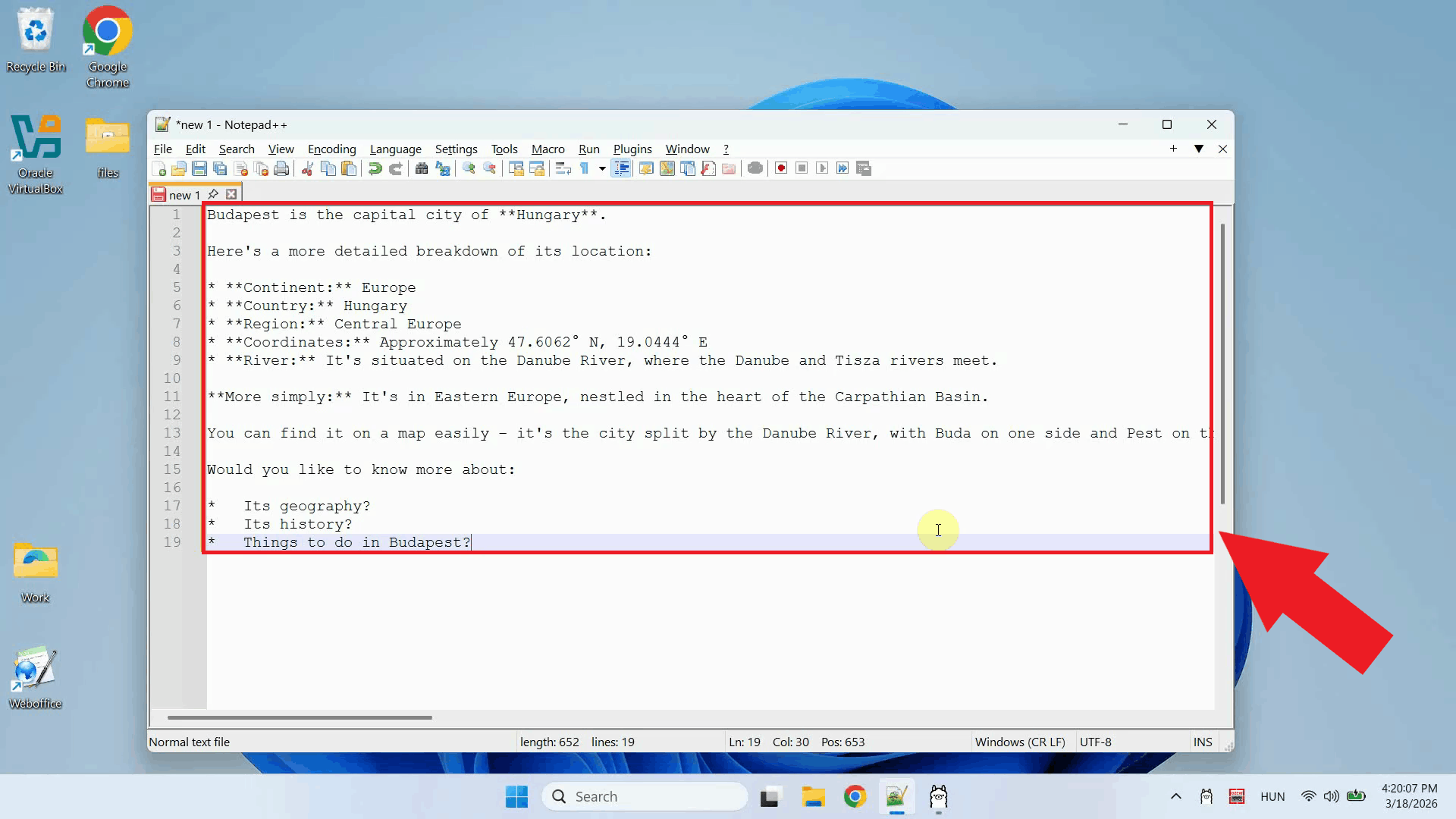
Once Ollama finishes generating the response, it is automatically pasted into the input field that was active when you started recording. No manual copying or pasting is required (Figure 8).
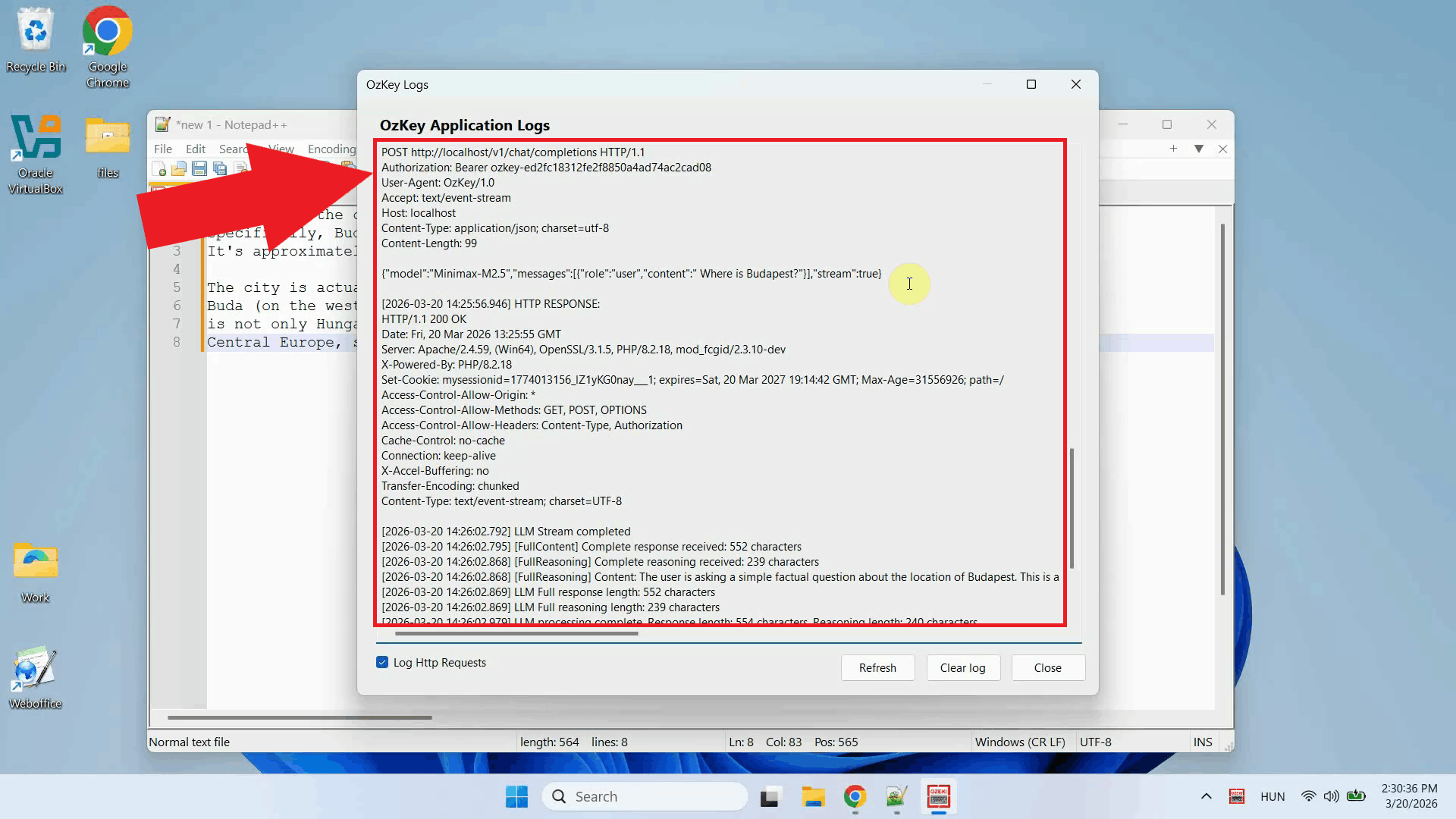
Step 5 - Check the request in logs
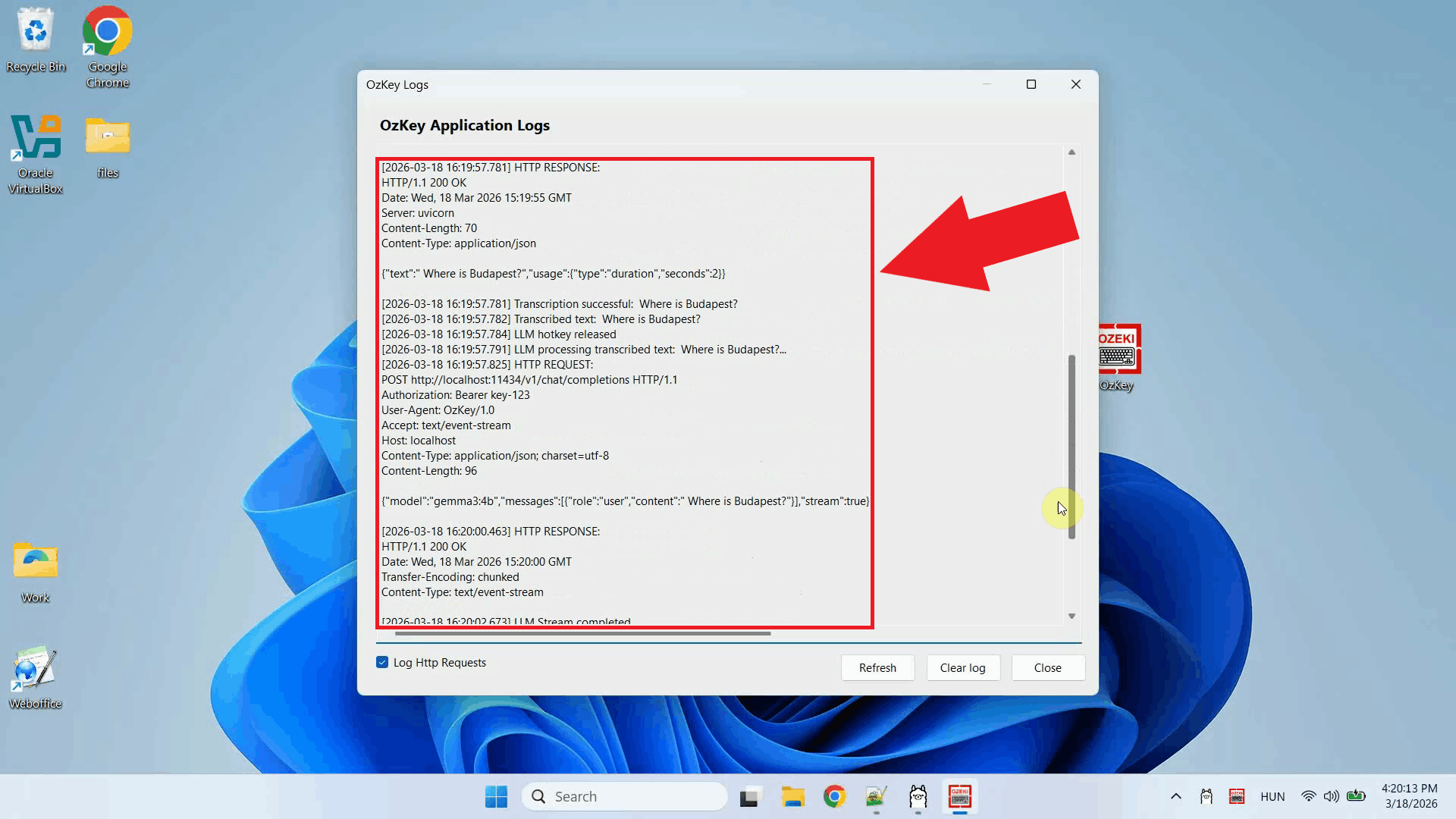
Open the Logs window to confirm that the request was sent correctly. You should see
an HTTP request to the Ollama
ConclusionYou have successfully configured Ollama as the LLM backend for Ozeki Voice Keyboard on Windows. The AI assistant is now fully operational: press the hotkey, ask your question by voice, and the response will be generated by your local Ollama model and typed directly into whatever field is currently active on your screen.
https://ozekivoice.com/p_9337-how-to-use-llama.cpp-as-the-llm-backend-for-ozeki-voice-keyboard-on-ubuntu.html
How to use LLama.cpp as the LLM backend for Ozeki Voice Keyboard on UbuntuThis guide demonstrates how to build and configure a LLama.cpp server on Ubuntu as the LLM backend for Ozeki Voice Keyboard on Windows. By running LLama.cpp on a dedicated Ubuntu machine, the AI assistant feature can leverage GPU-accelerated inference over the network: your speech is transcribed by the configured voice model, the resulting text is forwarded to LLama.cpp as a prompt, and the generated response is inserted into the active input field on your Windows machine. How it worksThe diagram below illustrates the full pipeline of the AI assistant feature across the two machines.
sequenceDiagram
participant Win as Windows Machine (192.168.95.26)
participant Whisper as Voice Transcription Model
participant LLama as LLama.cpp Server (192.168.95.22:8123)
Win->>Whisper: Send recorded audio
Whisper-->>Win: Return transcribed text
Win->>LLama: POST /v1/chat/completions (transcribed text)
LLama-->>Win: Return generated response
Win->>Win: Paste response into active input field
Steps to followBefore proceeding, make sure Anaconda and Git are installed on your Ubuntu machine. A CUDA-compatible NVIDIA GPU is required for GPU-accelerated inference.
Quick reference commands# Conda environment conda create -n qwen35 python=3.12 conda activate qwen35 # Working directory and clone mkdir qwen35 cd qwen35 git clone https://github.com/ggerganov/llama.cpp cd llama.cpp # Create the CUDA-enabled build_llama script nano build_llama.sh export PATH=/usr/local/cuda/bin:$PATH export CUDACXX=/usr/local/cuda/bin/nvcc export CUDA_HOME=/usr/local/cuda rm -rf build cmake -B build \ -DGGML_CUDA=ON \ -DCMAKE_CUDA_ARCHITECTURES=86 \ -DCMAKE_BUILD_TYPE=Release cmake --build build --config Release -j$(nproc) # Running the build script chmod +x build_llama.sh ./build_llama.sh # Download model pip install huggingface_hub hf download bartowski/Qwen_Qwen3.5-9B-GGUF Qwen_Qwen3.5-9B-Q4_K_M.gguf --local-dir . # Create the server runner script nano run.sh ./llama.cpp/build/bin/llama-server \ -m Qwen_Qwen3.5-9B-Q4_K_M.gguf \ --host 0.0.0.0 \ --port 8123 \ --gpu-layers 99 \ -ngl 99 \ -c 8192 \ -fa auto # Running the script chmod +x run.sh ./run.sh How to set up LLama.cpp on Ubuntu videoThe following video shows how to build and run the LLama.cpp server on Ubuntu step-by-step. The video covers creating the Conda environment, cloning and building LLama.cpp with CUDA support, downloading the model, and starting the server.
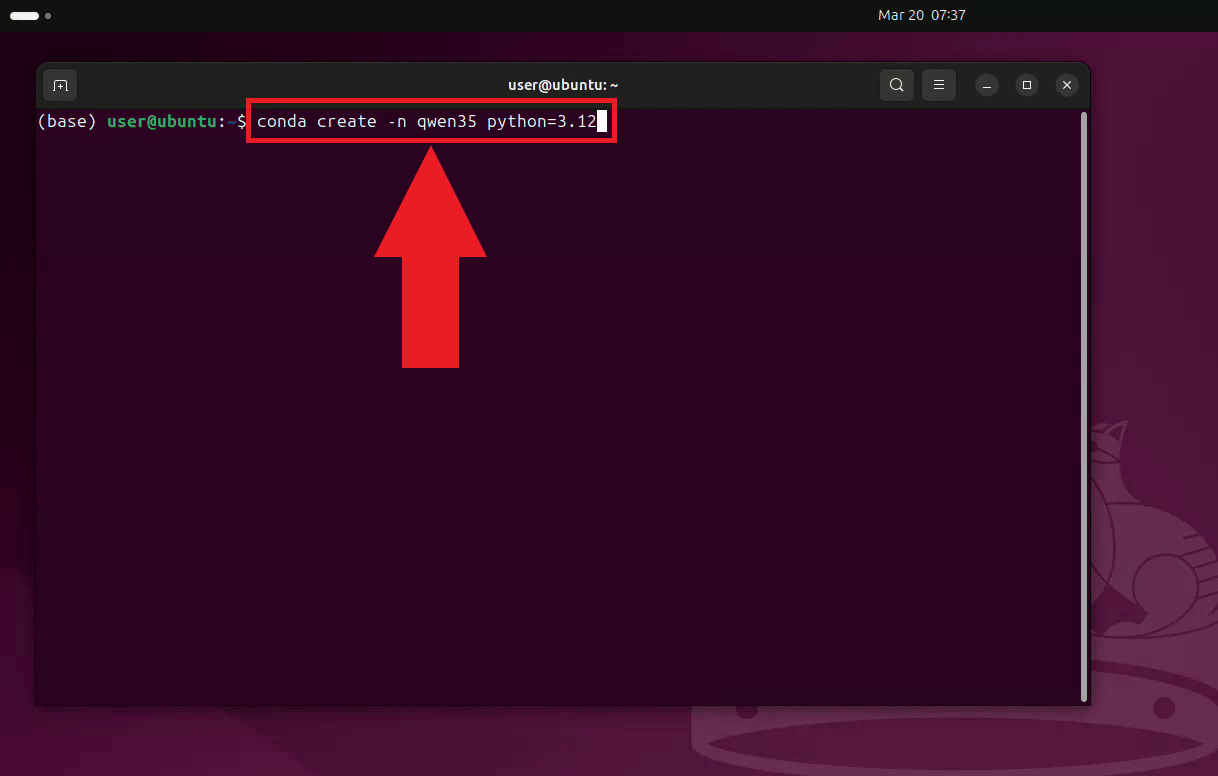
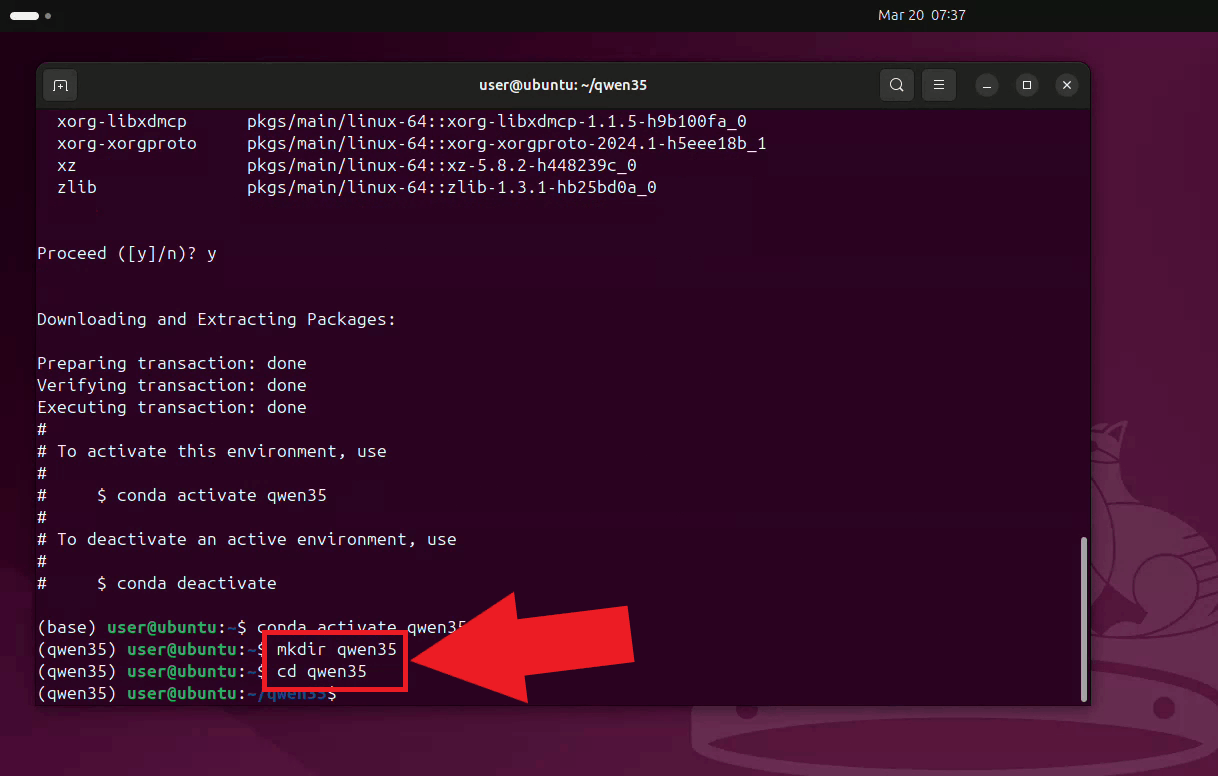
Step 1 - Set up the Conda environmentOpen a terminal on your Ubuntu machine and create a dedicated Conda environment with Python 3.12. Using a separate environment keeps LLama.cpp's dependencies isolated from other projects on your system (Figure 1). conda create -n qwen35 python=3.12
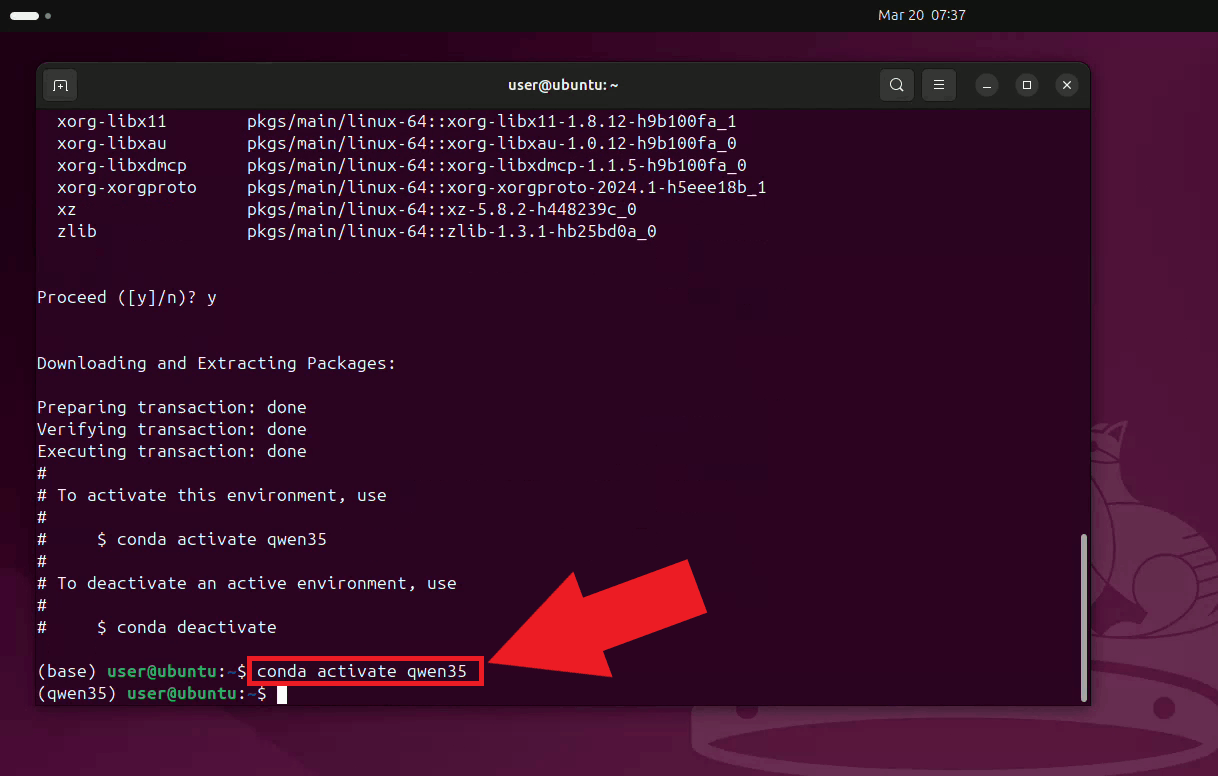
Activate the environment. Your terminal prompt will update to reflect the active environment name (Figure 2). conda activate qwen35
Create a working directory for this setup and navigate into it (Figure 3). mkdir qwen35 cd qwen35
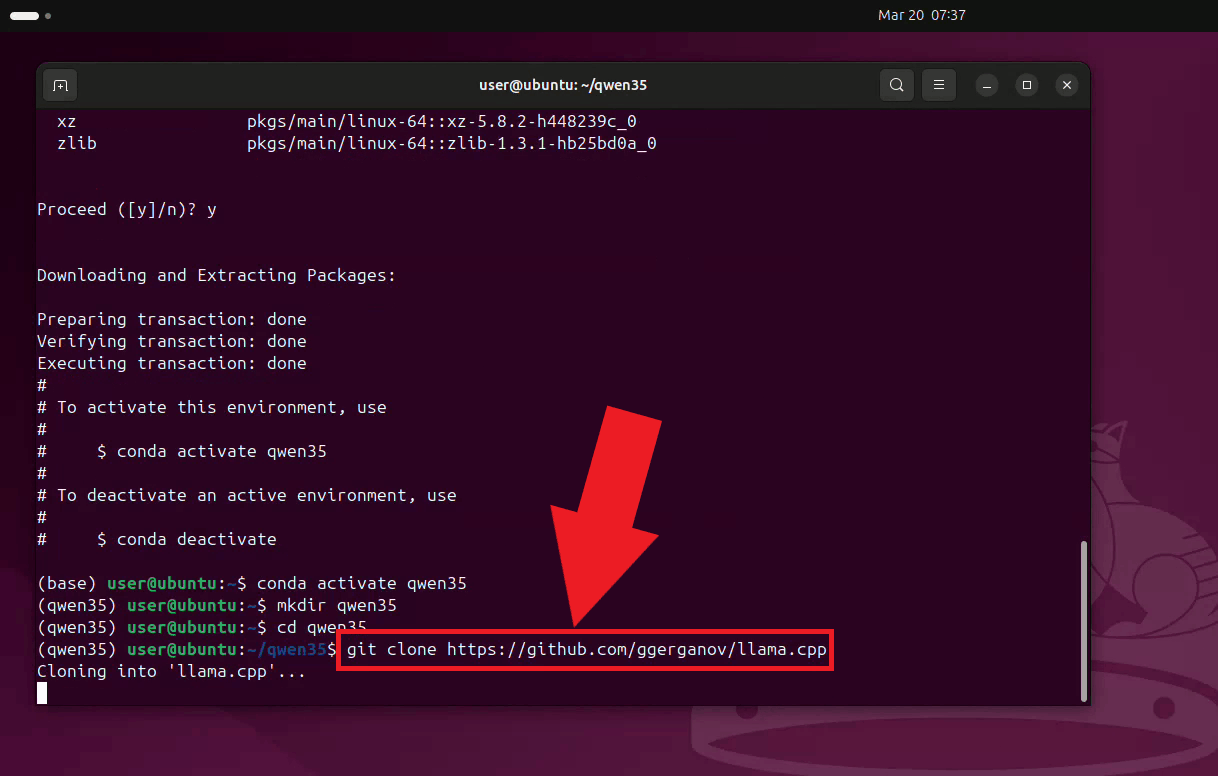
Step 2 - Clone LLama.cppClone the LLama.cpp repository from GitHub into the working directory (Figure 4). git clone https://github.com/ggerganov/llama.cpp
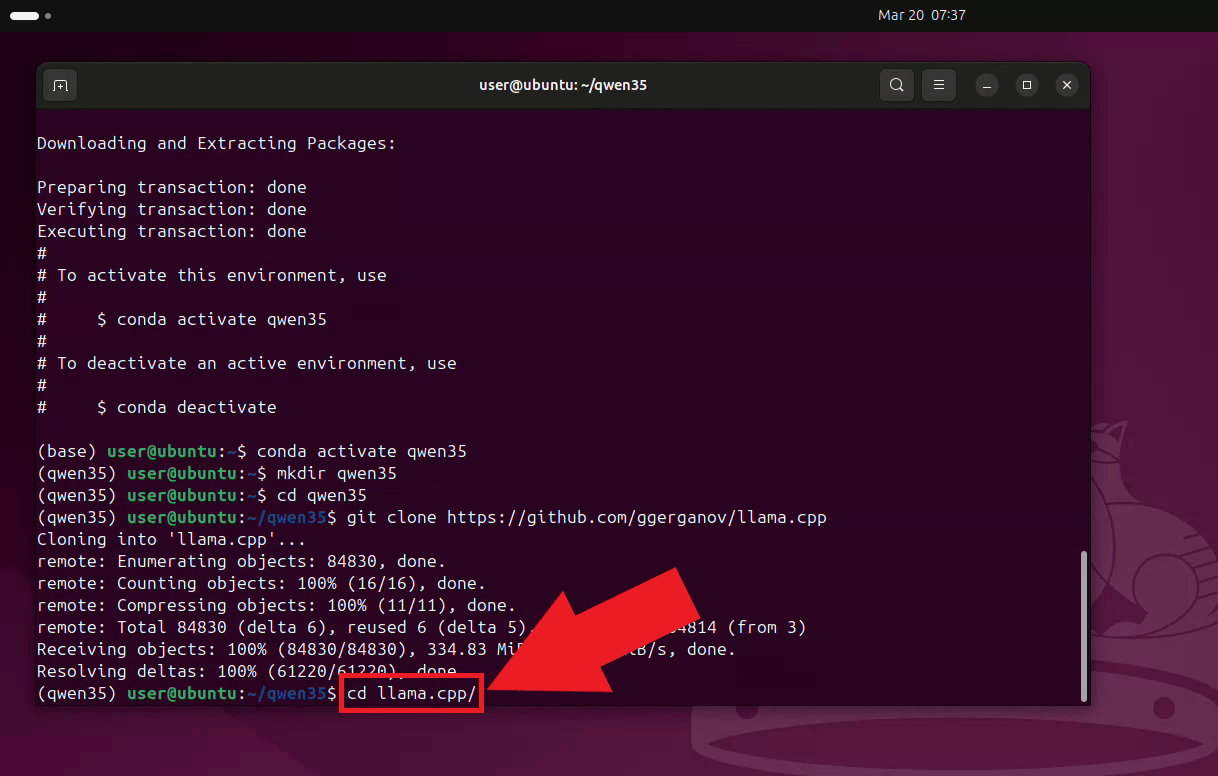
Navigate into the cloned LLama.cpp directory (Figure 5). cd llama.cpp
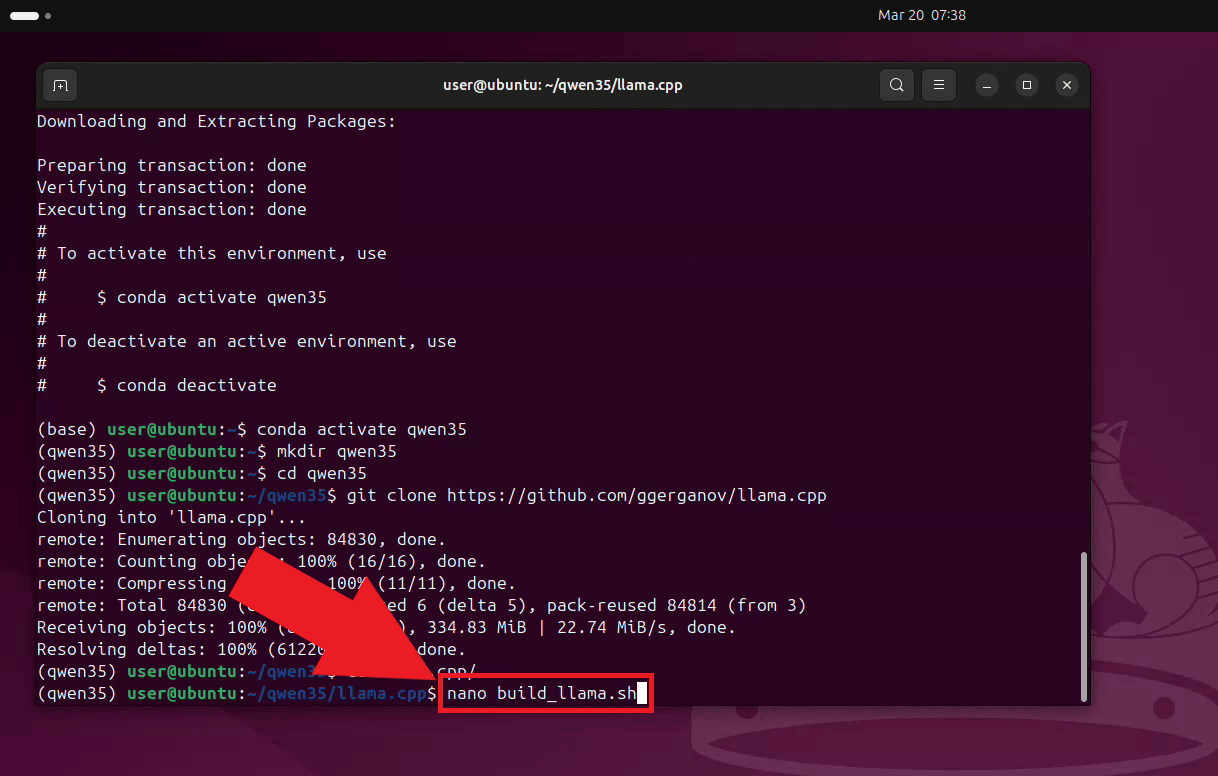
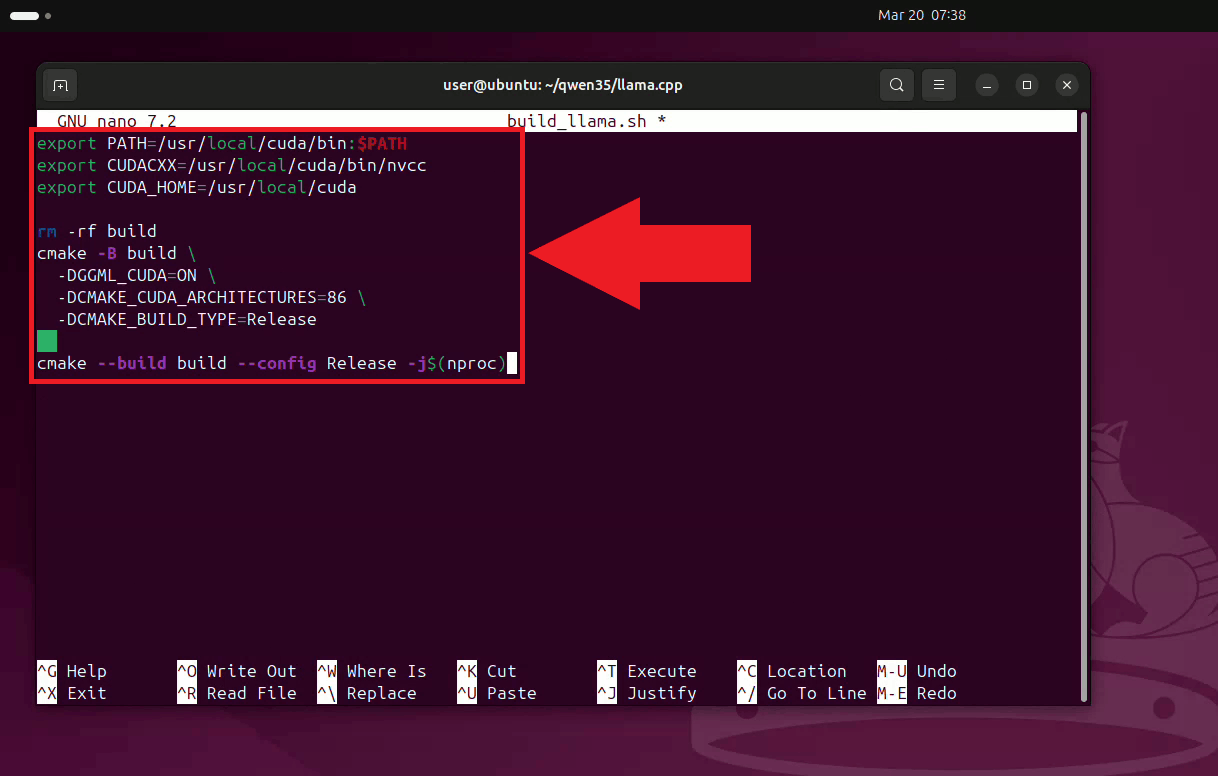
Step 3 - Build LLama.cpp with CUDA supportCreate a build script using nano. This script sets the required CUDA environment variables and runs the CMake build with GPU support enabled (Figure 6). nano build_llama.sh
Paste the following build script content into nano, then save and exit (Ctrl+X, then Y, then Enter). The script configures CMake to build with CUDA enabled and targets CUDA architecture 86, which corresponds to NVIDIA Ampere GPUs (Figure 7). export PATH=/usr/local/cuda/bin:$PATH export CUDACXX=/usr/local/cuda/bin/nvcc export CUDA_HOME=/usr/local/cuda rm -rf build cmake -B build \ -DGGML_CUDA=ON \ -DCMAKE_CUDA_ARCHITECTURES=86 \ -DCMAKE_BUILD_TYPE=Release cmake --build build --config Release -j$(nproc)
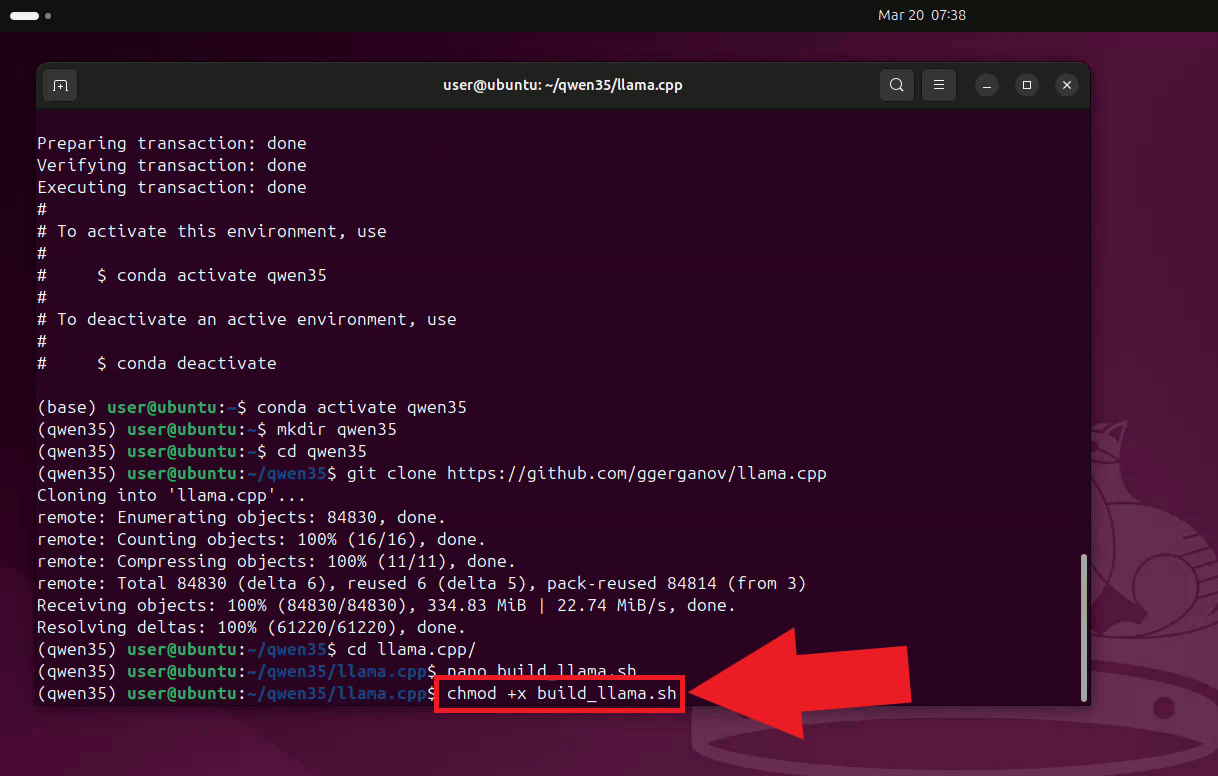
Make the build script executable (Figure 8). chmod +x build_llama.sh
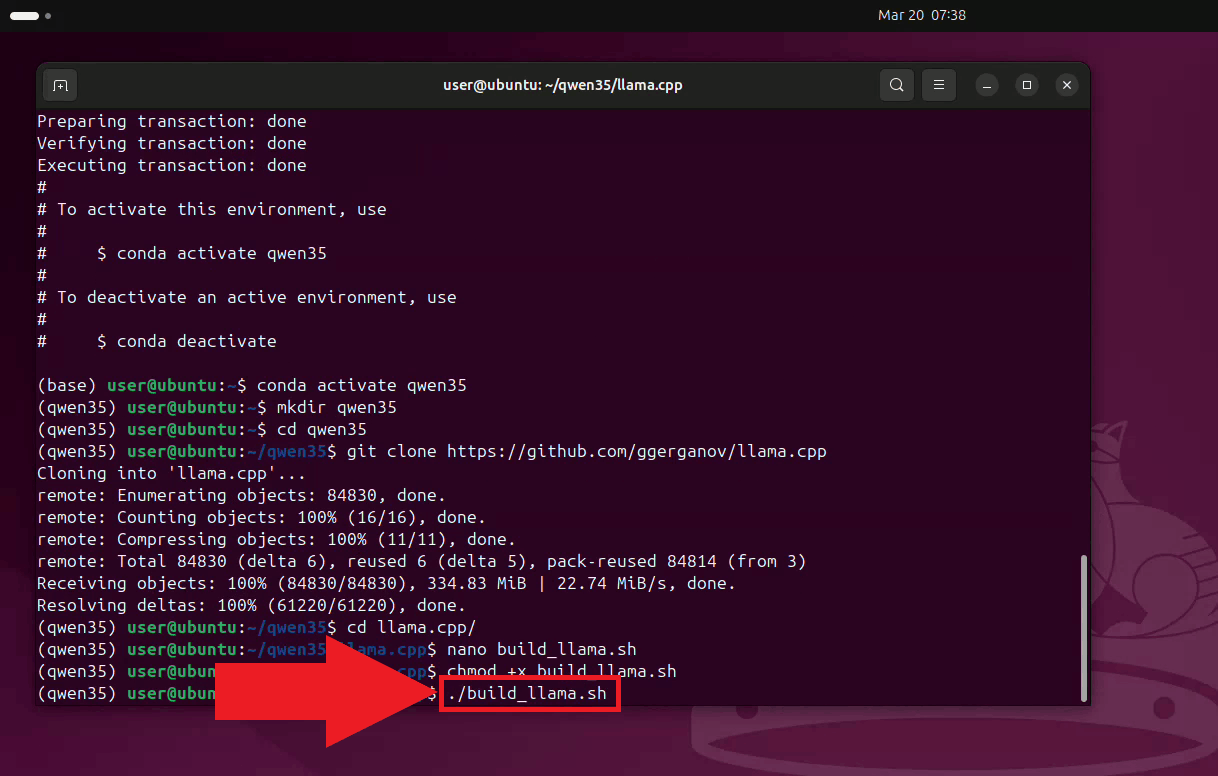
Run the build script. The compilation process may take several minutes depending on
your hardware. Once complete, the ./build_llama.sh
Step 4 - Download the LLM model
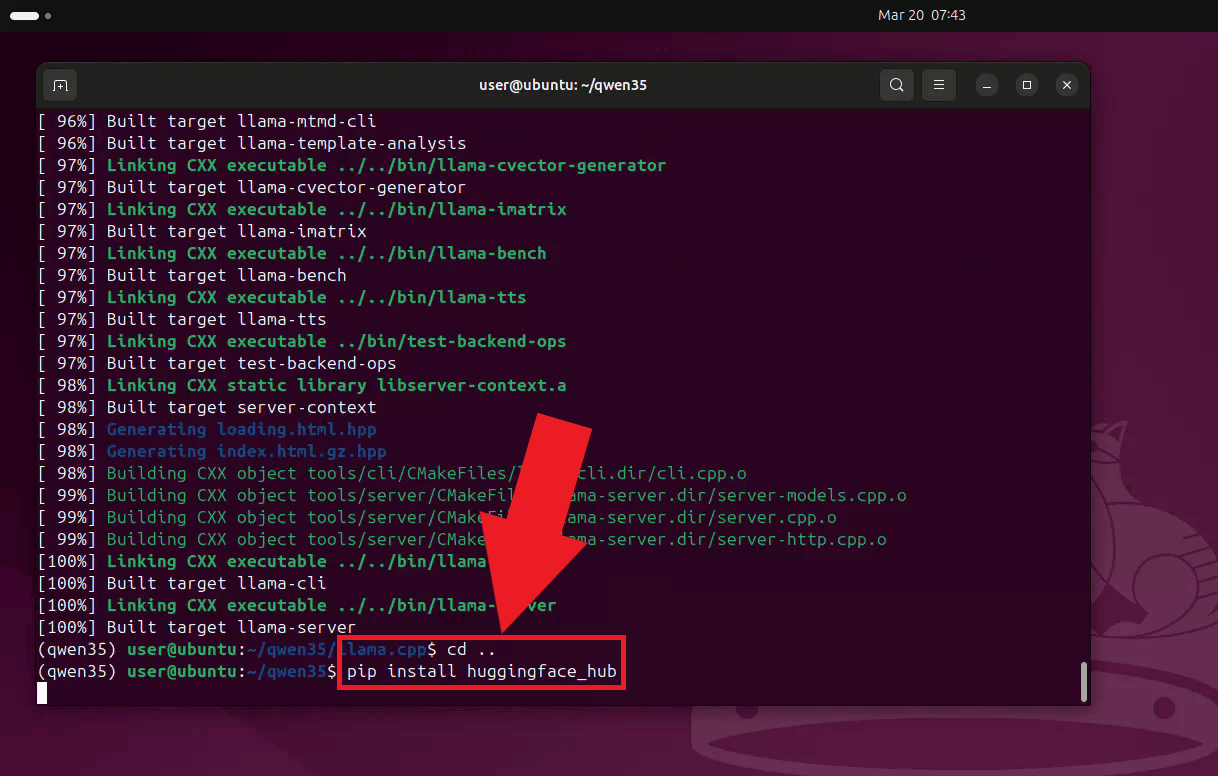
Navigate back to the working directory and install the cd .. pip install huggingface_hub
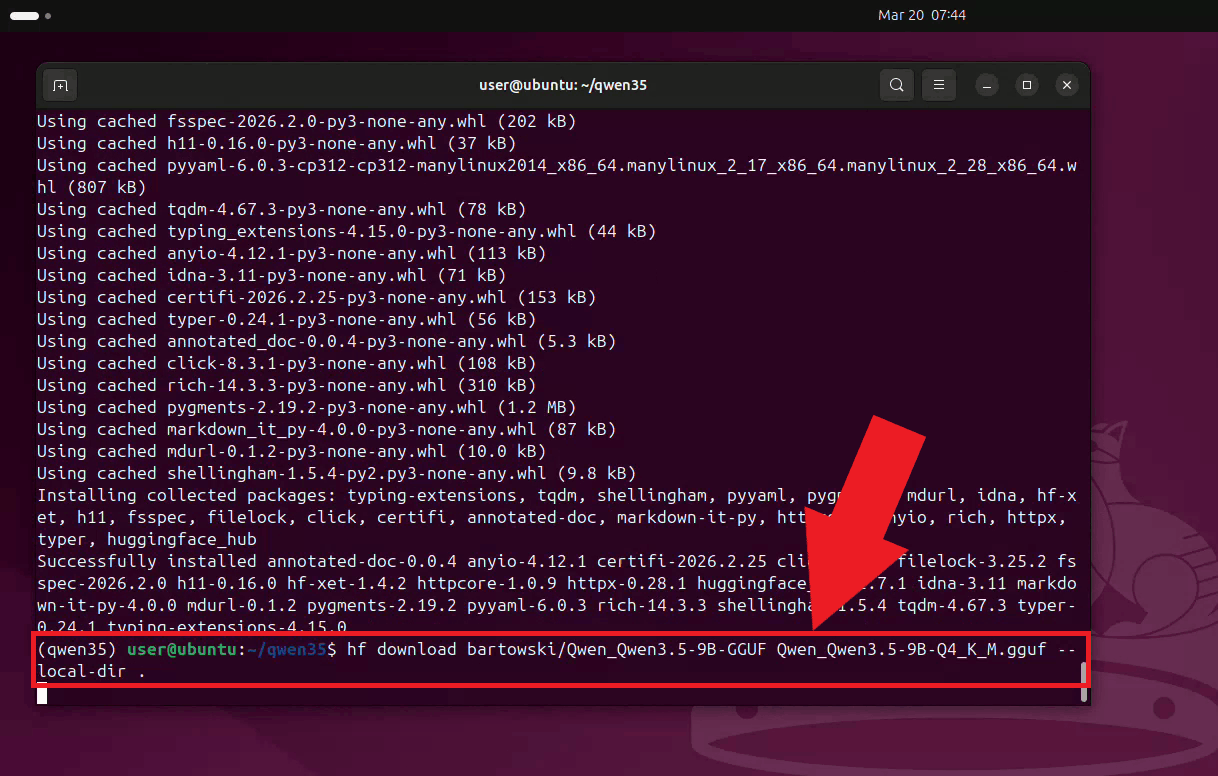
Download the quantized Qwen 3.5 9B model in GGUF format from Hugging Face. The
hf download bartowski/Qwen_Qwen3.5-9B-GGUF Qwen_Qwen3.5-9B-Q4_K_M.gguf --local-dir .
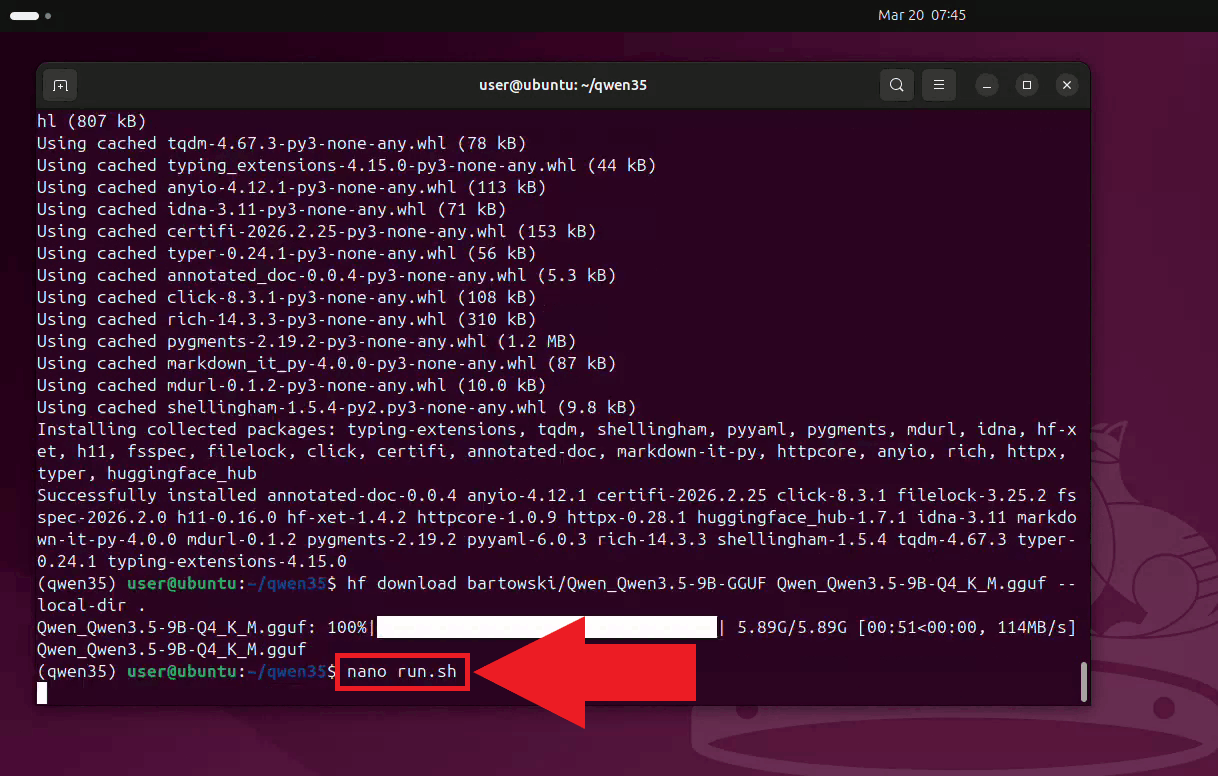
Step 5 - Start the LLama.cpp serverCreate a runner script using nano to avoid retyping the server command on each launch (Figure 12). nano run.sh
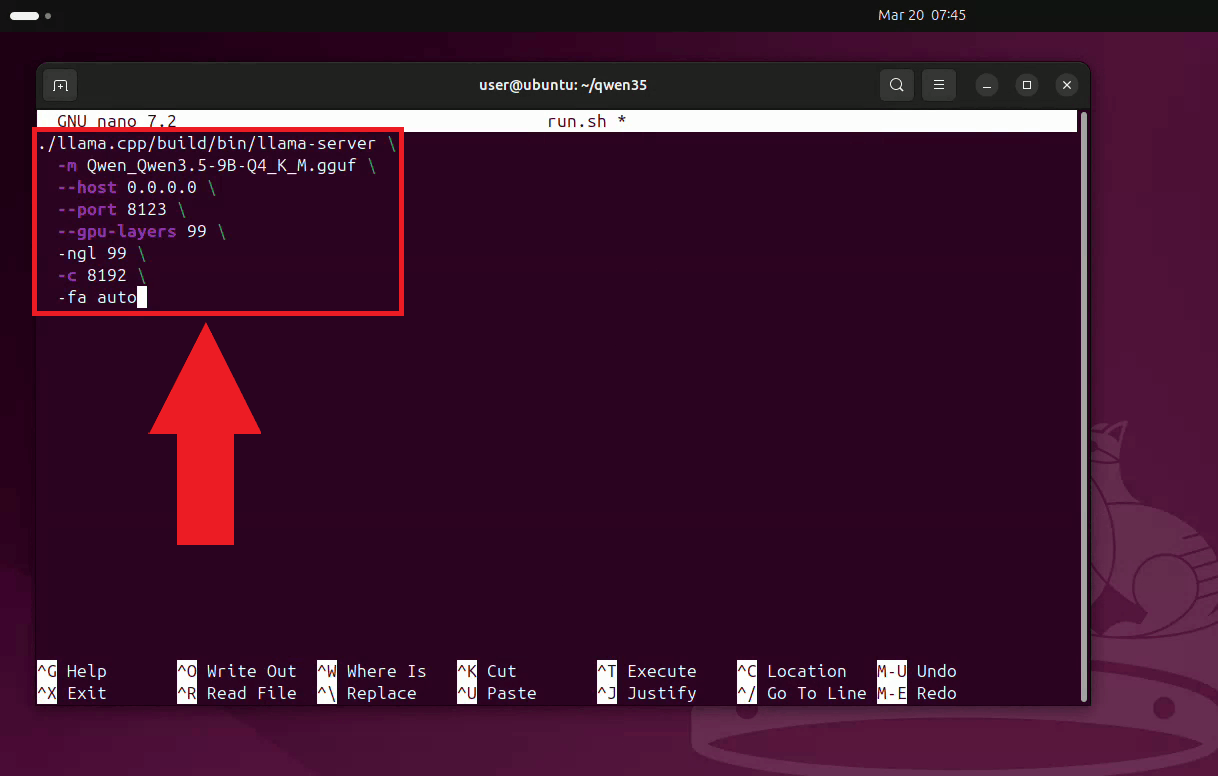
Paste the server launch command into the script, then save and exit. The server is configured to listen on all network interfaces on port 8123, load all layers onto the GPU, use a context size of 8192 tokens, and enable flash attention (Figure 13). ./llama.cpp/build/bin/llama-server \ -m Qwen_Qwen3.5-9B-Q4_K_M.gguf \ --host 0.0.0.0 \ --port 8123 \ --gpu-layers 99 \ -ngl 99 \ -c 8192 \ -fa auto
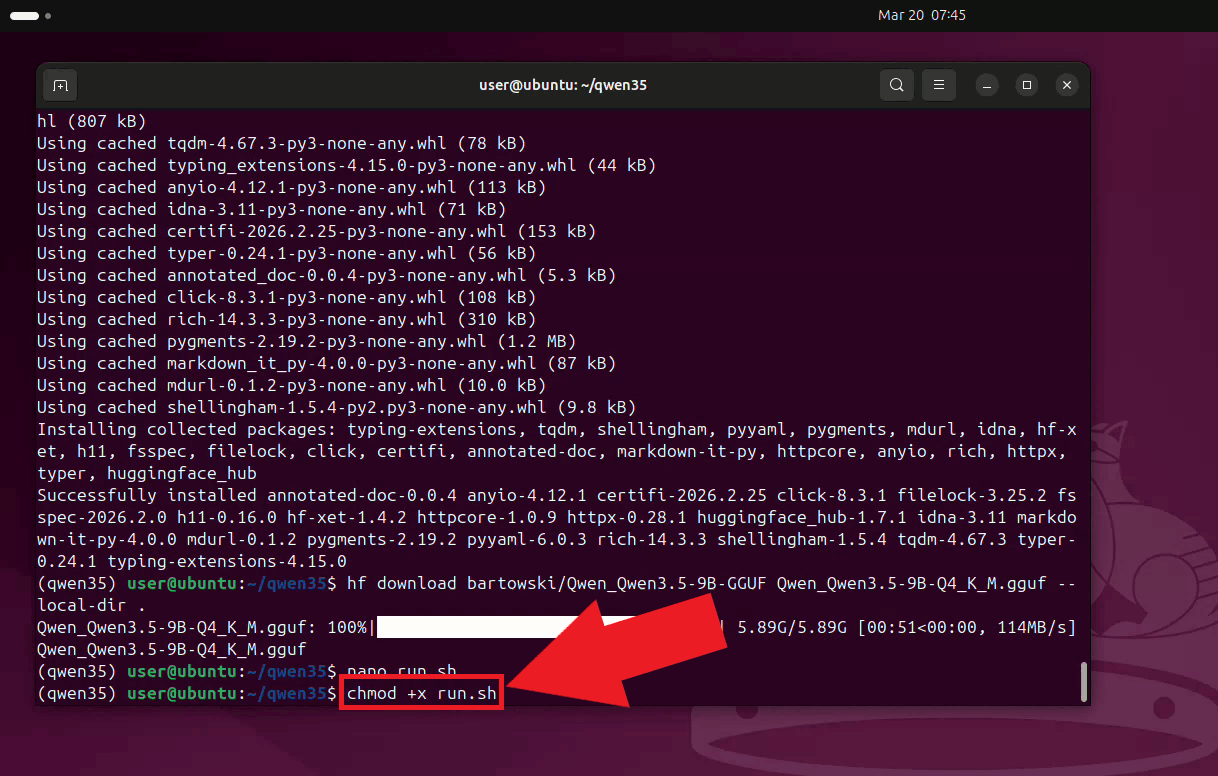
Make the runner script executable (Figure 14). chmod +x run.sh
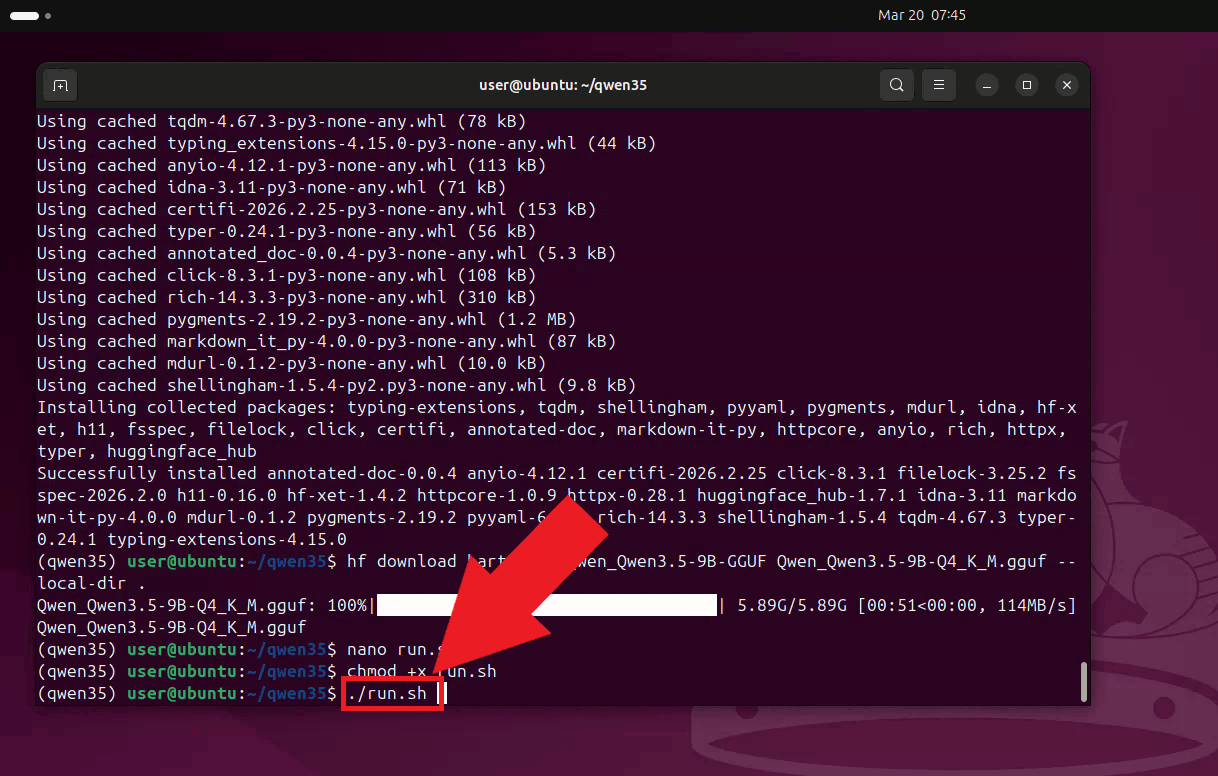
Run the script to start the LLama.cpp server. Keep this terminal open for the duration of your session (Figure 15). ./run.sh
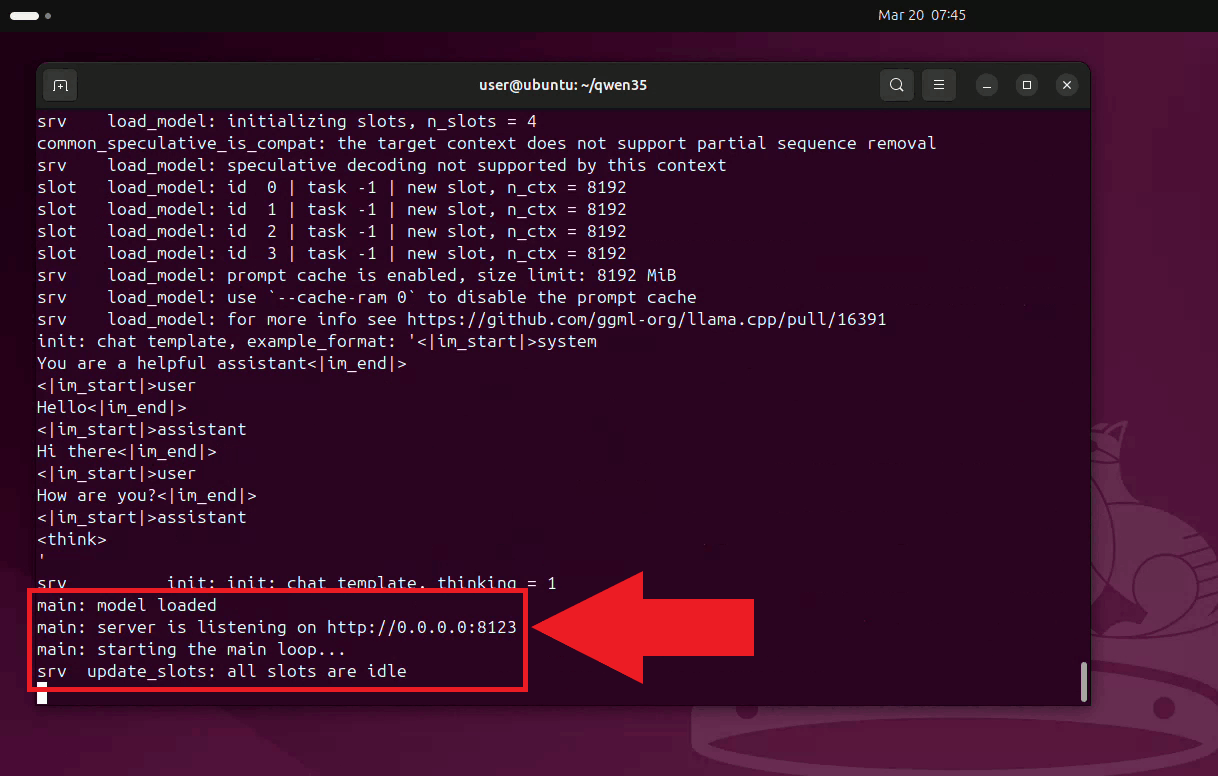
The LLama.cpp server is now running and listening for requests on port 8123. It is
accessible to other machines on your local network at
Step 6 - Connect LLama.cpp to Ozeki Voice KeyboardThe following video shows how to connect the Ubuntu LLama.cpp server to Ozeki Voice Keyboard on Windows and verify that the AI assistant is working correctly. The video covers locating the tray icon, enabling HTTP logging, configuring the LLM settings, and confirming the connection through the log viewer.
Open Ozeki Voice Keyboard and locate its icon in the system tray in the bottom right corner of your taskbar (Figure 17).
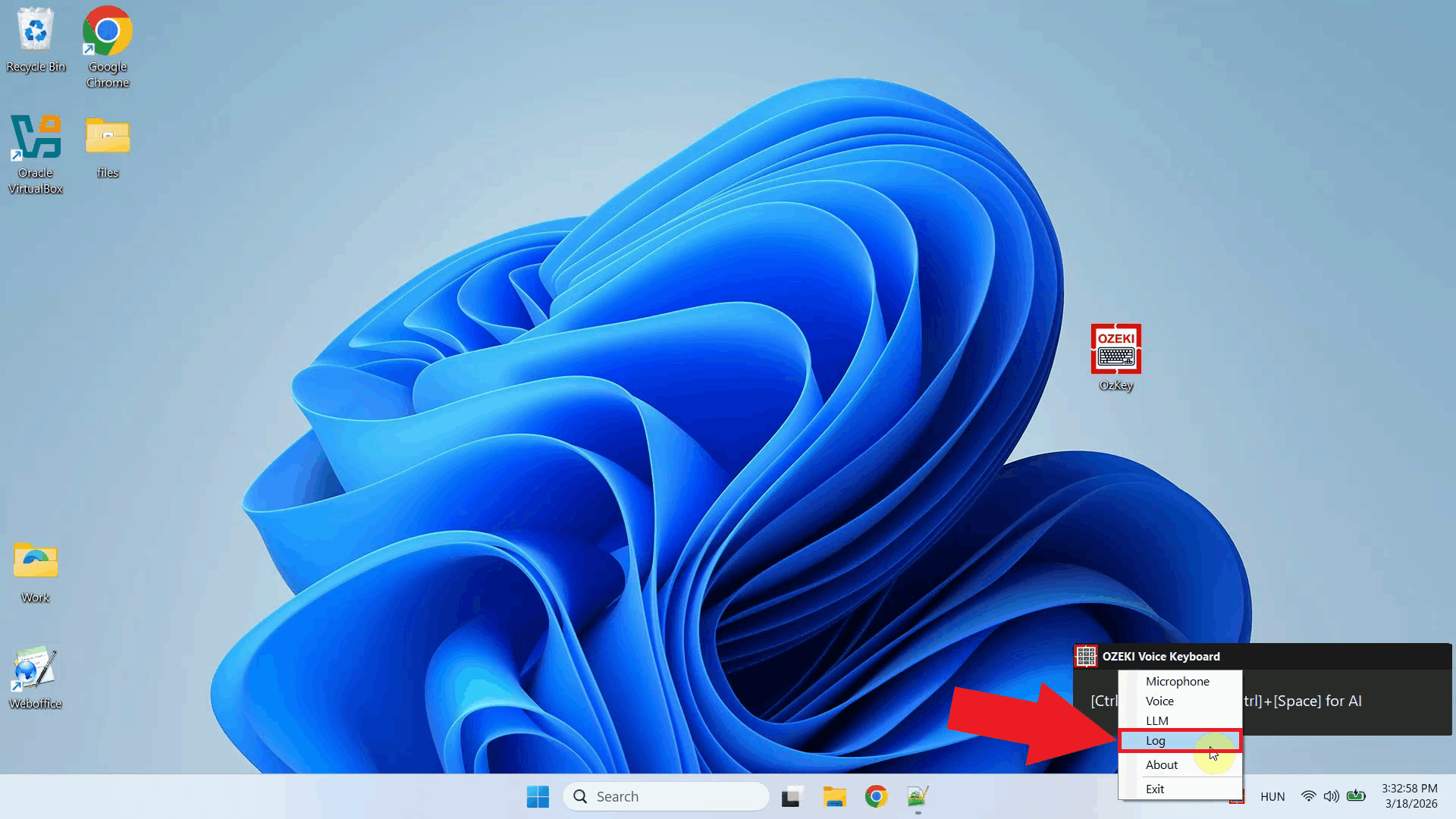
Before configuring the LLM settings, enable HTTP logging so you can verify that requests are reaching the Ubuntu server. Right-click the tray icon and navigate to Logs from the context menu (Figure 18).
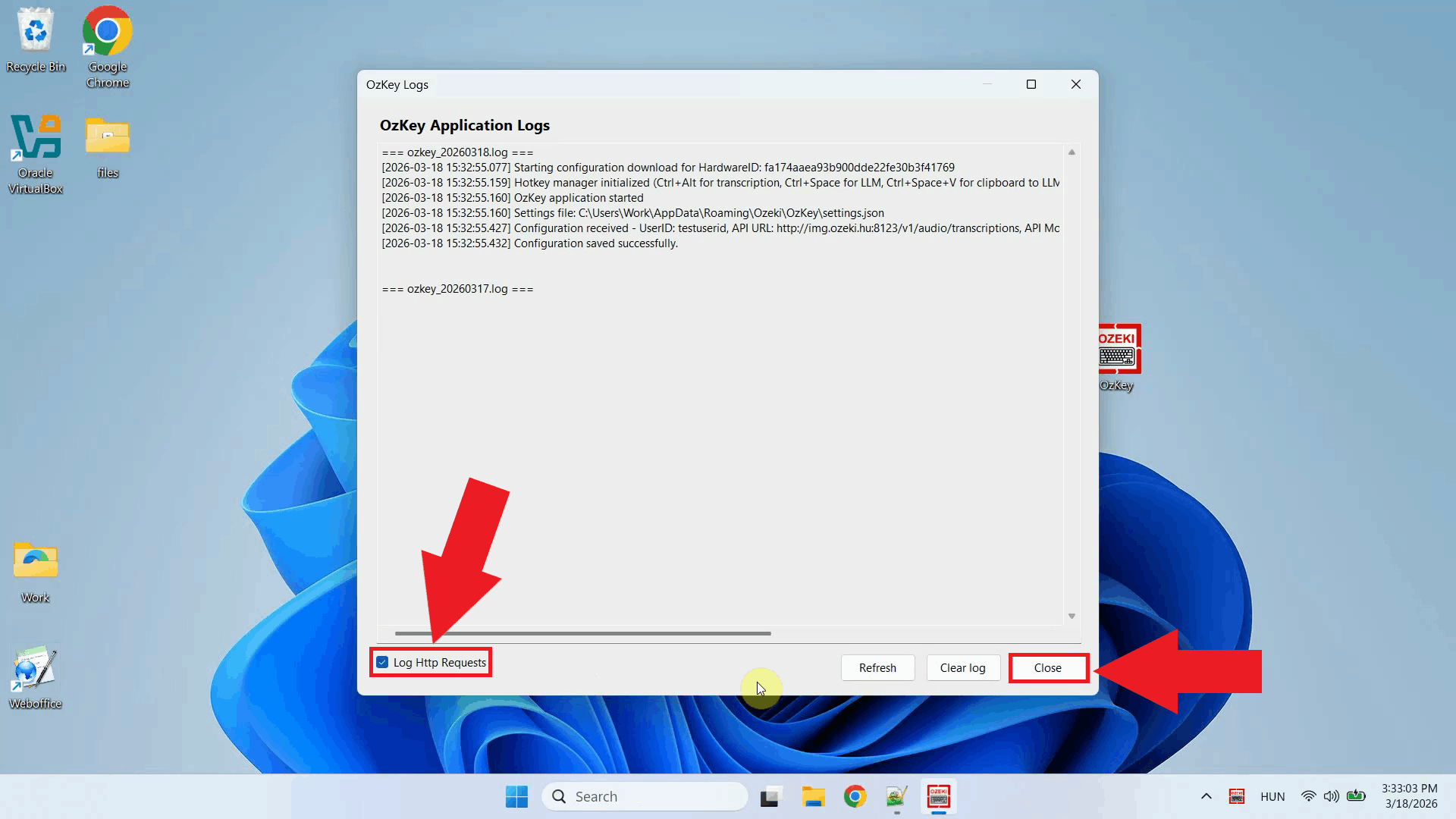
Enable HTTP logging and close the window. Outgoing requests to the LLama.cpp server will now be recorded and visible in the log viewer (Figure 19).
Right-click the tray icon again and open the LLM settings from the context menu (Figure 20).
Enter the API URL of the Ubuntu machine and specify the model name. You can leave the API key field empty since LLama.cpp does not require authentication by default. Click OK to save the settings (Figure 21). http://{ubuntu-machine-ip}:8123/v1
To test the AI assistant, place your cursor in any input field, then press and hold Ctrl + Space and speak your question into the microphone. Once you release the keys, the recording is transcribed and the resulting text is forwarded to the LLama.cpp server on the Ubuntu machine as a prompt (Figure 22).
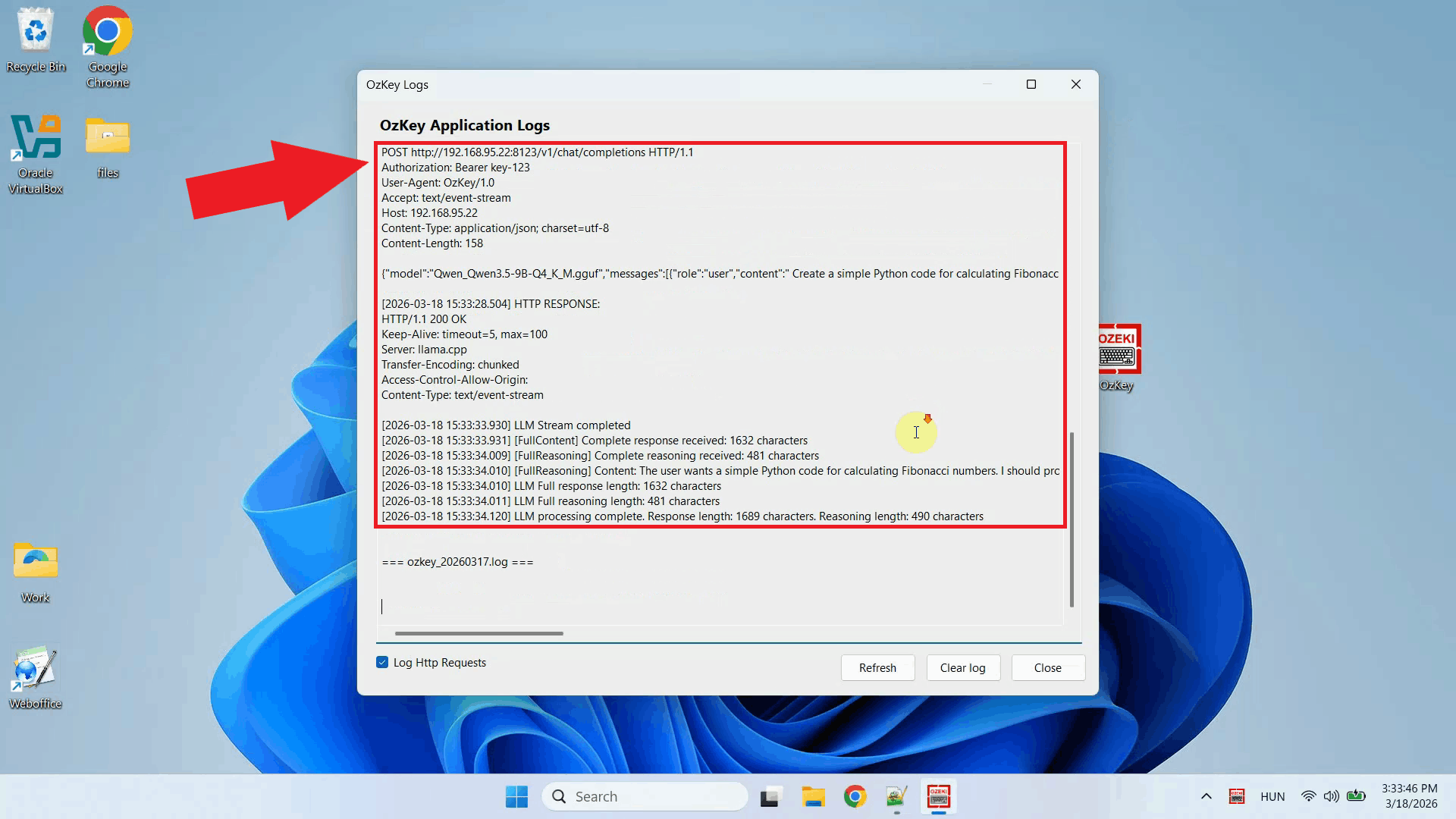
Open the Logs window to verify the request. You should see an HTTP request to the
LLama.cpp server's
To sum it upYou have successfully built and configured a LLama.cpp server on Ubuntu and connected it to Ozeki Voice Keyboard on Windows. The AI assistant will now use your Ubuntu machine's GPU to generate responses, giving you a high-performance, fully local LLM backend that operates entirely within your own network without relying on any external cloud service.
https://ozekivoice.com/p_9338-how-to-use-vllm-as-the-llm-backend-for-ozeki-voice-keyboard-on-ubuntu.html
How to use vLLM as the LLM backend for Ozeki Voice Keyboard on UbuntuThis guide demonstrates how to configure a vLLM server on Ubuntu as the LLM backend for Ozeki Voice Keyboard on Windows. By running vLLM on a dedicated Ubuntu machine, the AI assistant feature can leverage GPU-accelerated inference over the network: your speech is transcribed by the configured voice model, the resulting text is forwarded to vLLM as a prompt, and the generated response is automatically inserted into the active input field on your Windows machine. How it worksThe diagram below illustrates the full pipeline of the AI assistant feature across the two machines.
sequenceDiagram
participant Win as Windows Machine (192.168.95.26)
participant Whisper as Voice Transcription Model
participant VLLM as vLLM Server (192.168.95.22:8000)
Win->>Whisper: Send recorded audio
Whisper-->>Win: Return transcribed text
Win->>VLLM: POST /v1/chat/completions (transcribed text)
VLLM-->>Win: Return generated response
Win->>Win: Paste response into active input field
Steps to follow
Before proceeding, make sure Anaconda is installed on your
Ubuntu machine. A CUDA-compatible NVIDIA GPU is required for GPU-accelerated inference.
The
Quick reference commands# Conda environment conda create -n vllm python=3.12 conda activate vllm # Install vLLM pip install vllm # Start the vLLM server vllm serve Qwen/Qwen3.5-9B \ --enforce-eager \ --max-num-seqs 1 \ --max-model-len 8192 \ --gpu-memory-utilization 0.95 How to set up vLLM on Ubuntu videoThe following video shows how to set up and run the vLLM server on Ubuntu step-by-step. The video covers creating the Conda environment, installing vLLM, and starting the server.
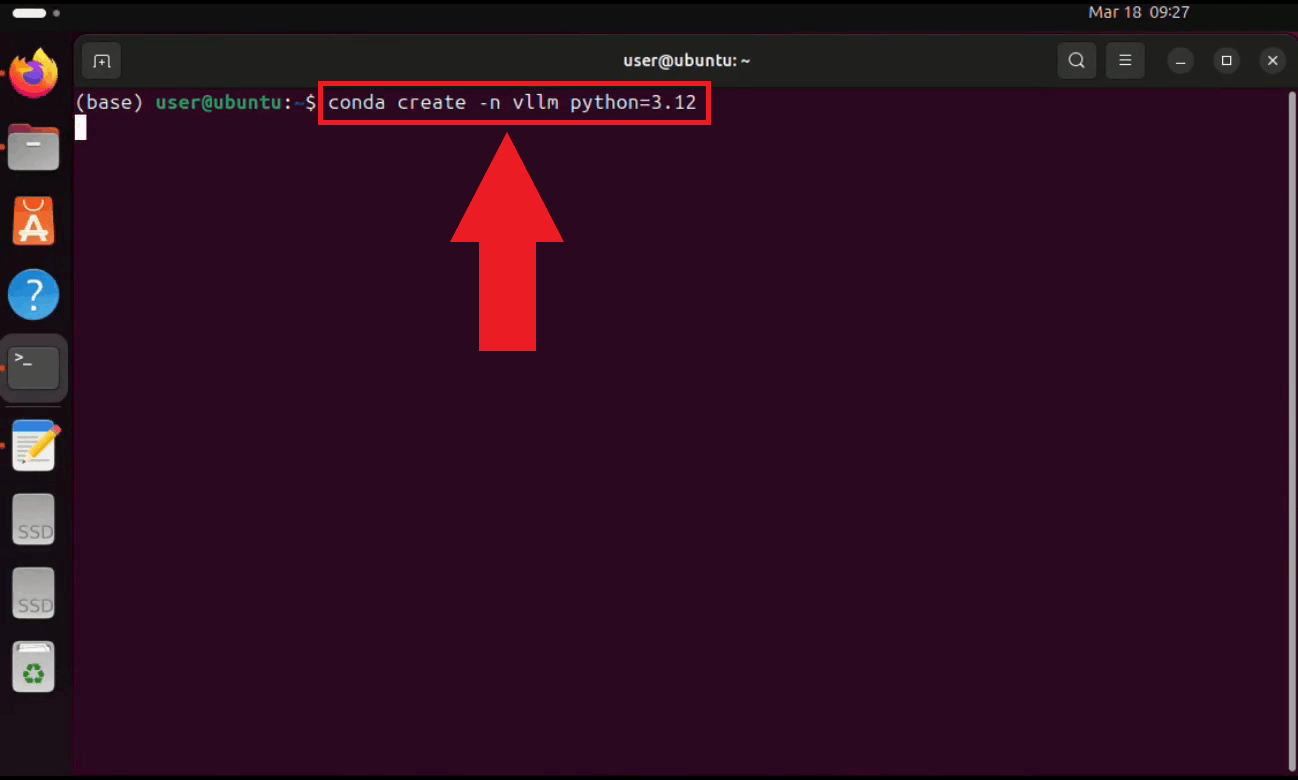
Step 1 - Set up the Conda environmentOpen a terminal on your Ubuntu machine and create a dedicated Conda environment with Python 3.12. Using a separate environment keeps vLLM's dependencies isolated from other projects on your system (Figure 1). conda create -n vllm python=3.12
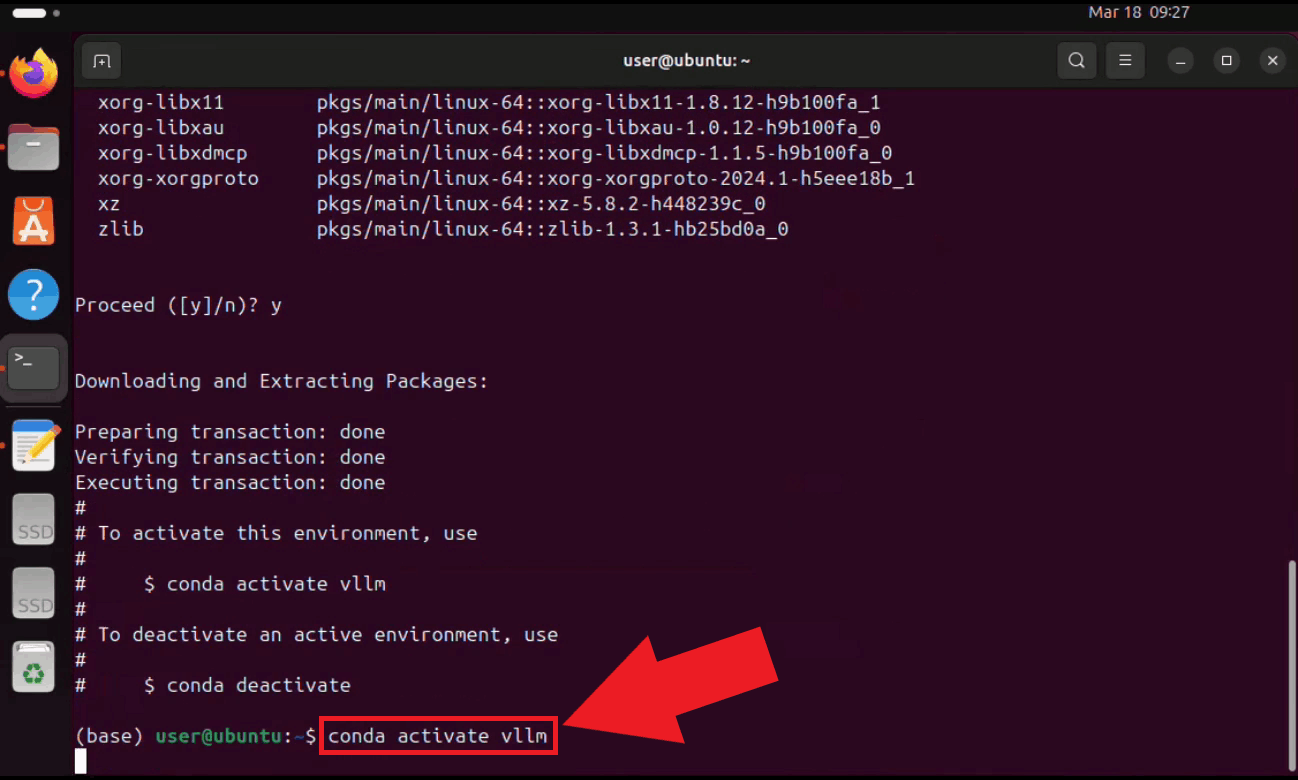
Activate the environment. Your terminal prompt will update to reflect the active environment name (Figure 2). conda activate vllm
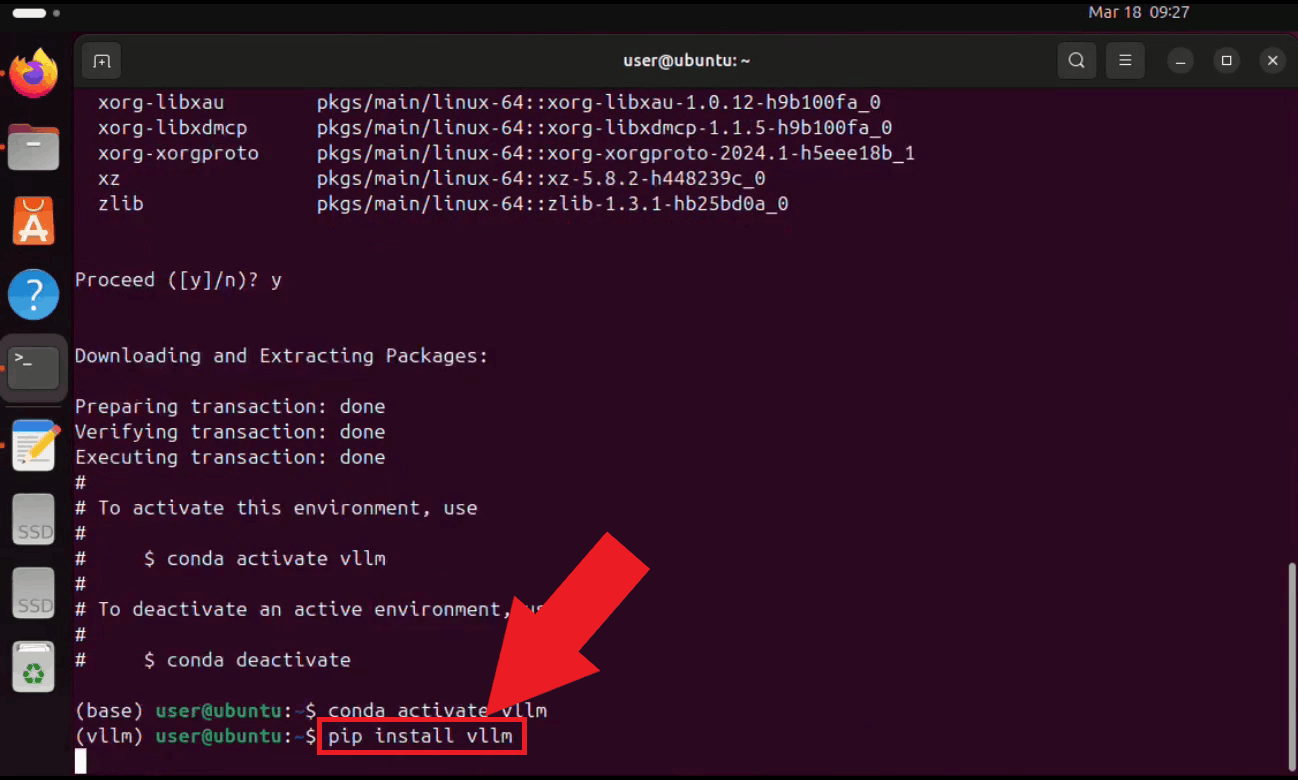
Step 2 - Install vLLMWith the environment active, install vLLM using pip. vLLM will automatically download all required dependencies for serving large language models with GPU acceleration (Figure 3). pip install vllm
Step 3 - Start the vLLM serverStart the vLLM server with the Qwen 3.5 9B model. On the first run, vLLM will automatically download the model from Hugging Face, which may take several minutes depending on your connection speed. The server is configured to use eager execution, limit concurrent sequences to 1, cap the context length at 8192 tokens, and utilize 95% of available GPU memory (Figure 4). vllm serve Qwen/Qwen3.5-9B \ --enforce-eager \ --max-num-seqs 1 \ --max-model-len 8192 \ --gpu-memory-utilization 0.95
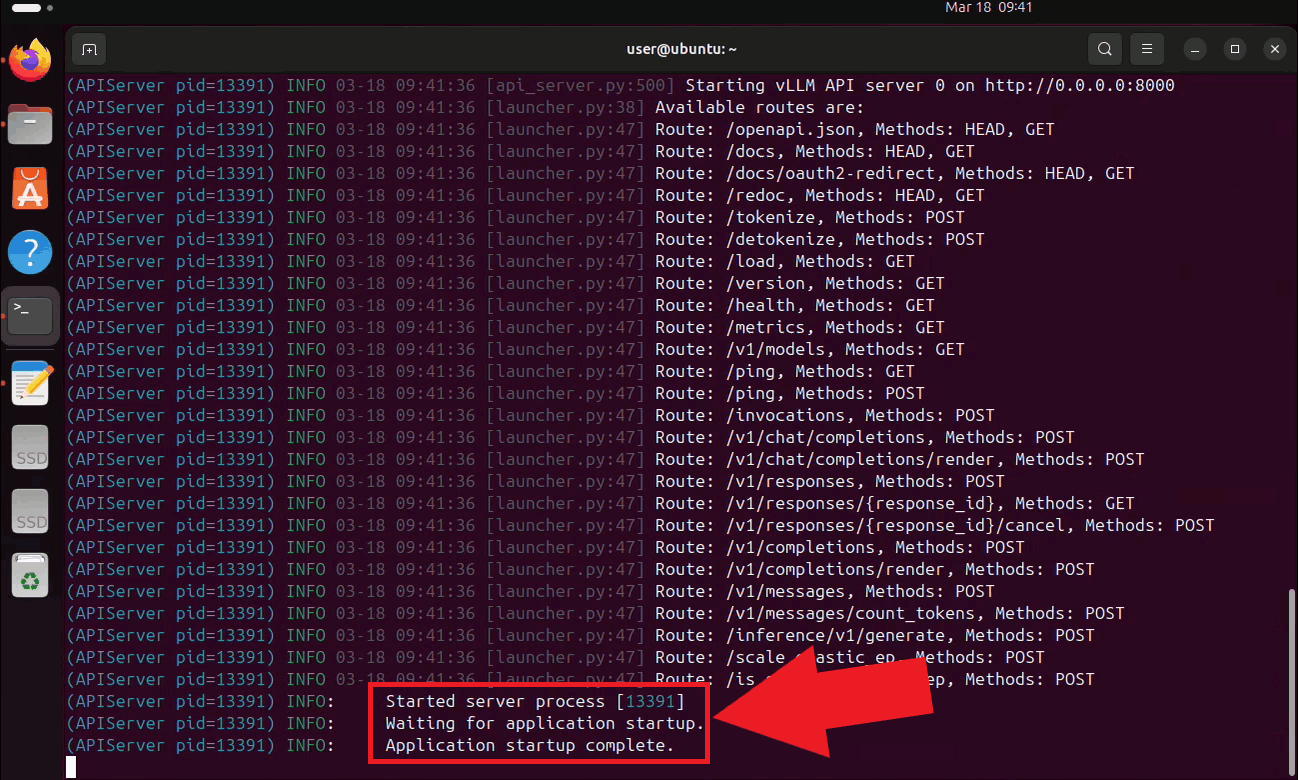
The vLLM server is now running and listening for requests on port 8000. Keep this
terminal open for the duration of your session. The endpoint is accessible to other
machines on your local network at
Step 4 - Connect vLLM to Ozeki Voice KeyboardThe following video shows how to connect the Ubuntu vLLM server to Ozeki Voice Keyboard on Windows and verify that the AI assistant is working correctly. The video covers locating the tray icon, enabling HTTP logging, configuring the LLM settings, and confirming the connection through the log viewer.
On your Windows machine, open Ozeki Voice Keyboard and locate its icon in the system tray in the bottom right corner of your taskbar (Figure 6).
Before configuring the LLM settings, enable HTTP logging so you can verify that requests are reaching the Ubuntu server. Right-click the tray icon and navigate to Logs from the context menu (Figure 7).
Enable HTTP logging and close the window. Outgoing requests to the vLLM server will now be recorded and visible in the log viewer (Figure 8).
Right-click the tray icon again and open the LLM settings from the context menu (Figure 9).
Enter the API URL of the Ubuntu machine and specify the model name. You can leave the API key field empty since vLLM does not require authentication by default. Click OK to save the settings (Figure 10). http://{ubuntu-machine-ip}:8000/v1
To test the AI assistant, place your cursor in any input field, then press and hold Ctrl + Space and speak your question into the microphone. Once you release the keys, the recording is transcribed and the resulting text is forwarded to the vLLM server on the Ubuntu machine as a prompt (Figure 11).
Open the Logs window to verify the request. You should see an HTTP request to the
vLLM server's
ConclusionYou have successfully configured a vLLM server on Ubuntu and connected it to Ozeki Voice Keyboard on Windows. The AI assistant will now use your Ubuntu machine's GPU to generate responses, giving you a high-performance, fully local LLM backend that operates entirely within your own network without relying on any external cloud service.
https://ozekivoice.com/p_9339-how-to-route-ozeki-voice-keyboard-through-ozeki-ai-gateway.html
How to use Ozeki Voice Keyboard through Ozeki AI GatewayThis guide demonstrates how to connect Ozeki Voice Keyboard to Ozeki AI Gateway, allowing you to route both voice transcription and AI assistant requests through a centralized gateway. This setup is ideal for teams and organizations that want to manage API access, monitor usage, and control which AI models are available to users from a single point. How it worksThe diagram below illustrates the system architecture.
graph LR
subgraph Windows Clients
W1[Windows PC 1
Ozeki Voice Keyboard] W2[Windows PC 2 Ozeki Voice Keyboard] end subgraph Gateway GW[Ozeki AI Gateway] end subgraph Linux Servers WH[Linux Server Whisper - Voice Transcription] LLM[Linux Server LLM - AI Assistant] end W1 -->|Voice & LLM requests| GW W2 -->|Voice & LLM requests| GW GW -->|/v1/audio/transcriptions| WH GW -->|/v1/chat/completions| LLM Steps to follow
How to use Ozeki Voice Keyboard through Ozeki AI Gateway videoThe following video shows how to connect Ozeki Voice Keyboard to Ozeki AI Gateway step-by-step. The video covers verifying the gateway prerequisites, configuring both the Voice and LLM settings on the client, and confirming that requests are routed correctly through the gateway.
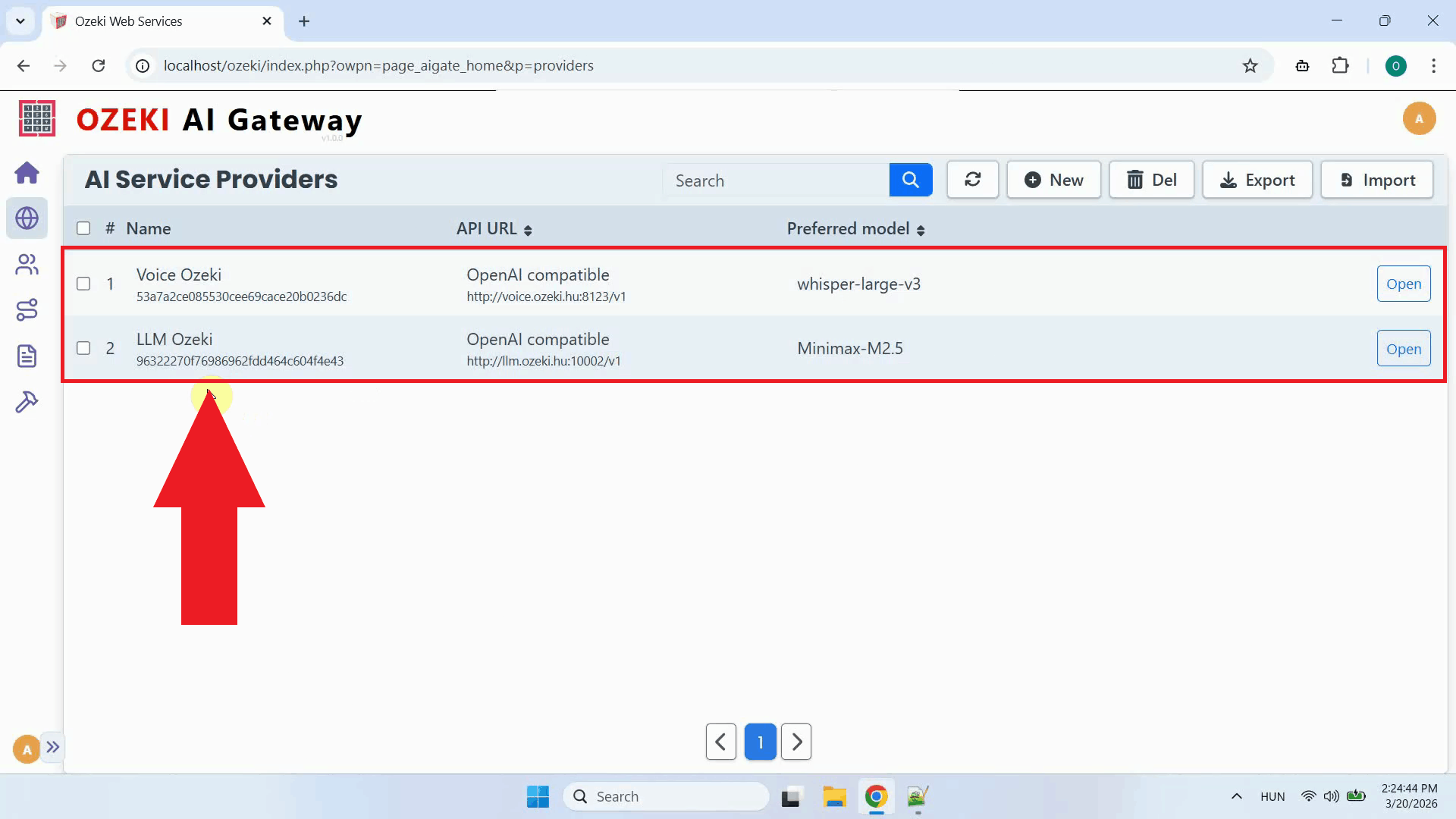
Step 1 - PrerequisitesWe assume Ozeki AI Gateway is already installed on your system. You can install it on Linux, Windows or Mac. ProvidersOpen the Ozeki AI Gateway web interface and navigate to the Providers page. Confirm that two providers are registered: one configured with your Whisper endpoint for speech-to-text transcription, and one configured with your LLM endpoint for the AI assistant (Figure 1). If you have not set up a provider yet, check out our How to connect to an AI service provider guide.
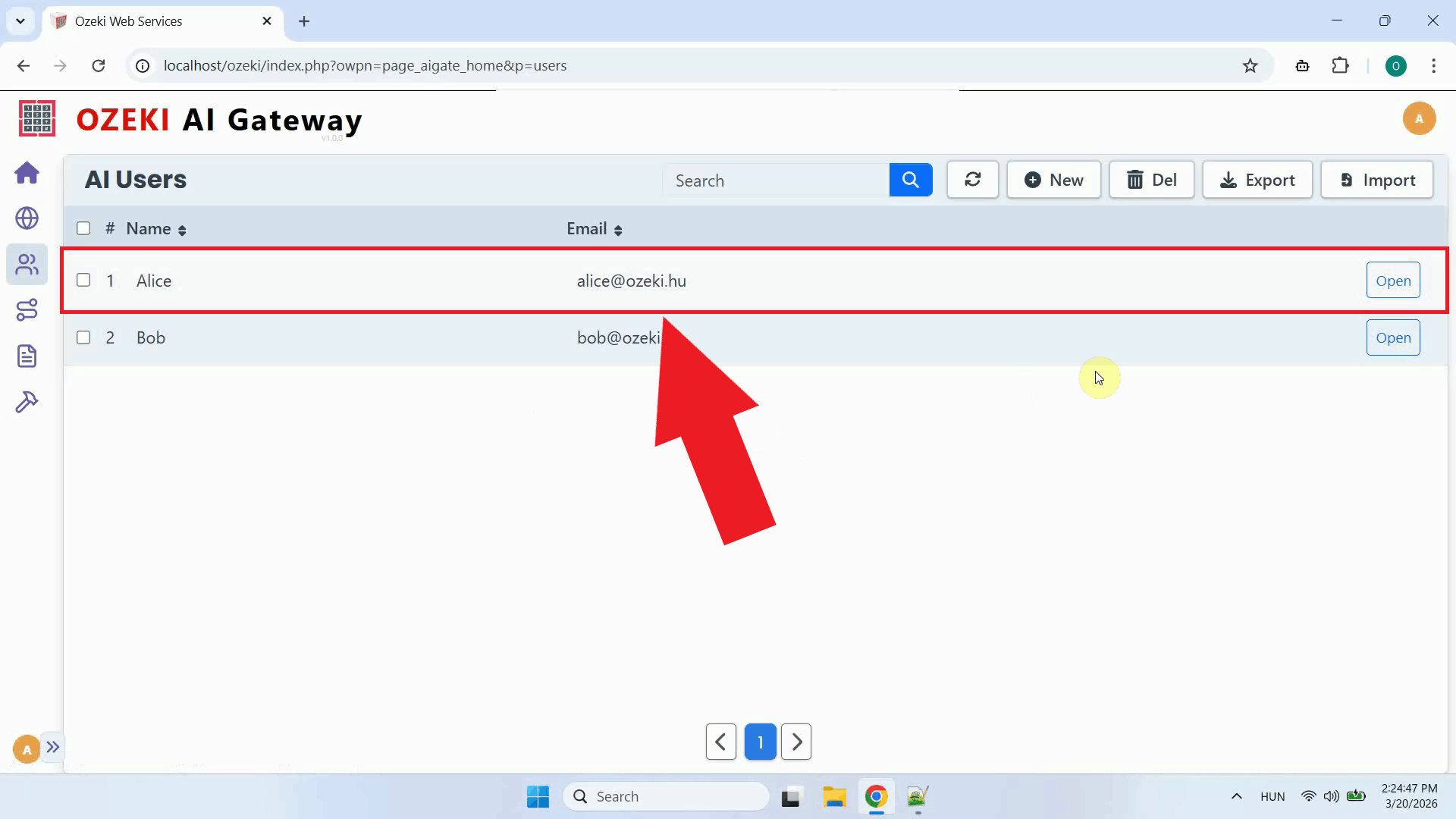
User accountNavigate to the AI Users page and confirm that a user account exists for the Ozeki Voice Keyboard clients. This user account acts as the identity under which all requests from the client machines will be authenticated and tracked by the gateway (Figure 2). If you haven't created an AI user account yet, check out our How to create a user account guide.
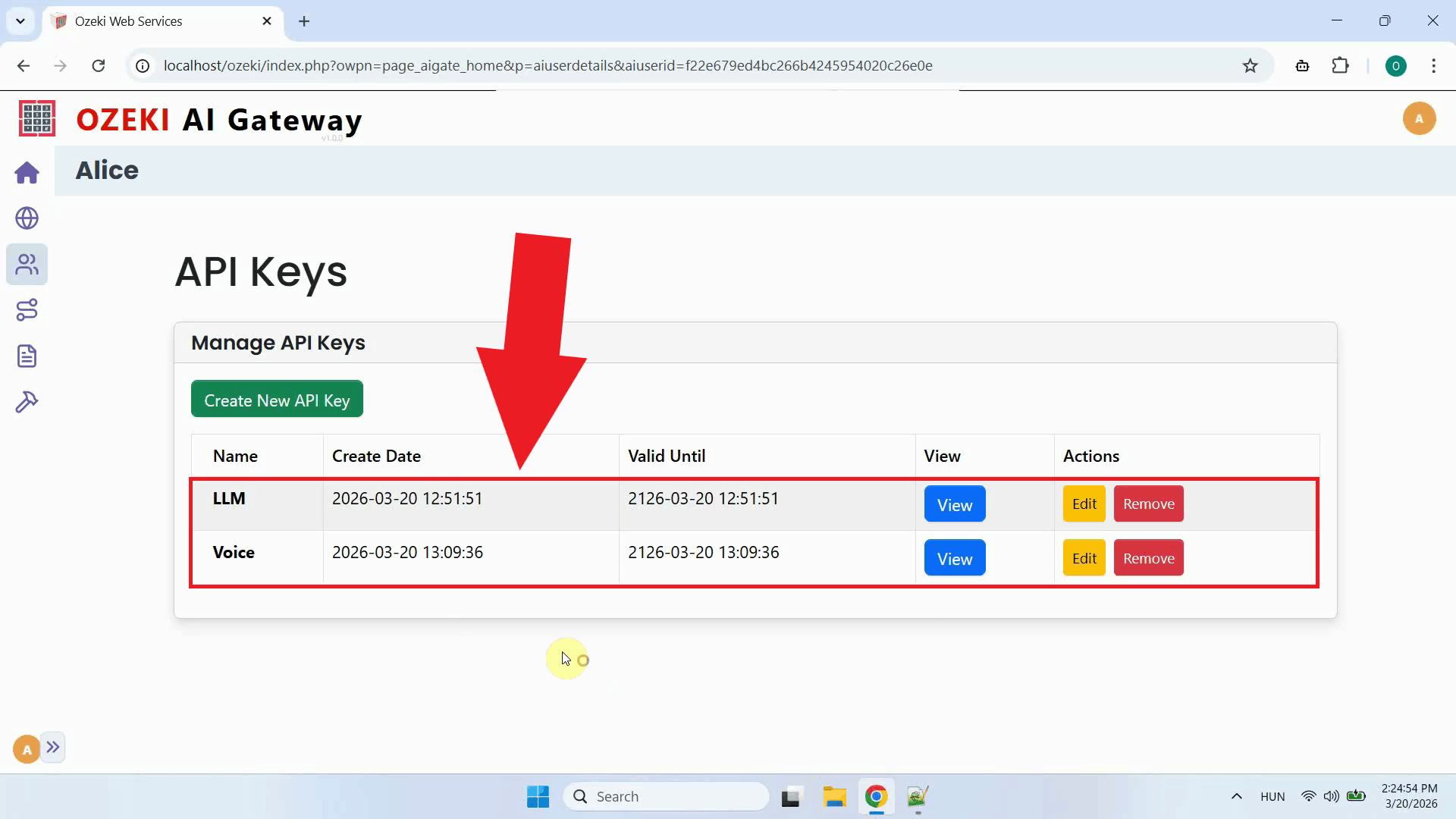
API keysOpen the user account's API keys page. Two API keys must be present: one that will be used to authenticate voice transcription requests, and one for LLM requests. Having separate keys for each service makes it easier to monitor and control access independently (Figure 3). Check out our How to create API keys for your users guide if you don't know how to create API keys.
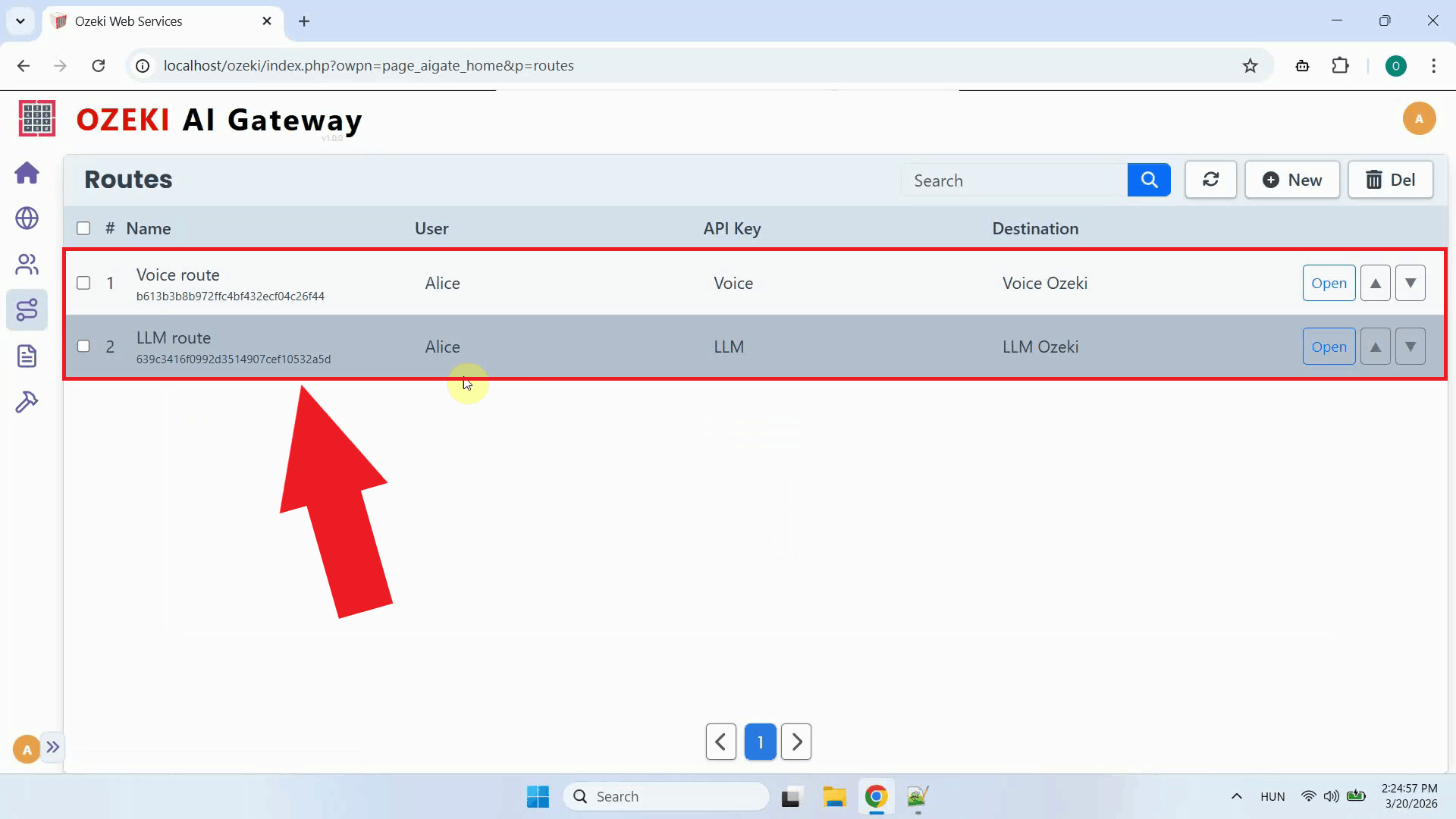
RoutesNavigate to the Routes page and confirm that two routes are configured: one connecting the user to the Whisper provider, and one connecting the user to the LLM provider. Routes define which users are permitted to send requests to which providers, and which models they are allowed to use (Figure 4). If you haven't configured a route yet, you can find instructions in our How to route AI API requests guide.
Step 2 - Open Ozeki Voice KeyboardOn your Windows machine, open Ozeki Voice Keyboard and locate its icon in the system tray in the bottom right corner of your taskbar (Figure 5).
Step 3 - Configure Voice settingsRight-click the tray icon and open the Voice settings from the context menu (Figure 6).
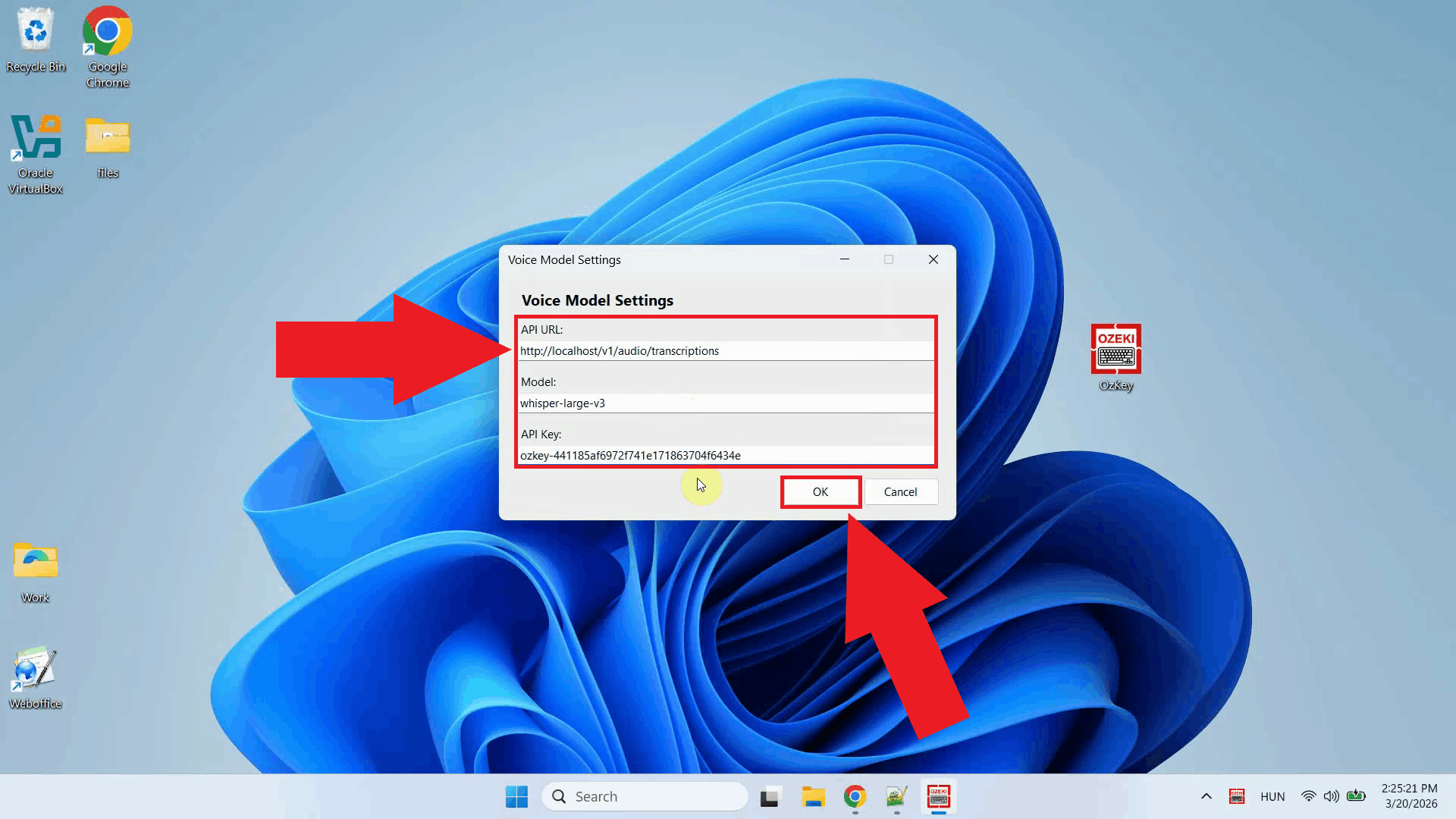
Enter the Ozeki AI Gateway URL as the API endpoint, specify the Whisper model name, and paste the API key you generated for the user account. The gateway will receive the audio request and forward it to the configured Whisper provider. Click OK to save the settings (Figure 7). http://localhost/v1/audio/transcriptions
Step 4 - Configure LLM settingsRight-click the tray icon again and open the LLM settings from the context menu (Figure 8).
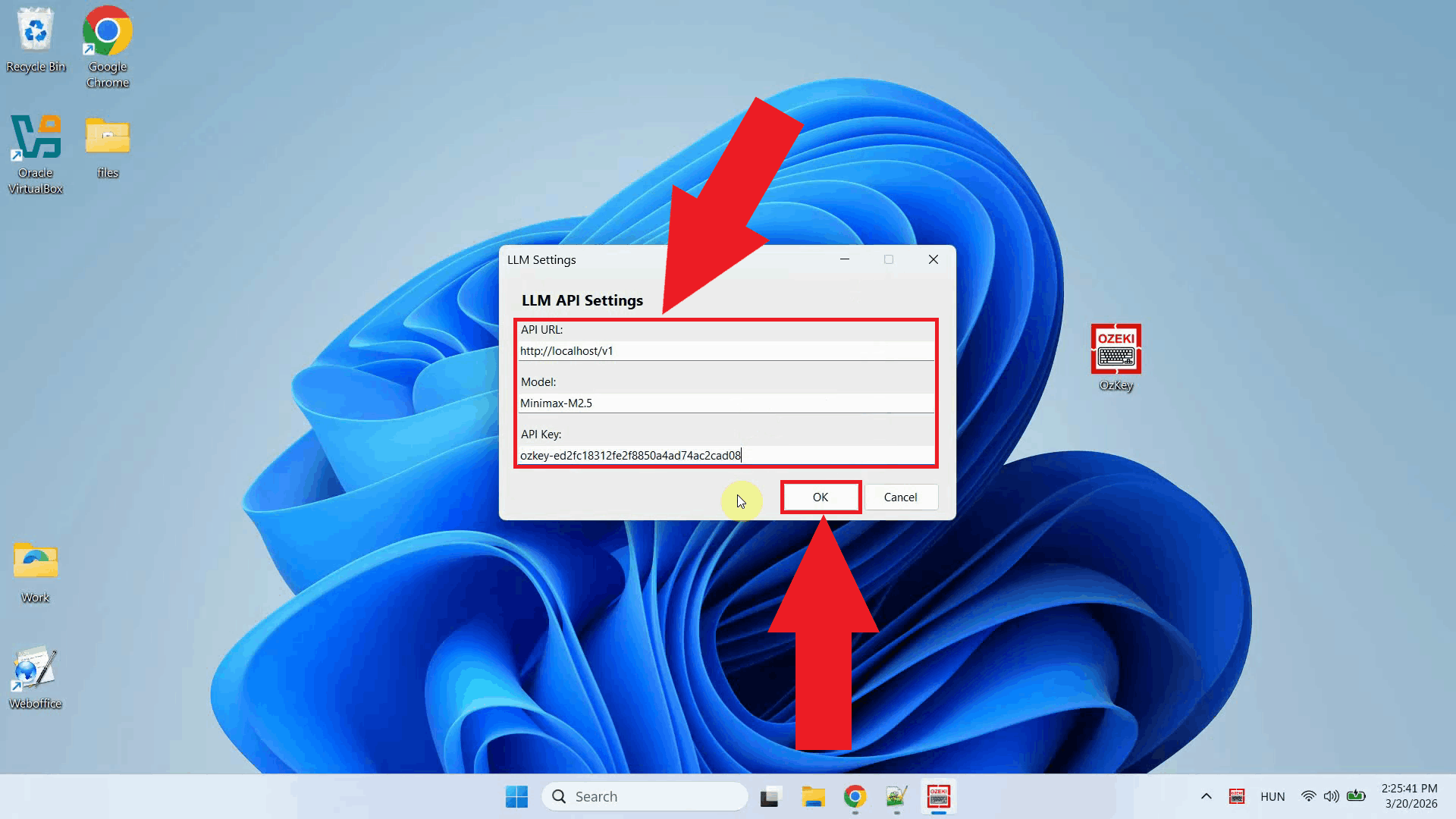
Enter the Ozeki AI Gateway URL in the same way as the Voice settings, specify the LLM model name, and paste the API key. The gateway will route AI assistant requests to the configured LLM provider. Click OK to save the settings (Figure 9). http://localhost/v1
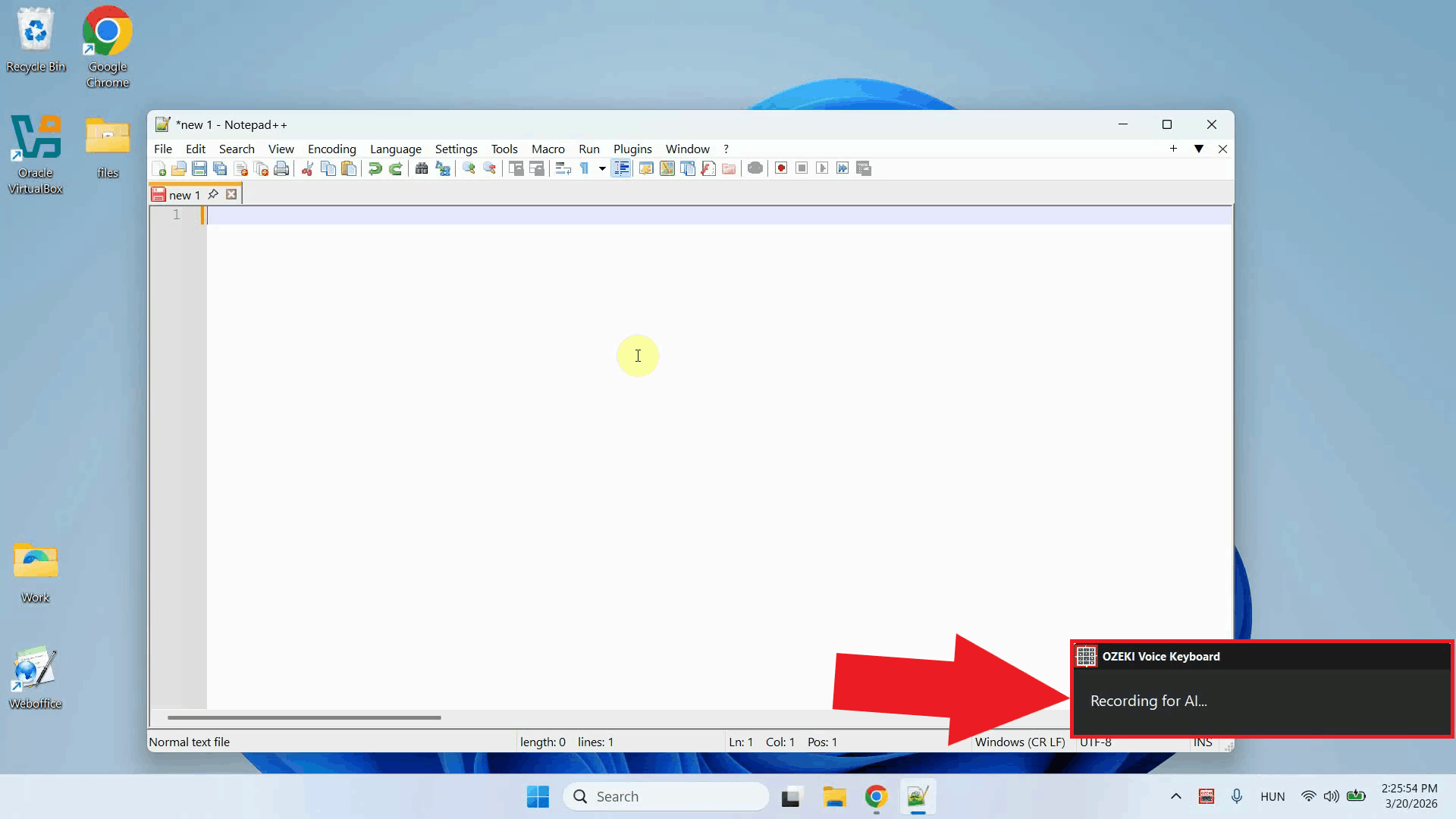
Step 5 - Test the AI assistantTo test the AI assistant, place your cursor in any input field, then press and hold Ctrl + Space and speak your question into the microphone. Once you release the keys, the gateway transcribes the recording via the Whisper provider and forwards the resulting text to the LLM provider as a prompt (Figure 10).
Once the LLM finishes generating the response, it is automatically pasted into the active input field (Figure 11).
Step 6 - Verify requests in logsRight-click the tray icon and navigate to Logs from the context menu to open the log viewer (Figure 12).
In the log viewer, you should see outgoing HTTP requests directed at the Ozeki AI Gateway
endpoint, one to
Final thoughtsYou have successfully configured Ozeki Voice Keyboard to route both voice transcription and AI assistant requests through Ozeki AI Gateway. This setup gives you centralized control over all AI traffic from your client machines. You can monitor usage, manage API keys, swap out providers, and enforce access policies from a single location without making any changes to the individual Windows machines.
https://ozeki.hu/p_3609-links.html References |