
Introduction to Ozeki Voice Keyboard
Ozeki Voice Keyboard is a Windows application that allows you to type text using only your voice. Simply hold down Ctrl + Alt, speak into your microphone, and release the hotkey—the transcribed text will be automatically pasted into the active window. This guide gives you a short introduction on how Ozeki Voice Keyboard works.
Main features:
- Ctrl + Alt - Send the dictated text to your app
- Ctrl + Space - Send the dictated text to AI for processing and type the result into your app
- Win + Space - Send your clipboard contents to AI for processing and type the result to your app
How does it work
The diagram below illustrates how Ozeki Voice Keyboard works.
See it in action
View the following video to see Ozeki Voice Keyboard in action:
How to make it smarter:
- Write your own system prompt. (Select system prompt from the popup menu in the tray icon)
How can you use it
- Step 1 - Launch Ozeki Voice Keyboard
- Step 2 - View hotkeys in the bottom right corner
- Step 3 - Use the hotkey for transcription
- Step 4 - Ask the AI assistant a question
Step 1 - Launch Ozeki Voice Keyboard
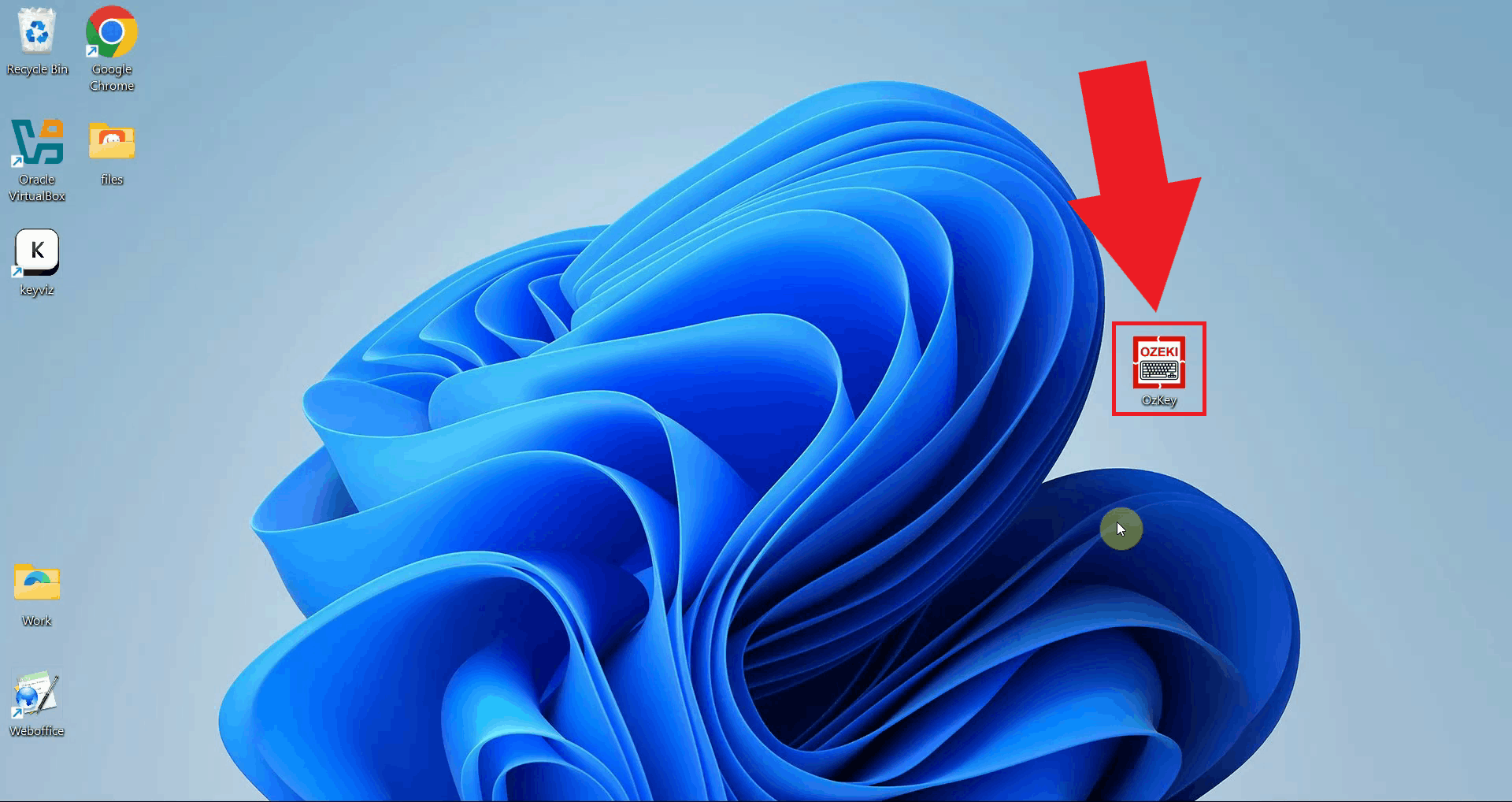
Launch the Ozeki Voice Keyboard application on your Windows system. Once started, the application runs in the background and is always ready to capture your voice input without interfering with your other open applications (Figure 1).
Step 2 - View hotkeys in the bottom right corner
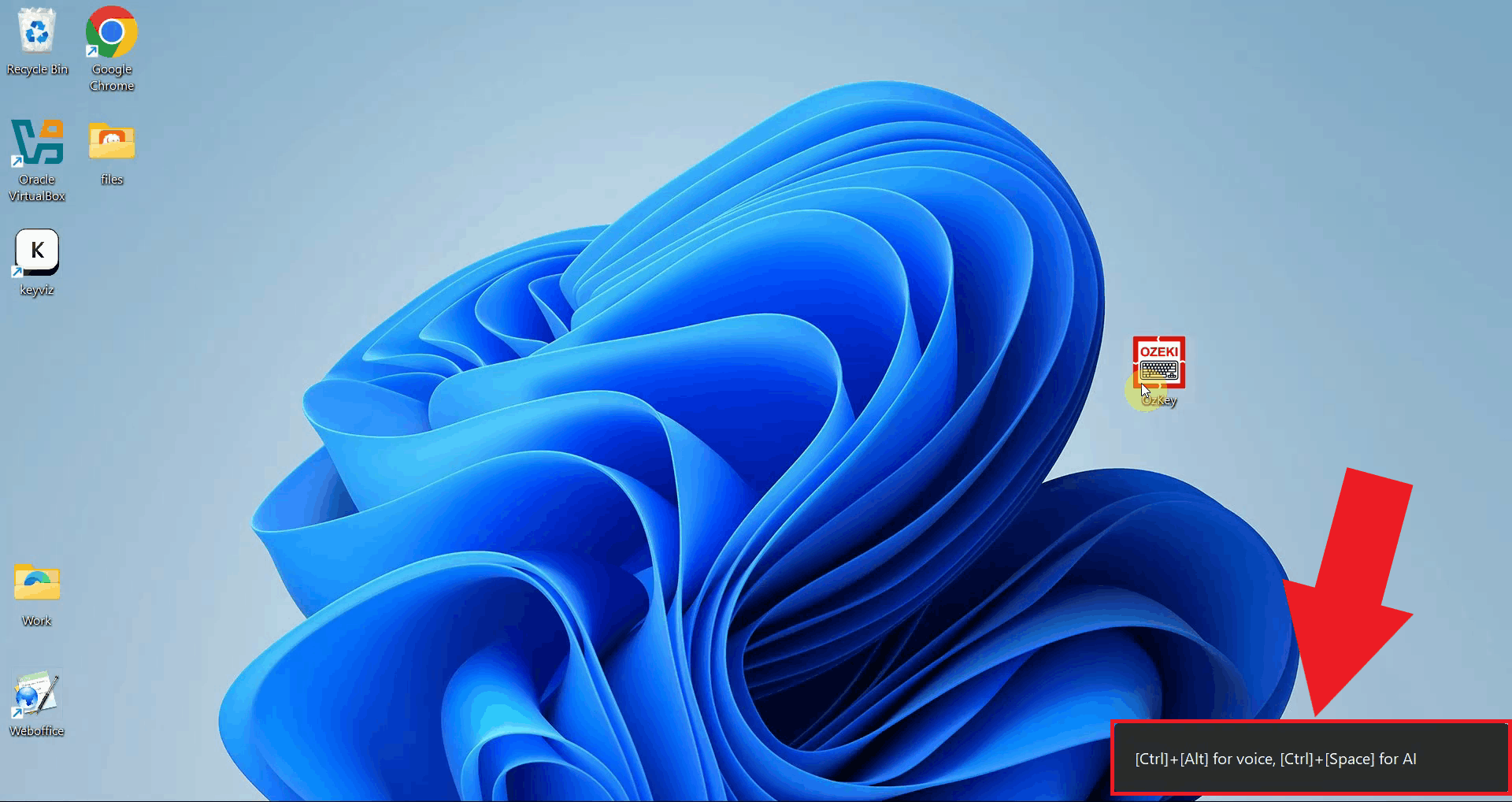
After launching, a small overlay appears in the bottom right corner of your screen showing the available hotkeys. This gives you a quick reference for both features (voice transcription and the AI assistant) without having to open any menus (Figure 2).
Step 3 - Use the hotkey for transcription
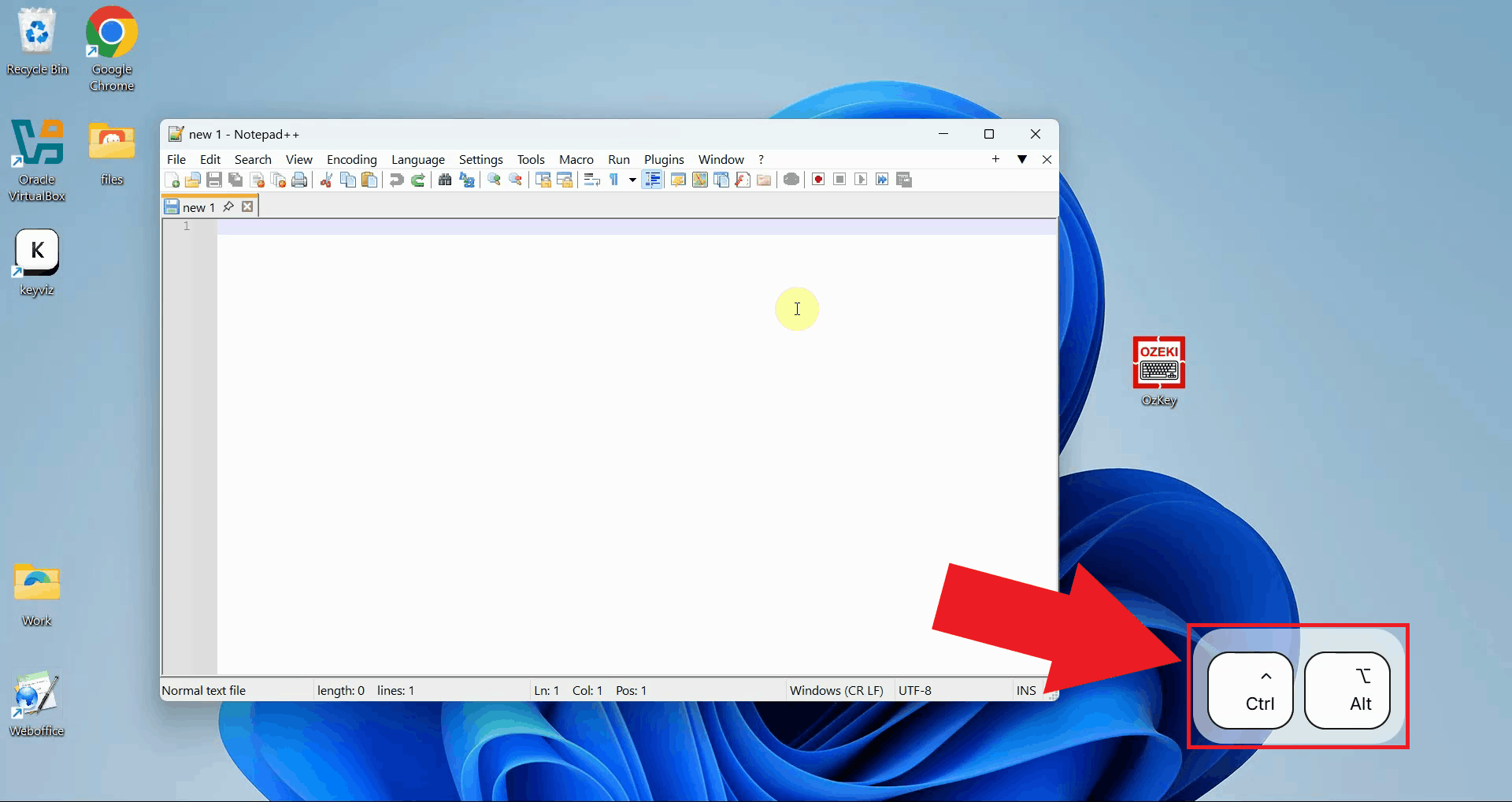
Click into any input field or document where you want to insert text, then press and hold Ctrl + Alt. The application will record your voice for as long as the keys are held down, so speak clearly into your microphone and release them only when you have finished (Figure 3).
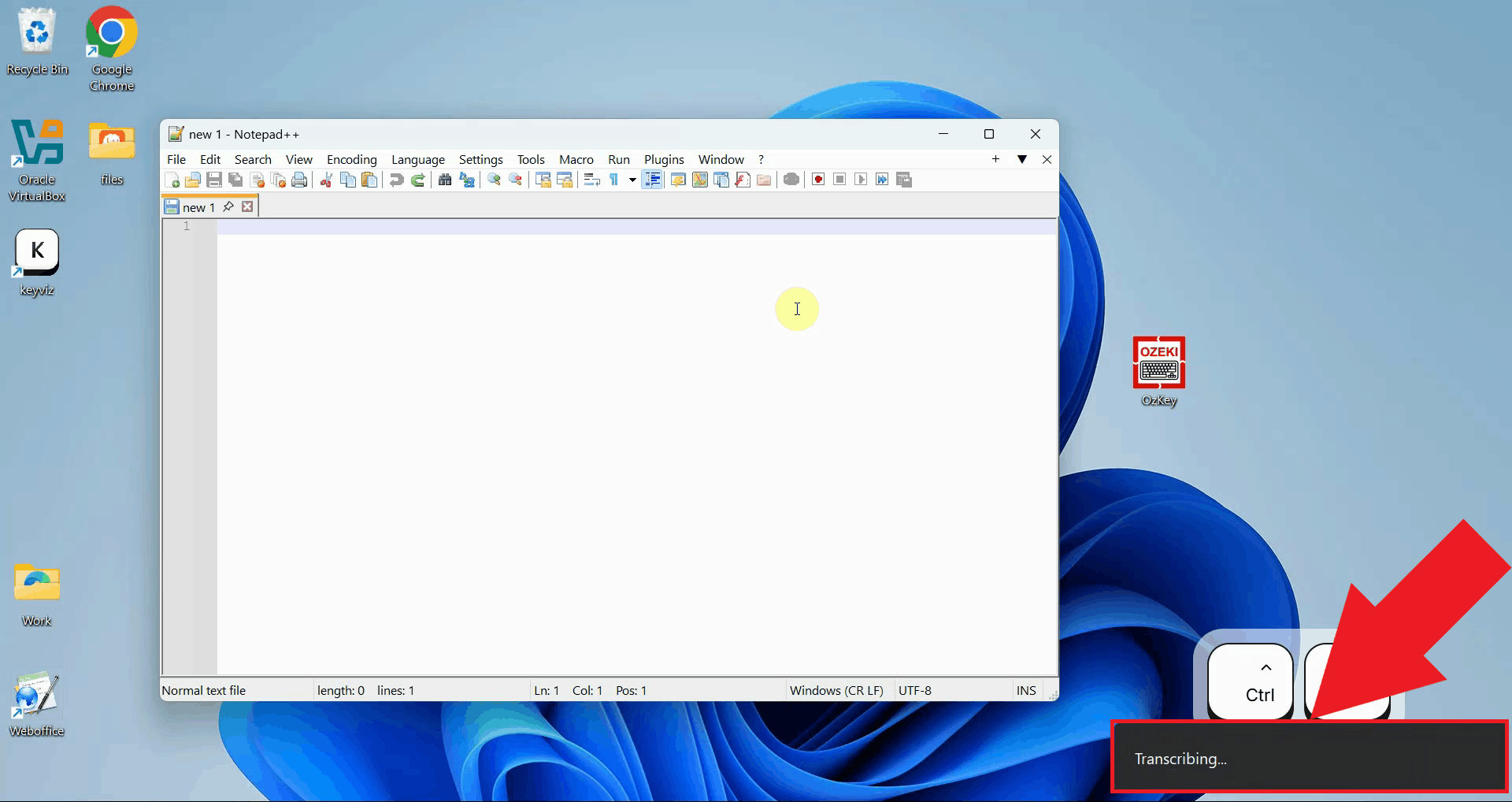
After releasing the keys, the recorded audio is sent to the speech recognition model for transcription. A brief processing indicator will appear while your recording is being analyzed and converted to text (Figure 4).
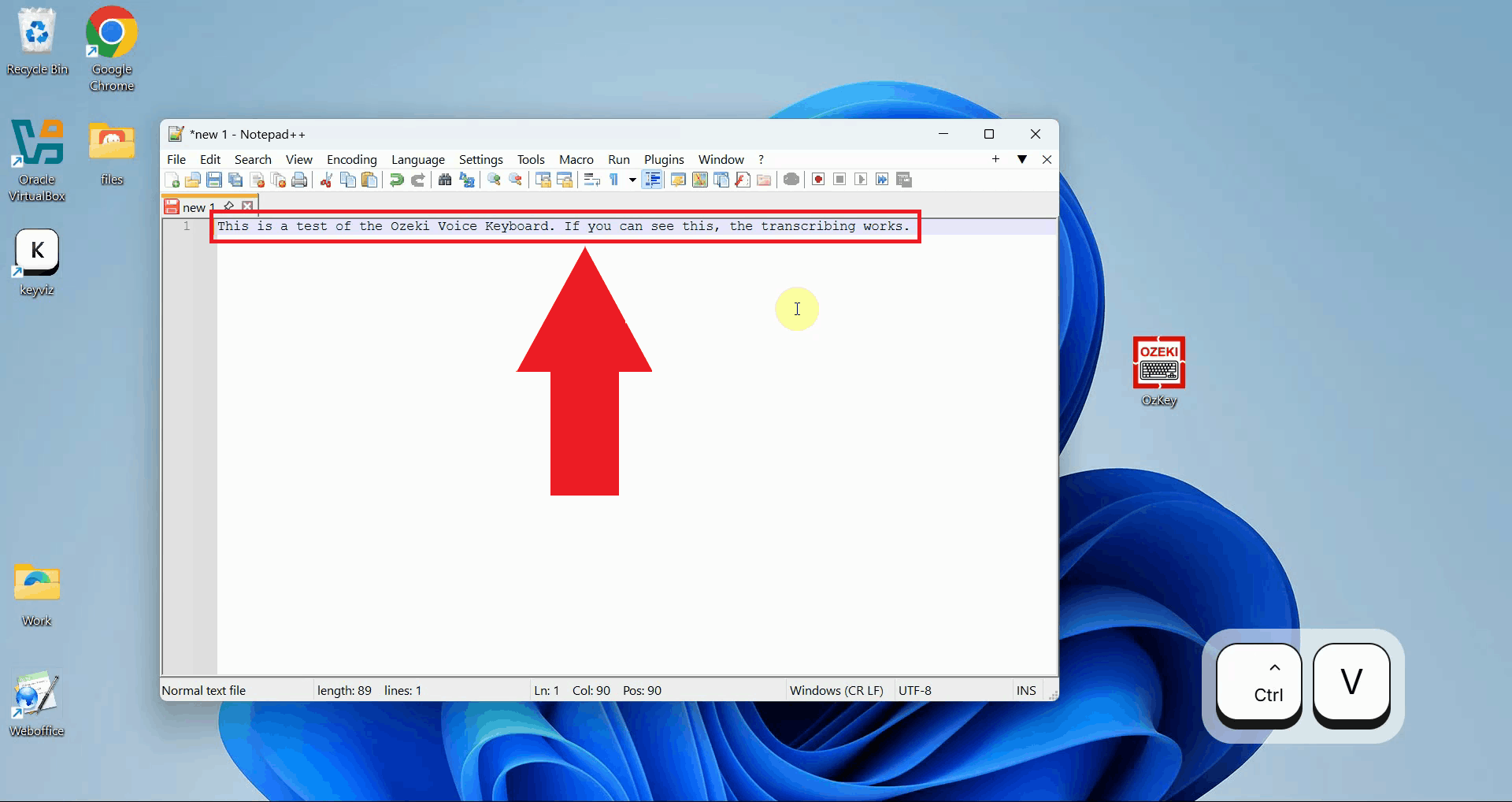
Once transcription finishes, the resulting text is automatically pasted into the input field that was active when you started recording. No manual copying or pasting is required - the text appears instantly in your textbox, document, or any other field that was selected, exactly as if you had typed it with a keyboard (Figure 5).
Step 4 - Ask the AI assistant a question
The following video shows how to use the AI assistant feature of Ozeki Voice Keyboard.
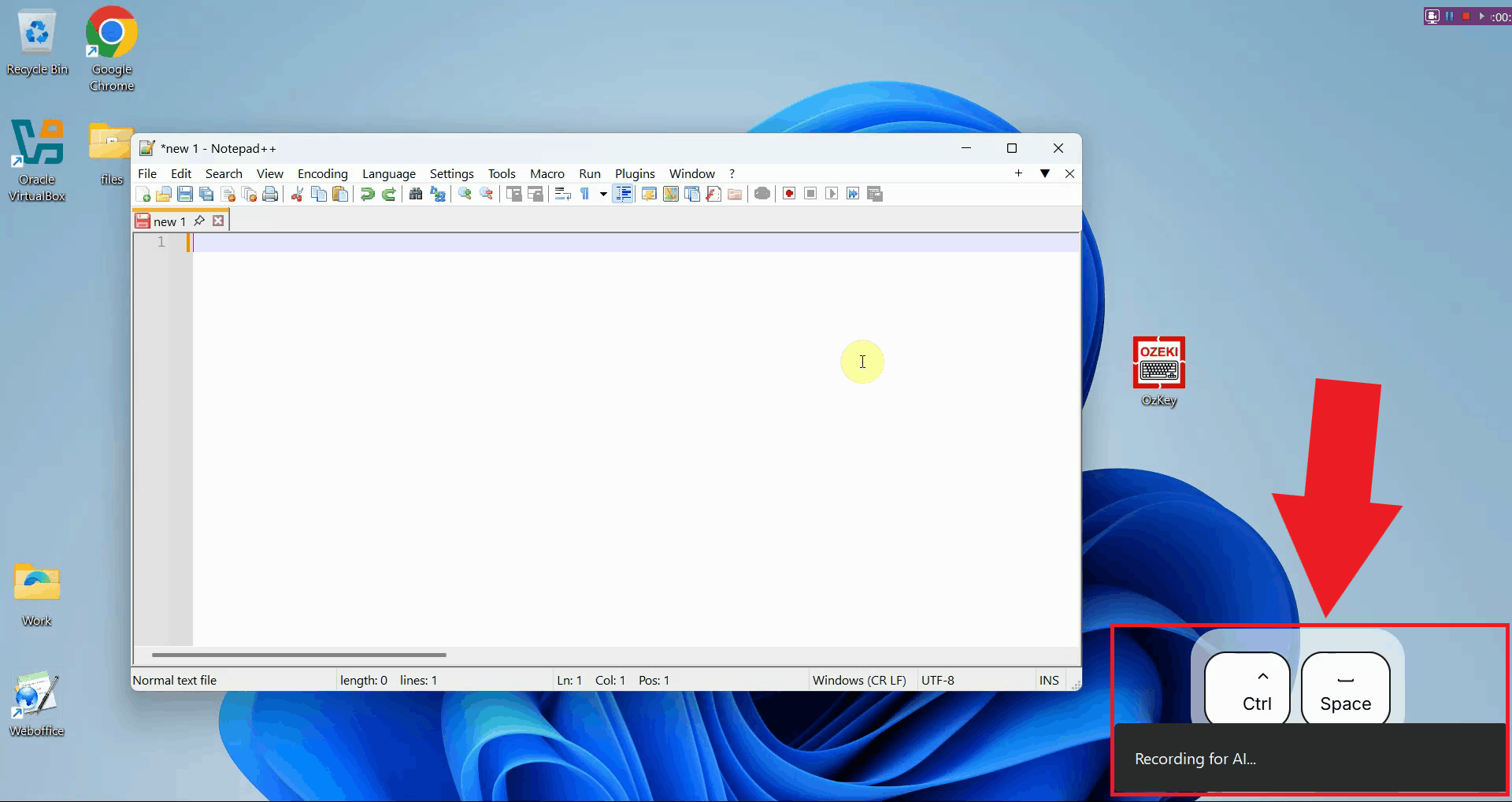
Place your cursor in any input field where you want the response to appear, then press Ctrl + Space and speak your question into the microphone. In this example, the AI is asked to generate a code snippet for calculating Fibonacci numbers (Figure 6).
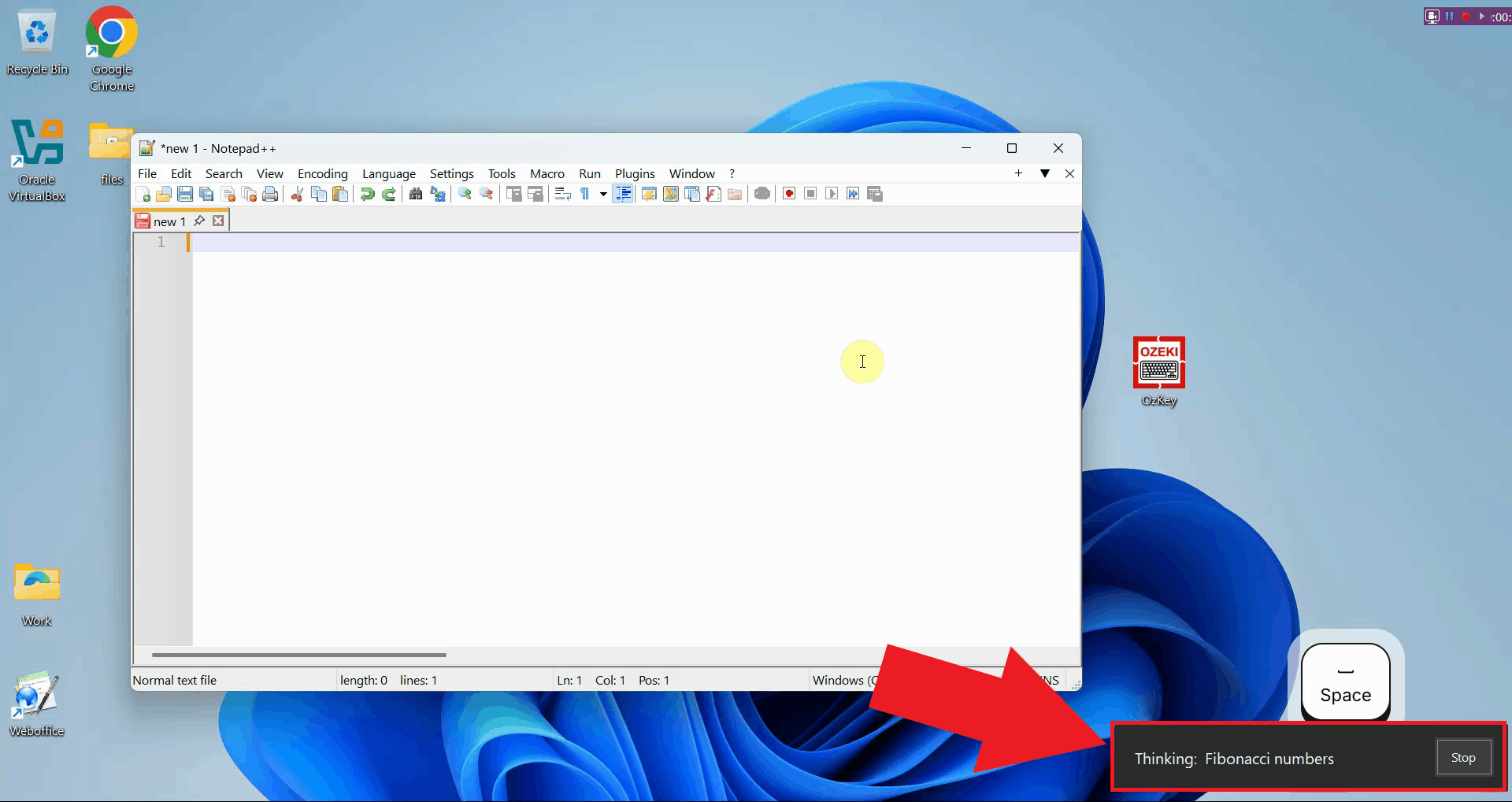
After releasing the keys, the question is sent to the configured AI model for processing. You will see a brief indicator while the model generates its response (Figure 7).
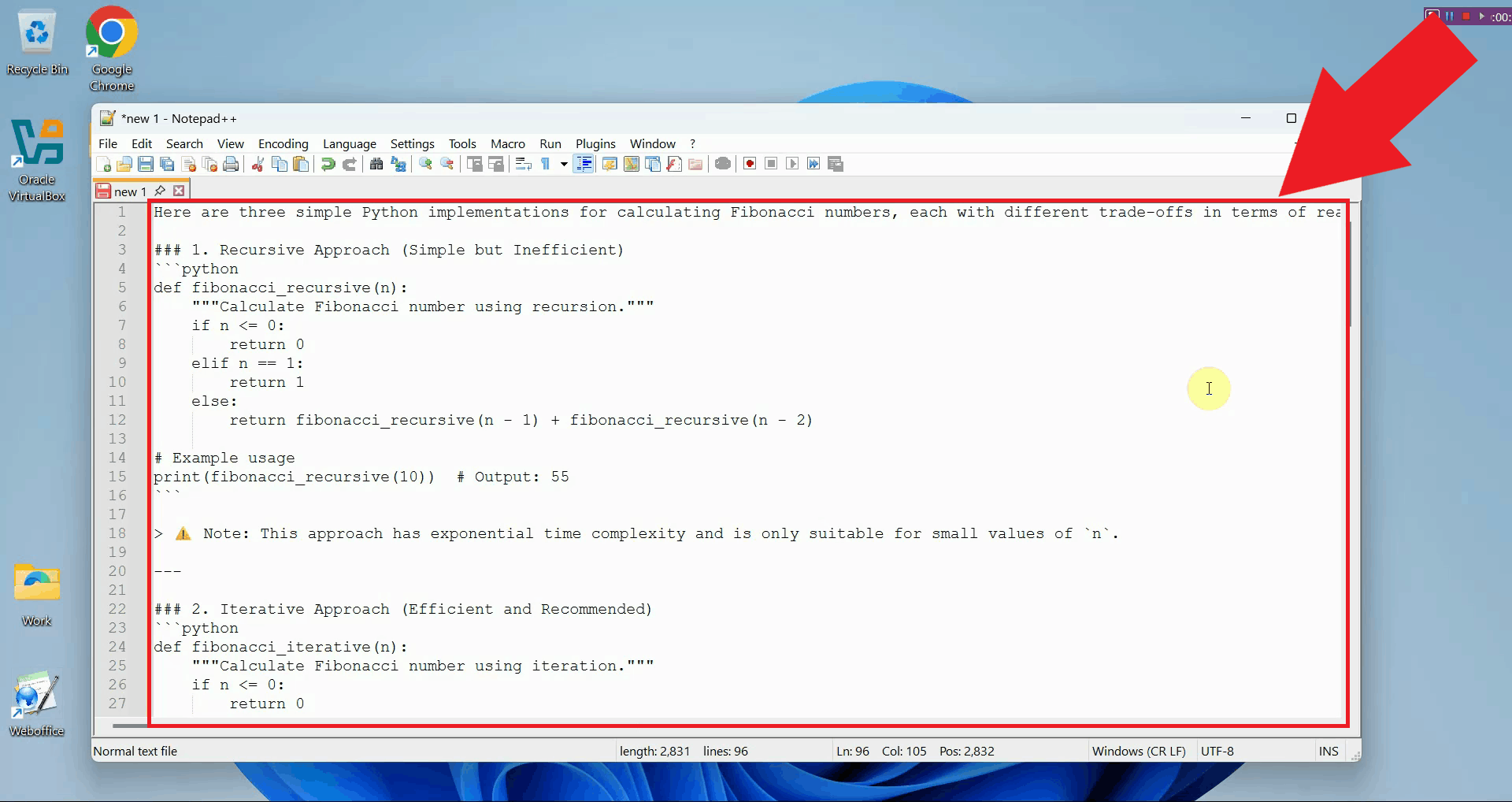
Once the model finishes, the response is automatically typed into the active input field. In this example, the AI generated a code snippet, which was pasted into the editor without any manual intervention (Figure 8).
Final thoughts
You have successfully learned how to use both features of Ozeki Voice Keyboard on Windows. Whether you need to quickly dictate text or generate AI-powered responses, both tools work entirely hands-free and deliver results directly into any input field on your system.