
How to use LLama.cpp as the LLM backend for Ozeki Voice Keyboard on Ubuntu
This guide demonstrates how to build and configure a LLama.cpp server on Ubuntu as the LLM backend for Ozeki Voice Keyboard on Windows. By running LLama.cpp on a dedicated Ubuntu machine, the AI assistant feature can leverage GPU-accelerated inference over the network: your speech is transcribed by the configured voice model, the resulting text is forwarded to LLama.cpp as a prompt, and the generated response is inserted into the active input field on your Windows machine.
How it works
The diagram below illustrates the full pipeline of the AI assistant feature across the two machines.
Steps to follow
Before proceeding, make sure Anaconda and Git are installed on your Ubuntu machine. A CUDA-compatible NVIDIA GPU is required for GPU-accelerated inference.
- Set up the Conda environment
- Clone LLama.cpp
- Build LLama.cpp with CUDA support
- Download the LLM model
- Start the LLama.cpp server
- Connect LLama.cpp to Ozeki Voice Keyboard
Quick reference commands
# Conda environment
conda create -n qwen35 python=3.12
conda activate qwen35

# Working directory and clone
mkdir qwen35
cd qwen35
git clone https://github.com/ggerganov/llama.cpp
cd llama.cpp

# Create the CUDA-enabled build_llama script
nano build_llama.sh

export PATH=/usr/local/cuda/bin:$PATH
export CUDACXX=/usr/local/cuda/bin/nvcc
export CUDA_HOME=/usr/local/cuda
rm -rf build
cmake -B build \
  -DGGML_CUDA=ON \
  -DCMAKE_CUDA_ARCHITECTURES=86 \
  -DCMAKE_BUILD_TYPE=Release
cmake --build build --config Release -j$(nproc)

# Running the build script
chmod +x build_llama.sh
./build_llama.sh

# Download model
pip install huggingface_hub
hf download bartowski/Qwen_Qwen3.5-9B-GGUF Qwen_Qwen3.5-9B-Q4_K_M.gguf --local-dir .

# Create the server runner script
nano run.sh

./llama.cpp/build/bin/llama-server \
  -m Qwen_Qwen3.5-9B-Q4_K_M.gguf \
  --host 0.0.0.0 \
  --port 8123 \
  --gpu-layers 99 \
  -ngl 99 \
  -c 8192 \
  -fa auto

# Running the script
chmod +x run.sh
./run.sh
How to set up LLama.cpp on Ubuntu video
The following video shows how to build and run the LLama.cpp server on Ubuntu step-by-step. The video covers creating the Conda environment, cloning and building LLama.cpp with CUDA support, downloading the model, and starting the server.
Step 1 - Set up the Conda environment
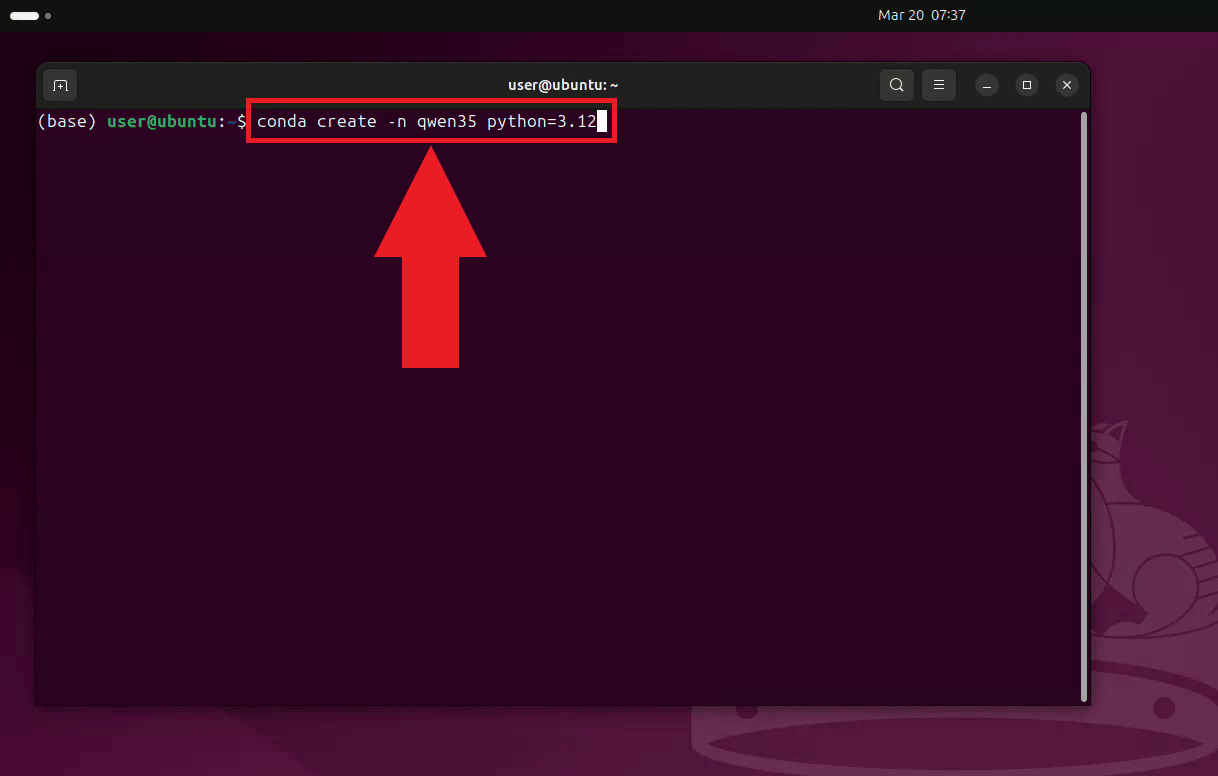
Open a terminal on your Ubuntu machine and create a dedicated Conda environment with Python 3.12. Using a separate environment keeps LLama.cpp's dependencies isolated from other projects on your system (Figure 1).
conda create -n qwen35 python=3.12
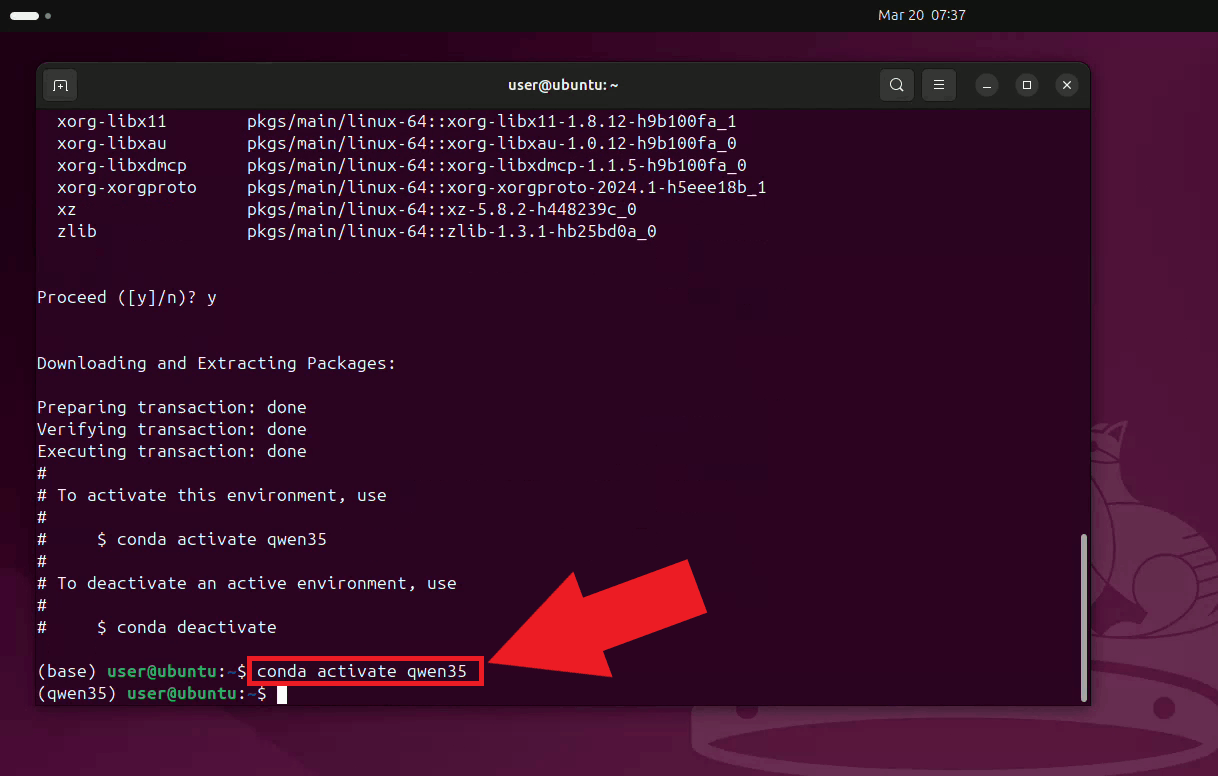
Activate the environment. Your terminal prompt will update to reflect the active environment name (Figure 2).
conda activate qwen35
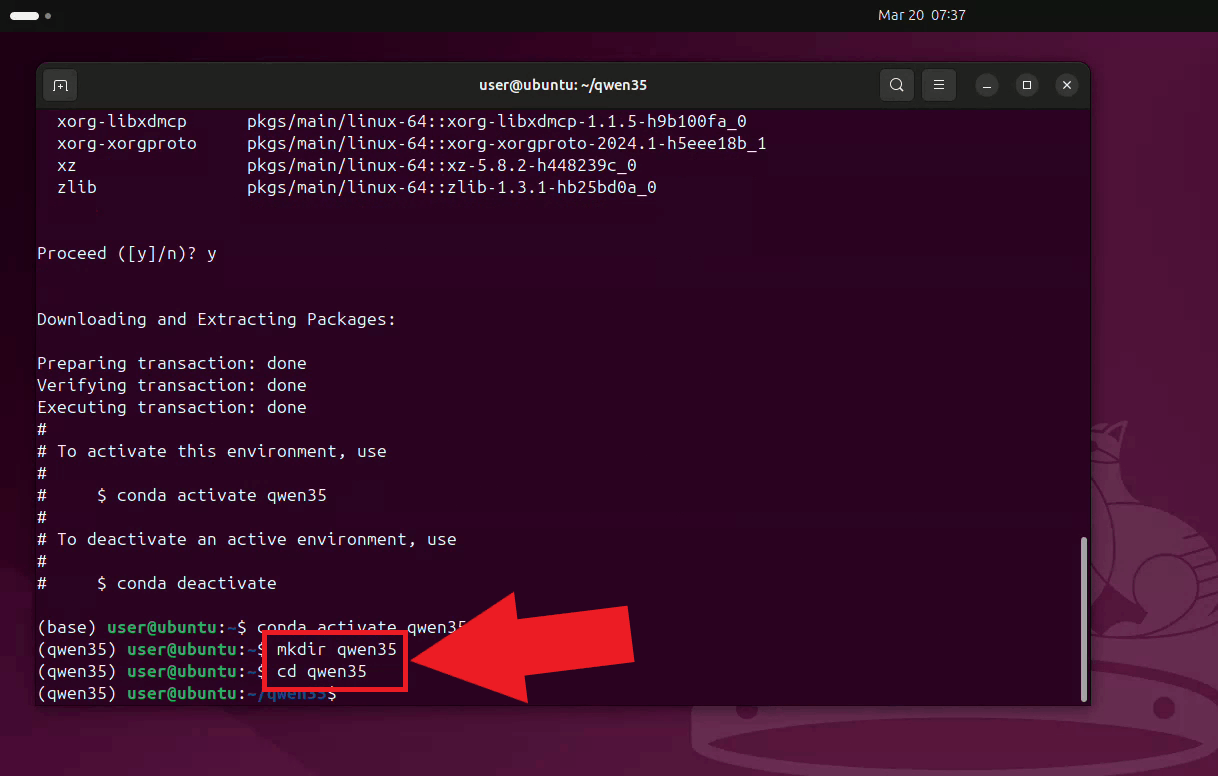
Create a working directory for this setup and navigate into it (Figure 3).
mkdir qwen35
cd qwen35
Step 2 - Clone LLama.cpp
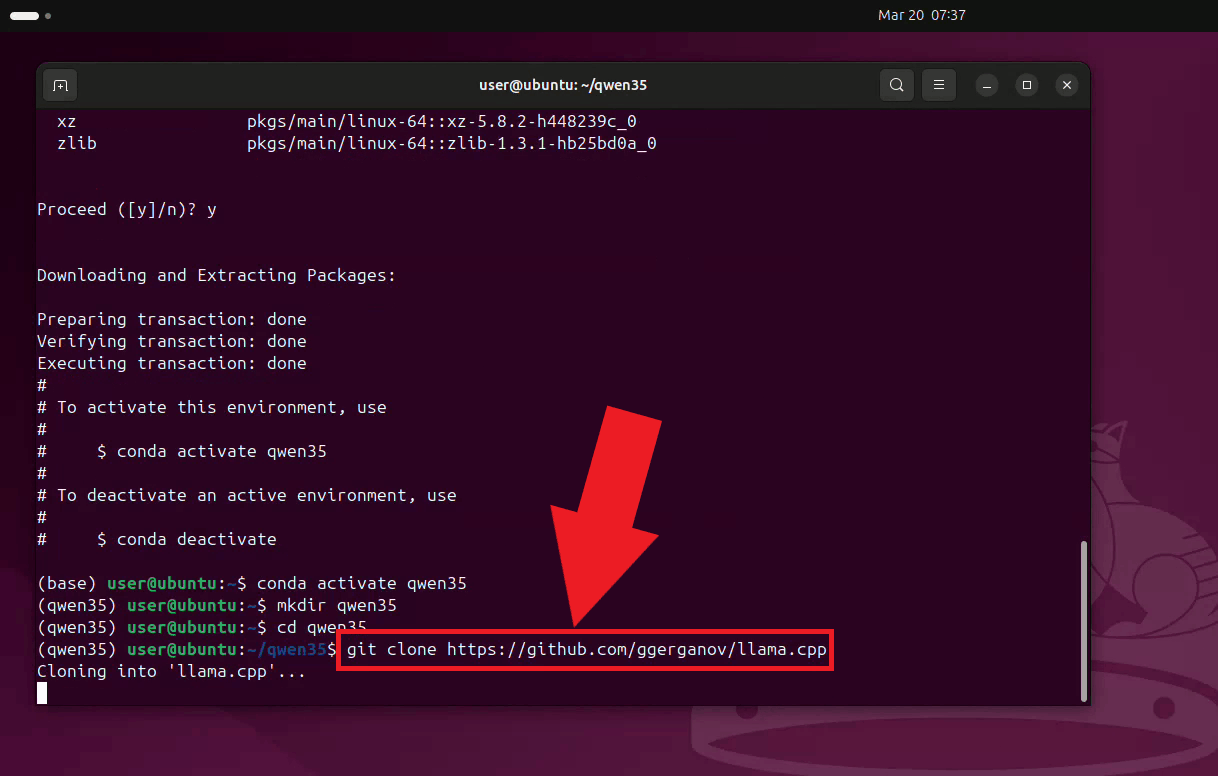
Clone the LLama.cpp repository from GitHub into the working directory (Figure 4).
git clone https://github.com/ggerganov/llama.cpp
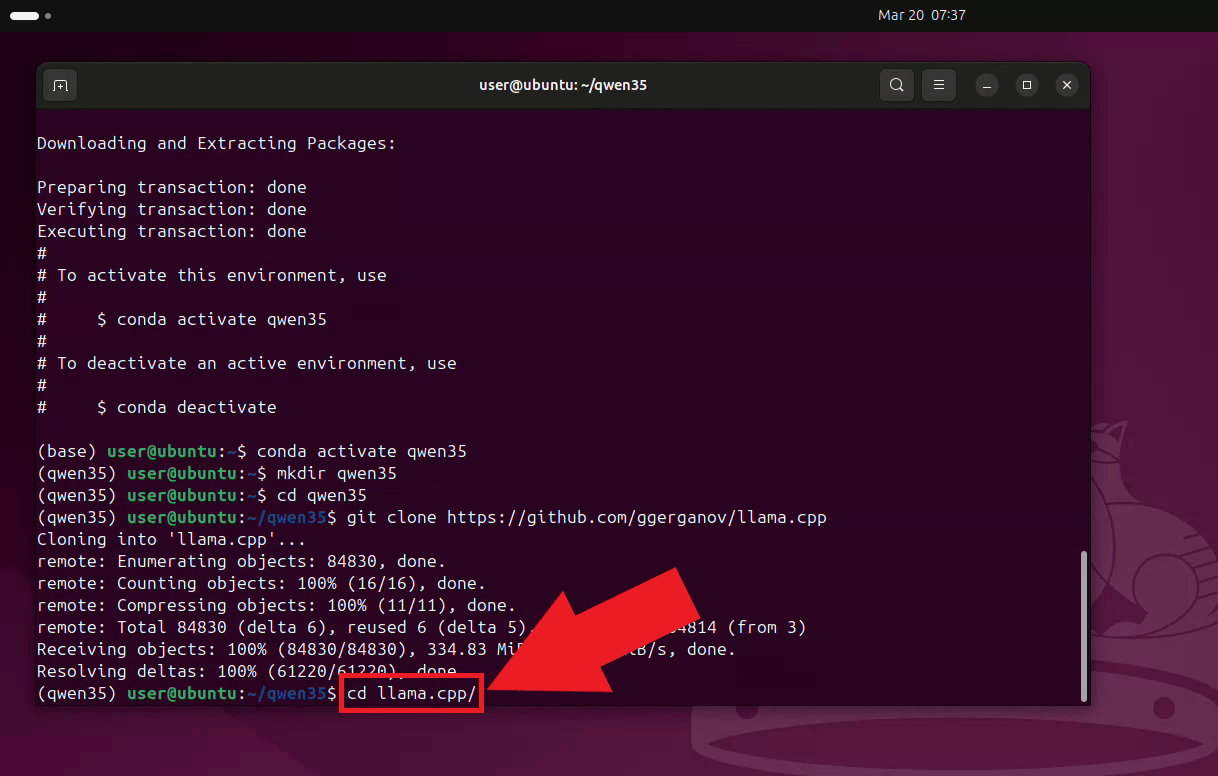
Navigate into the cloned LLama.cpp directory (Figure 5).
cd llama.cpp
Step 3 - Build LLama.cpp with CUDA support
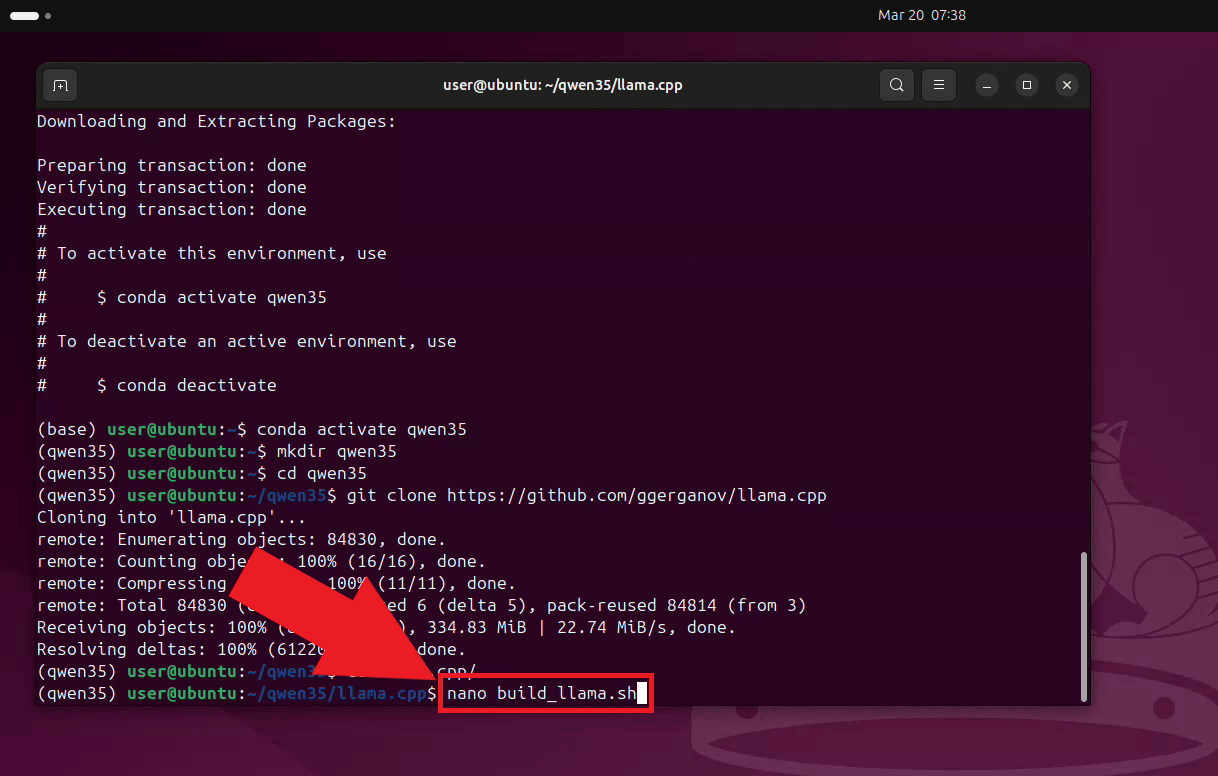
Create a build script using nano. This script sets the required CUDA environment variables and runs the CMake build with GPU support enabled (Figure 6).
nano build_llama.sh
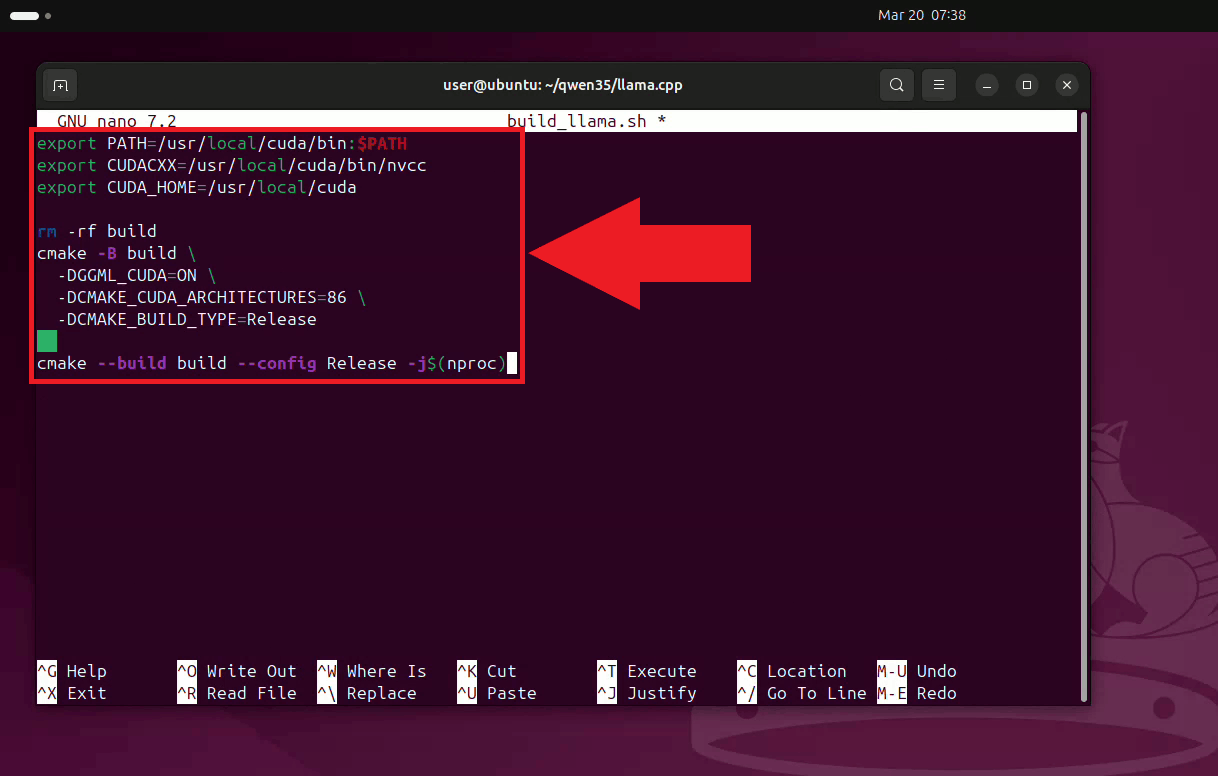
Paste the following build script content into nano, then save and exit (Ctrl+X, then Y, then Enter). The script configures CMake to build with CUDA enabled and targets CUDA architecture 86, which corresponds to NVIDIA Ampere GPUs (Figure 7).
export PATH=/usr/local/cuda/bin:$PATH
export CUDACXX=/usr/local/cuda/bin/nvcc
export CUDA_HOME=/usr/local/cuda

rm -rf build
cmake -B build \
  -DGGML_CUDA=ON \
  -DCMAKE_CUDA_ARCHITECTURES=86 \
  -DCMAKE_BUILD_TYPE=Release

cmake --build build --config Release -j$(nproc)
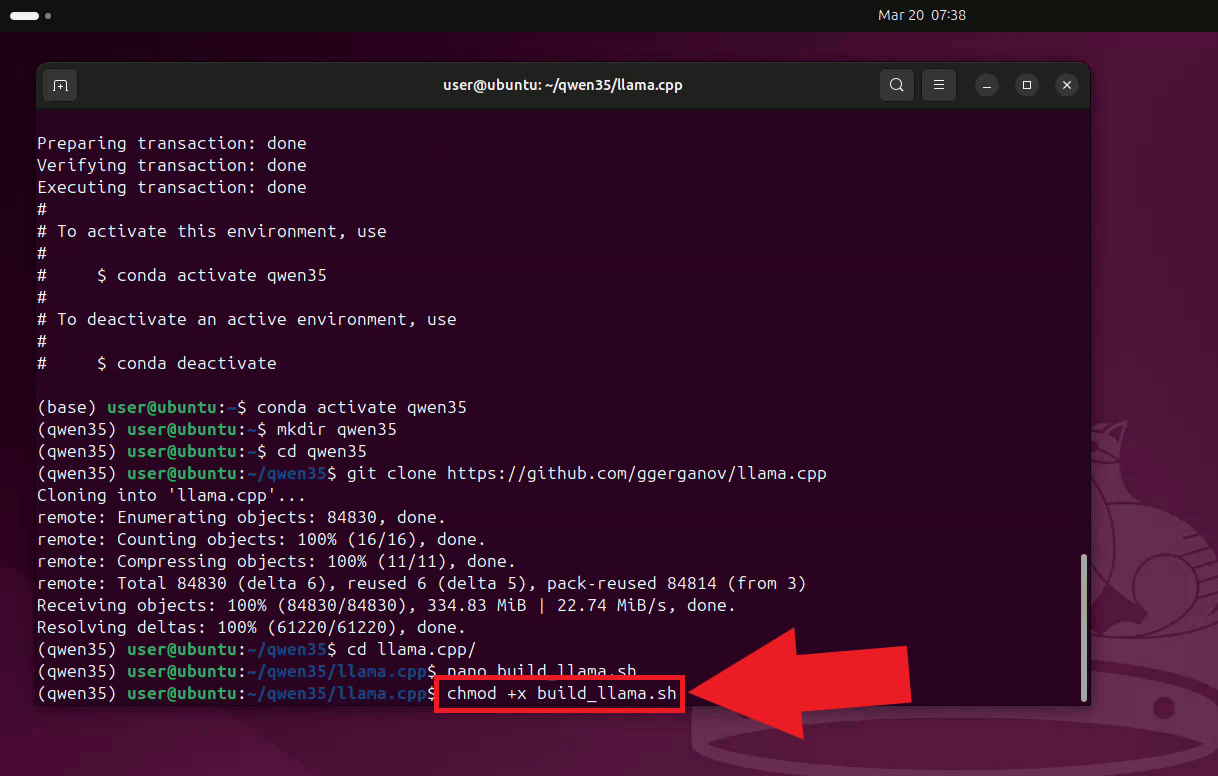
Make the build script executable (Figure 8).
chmod +x build_llama.sh
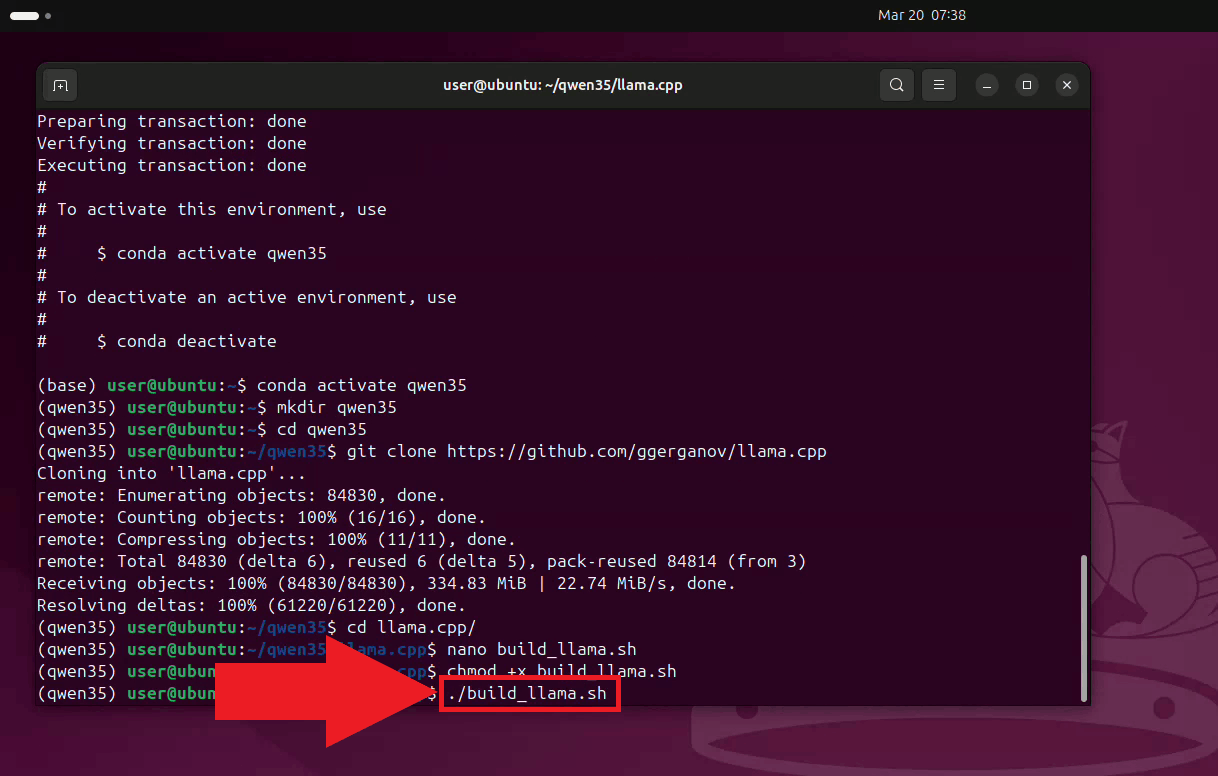
Run the build script. The compilation process may take several minutes depending on
your hardware. Once complete, the llama-server binary will be available
in the build/bin directory (Figure 9).
./build_llama.sh
Step 4 - Download the LLM model
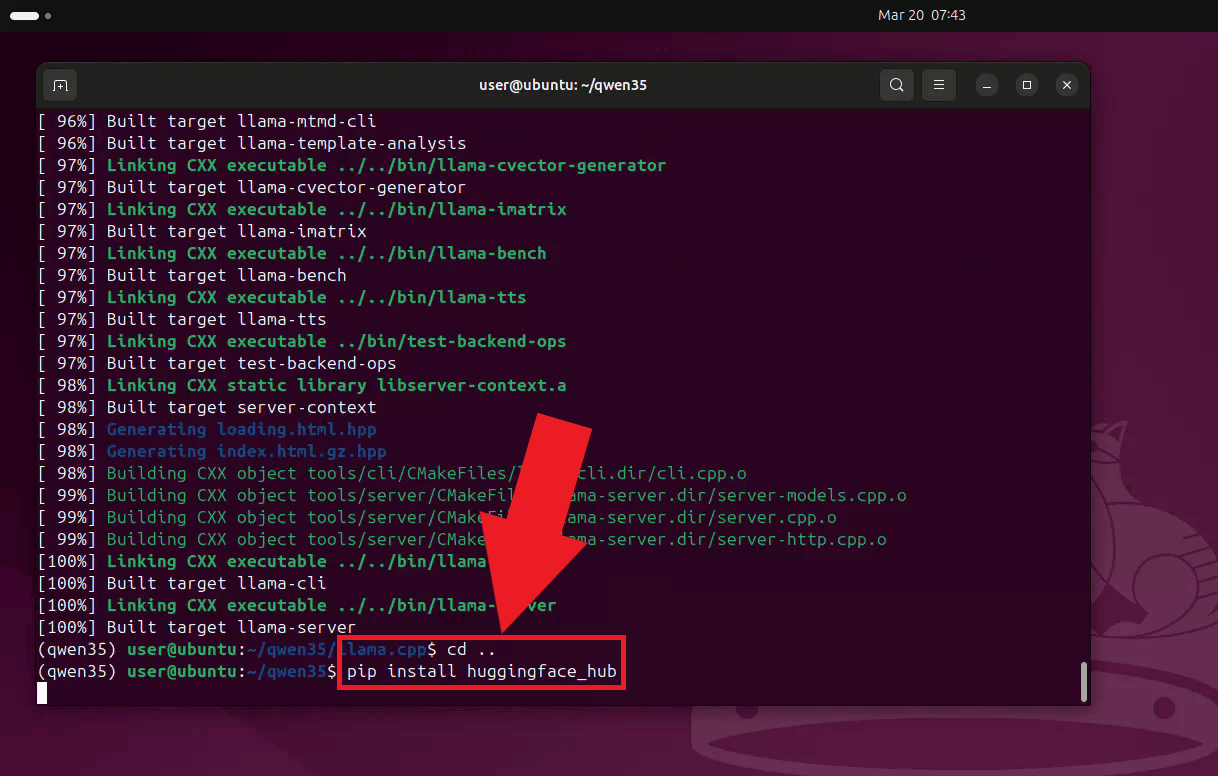
Navigate back to the working directory and install the huggingface_hub
package, which provides the command-line tool used to download the model (Figure 10).
cd ..
pip install huggingface_hub
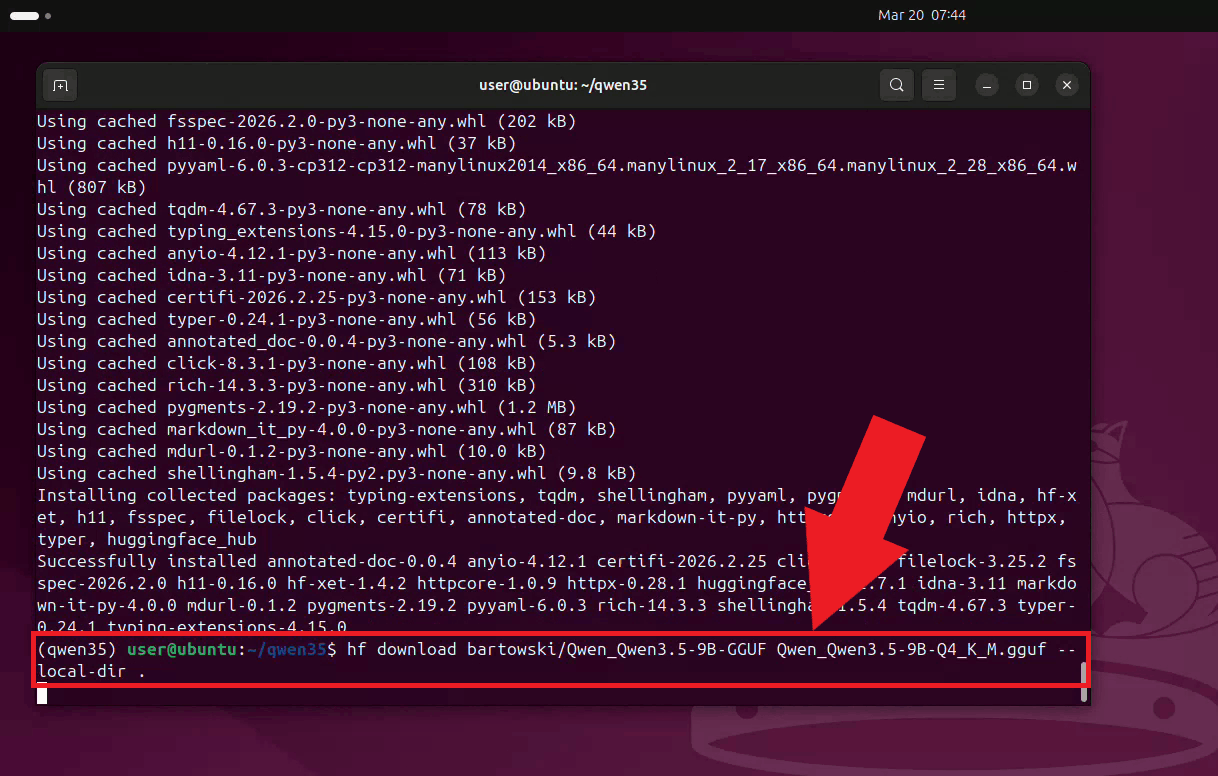
Download the quantized Qwen 3.5 9B model in GGUF format from Hugging Face. The
Q4_K_M quantization offers a good balance between model quality and
memory usage (Figure 11).
hf download bartowski/Qwen_Qwen3.5-9B-GGUF Qwen_Qwen3.5-9B-Q4_K_M.gguf --local-dir .
Step 5 - Start the LLama.cpp server
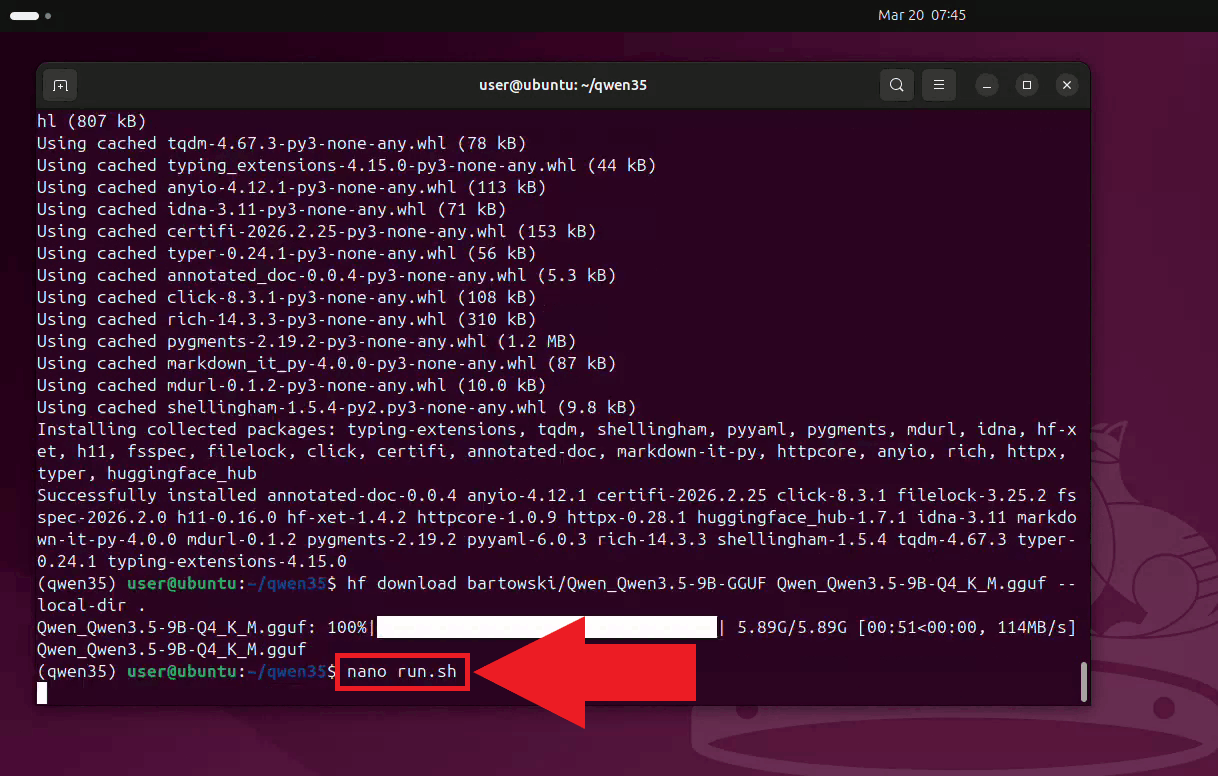
Create a runner script using nano to avoid retyping the server command on each launch (Figure 12).
nano run.sh
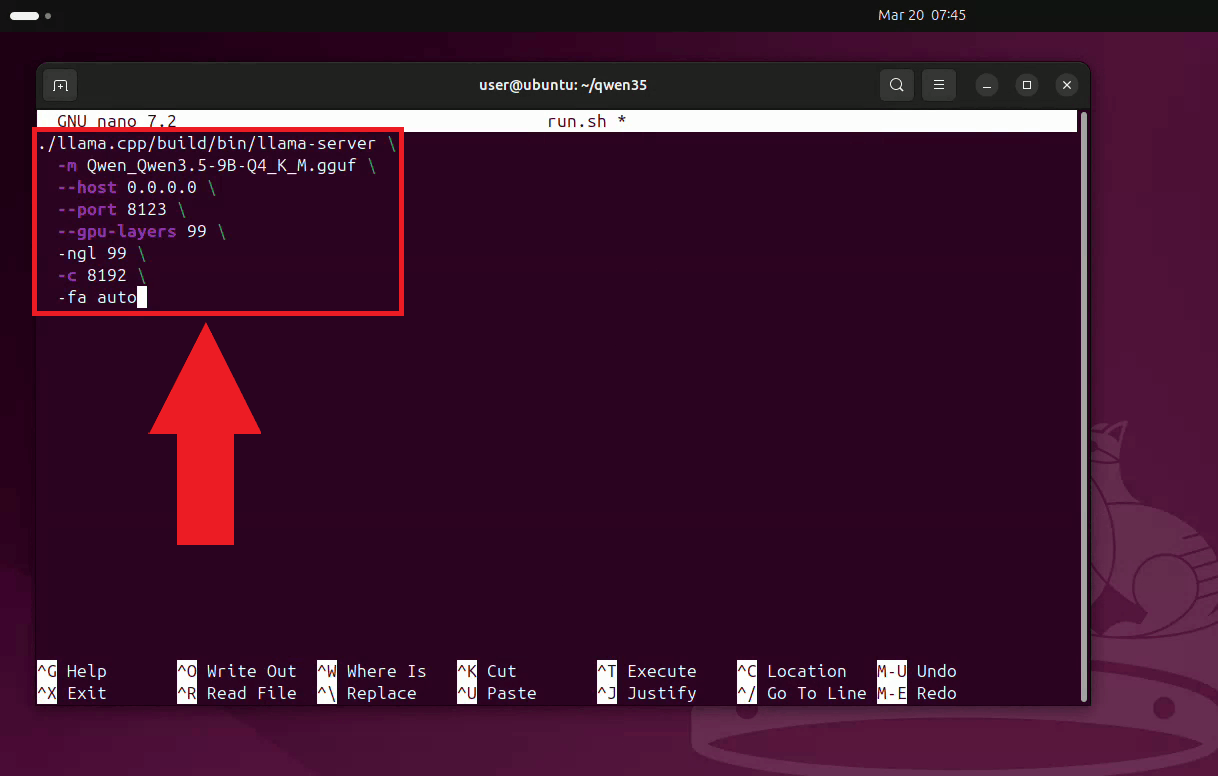
Paste the server launch command into the script, then save and exit. The server is configured to listen on all network interfaces on port 8123, load all layers onto the GPU, use a context size of 8192 tokens, and enable flash attention (Figure 13).
./llama.cpp/build/bin/llama-server \
  -m Qwen_Qwen3.5-9B-Q4_K_M.gguf \
  --host 0.0.0.0 \
  --port 8123 \
  --gpu-layers 99 \
  -ngl 99 \
  -c 8192 \
  -fa auto
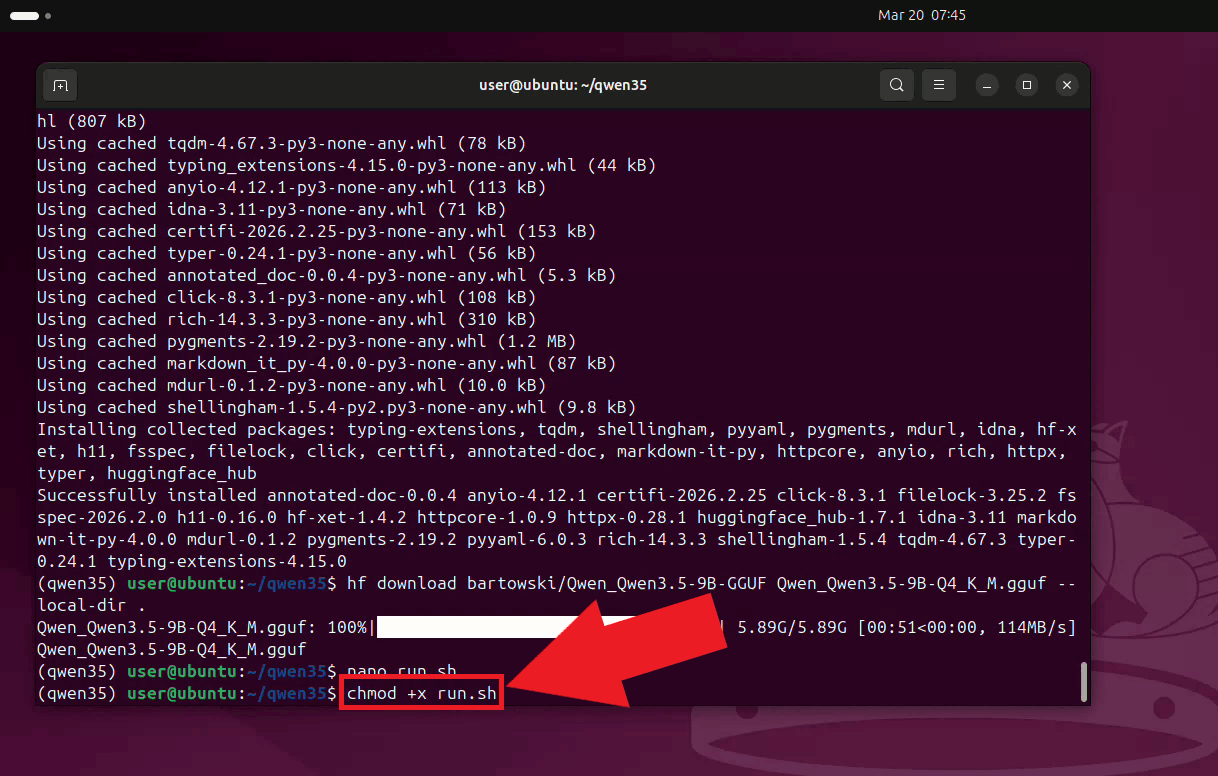
Make the runner script executable (Figure 14).
chmod +x run.sh
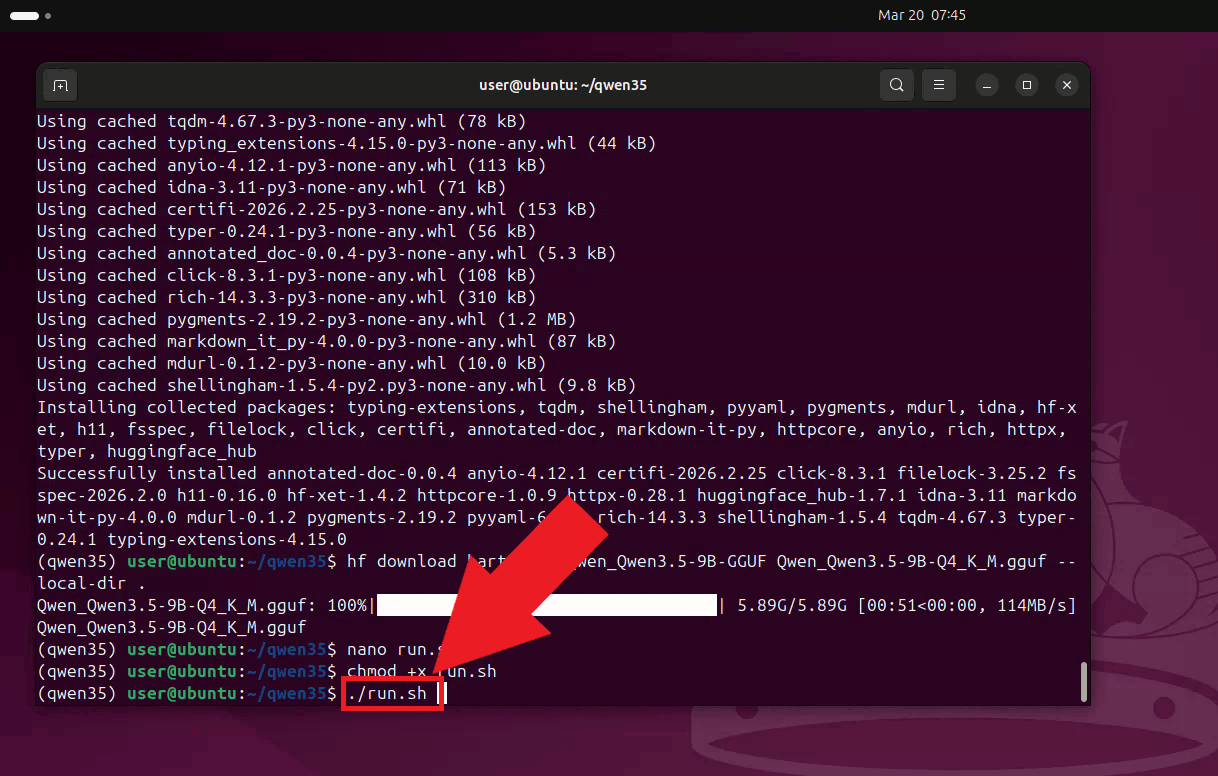
Run the script to start the LLama.cpp server. Keep this terminal open for the duration of your session (Figure 15).
./run.sh
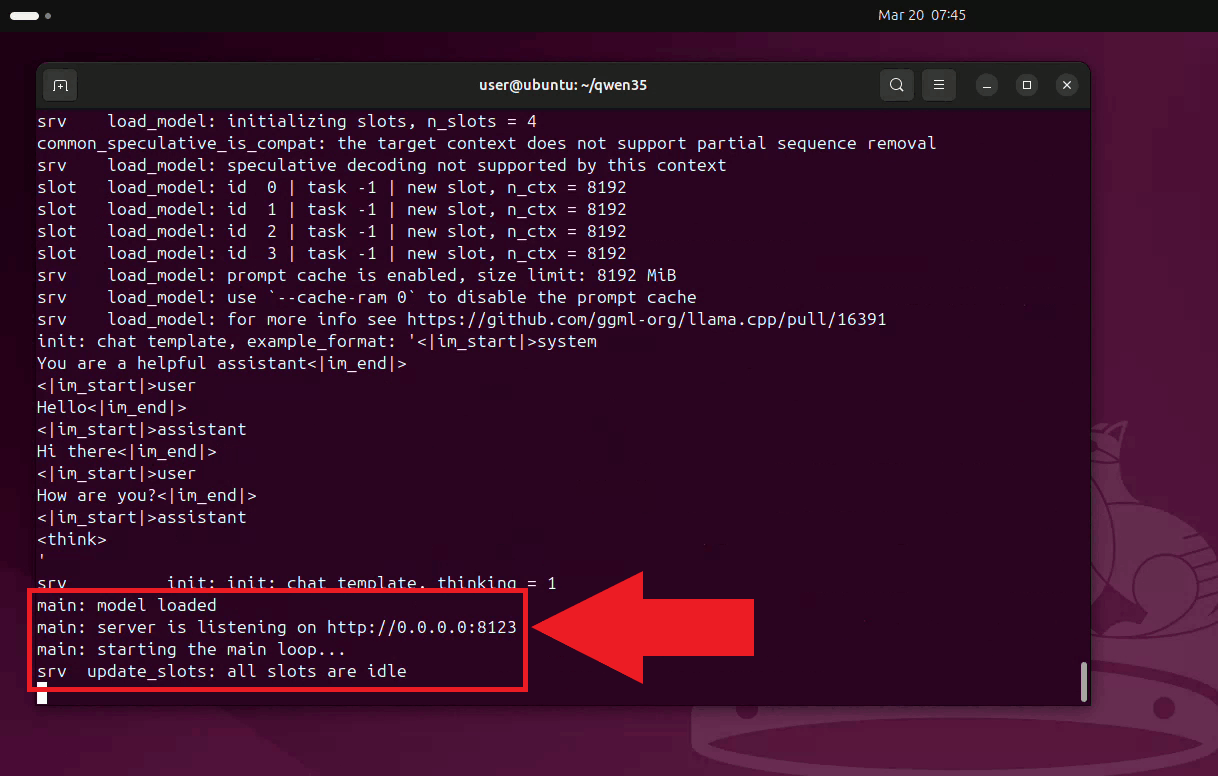
The LLama.cpp server is now running and listening for requests on port 8123. It is
accessible to other machines on your local network at
http://{your-ip-address}:8123/v1 (Figure 16).
Step 6 - Connect LLama.cpp to Ozeki Voice Keyboard
The following video shows how to connect the Ubuntu LLama.cpp server to Ozeki Voice Keyboard on Windows and verify that the AI assistant is working correctly. The video covers locating the tray icon, enabling HTTP logging, configuring the LLM settings, and confirming the connection through the log viewer.
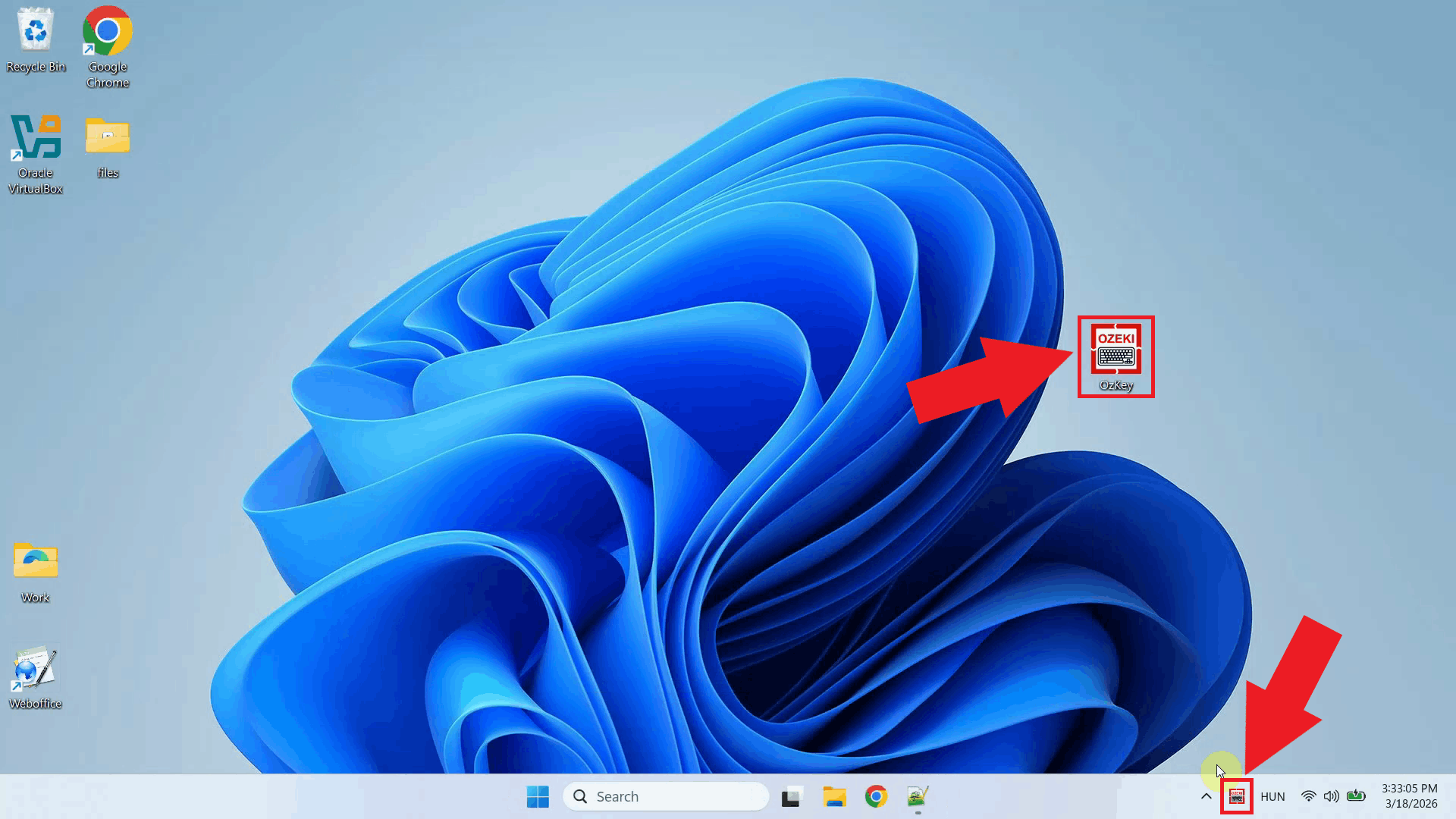
Open Ozeki Voice Keyboard and locate its icon in the system tray in the bottom right corner of your taskbar (Figure 17).
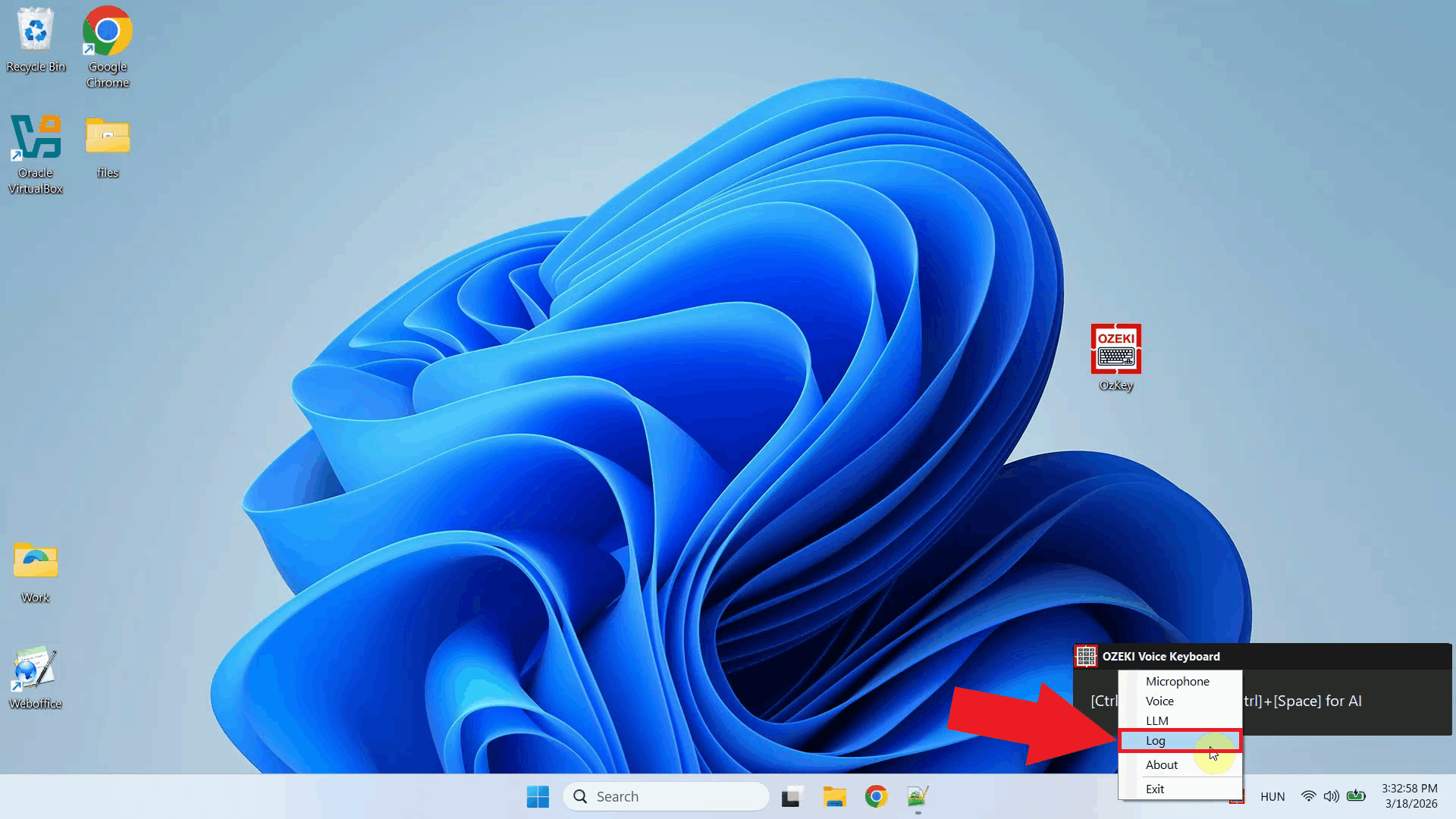
Before configuring the LLM settings, enable HTTP logging so you can verify that requests are reaching the Ubuntu server. Right-click the tray icon and navigate to Logs from the context menu (Figure 18).
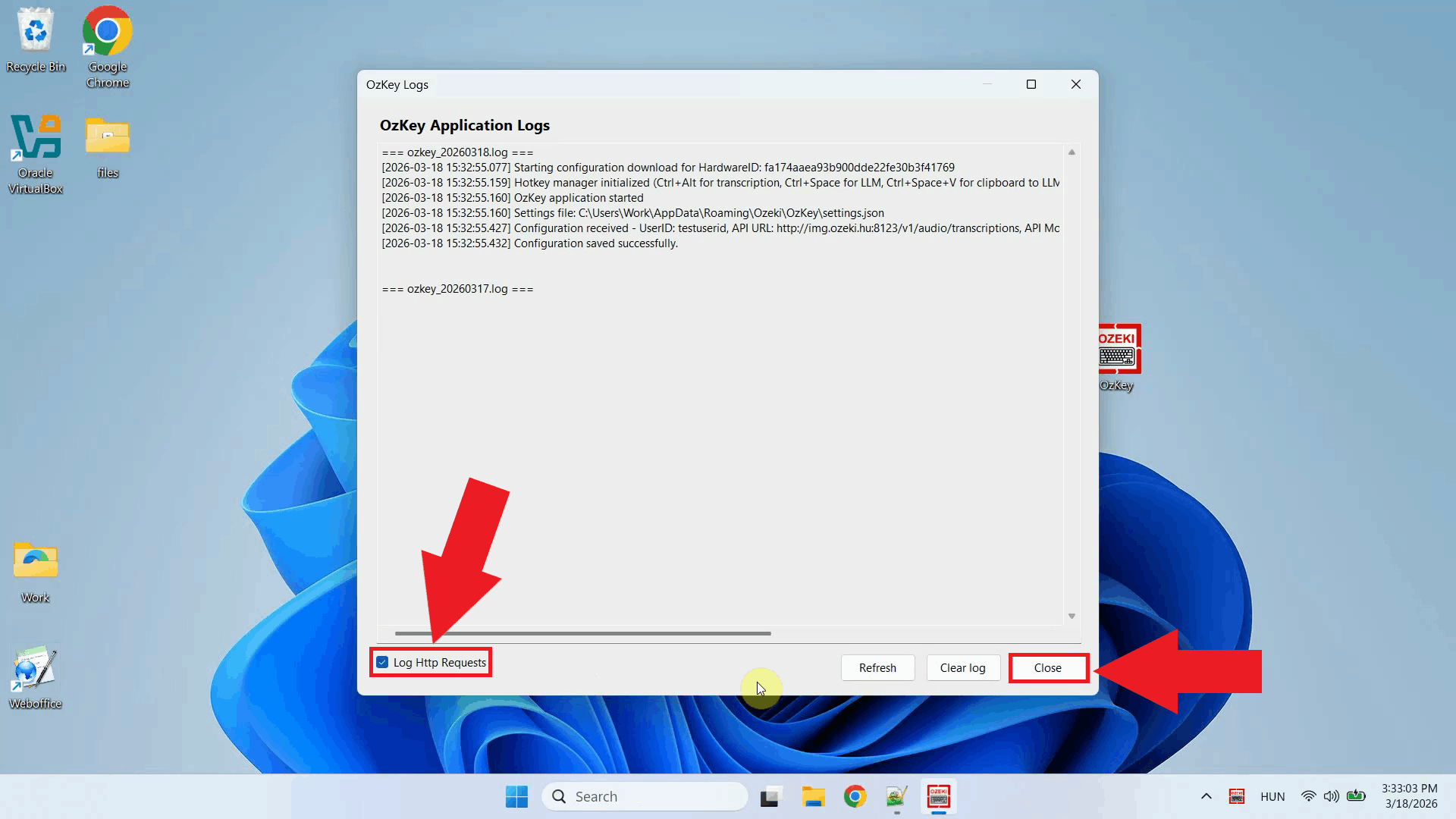
Enable HTTP logging and close the window. Outgoing requests to the LLama.cpp server will now be recorded and visible in the log viewer (Figure 19).
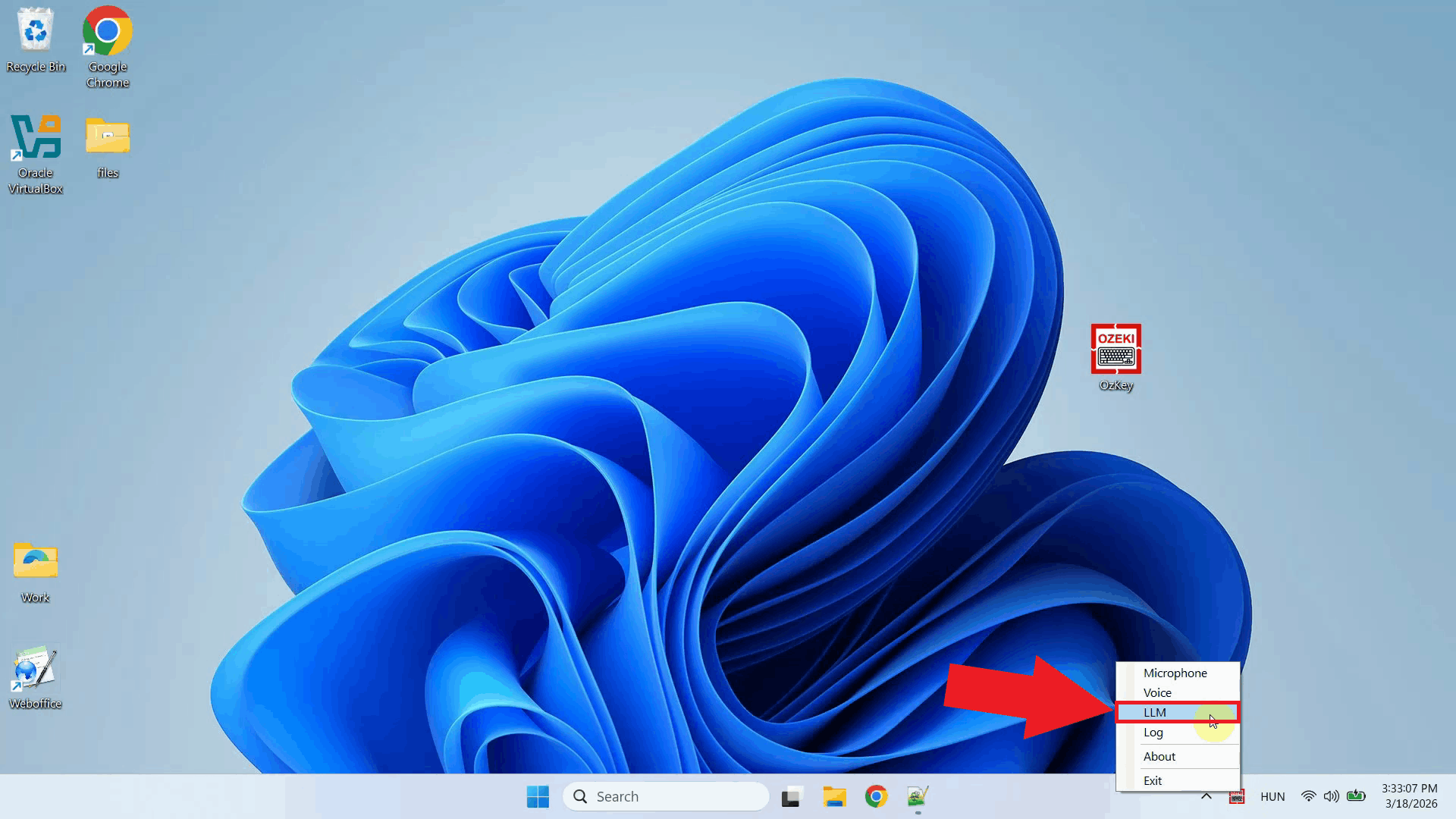
Right-click the tray icon again and open the LLM settings from the context menu (Figure 20).
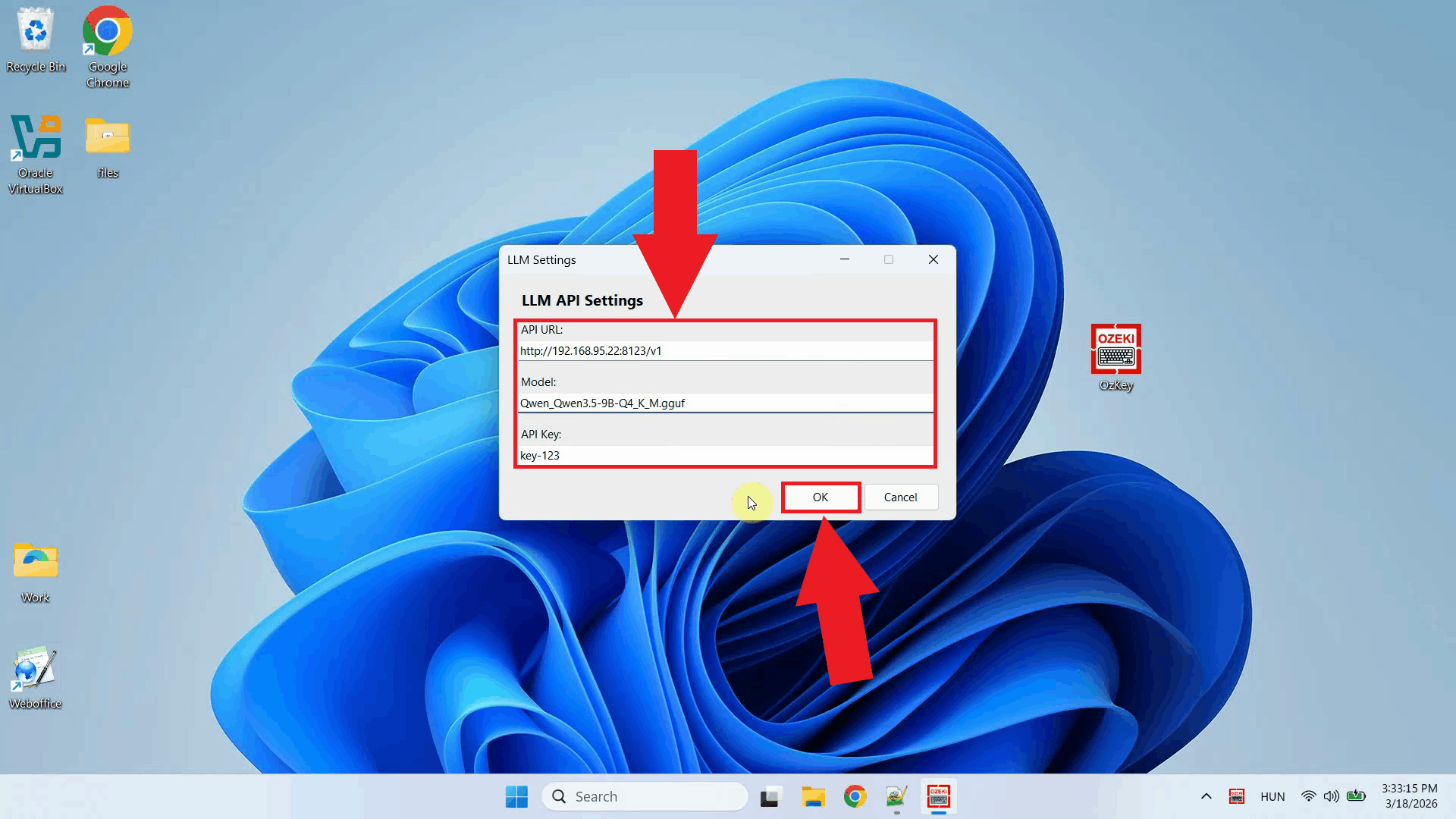
Enter the API URL of the Ubuntu machine and specify the model name. You can leave the API key field empty since LLama.cpp does not require authentication by default. Click OK to save the settings (Figure 21).
http://{ubuntu-machine-ip}:8123/v1
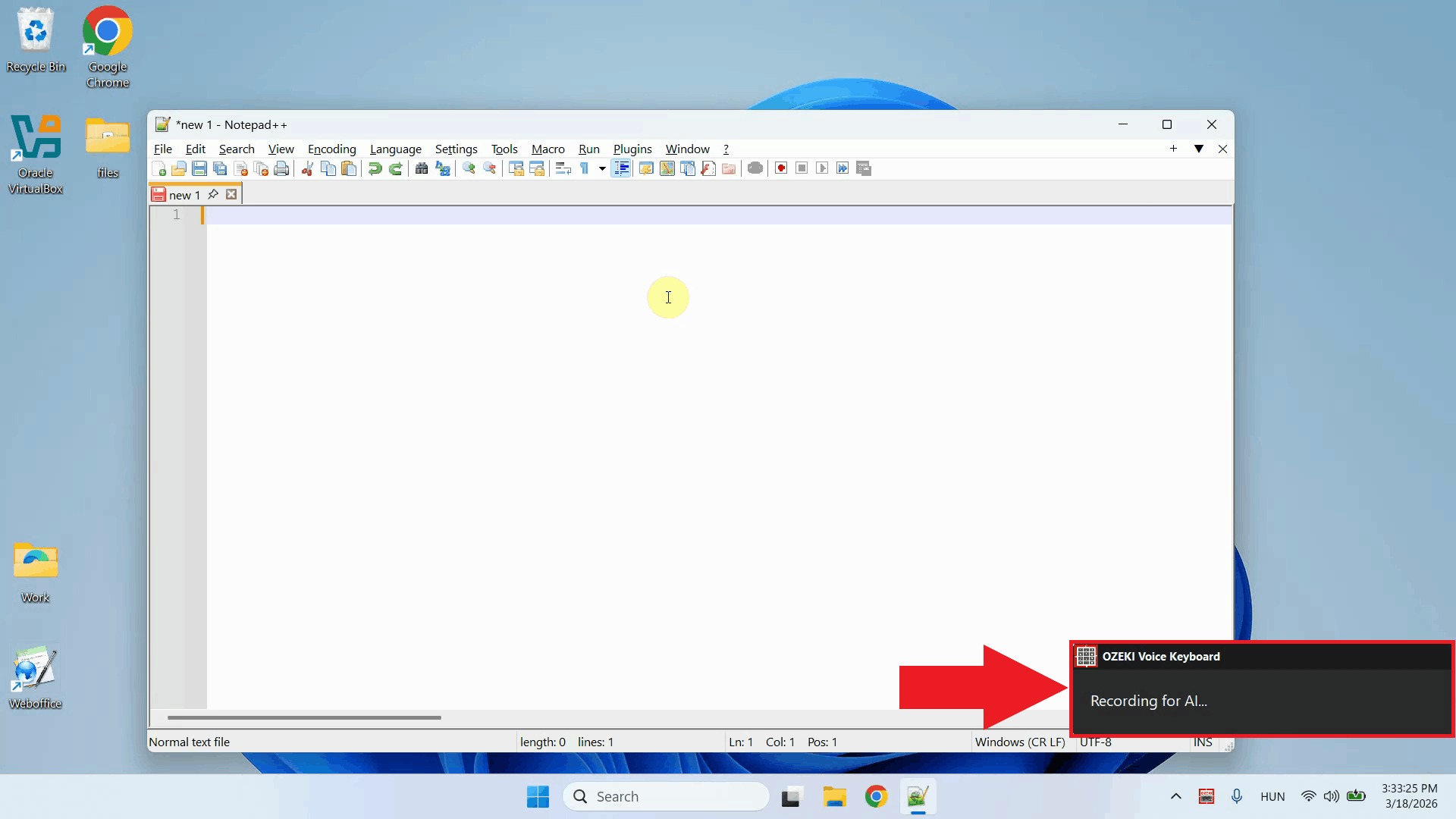
To test the AI assistant, place your cursor in any input field, then press and hold Ctrl + Space and speak your question into the microphone. Once you release the keys, the recording is transcribed and the resulting text is forwarded to the LLama.cpp server on the Ubuntu machine as a prompt (Figure 22).
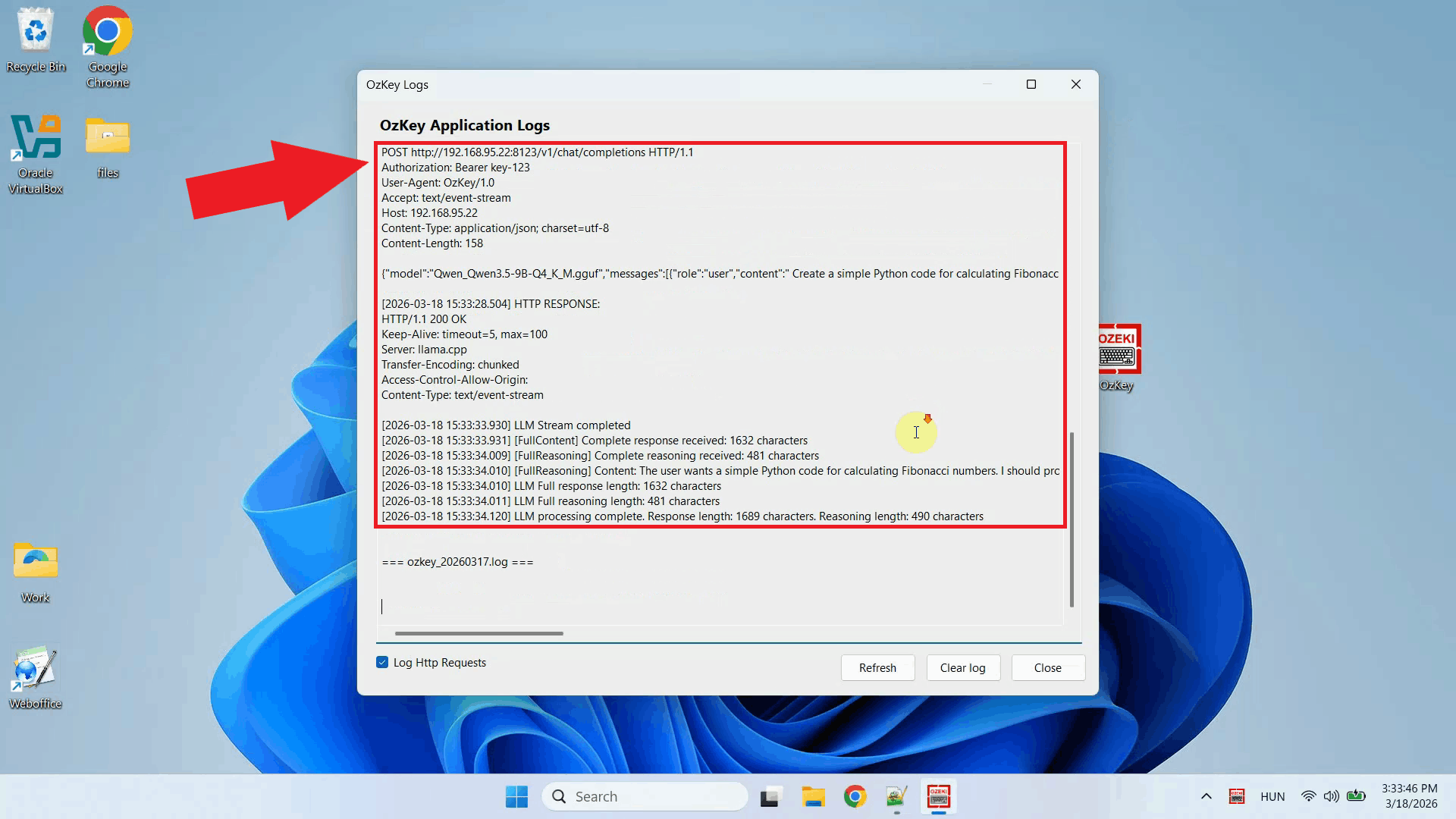
Open the Logs window to verify the request. You should see an HTTP request to the
LLama.cpp server's /v1/chat/completions endpoint on the Ubuntu machine,
confirming that Ozeki Voice Keyboard is successfully communicating with the remote
LLM backend (Figure 23).
To sum it up
You have successfully built and configured a LLama.cpp server on Ubuntu and connected it to Ozeki Voice Keyboard on Windows. The AI assistant will now use your Ubuntu machine's GPU to generate responses, giving you a high-performance, fully local LLM backend that operates entirely within your own network without relying on any external cloud service.