
How to select the Microphone in Ozeki Voice Keyboard
This guide demonstrates how to select and configure the microphone used by Ozeki Voice Keyboard. You will learn how to access the microphone settings through the system tray icon and choose your preferred input device from the available list.
Steps to follow
- Find the Voice Keyboard tray icon
- Open microphone settings
- Choose preferred microphone
- Save microphone settings
How to select the microphone video
The following video shows how to select the microphone in Ozeki Voice Keyboard step-by-step. The video covers locating the tray icon, opening the microphone settings, and selecting your preferred input device.
Step 1 - Find the Voice Keyboard tray icon
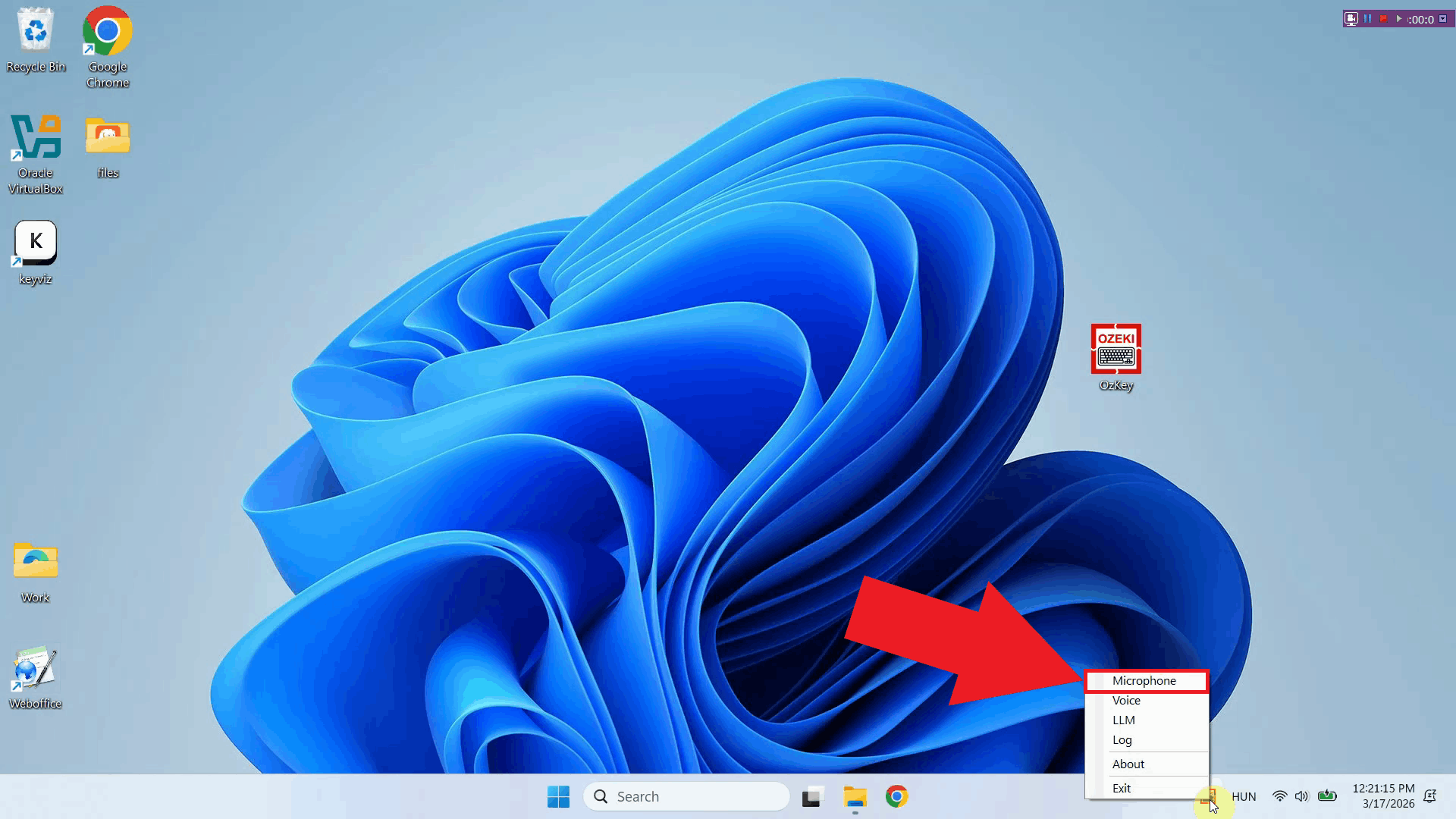
Ozeki Voice Keyboard runs in the background and can be accessed through the Windows system tray in the bottom right corner of your taskbar. If you do not see the icon, click the arrow to expand the hidden tray icons (Figure 1).

Step 2 - Open microphone settings
Right-click the Ozeki Voice Keyboard tray icon to open the context menu. From the menu, select the microphone settings option to open the microphone configuration window (Figure 2).
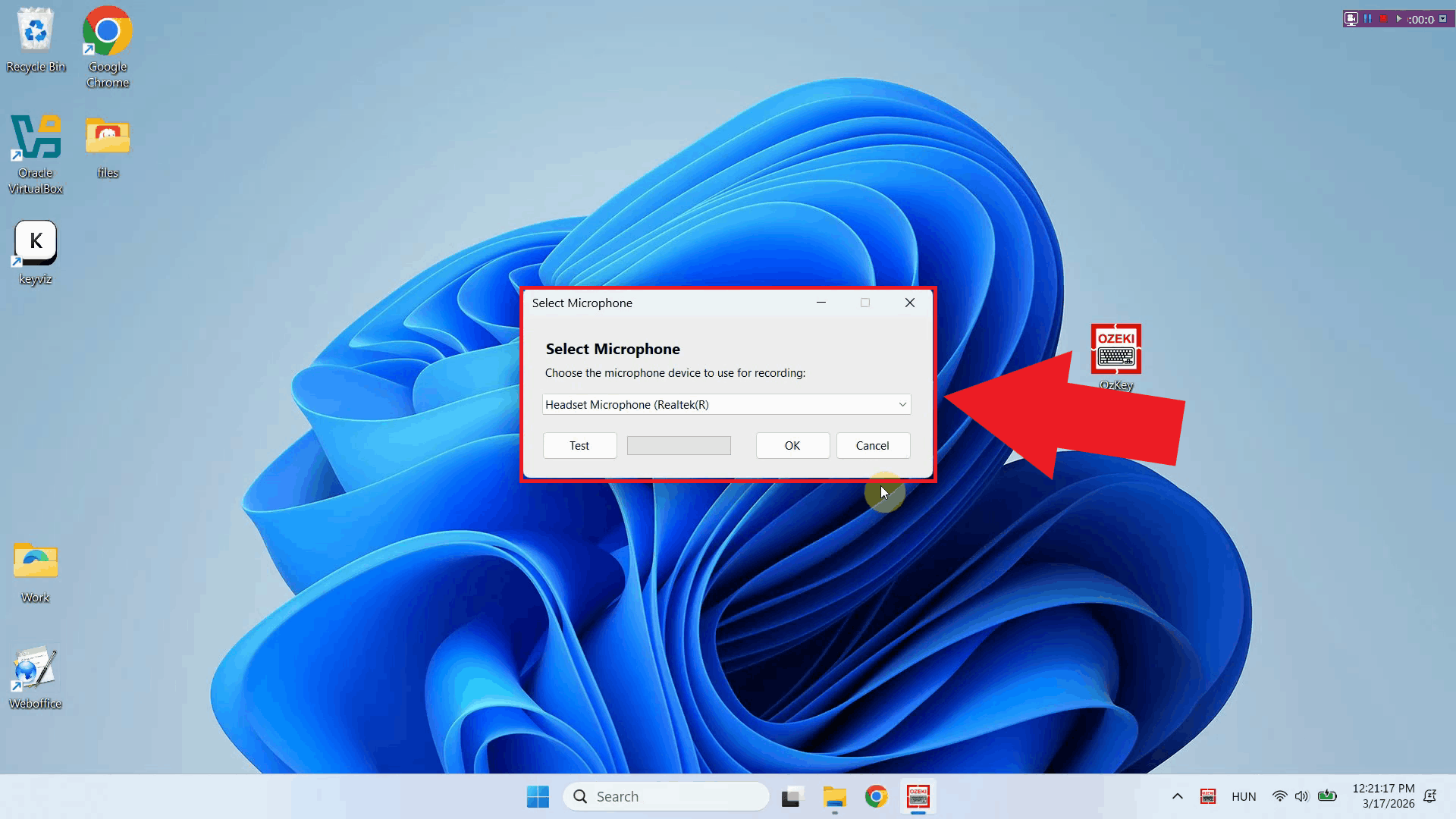
The microphone selection window lists all audio input devices currently available on your system. This includes any built-in microphones, USB microphones, headsets, or other recording devices that are connected and recognized by Windows (Figure 3).
Step 3 - Choose preferred microphone
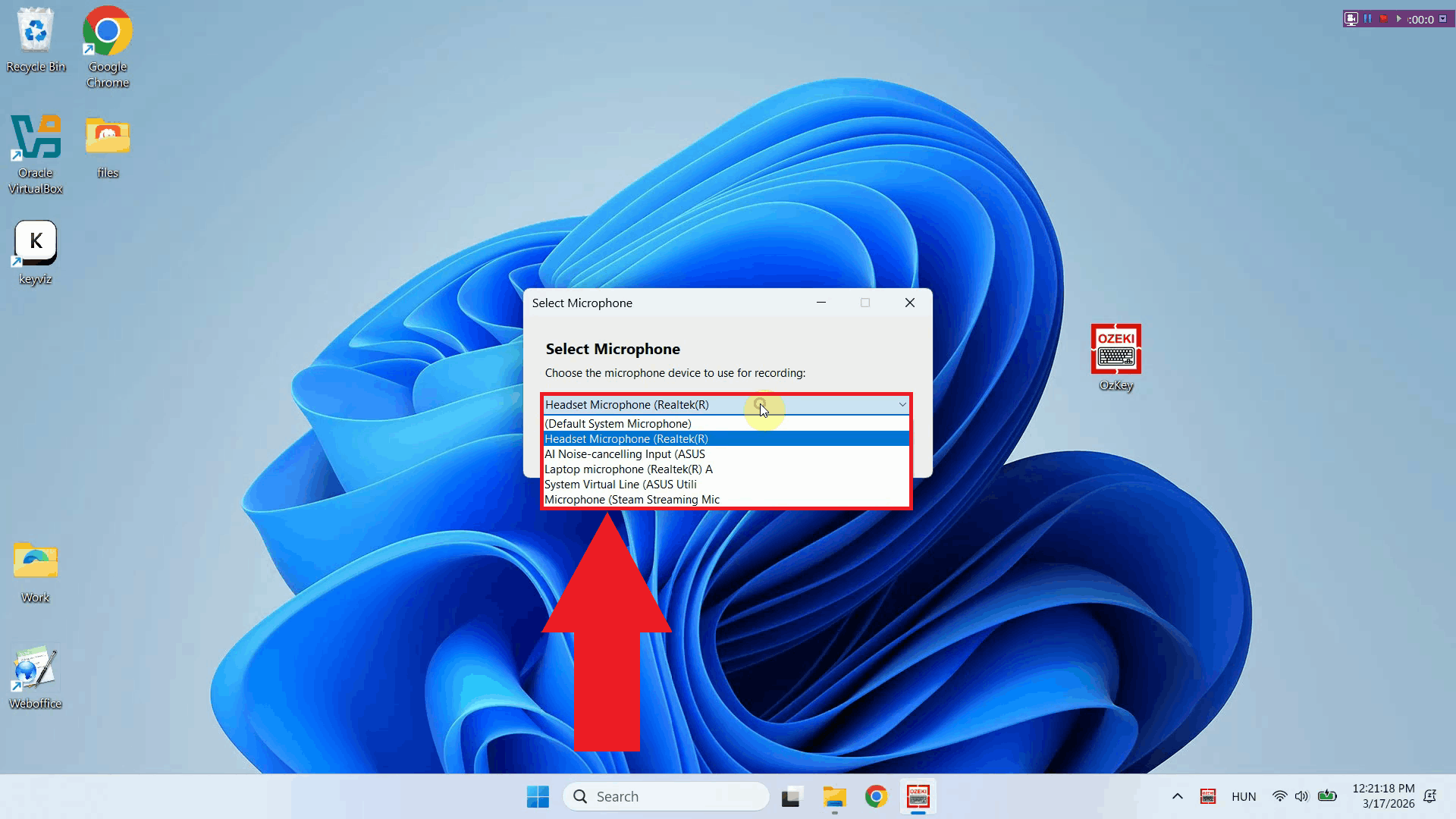
Click the dropdown list to see all available microphone devices and select the one you want Ozeki Voice Keyboard to use for recording. Choose the device that best suits your setup - for example, a dedicated USB microphone or headset will generally produce better transcription results than a built-in laptop microphone (Figure 4).
Step 4 - Save microphone settings
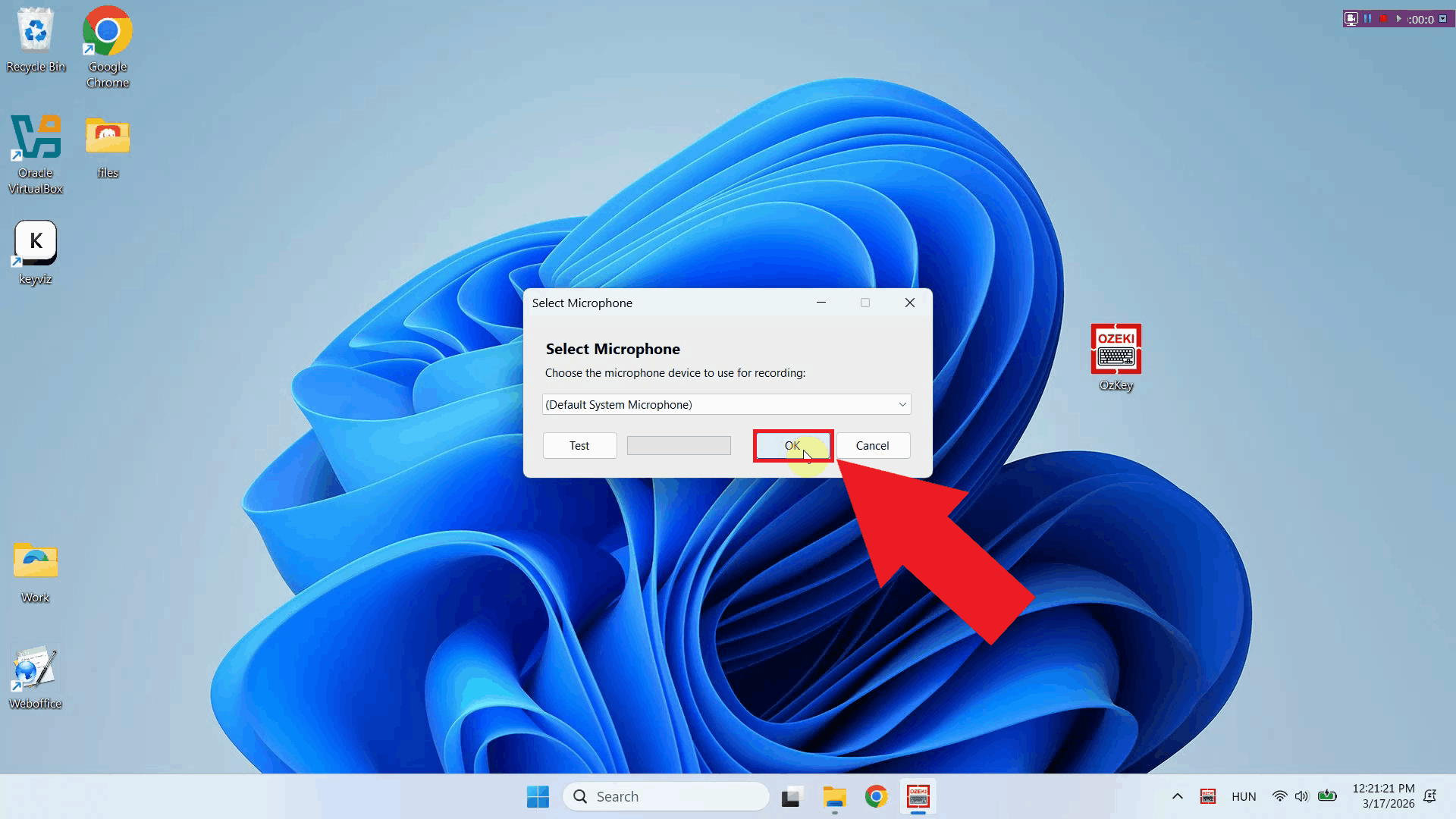
Once you have selected your preferred microphone, click OK to save the configuration. Ozeki Voice Keyboard will now use the selected device for all future voice recordings. You can return to this settings window at any time to switch to a different microphone if needed (Figure 5).
To sum it up
You have successfully configured the microphone for Ozeki Voice Keyboard. The application will now use your selected input device when recording voice for transcription, helping ensure the best possible speech recognition accuracy for your setup.