
How to set LLM service in Ozeki Voice Keyboard
This guide demonstrates how to configure the LLM service used by Ozeki Voice Keyboard for its AI assistant feature. You will learn how to access the LLM API settings through the system tray icon and enter your API URL, model, and API key.
Steps to follow
- Find the Voice Keyboard tray icon
- Open LLM API settings
- Enter API URL, AI model and API key
- Save LLM settings
How to set your LLM service video
The following video shows how to set the LLM service in Ozeki Voice Keyboard step-by-step. The video covers locating the tray icon, opening the LLM API settings, and entering the connection details for your chosen AI service.
Step 1 - Find the Voice Keyboard tray icon
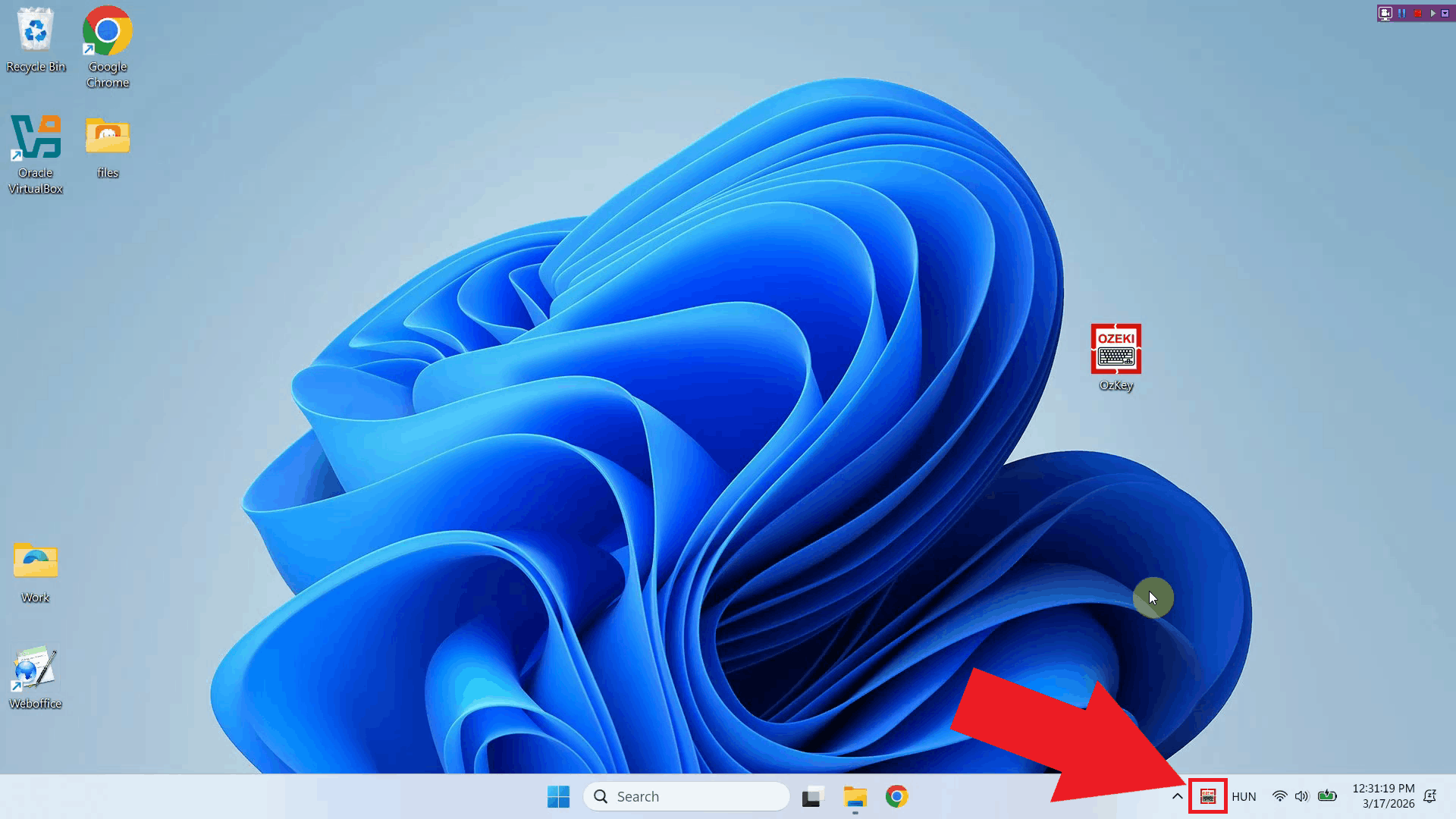
Ozeki Voice Keyboard runs in the background and can be accessed through the Windows system tray in the bottom right corner of your taskbar. If you do not see the icon, click the arrow to expand the hidden tray icons (Figure 1).
Step 2 - Open LLM API settings
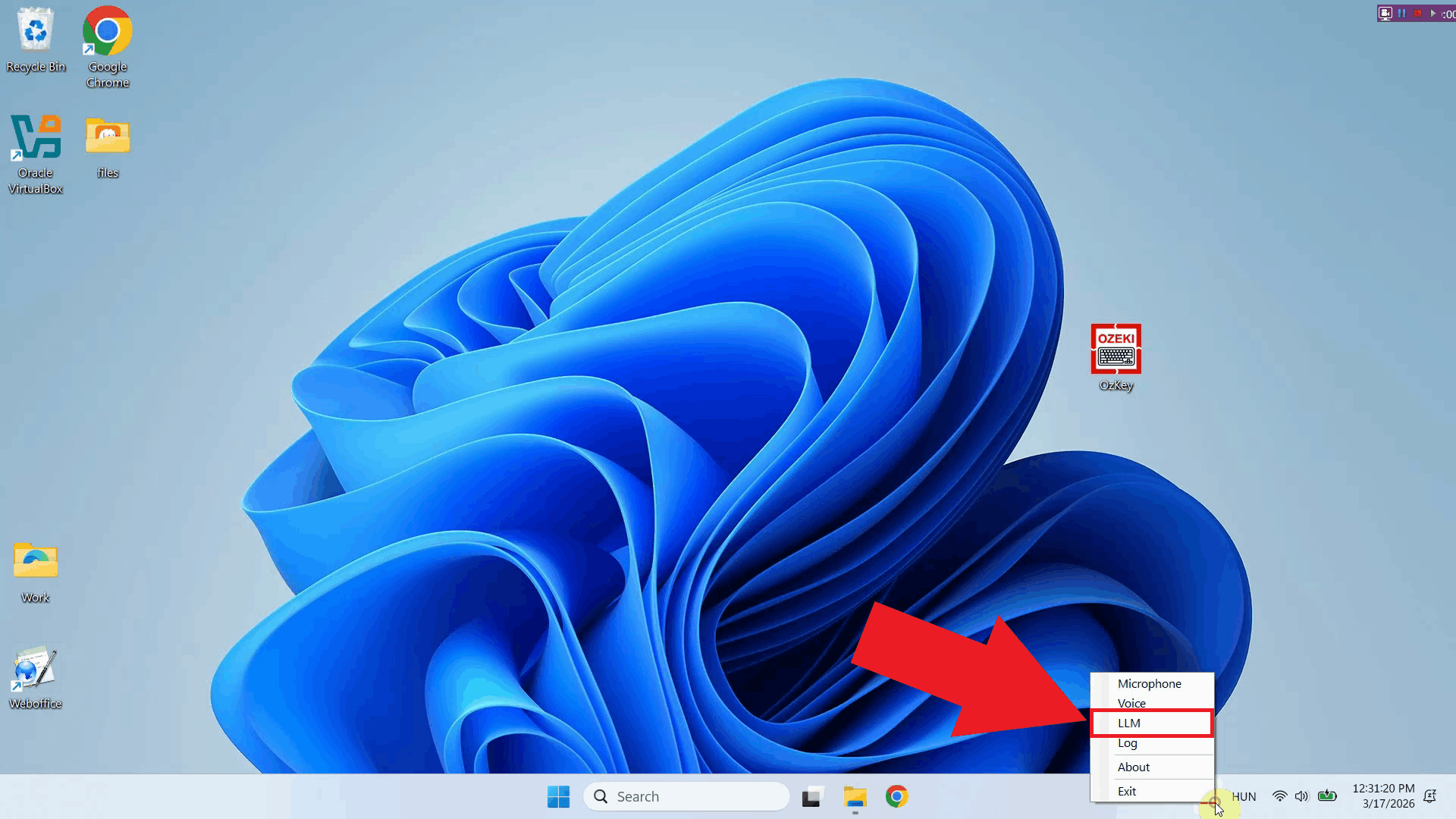
Right-click the Ozeki Voice Keyboard tray icon to open the context menu. From the menu, select the LLM settings option to open the configuration window where you can enter your AI service connection details (Figure 2).
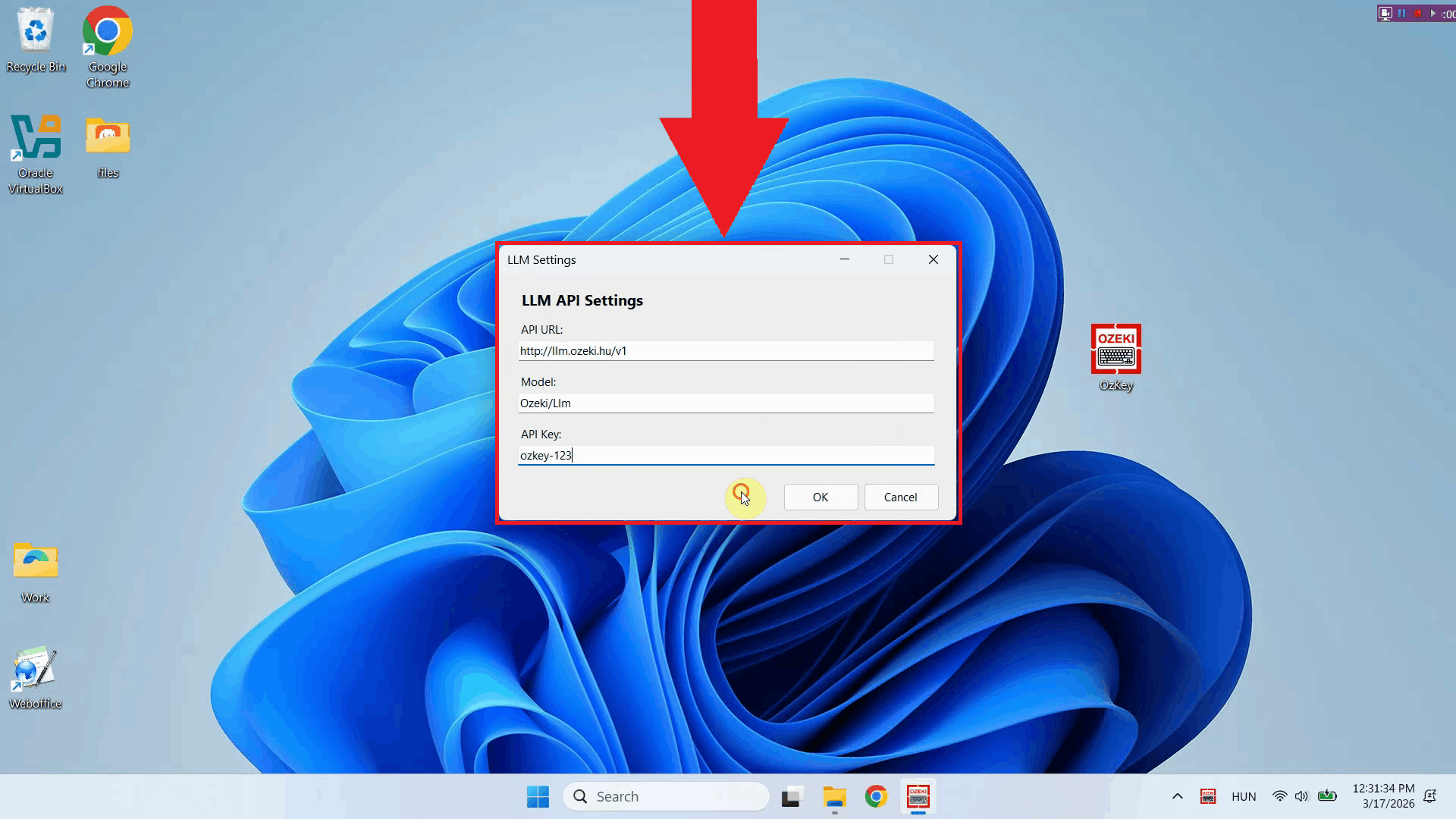
The LLM settings window is used to configure the AI assistant feature of Ozeki Voice Keyboard. When you press Ctrl + Space, your question is sent to this service and the response is typed directly into your active input field. Here you can specify the API endpoint URL, the model, and the API key for authentication (Figure 3).
Step 3 - Enter API URL, AI model and API key
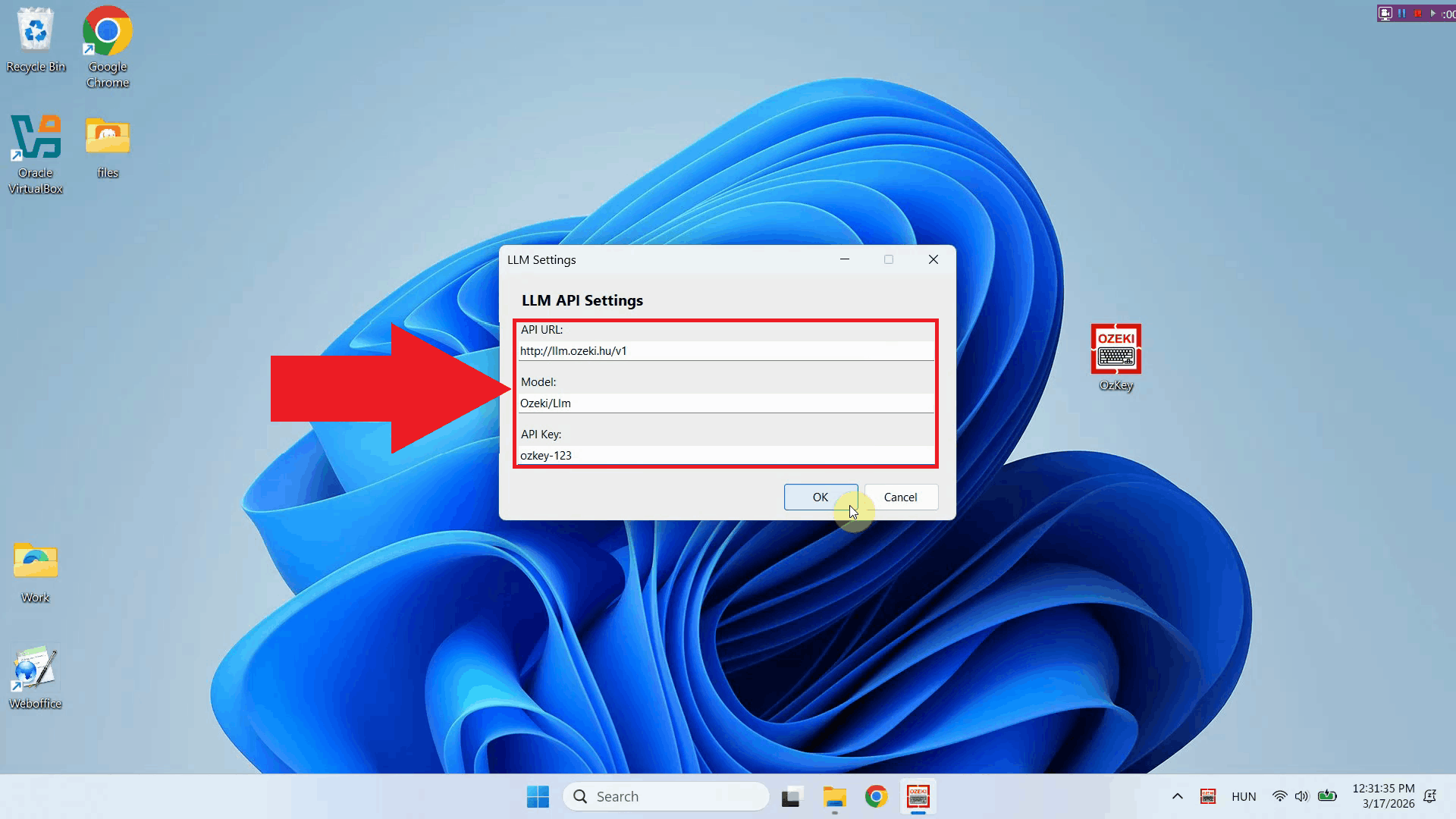
Fill in the required fields with your LLM service connection details. Enter the API endpoint URL, specify the model name, and paste in your API key. Ozeki Voice Keyboard is compatible with any OpenAI-compatible endpoint, including local models and third-party providers (Figure 4).
Step 4 - Save LLM settings
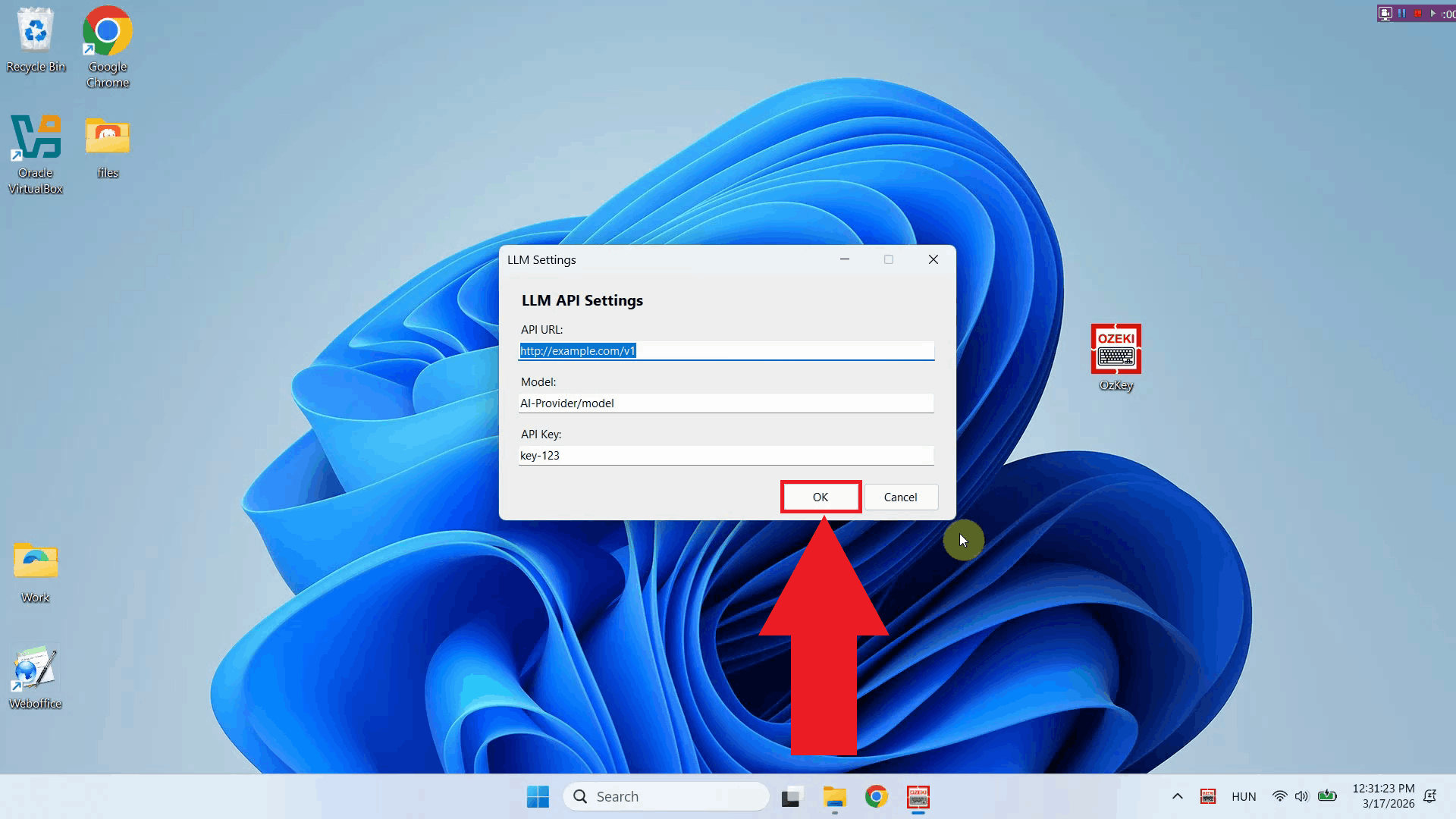
Once you have filled in all the required fields, click OK to save the configuration. The AI assistant is now ready to use - simply place your cursor in any input field, press the hotkey, and the response will be typed out automatically (Figure 5).
Conclusion
You have successfully configured the LLM service for Ozeki Voice Keyboard. The application will now use your specified AI service and model when you press Ctrl + Space to ask a question, typing the AI's response directly into your active input field. You can connect to any compatible API endpoint, including local or cloud-based AI providers.