
How to Reinstall Ozeki Voice Keyboard
This guide demonstrates how to reinstall Ozeki Voice Keyboard on Windows. Reinstalling is useful when the application is not functioning correctly or after a system change. The process involves uninstalling the current version and then running the installer to set up a fresh copy of the application.
Steps to follow
How to uninstall Ozeki Voice Keyboard video
The following video shows how to uninstall Ozeki Voice Keyboard in preparation for reinstallation. The video covers locating the application in the installed apps list and running the uninstaller to completion.
Step 1 - Uninstall Ozeki Voice Keyboard
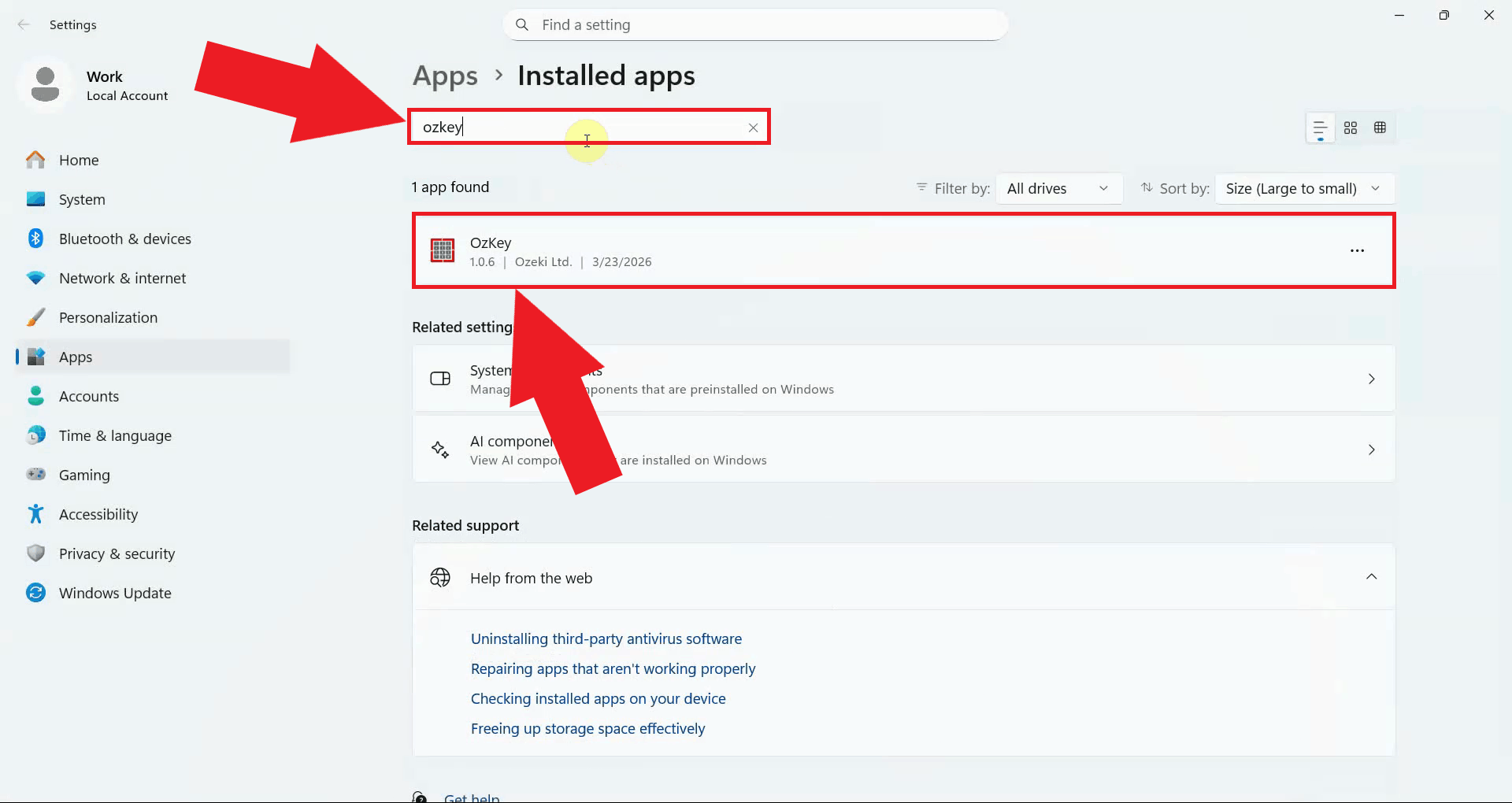
Click the Windows Search bar in the taskbar, type Installed Apps, and open the result. Use the search bar on the Installed Apps page to find OzKey, it will appear in the filtered results once the search completes (Figure 1).
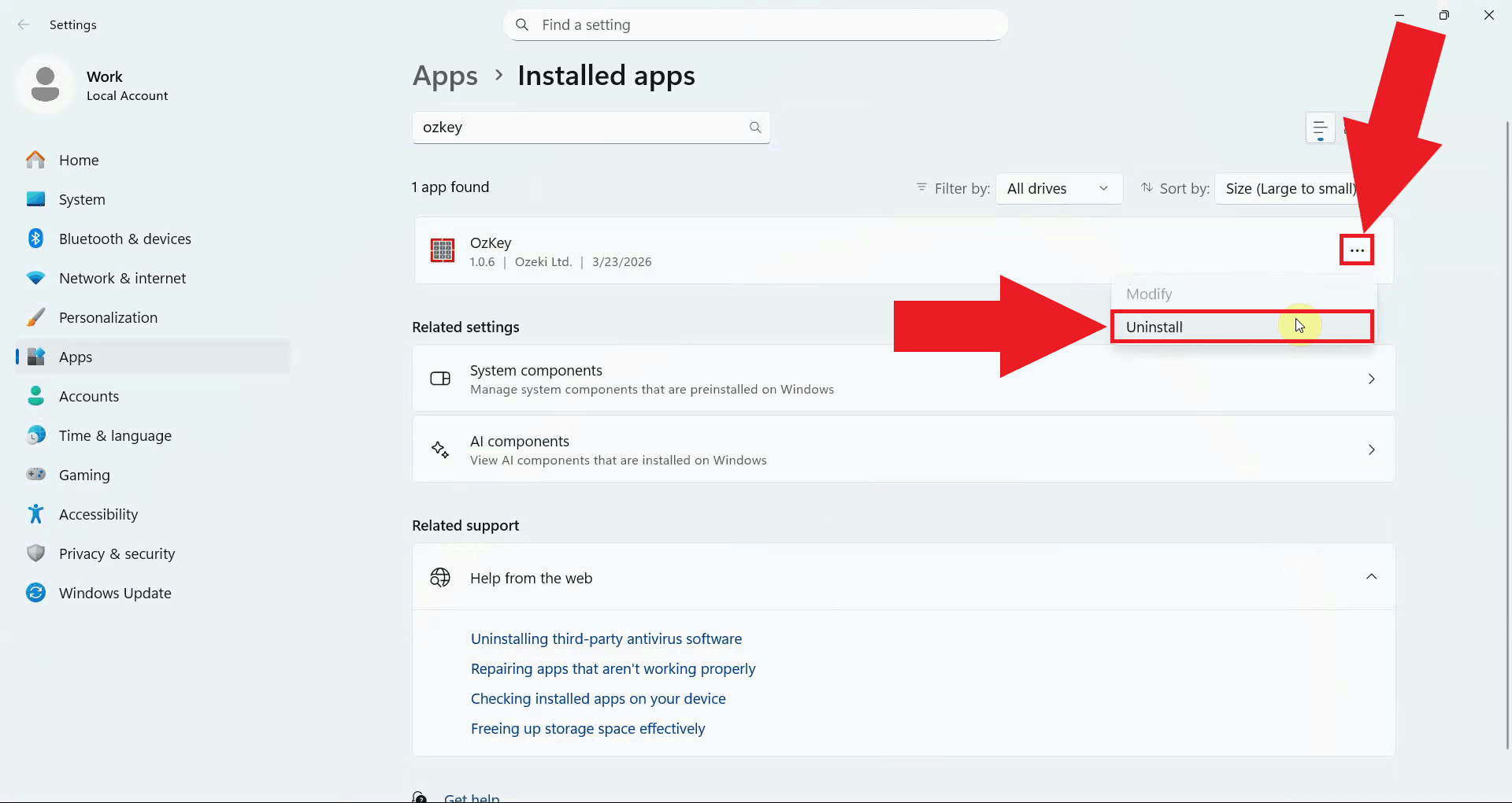
Click the three-dot menu button on the right side of the OzKey entry and select Uninstall from the dropdown menu. This will launch the OzKey uninstaller window (Figure 2).
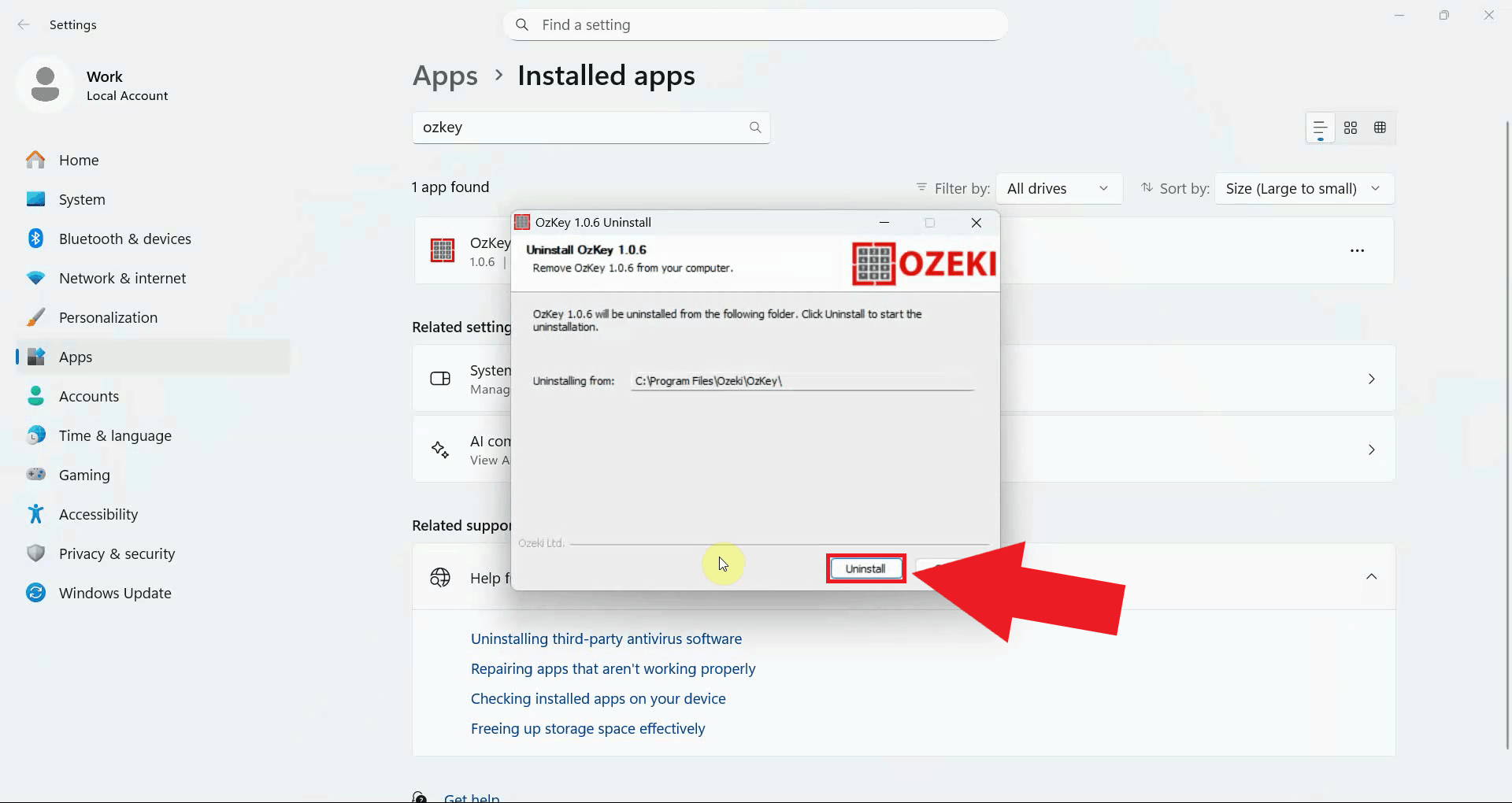
In the OzKey uninstaller window, click the Uninstall button to begin removing the application. The uninstaller will automatically remove all application files and system entries (Figure 3).
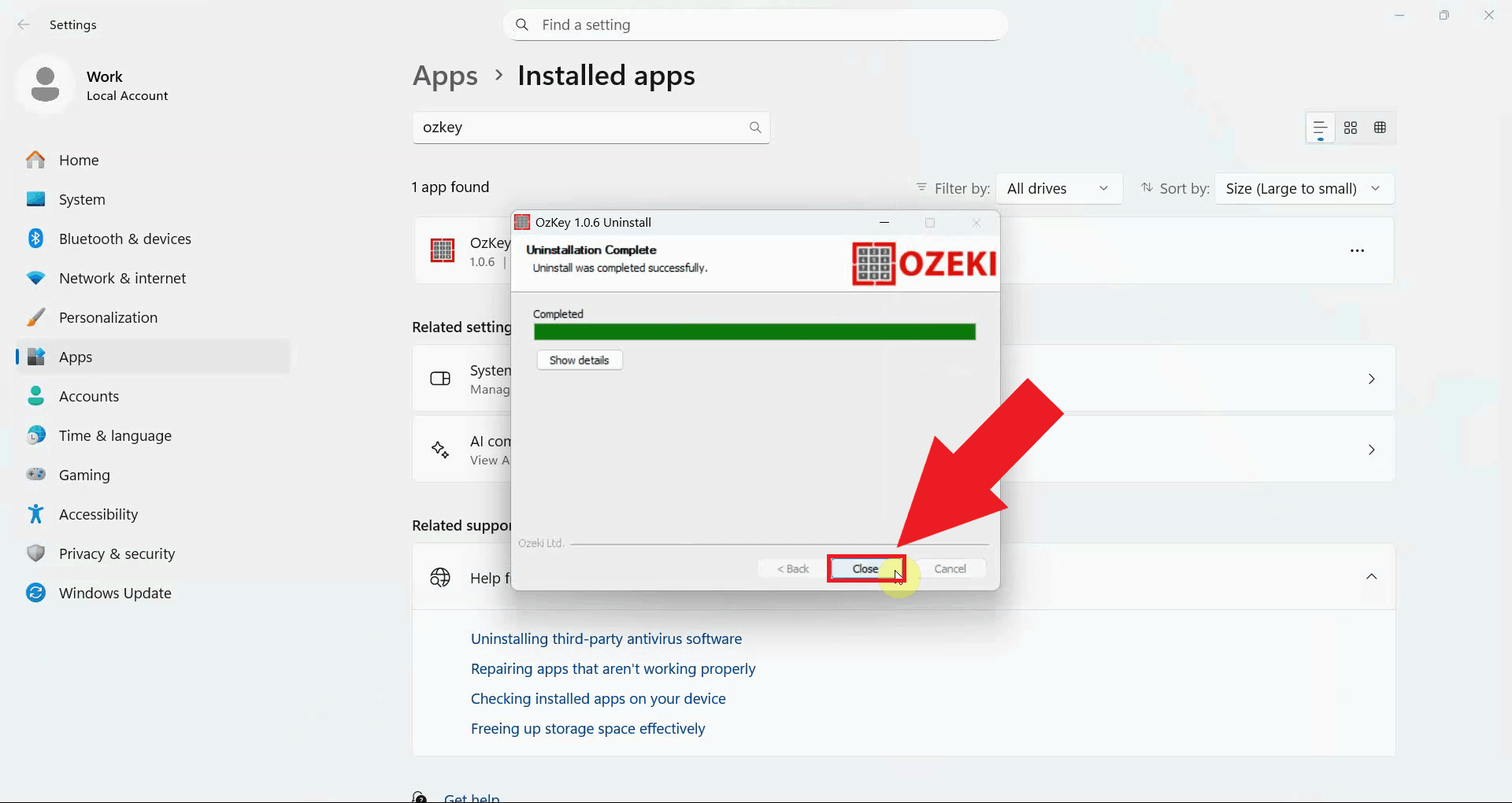
Once the uninstallation is complete, a confirmation message will appear. Click Close to dismiss the window before proceeding with the reinstallation (Figure 4).
Step 2 - Reinstall Ozeki Voice Keyboard
The following video shows how to reinstall Ozeki Voice Keyboard after the previous version has been removed. The video covers running the installer and completing the setup wizard.
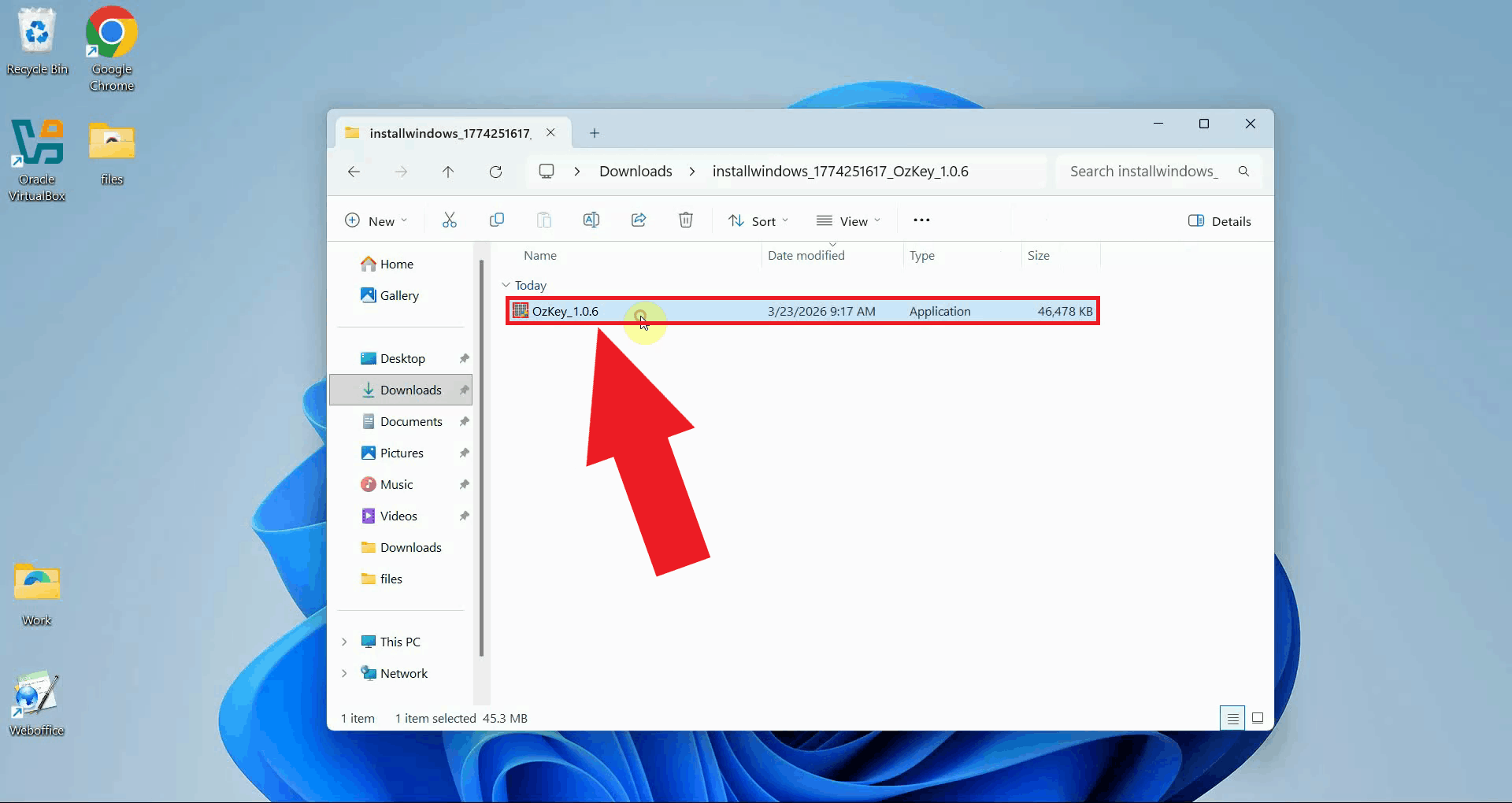
Locate the OzKey installer executable - if you no longer have it, download the latest version from the Ozeki Voice Keyboard download page and extract it from the ZIP file. Double-click the installer to launch the setup wizard, and confirm any User Account Control prompt that appears (Figure 5).
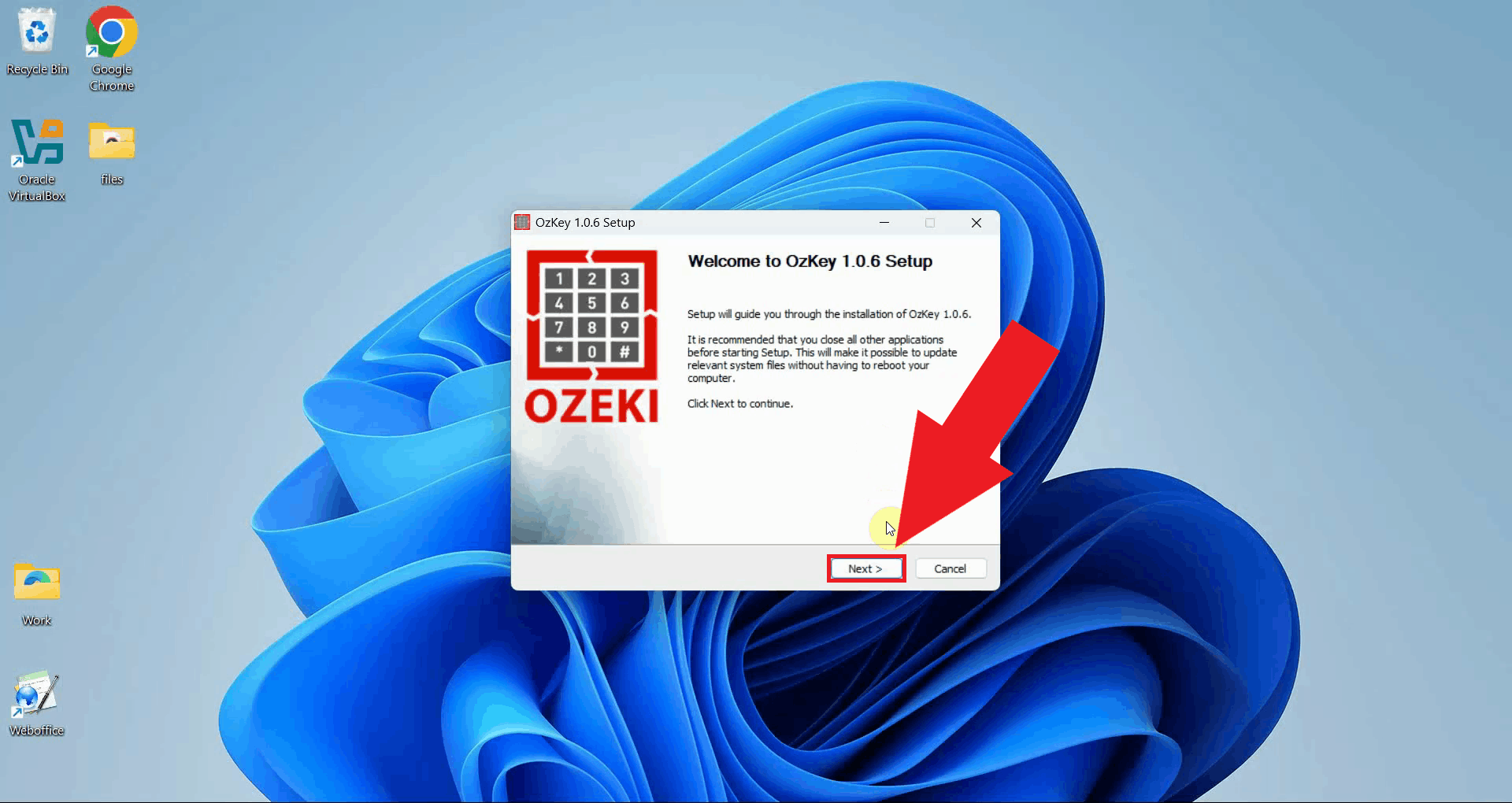
The setup wizard welcome screen will appear. Proceed through the installation steps by accepting the license agreement, choosing the installation location, and selecting your preferred components, then click Install to begin (Figure 6).
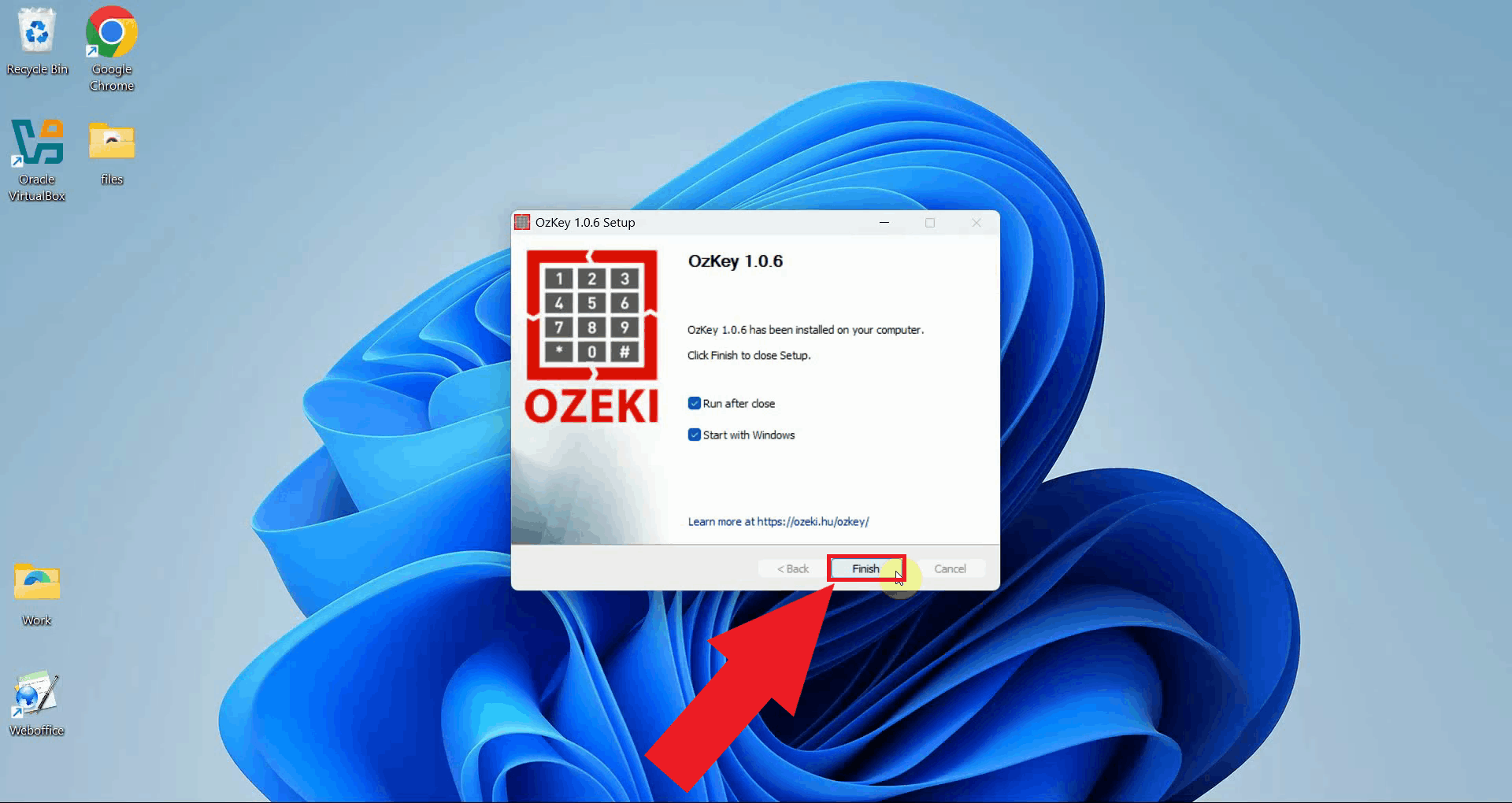
Once the installation is complete, the wizard will display a confirmation screen. Click Finish to close the installer. Ozeki Voice Keyboard is now freshly installed and ready to be configured (Figure 7).
To sum it up
You have successfully reinstalled Ozeki Voice Keyboard on your Windows system. The application has been cleanly removed and set up from scratch, which resolves most issues caused by corrupted or outdated installation files.