
How to use Ozeki Voice Keyboard through Ozeki AI Gateway
This guide demonstrates how to connect Ozeki Voice Keyboard to Ozeki AI Gateway, allowing you to route both voice transcription and AI assistant requests through a centralized gateway. This setup is ideal for teams and organizations that want to manage API access, monitor usage, and control which AI models are available to users from a single point.
How it works
The diagram below illustrates the system architecture.
Ozeki Voice Keyboard] W2[Windows PC 2
Ozeki Voice Keyboard] end subgraph Gateway GW[Ozeki AI Gateway] end subgraph Linux Servers WH[Linux Server
Whisper - Voice Transcription] LLM[Linux Server
LLM - AI Assistant] end W1 -->|Voice & LLM requests| GW W2 -->|Voice & LLM requests| GW GW -->|/v1/audio/transcriptions| WH GW -->|/v1/chat/completions| LLM
Steps to follow
- Prerequisites
- Open Ozeki Voice Keyboard
- Configure Voice settings
- Configure LLM settings
- Test the AI assistant
- Verify requests in logs
How to use Ozeki Voice Keyboard through Ozeki AI Gateway video
The following video shows how to connect Ozeki Voice Keyboard to Ozeki AI Gateway step-by-step. The video covers verifying the gateway prerequisites, configuring both the Voice and LLM settings on the client, and confirming that requests are routed correctly through the gateway.
Step 1 - Prerequisites
We assume Ozeki AI Gateway is already installed on your system. You can install it on Linux, Windows or Mac.
Providers
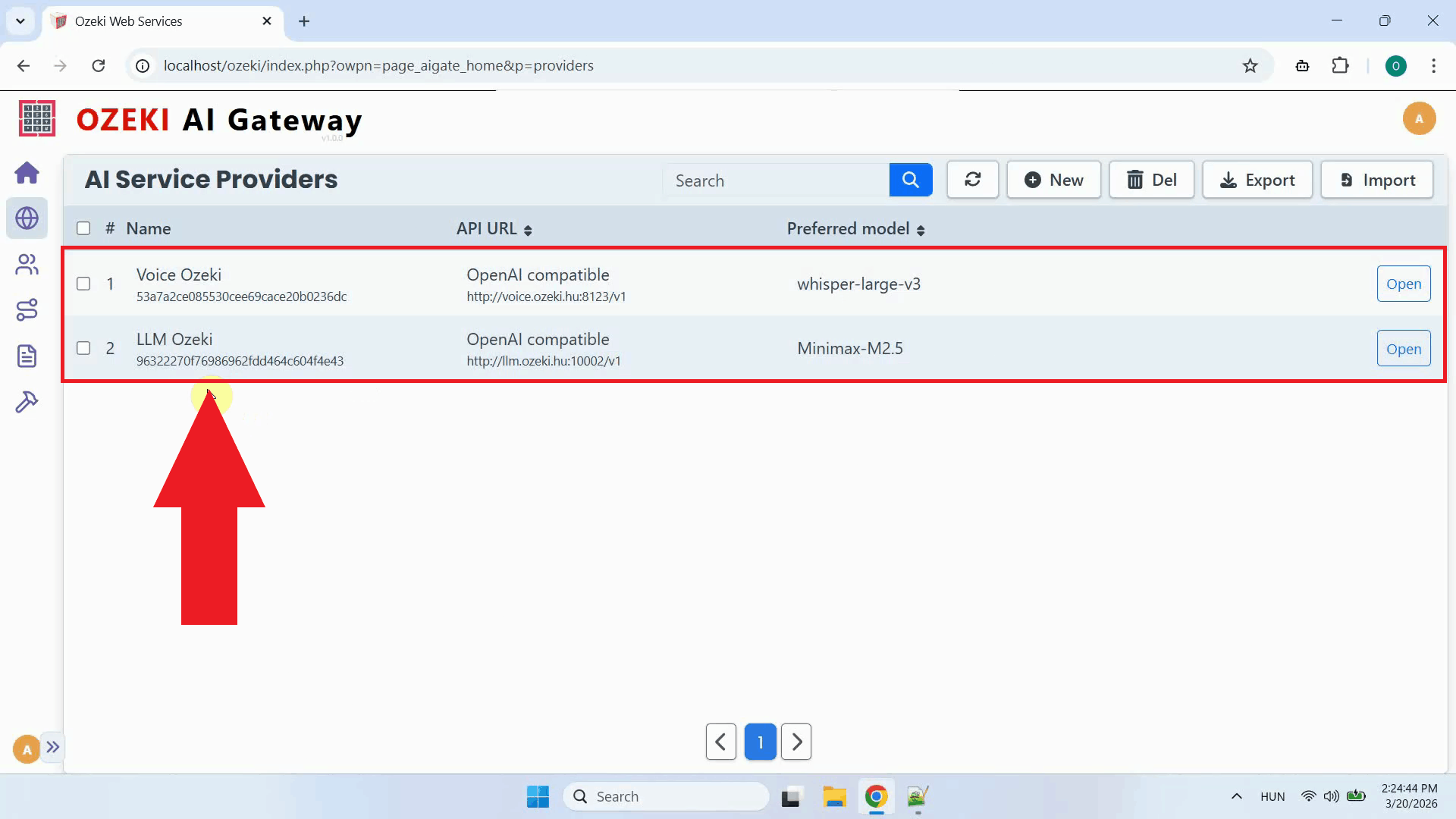
Open the Ozeki AI Gateway web interface and navigate to the Providers page. Confirm that two providers are registered: one configured with your Whisper endpoint for speech-to-text transcription, and one configured with your LLM endpoint for the AI assistant (Figure 1).
If you have not set up a provider yet, check out our How to connect to an AI service provider guide.
User account
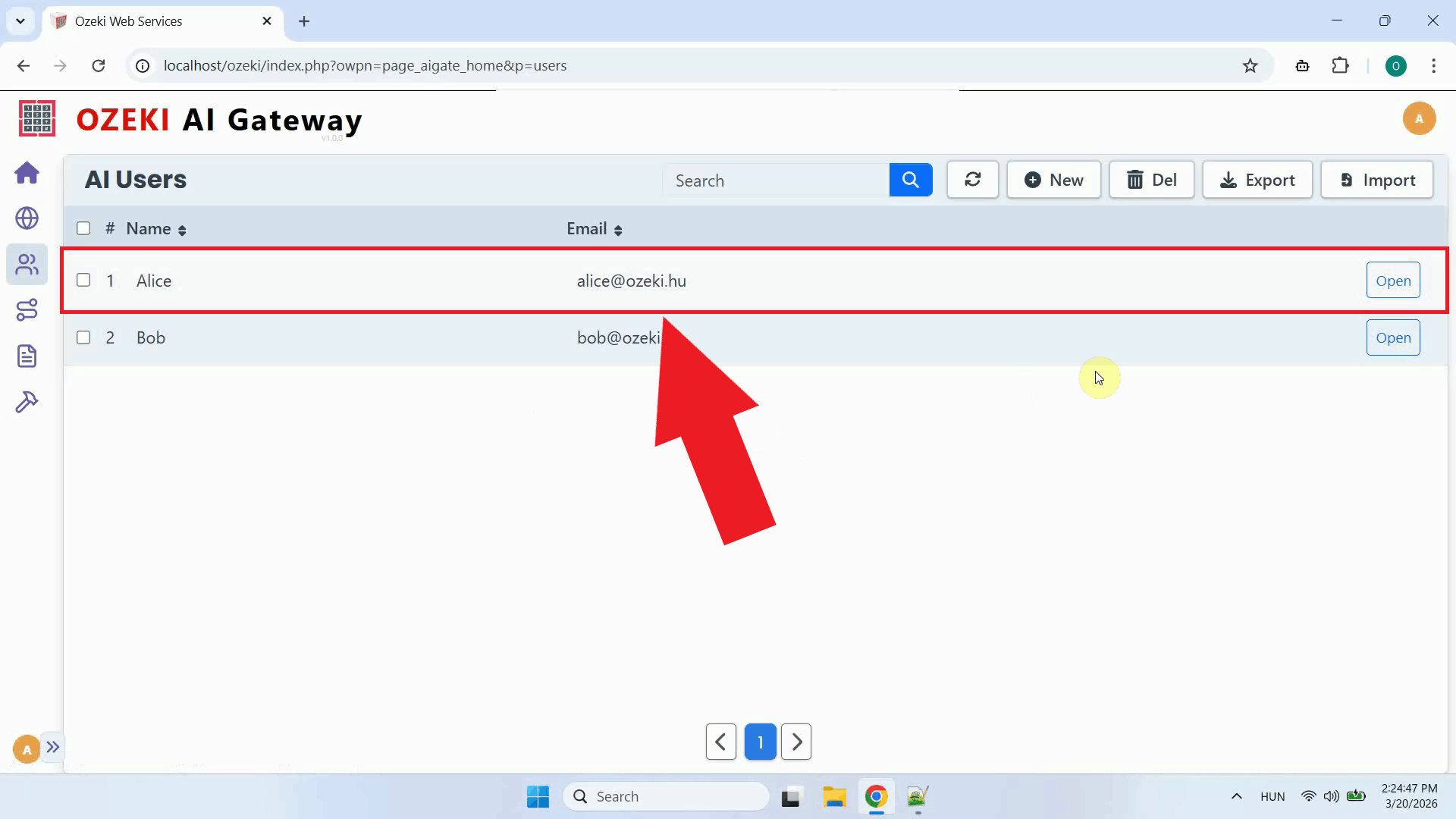
Navigate to the AI Users page and confirm that a user account exists for the Ozeki Voice Keyboard clients. This user account acts as the identity under which all requests from the client machines will be authenticated and tracked by the gateway (Figure 2).
If you haven't created an AI user account yet, check out our How to create a user account guide.
API keys
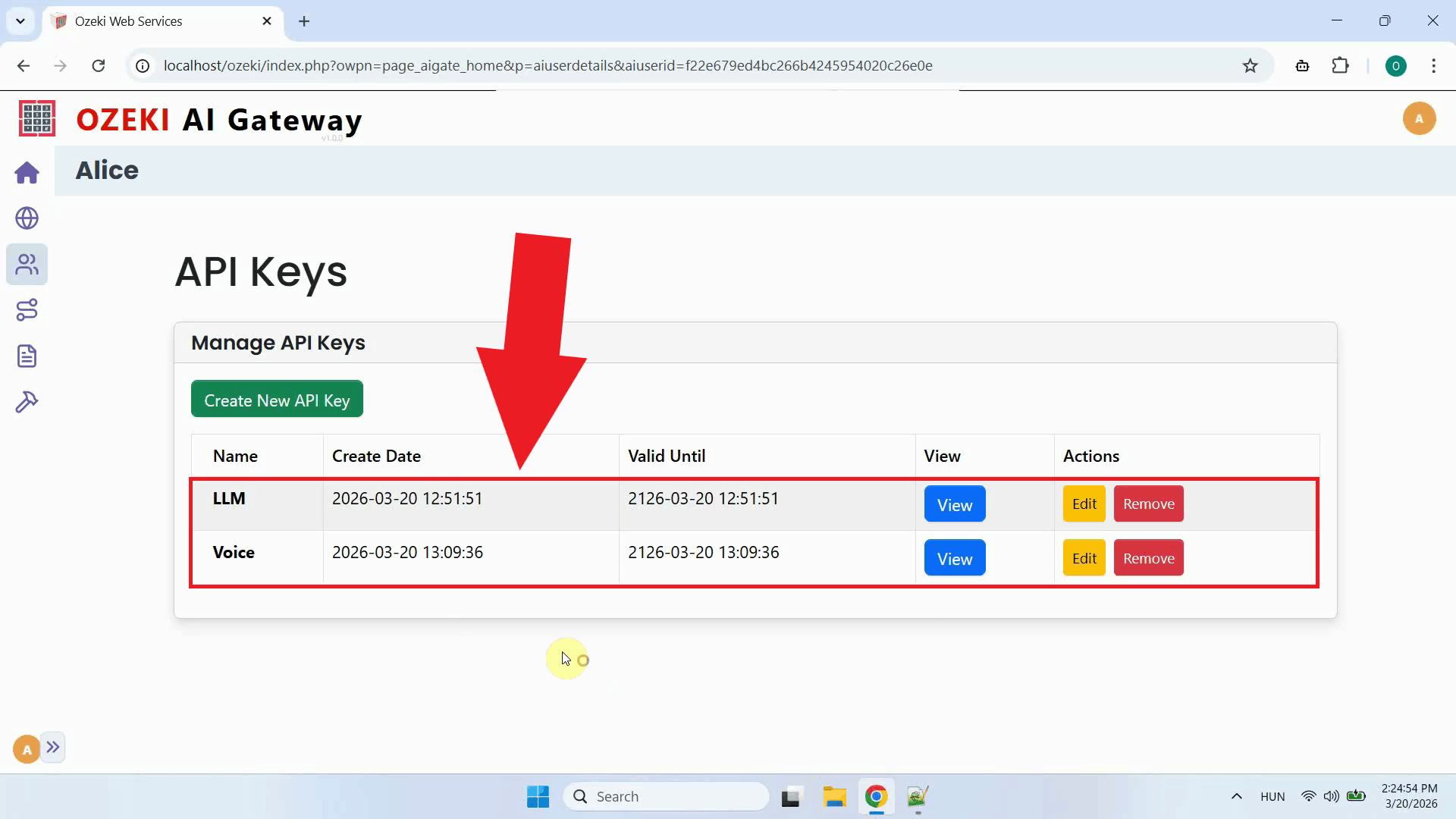
Open the user account's API keys page. Two API keys must be present: one that will be used to authenticate voice transcription requests, and one for LLM requests. Having separate keys for each service makes it easier to monitor and control access independently (Figure 3).
Check out our How to create API keys for your users guide if you don't know how to create API keys.
Routes
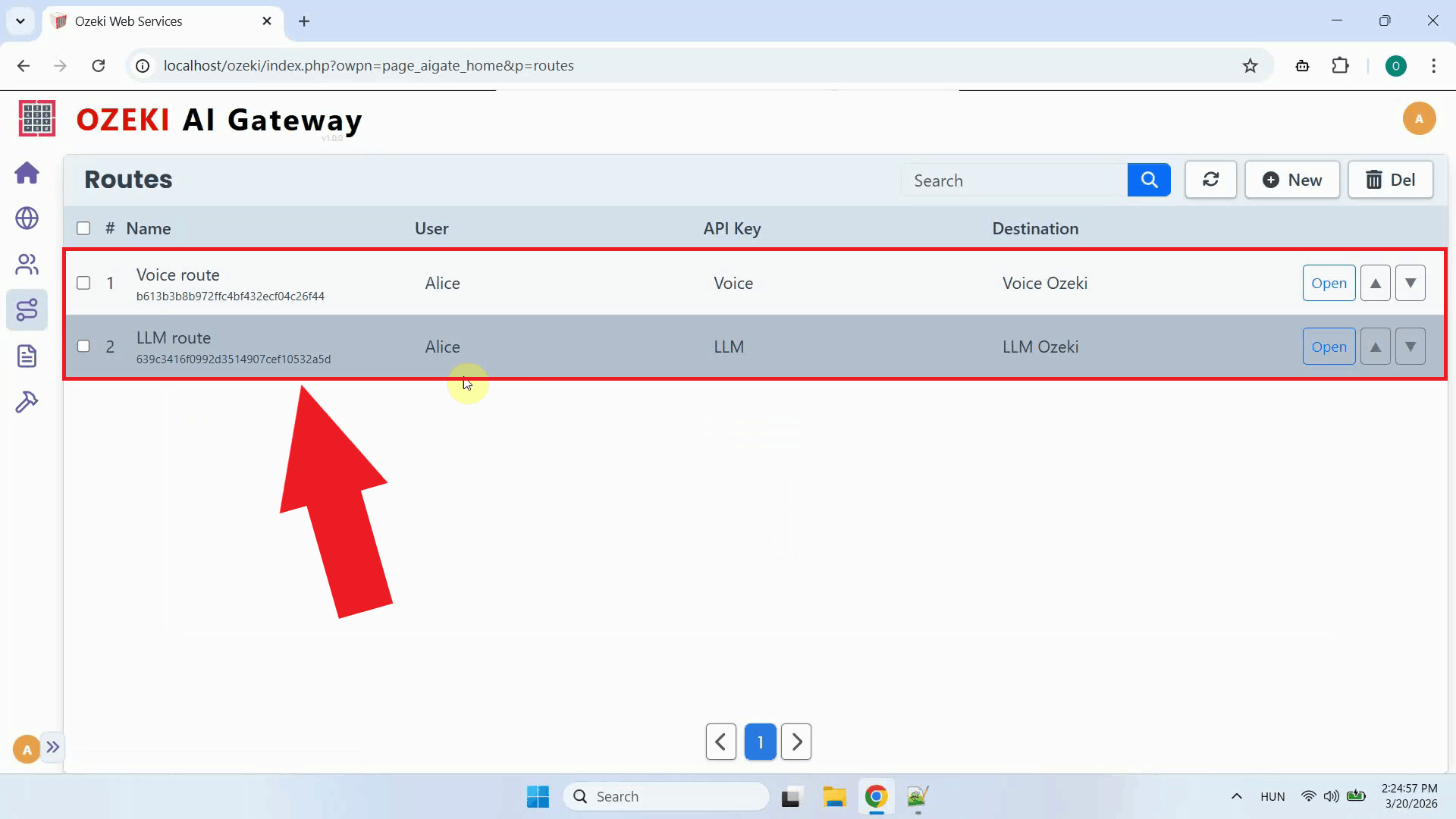
Navigate to the Routes page and confirm that two routes are configured: one connecting the user to the Whisper provider, and one connecting the user to the LLM provider. Routes define which users are permitted to send requests to which providers, and which models they are allowed to use (Figure 4).
If you haven't configured a route yet, you can find instructions in our How to route AI API requests guide.
Step 2 - Open Ozeki Voice Keyboard
On your Windows machine, open Ozeki Voice Keyboard and locate its icon in the system tray in the bottom right corner of your taskbar (Figure 5).

Step 3 - Configure Voice settings
Right-click the tray icon and open the Voice settings from the context menu (Figure 6).

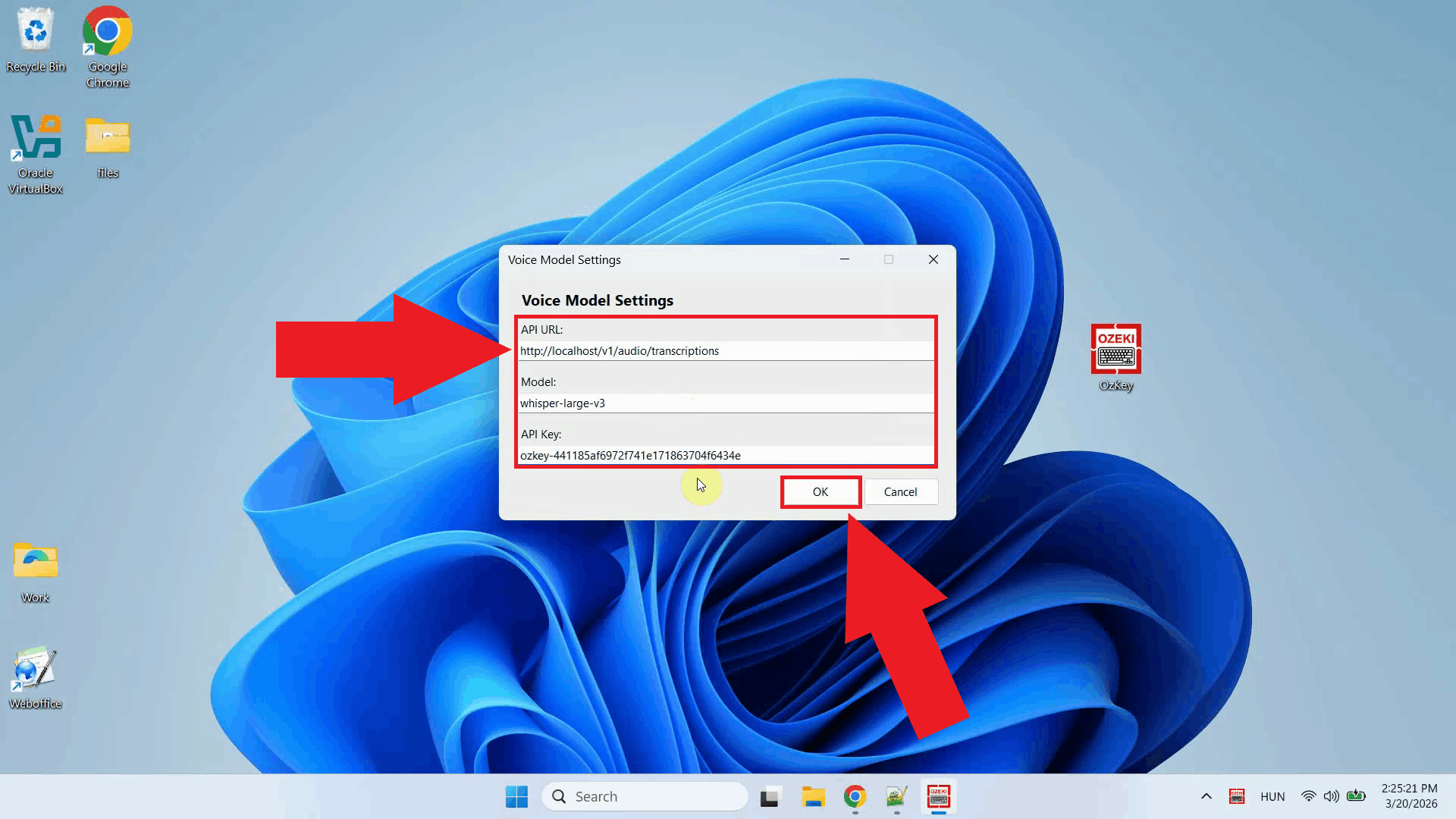
Enter the Ozeki AI Gateway URL as the API endpoint, specify the Whisper model name, and paste the API key you generated for the user account. The gateway will receive the audio request and forward it to the configured Whisper provider. Click OK to save the settings (Figure 7).
http://localhost/v1/audio/transcriptions
Step 4 - Configure LLM settings
Right-click the tray icon again and open the LLM settings from the context menu (Figure 8).

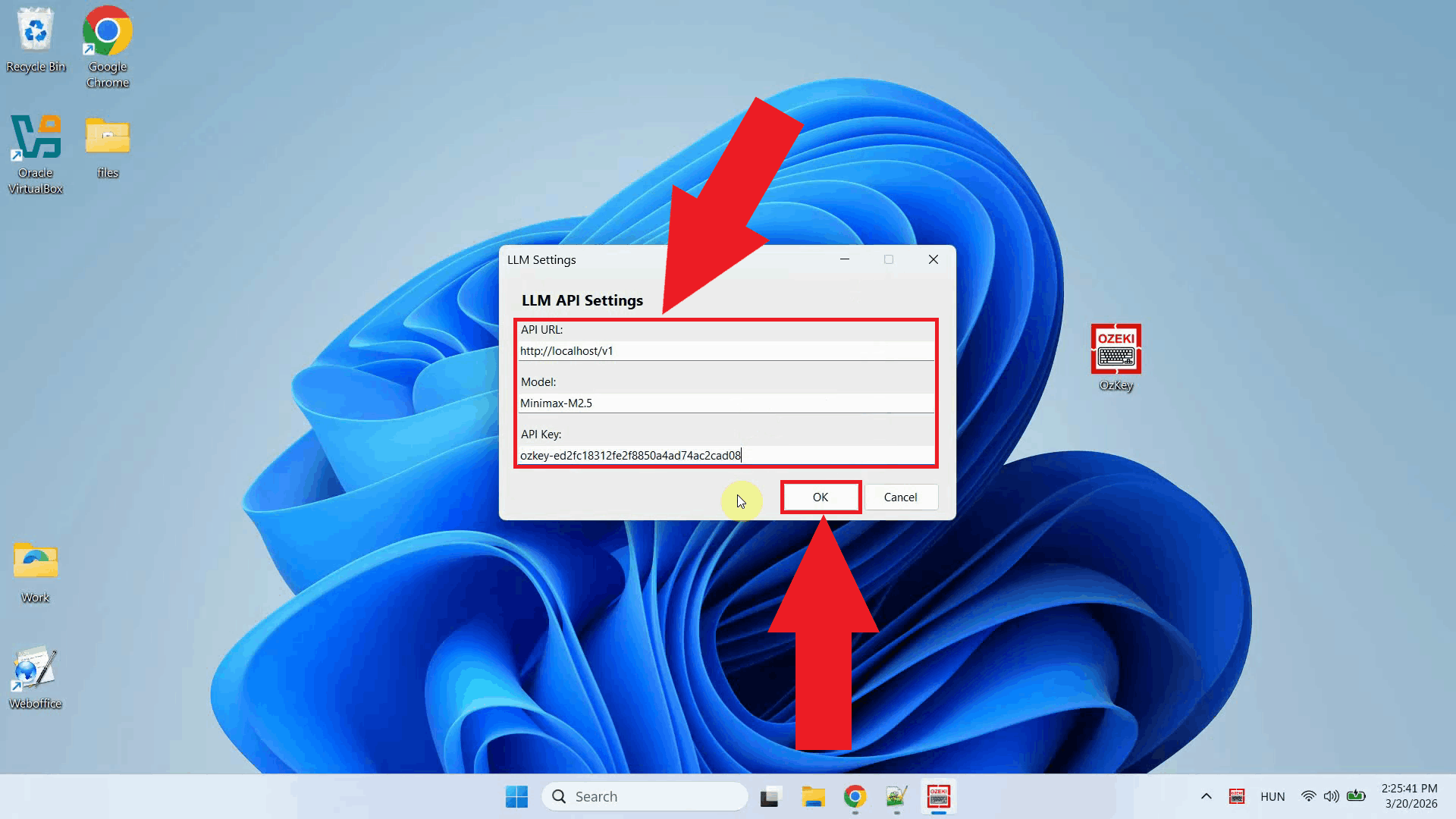
Enter the Ozeki AI Gateway URL in the same way as the Voice settings, specify the LLM model name, and paste the API key. The gateway will route AI assistant requests to the configured LLM provider. Click OK to save the settings (Figure 9).
http://localhost/v1
Step 5 - Test the AI assistant
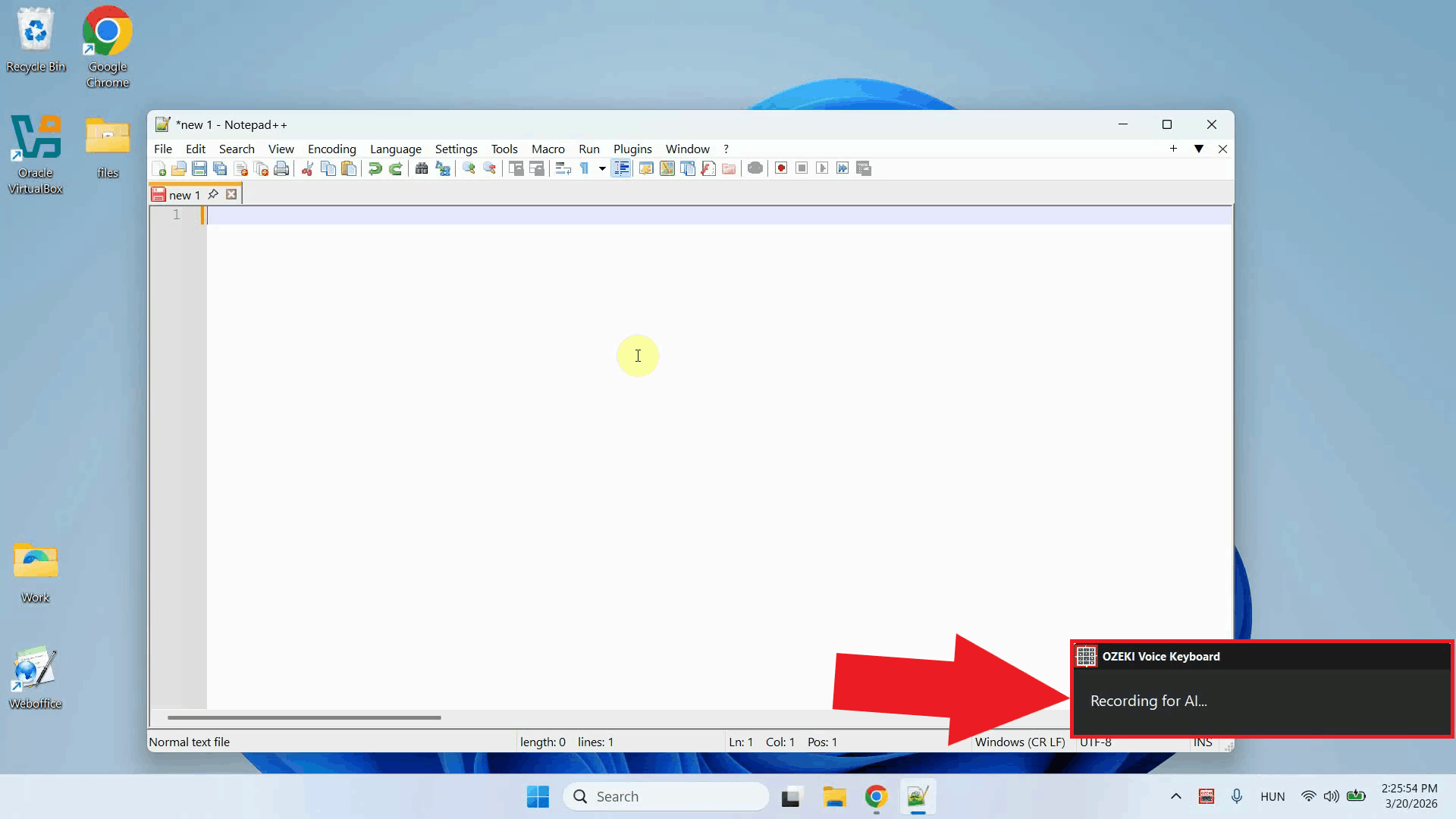
To test the AI assistant, place your cursor in any input field, then press and hold Ctrl + Space and speak your question into the microphone. Once you release the keys, the gateway transcribes the recording via the Whisper provider and forwards the resulting text to the LLM provider as a prompt (Figure 10).
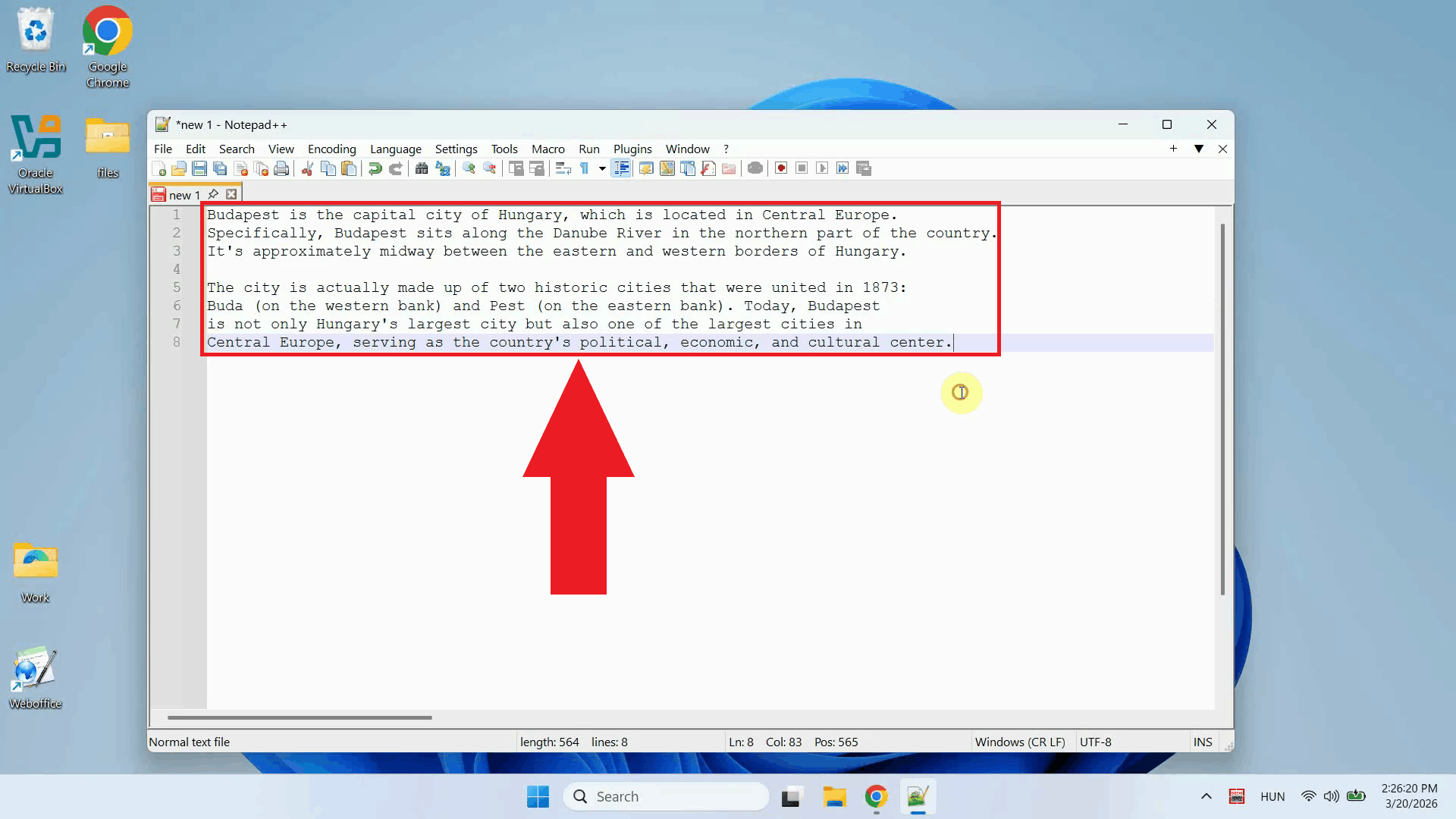
Once the LLM finishes generating the response, it is automatically pasted into the active input field (Figure 11).
Step 6 - Verify requests in logs
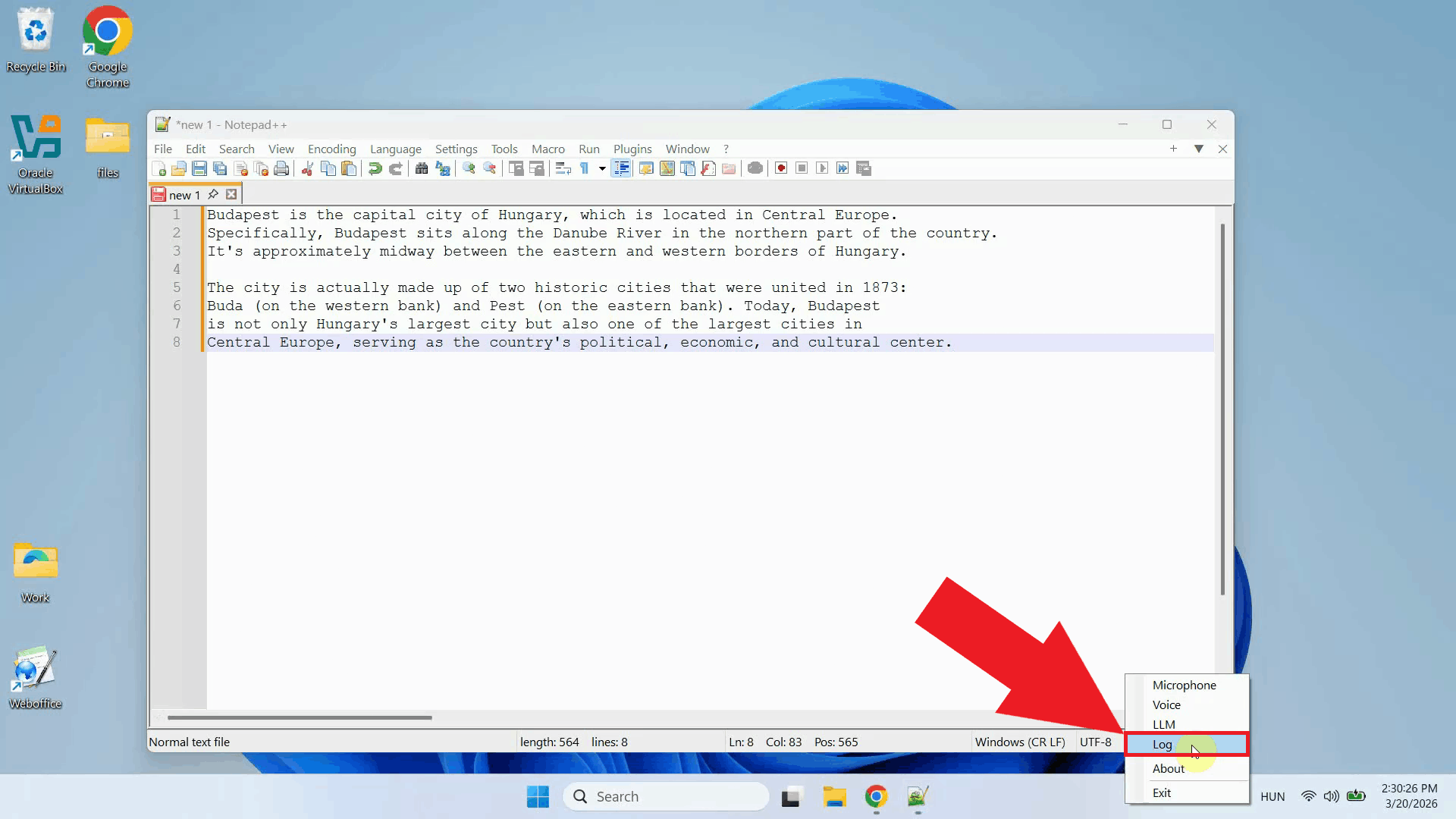
Right-click the tray icon and navigate to Logs from the context menu to open the log viewer (Figure 12).
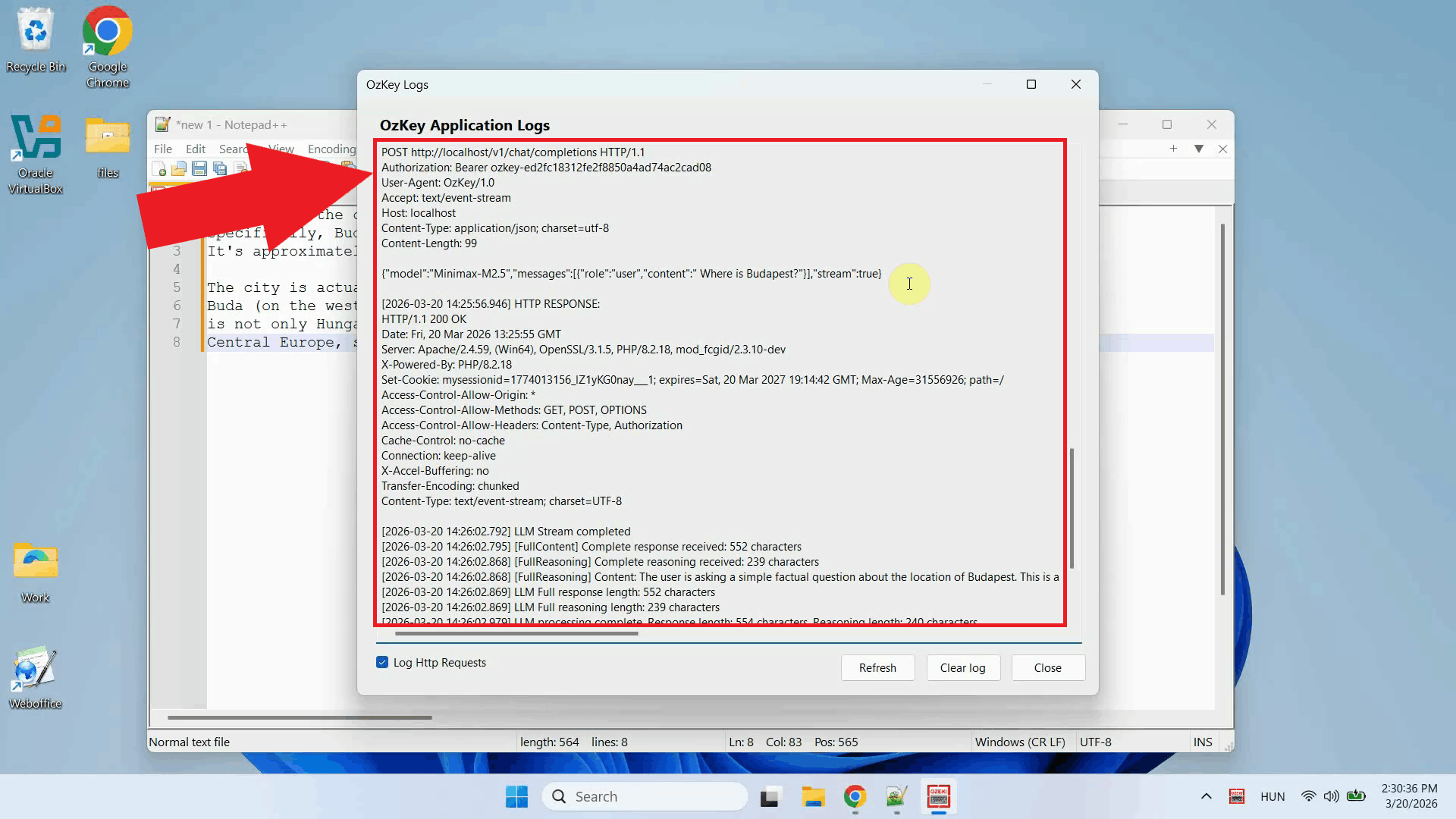
In the log viewer, you should see outgoing HTTP requests directed at the Ozeki AI Gateway
endpoint, one to /v1/audio/transcriptions for the voice transcription and
one to /v1/chat/completions for the LLM response (Figure 13).
Final thoughts
You have successfully configured Ozeki Voice Keyboard to route both voice transcription and AI assistant requests through Ozeki AI Gateway. This setup gives you centralized control over all AI traffic from your client machines. You can monitor usage, manage API keys, swap out providers, and enforce access policies from a single location without making any changes to the individual Windows machines.