
How to set up Whisper Speech Detector on Windows using WSL
This guide demonstrates how to set up a local Whisper speech recognition server on Windows using the Windows Subsystem for Linux (WSL) and connect it to Ozeki Voice Keyboard. You will learn how to install Ubuntu on WSL, set up the required dependencies, start the Whisper server, and configure Ozeki Voice Keyboard to use it for speech-to-text transcription.
What is Whisper?
Whisper is an open-source speech recognition model developed by OpenAI. In this setup, it is run inside a WSL Ubuntu environment using the faster-whisper backend via agent-cli, which exposes an OpenAI-compatible endpoint. This allows Ozeki Voice Keyboard to send recorded audio to the local server and receive transcribed text in response.
Steps to follow
Before proceeding, make sure WSL is enabled on your system. Python, FFmpeg, and pip will be installed inside the WSL Ubuntu environment during the setup process.
- Open a terminal window
- Install WSL with Ubuntu
- Update Ubuntu packages
- Install required packages
- Set up the Python virtual environment
- Install agent-cli with faster-whisper
- Start the Whisper server
- Connect Whisper to Ozeki Voice Keyboard
Quick reference commands
# Install WSL with Ubuntu
wsl --install -d Ubuntu

# Update and upgrade Ubuntu packages
sudo apt update && sudo apt upgrade -y

# Install Python, FFmpeg, venv and CUDA toolkit for Nvidia GPUs
sudo apt install python3 python3-pip ffmpeg python3.12-venv nvidia-cuda-toolkit -y

# Create a Python virtual environment
python3 -m venv whisper-env

# Activate the virtual environment
source whisper-env/bin/activate

# Install agent-cli with the faster-whisper backend
pip install "agent-cli[faster-whisper]"

# Start the Whisper server using the small model
agent-cli server whisper --model small
How to set up and run Whisper on Windows WSL video
The following video shows how to set up and run the Whisper speech recognition server on Windows using WSL step-by-step. The video covers installing Ubuntu on WSL, setting up the Python environment, installing agent-cli, and starting the server.
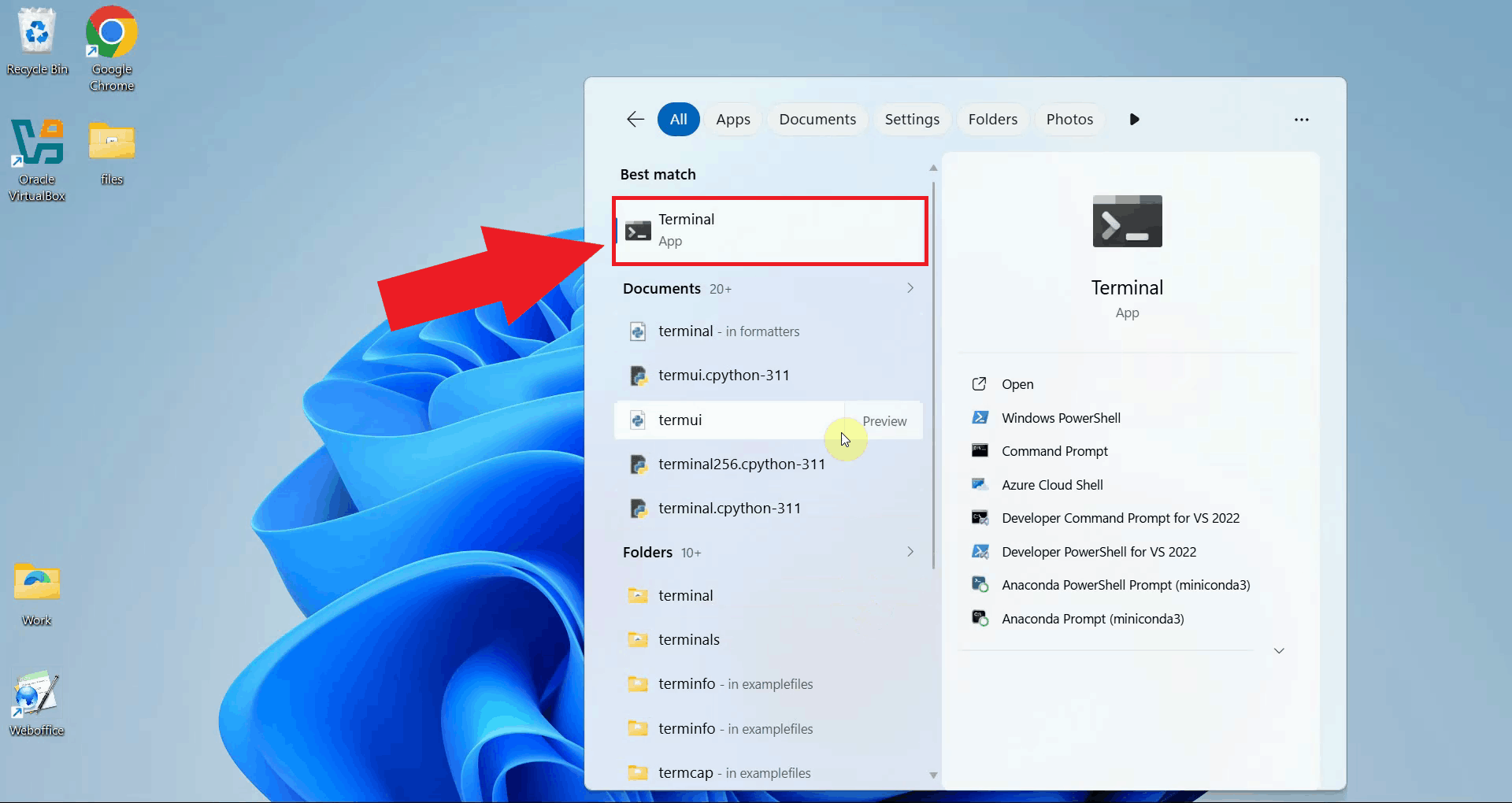
Step 1 - Open a terminal window
Open a terminal window on your Windows system. All setup commands in this guide are run from the terminal (Figure 1).
Step 2 - Install WSL with Ubuntu
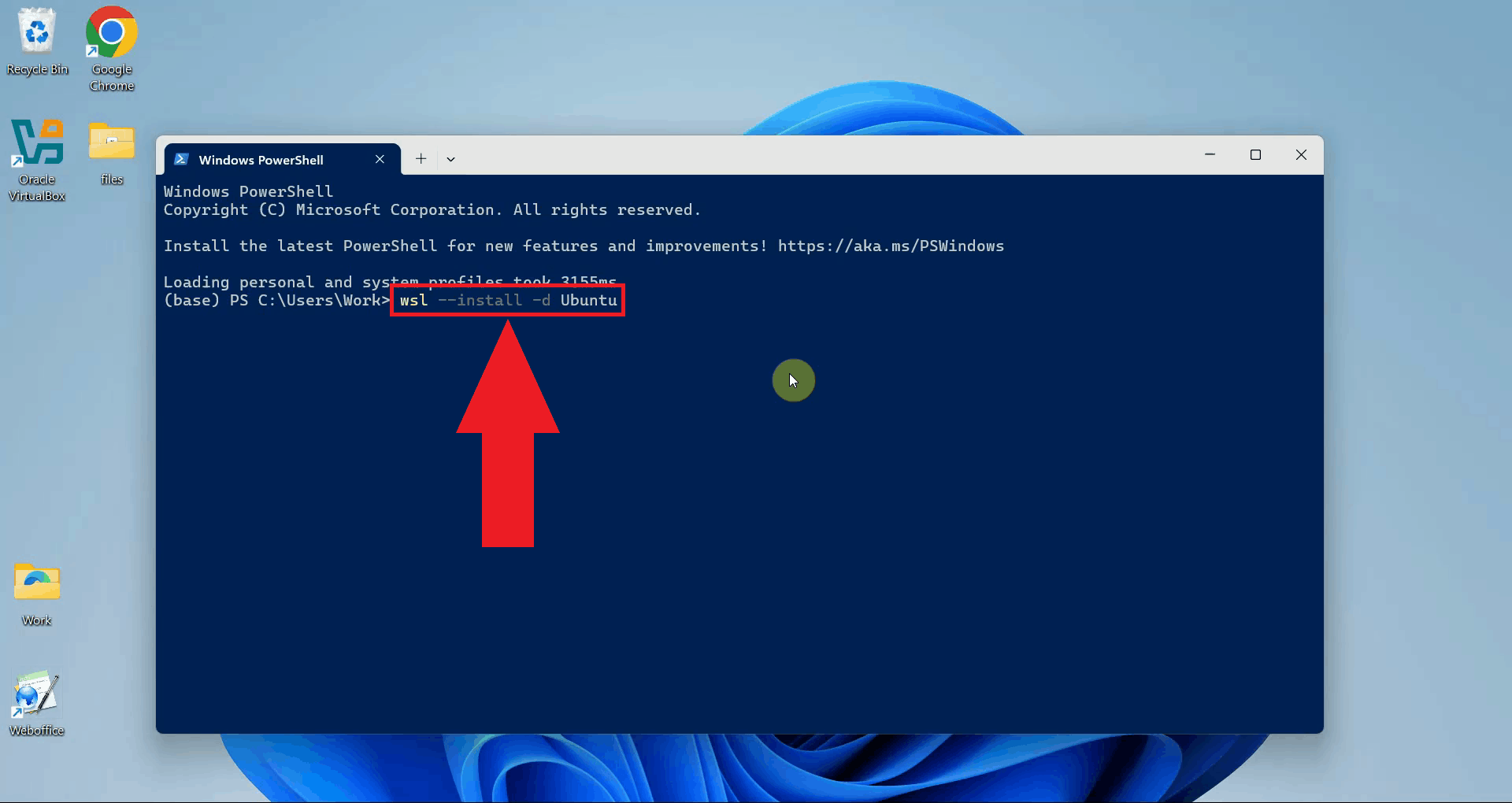
Run the following command to install WSL with the Ubuntu distribution. This will download and set up a full Ubuntu Linux environment that runs directly inside Windows without requiring a separate virtual machine (Figure 2).
wsl --install -d Ubuntu
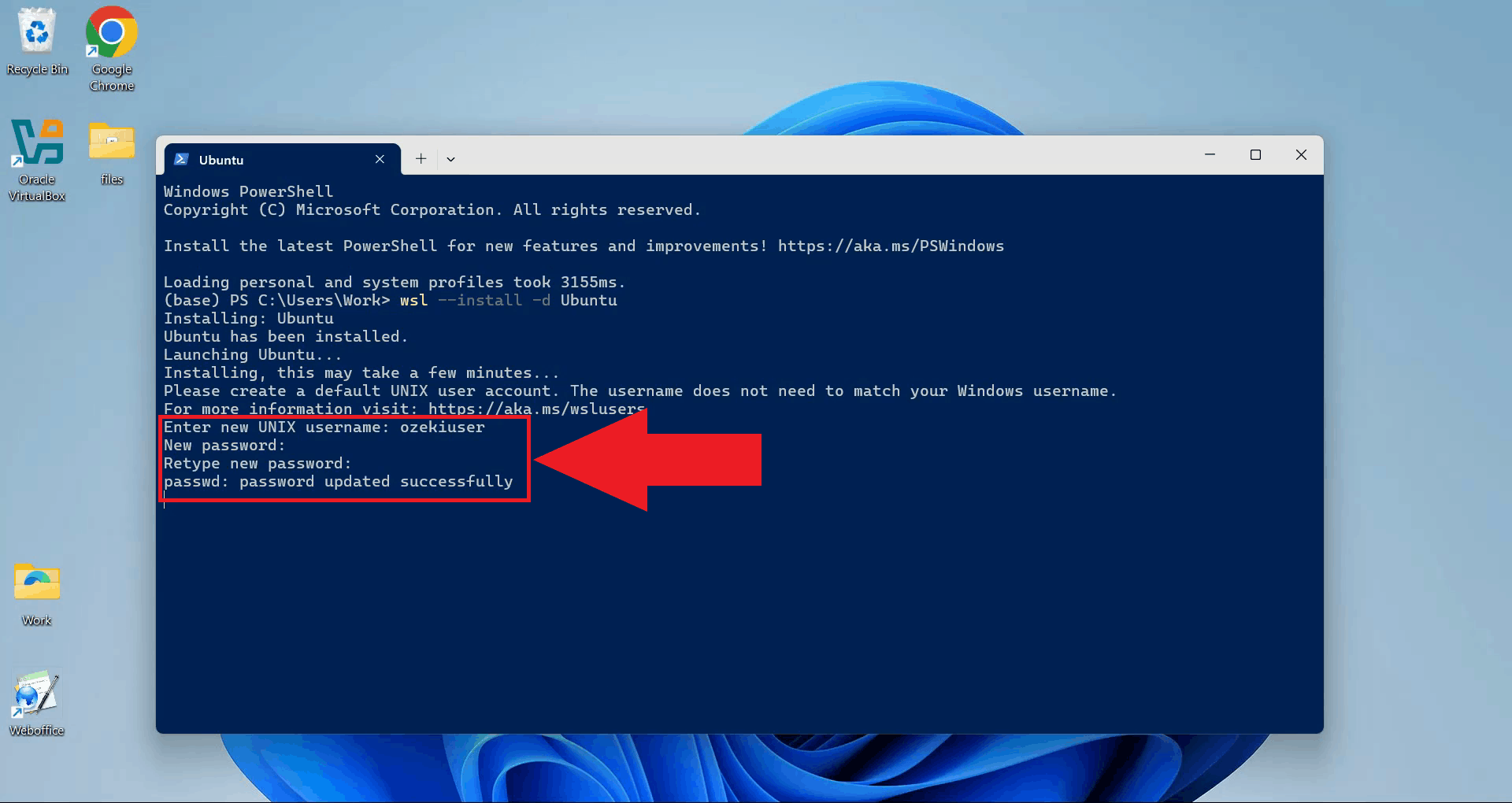
Once the installation completes, you will be prompted to create a Unix user account. Enter a username and password for your Ubuntu environment (Figure 3).
Step 3 - Update Ubuntu packages
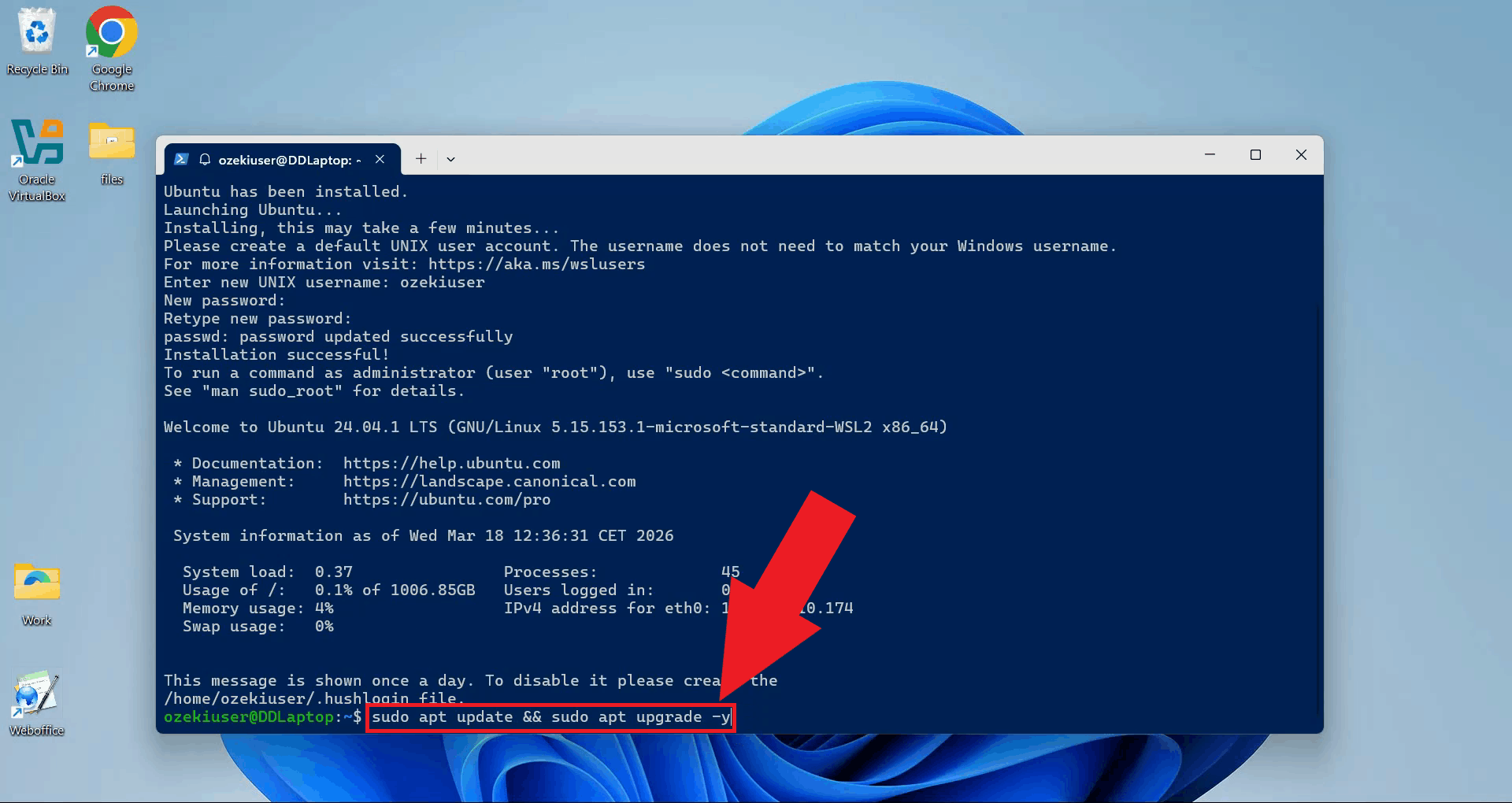
Update and upgrade the Ubuntu package list to make sure all system packages are current before installing any dependencies (Figure 4).
sudo apt update && sudo apt upgrade -y
Step 4 - Install required packages
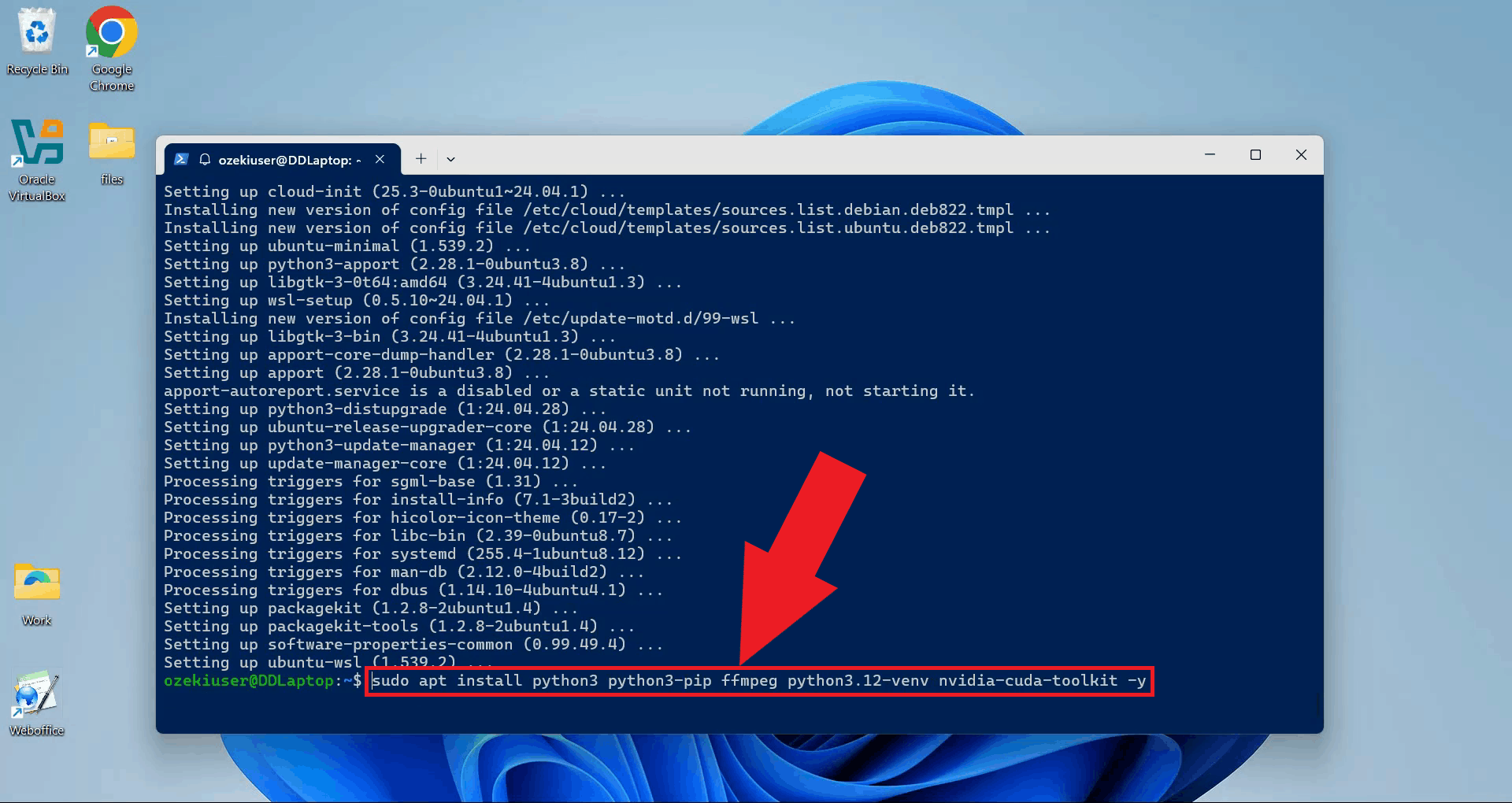
Install Python, pip, FFmpeg, the Python venv module, and the NVIDIA CUDA toolkit in a single command. FFmpeg handles audio processing, venv is needed to create the isolated Python environment, and the CUDA toolkit enables GPU-accelerated transcription if your system has a compatible NVIDIA graphics card (Figure 5).
sudo apt install python3 python3-pip ffmpeg python3.12-venv nvidia-cuda-toolkit -y
Step 5 - Set up the Python virtual environment
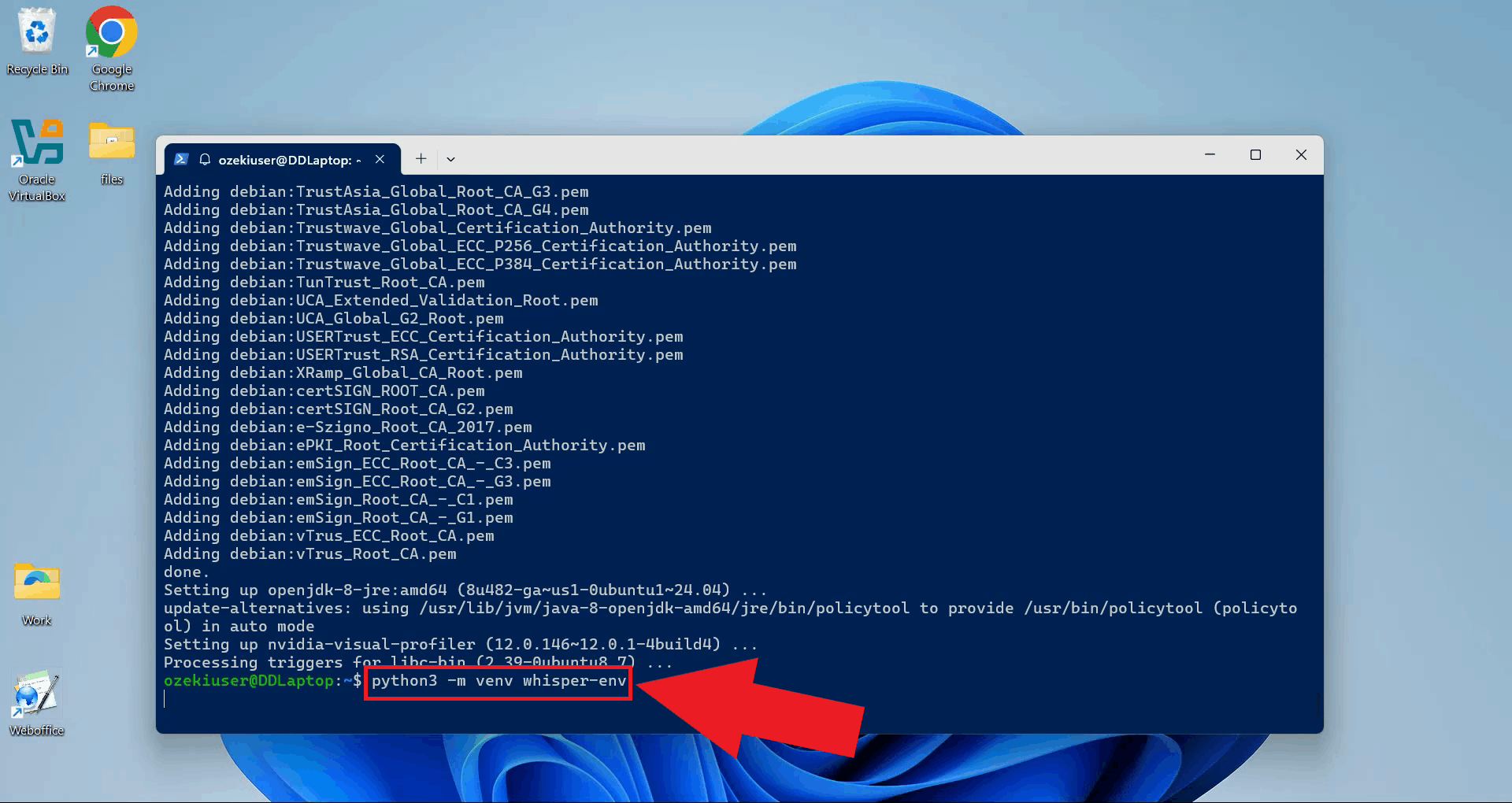
Create a dedicated Python virtual environment for the Whisper server. Using a separate environment keeps its dependencies isolated from other Python projects on your system (Figure 6).
python3 -m venv whisper-env
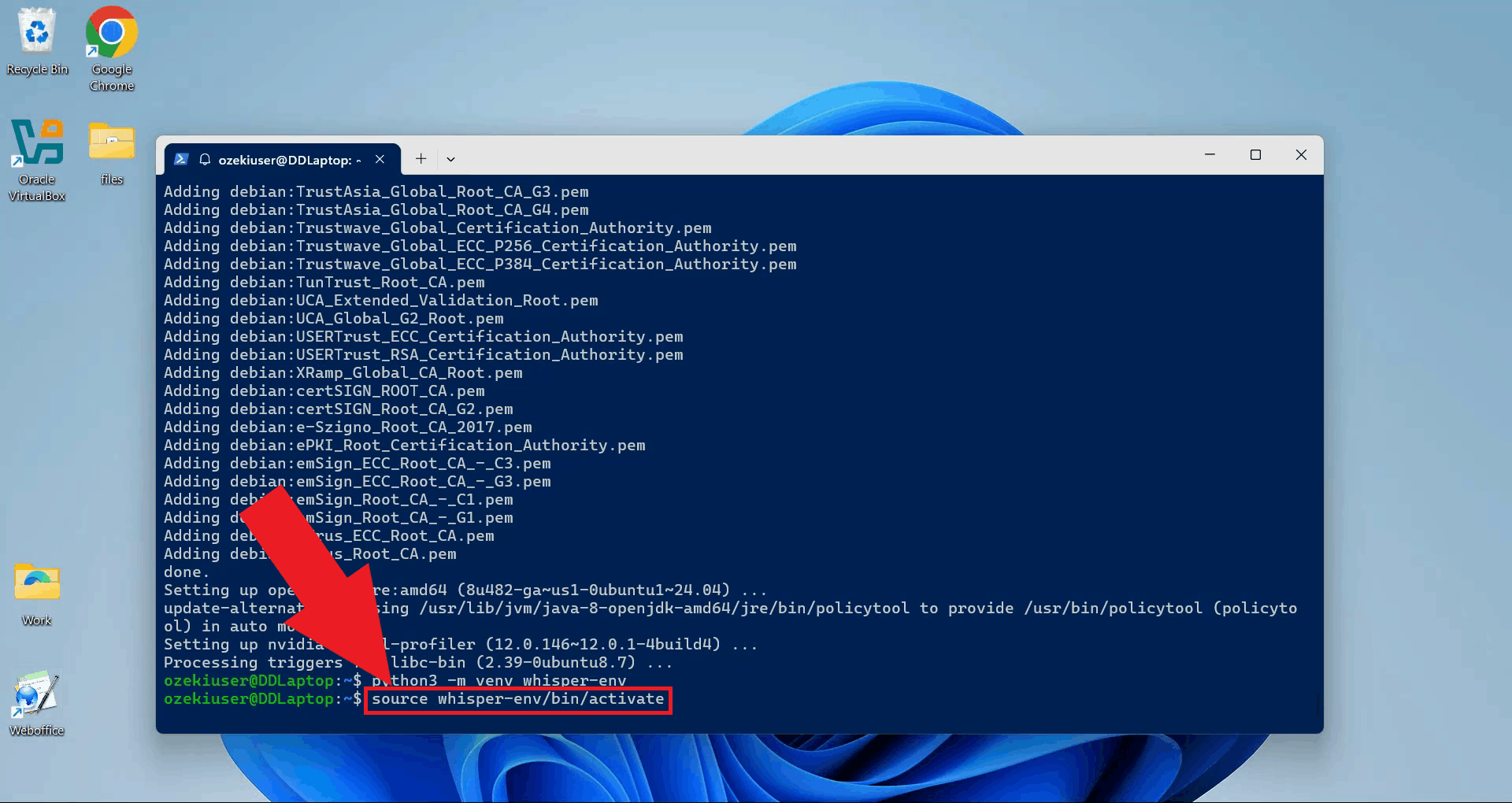
Activate the virtual environment. Your terminal prompt will update to show the active environment name (Figure 7).
source whisper-env/bin/activate
Step 6 - Install agent-cli with faster-whisper
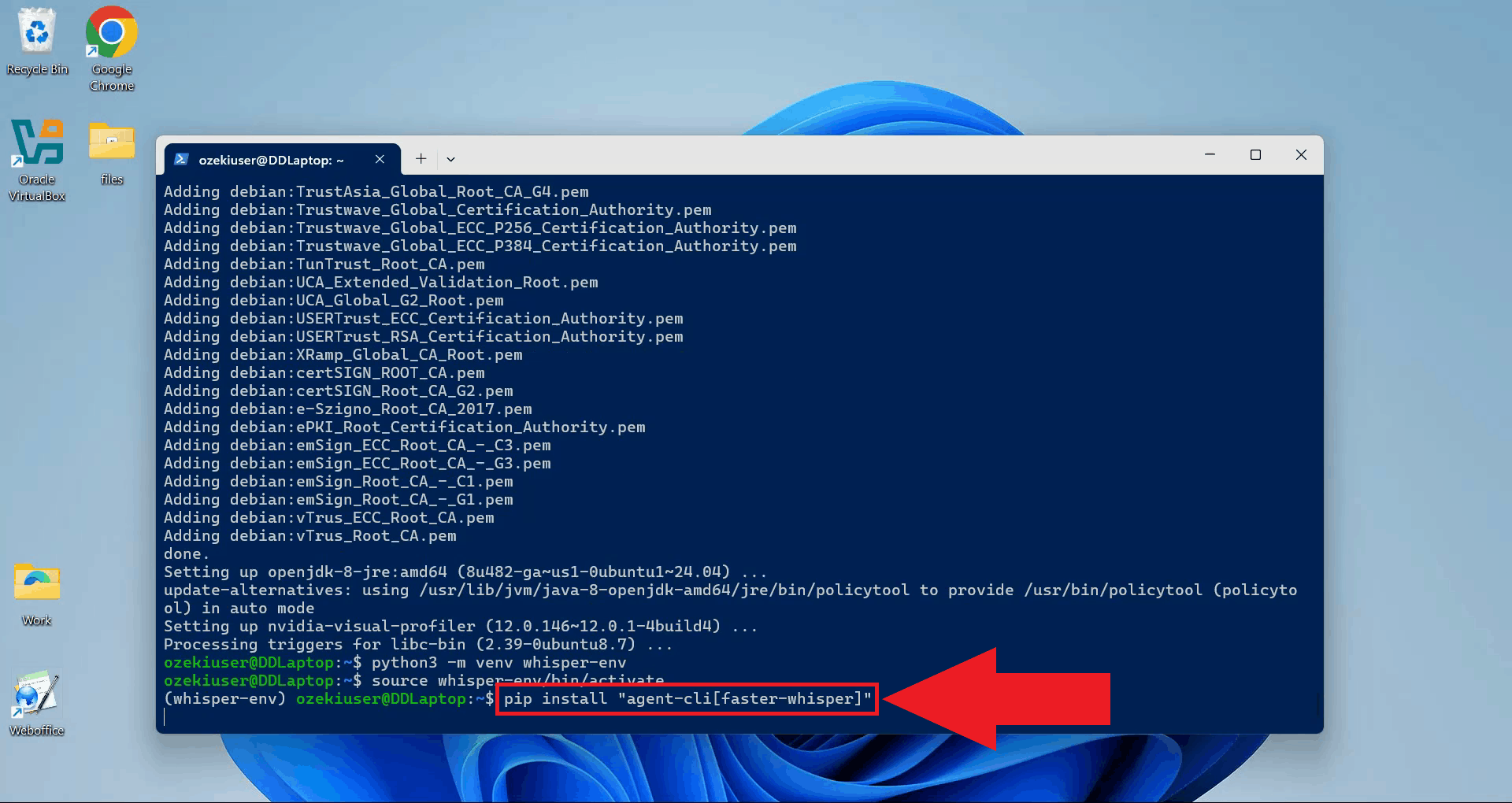
With the virtual environment active, install agent-cli together with the faster-whisper backend using pip. This installs all dependencies needed to run the Whisper speech recognition model locally inside WSL (Figure 8).
pip install "agent-cli[faster-whisper]"
Step 7 - Start the Whisper server
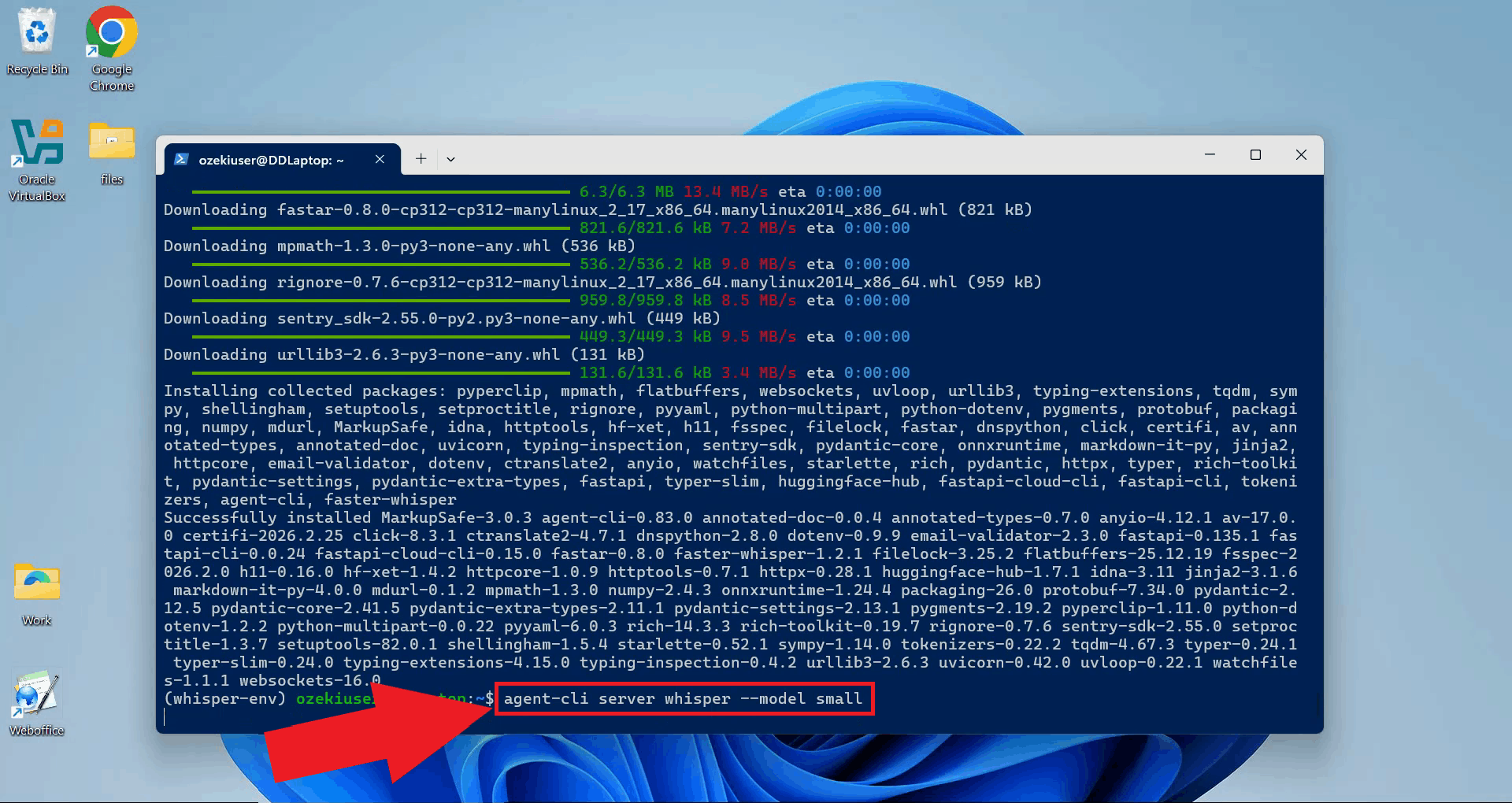
Start the Whisper server using agent-cli with the small model. You can choose between different model sizes depending on how powerful your system is (Figure 9).
agent-cli server whisper --model small
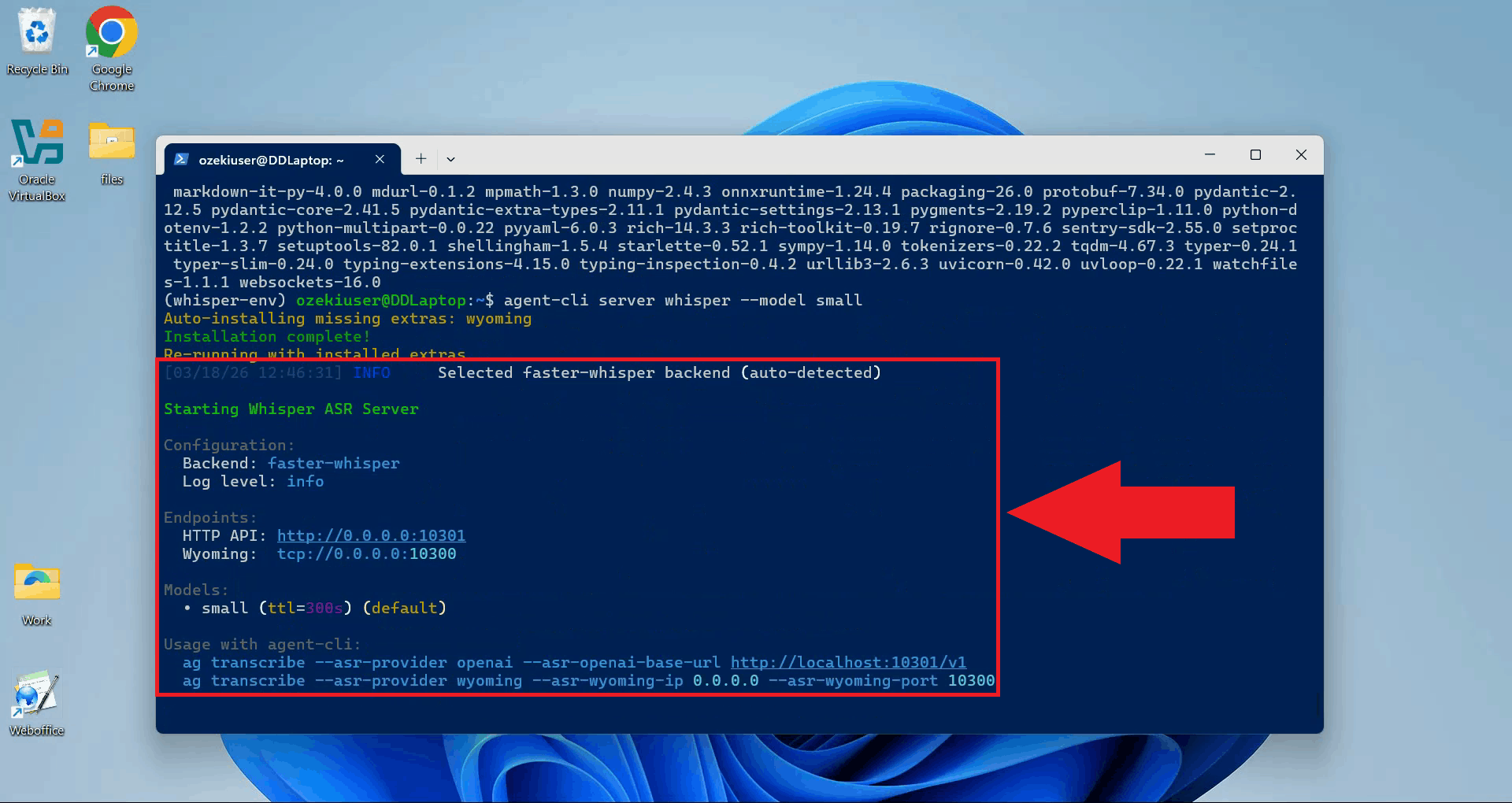
The Whisper server is now running and listening for transcription requests. Keep this terminal open for the duration of your session (Figure 10).
Step 8 - Connect Whisper to Ozeki Voice Keyboard
The following video shows how to connect the WSL Whisper server to Ozeki Voice Keyboard and verify that transcription is working correctly.
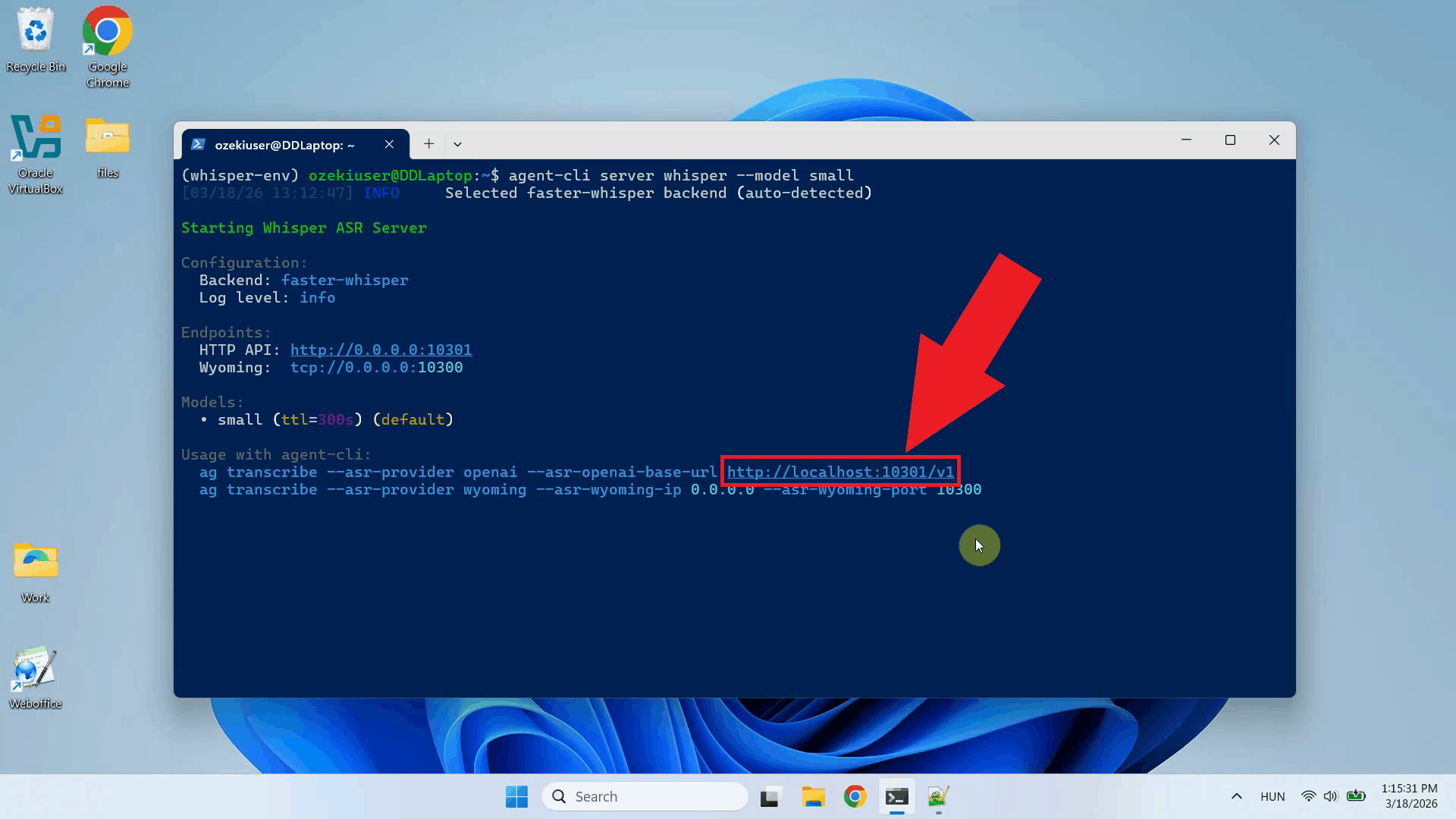
Copy the API URL from the terminal output. This is the endpoint you will enter in Ozeki Voice Keyboard to point it at the local Whisper server (Figure 11).
For example: http://localhost:10301/v1
Open Ozeki Voice Keyboard and locate its icon in the Windows system tray in the bottom right corner of your taskbar (Figure 12).

Before configuring the Voice settings, enable HTTP logging so you can verify that requests are reaching the Whisper server. Right-click the tray icon and navigate to Logs from the context menu (Figure 13).

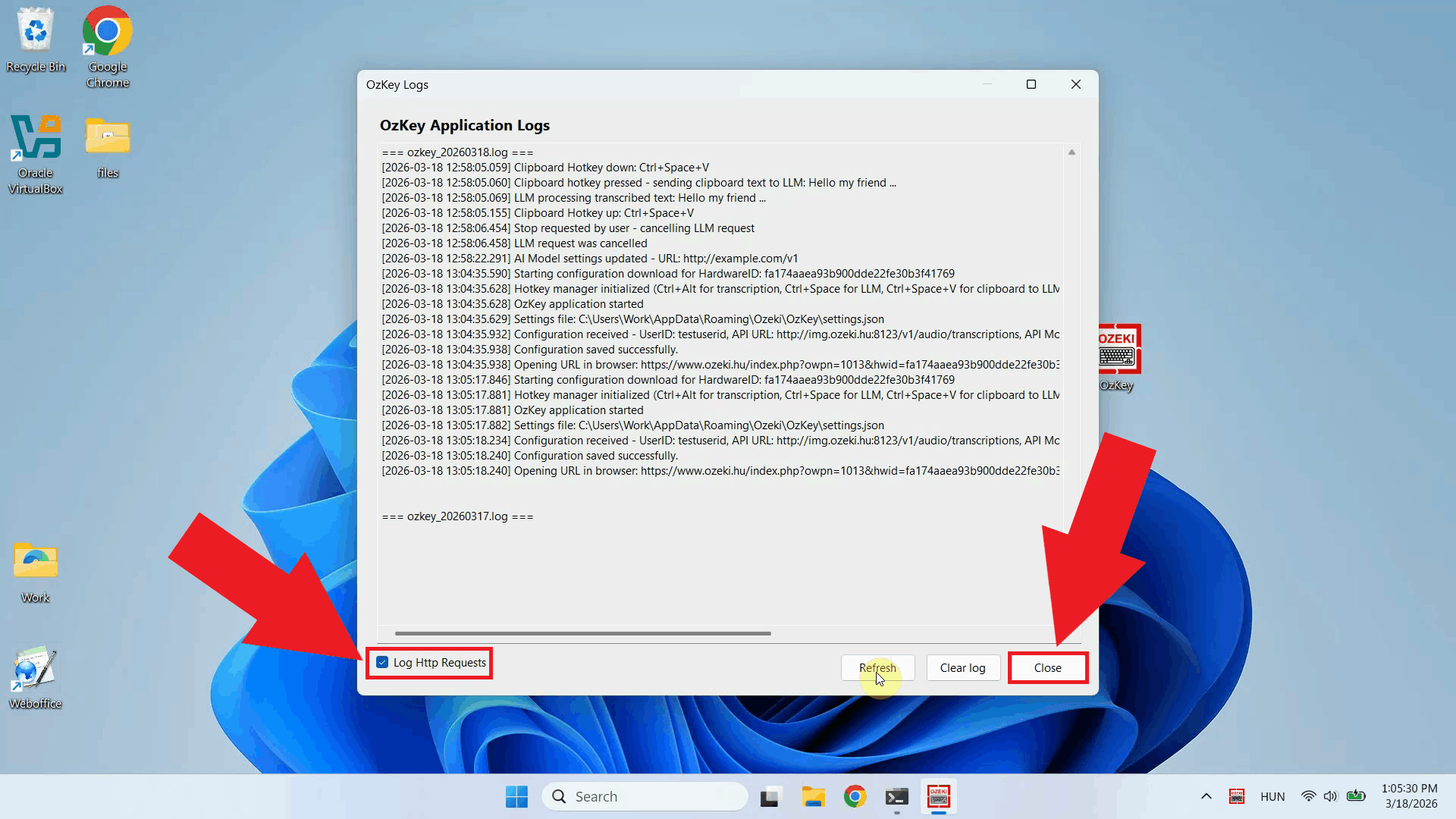
In the Logs window, enable HTTP logging and close the window. This will allow you to monitor the requests sent to the Whisper server after configuration (Figure 14).
Right-click the tray icon again and open the Voice settings from the context menu (Figure 15).

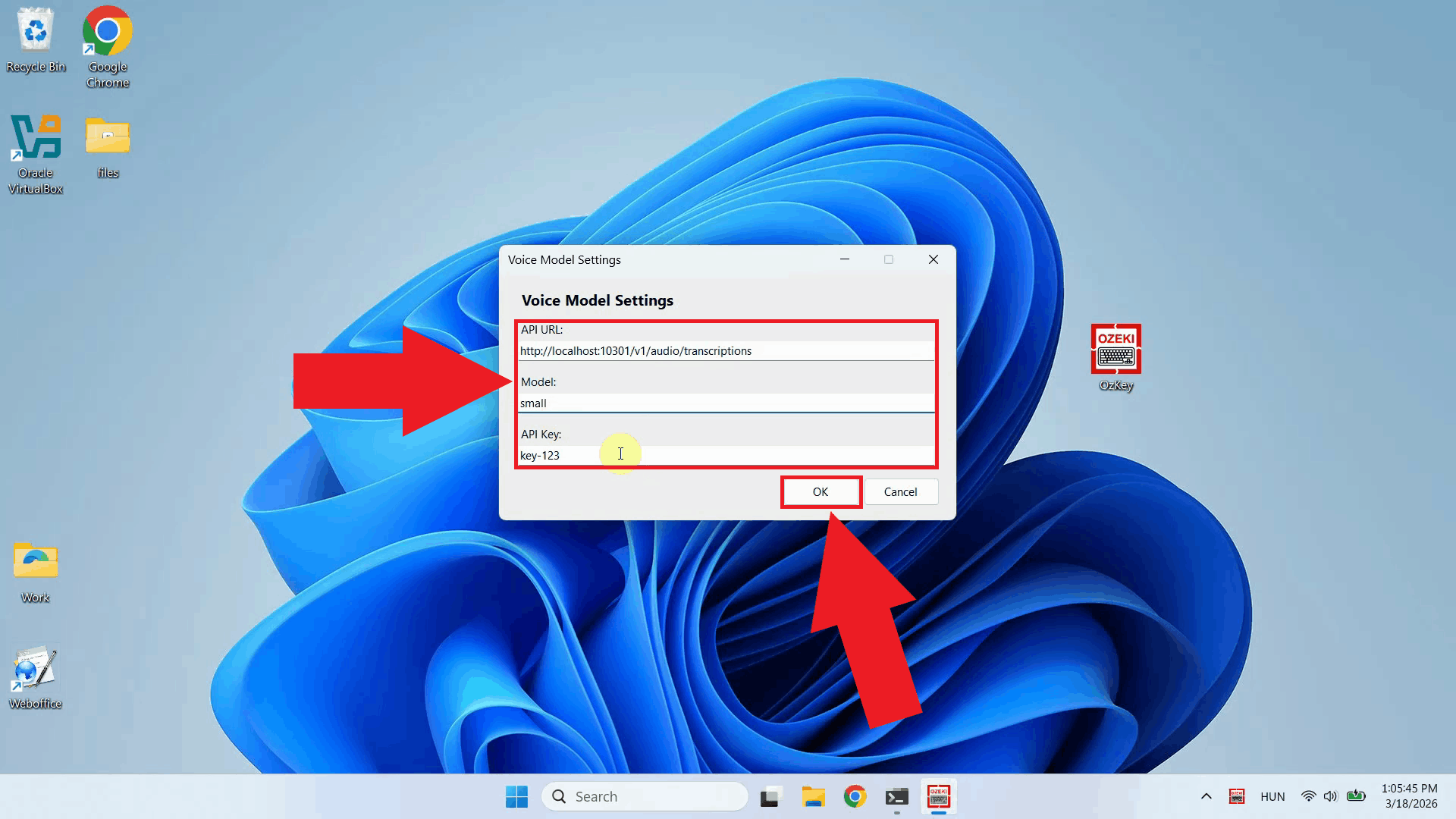
Enter the API URL you copied from the terminal, append "/audio/transcriptions" to the end of the URL and specify the model name. The API key does not matter since the local server does not require authentication. Click OK to save the settings (Figure 16).
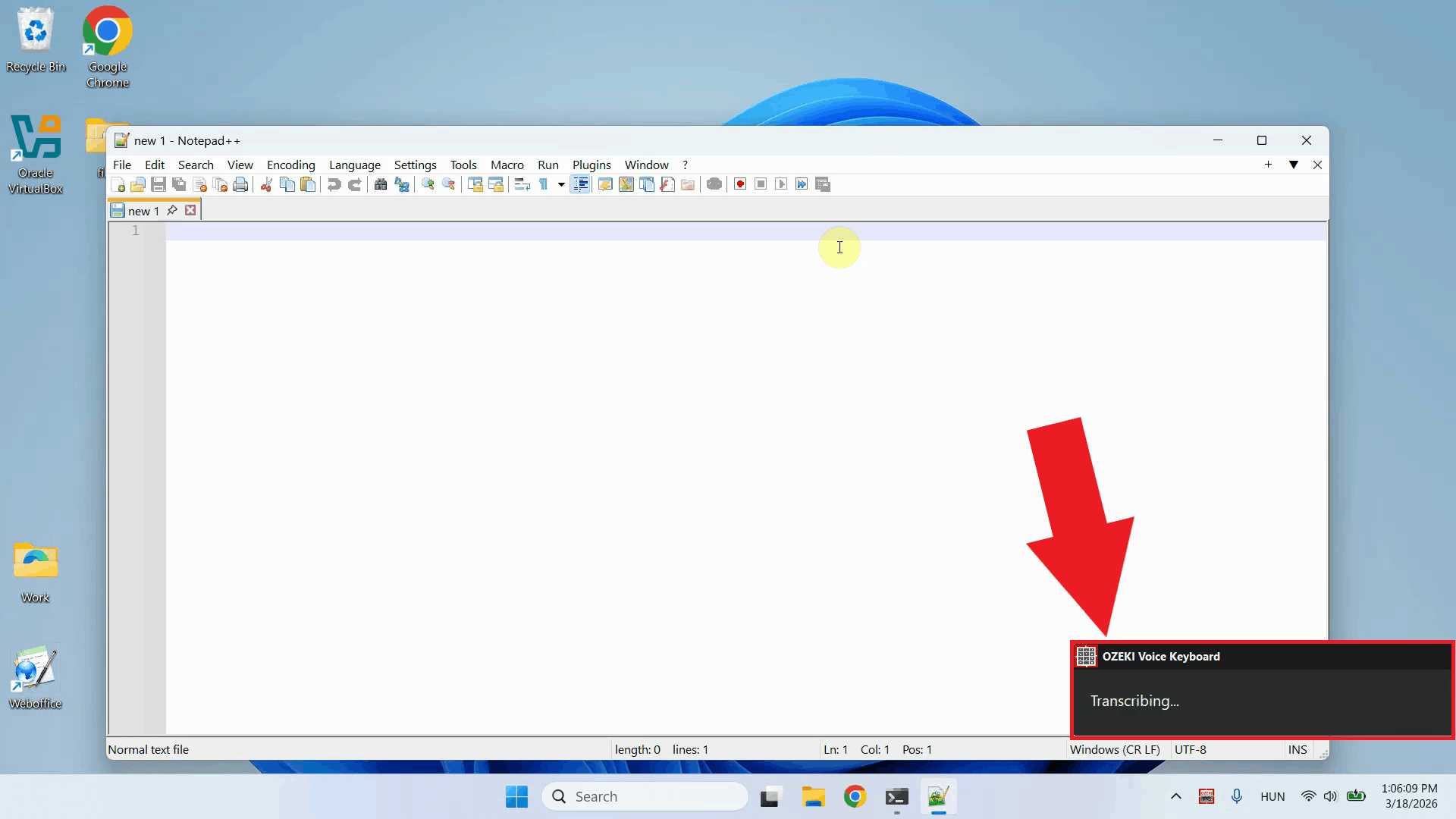
Test the setup by placing your cursor in any input field and using the voice recording hotkey to dictate some text. The audio will be sent to the Whisper server running inside WSL and the transcription will be pasted into the active field (Figure 17).
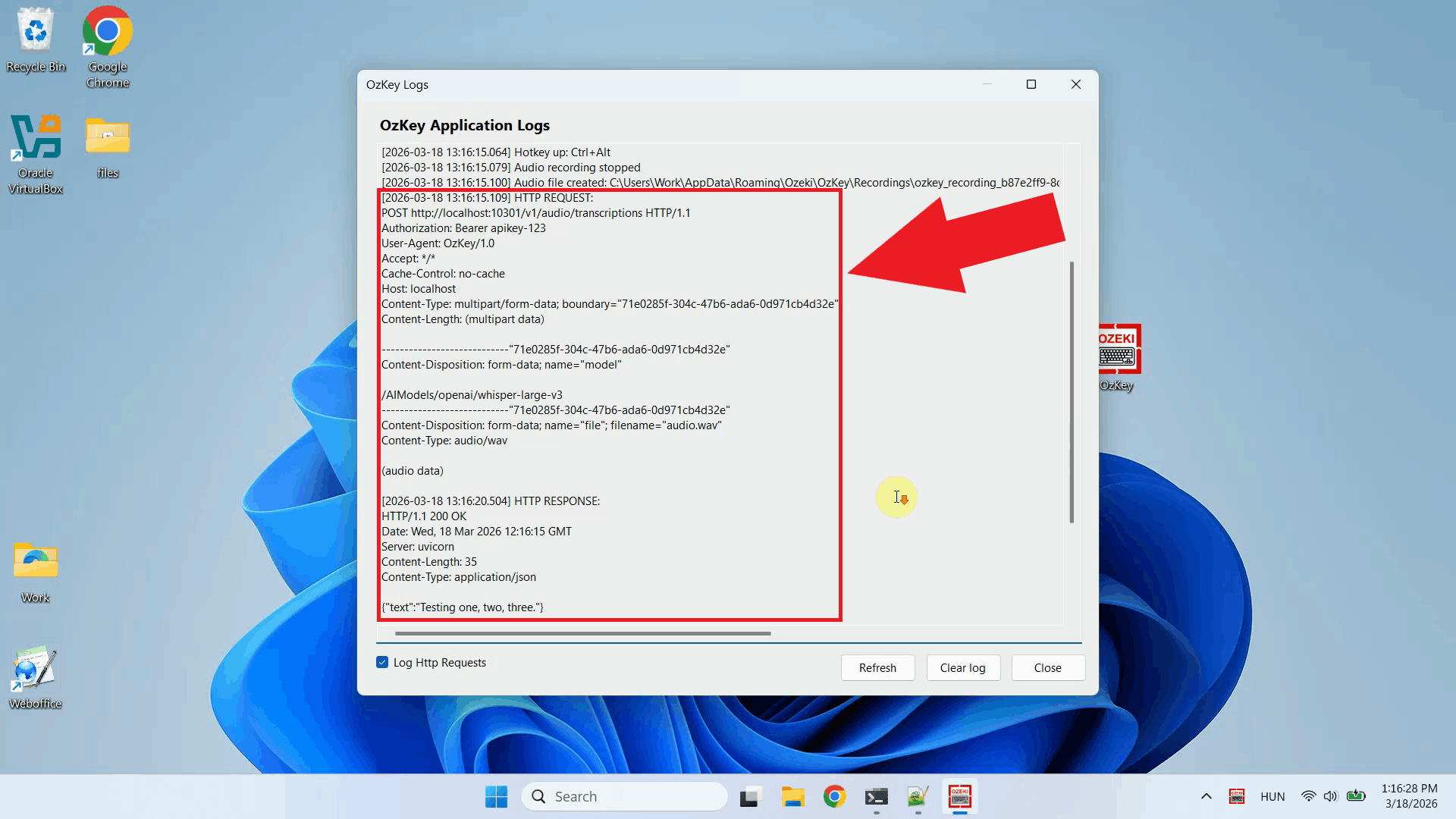
Open the Logs window to verify the request. You should see an HTTP request to the
/v1/audio/transcriptions endpoint, confirming that Ozeki Voice Keyboard
is successfully communicating with the Whisper server running inside WSL (Figure 18).
Final thoughts
You have successfully set up a local Whisper speech recognition server on Windows using WSL and connected it to Ozeki Voice Keyboard. Running the server inside WSL gives you the flexibility of a Linux environment while staying on Windows, and the fully local setup means your voice data never leaves your machine.