
Manual Uninstallation of Ozeki Voice Keyboard
This guide demonstrates how to manually remove Ozeki Voice Keyboard from your Windows system. You will learn how to delete all application files, remove the Start Menu entry, clean up the Windows registry, and delete the program folder.
Steps to follow
- Delete the OzKey AppData folder
- Remove the Start Menu entry
- Remove the registry entry
- Delete the Program Files folder
- Remove the desktop shortcut
Quick reference paths
# Application data folder
C:\Users\{User}\AppData\Roaming\Ozeki\OzKey

# Start Menu entry
C:\Users\{User}\AppData\Roaming\Microsoft\Windows\Start Menu\Programs\Ozeki\OzKey

# Registry key
HKEY_LOCAL_MACHINE\SOFTWARE\WOW6432Node\Microsoft\Windows\CurrentVersion\Uninstall\OzekiOzKey

# Program Files folder
C:\Program Files\Ozeki\OzKey
How to manually uninstall Ozeki Voice Keyboard video
The following video shows how to manually uninstall Ozeki Voice Keyboard step-by-step. The video covers deleting the application data folder, removing the Start Menu entry, cleaning up the registry, and deleting the remaining program files.
Step 1 - Delete the OzKey AppData folder
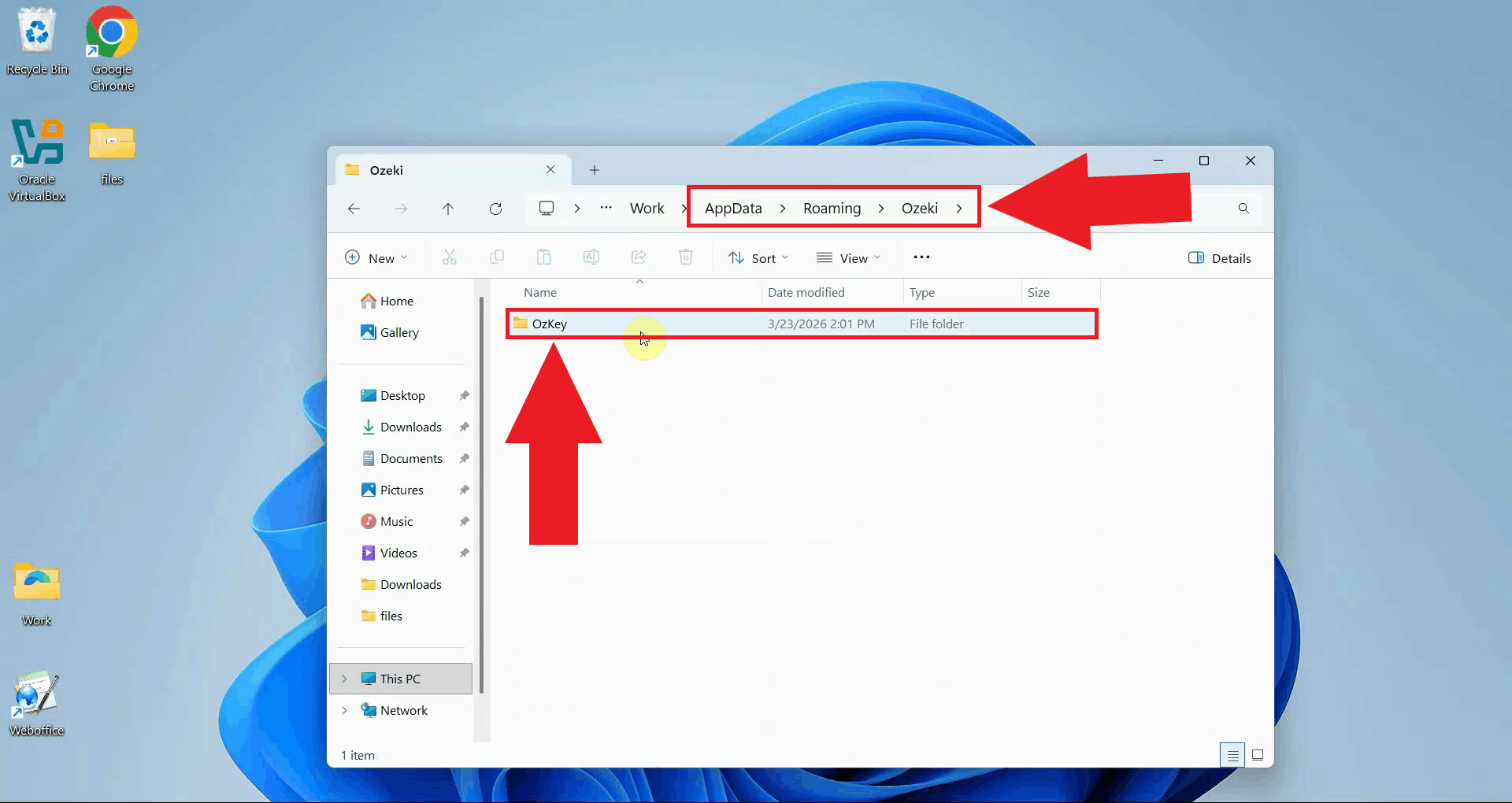
Open Windows File Explorer and navigate to the OzKey application data folder. This
folder contains user-specific data such as recordings and logs.
Replace {User} with your Windows username (Figure 1).
C:\Users\{User}\AppData\Roaming\Ozeki\OzKey
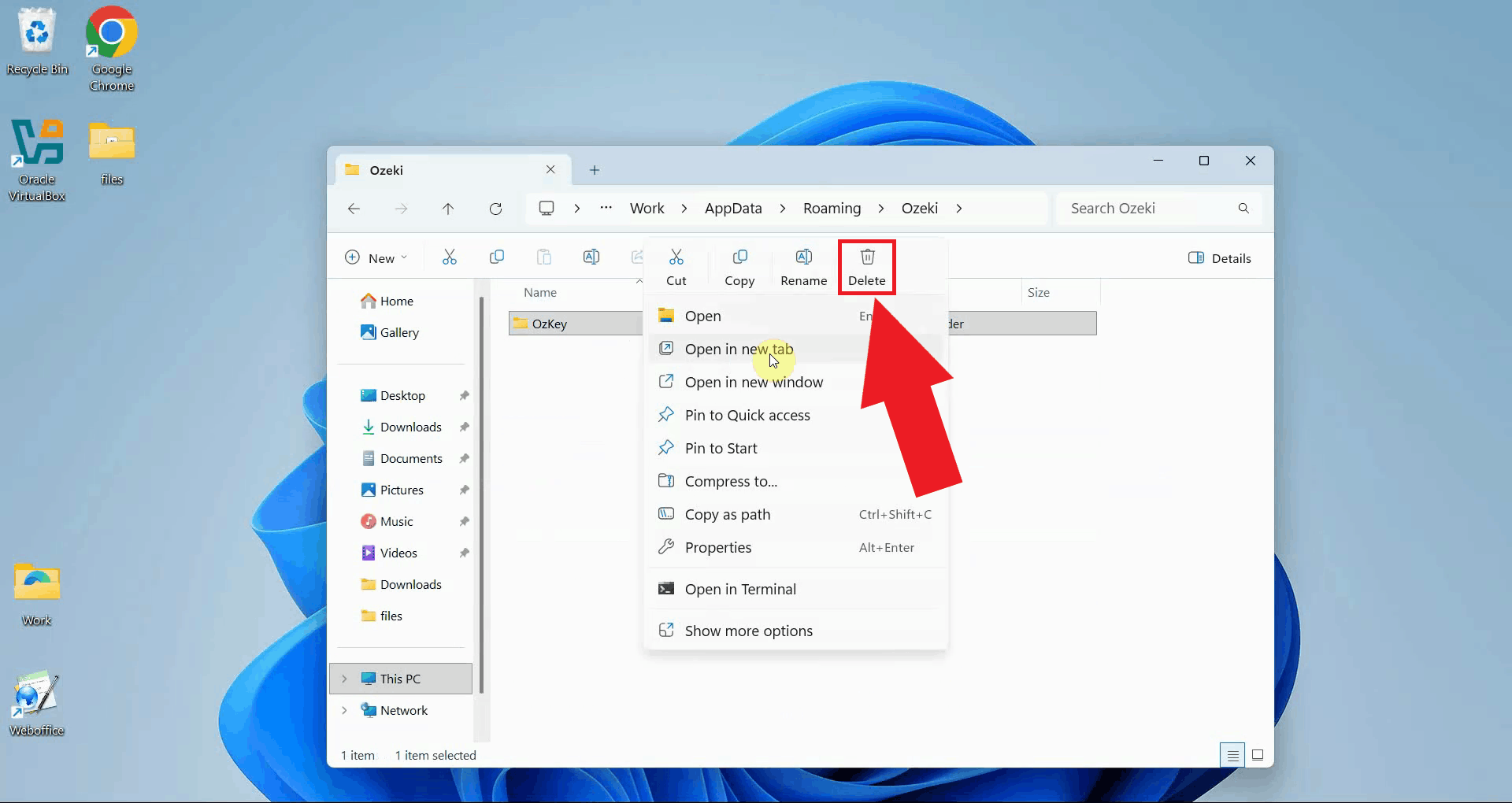
Right-click the OzKey folder and select Delete to remove it (Figure 2).
Step 2 - Remove the Start Menu entry
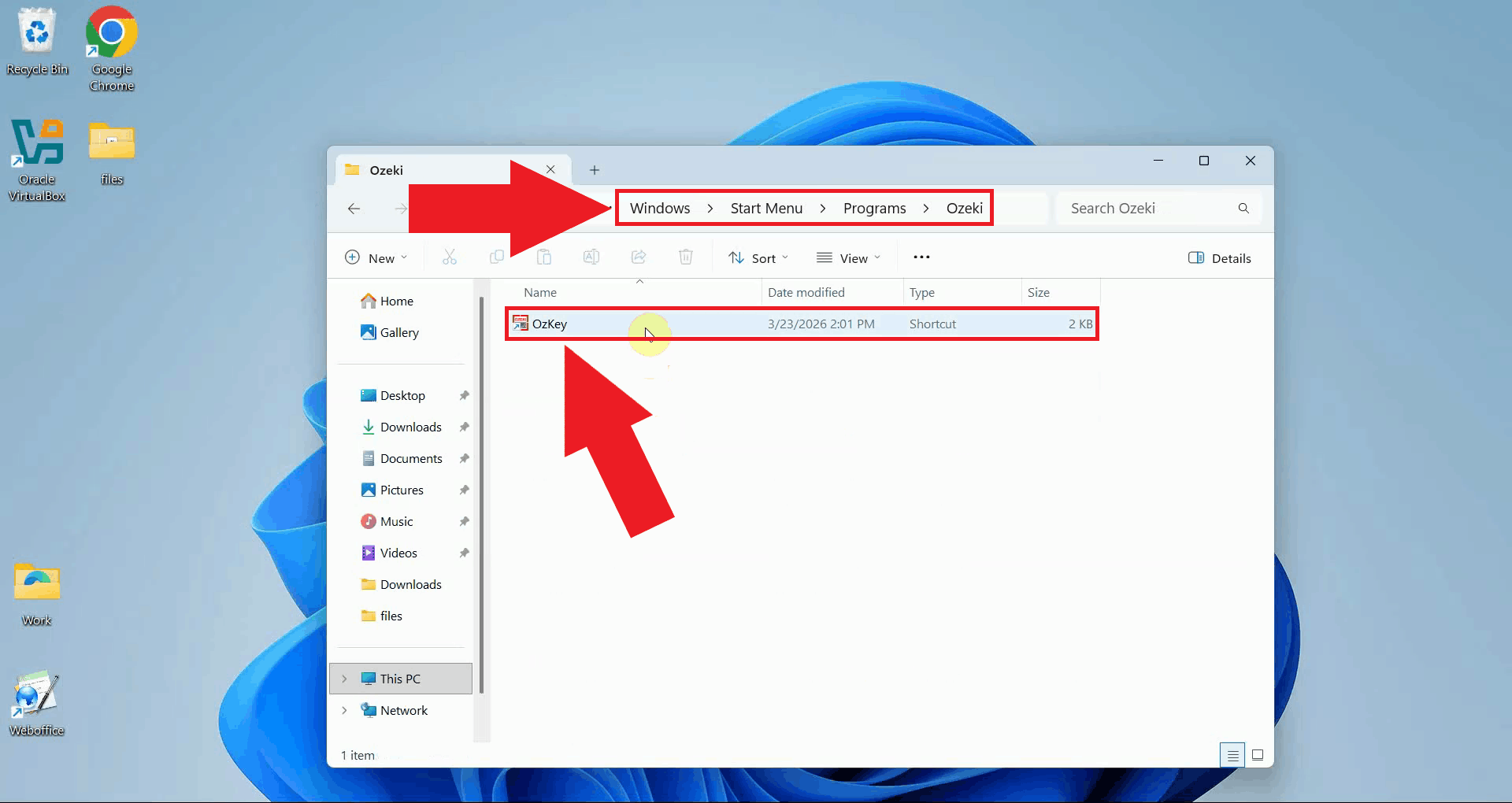
Navigate to the OzKey Start Menu folder. This folder contains the shortcut that appears in the Windows Start Menu and was created during installation (Figure 3).
C:\Users\{User}\AppData\Roaming\Microsoft\Windows\Start Menu\Programs\Ozeki
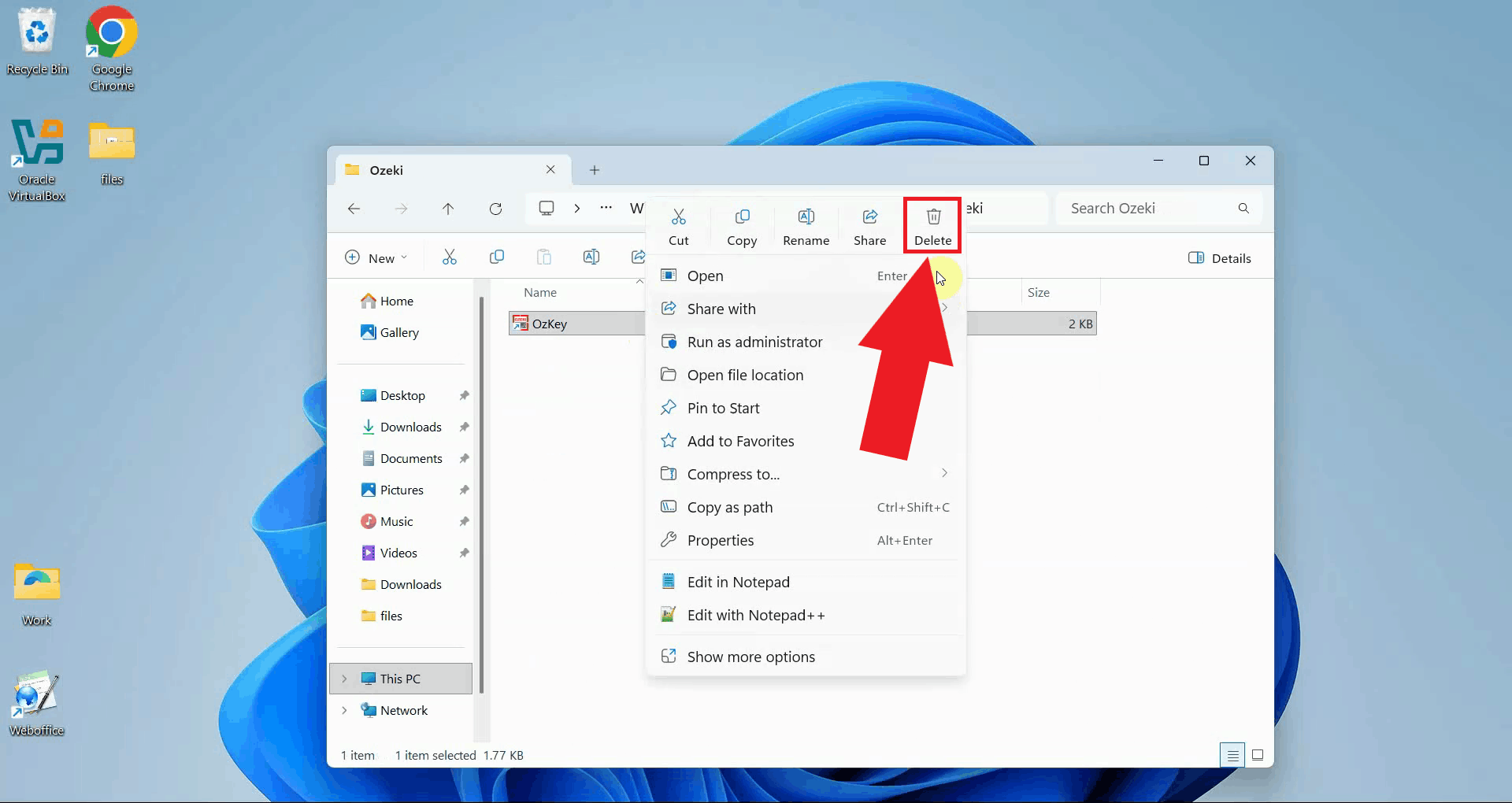
Right-click the OzKey shortcut and select Delete to remove it from the Start Menu (Figure 4).
Step 3 - Remove the registry entry
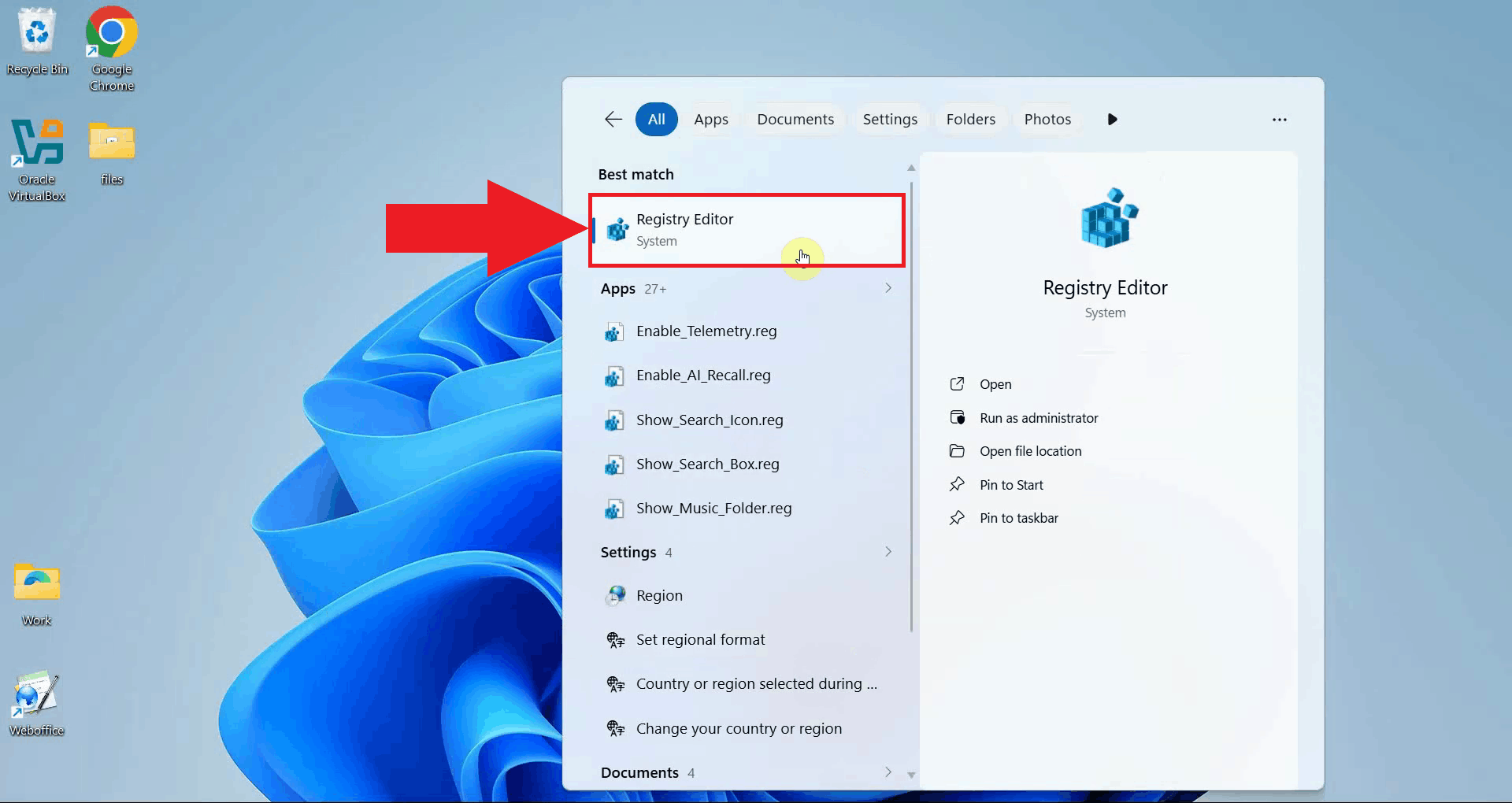
Open the Windows Registry Editor by opening windows search, typing
regedit into the search bar, and pressing Enter. The Registry
Editor allows you to view and modify low-level Windows system settings (Figure 5).
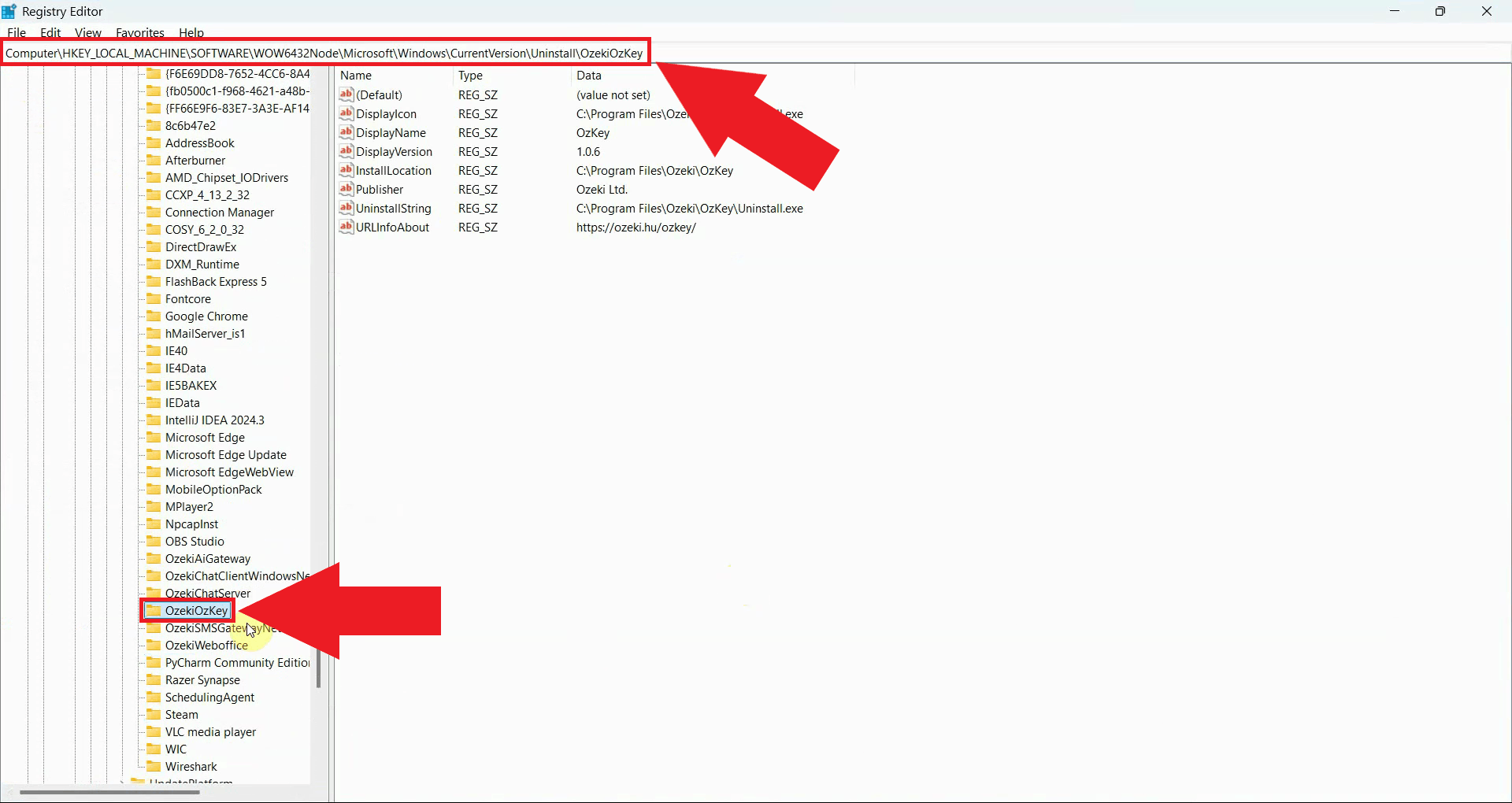
Navigate to the OzKey uninstall registry key by pasting the following path into the Registry Editor's address bar (Figure 6).
HKEY_LOCAL_MACHINE\SOFTWARE\WOW6432Node\Microsoft\Windows\CurrentVersion\Uninstall\OzekiOzKey
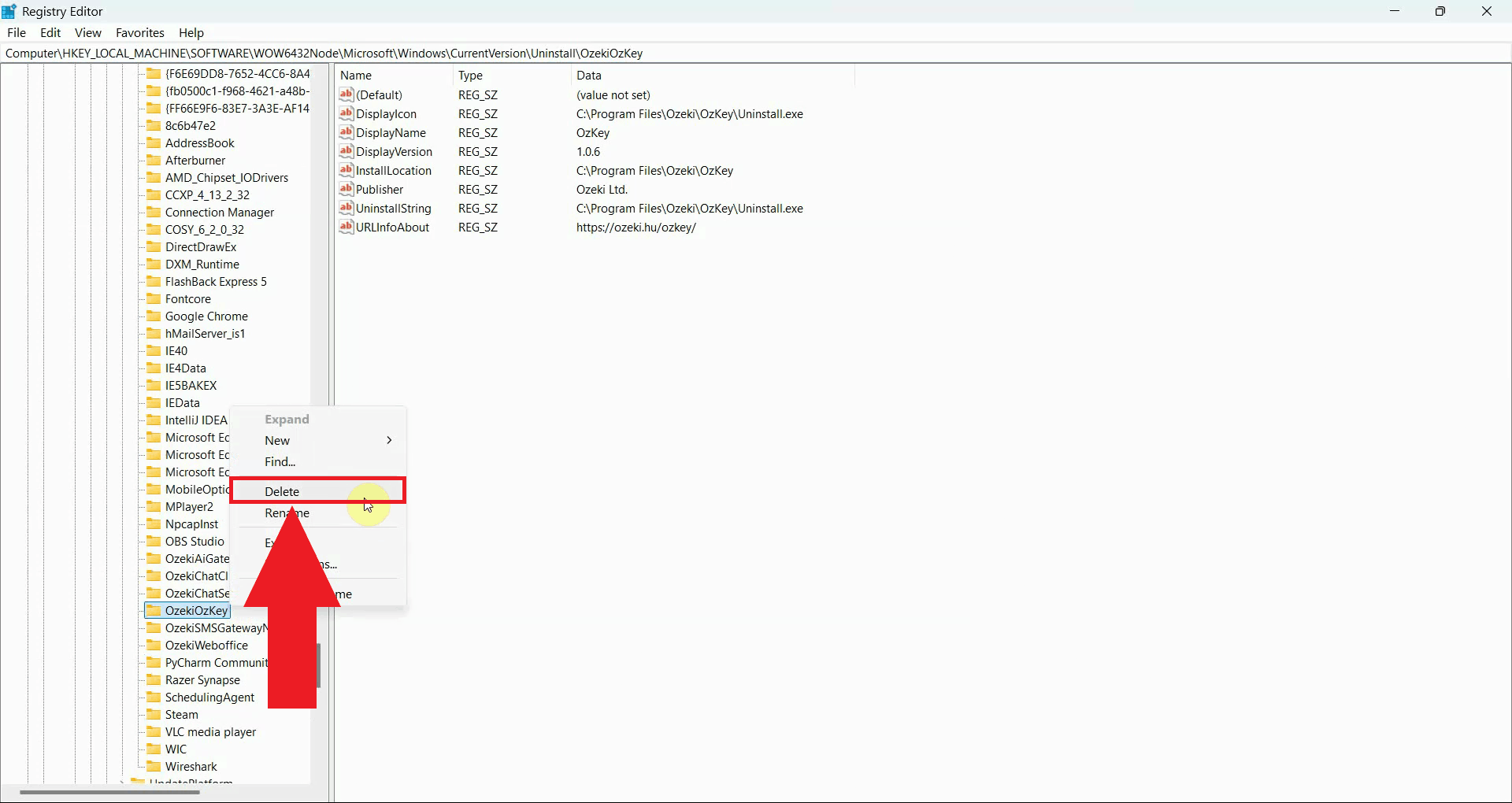
Right-click the OzekiOzKey key in the left panel and select Delete to remove it. Confirm the deletion when prompted. Once this key is removed, Windows will no longer list Ozeki Voice Keyboard as an installed program (Figure 7).
Step 4 - Delete the Program Files folder
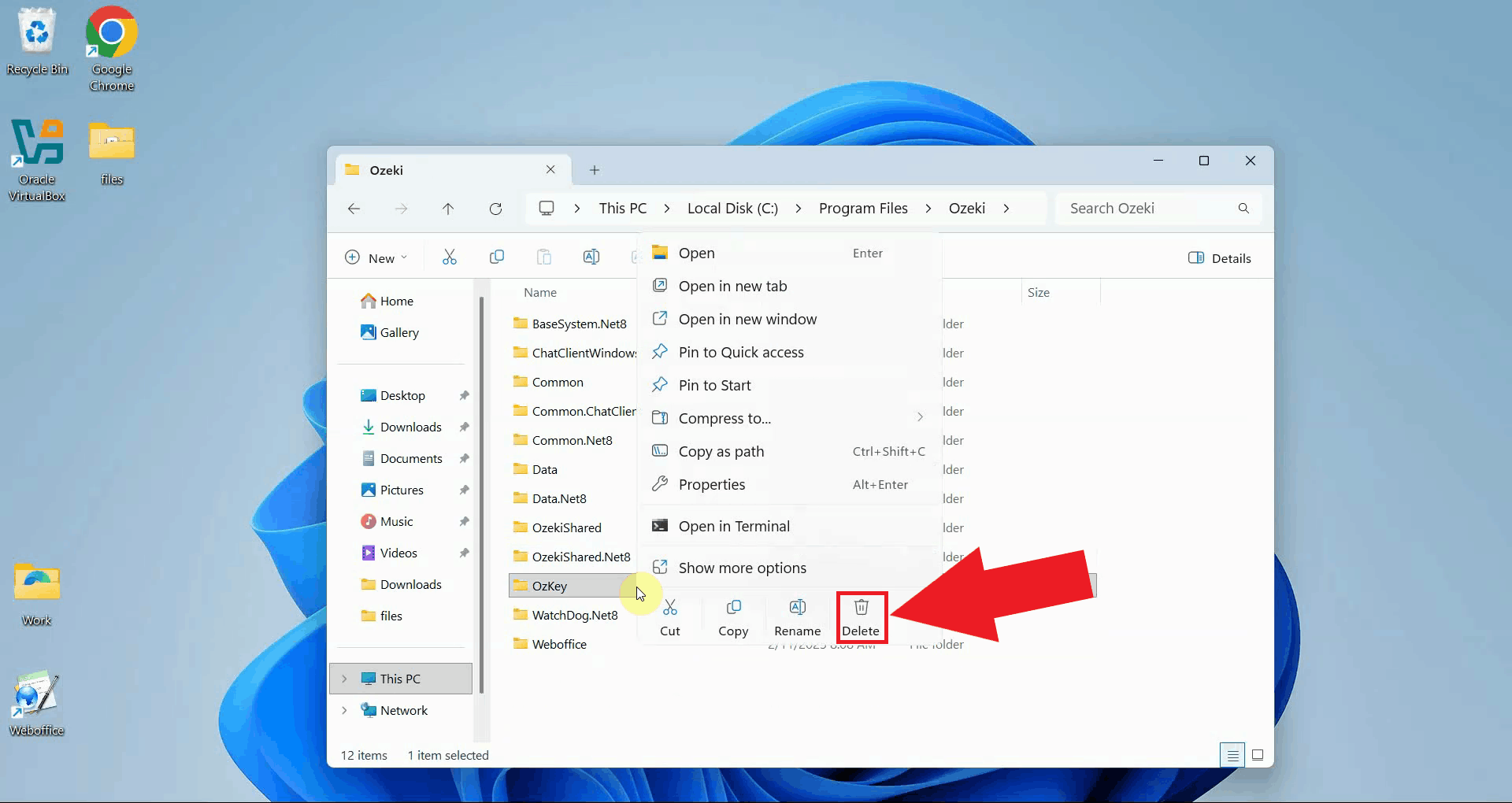
Open File Explorer and navigate to the Ozeki folder inside Program Files. This folder contains the application binaries (Figure 8).
C:\Program Files\Ozeki\OzKey
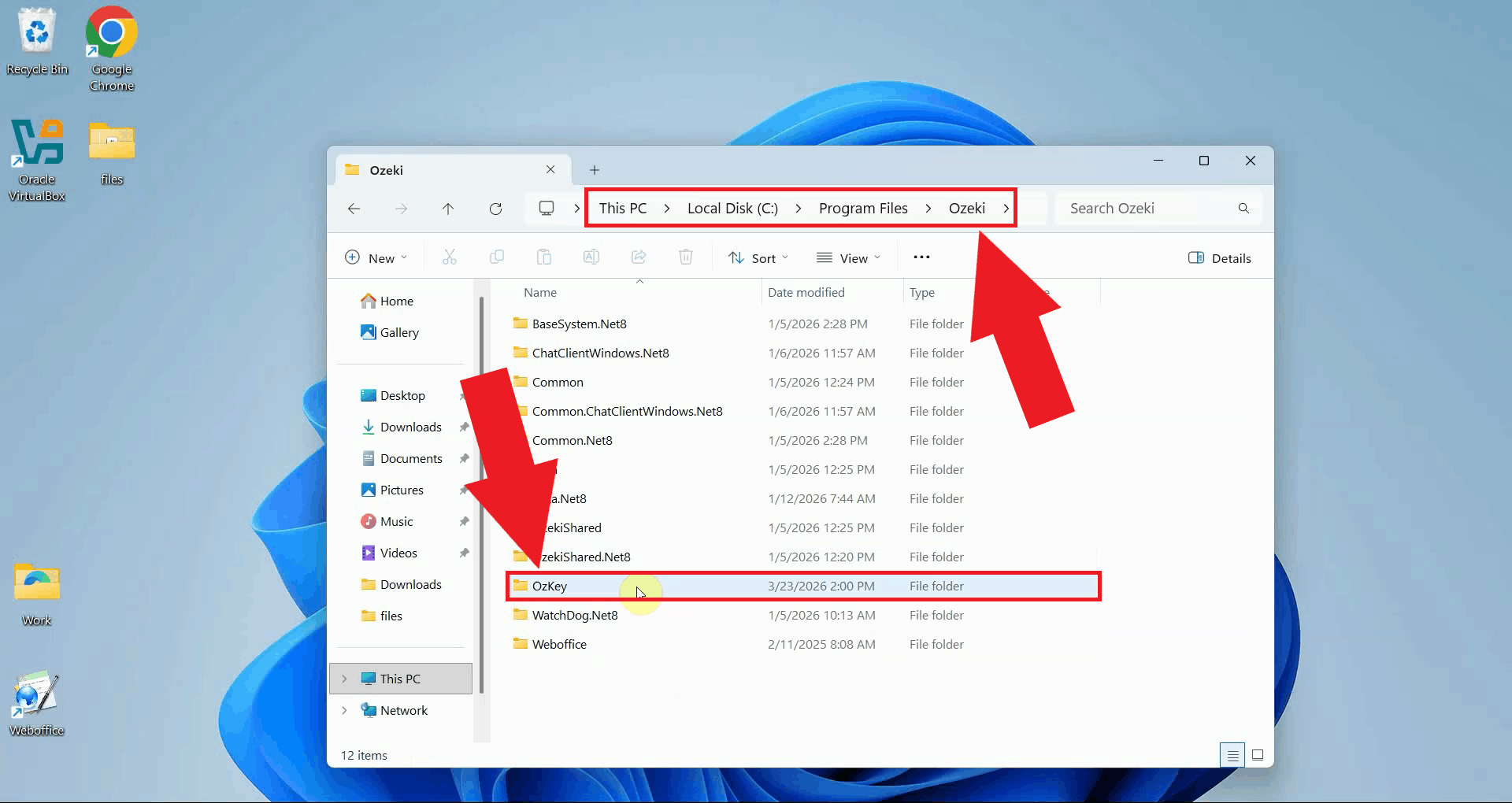
Right-click the OzKey folder and select Delete to remove it (Figure 9).
Step 5 - Remove the desktop shortcut
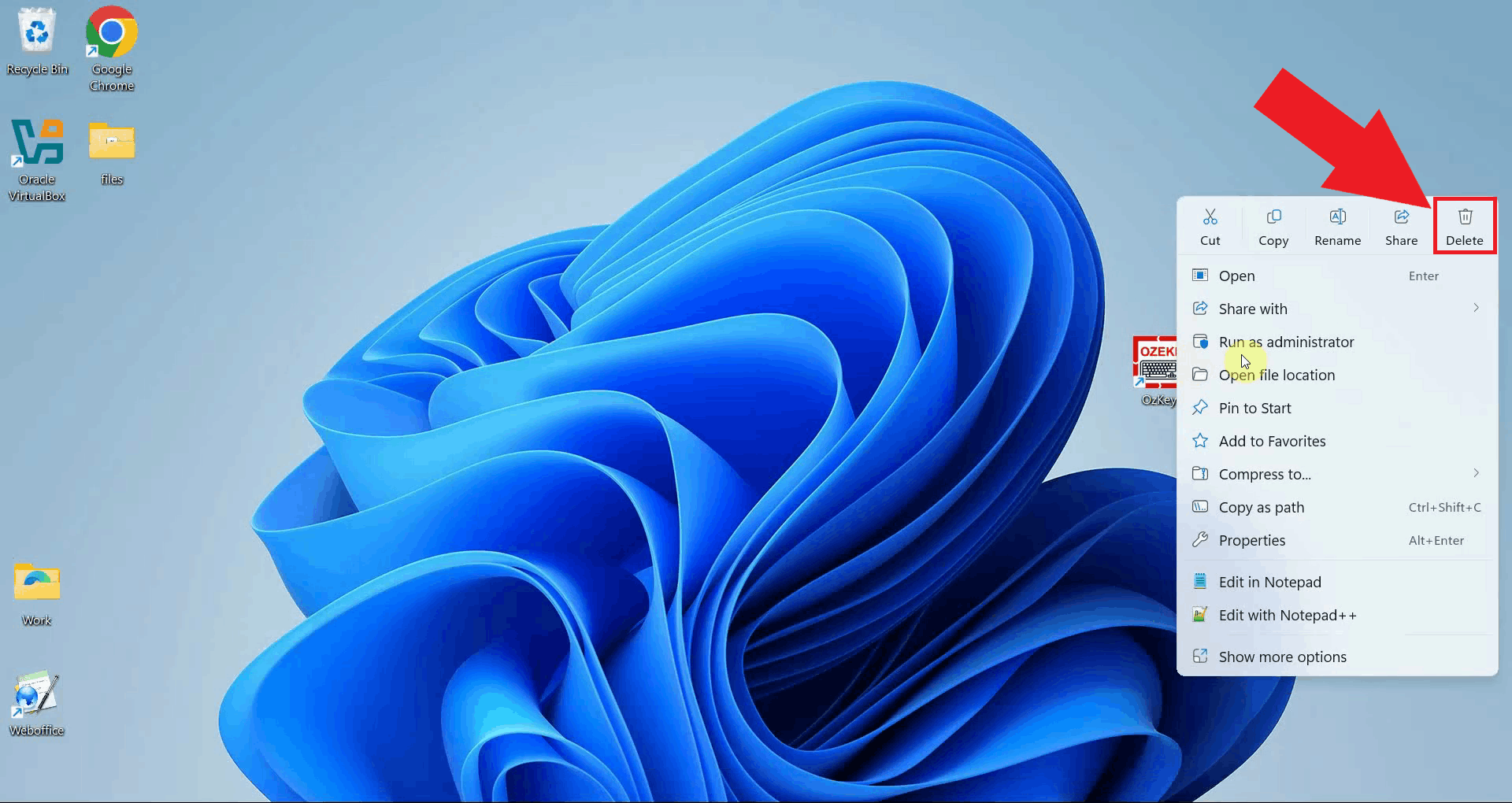
If a desktop shortcut was created during installation, locate the OzKey icon on your desktop. Right-click the shortcut and select Delete to remove it. This is the final step in the manual uninstallation process (Figure 10).
Final thoughts
You have successfully removed all traces of Ozeki Voice Keyboard from your Windows system. By deleting the application data folder, Start Menu entry, registry key, program files, and desktop shortcut, the application is now fully uninstalled without leaving any residual files or system entries behind.