
Ozeki Voice Keyboard Quick Start Guide
This quick start guide walks you through everything you need to get Ozeki Voice Keyboard up and running on Windows. You will download and install the application, configure your microphone, and make your first voice transcription, all in just a few minutes.
Steps to follow
- Download Ozeki Voice Keyboard
- Install Ozeki Voice Keyboard
- Configure microphone
- Test speech-to-text transcription
Download and install video tutorial
The following video shows how to download and install Ozeki Voice Keyboard step-by-step. The video covers navigating to the download page, extracting the installer from the ZIP file, and completing the setup wizard.
Step 1 - Download Ozeki Voice Keyboard
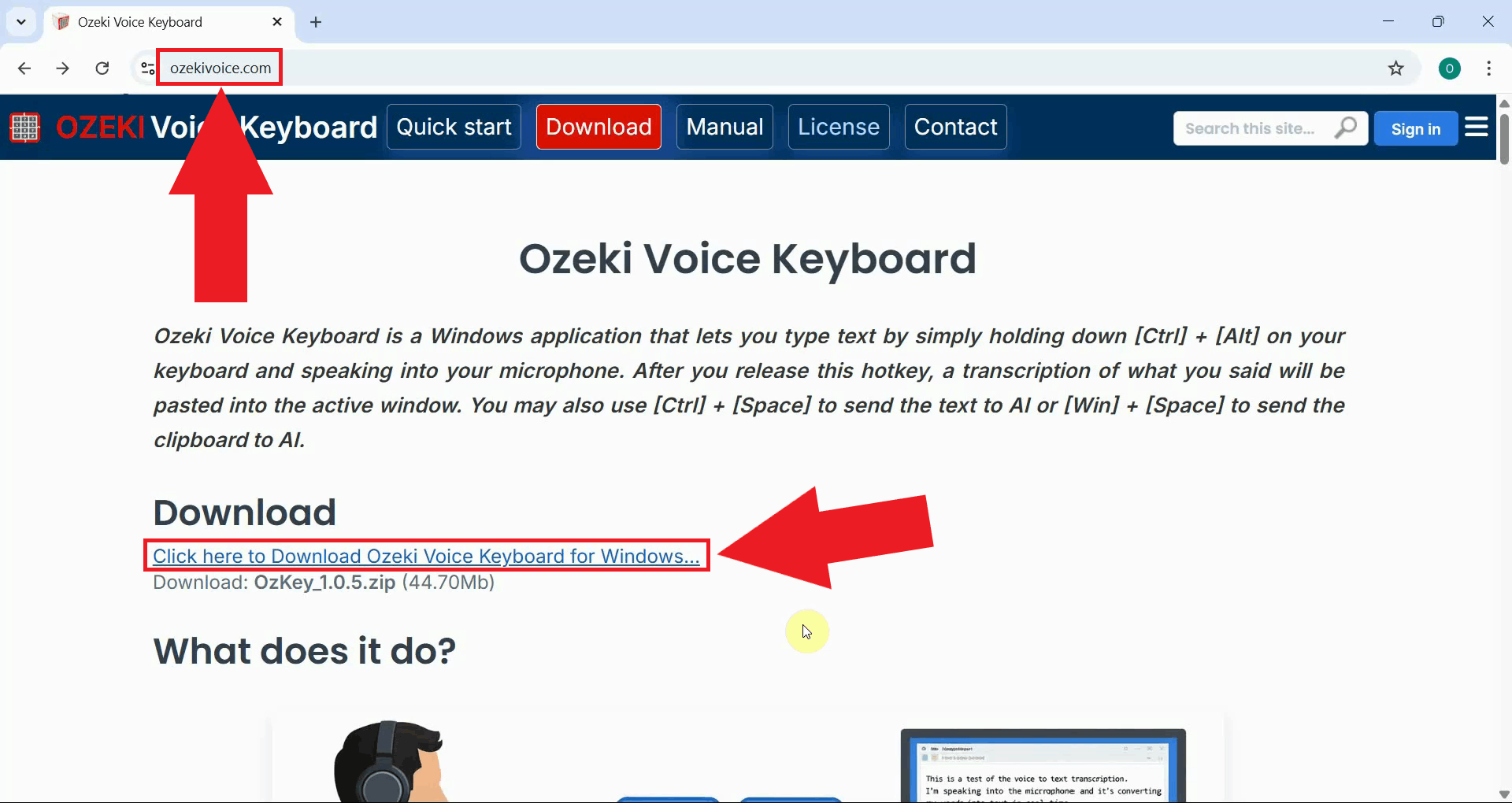
Open your browser and navigate to ozekivoice.com, the official product page for Ozeki Voice Keyboard. The page provides an overview of the application's features. Click the link to navigate to the download page (Figure 1).
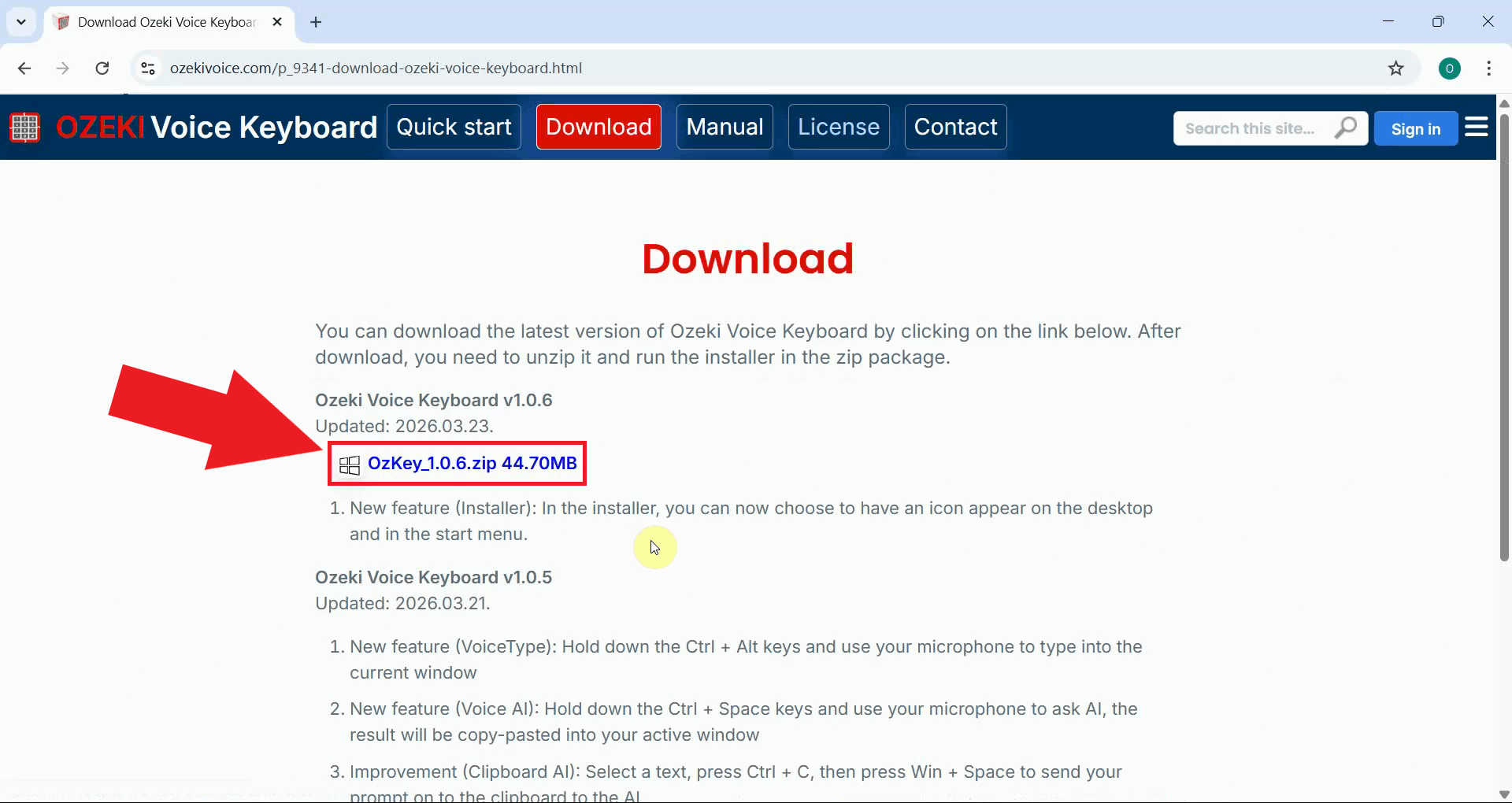
Download the latest version of the installer to your computer. The file will be saved to your default downloads folder as a compressed ZIP archive (Figure 2).
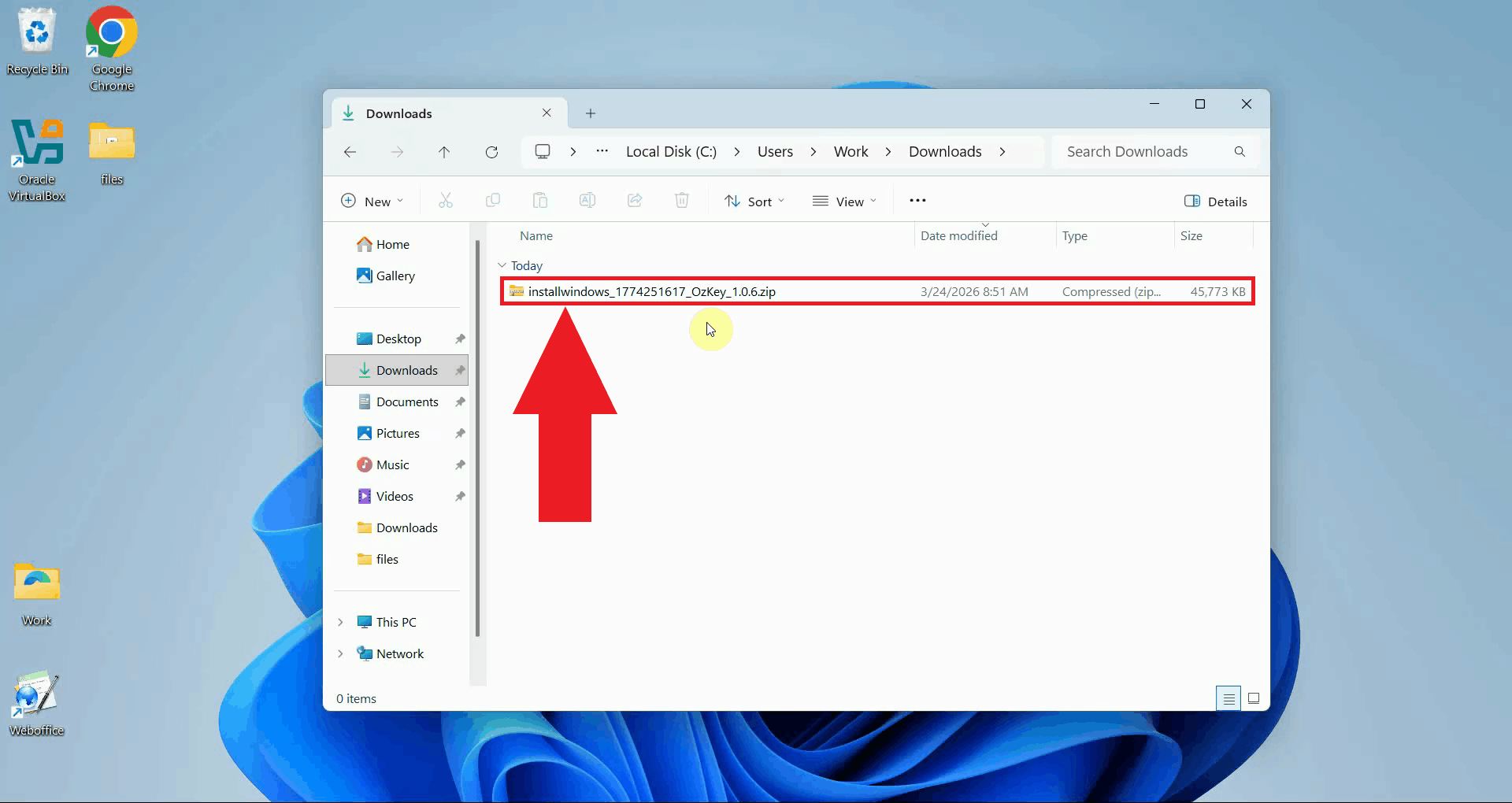
Open your Downloads folder and locate the downloaded ZIP file (Figure 3).
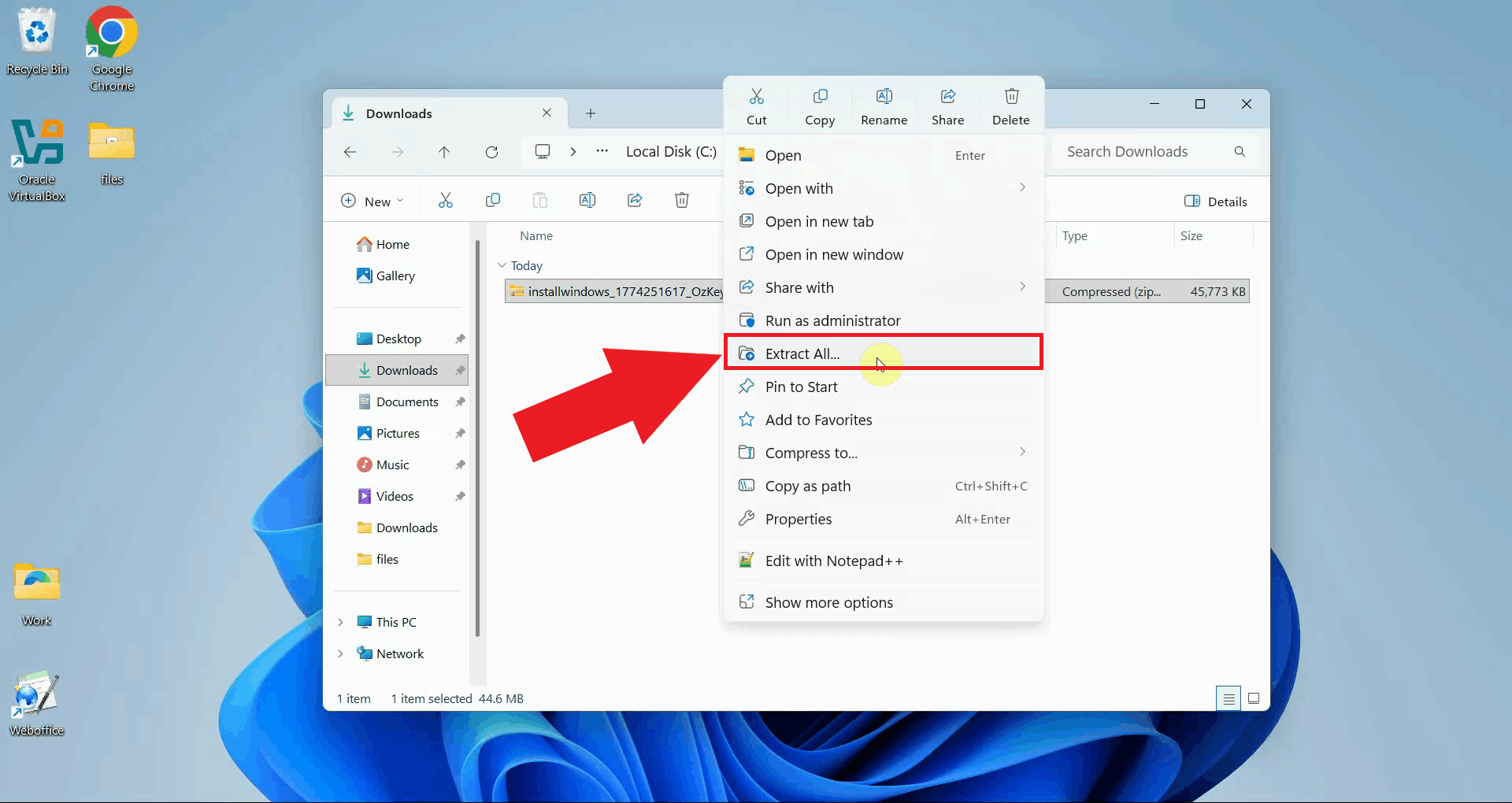
Right-click the ZIP file and select Extract All to unpack its contents. Select a destination folder and confirm the extraction, the OzKey installer executable will be available inside the extracted folder once complete (Figure 4).
Step 2 - Install Ozeki Voice Keyboard
Open the extracted folder and double-click the OzKey installer executable to launch the setup wizard. If prompted by Windows User Account Control, click Yes to allow the installer to run (Figure 5).
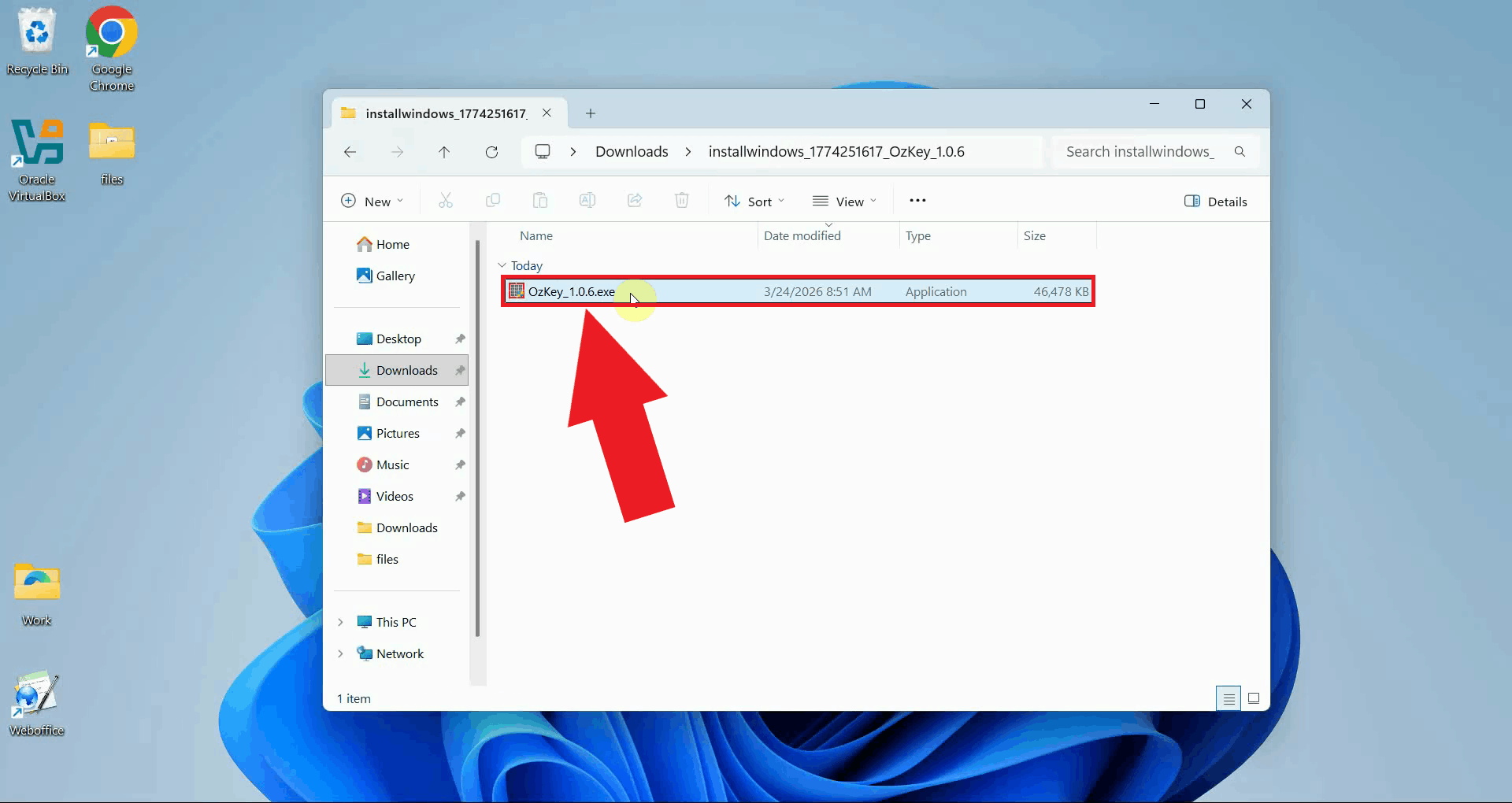
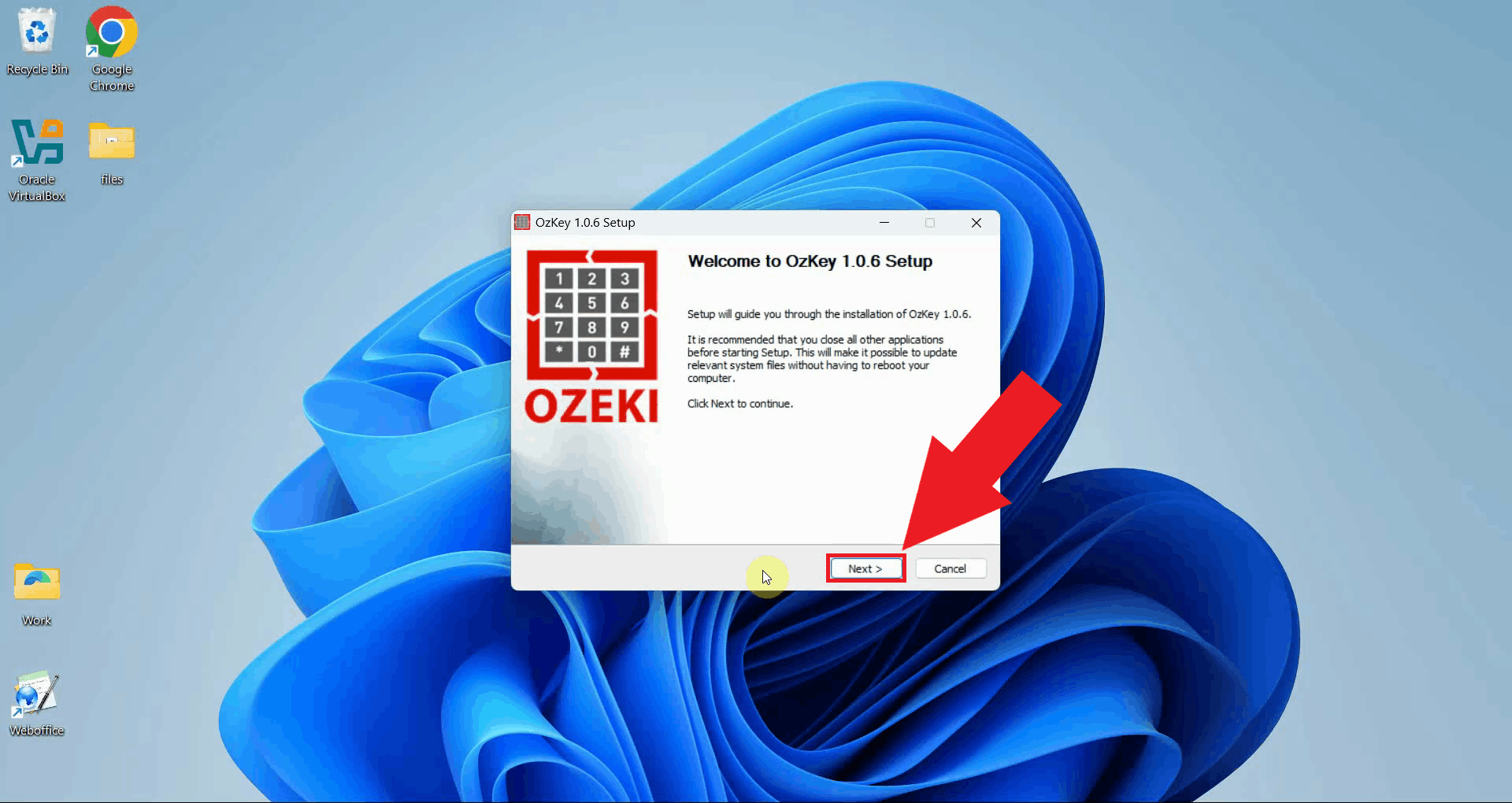
The OzKey setup wizard will open with a welcome page that briefly explains the installation process. Click Next to proceed with the installation(Figure 6).
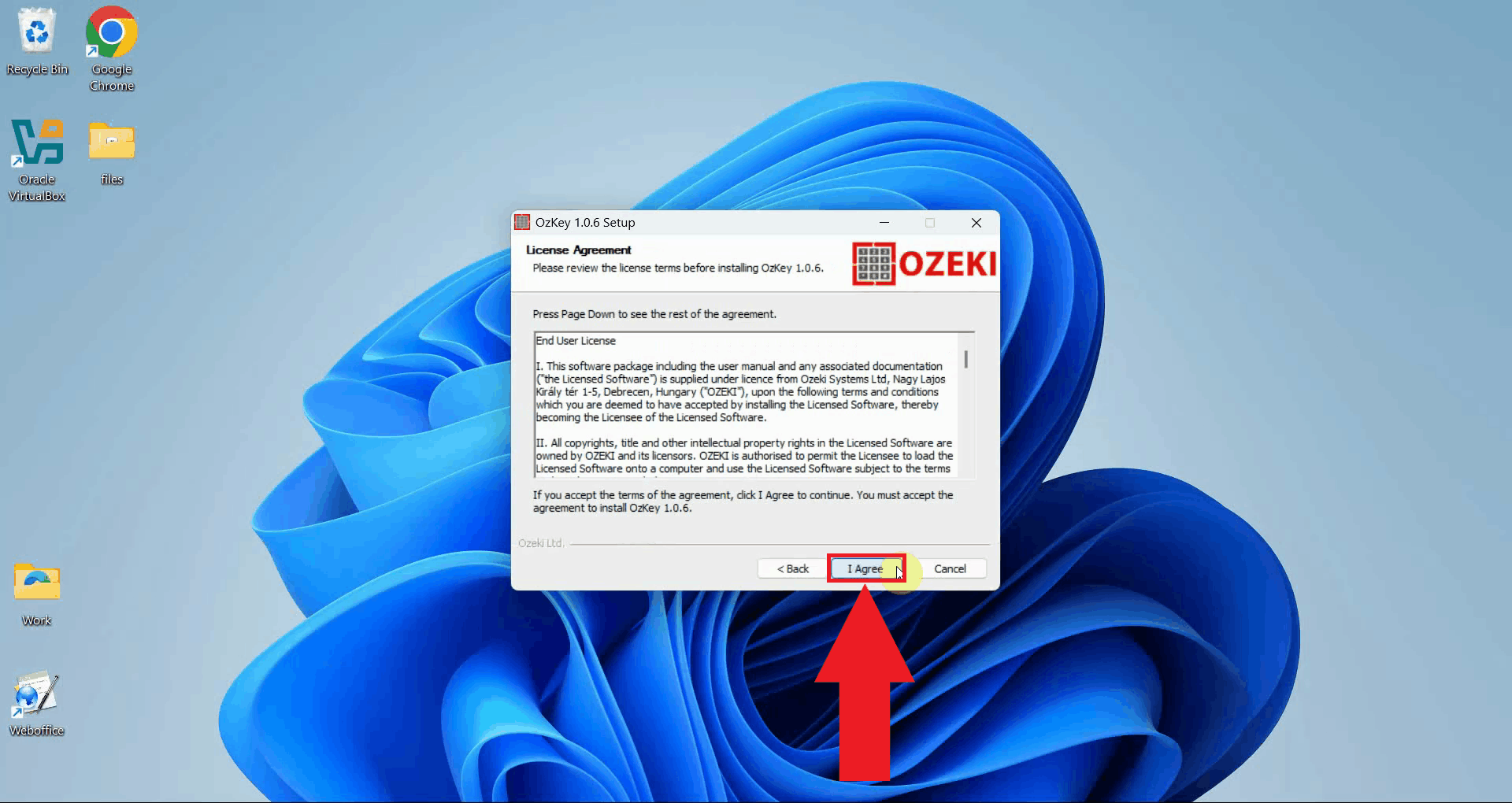
Read the license agreement and select I Agree to accept the terms and proceed to the next step (Figure 7).
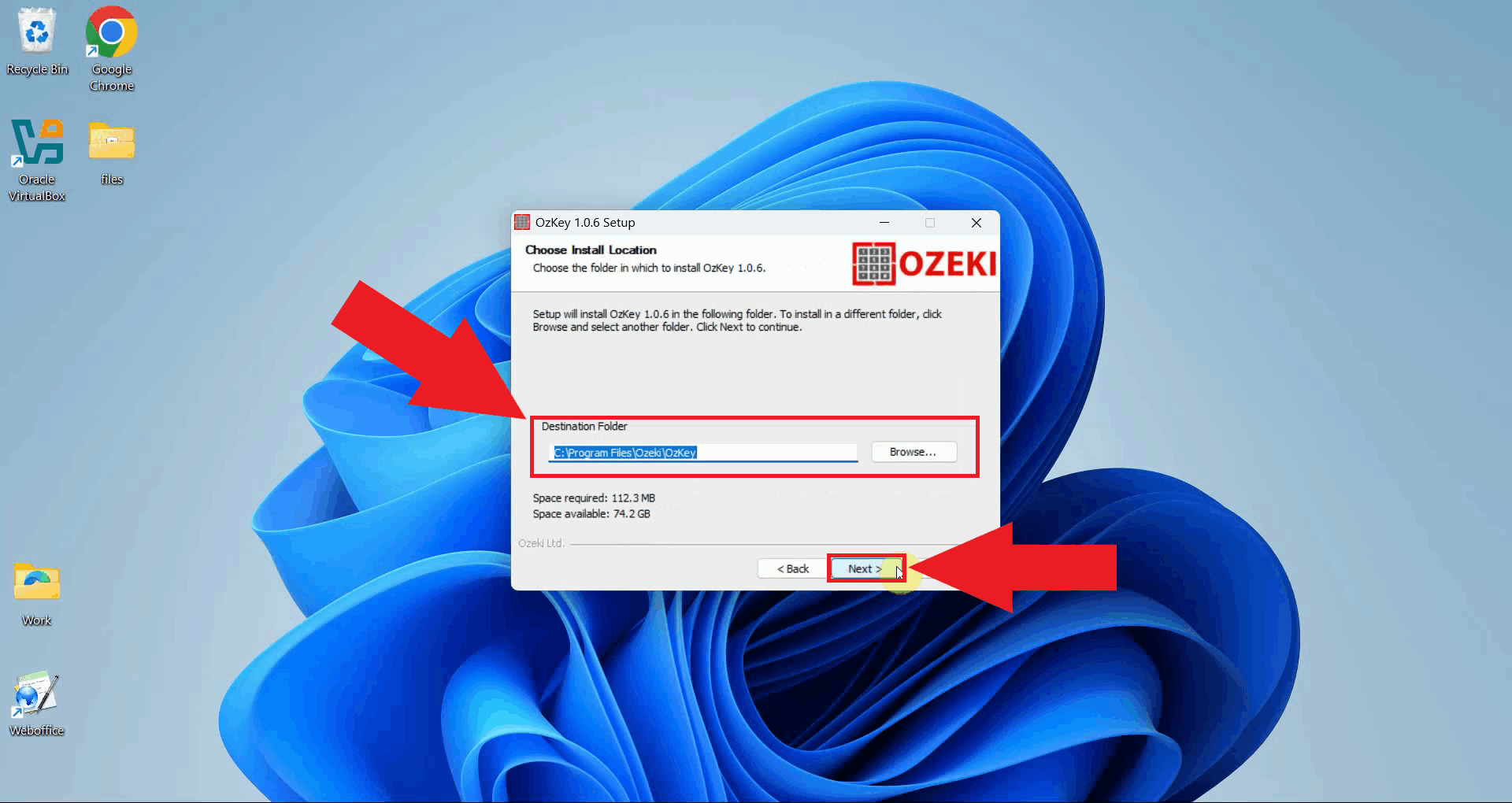
Choose the installation directory for Ozeki Voice Keyboard. The default location is recommended for most users. Click Next to continue (Figure 8).
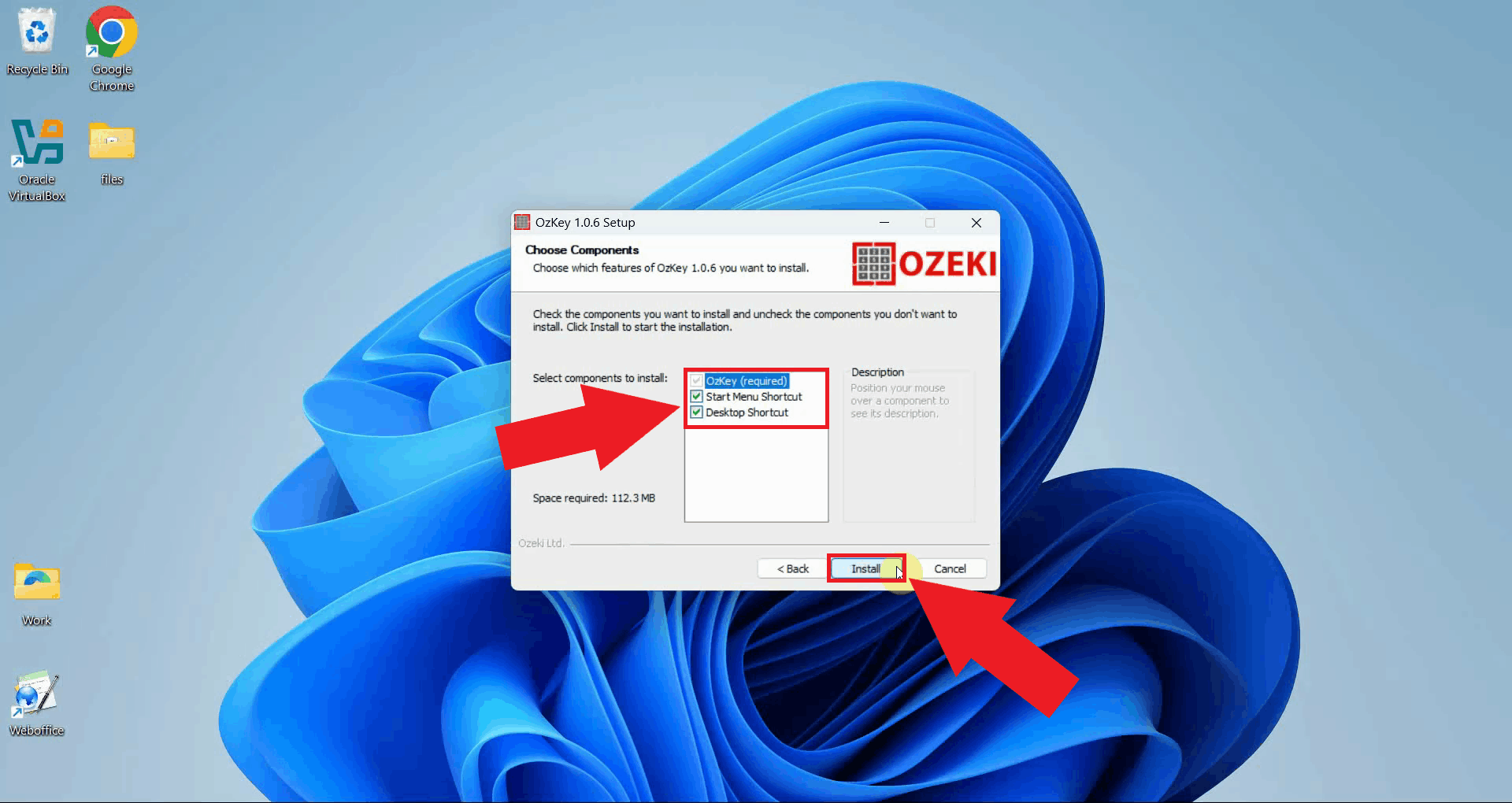
The component selection screen shows the available installation options. Start Menu Shortcut and Desktop Shortcut are both checked by default, giving you quick access to the application after installation. Click Install to begin (Figure 9).
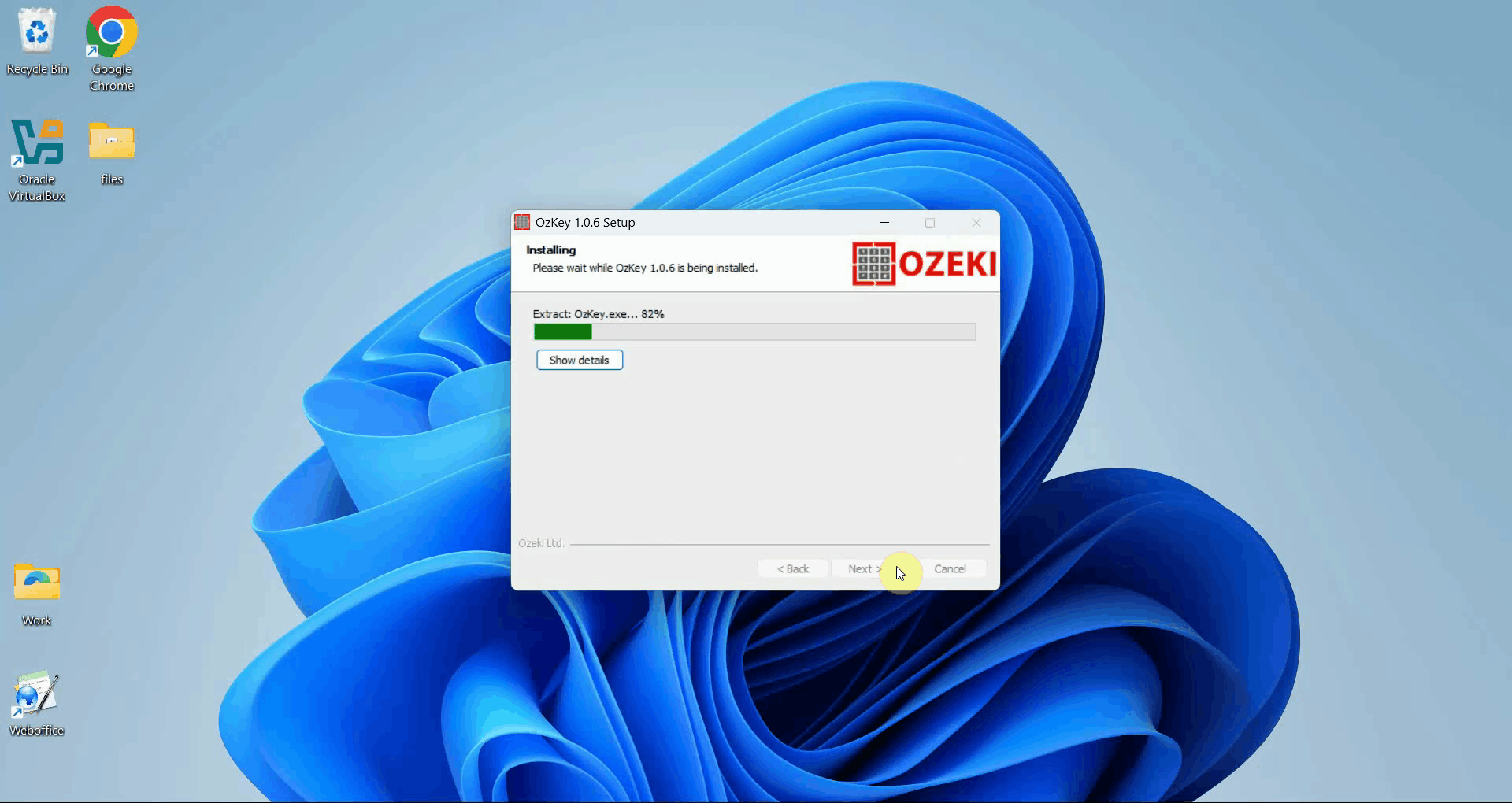
The installer will copy all necessary files to the selected directory. A progress bar indicates how much of the installation has completed (Figure 10).
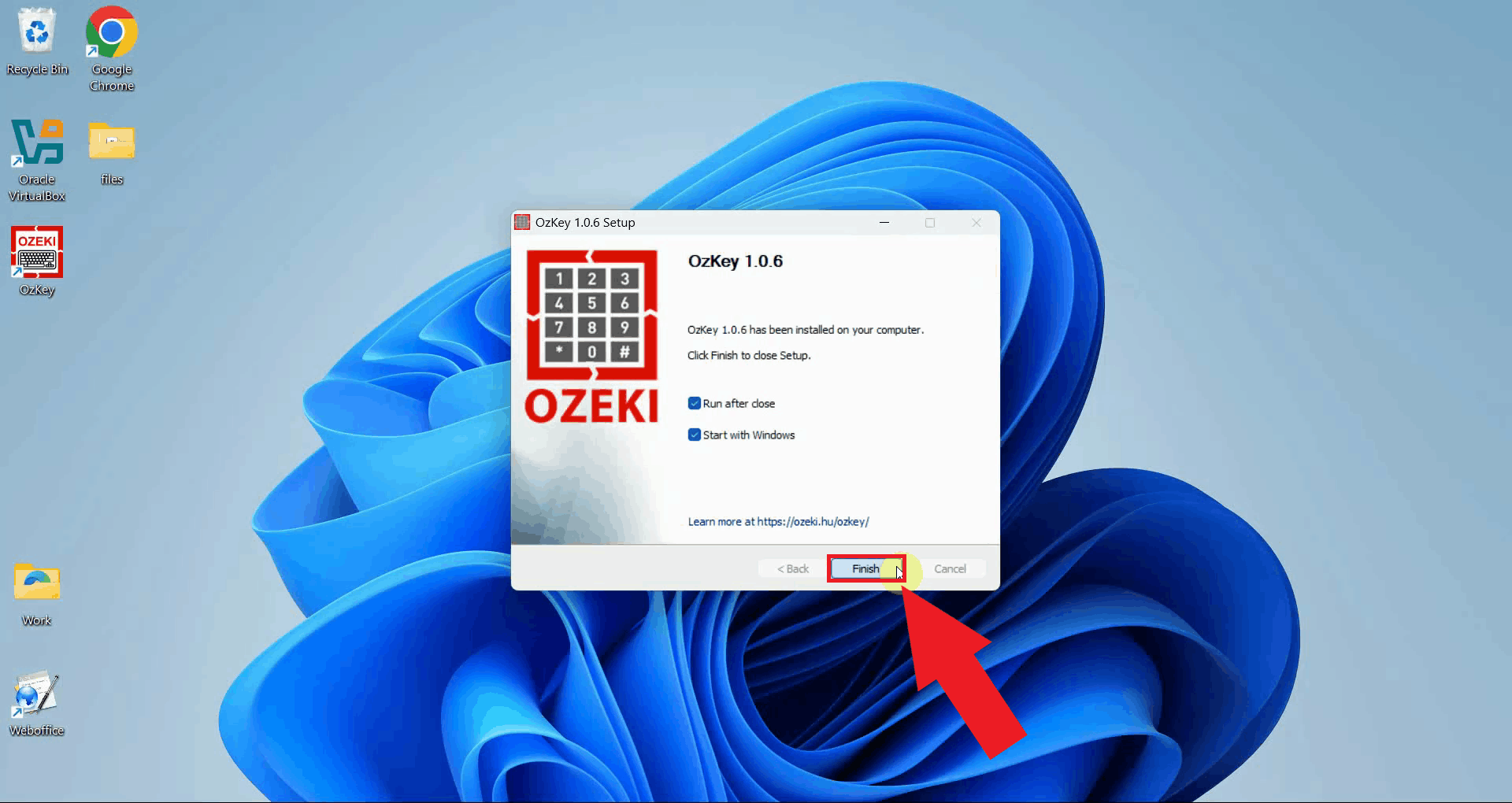
Once the installation is complete, the wizard will display a confirmation screen. Click Finish to close the installer and launch Ozeki Voice Keyboard (Figure 11).
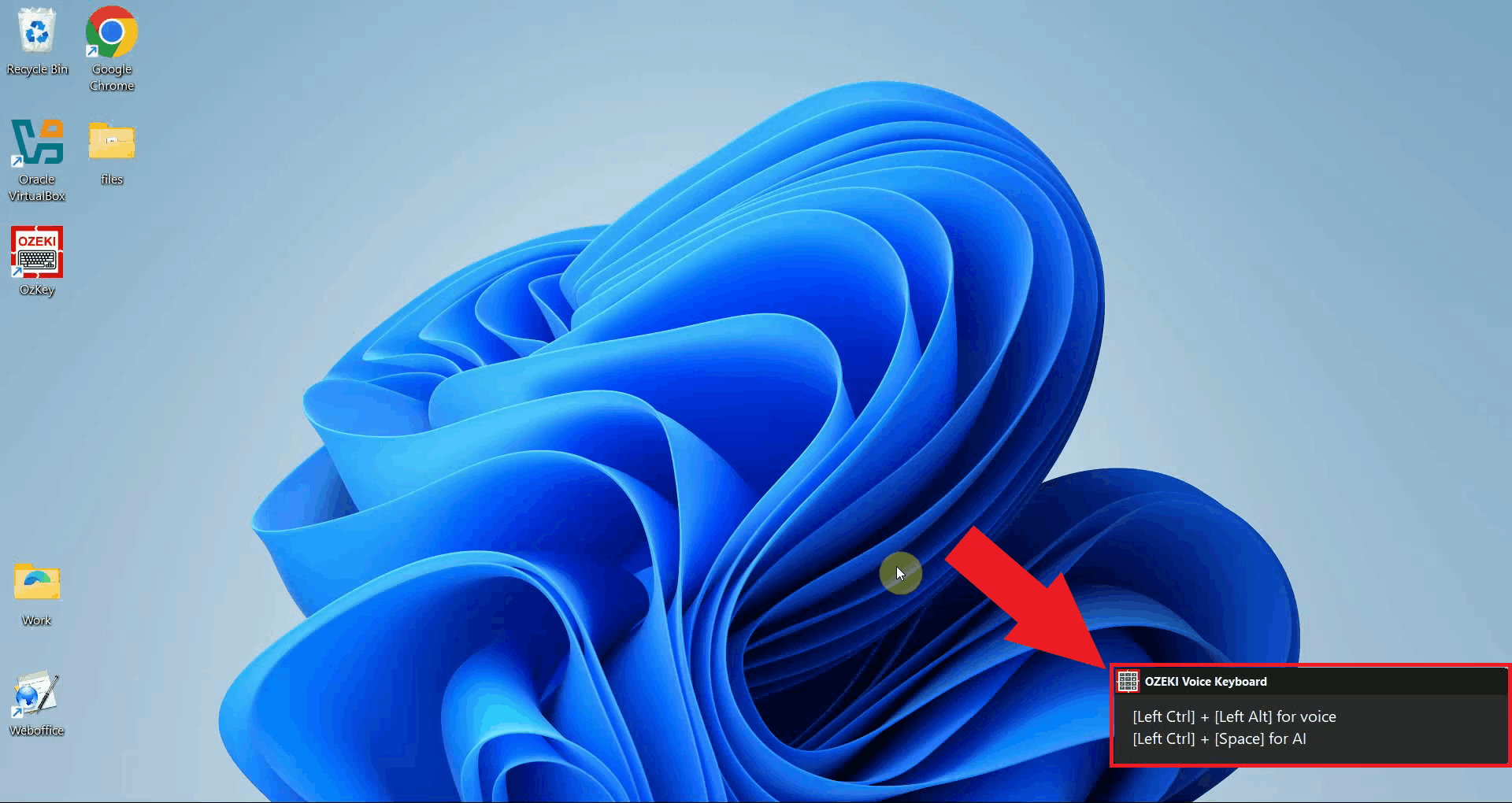
Ozeki Voice Keyboard will start automatically after installation and display its hotkey overlay in the bottom right corner of your screen, indicating that it is running in the background and ready to use (Figure 12).
Step 3 - Configure microphone
The following video shows how to configure your microphone and use Ozeki Voice Keyboard for the first time. The video covers opening the microphone settings, selecting your preferred input device, and testing voice-to-text transcription in Notepad.
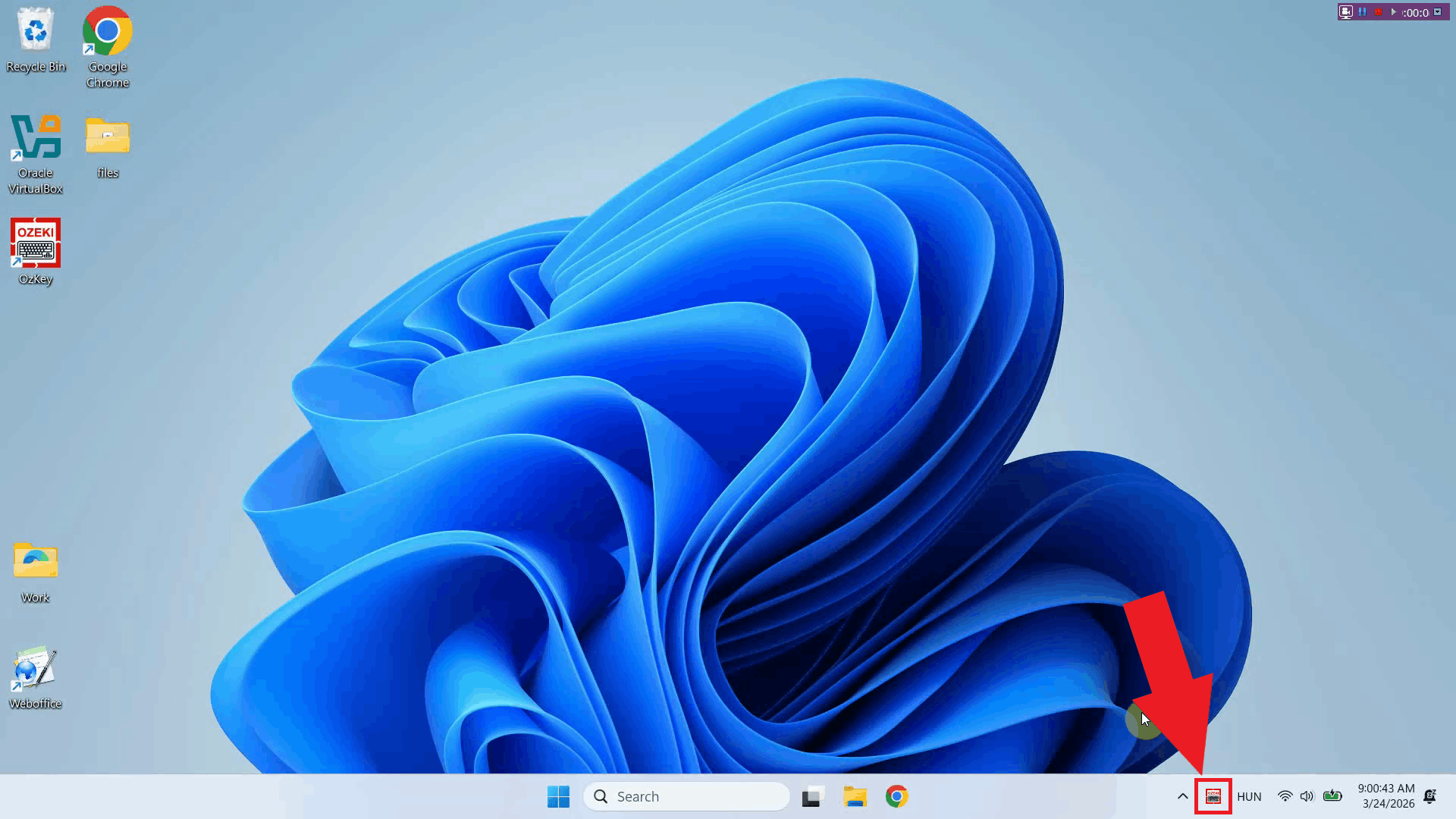
Locate the Ozeki Voice Keyboard icon in the Windows system tray in the bottom right corner of your taskbar. If the icon is not visible, click the arrow to expand the hidden tray icons (Figure 13).
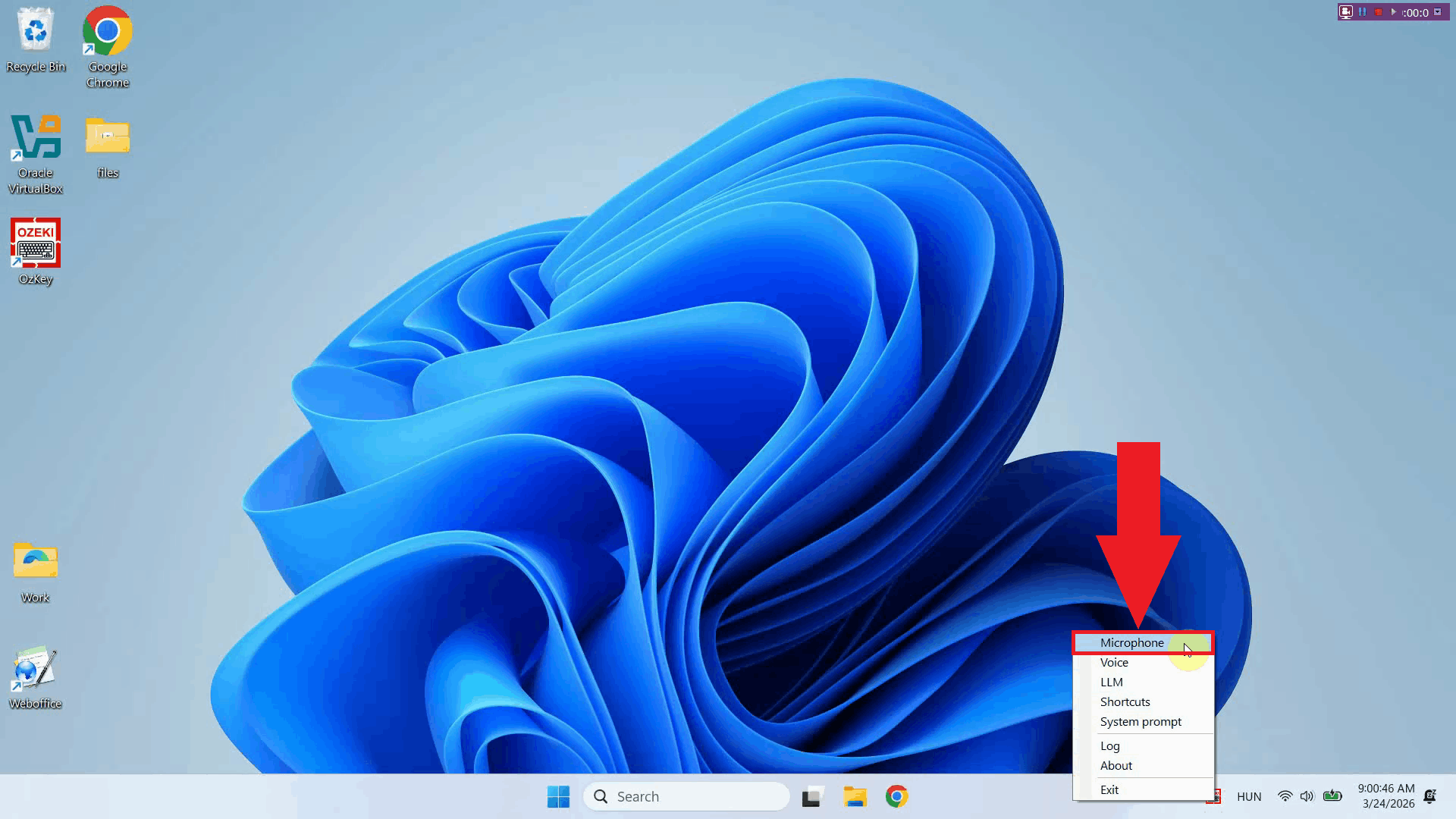
Right-click the tray icon and select Microphone from the context menu to open the microphone configuration window (Figure 14).
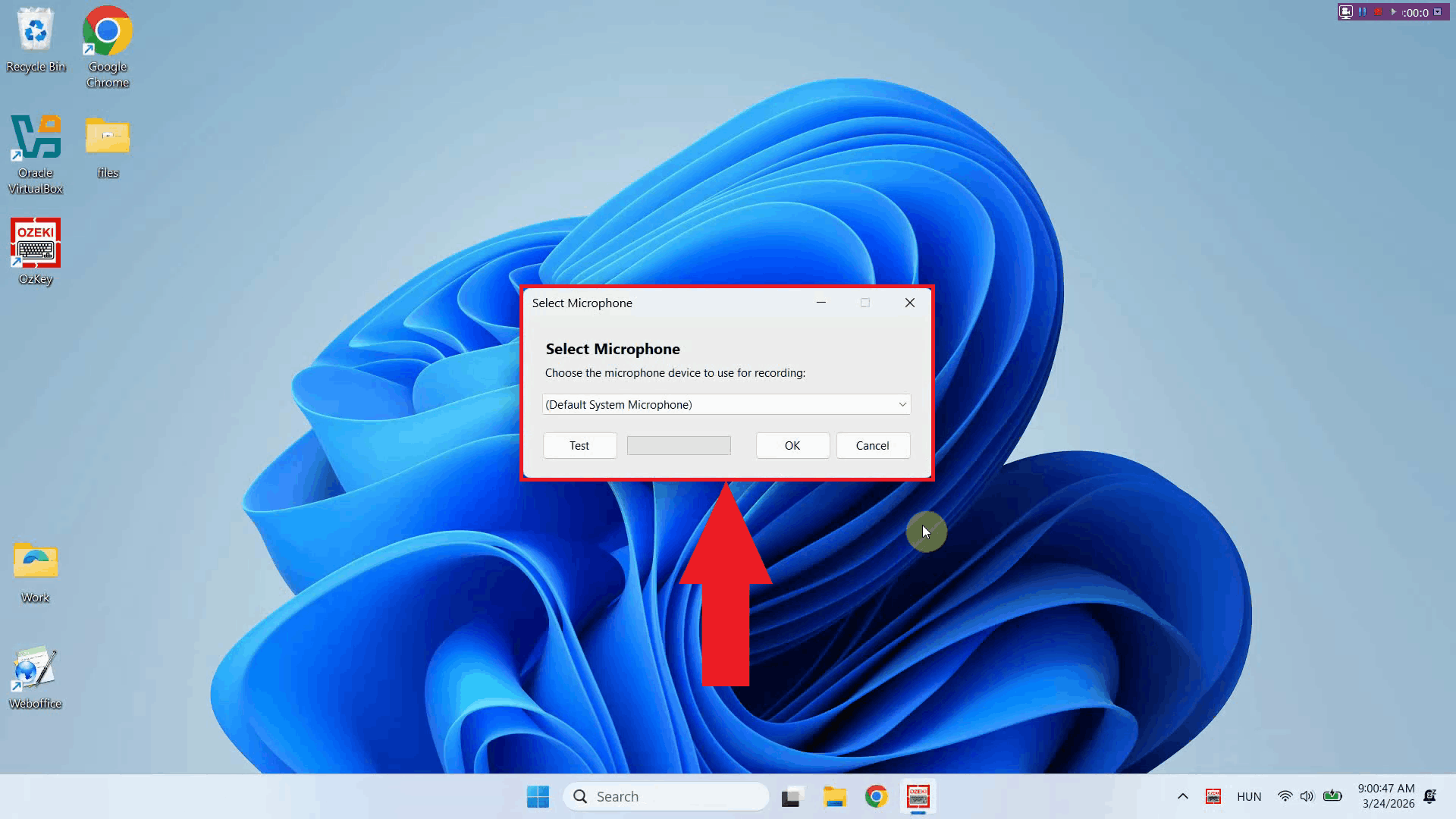
The microphone settings window displays all available audio input devices detected on your system. This is where you select which microphone Ozeki Voice Keyboard will use to capture your voice recordings (Figure 15).
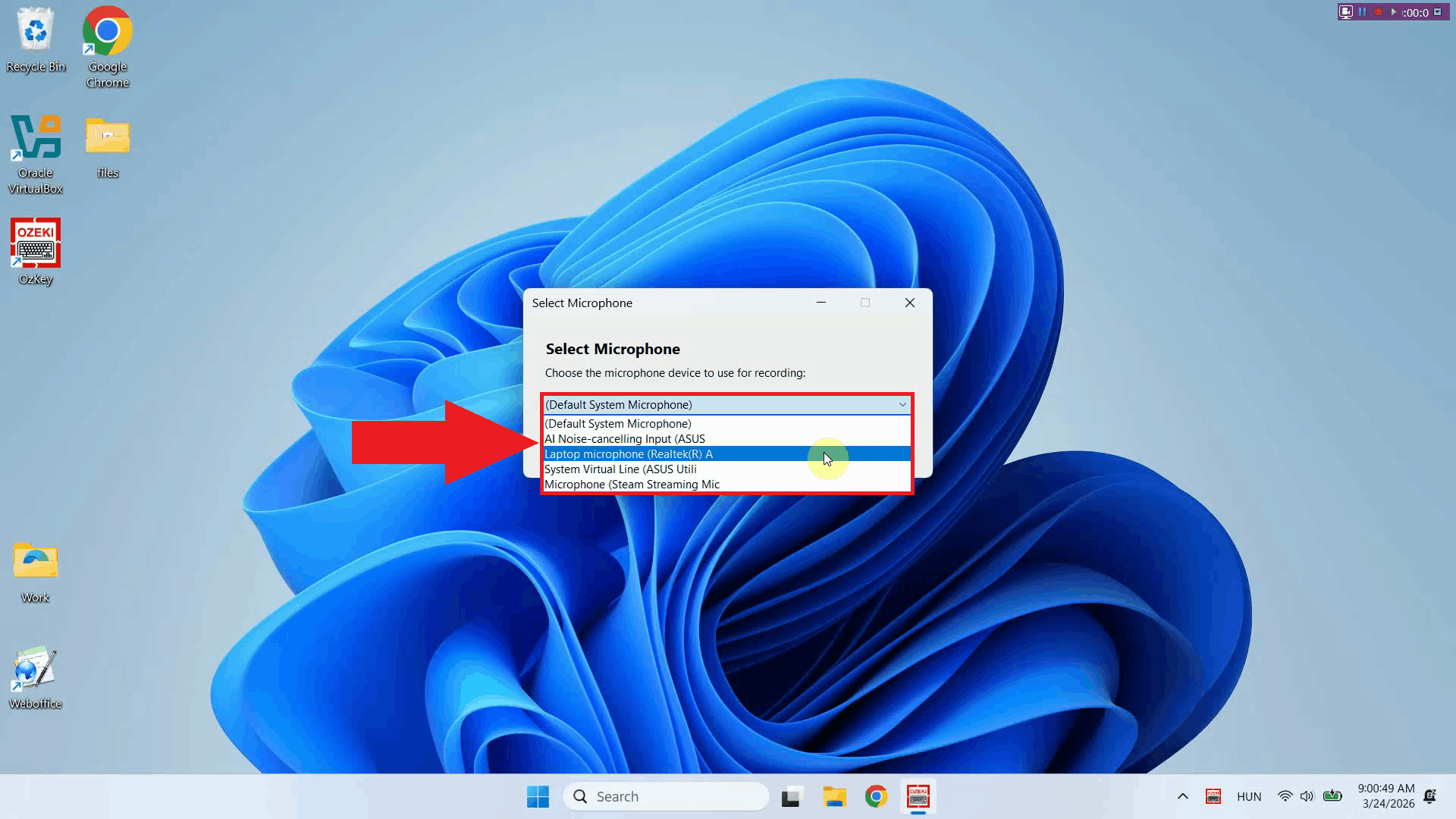
Click the dropdown list and select the microphone you want to use. If you have multiple audio input devices connected, make sure to select the one closest to you for the best transcription accuracy (Figure 16).
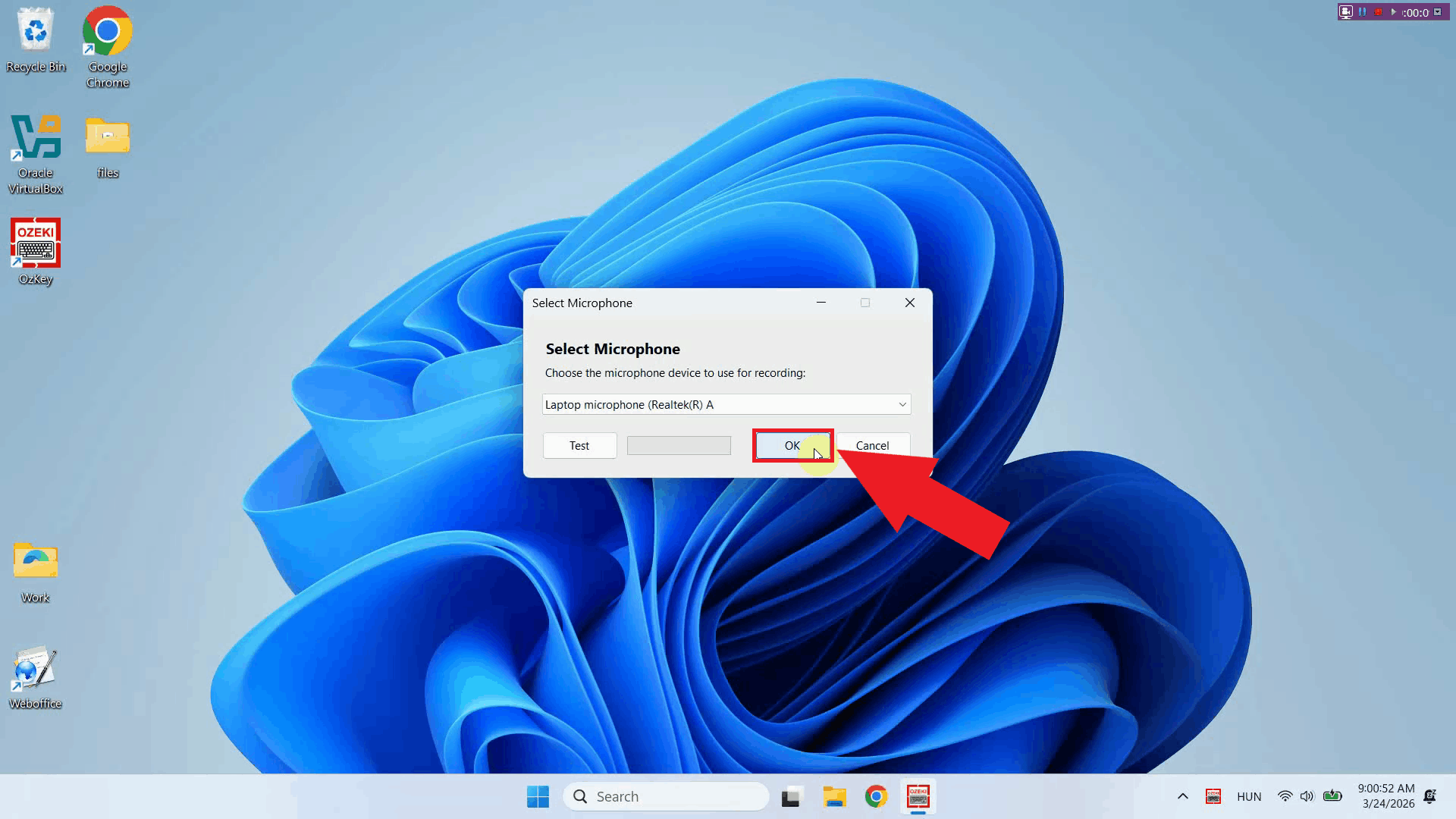
Click OK to save the microphone selection. Ozeki Voice Keyboard will now use the chosen device for all voice recordings (Figure 17).
Step 4 - Test speech-to-text transcription
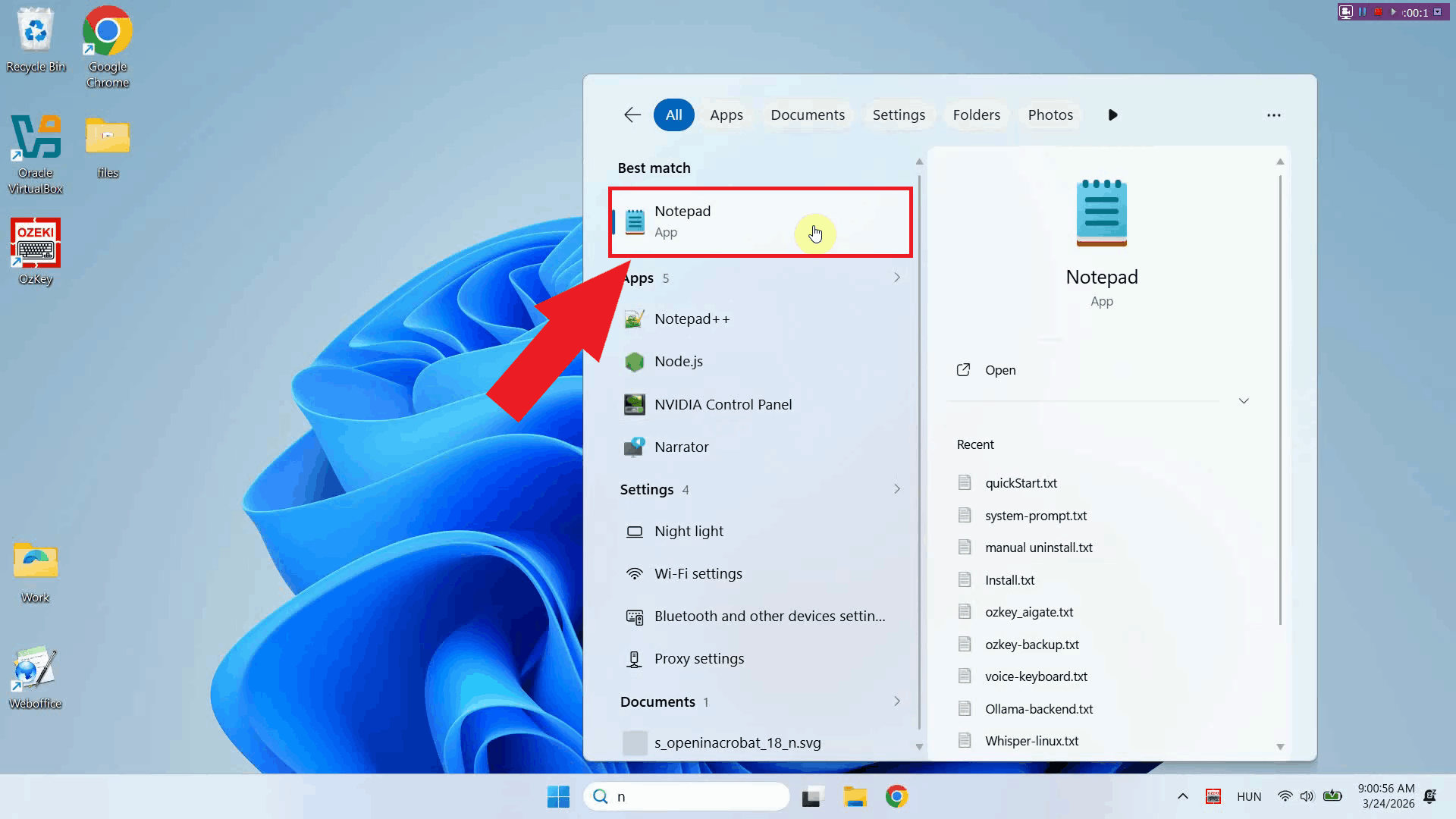
Open Notepad or any other text editor and click inside the text area to make it the active input field. Ozeki Voice Keyboard will paste the transcribed text into whichever field is currently active when you release the recording hotkey (Figure 18).
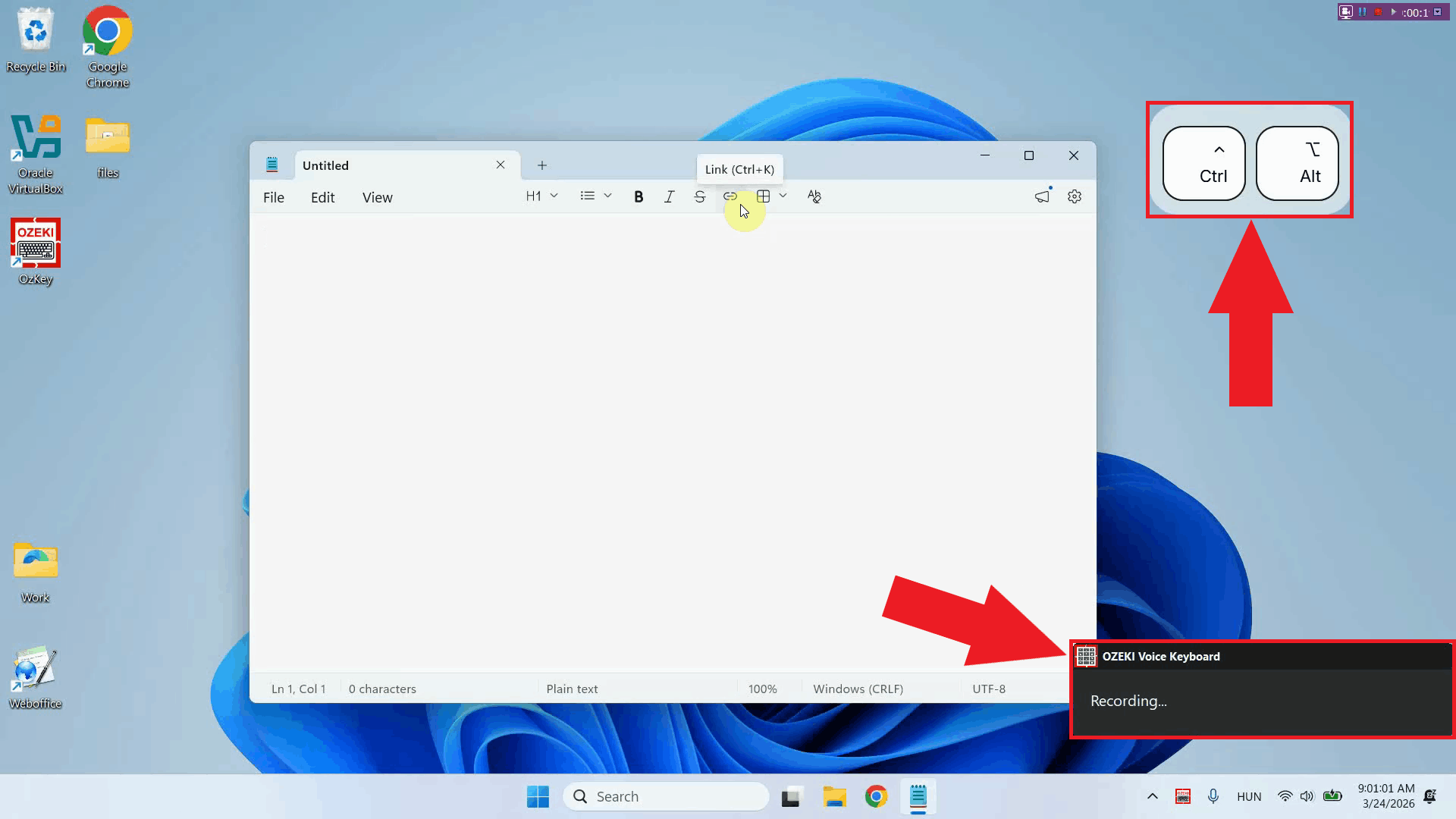
Press and hold Ctrl + Alt and speak clearly into your microphone. The application will record your voice for as long as the keys are held down (Figure 19).
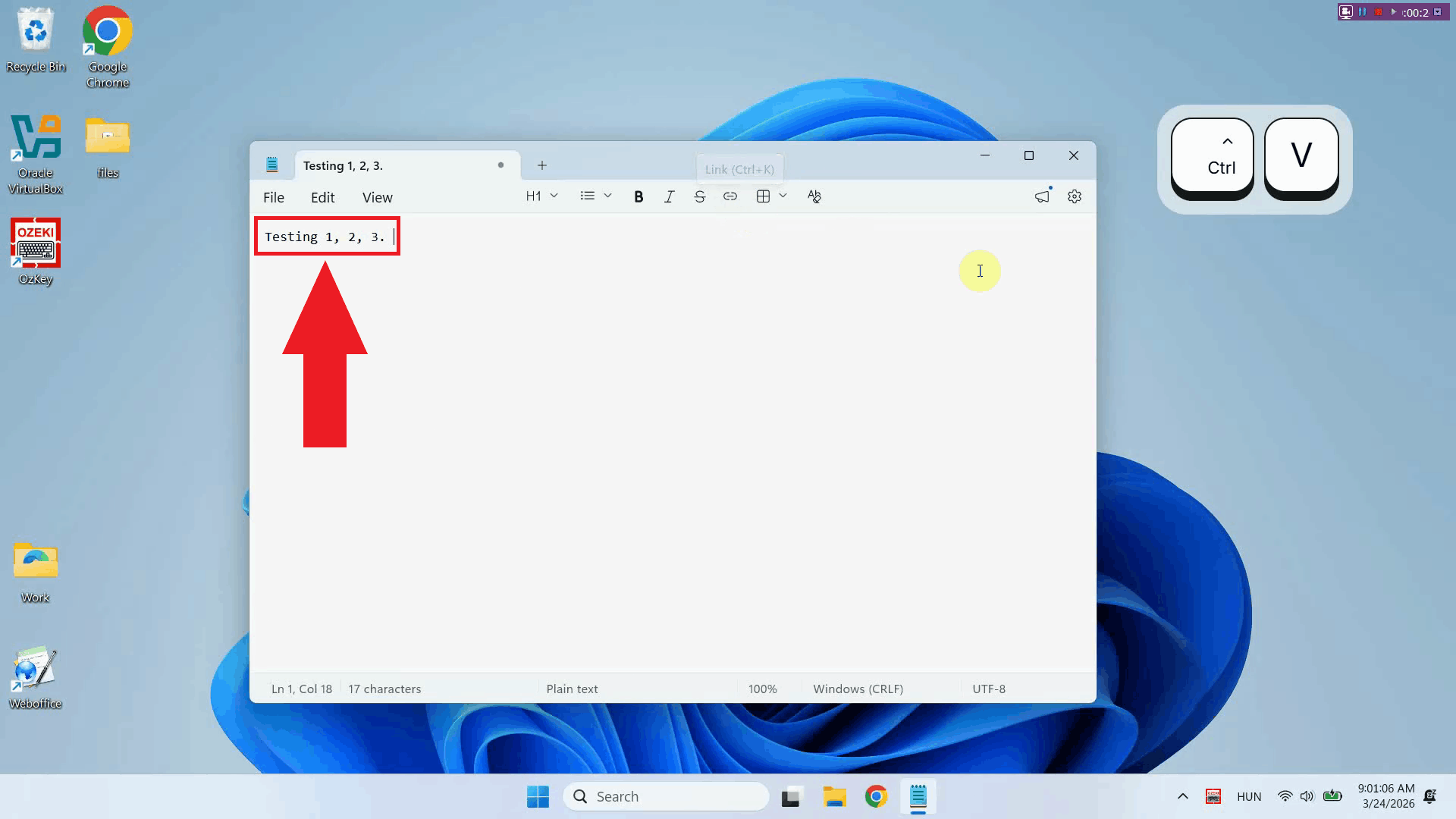
After releasing the keys, the audio is sent to the configured voice model for transcription. Once processing is complete, the resulting text is automatically pasted into Notepad exactly as if you had typed it with a keyboard (Figure 20).
To learn more about configuring the voice model, check out our How to set up your Voice detection service in Ozeki Voice Keyboard guide.
Final thoughts
You have successfully installed and configured Ozeki Voice Keyboard and completed your first voice transcription. The application is now ready for everyday use: simply hold Ctrl + Alt to dictate text into any input field, or use Ctrl + Space to send a spoken question to the configured AI assistant.