
How to use Ollama on Windows as the LLM backend for Ozeki Voice Keyboard
This guide demonstrates how to configure Ollama as the LLM backend for Ozeki Voice Keyboard on Windows. By integrating a locally running Ollama instance, the AI assistant feature can process voice queries entirely on your machine: your speech is transcribed by the configured voice model, the resulting text is sent to Ollama as a prompt, and the generated response is automatically inserted into the active input field.
How it works
The diagram below illustrates the full pipeline of the AI assistant feature.
Steps to follow
Before proceeding, make sure Ollama is installed on your Windows machine and at least one AI model has been downloaded and is ready to use. You can check out our guide about How to install Ollama
- Verify Ollama is running
- Open Ozeki Voice Keyboard and enable logging
- Configure the LLM settings
- Ask the AI assistant a question
- Check the request in logs
How to use Ollama as the LLM backend video
The following video shows how to configure Ollama as the LLM backend for Ozeki Voice Keyboard step-by-step. The video covers configuring the LLM settings, using the AI assistant, and confirming the request in the log viewer.
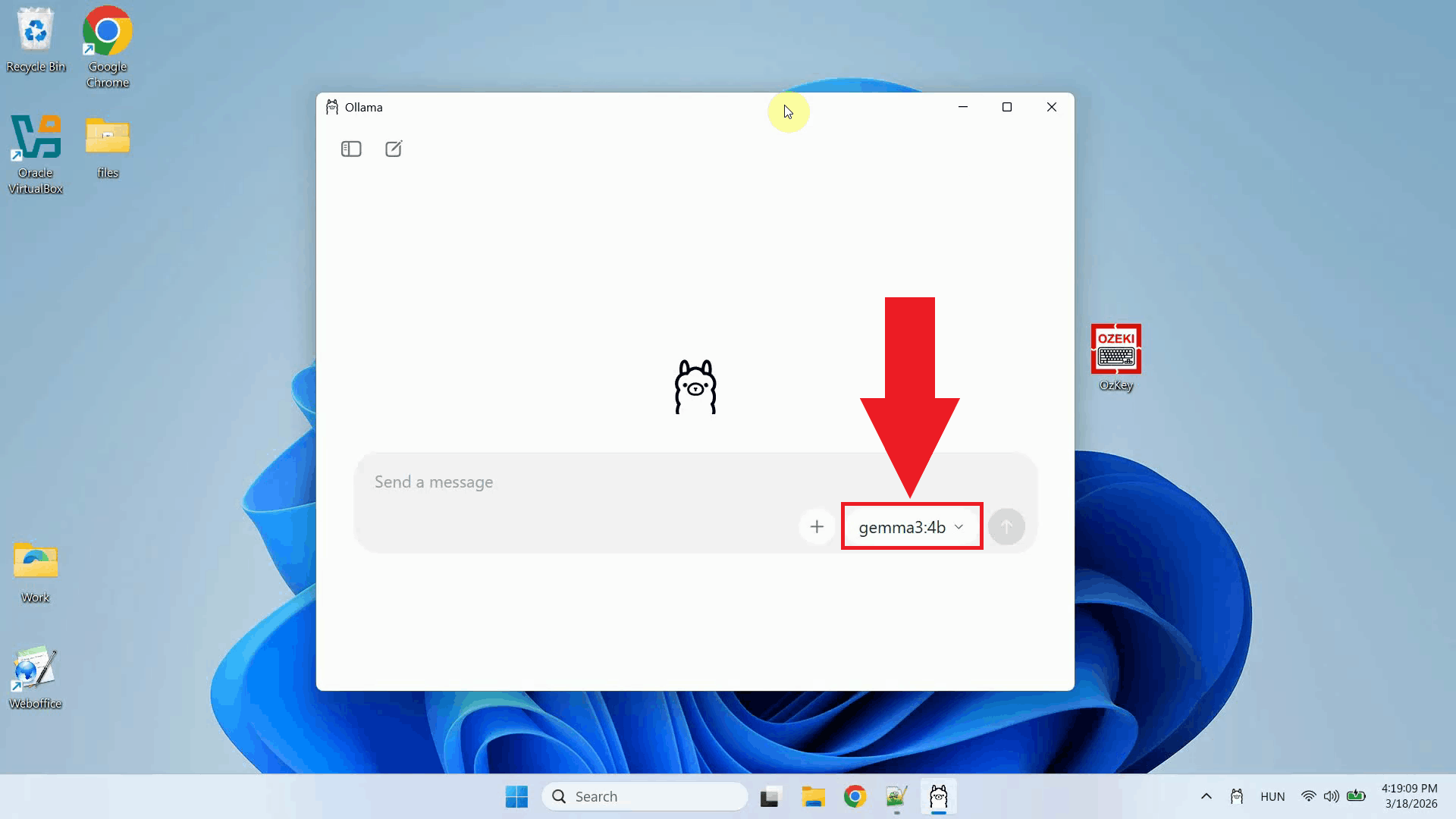
Step 1 - Verify Ollama is running
Before configuring Ozeki Voice Keyboard, confirm that Ollama is running on your
Windows machine and that the AI model you want to use is installed and available.
Ollama exposes an OpenAI-compatible API on http://localhost:11434/v1 by
default (Figure 1).
Step 2 - Open Ozeki Voice Keyboard and enable logging
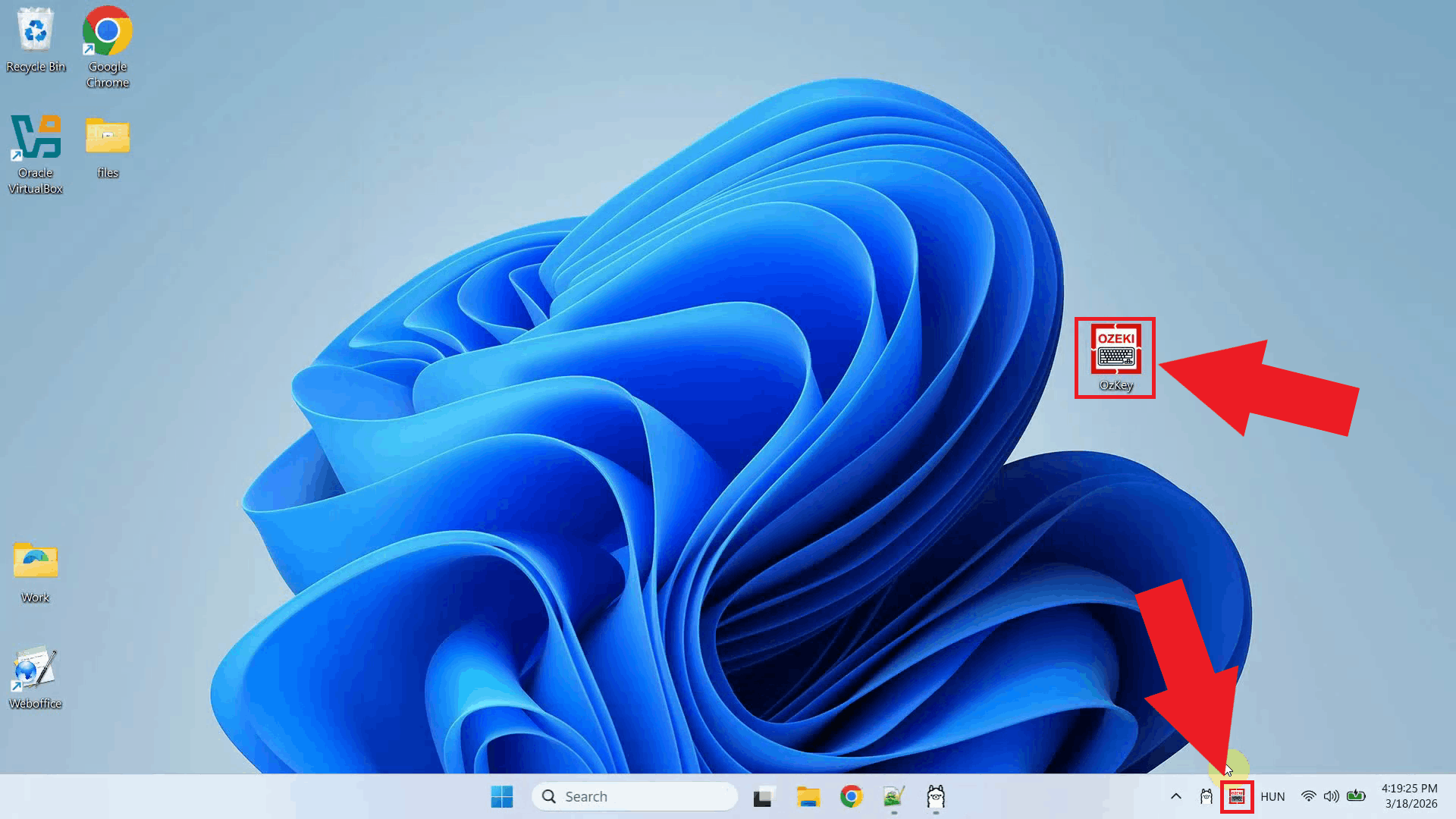
Open Ozeki Voice Keyboard and locate its icon in the system tray in the bottom right corner of your taskbar (Figure 2).
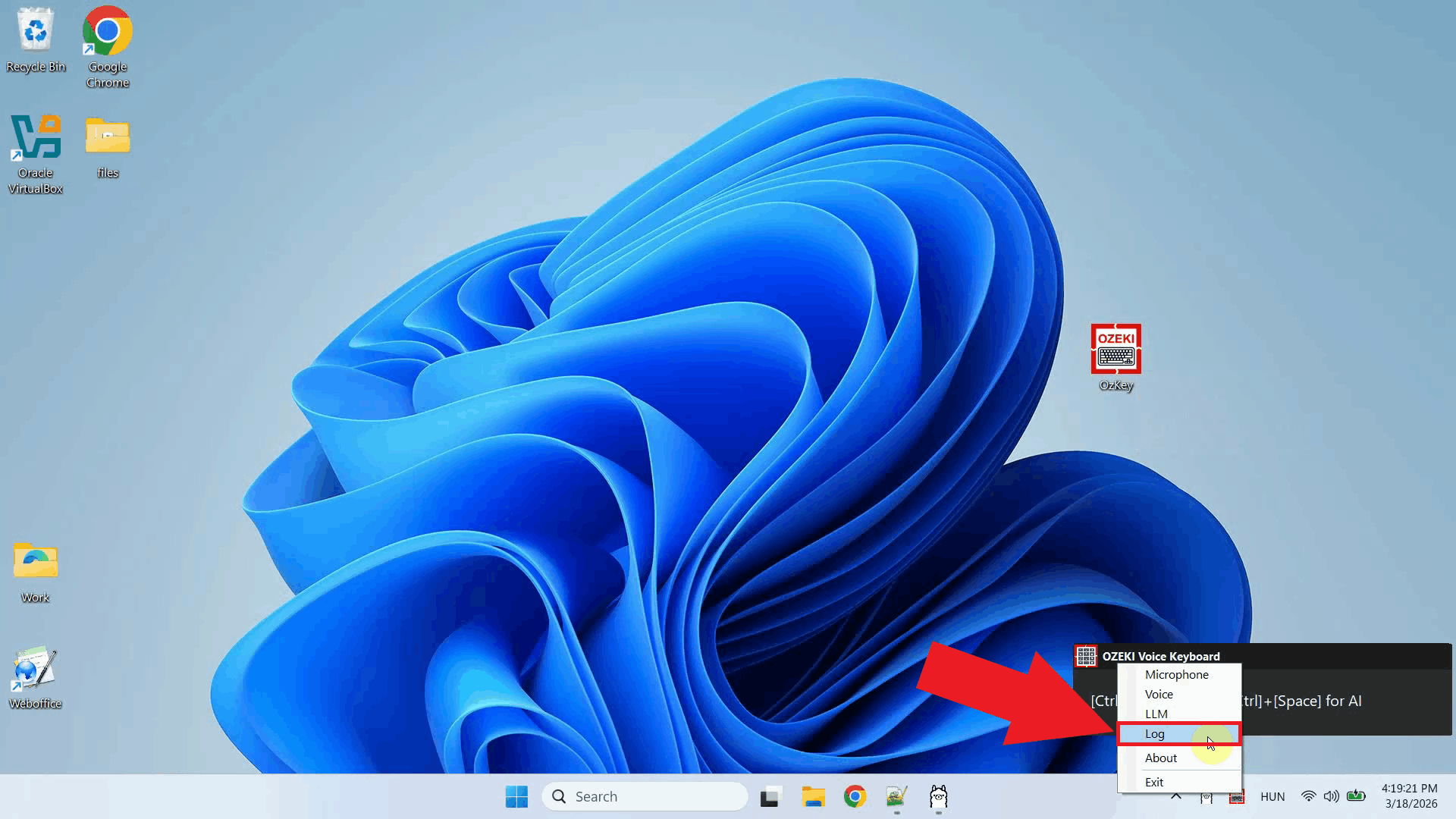
Before configuring the LLM settings, enable HTTP logging so you can verify that requests are reaching Ollama after setup. Right-click the tray icon and navigate to Logs from the context menu (Figure 3).
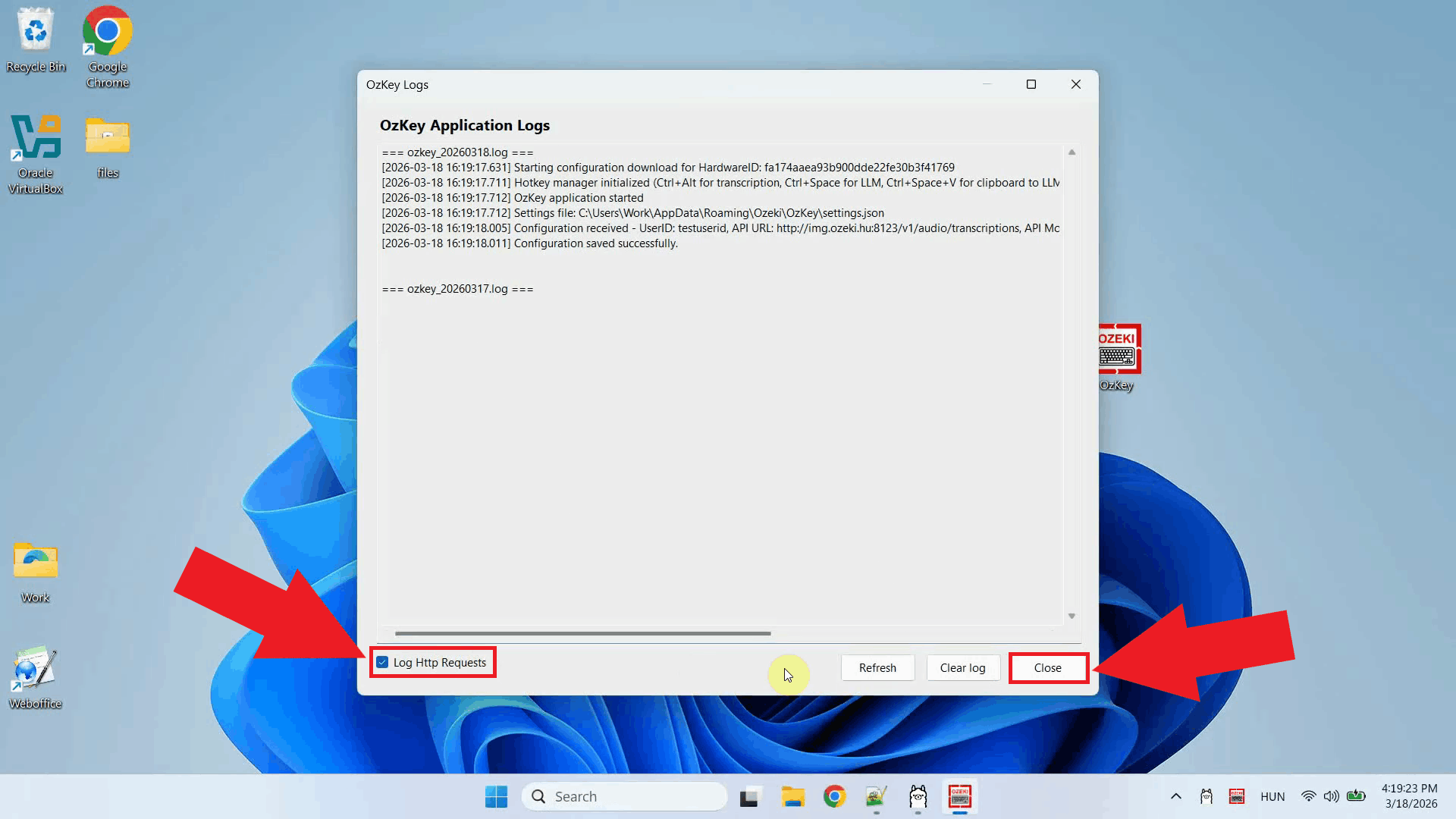
In the Logs window, enable HTTP logging and close the window. Outgoing requests to Ollama will now be recorded and visible in the log viewer (Figure 4).
Step 3 - Configure the LLM settings
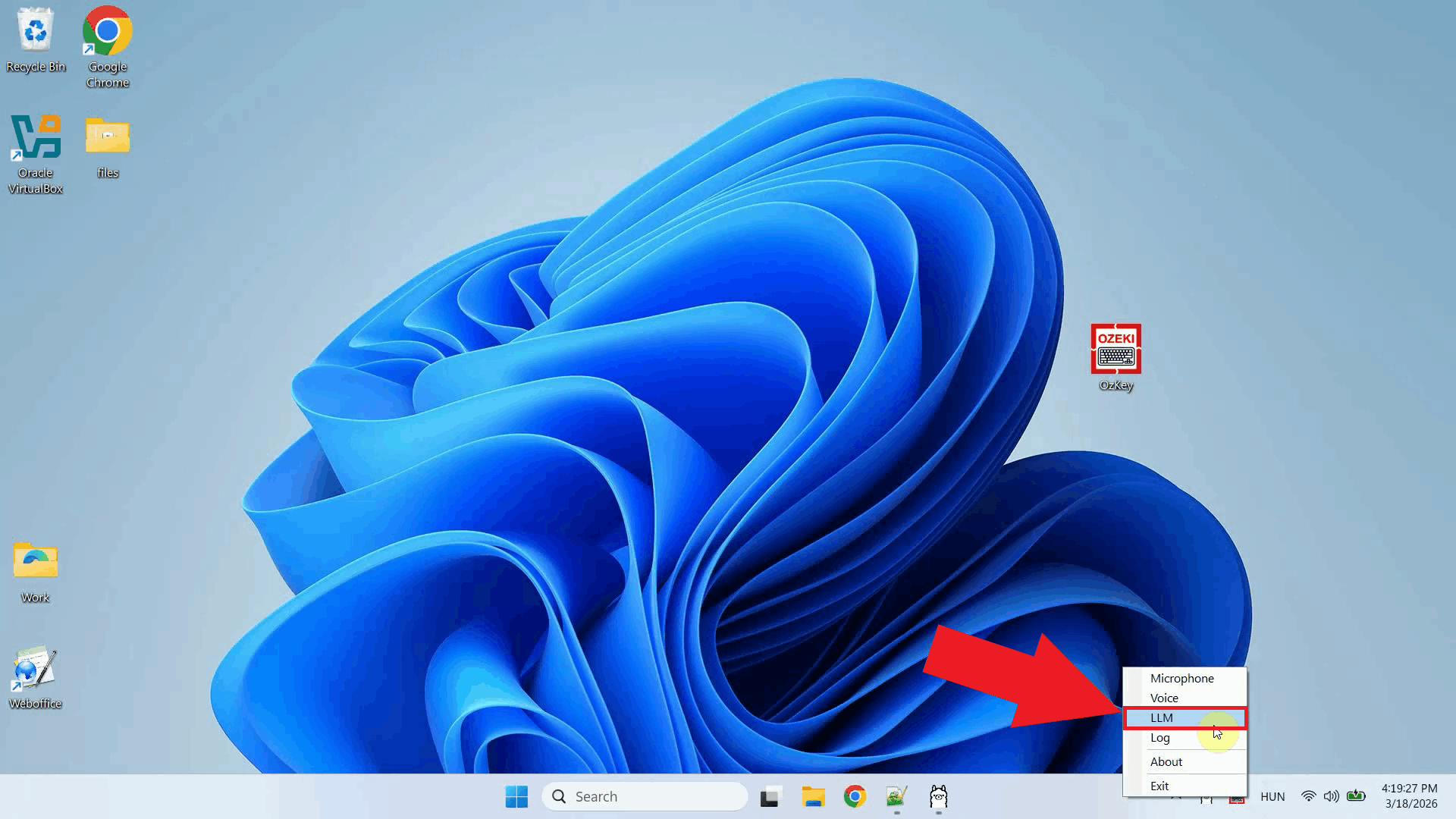
Right-click the tray icon and open the LLM settings from the context menu (Figure 5).
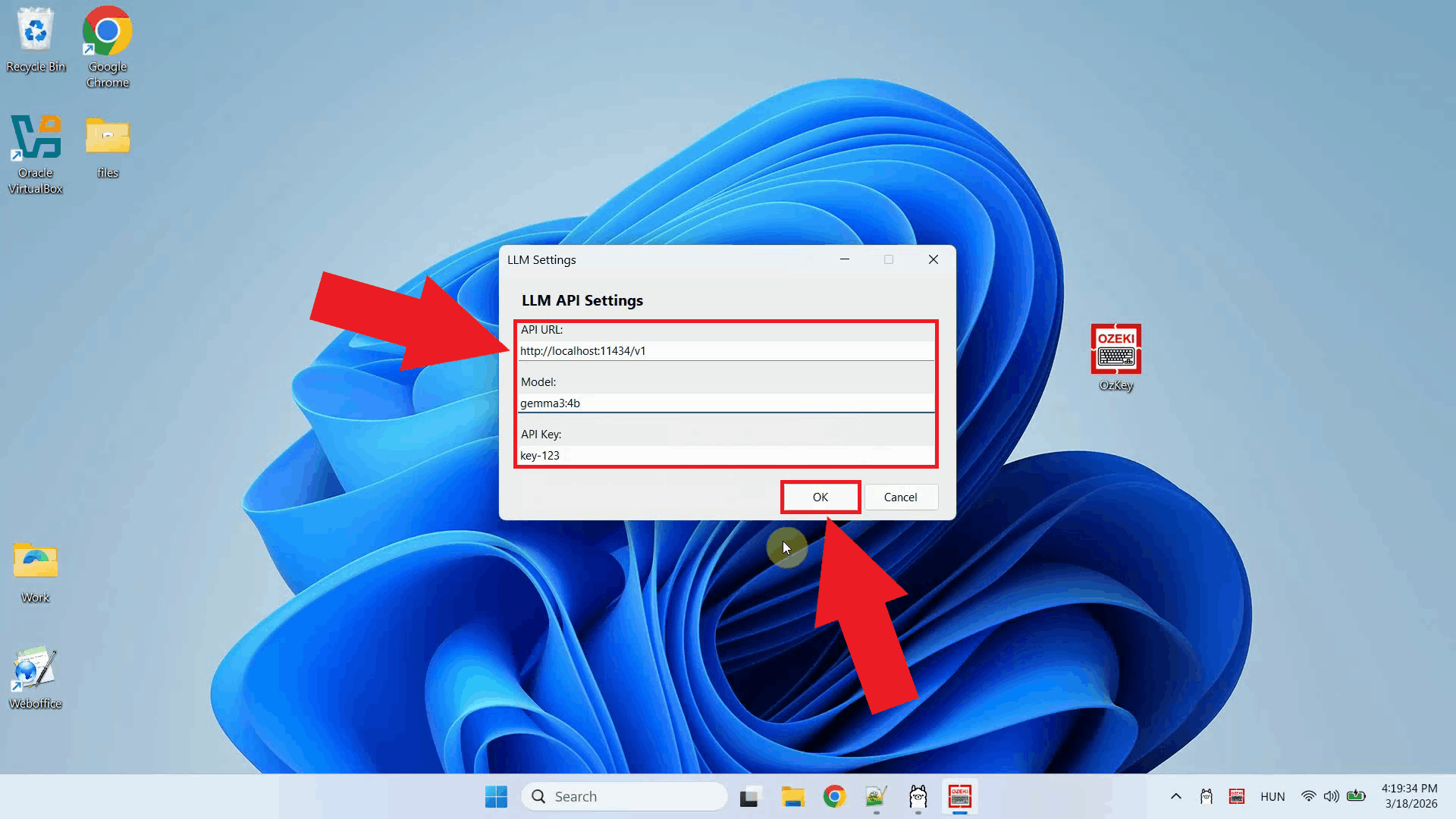
Enter the Ollama API URL and specify the model name you want to use. You can leave the API key field empty since a local Ollama instance does not require authentication. Click OK to save the settings (Figure 6).
http://localhost:11434/v1
Step 4 - Ask the AI assistant a question
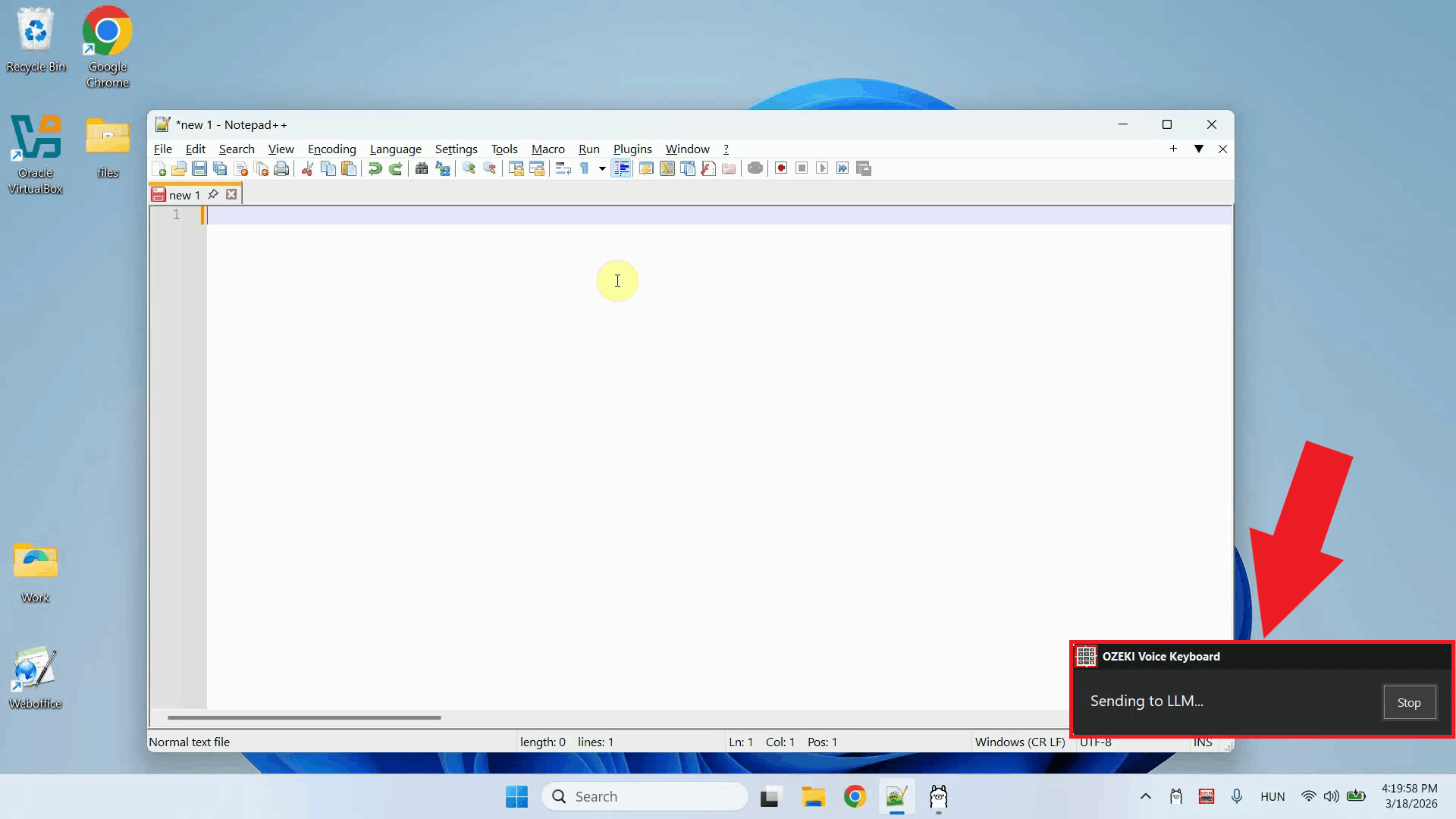
Place your cursor in any input field where you want the response to appear, then press and hold Ctrl + Space and speak your question into the microphone. Release the keys when you have finished speaking. Your voice will first be transcribed, then the text will be forwarded to Ollama as a prompt (Figure 7).
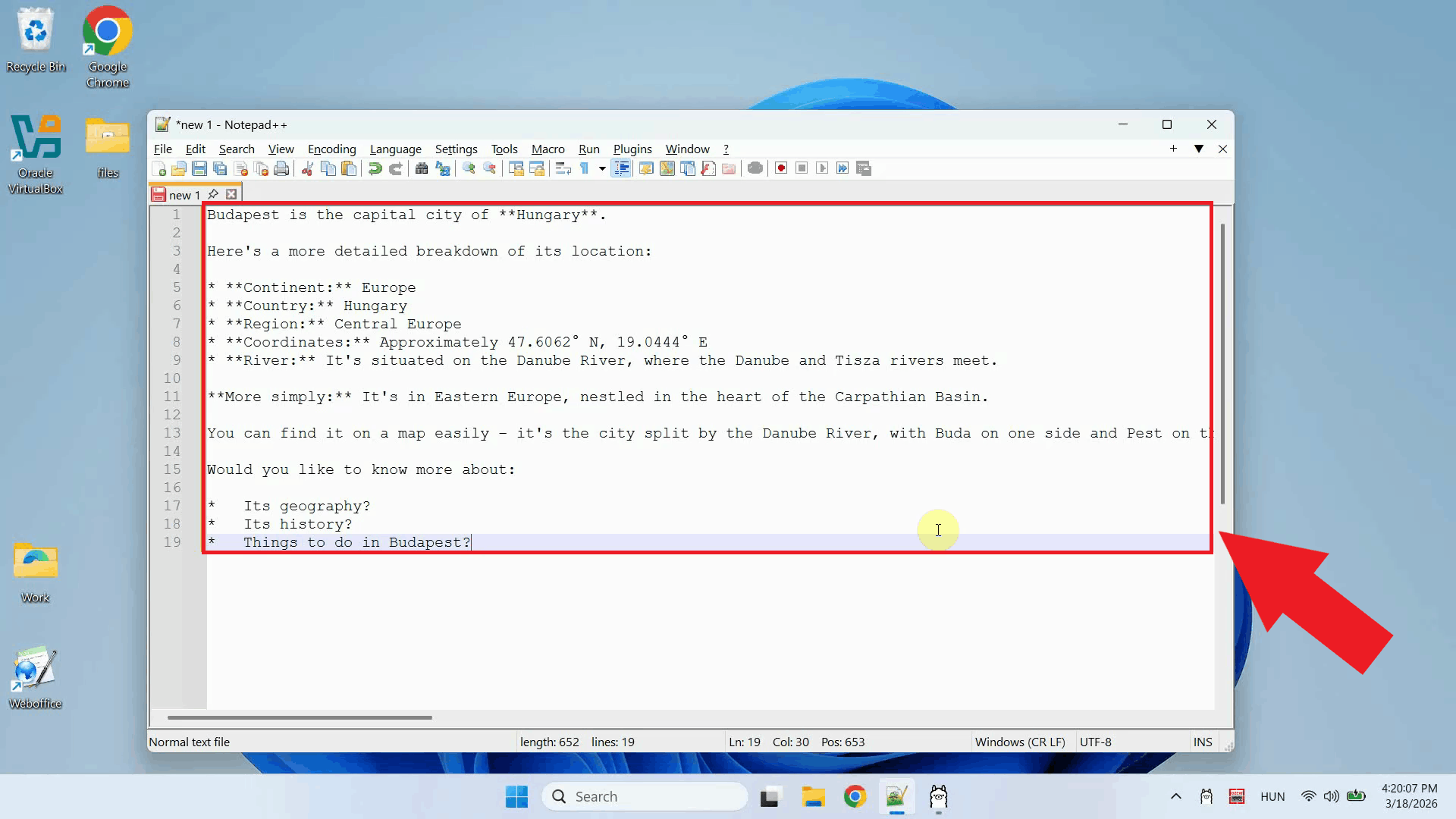
Once Ollama finishes generating the response, it is automatically pasted into the input field that was active when you started recording. No manual copying or pasting is required (Figure 8).
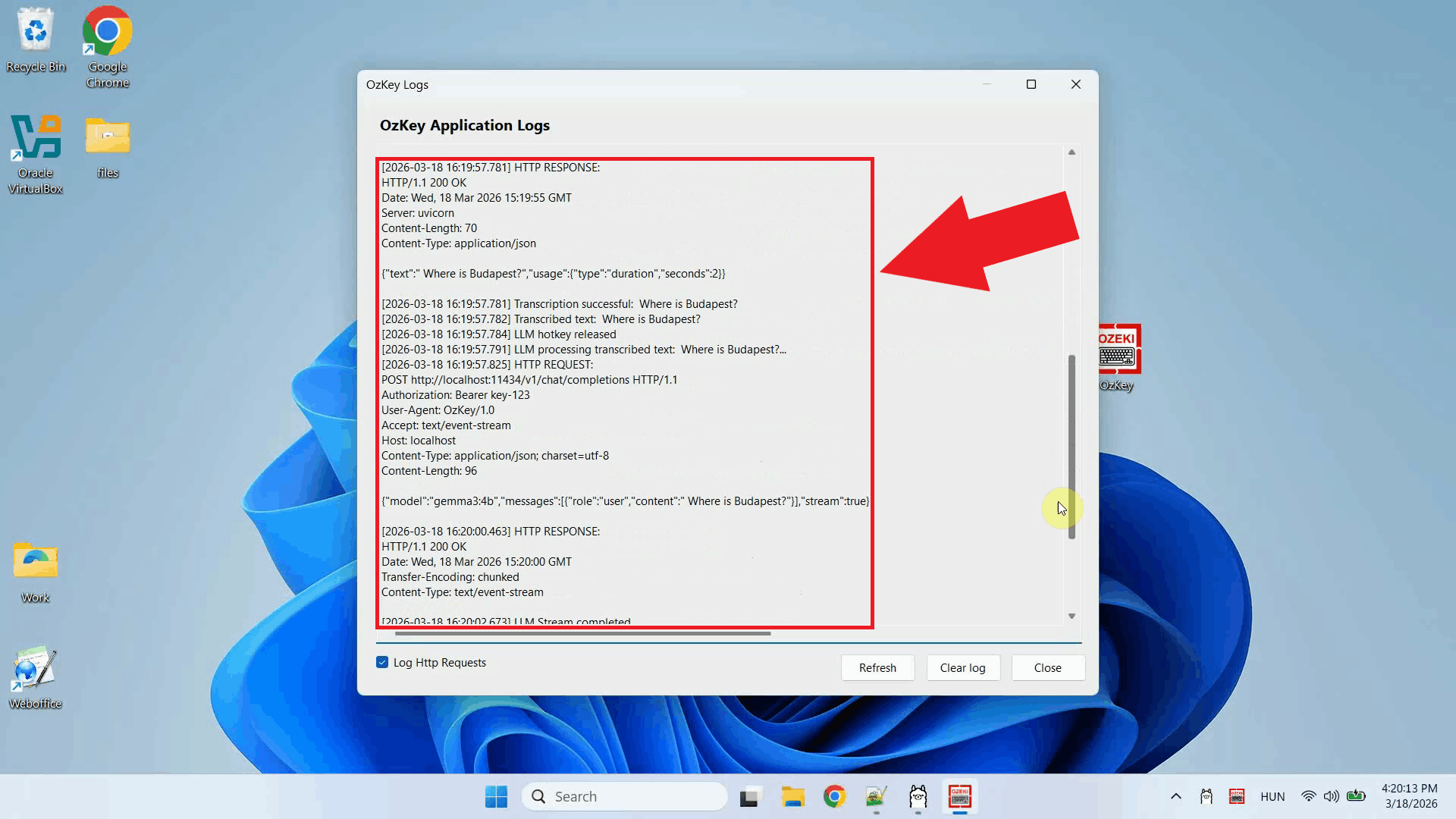
Step 5 - Check the request in logs
Open the Logs window to confirm that the request was sent correctly. You should see
an HTTP request to the Ollama /v1/chat/completions endpoint, confirming
that Ozeki Voice Keyboard is successfully communicating with the local Ollama instance (Figure 9).
Conclusion
You have successfully configured Ollama as the LLM backend for Ozeki Voice Keyboard on Windows. The AI assistant is now fully operational: press the hotkey, ask your question by voice, and the response will be generated by your local Ollama model and typed directly into whatever field is currently active on your screen.