
How to Uninstall Ozeki Voice Keyboard
This guide demonstrates how to uninstall Ozeki Voice Keyboard from your Windows system using the built-in uninstaller. You will learn how to locate the application in the Windows installed apps list and remove it cleanly in just a few steps.
Steps to follow
How to uninstall Ozeki Voice Keyboard video
The following video shows how to uninstall Ozeki Voice Keyboard step-by-step. The video covers opening the installed apps list, finding Ozeki Voice Keyboard, and running the uninstaller to completion.
Step 1 - Open the Installed Apps menu
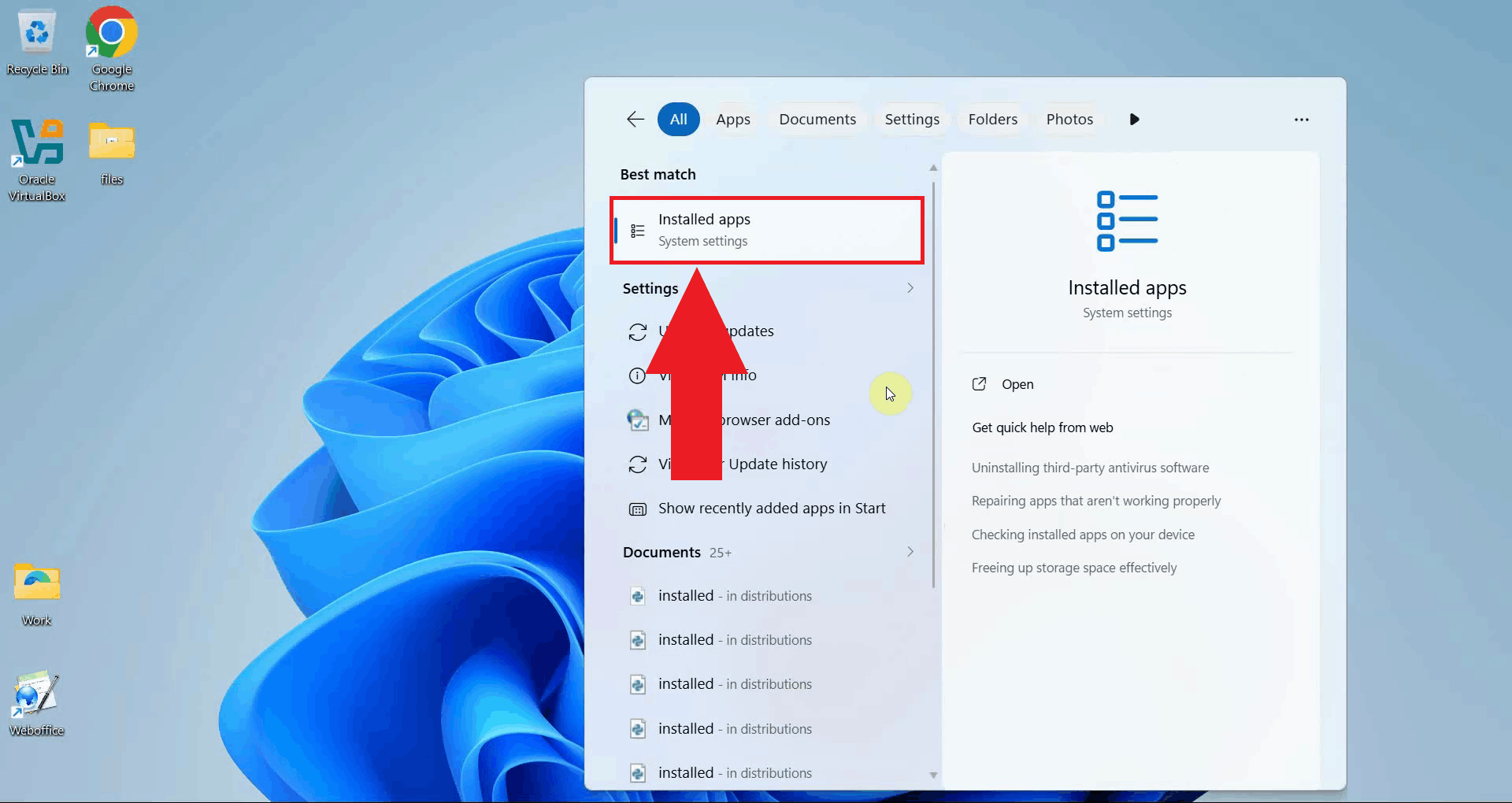
Click the Windows Search bar in the taskbar and type Installed Apps. Select the Installed Apps system settings result to open the page directly. This page lists all applications currently installed on your system and provides options to modify or remove them (Figure 1).
Step 2 - Search for OzKey
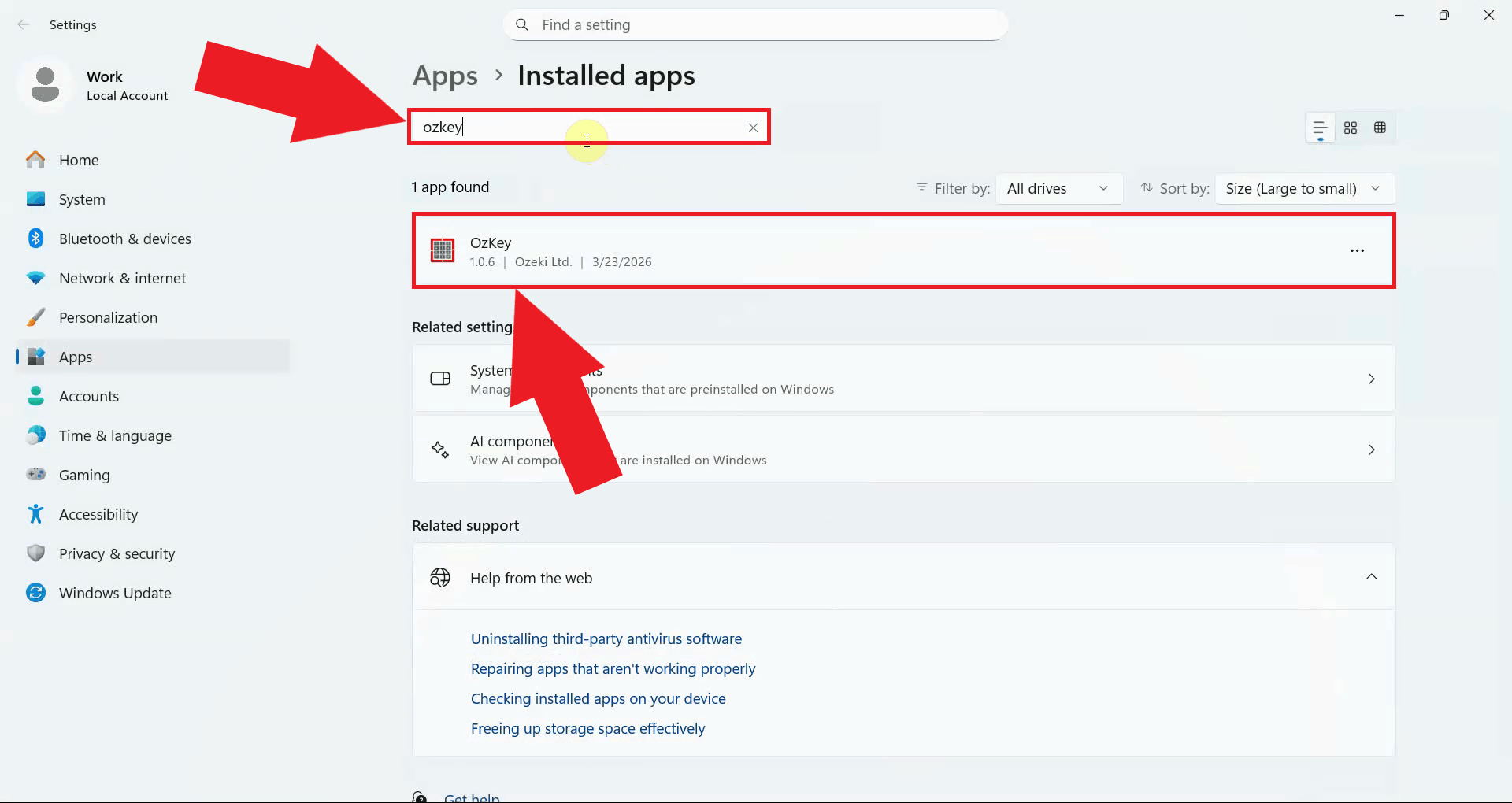
Use the search bar at the top of the Installed Apps page and type OzKey to filter the list. The application will appear in the results once the search completes (Figure 2).
Step 3 - Uninstall Ozeki Voice Keyboard
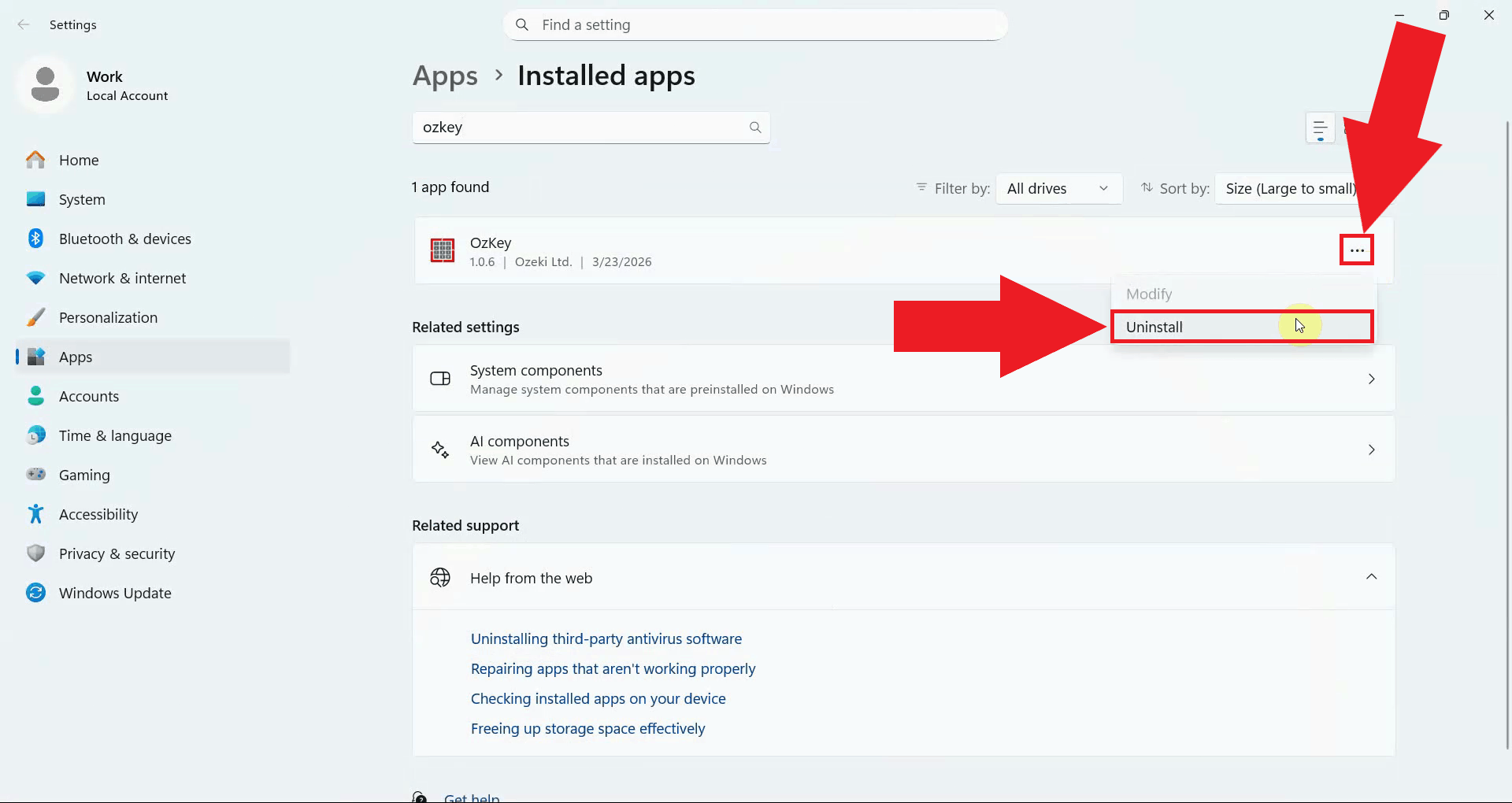
Click the three-dot menu button on the right side of the OzKey entry to expand the available options. Select Uninstall from the dropdown menu to launch the OzKey uninstaller (Figure 3).
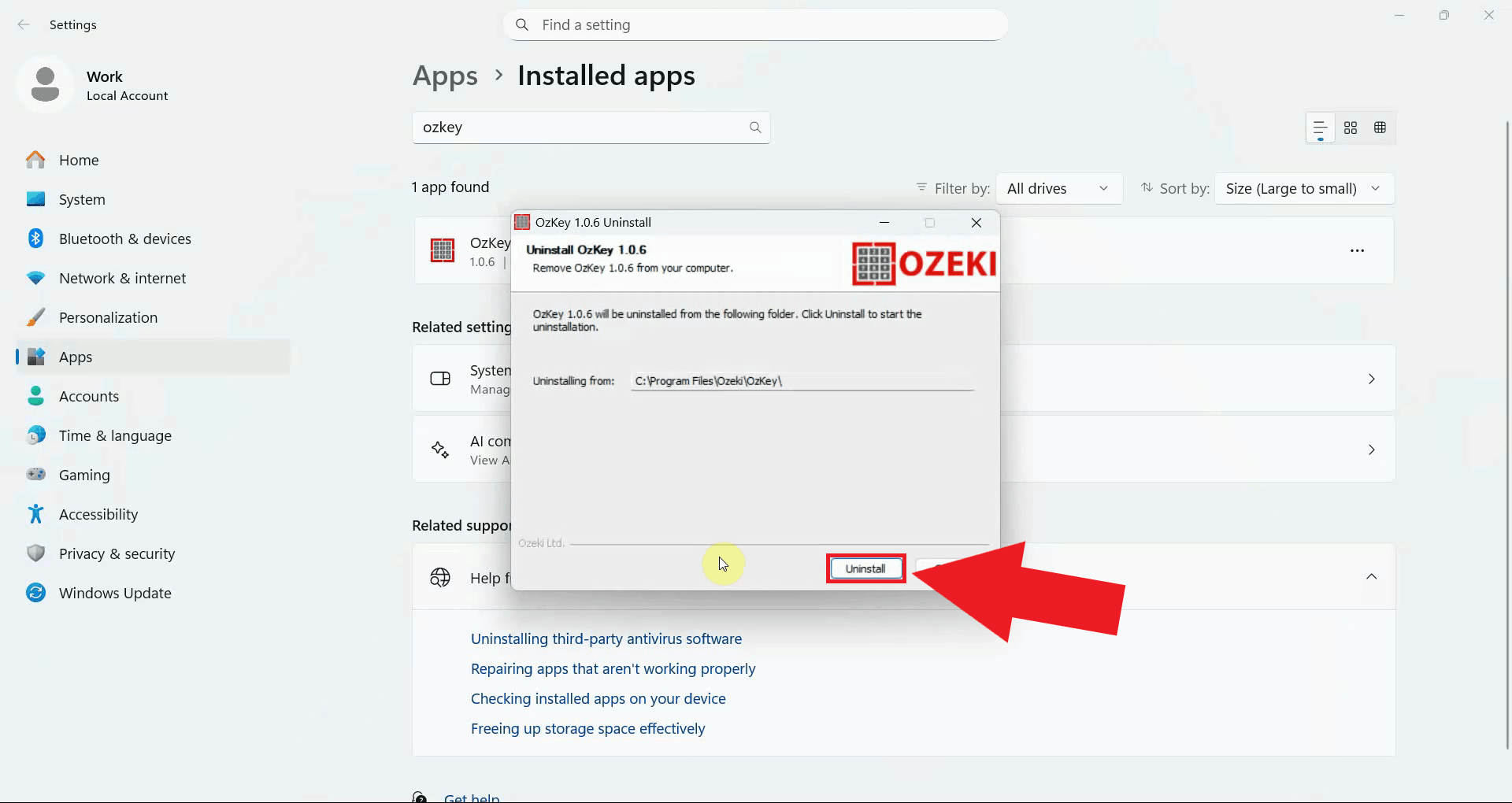
The OzKey uninstaller window will open. Click the Uninstall button to begin removing the application. The uninstaller will automatically remove all application files and entries from your system (Figure 4).
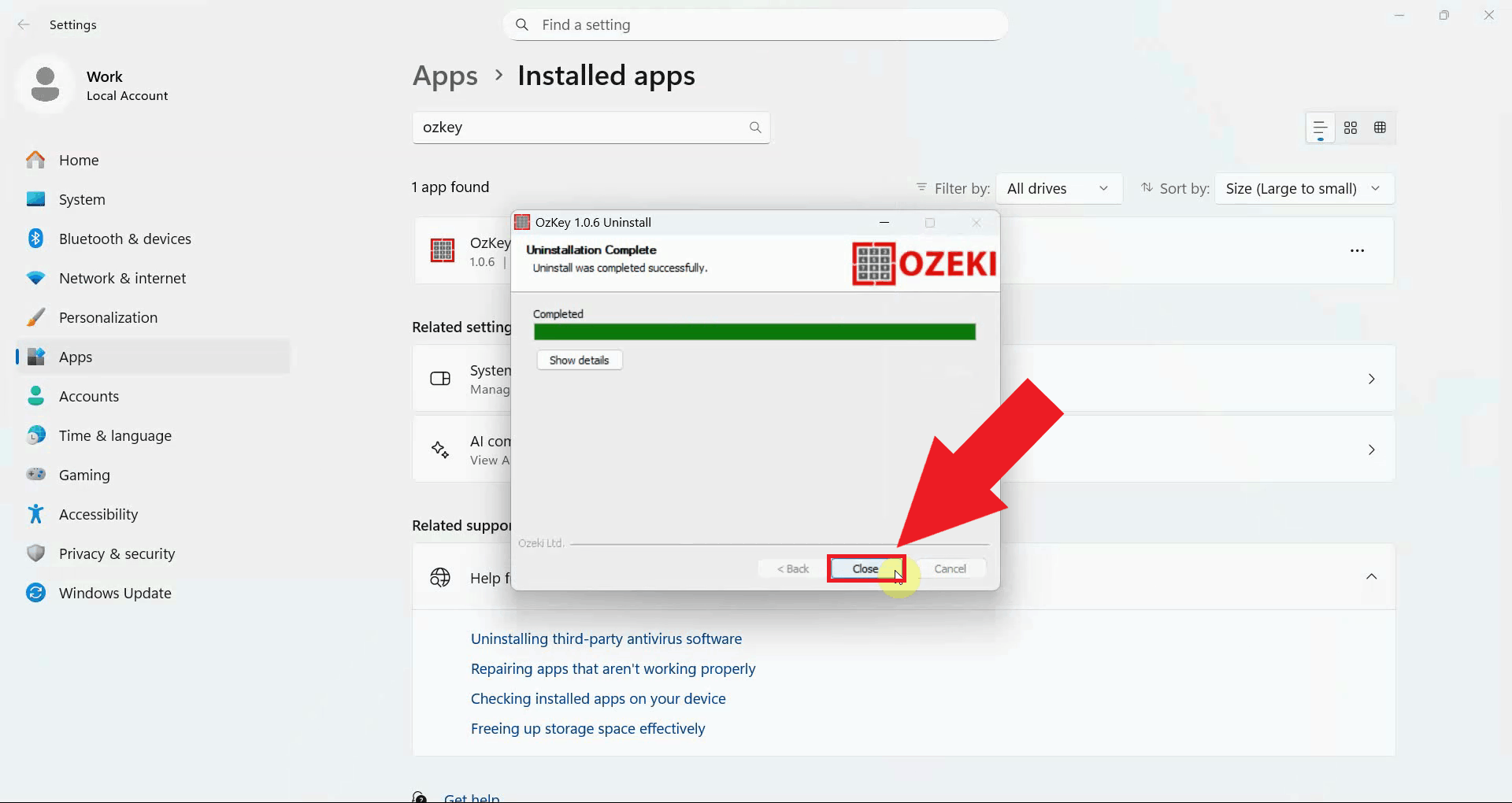
Once the uninstallation is complete, the window will display a confirmation message. Click Close to dismiss the window. Ozeki Voice Keyboard has now been fully removed from your system (Figure 5).
Conclusion
You have successfully uninstalled Ozeki Voice Keyboard from your Windows system using the built-in uninstaller. All application files and system entries have been removed automatically without requiring any manual cleanup.