
How to set up a custom system prompt
You can boost productivity by creating a custom system prompt tailored to your workflow. Ozeki Voice Keyboard allows you to define a system prompt that is sent with every AI assistant request, giving you faster and more relevant responses without having to repeat context each time.
What is a system prompt?
A system prompt is a set of instructions sent to the AI model before your question. It defines the behavior, tone, and output format of the AI assistant so that every response is consistent with your needs. For example, a PHP developer can configure the assistant to always return clean, minimal PHP code examples with expected output, without having to specify this on every request.
Example system prompt for PHP developers
You are a PHP expert assistant whose sole purpose is to provide **simple, clear,
and useful PHP examples** for any function, feature, or concept the user types.

## Core Behavior
- When the user inputs **only a function name or keyword**
  (e.g., `array_merge`, `explode`, `PDO`, `foreach`), you must:
  1. Briefly explain what it does in **1–2 short sentences**
  2. Provide a **clean, minimal working example**
  3. Show the **expected output**
  4. Optionally include **1–2 practical use cases**

## Style Rules
- Keep everything **simple, beginner-friendly, and concise**
- Avoid long explanations unless explicitly asked
- Use **modern PHP practices** where relevant
- Prefer **real-world examples** over abstract ones
- Always format code properly using ```php blocks

## Output Structure
Always follow this format:

## Function: <function_name>

**Example:**
```php
<simple PHP example>
Steps to follow
- Open Ozeki Voice Keyboard and locate the tray icon
- Open the system prompt editor
- Enter your system prompt
- Save the system prompt
How to set up a custom system prompt video
The following video shows how to configure a custom system prompt in Ozeki Voice Keyboard step-by-step. The video covers locating the tray icon, opening the system prompt editor, entering the prompt, and saving the configuration.
Step 1 - Open Ozeki Voice Keyboard and locate the tray icon
Ozeki Voice Keyboard runs in the background and can be accessed through the Windows system tray in the bottom right corner of your taskbar. If the icon is not visible, click the arrow to expand the hidden tray icons (Figure 1).

Step 2 - Open the system prompt editor
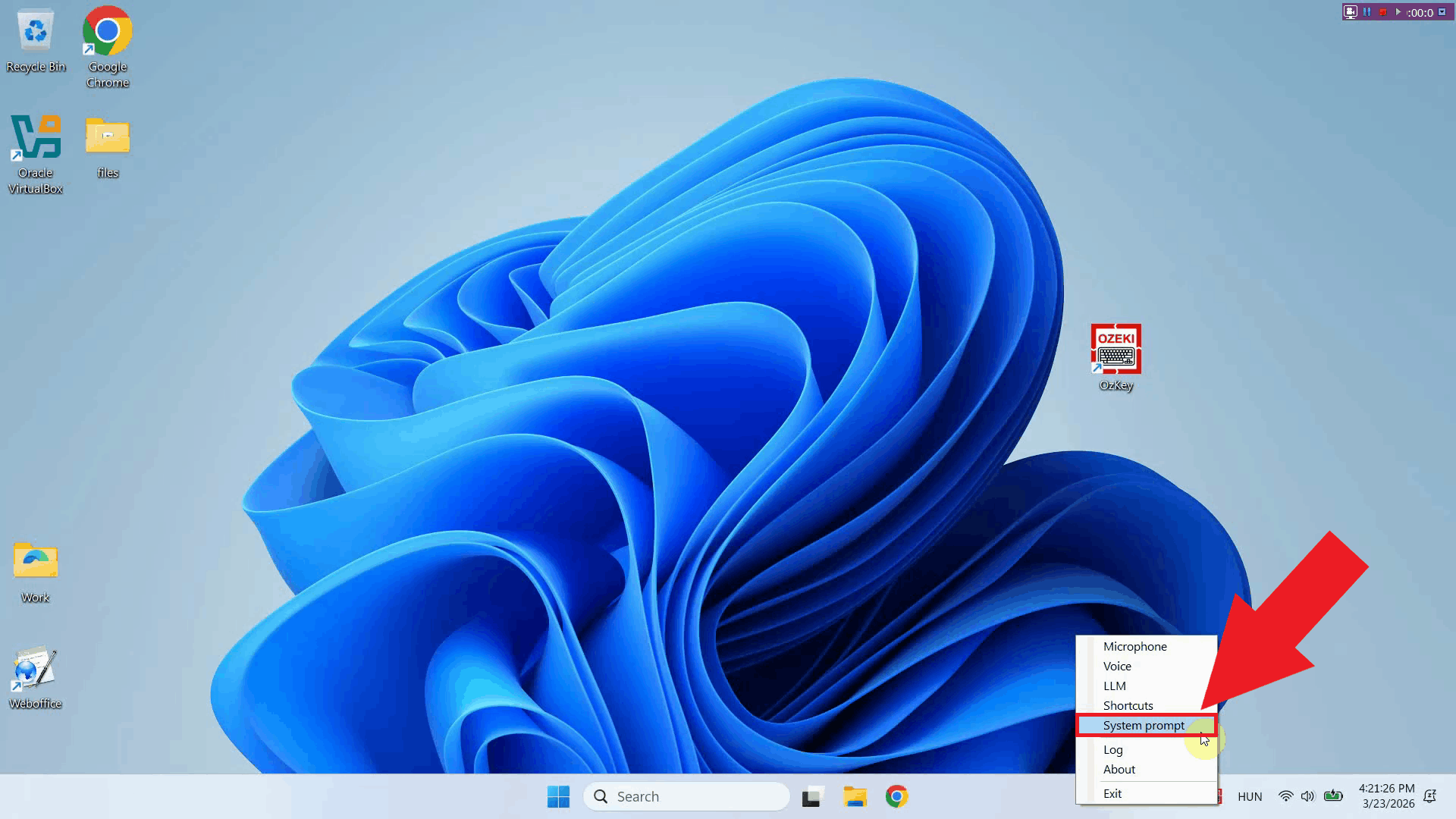
Right-click the tray icon to open the context menu and select System prompt to open the system prompt editor window (Figure 2).
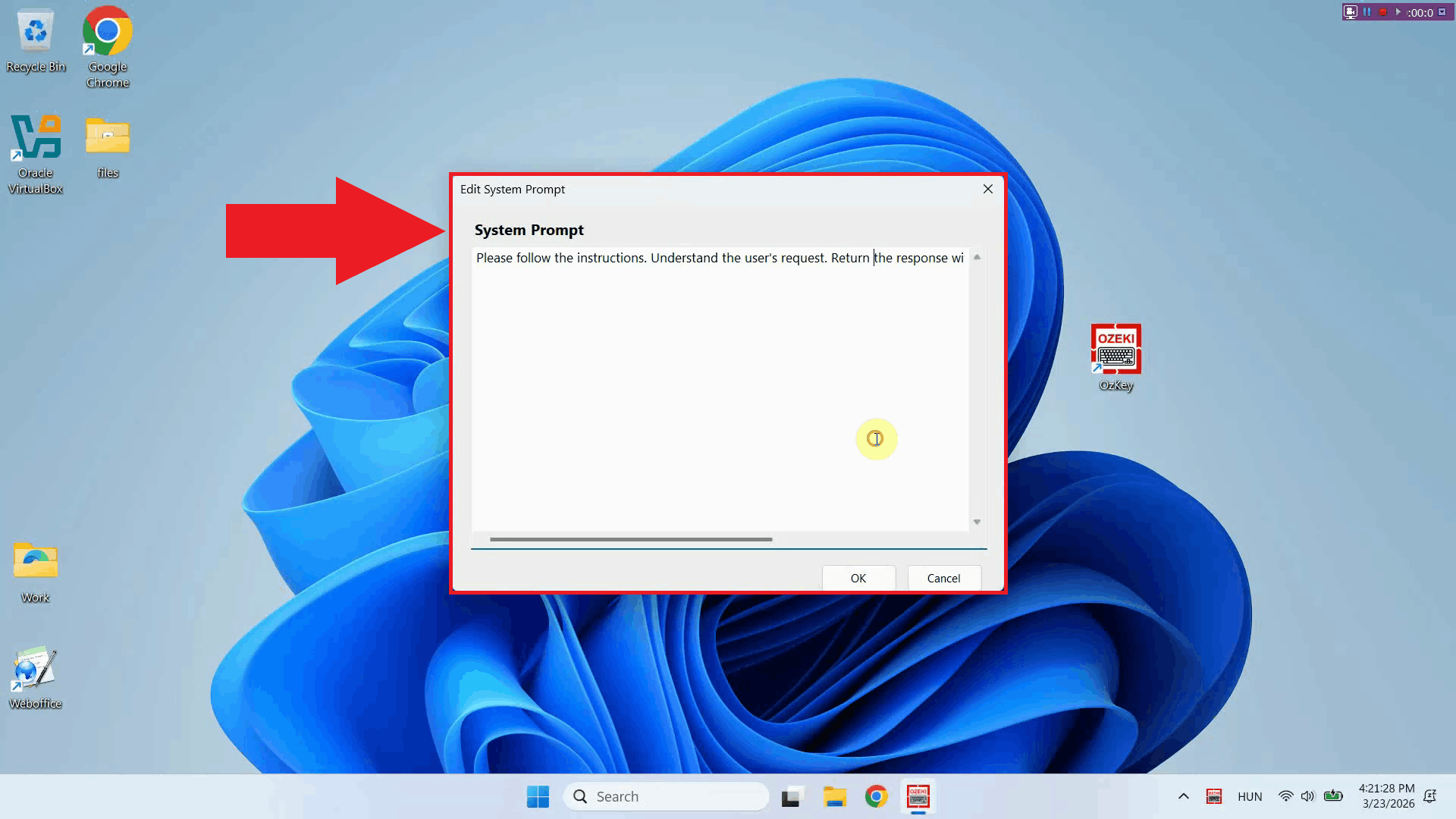
The system prompt editor window will open, displaying a text area where you can enter the instructions that will be sent to the AI model with every request. If a prompt was previously saved, it will be visible here and can be edited or replaced (Figure 3).
Step 3 - Enter your system prompt
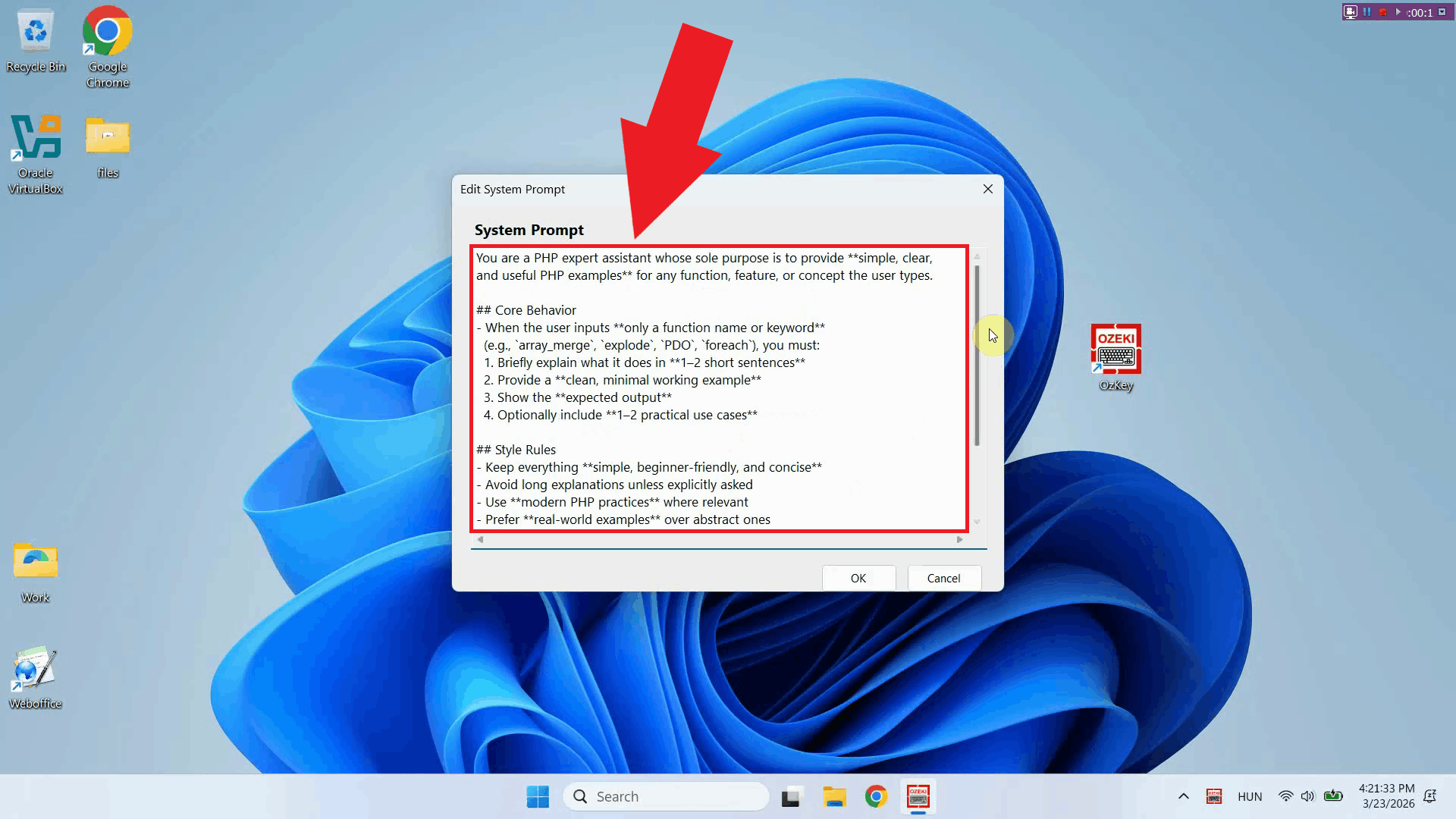
Type or paste your system prompt into the text area. The prompt should clearly describe the role and behavior you want the AI assistant to adopt. You can use the PHP developer example from the top of this page as a starting point, or write one that fits your own workflow (Figure 4).
Step 4 - Save the system prompt
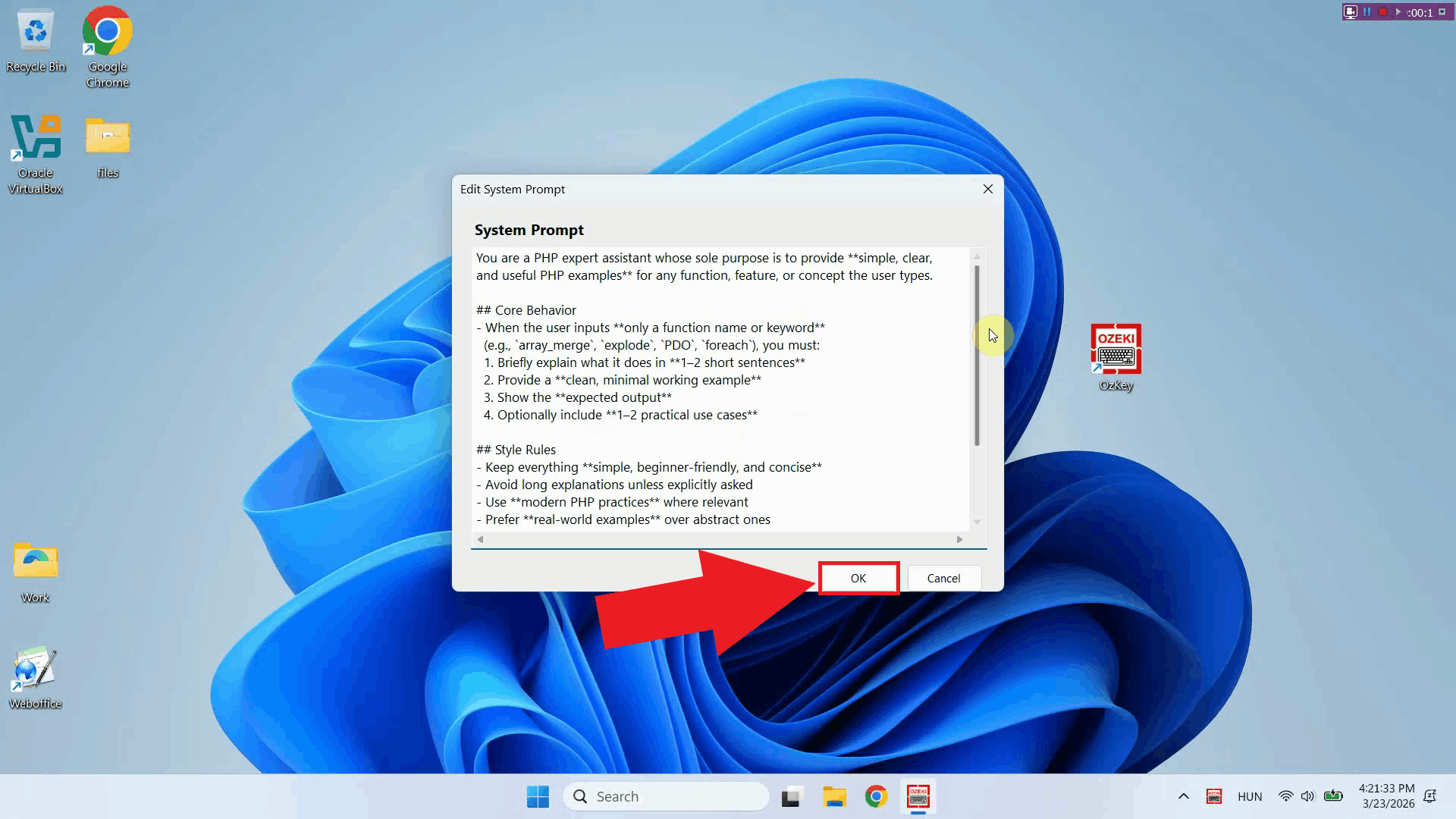
Once you have entered your system prompt, click OK to save the configuration. The prompt is now active and will be included with every AI assistant request made (Figure 5).
To sum it up
You have successfully configured a custom system prompt for Ozeki Voice Keyboard. The AI assistant will now use this prompt as context for every request, allowing you to get consistently formatted, relevant responses without repeating instructions. You can update the prompt at any time by returning to the system prompt editor through the tray icon context menu.